

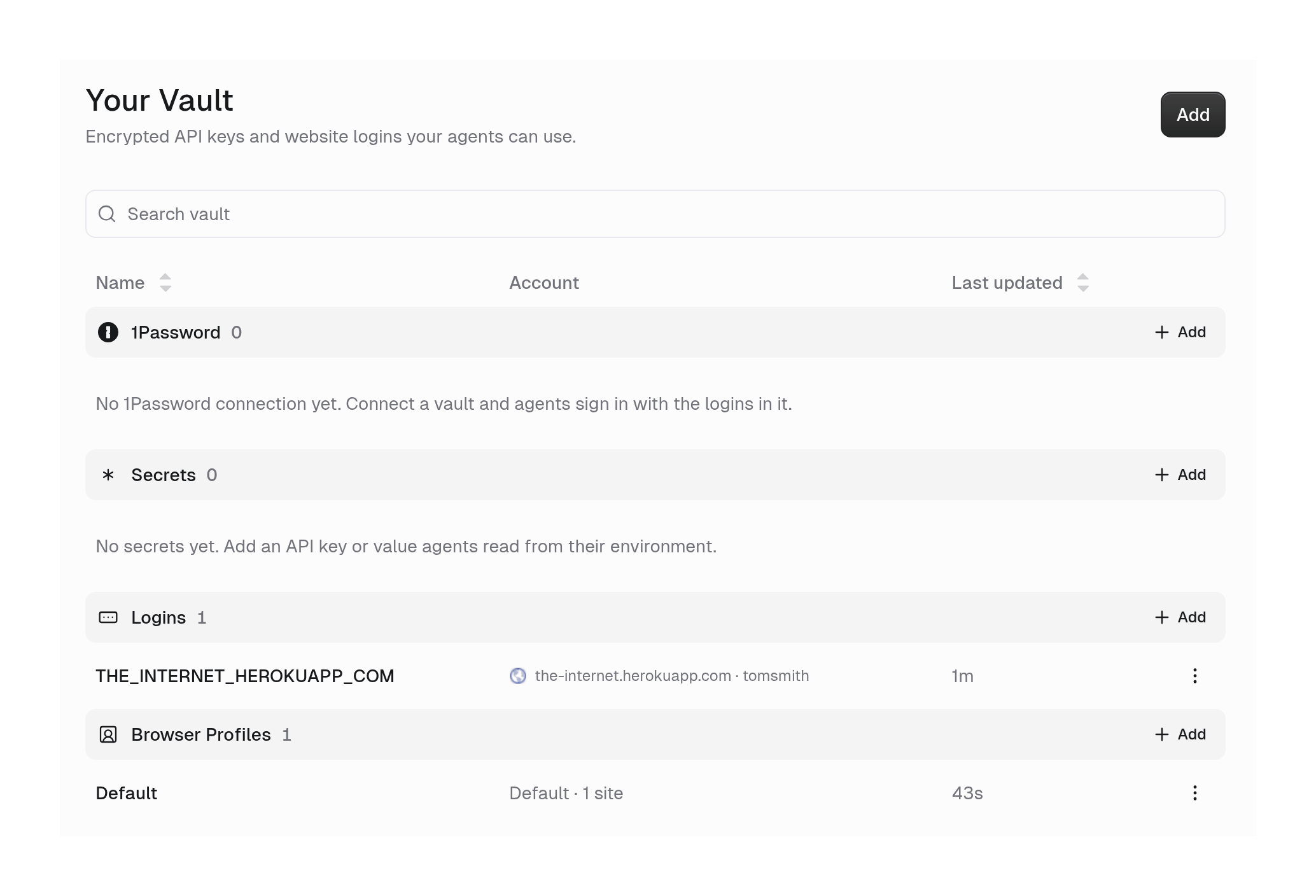
Logins and Browser Profiles in the Vault.
User-owned or agent-owned: Whose accounts does the agent use?
Two settings on this page, Browser profile and 1Password, ask the same question: when someone runs the agent, whose accounts does it use? You answer it with the same choice each time.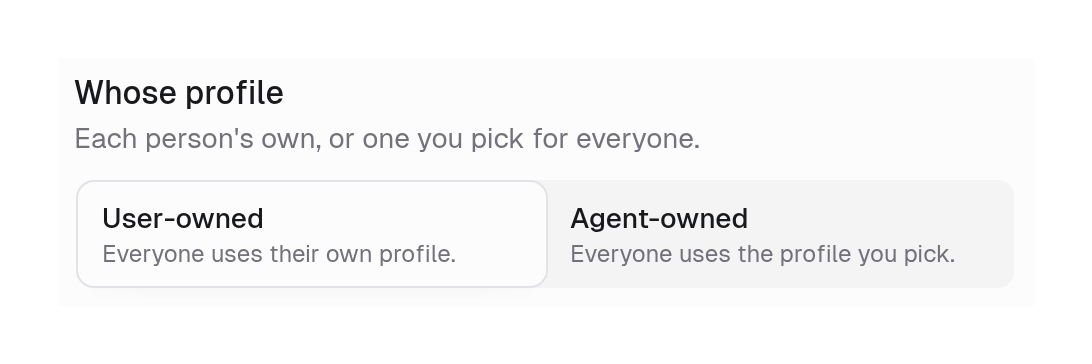
The same choice appears on the Browser profile and 1Password settings.
- User-owned (default)
- Agent-owned
- Browser profile: each person’s own saved sign-ins.
- 1Password: each person’s own service account.
Logins
A login is a website username, password, and optional 2FA authenticator key, stored encrypted in your Vault. When the agent signs in, it names the login and Gumloop types the values into the page after checking the site. The password and 2FA key never reach the agent or its sandbox environment.How do I add a login?
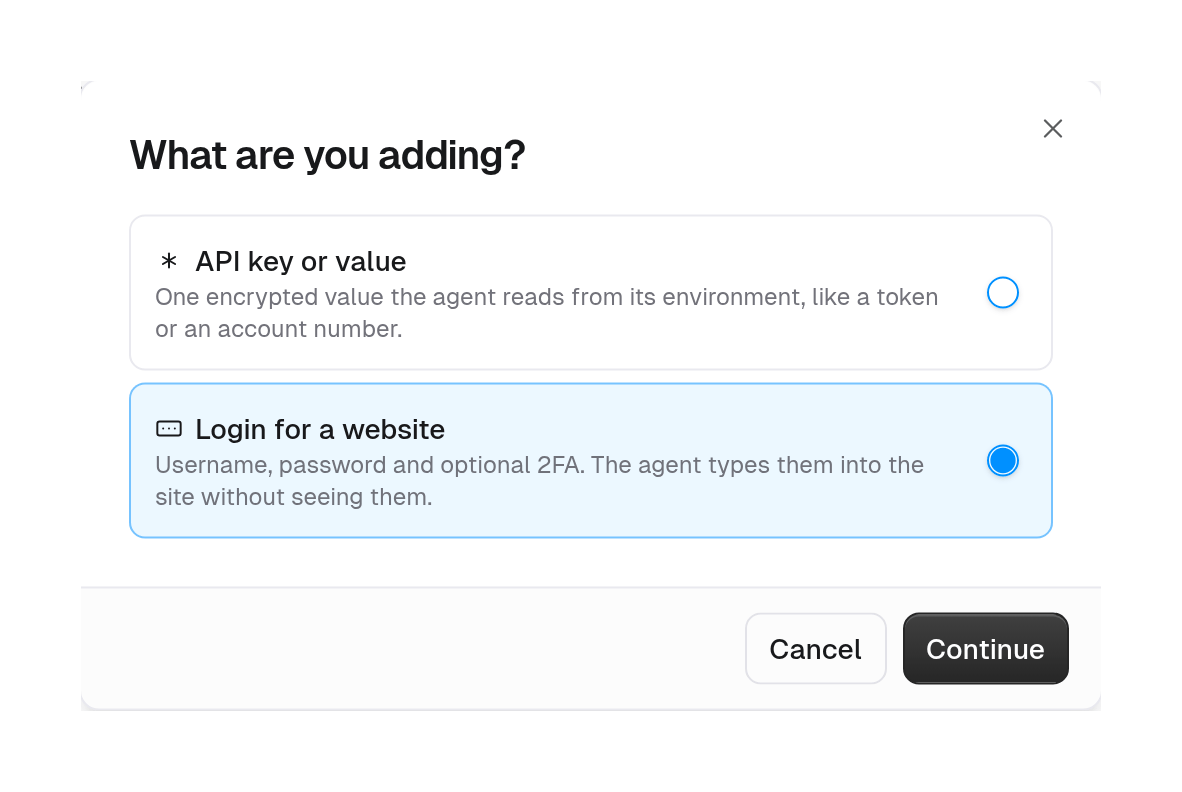
Open your Vault
Choose Login for a website
Fill in the login
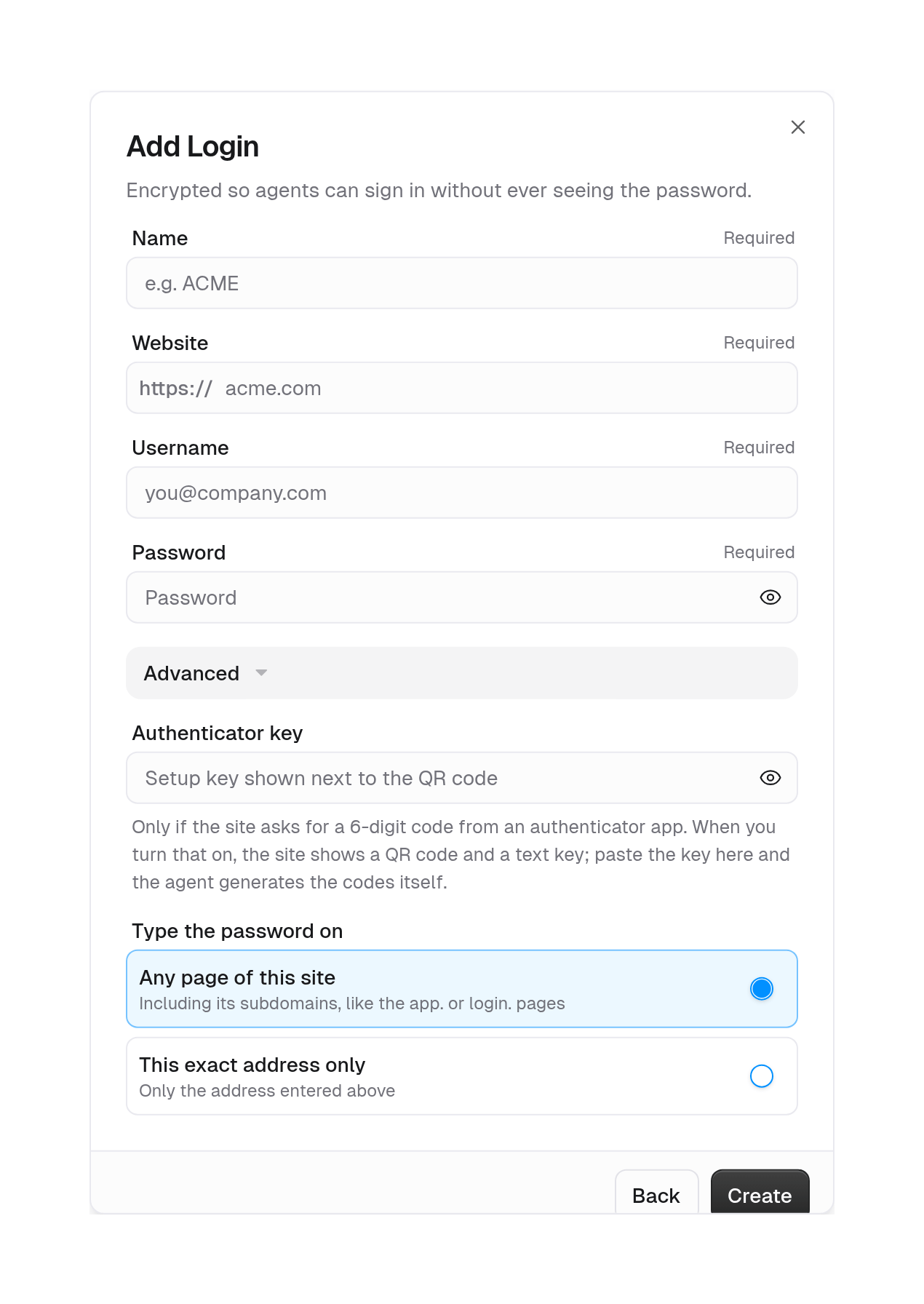
Click Create
How do I give an agent a login?
In the agent’s Browser section, click + Login. In Add login to agent, choose a Name for the agent to use, then a Source: an Existing login from your Vault, or a New login created on the spot.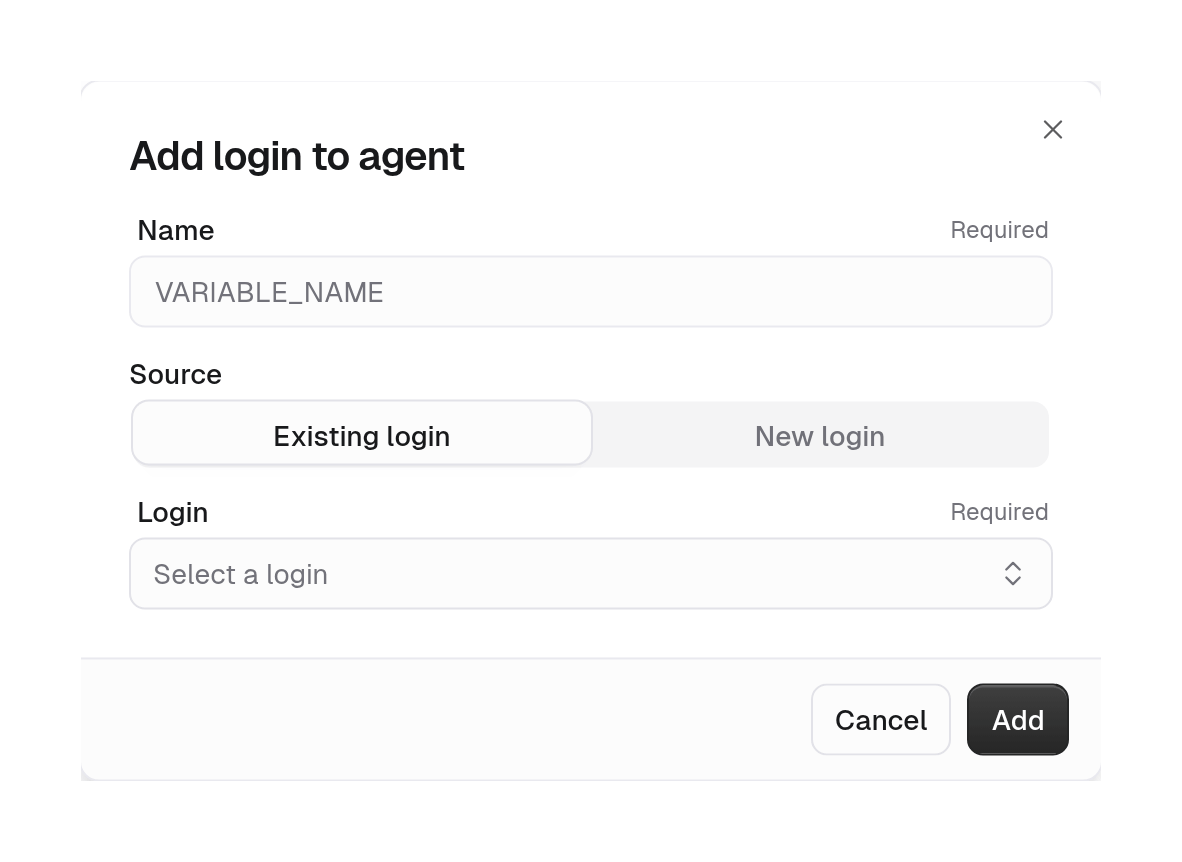
Where can a login be typed?
Every fill is checked before anything is typed. The page field’s scheme and port must match the login’s website, and its host must match the Type the password on setting:github.io or herokuapp.com count each subdomain as its own site, so a login for alice.github.io never types on bob.github.io.
This applies to saved passwords only. Card numbers and codes you provide in a browser handoff can go into a payment frame embedded in the site’s page.
If the check fails, nothing is typed and the agent is told to ask you with a handoff instead.
How do I save a login from a handoff?
When you enter a new username and password in a handoff card, tick Save login for<site> before you click Continue. If the agent is in a team, choose who can use it: Only me or My team.
Gumloop saves the login to the chosen Vault so the agent can use it on later sign-ins.
Can I reuse a saved secret in a handoff?
Choose Existing > Select a secret in a sensitive field to reuse a saved secret. The picker includes personal and team Vault secrets you can access, not saved website logins or connector credentials. If you select a secret for the password, Save login is not offered. Gumloop keeps the selected value out of the transcript and types it only on the host shown in the handoff. See Agent browser.Browser profiles
A browser profile is how the agent’s browser remembers which websites it is signed in to. It works like your own Chrome: sign in to a site once, and next time you open the browser you are still signed in. Without a profile, every task would start with a fresh browser that is signed out of everything.How does a profile keep the agent signed in?
The agent signs in once
Gumloop saves the sign-in
The next task starts signed in
What’s the difference between a profile and a login?
Who owns a browser profile?
A profile belongs to a person or a team, never to an agent. An agent that uses a profile can use every site that profile is signed in to.Can everyone who runs the agent share one profile?
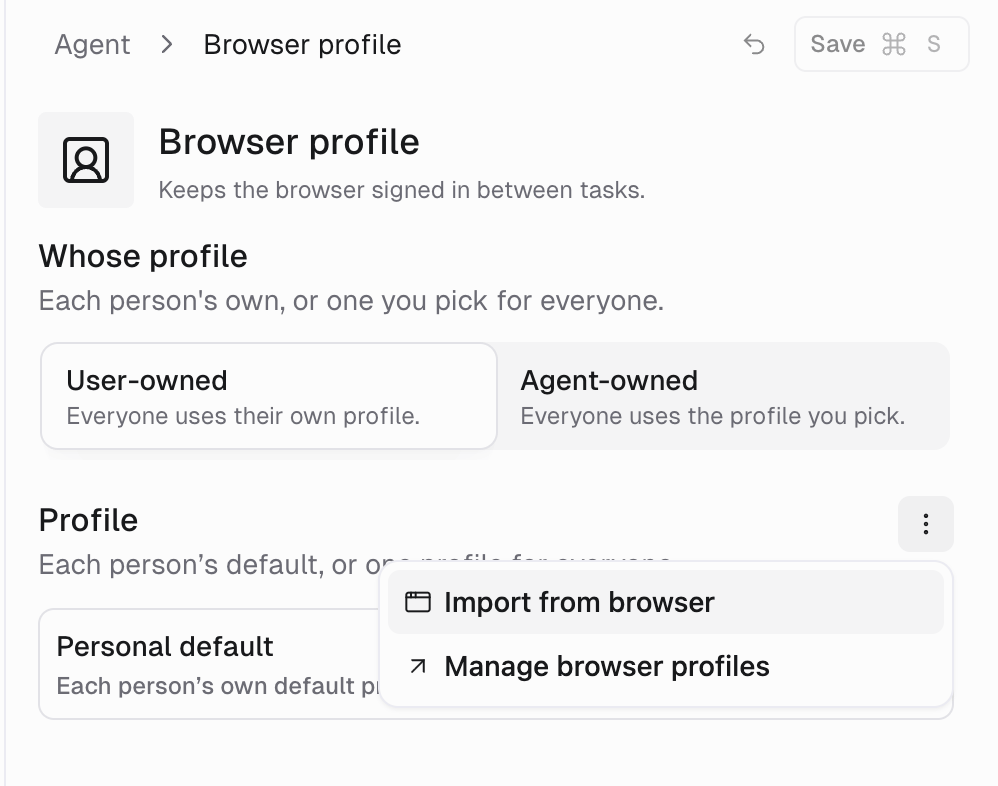
Yes, with Agent-owned. By default the profile is User-owned, so everyone uses their own sign-ins. To change it, click Browser profile in the agent’s Browser section and pick an option under Whose profile. See User-owned or Agent-owned for which to pick.- User-owned: Everyone uses their own profile. Each person’s Personal default profile is used.
- Agent-owned: Everyone uses the profile you pick. Picking a profile under Profile switches the agent to Agent-owned.
How do I import my sign-ins from my browser?
Sign in to the site in Chrome on your computer, then import that session. The agent then opens the site already signed in. This also helps when a site won’t let the cloud browser sign in, for example SSO that requires a check on your registered device.Open Browser profile
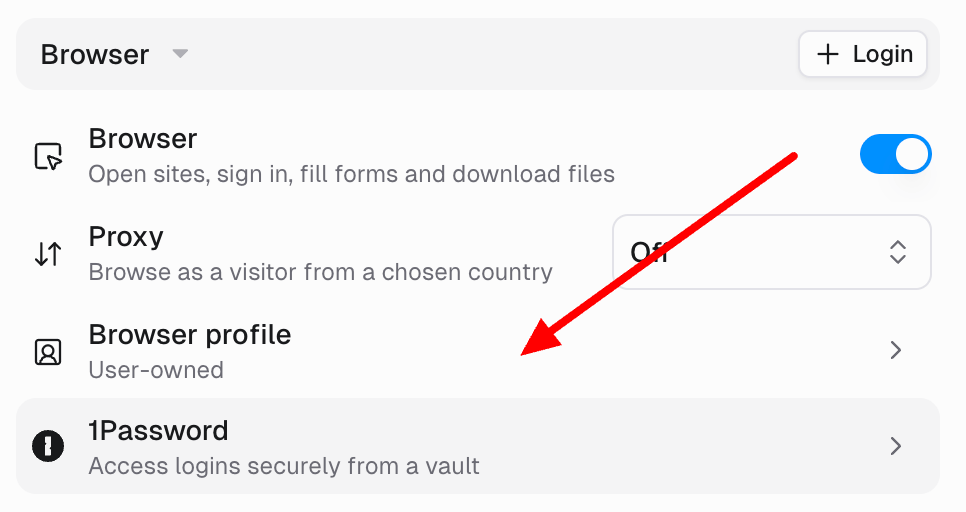
Click Import from browser
Click Preview
Pick the sites and click Import
Import from the terminal or the CLI
Import from the terminal or the CLI
gumloop browser profiles list (add --team <team_id> for a team’s).Import from the API
Import from the API
What gets imported, and limits
What gets imported, and limits
- Imports bring cookies only, not local storage.
- One import can carry up to 20,000 cookies. A profile holds up to 25,000 cookies or 24 MB.
- Importing while a task is running is safe: the import and the task’s save are merged.
- Only people who manage team secrets can import into a team profile. Only a personal profile’s owner can import into it.
How do I manage profiles?
Open the Browser Profiles section of your Vault, or click Manage browser profiles in the agent’s Profile menu. Each profile’s menu has Import, Rename, Make default (personal profiles), and Delete. In a team’s Vault, Add creates a new empty profile for the team.1Password
Connect 1Password and the agent can sign in with the logins in your 1Password vaults, including 2FA codes. You don’t copy anything into Gumloop, and the agent never sees the passwords.How does 1Password work with the agent?
Gumloop lists the logins it may use
The agent searches for the right login
github.com, and finds the matching item.Gumloop types it in
How do I set up 1Password?
Prepare a vault in 1Password
Create a service account
ops_ token. 1Password shows it only once.Connect it in Gumloop
Turn it on for the agent
Choose whose service account and which vaults
How does the agent find the right login?
Each 1Password Login item becomes a login namedOP_<TITLE>, for example OP_GITHUB. The agent finds items by searching:
github.com search, because matching uses the item’s website, not its title.
What are the 1Password limits?
What else should I know?
- If 1Password is unavailable or rate-limits the service account, that turn runs without 1Password logins and the task continues.
- If a Vault login and a 1Password item have the same name, the Vault login is used. Two 1Password items with the same title get
_2,_3, and so on. - Keep agent vaults small. An agent can sign in with any login in the vaults you give it.
- Agent-owned 1Password is not used while the agent is shared with Anyone.
FAQ
The agent says it can't type my login on this page. Why?
The agent says it can't type my login on this page. Why?
login.acme.com), the form is inside an embedded frame from a different site, or the scheme or port differs. Edit the login and set Type the password on to Any page of this site, or let the agent ask you with a handoff.Can the agent handle SMS or email 2FA codes?
Can the agent handle SMS or email 2FA codes?
How do I change a saved password?
How do I change a saved password?
Do my teammates get my sign-ins?
Do my teammates get my sign-ins?
I deleted the agent's profile. Why didn't it fall back to mine?
I deleted the agent's profile. Why didn't it fall back to mine?