

What the sandbox can do
Run Python code
Execute shell commands
Read & write files
Upload & download
How it works
Each conversation runs in its own secure cloud sandbox (an isolated VM). The files your agent creates while working stay with that conversation, so if you reopen the chat later they are restored automatically. Anything that should outlive a single chat lives in one of two durable layers that carry over across all conversations with the same agent: the shared package environment and the agent’s workspace folders.- Persistence model
- Isolation
Pre-installed packages
The sandbox comes with 80+ Python packages ready to use, so your agent can start working immediately without installing anything.Data science & analysis
Data science & analysis
Visualization
Visualization
AI & machine learning
AI & machine learning
Web & APIs
Web & APIs
File processing
File processing
Media processing
Media processing
Natural language processing
Natural language processing
Database & cloud
Database & cloud
Execution limits
Can my agent create a video on its Computer?
Yes. Ask your agent, “Create a short animated product explainer from this outline.” It can render the video programmatically, show you a draft, and export the result as an artifact. Rendering uses ordinary Computer execution credits.Can my agent call AI models from its Computer?
Yes. Your agent can use a model inside a script to process many items, such as labeling tickets in a CSV. You ask for the result in chat; the agent handles the code. For classification, it can use Jev 1.13 by TypeSafe. Jev answers yes/no questions, chooses categories, or scores items. Chat models are useful for text tasks, such as summaries. This is separate from choosing the model that replies in chat.How does it work?
For a ticket-classification CSV, the agent writes a Python script that uses the Gumloop SDK to:- Read the file and collect the ticket text.
- Call Jev with that text, your classification question, and the allowed categories.
- Receive structured answers, such as a category for each ticket, with probabilities when provided.
- Save the results in a new column and export the spreadsheet for you to download.
How do I use it?
Ask for the result
Review the approval, if prompted
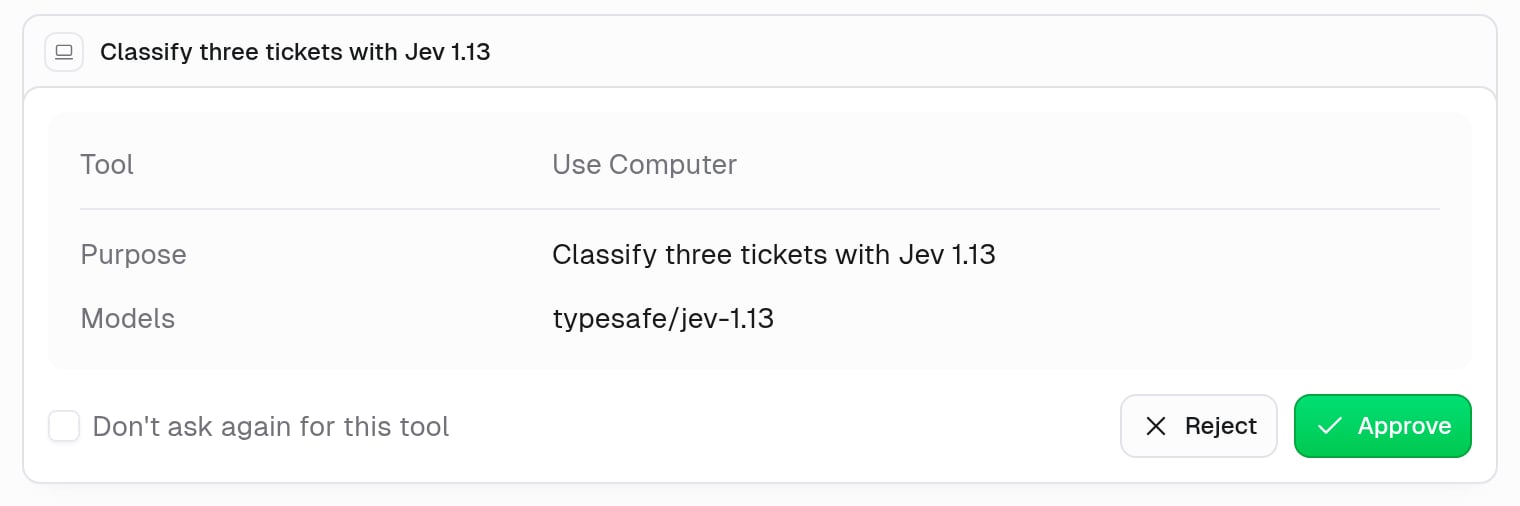
A real approval card for a Computer script using Jev.
What access do I need?
What access do I need?
Where are these calls billed?
Where are these calls billed?
What does Don't ask again for this tool mean?
What does Don't ask again for this tool mean?
Examples
Here are some common ways to use the Code Sandbox:- Data analysis
- API integration
- File processing
- Custom scripts
Workspace files
The agent has two persistent workspace folders that carry over across conversations:- Team workspace (
.workspace/agent/): shared by everyone with access to the agent. Files saved here by one member are visible to all other members, which makes it ideal for reference data, configuration, or ongoing project assets. Members with edit access can write to it; members with view access can read it but not change it. - Personal workspace (
.workspace/personal/): private to you. Files you save here persist across your own conversations with the agent and are never visible to other members.
Integration with apps
Your agent can use the pre-installedgumloop SDK to combine Python processing with connector actions. These calls require the same tool permissions and approvals as other connector actions; adding a connector does not bypass those checks.
This example totals the revenue column in sales.csv, then posts the summary. Replace YOUR_SLACK_CHANNEL_ID with the internal channel ID returned by Slack’s channel tools, not a name such as #general. Use a channel where you intend to send the message.
Why did a sandbox integration call return tool_not_allowed?
Sandbox integration access is checked for each code execution. Write the server ID and tool name as literal strings in the same code cell that makes the call. Argument values can be dynamic, but the tool’s identity cannot come from a variable or loop.
A helper defined only in an earlier cell does not establish access for a later cell. Put the literal call or helper in the current cell, or directly import the helper from an attached skill in that same execution. Keep tool-calling imported files inside the skill. Run saved scripts with python <script.py> from the shell; do not load tool-calling code through runpy, subprocess, or exec. If a call returns tool_not_allowed, fix how the call is declared instead of retrying the same code. Check both the SDK result status and any error returned in its decoded content.
What happens if a sandbox command is interrupted?
An interrupted command may already have taken effect even when its output is incomplete. Before repeating a command that writes a file or changes an external resource, ask the agent to check the result. For example, verify that the output file exists or that the requested change completed before trying it again.Agent secrets
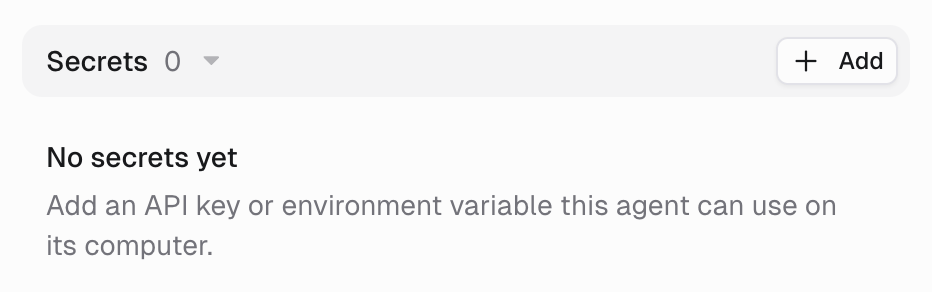
Agent secrets store encrypted credentials in your Vault and provide them to sandbox code as environment variables. This lets the agent authenticate without putting the credential in your prompt. Only bind credentials the agent needs, because its code can use them to act on your behalf. A secret is the stored credential, either personal or owned by a team. A binding maps an environment-variable name on an agent to a secret. Binding scope controls who gets that mapping; it does not change who owns the secret. Secrets live in your Vault: at gumloop.com/personal/vault for your own credentials, and in the team’s Vault for shared ones. A secret is one credential type in the Vault, alongside website logins, browser profiles, and 1Password connections that the agent browser uses. You can also reuse a saved secret in a browser handoff. Choose Existing > Select a secret in a sensitive field. The picker includes Vault secrets, not website logins or connector credentials, and Gumloop types the answer only on the host shown in the handoff.Adding a secret to your agent
Open the Agent tab and add a secret
Name it and pick a source
PYLON_API_KEY). Under Source, choose Existing secret or New secret, then pick or create the stored credential.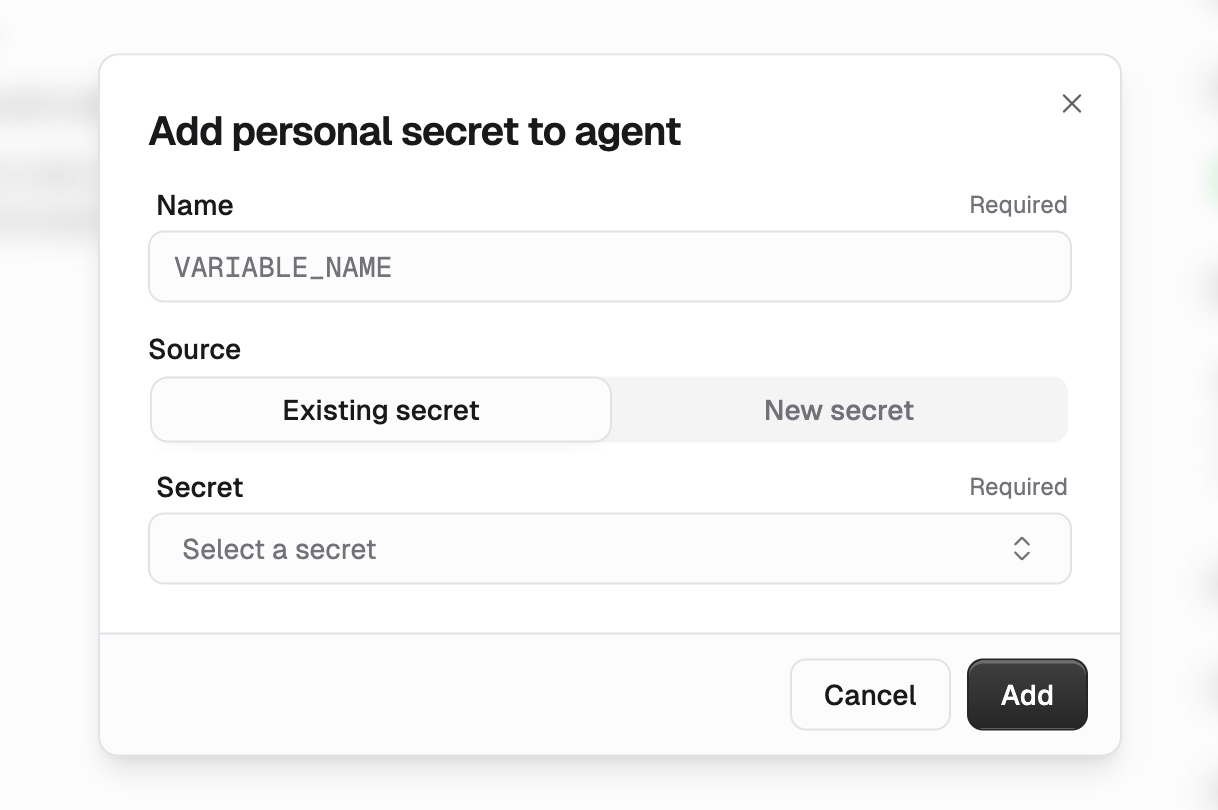
Prompt the agent to use the secret
os.environ["PYLON_API_KEY"]) in its code. Do not ask it to print the value or copy it into a file.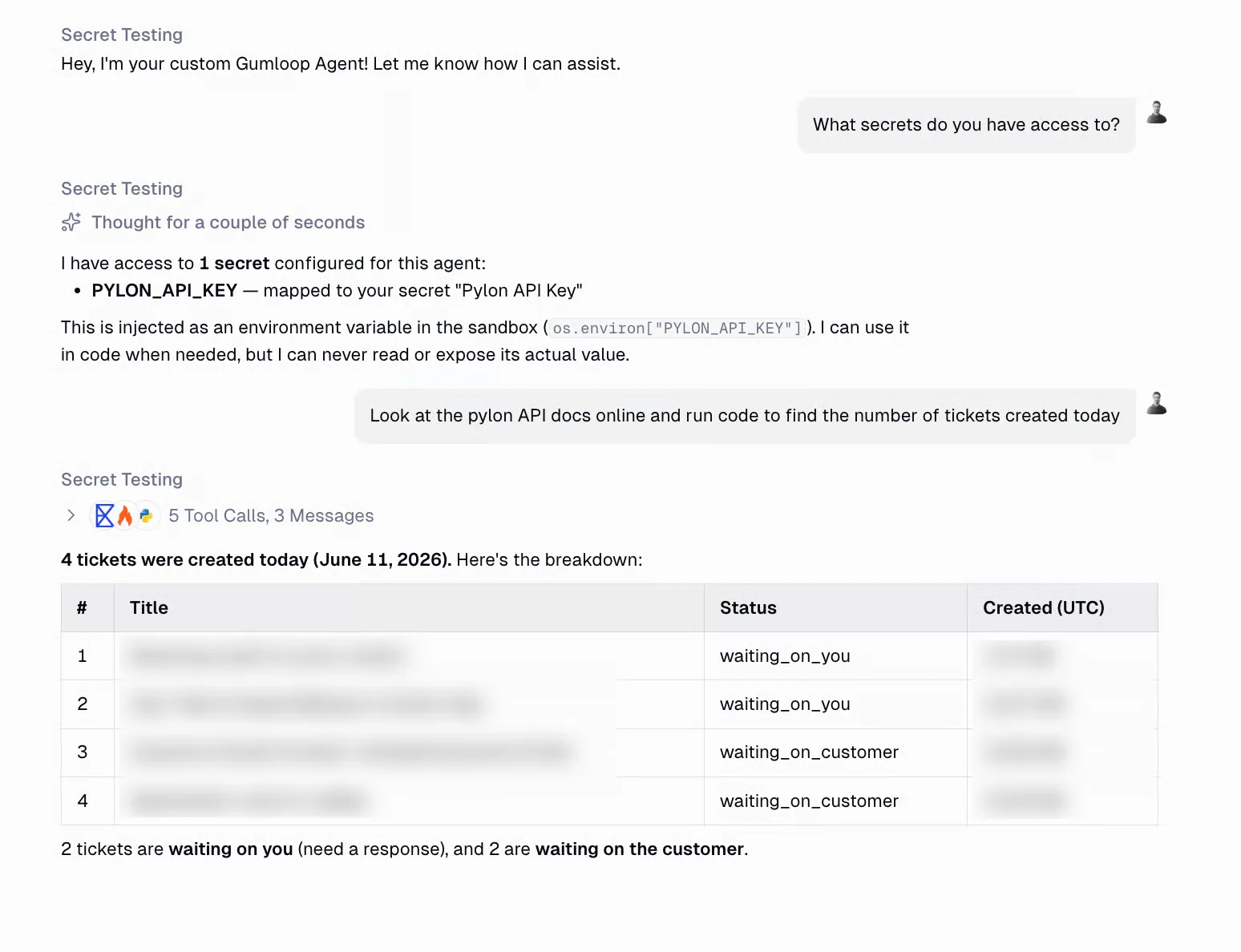
Two types of secrets
Personal secrets
Team secrets
Team secrets
Use a Team binding to make a home-team secret available to people who can use the agent and access that team. You need permission to manage the team’s variables.Move agent to a team space
Add a team secret
Select a team secret
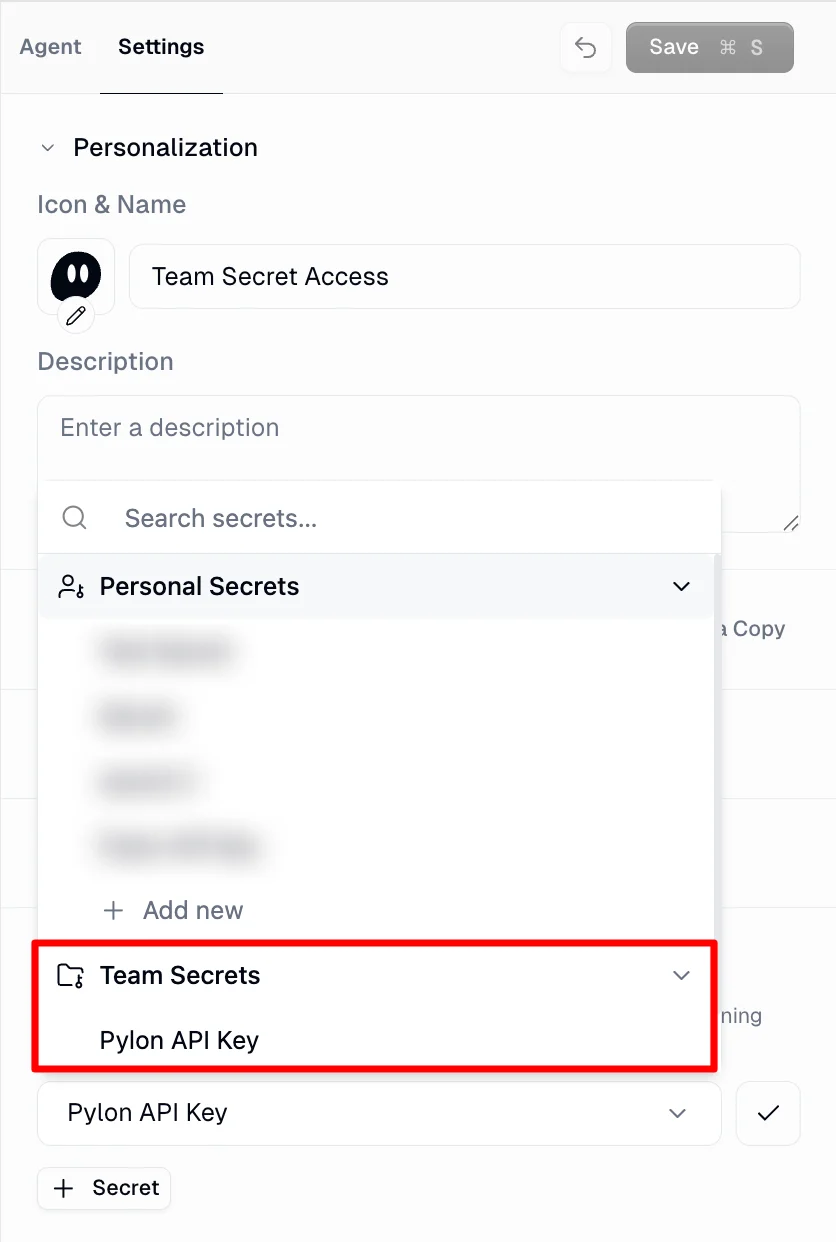
Binding scopes
In Secrets on the Agent tab, choose who should use each binding. The stored secret keeps its personal or team owner regardless of the binding scope.Which secret does the agent use?
For the same environment-variable name, Agent-owned overrides Personal, which overrides Team. A personal binding is also called a user binding. Personal and team bindings require the running user’s access. Team bindings are skipped if that person cannot access the agent’s home team. Agent-owned bindings let people outside the team use the pinned secret through the agent, based on the permissions checked when it was saved. If a required secret has no usable binding, the chat asks you to configure one.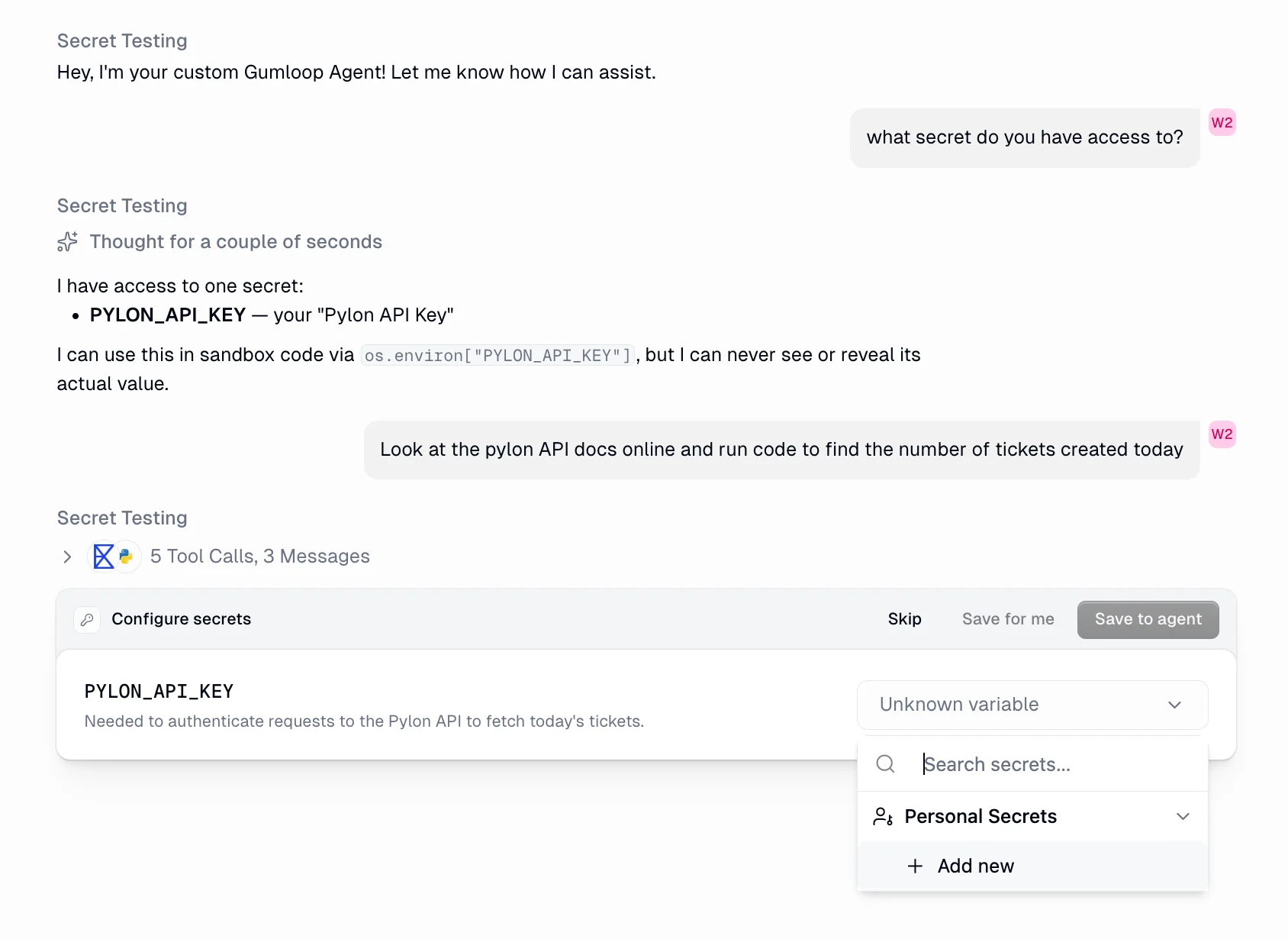
- Skip: proceed without the secret
- Only me: the binding applies to you
- My team: the binding applies to everyone on the agent’s home team; offered only when the agent has a home team and you can manage the team’s variables
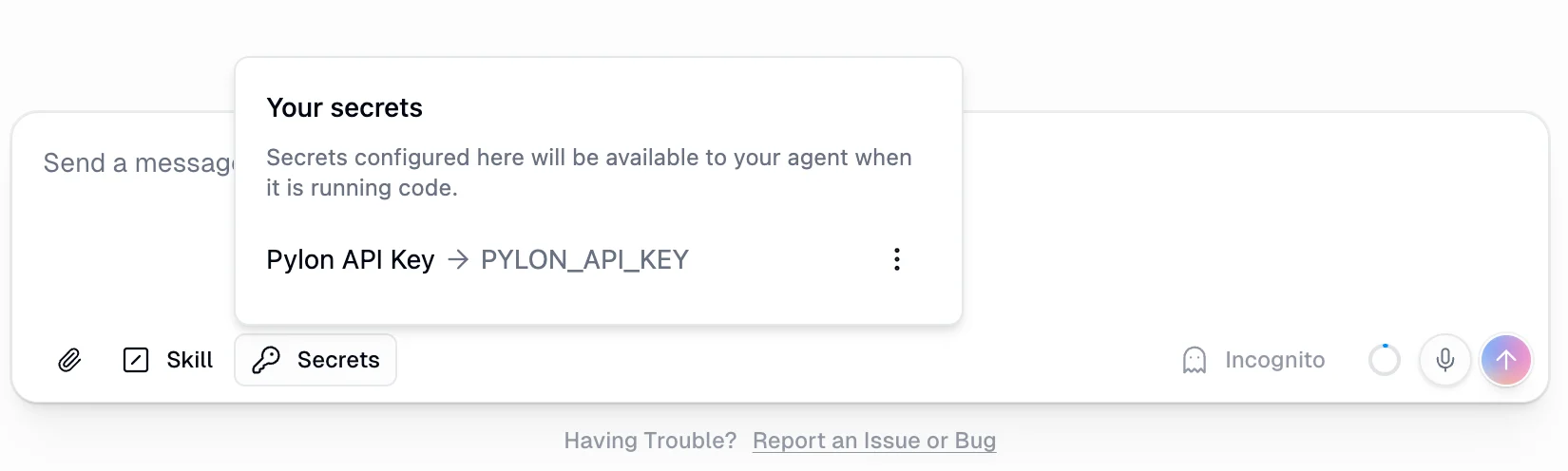
FAQ
Can the agent see my secret values?
Can the agent see my secret values?
Can I use both personal and team secrets on the same agent?
Can I use both personal and team secrets on the same agent?
Which binding wins when both bind the same environment-variable name?
Which binding wins when both bind the same environment-variable name?
Who can see or use a team binding?
Who can see or use a team binding?
Why is the Team option missing?
Why is the Team option missing?
What about an agent with no home team?
What about an agent with no home team?
Do secrets persist across conversations?
Do secrets persist across conversations?
How do I create a new personal secret?
How do I create a new personal secret?