

Where to find it
Go to Settings → Organization → Proxied MCPs at gumloop.com/settings/organization/proxied-mcps.Proxied MCPs is available on the Pro and Enterprise plans. Contact
your organization admin if you don’t see it under Settings → Organization.
Hosted vs. proxied
Not sure which one to use? Here’s a quick comparison:
Use Hosted MCPs when you want to build and deploy your own MCP server. Use Proxied MCPs when you want to connect an existing third-party server.
Server list
The main Proxied MCPs page shows a table of all connected external servers. Each row displays:- Server name with the remote URL (credentials automatically redacted for security)
- Auth method: None, API Key, or OAuth 2.0
- Tool count: How many tools Gumloop discovered on the server
- Last Updated timestamp
Connecting a new proxied MCP
Click the Connect button to launch a multi-step wizard that connects an external MCP server through the proxy.Step 1: Enter the server URL
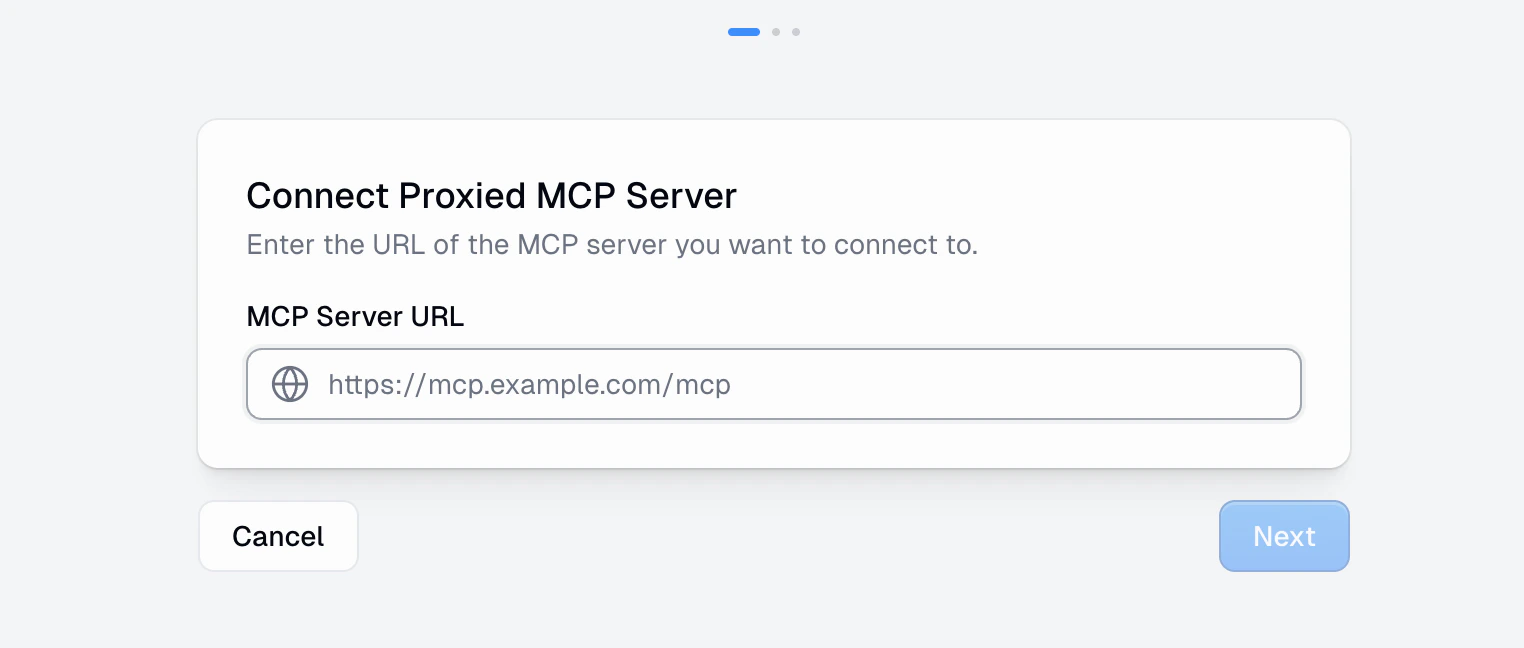
https://mcp.example.com/mcp.
Click Next to proceed. Gumloop probes the server to detect its capabilities and authentication requirements.
Step 2: Configure connection
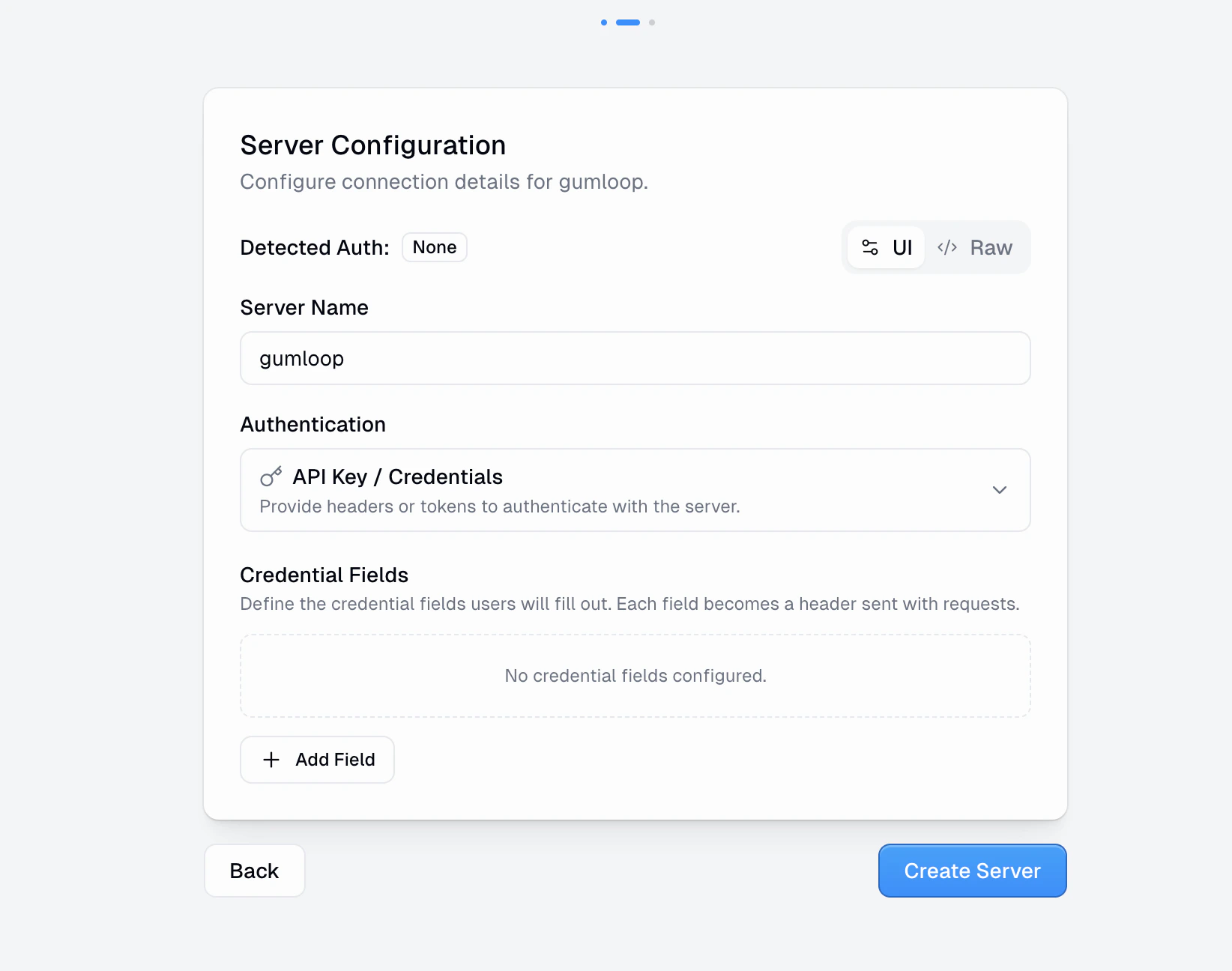
- Server Name: A display name for this server in your organization
- Detected Auth: Gumloop automatically detects the server’s auth requirements and shows it here
- Authentication: Choose the method that matches what the server expects:
- No Authentication: No credentials required
- API Key / Credentials: Provide headers or tokens. Define credential fields that become headers sent with every request.
- OAuth 2.0: If the server supports OAuth, users authenticate via an OAuth flow
- UI / Raw toggle: Switch between a form-based UI and raw JSON configuration in the standard
mcpServersconfig format
Step 3: Discover & activate
After creating the server connection, Gumloop connects to the remote server, discovers available tools and resources, and activates the proxy. For servers using API Key auth, you’ll add your credentials at this step. For OAuth servers, you’ll complete the OAuth authentication flow. Once discovery completes, you’ll see a summary of discovered tools and the server becomes active.Server detail page
Every proxied MCP has a detail page with four tabs. Since Gumloop doesn’t host the server, there are no Deployments or Monitoring tabs.Overview
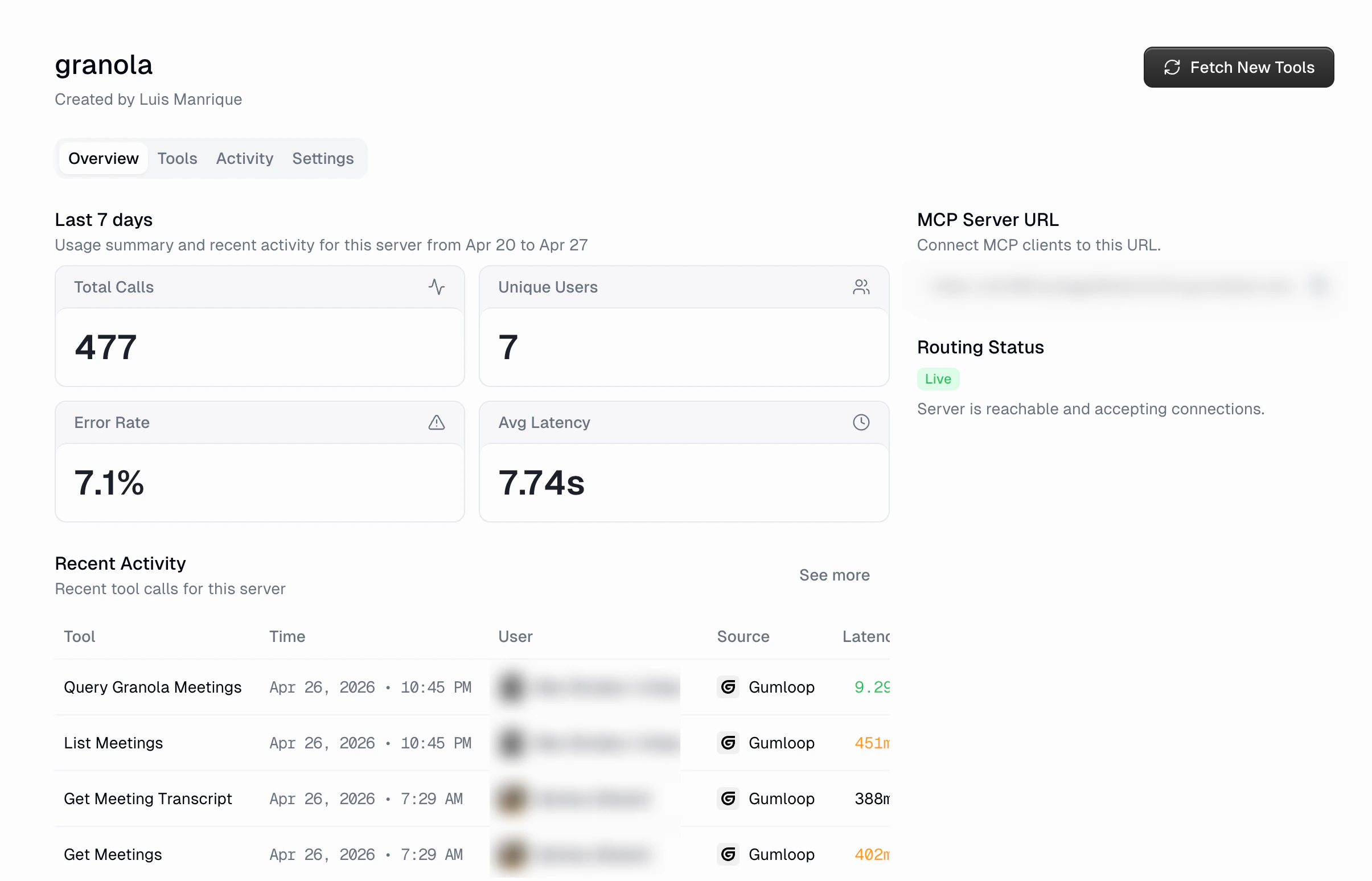
The overview tab shows a snapshot of the server’s last 7 days:- Total Calls: Number of tool calls routed through the proxy
- Unique Users: How many distinct users made calls
- Error Rate: Percentage of calls that failed
- Avg Latency: Average response time
- MCP Server URL: The Gumloop proxy URL that clients should connect to
- Routing Status: Shows whether the remote server is reachable and accepting connections (displays “Live” when healthy)
- Recent Activity: A table of the most recent tool calls
Tools
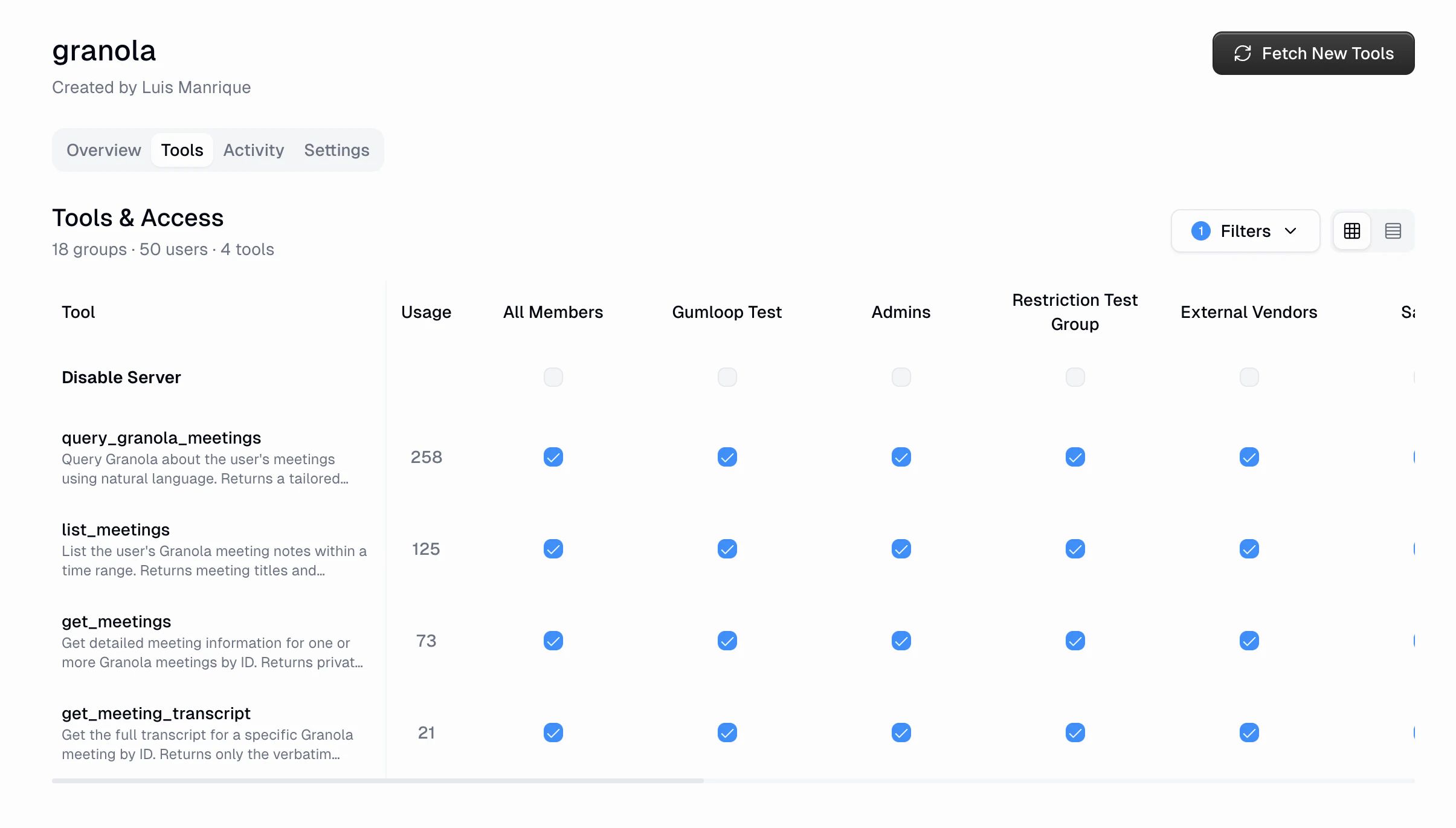
- See every discovered tool with its description and usage count
- Toggle access per custom role
- Disable the entire server for a specific role
Activity
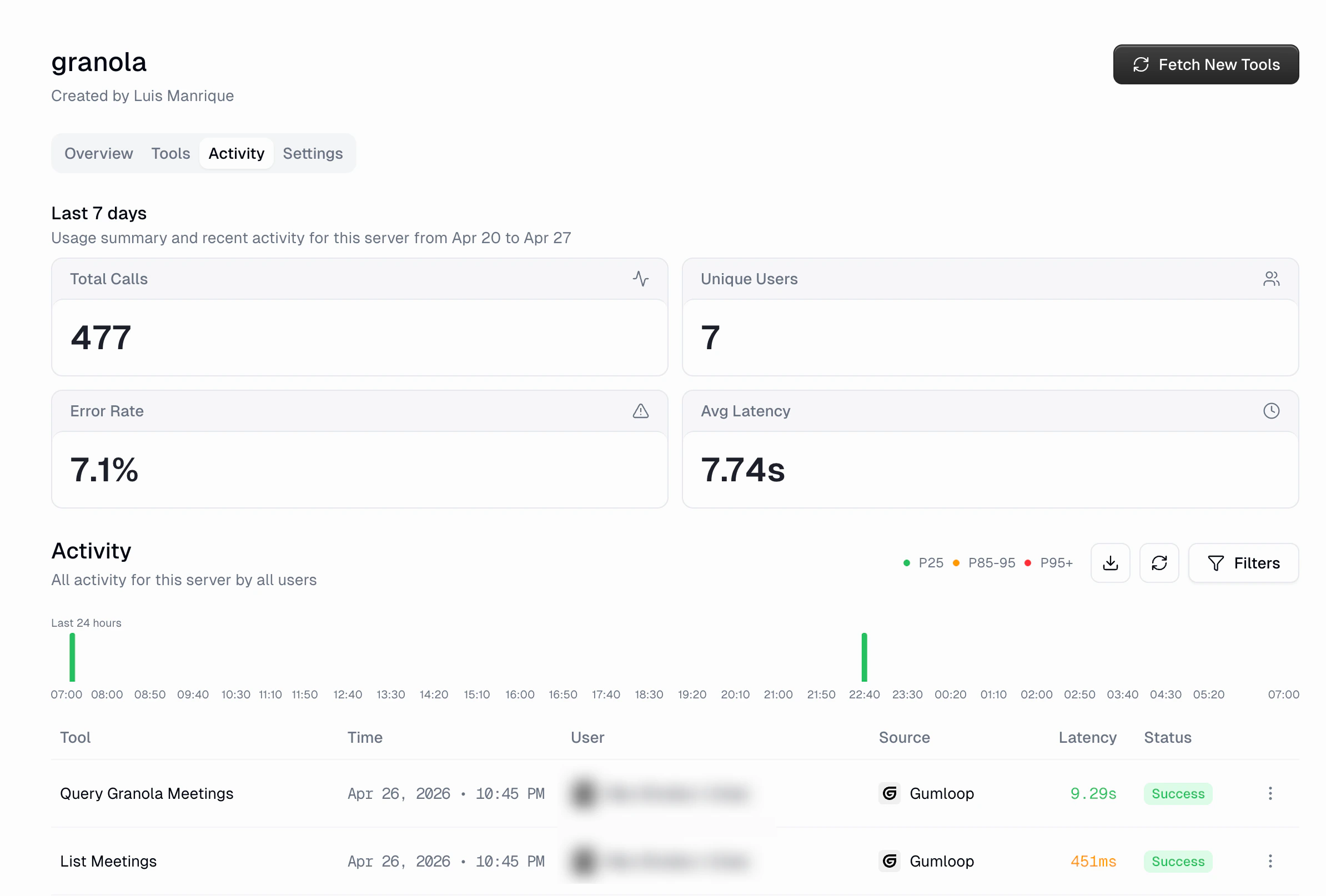
- Usage summary: Total Calls, Unique Users, Error Rate, and Avg Latency for the period
- Activity histogram: 24-hour tool call volume with latency color coding (P25/P85-95/P95+)
- Activity table: Every tool call with Tool, Time, User, Source, Latency, and Status columns
- Filters: Same filtering options as the global Connector Activity page
- Export: Download the filtered data as CSV
Settings
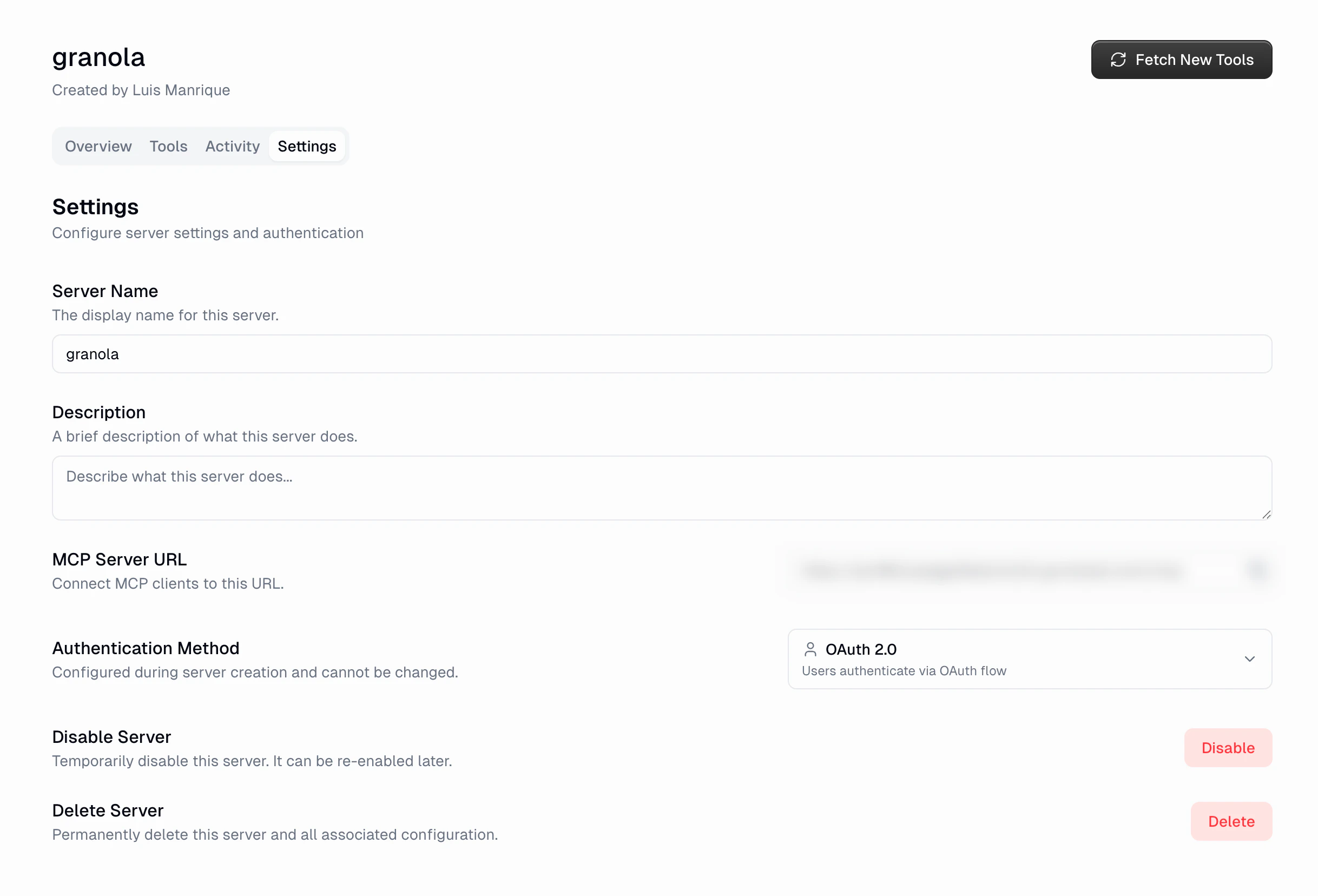
- Server Name: Update the display name
- Description: Describe what the server does
- MCP Server URL: The proxy URL for MCP clients to connect to
- Authentication Method: Shows the configured auth type (set during creation)
- OAuth Client (OAuth servers): The client members sign in through. The server’s creator and organization admins can click Edit to open Update OAuth client and choose OAuth 2.0, where Gumloop registers a client with the provider automatically, or OAuth 2.0 (Custom Client), which uses the client ID and secret of an OAuth app your organization registered. Saving replaces the client for everyone, and the dialog shows how many members it disconnects. Members can’t replace a shared client from the connect dialog.
- Access Gate: The credential for a gate in front of the server, such as Cloudflare Access (see Access Gates)
- Disable Server: Temporarily disable the server. It can be re-enabled later.
- Delete Server: Permanently remove the server and all associated configuration
Access gates
Some MCP servers don’t sit on the open internet. They sit behind a gate the customer owns, such as Cloudflare Access or an API gateway. The gate answers before the MCP server does, so without a credential for it Gumloop never reaches the origin at all. An Access Gate stores that credential once. Gumloop sends it on every request to the server, so the gate lets the traffic through. It never replaces the server’s own authentication.Configuring a gate
Open the server’s Settings tab and configure Access Gate, then pick your provider and fill in its fields:
Gumloop also detects gates while you connect a server: if the URL you enter is behind a recognized gate, the wizard asks for the gate’s credentials instead of guessing at the server’s auth method, then discovers tools once it can get through.
Gate credentials are write-only. Once saved, neither the interface nor the API
returns them. You can see which provider you configured and replace or
remove the credential, but not read it back.
Two layers, two purposes
If a gate rejects Gumloop’s credential, tool calls fail with an error naming the gate, for example “Its Cloudflare Access gate rejected our credentials”, so you can tell a gate problem apart from a server problem.
Only the person who connected the server, or an organization admin for external servers, can configure its Access Gate.
URL security
When displaying proxied server URLs in the interface, Gumloop automatically redacts credentials embedded in URLs. If a server URL contains authentication tokens or API keys, the UI masks them to prevent accidental exposure.Allowlisting Gumloop
Gumloop connects from a fixed set of URLs and IP addresses. Servers or OAuth providers that restrict inbound traffic or redirect URLs should permit the following:- OAuth redirect URLs:
https://api.gumloop.com/auth/callbackhttps://api.gumstack.com/auth/callback
- Source IPs: Gumloop’s static egress IPs
MCP client compatibility
Requests with a body must use uncompressed UTF-8 JSON with an object or array at the top level. OmitContent-Encoding or use identity. For request-body errors and connection fixes, see Why won’t my custom MCP server connect?.
OAuth compatibility
Gumloop implements the MCP authorization spec. For OAuth servers, it discovers the authorization-server metadata and can register as a client automatically through Dynamic Client Registration (DCR) or a Client ID Metadata Document (CIMD). Curated connectors can instead use a provider-pre-registered public client ID.Token lifetimes
OAuth servers issue two types of tokens:- Access token: a short-lived credential sent with each request, typically valid for about an hour.
- Refresh token: a long-lived credential used to obtain new access tokens, typically valid for weeks to months. Google’s, for example, are valid for roughly six months.
FAQ
Does the external server need to know about Gumloop?
Does the external server need to know about Gumloop?
The server receives standard MCP requests. If it restricts inbound traffic
or OAuth clients, its administrator may need to allow Gumloop’s source IPs
and redirect URLs. See Allowlisting Gumloop.
What happens if the external server goes down?
What happens if the external server goes down?
Tool calls routed through the proxy fail, and the Routing Status on
the overview page reflects the connection issue. Activity logs show
errors for the affected period. The proxy continues to check connectivity
and resumes routing when the server comes back.
Can I change the authentication method after creation?
Can I change the authentication method after creation?
The authentication method is configured during server creation and cannot be
changed afterward. If you need a different auth method, delete the server
and create a new connection with the correct settings.
How do I add tools when the external server changes?
How do I add tools when the external server changes?
Click Fetch New Tools in the server header. New tools are enabled for all custom roles by default, so review their access on the Tools tab. Fetching does not update existing tool definitions or remove stored tools.
What MCP transports are supported?
What MCP transports are supported?
Proxied MCPs support MCP servers that expose an HTTP-based endpoint
(Streamable HTTP or SSE). The URL you provide should be the server’s MCP
transport endpoint.