

Turn on voice calls
Gumball, your personal agent, can always be called. Custom agents have to opt in, which the agent’s editors do from the Settings tab, under Voice.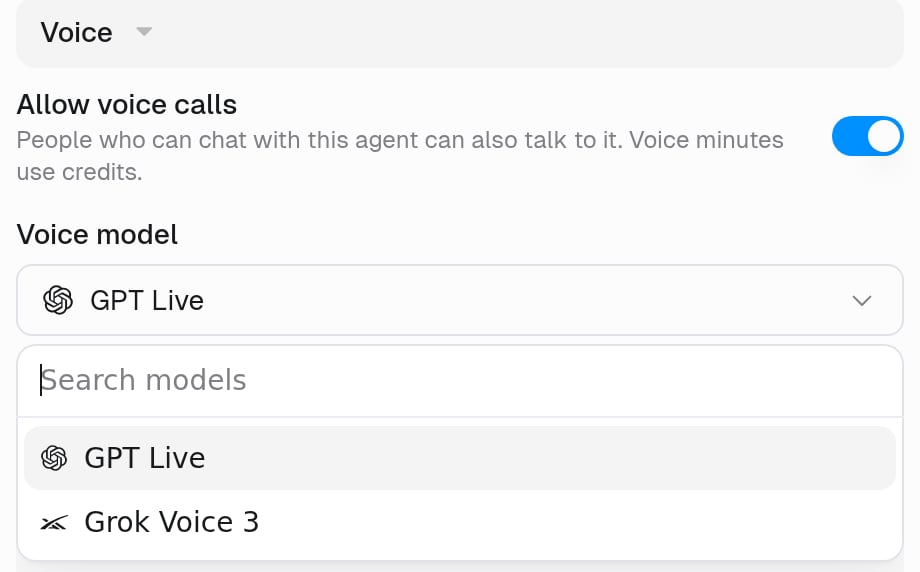
Voice minutes use credits, and the rate depends on the voice model. See Voice call costs for the rates and how they appear in a chat’s breakdown.
Start a call
Open a chat with the agent and select the voice button at the right of the message bar, next to the microphone.
While you are on a call

- Your words appear in the chat. Each thing you say is added as a message tagged Voice call, and the agent’s spoken replies are added as its messages.
- Small talk gets answered on the call. Real requests go to the agent, which then runs in the chat exactly as if you had typed them, with thinking, tool calls, and steps all visible.
- You can keep talking while work runs in the background. Longer requests run as background work, so a new question doesn’t cancel them. When the work finishes, the agent can speak its result during the call, or post it in the chat as text if you’ve hung up.
- The agent can look back at earlier calls. Ask something like “what did we decide on our last call?” and it can search your earlier conversations with it.
- The agent can hang up. When the conversation is done, for example after you say goodbye, the agent can end the call once it has finished speaking.
- The agent tells you what it can do. It knows its connected apps, skills, and knowledge, so you can ask “can you check Linear?” and get a truthful answer.
- The live call appears in the message bar, with a live waveform and controls to Mute speaker, Mute microphone, and End call. Select the agent’s avatar for Voice settings.
- You can type and attach files during the call. Type in the message box, or use the + menu to add files. The agent handles typed messages and attachments like spoken requests, in call order.
Good to know
- One call per task. A chat can hold one live call at a time. If several calls are already running on your account, the next one is refused until you end one.
- Model access applies. If your organization restricts which models you can use, the voice model may be blocked for you. The call says so, and you can request access from an admin.
- Credits run the call. You need credits for the minute ahead, so a call ends if your balance runs out mid-conversation.
- Calls happen in the browser. You start a call from the agent’s chat in Gumloop.
- Silence ends a call. After about two minutes of silence with nothing running, the call ends. It stays open while background work for the call is still running.
- Incognito calls can’t run background work. In an incognito task, the agent finishes each request before it answers.
Voice memos
An agent can reply with a voice memo: a short spoken audio message, delivered as an MP3 file. Ask for one (“send me that as a voice memo”), and the agent writes the script and Gumloop reads it aloud in the agent’s Talk mode voice. If that voice isn’t available for memos, Gumloop uses Marin.
Voice memos use credits for the speech and follow your organization’s model access. If Gumloop can’t make the memo, the agent sends its reply as text instead.
FAQ
Do I need to give people extra permission to call an agent?
Do I need to give people extra permission to call an agent?
No. Voice follows chat access: if someone can chat with the agent, they can call it once Allow voice calls is on.
Can I still see what was said after the call?
Can I still see what was said after the call?
Yes. The call is transcribed into the chat as it happens, so the task holds both sides of the conversation along with everything the agent did.
How is a call billed?
How is a call billed?
By time, not by tokens, and it shows up as Voice in the chat’s credit breakdown. Work the agent does during the call (tool calls, thinking, compute) is billed the usual way on top. See Voice call costs.