Your personal Gumloop agent: chat, a labeled inbox, a morning report, and a brief before every meeting.
Gumball is the personal agent that comes with every Gumloop account. Unlike custom agents, which you build and share with your team, Gumball belongs to you: it appears automatically the first time you open it, it can search every skill you can access, including your teams’ skills, and it uses your own connectors to read and act in the apps you’ve connected.
On top of chat, Gumball runs three proactive features that work while you’re away:
Daily Chew
A short report from your connected apps, delivered on your schedule.
Smart Inbox
Labels new email as it arrives in Gmail or Outlook, moves the noise out of your Inbox, and can draft replies for you.
Meeting Prep
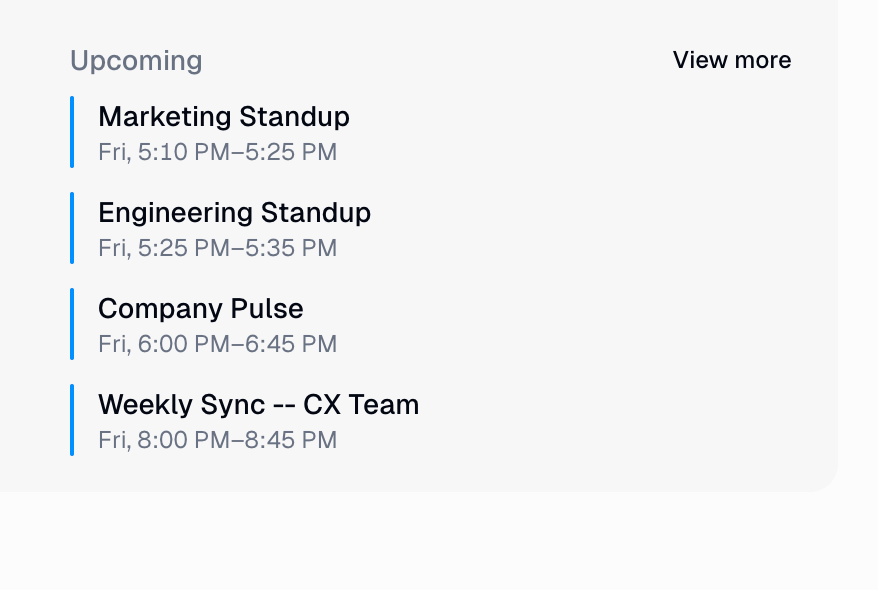
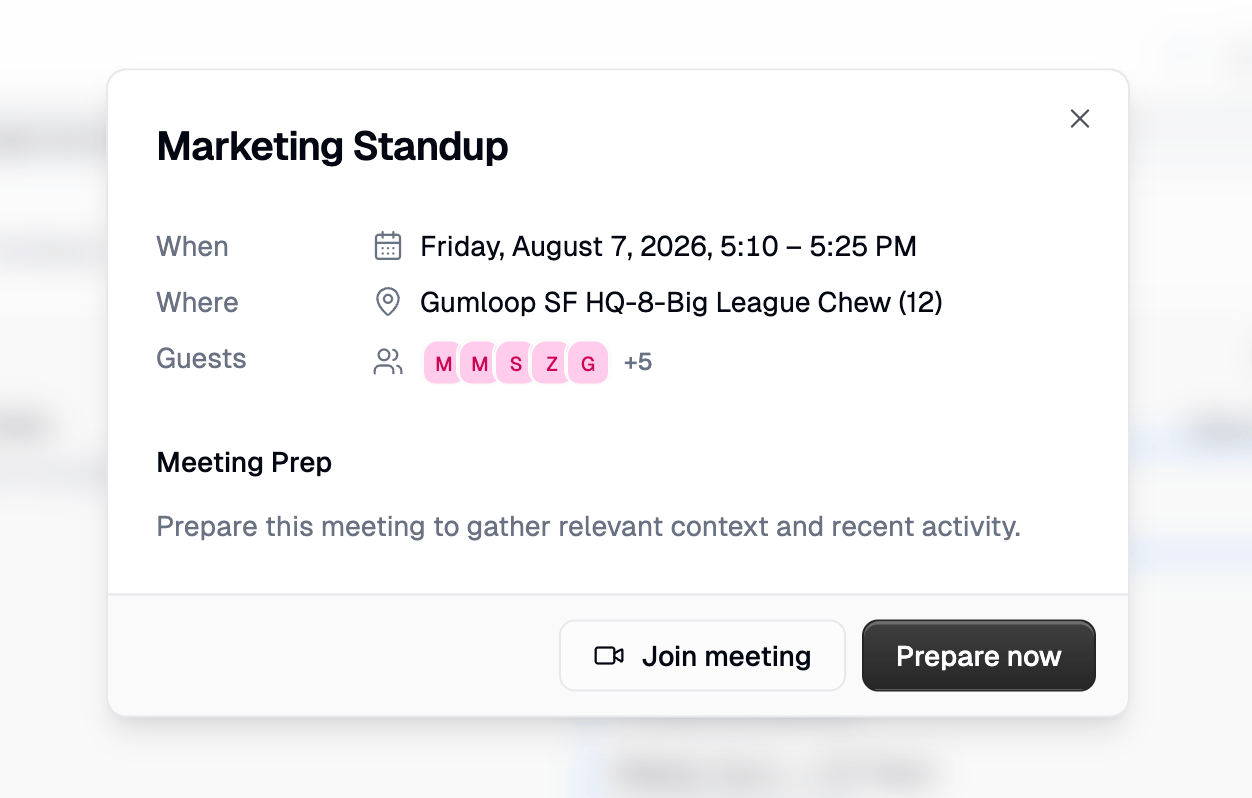
A context brief before each meeting on your calendar.
All three are owner-only. Gumball is a personal agent, so only you can configure or view its Smart Inbox, Daily Chew, and Meeting Prep. They can’t be shared like a custom agent.
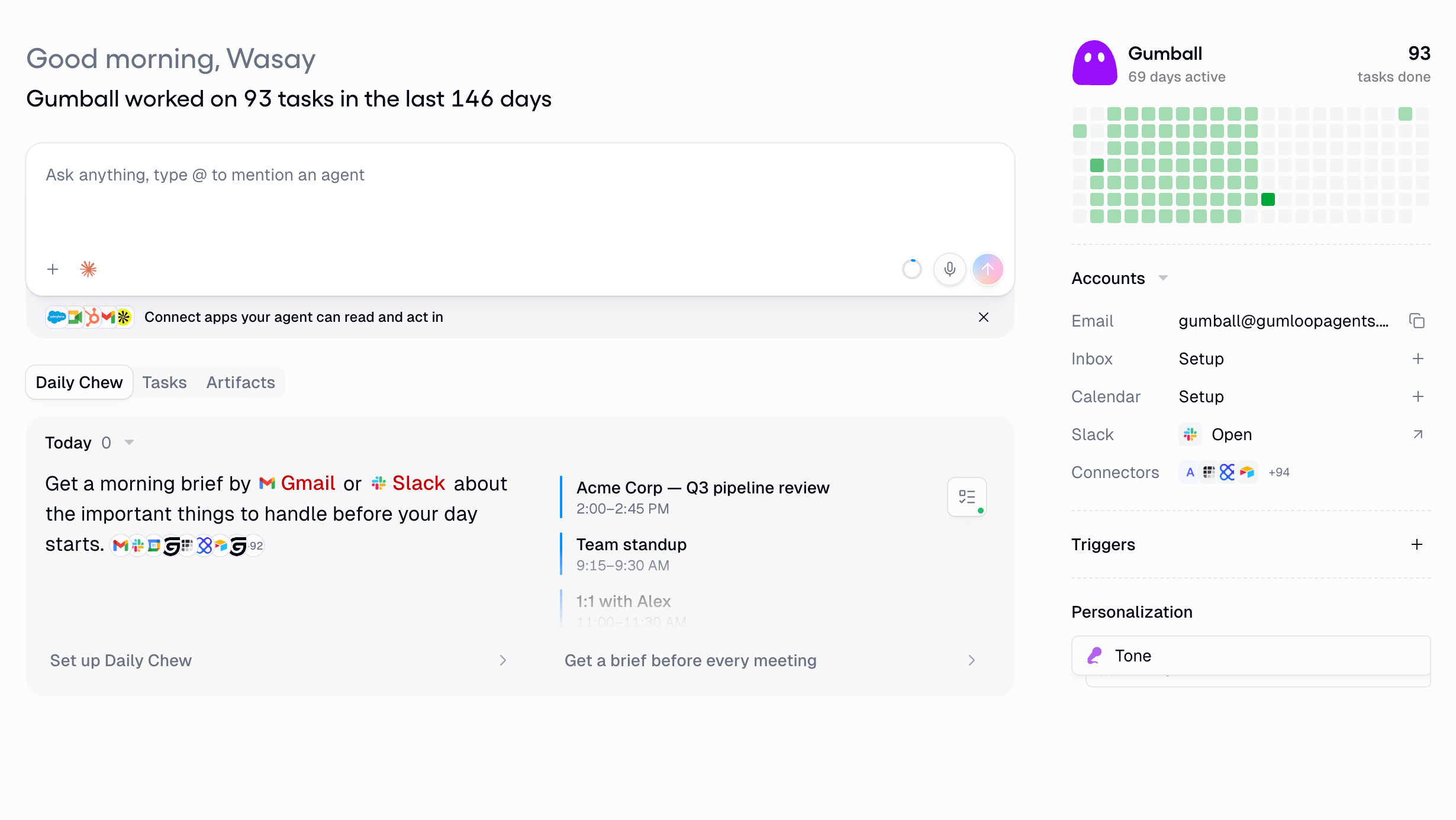
The right-hand rail on the Gumball home screen is the control panel for everything below.
Section
What it does
Email
Gumball’s own address, gumball@gumloop.ai. Email it like a coworker and it replies.
Text
Gumball’s phone number. Text it over iMessage, RCS, or SMS from a verified phone number. See Text Gumball.
Inbox
Connect a Gmail or Outlook mailbox for Smart Inbox.
Calendar
Connect a Google Calendar or Outlook Calendar account for Meeting Prep.
Slack
Opens your DM with the Gumloop Slack app, where you can chat with Gumball. See Gumball in Slack.
Connectors
Every app Gumball can read and act in.
Triggers
Schedules and event triggers that run Gumball automatically.
Personalization
The Tone and Design skills Gumball curates about how you like to be written to and how you like output laid out.
Below the chat box are tabs for Daily Chew, Smart Inbox, Tasks, and Artifacts: the reports Gumball has produced, the Situations it has surfaced, and the files it has created.
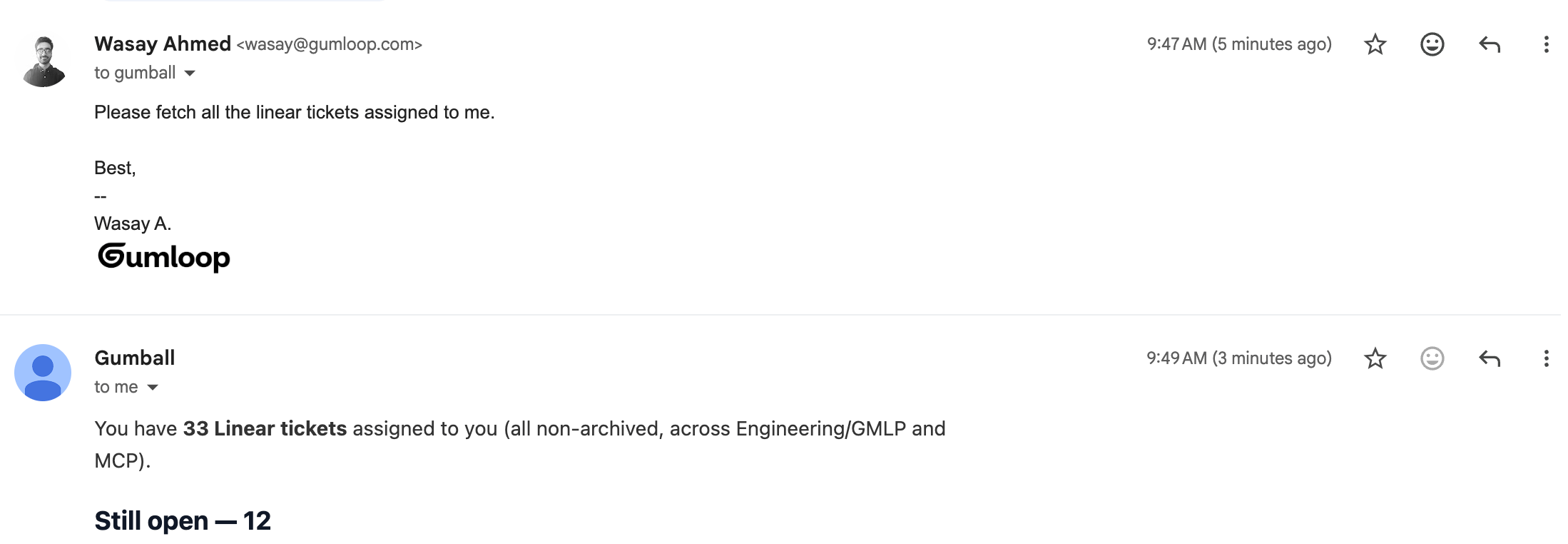
Gumball’s email address never changes: you can’t rename it or hand it to another agent. Send it a request and it replies in the same thread using your connectors.
Gumball follows the same rules as any agent email inbox, including DKIM checks on the sending domain.
Gumball also has a phone number, shown in the Text row under Where to reach me. Verify your phone number in Gumloop, then text Gumball over iMessage, RCS, or SMS and it replies in the same chat. See Text Gumball for setup, approvals by text, opt-out keywords, and permissions.
You can talk to Gumball by direct messaging the Gumloop Slack app in your workspace. There is nothing to set up and no channel to create. Find the Gumloop app in your Slack sidebar (or under Apps) and send it a message.
The Slack row in the right rail links straight to that DM once you have connected a Slack account; click Open.
How it works in a DM
Which agent answers
Always your own Gumball. Custom agents live in channels, so DMs never reach them.
Who you are
Gumball matches your Slack email to your Gumloop account, and runs on your connectors and skills, exactly like the web app. Without a matching Gumloop account you get a sign-up prompt instead.
Conversations
Each top-level message you send starts a new conversation; reply in that message’s thread to continue it.
Everything else
Same Gumball: it shares your skills, connectors, artifacts, and history with the web app, and thread commands like !stop and !link work.
Gumball DMs use your workspace’s existing Gumloop Slack app. If it was installed before DMs were supported, Gumball replies asking a workspace admin to reconnect the Gumloop Slack app. Reconnecting it from the Connectors page grants the extra direct-message permissions and nothing else changes.
Want a DM with a custom agent and its own name and avatar? Use a Custom Slack App.
Paste a provider’s MCP server link into Gumball and ask it to add the connector. Gumball checks the link, tells you whether the server signs in with OAuth or needs other setup, and then asks you to approve an Add connector card before anything is added.The card shows the Server URL, the connector Name, and Visible to (for example, Only you for a personal connector). Click Approve to add it or Reject to cancel. If the server needs sign-in, follow Gumball’s next step to finish connecting it.
If you’ve connected more than one account for an app (for example, two Gmail accounts), you can ask Gumball to use a specific one. It uses your default account unless you name another.
Choose per request: Gumball picks the account for each tool call.
Approvals show the account: an approval applies to the selected account, not to every account for that app.
No silent fallback: if the account you named is missing or not available to you, the call fails instead of switching to your default account.
Choosing between connected accounts is a Gumball feature. Custom agents keep using the account set in their connector settings.
Gumball can create a custom agent or update one you own from a conversation. Describe the agent’s purpose and the configuration you want: instructions, model, connectors, skills, knowledge sources, subagents, or supported abilities such as web search and the browser. Gumball can inspect the existing configuration before making a targeted change.
What you want
Example request
Create an agent
”Create a support agent that summarizes tickets using our support-writing skill.”
Update an existing agent
”Update my research agent’s instructions to cite its sources. Keep its model and connectors unchanged.”
Review the setup
”Show me which connectors and skills my research agent uses.”
Gumball can also create recurring schedules, one-time schedules, and webhook triggers for a custom agent. It can pause, resume, or change the prompt of an existing trigger, including an app trigger, but cannot create app triggers through this management capability.Changes require the same access as managing the agent yourself and remain subject to organization restrictions. Gumball makes everything one request needs in a single change, so you approve one card even when it adds several connectors, skills, or knowledge sources. The card lists each change by name. This capability doesn’t delete agents, turn off their tool approvals, or change whether they may edit their own instructions.See Agents for the configuration reference and Agent access for Owner permissions.
Gumball receives a short digest of your personal memory when preparing its responses. It can use that context to recognize people you work with, your responsibilities, and preferences you have told it about, without asking you to repeat them in every chat. When it needs more detail, it can read the full memory rather than relying only on the digest.The digest prioritizes active context and people you actually interact with. Your memory also records which custom agents you use, whether you built them or someone shared them with you, and what you use them for, so Gumball can point you to the right agent or hand work to it. Chats with custom agents feed your memory, but only Gumball can read it. Memory is separate from the Tone and Design personalization skills, which guide how Gumball writes and presents its work.
How do I correct a memory or make something a priority?
Tell Gumball what changed, or ask it what it remembers. You do not need to find a separate memory toggle.
What you want
Example request
Review your context
”What do you remember about my role and the people I work with?”
Correct an outdated fact
”Priya is my manager now, not Alex. Update what you remember.”
Prioritize an important fact
”Always keep this in mind: our fiscal year starts in February.”
Facts marked to always keep in mind are prioritized separately from ordinary memory. They remain context, not instructions that override other instructions. The digest is short, so Gumball may still need to read more memory for a detailed answer.
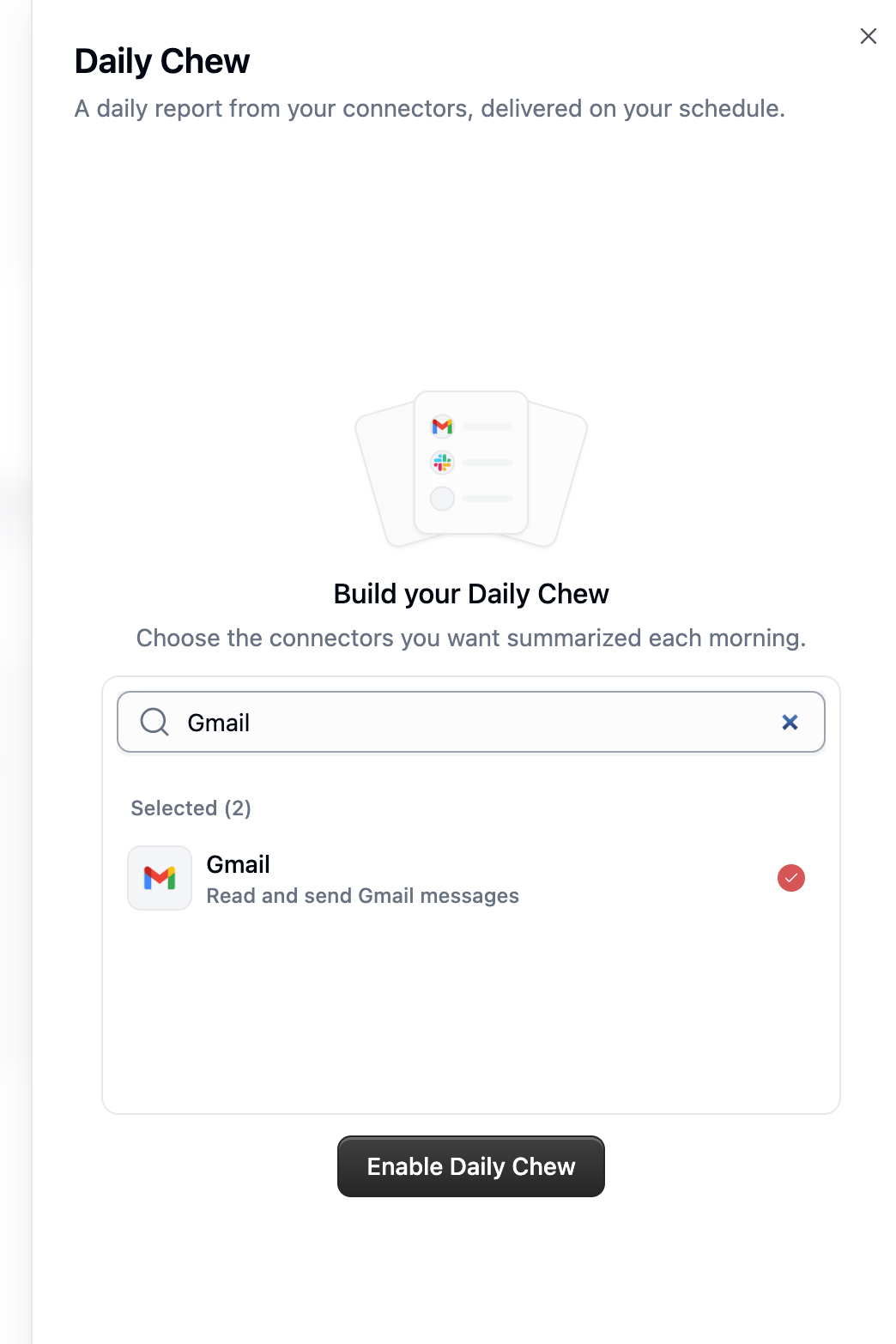
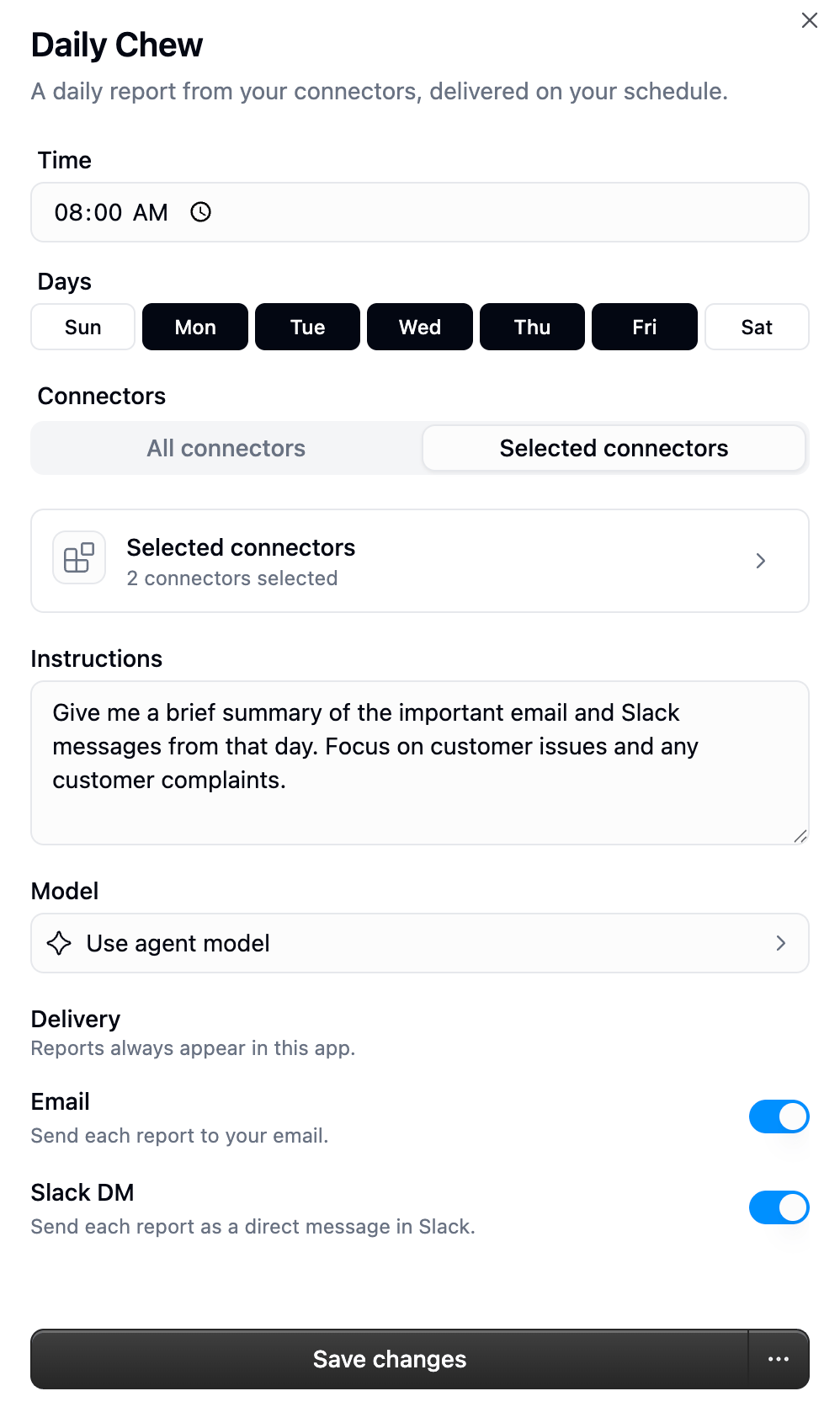
The Daily Chew is a short report of what you missed across your connected apps, on the schedule you pick. It’s deliberately a one-pager, not an activity digest.
The one-glance line on the Gumball home screen: exactly two sentences, 40 words max, plain text. The first names the thing that most needs you; the second names the next priority, decision, or blocker.
Document
The overnight catch-up, written as a single ## Catch-up section: one short story about what changed while you were away, and why it matters.
The document does not repeat the card list. Every other thing you missed lives in Things to know as a Situation, so the one-pager stays a short read rather than a beat-by-beat recap.
A document with nothing real to say is left out entirely: you won’t get a “Nothing to report” placeholder. There’s no title, date banner, or preamble above the heading either; the report starts straight in on the content.
A citation chip attributes each fact in the document back to the app it came from. Routine calendar entries don’t become their own item. A meeting only earns a mention when a conflict, deadline, or required prep changes what you should do.
Runs are read-only. The Daily Chew can only use tools that read; anything that could write, send, or change something is blocked, including tools reached through another tool.
Sources fail independently. If Slack is down, the rest of the report still gets written and Slack is simply marked as failed for that run.
A failed source doesn’t lose your place. Gumball only advances its “last read” marker for sources that actually succeeded, so the next run picks up what it missed.
First run looks back 16 hours. After that, each run covers everything since the previous successful one.
Reports are never sent twice. If a run is retried internally, you get one report, not two.
Pausing stops it from running; resuming puts it back on schedule. Past reports stay in your history either way.
Turn on Text message under Delivery to get Daily Chew and Meeting Prep briefs on your phone. It’s off by default, and it’s set separately for Daily Chew and Meeting Prep.Each brief arrives from Gumball’s phone number, the same line you text Gumball on, and contains:
A final Open in Gumloop link to the full brief. The document and its citations stay in Gumloop.
Text delivery needs a verified phone number. If you haven’t linked one, the Text message row shows Link phone number and you can’t turn it on until you do. If texting Gumball is off for your role, the row says so and offers Request access instead.
If you remove your number or opt out of texts, briefs stop arriving by text. They are still saved in Gumball and sent to any other delivery channel you turned on.
Daily Chew and Meeting Prep briefs delivered as a Slack DM carry two buttons: Give Feedback and Open in Gumloop.
1
Click Give Feedback
A dialog opens asking what Gumball missed or got wrong. The text is required.
2
Gumball replies in a thread
Your feedback is posted as a thread under that brief in Slack, and Gumball answers there with the brief already in front of it, so you don’t have to re-explain what it said.
3
It becomes a standing rule
Gumball turns the feedback into a general instruction for the product it came from, rather than a note about that one brief, so the next run is different.
Only the person the brief was delivered to can use Give Feedback, and only on Daily Chew and Meeting Prep briefs. Gumball is personal, so nobody else in the workspace can send feedback on your brief.
The same thing happens when you give feedback in a normal Gumball chat: telling it a Daily Chew or Meeting Prep report was wrong edits that product’s Instructions, and telling it a Smart Inbox message was labeled or drafted wrong edits the relevant label or your drafting preferences. Gumball keeps the rest of your setup as it is, and leaves schedule, sources, and delivery alone unless you ask for those.
Daily Chew “things to know” are first-class Situations, surfaced on the Gumball home screen in Highlights. Highlights shows the current morning’s open Situations plus earlier Situations you haven’t dismissed.Each Situation is one thing you missed, with every source that belongs to it grouped onto the same card. Two apps carrying the same thread give you one Situation, not two. A Situation has a title, a short summary of what changed and why it matters, an optional next step, and its source citations. It can also include zero or more ordered nested steps. Open a Situation card to see its detail sheet and its nested list under Plan.For each step, you can:
Edit the prompt before sending. The editor includes the hint “Use @ to mention agents and skills in the prompt.”
Change its status to To do, Done, or Skipped.
Accept or dismiss the step.
Editing a step only saves the edited prompt and any changed @mentions; it does not start a chat. Accepting an individual step can start a chat for that step.Send to Gumball sends the whole Situation as one plan: all steps run in order in a single chat, not one chat per step. Your edited prompt and @mentions are used when the chat starts. Sending the same Situation again returns the existing chat instead of creating a second one. Completed Situations and steps show View chat. A Situation with no steps cannot be sent as a plan.At the Situation level, you can choose Dismiss. A Situation with no nested steps also shows Mark handled. You can dismiss anything you can see. Citations can appear on the Situation itself and on individual steps where available.Situations are deliberately narrow: they represent real work you own with a concrete outcome Gumball could take on. A mention in a channel does not qualify on its own; a customer waiting on a document you promised does.
Smart Inbox labels new email as it lands in your mailbox, using labels you define in plain English. It’s not a separate inbox: everything happens as native tags in your real mailbox (Gmail labels, Outlook categories), so it works in the Gmail or Outlook app, on mobile, and in any client you already use.
Smart Inbox supports Gmail and Microsoft Outlook, and requires a Pro plan or above. Gumball watches one mailbox at a time, so connecting a second one replaces the first.
Smart Inbox labels and categorizes mail, then makes one drafting decision for each message. It can create native drafts in Gmail or Outlook, but it does not create suggested actions or reply suggestions in Gumball.
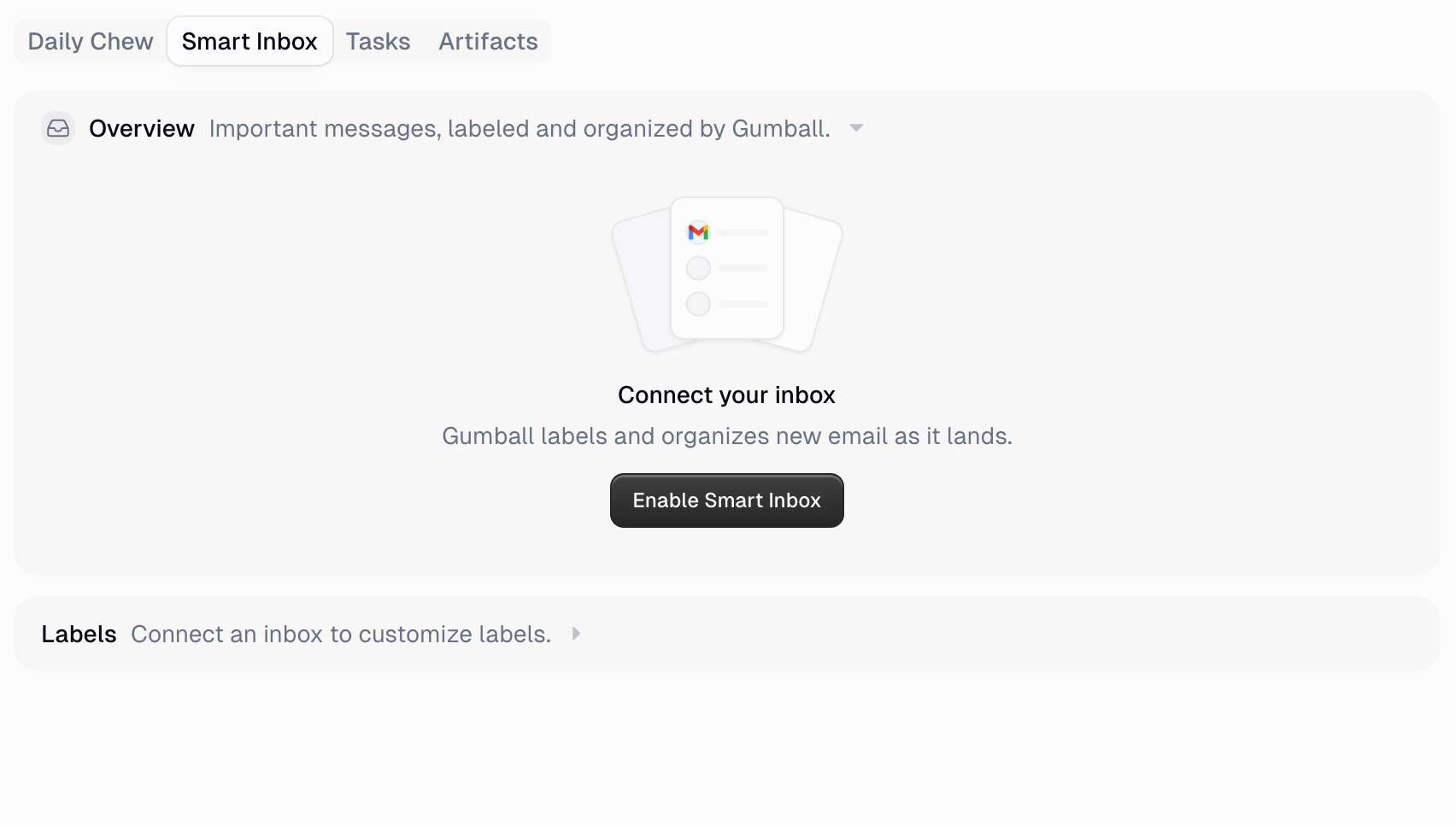
From the Gumball home screen, open the Smart Inbox tab and click Enable Smart Inbox.
2
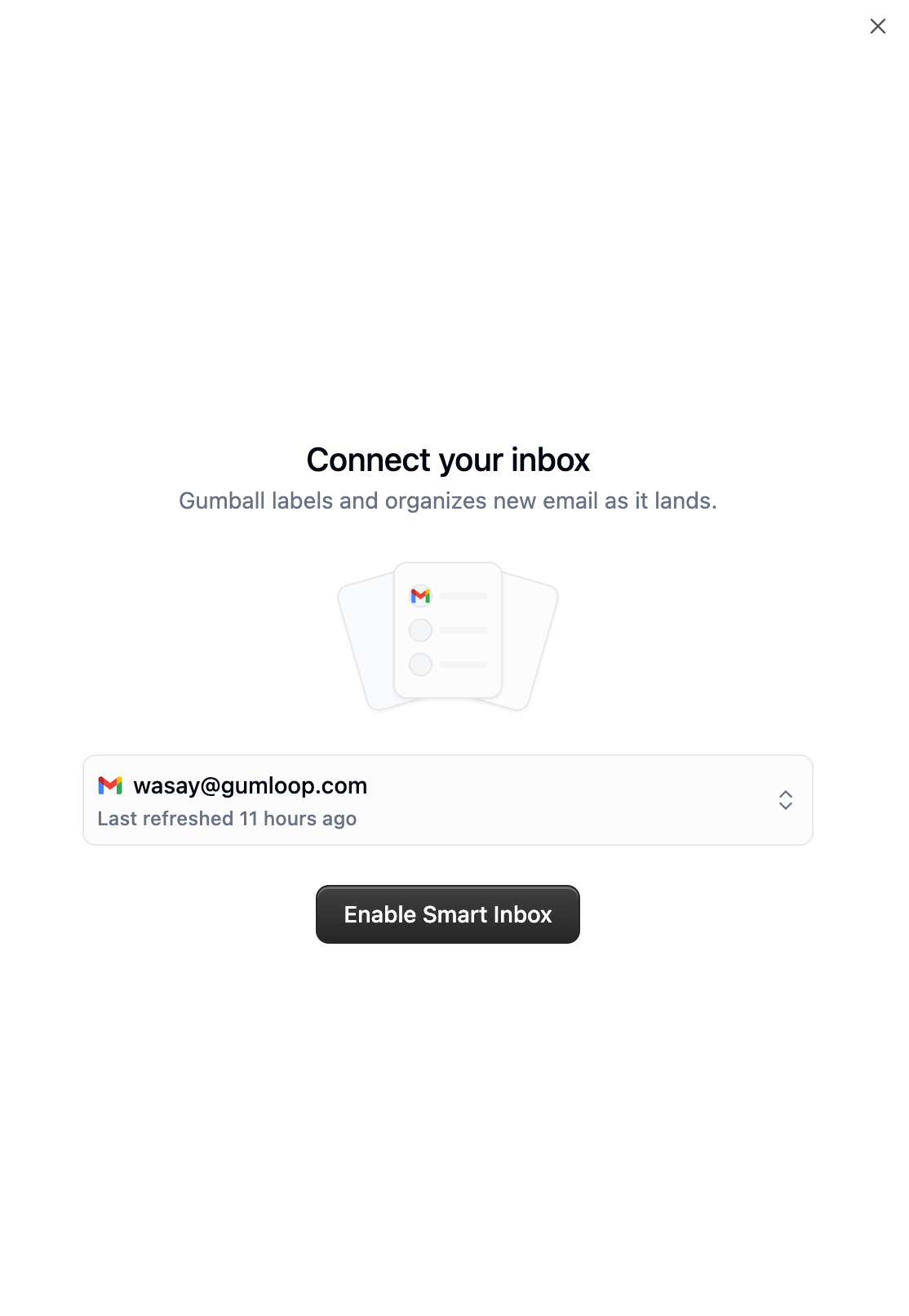
Pick the mailbox
Choose the connected Gmail or Outlook account Gumball should watch, then confirm.
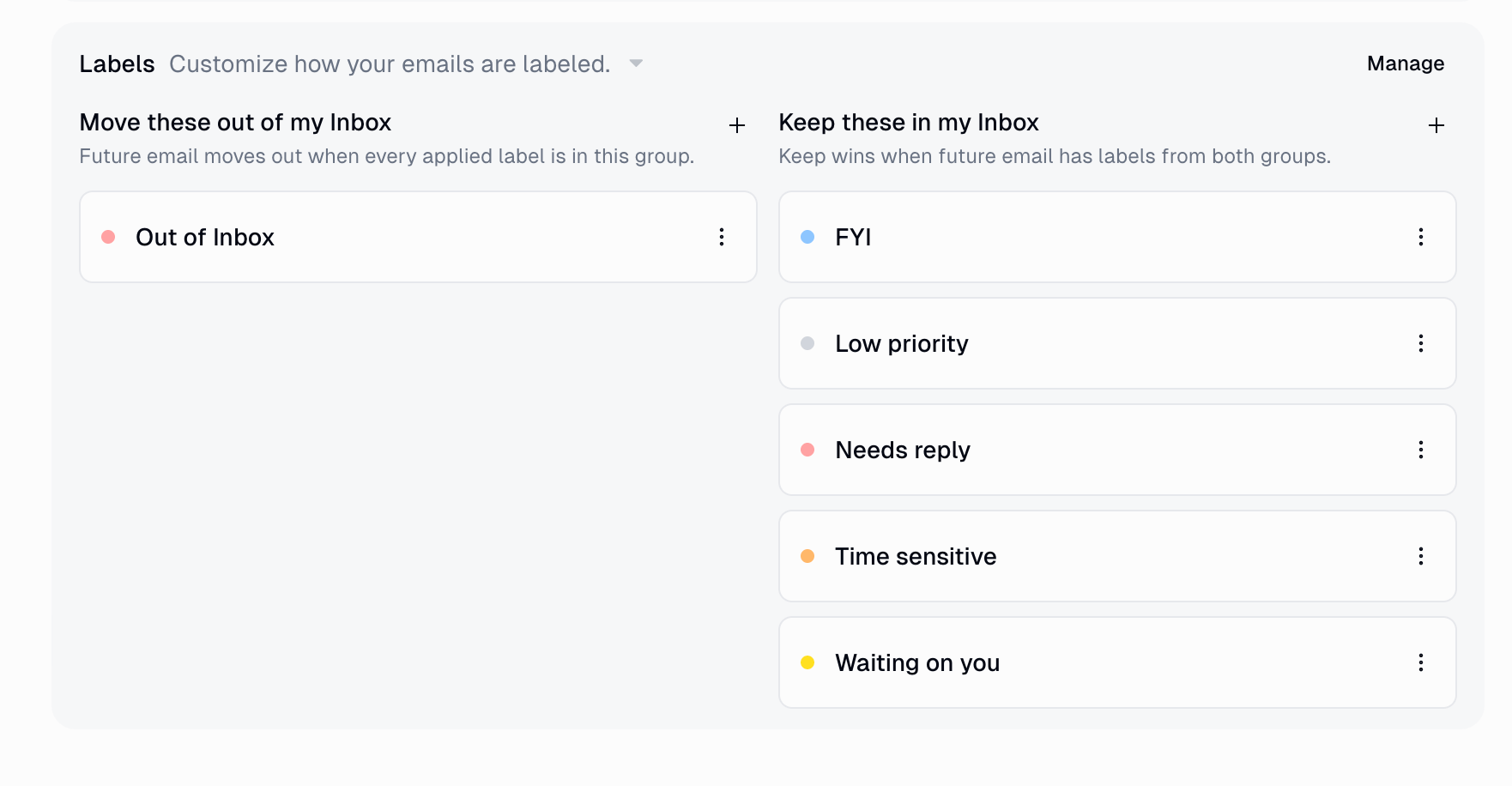
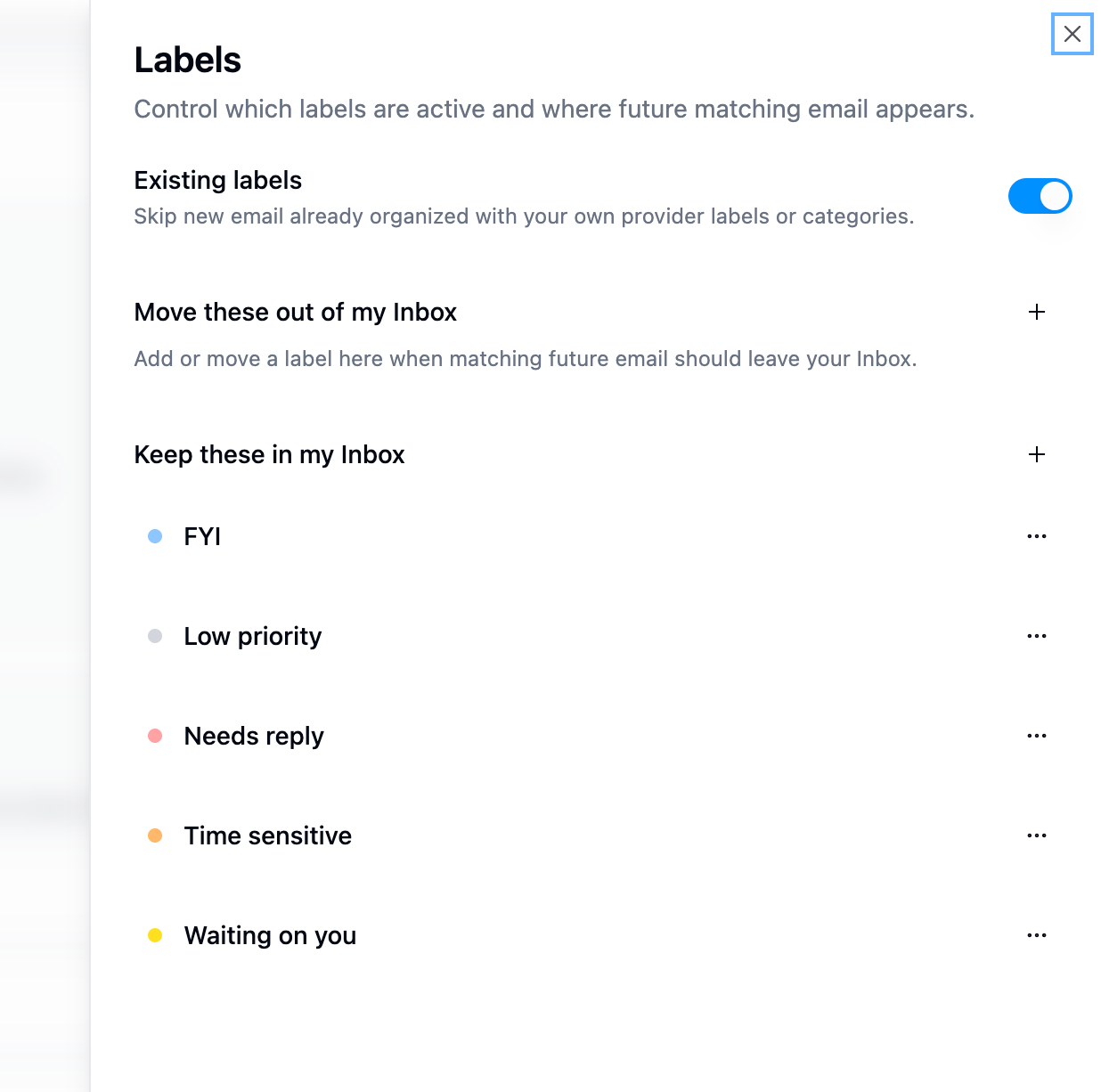
Gumball seeds five built-in labels and starts classifying the next email that arrives.
Enabling requires permission to read email and modify messages. On Gmail it also needs to list and create labels. Two capabilities are optional, and if your organization’s app rules block them, labeling keeps working without them: creating drafts (no draft is created) and, on Outlook, archiving (labels still apply, but mail stays in your Inbox).
You start with five built-in labels, and you can add your own up to a total of 25.
Built-in label
Applied when
Needs reply
You should reply.
Time sensitive
There’s an explicit deadline or urgency.
Waiting on you
Progress requires your action.
FYI
Useful information, no action needed.
Low priority
Non-urgent, limited immediate value.
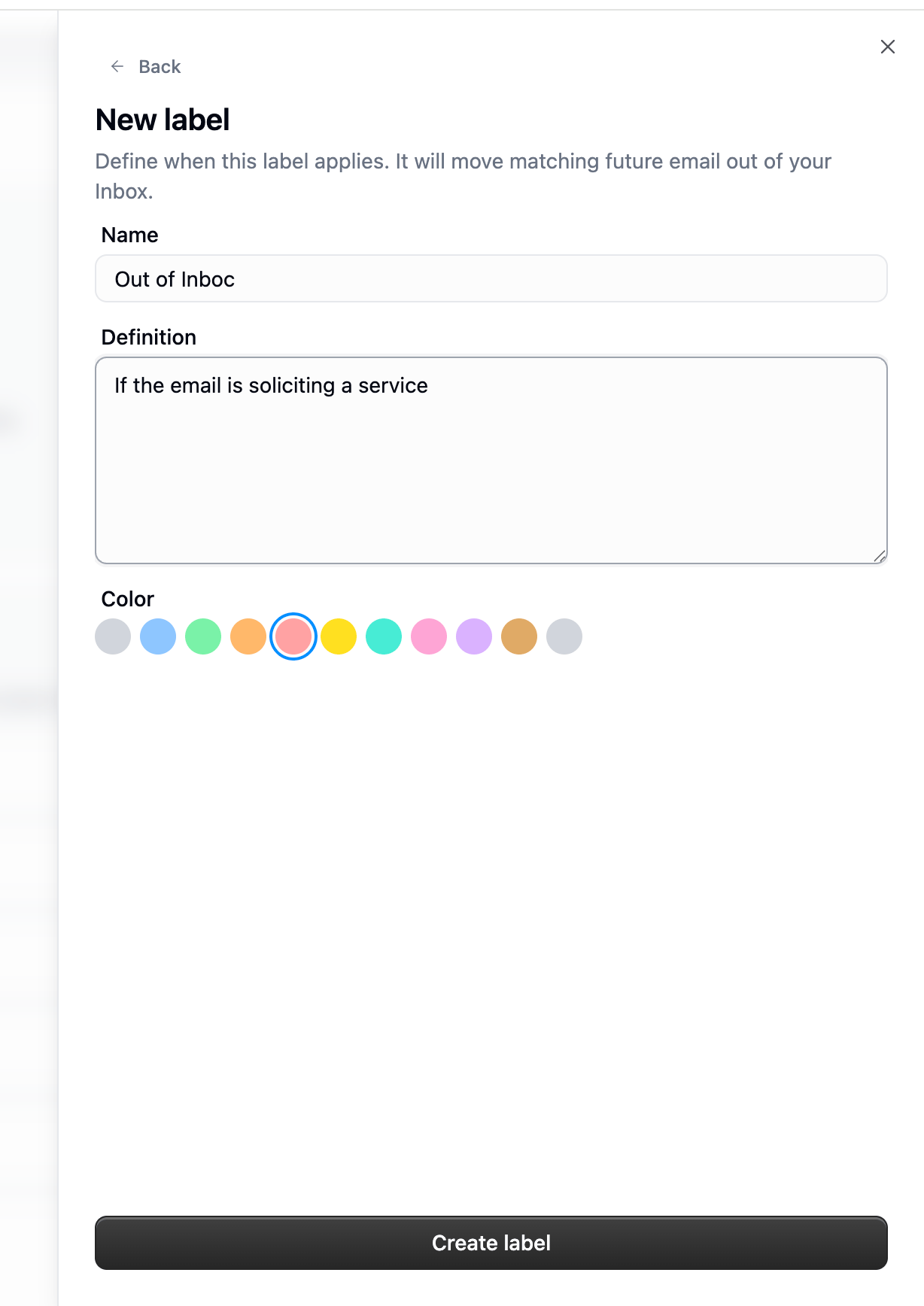
A label is just a name, a definition, and a color. The definition is the instruction Gumball classifies against, so write it the way you’d explain it to a new assistant.
Every label sits in one of two groups, and the group decides where matching mail ends up.
Keep wins. A message leaves your Inbox only when every label Gumball applied to it is in the “Move these out” group. One “Keep” label anywhere on the message keeps it in your Inbox.
The Existing labels toggle in Manage controls whether Gumball skips mail you’ve already organized: when it’s on, Gumball leaves alone any message that already carries one of your own labels or categories. Labels Gumball manages don’t count for this.
A message can receive at most 5 labels. Labels Gumball isn’t confident about are dropped rather than guessed.
Gumball classifies each email as it arrives, and never re-runs on old mail.
Editing a label’s definition, color, or group changes future email only.
Turning a label off stops it being applied going forward; mail already labelled keeps its label.
Deleting a custom label removes it from Gumball; the native label or category stays on the messages that already have it.
Renaming a label renames the matching Gmail label, so your existing mail follows the new name. On Outlook the new name is used going forward and older mail keeps the old category.
The five built-in labels can be disabled or edited, but not deleted.
A label that shares a name with one of your own labels or categories is adopted rather than duplicated, and Gumball starts managing it.
When Gumball decides a message needs a reply, it can write one straight into your mailbox as a native draft, so you open Gmail or Outlook, read it, edit it, and hit send.
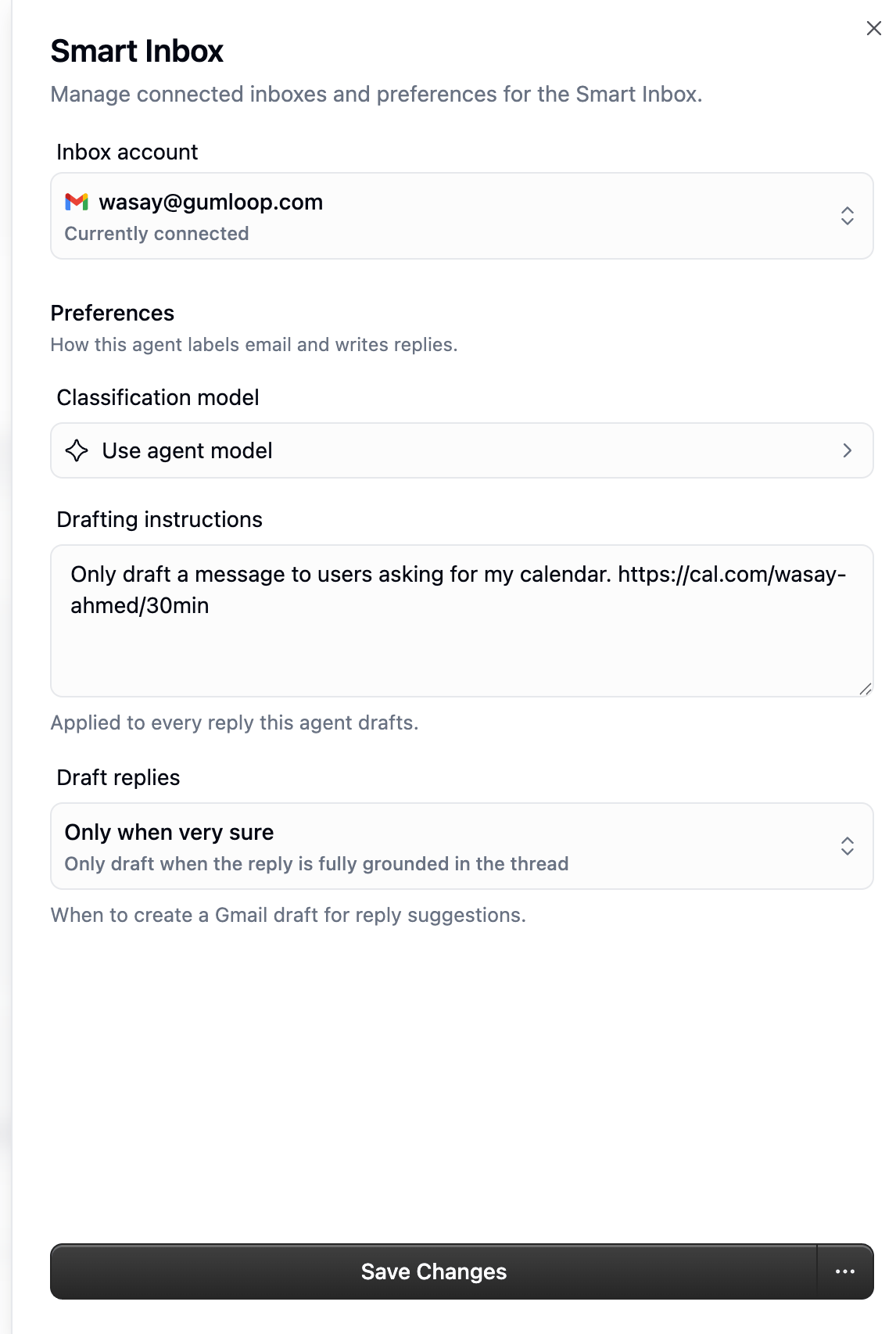
Setting
What it controls
Inbox account
Which Gmail or Outlook mailbox Smart Inbox watches.
Classification model
The model used to label email. Defaults to Gumball’s own model.
Drafting instructions
Standing instructions applied to every reply Gumball drafts. These outrank your Tone personalization.
Draft replies
Whether a native draft is created in your mailbox at all.
Gumball writes a native draft when it decides the message needs a reply and it is confident in the reply it produced. Otherwise, no draft is created.
Off
No drafts are created in your mailbox. Gumball skips reply generation altogether, so it doesn’t cost you credits.
Gumball writes drafts from the thread itself plus up to three of your past replies to that sender, so they sound like you. Point Gumball at your other apps and it can go further. See Grounding drafts in your apps.
If you configured this back when it offered several confidence levels, it now reads as When confident. Only an explicit Off is carried over.
A draft keeps the conversation intact, so nobody is quietly dropped:
The mail you received
Who the draft goes to
Sent to you and other people
A reply all: the sender plus everyone who was on To, with the original Cc kept on Cc.
Sent to you alone
A normal reply to the sender.
Your own connected address is always removed from the recipients, and Bcc is never carried over. If you would rather reply to the sender only, edit the recipients in Gmail or Outlook before you send.
A draft is created only when all three of these hold:
Check
What it means
The ask is aimed at you
The most recent ask in the message is for the mailbox owner. Being on To or CC, or having your name in the message, isn’t enough. If the greeting names someone else, or only that person can answer, Gumball stays out of it.
There’s something to reply to
A real ask, a decision, a deadline, or a commitment you made. FYIs, mentions, notifications, meeting notices, being looped in, and polite mail with no ask don’t qualify.
Your instructions allow it
Drafting instructions that say to ignore this kind of mail block the draft.
When the signals conflict, Gumball prefers not to draft rather than guess.Two kinds of mail are skipped before that even applies:
No-reply, newsletter, and system senders (noreply@, notifications@, mailer daemons, and similar) never get a native draft.
Gumball skips calendar invitations with nothing to reply to, meaning just the invite chrome and no note from the organizer. An invitation with a real message from the organizer goes through the checks above like any other mail.
By default, Gumball drafts only for known or trusted senders:
You have previously sent email to that exact address, or the sender’s email domain has the same registrable domain as your mailbox’s domain. Shared free, personal, and disposable email domains do not count, so a Gmail sender does not match another Gmail mailbox this way.
Mail you have only received from does not make a sender known. If Gumball cannot complete the check for whether you have emailed the sender, it treats the sender as known rather than skipping the draft.
Why didn’t I get a draft? The sender may not have passed this filter, or the message may not have passed one of the three checks above. To draft for all eligible messages, ask Gumball to turn off only draft replies for people you have emailed or who share your work domain.Labeling always continues, even when no draft is created, and you can ask Gumball for a reply in chat at any time.
By default a draft is written from the email thread alone, so it can’t answer anything the thread doesn’t already contain. Under Connectors in Smart Inbox settings you can let Gumball look things up first:
Choice
What Gumball may read
All connectors
Everything you have connected, at the time the mail arrives, so Gumball picks up new apps automatically.
Selected connectors
Only the apps you pick (up to 50).
Nothing selected
Thread-only drafts, exactly as before. No lookups happen.
What that changes:
Lookups are read-only and minimal. Gumball checks a source to confirm a fact or pull a number the reply needs. It doesn’t go browsing just because a tool exists.
It can also draw on your Brain sources when the agent already has them, your past conversations, that morning’s Daily Chew Situations, and any Meeting Prep briefs for the people on the thread.
If a fact is still missing after a sensible check, Gumball asks or leaves a placeholder rather than inventing it.
Drafts cite where a grounded fact came from, and citations must come from a source that was actually in scope for that draft.
A grounded draft is billed like a short triggered agent run rather than a single model call, so it costs more credits than a thread-only draft.
Grounding never widens what Gumball can do: the run is read-only, so it cannot send, reply, archive, or change anything in the apps it reads, including tools reached through another tool.
Turning Smart Inbox off, or switching to a different mailbox, clears Gumball’s record of what it labelled and its link to the native labels or categories. Those stay in your mailbox on the mail that already has them, and Gumball re-adopts them by name if you reconnect.
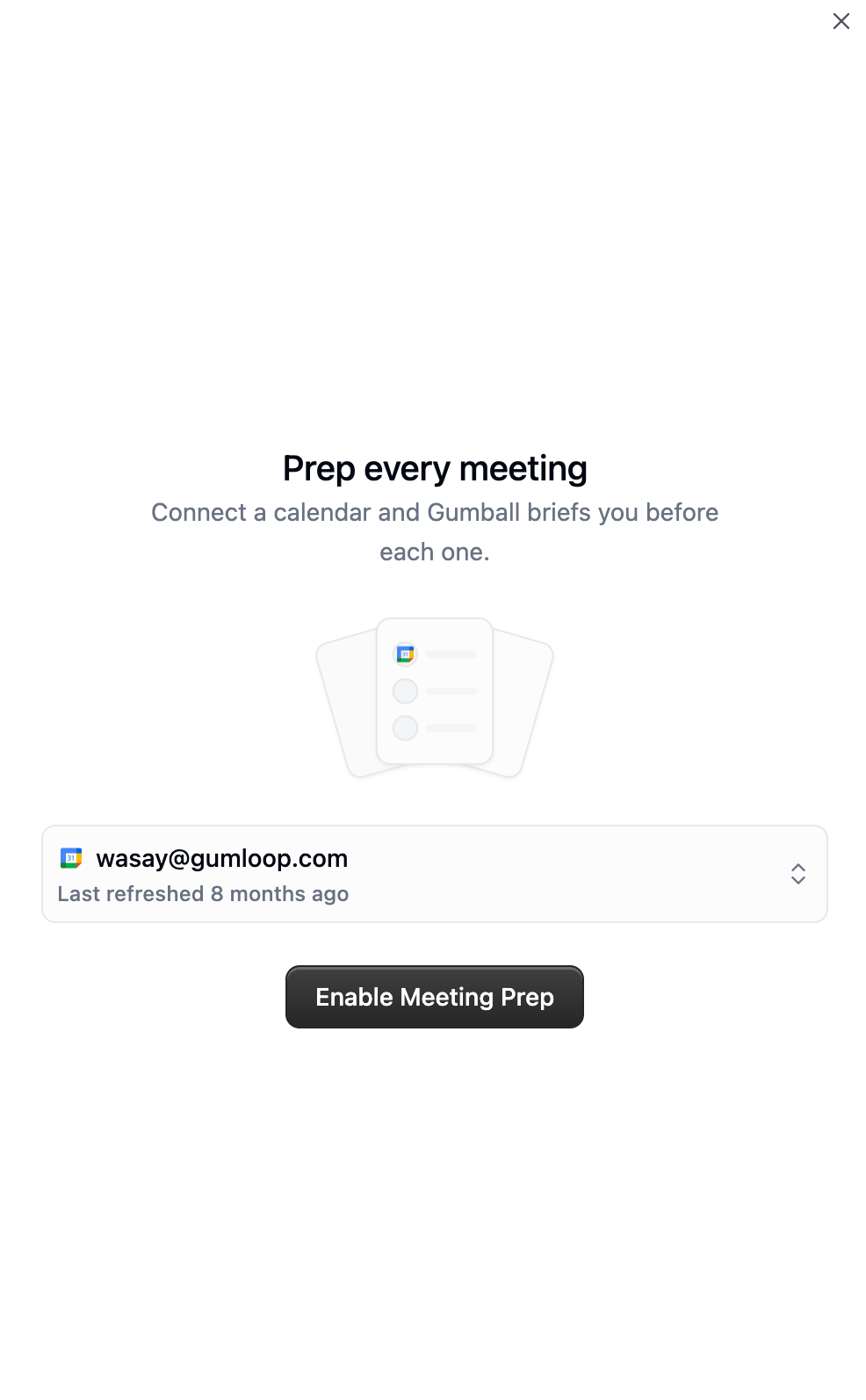
Pick the Google Calendar or Outlook Calendar account Gumball should watch, then click Enable Meeting Prep.
2
Choose what gets prepped
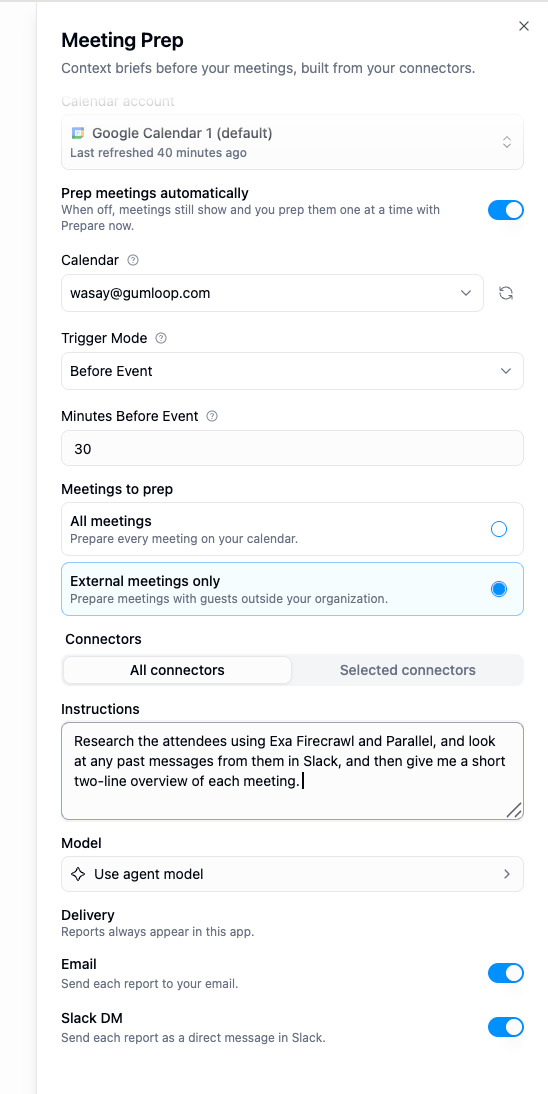
Setting
Notes
Prep meetings automatically
When off, meetings still appear and you prep them one at a time with Prepare now.
Calendar account
The connected Google Calendar or Outlook Calendar account.
Calendar
Which calendar on that account to watch.
Minutes Before Event
How far ahead of the meeting the brief is written.
Meetings to prep
All meetings, or External meetings only.
Connectors
All connected apps, or a specific list.
Instructions
What research you want done and how you want it framed.
Delivery
In Gumball always; Email, Slack DM, and Text message optional. See Getting briefs by text.
External meetings only is the default. A meeting counts as external when at least one guest other than you has an email domain different from yours. Solo events and all-internal meetings are skipped.
A short summary (two to three sentences, 60 words max) plus a document with up to four sections, in this order, omitting any that are empty:## Attendees · ## Prior context · ## Open questions · ## Talking pointsPrior context opens with a recap of your history with these people, then the relevant threads, decisions, and risks from email, Slack, meeting notes, and CRM activity, woven together rather than listed per tool. The meeting’s time, location, and guest list aren’t restated, since they’re already on the card next to the brief.Meeting Prep runs are read-only and handle source failures exactly like the Daily Chew. Briefs delivered to Slack carry the same Give Feedback button, described under Telling Gumball a Report Needs Work. Meeting Prep briefs delivered to Slack also include links to the brief’s cited sources when those sources have a URL.
Google Calendar and Outlook Calendar behave the same way here: same settings, same automatic and Prepare now paths, and the same brief.
Organization admins control access through user roles. Smart Inbox, Daily Chew, Meeting Prep, and texting Gumball each have their own permission that cascades from Gumball access: turning off Gumball access for a role turns off all four.
For custom roles, Smart Inbox, Daily Chew, Meeting Prep, and Gumball text messaging are restricted by default. An admin has to grant them explicitly.
If you lose access while Smart Inbox is running, Gumball turns it off. If the restriction is later lifted, you need to re-enable it yourself. It doesn’t resume on its own.
What's the difference between Gumball and a custom agent?
Gumball is personal and automatic: one per user, created for you, and it searches every skill you can access, including your teams’ skills, instead of using a fixed list of attached skills. Custom agents are built by you, shared with your team, and only see the skills, tools, and instructions you configure on them. Gumball is also the only agent with Smart Inbox, Daily Chew, and Meeting Prep.
Can I share Gumball, or see a teammate's?
No. Gumball is scoped to its owner. Everyone gets their own, and no one else can view or configure it. If you want a shared assistant, build a custom agent.
How do I chat with Gumball in Slack?
DM the Gumloop app in your Slack workspace. Find it in your sidebar or under Apps and start typing. No setup, no channel, no @mention. The Slack row on the Gumball home screen opens that DM for you.
Can I DM a custom agent instead of Gumball?
Not through the standard Gumloop app. DMs there always go to your own Gumball, and custom agents are added to channels. To DM a custom agent, connect a Custom Slack App for it.
Gumball says it needs updated Slack permissions. What now?
Your workspace’s Gumloop Slack app was installed before DM support and is missing the direct-message permissions. A workspace admin needs to reconnect the Gumloop Slack app from the Connectors page. Channel agents keep working in the meantime.
Can I change Gumball's email address?
No. gumball@gumloop.ai is reserved for the personal agent and can’t be renamed, disabled, or claimed by a custom agent.
Can the Daily Chew or Meeting Prep change something in my apps?
No. Both run read-only. Only tools that read data are available during a run. Anything that writes, sends, or modifies is blocked, including write tools reached indirectly through another tool.
One of my apps was down during a run. Do I lose that day's updates?
No. Each source is tracked separately, and Gumball only advances its position for the sources that succeeded. The failed source is reported as failed for that run and its missed items show up in the next one.
What does the Daily Chew cover on its very first run?
The previous 16 hours. Every run after that covers everything since the last successful run.
I left the connector list empty. What gets included?
Everything you have connected at the time the report runs. That’s the same as choosing All connectors, and it means newly connected apps are picked up automatically.
Does Smart Inbox work with Outlook?
Yes. Connect either a Gmail or an Outlook mailbox. On Outlook your labels become Outlook categories instead of Gmail labels, and the only behavioral differences are that categories can’t be renamed on existing mail and that moving mail out of your Inbox needs the archive permission. Gumball watches one mailbox at a time, so connecting Outlook replaces a connected Gmail account.
Will Smart Inbox label the email that's already sitting in my inbox?
No. Classification happens as email arrives, so only mail received after you enable it gets labelled. The same applies to changes: editing or adding a label affects future email, never mail that’s already been classified.
I renamed a label. What happens to email that already had it?
On Gmail the rename is applied to the label itself, so existing mail keeps the label under its new name. On Outlook categories can’t be renamed, so the new name is used for future mail and older mail keeps the old category. Definitions, colors, and group changes only affect new mail on either provider.
Why did a message stay in my Inbox even though it got a 'move out' label?
Because another label on the same message was in the “Keep these in my Inbox” group. Keep always wins: a message only leaves your Inbox when every label applied to it says move.
Why didn't Gumball label an email at all?
Most often one of three reasons: the Existing labels toggle is on and you had already labelled or categorised that message yourself; none of your label definitions matched confidently enough; or the message arrived before Smart Inbox was enabled.
Can Smart Inbox send emails for me?
No. It only creates drafts in your mailbox. Sending is always your action.
Why was no draft created?
Usually one of these: Draft replies is set to Off; the latest ask wasn’t aimed at you; there was nothing to reply to (an FYI, a mention, a notification, a meeting notice); your Drafting instructions say to ignore that kind of mail; the sender is a no-reply, newsletter, or system address; the message was a calendar invite with no note from the organizer; Gumball wasn’t confident in the reply it produced; your organization’s app rules block draft creation; or you had edited Gumball’s previous draft in that thread and it declined to overwrite it. Labeling still works, and you can always ask Gumball for a reply in chat.
What happens to my labels if I disconnect my mailbox?
Gumball forgets what it labelled and drops its links to the native labels or categories. Those stay in your mailbox on the mail that already has them, and if you reconnect, Gumball re-adopts the ones with matching names.
Does Meeting Prep work with Outlook Calendar?
Yes. Connect either a Google Calendar or an Outlook Calendar account, pick the calendar to watch, and everything else (automatic prep, Prepare now, meeting scope, and the brief itself) works the same way.
Why didn't Meeting Prep run for a meeting on my calendar?
The most likely reason is External meetings only: a meeting is only external if at least one guest besides you has a different email domain. Also check that automatic prep is on and that the meeting starts further out than your Minutes Before Event setting. If the calendar connection and event are available, you can also use Prepare now.
Meeting Prep says my calendar needs reconnecting
Reconnect the calendar account if the connection needs reconnecting. If the calendar is unavailable to the connected account, check that account’s calendar permissions. If the calendar is not found, choose another calendar. If the event is not found, refresh; it may have been removed or cancelled. Temporary unavailability should be retried later.
Can I still prep a meeting with automatic prep switched off?
Yes. Turning it off only stops Gumball firing on its own. Meetings still appear on the home screen and Prepare now works normally.
Do reports get delivered twice if something is retried?
No. Each run has a single delivery boundary, so an internal retry can’t produce a duplicate report.
Where do reports go?
Always into Gumball, where they’re kept in history. Email, Slack DM, and Text message are optional on top of that. Text messages go to your verified phone number. Slack DMs are matched to you by your account email. If there’s no email on your profile, the Slack DM is recorded as not sent and the report is still saved.
Why isn't an important item shown as a Situation?
Situations are deliberately narrow: they need work you own with a concrete outcome Gumball could take on. Notifications, mentions, and general activity aren’t enough on their own.
Does editing a Situation step send it?
No. Editing only saves the prompt and any @mentions you changed. The edited text is used when the step is sent.
Does each Situation step become its own chat?
No. Send to Gumball sends the entire Situation as one plan, with all steps in order in a single chat.
What if I send the same Situation twice?
You get the existing chat back instead of a second chat.
Why can't I send this Situation?
A Situation with no nested steps cannot be sent as a plan. Use Mark handled or Dismiss instead.
Do these features cost credits?
Yes. Classifying email, drafting replies, and generating reports use models and tools like any other agent activity. See Credits.
My admin restricted Gumball and then unrestricted it. Why isn't Smart Inbox running?
Smart Inbox is switched off when access is removed and does not resume automatically. Re-enable it from the Smart Inbox tab.
Was this page helpful?
Assistant
Responses are generated using AI and may contain mistakes.