

Owner vs. User at a glance
The Access tab has Owners, Who can use, Organization, Public link access, Artifact Sharing, Incognito, and User Permissions sections. Task history follows separate permissions, described below.
Give someone access
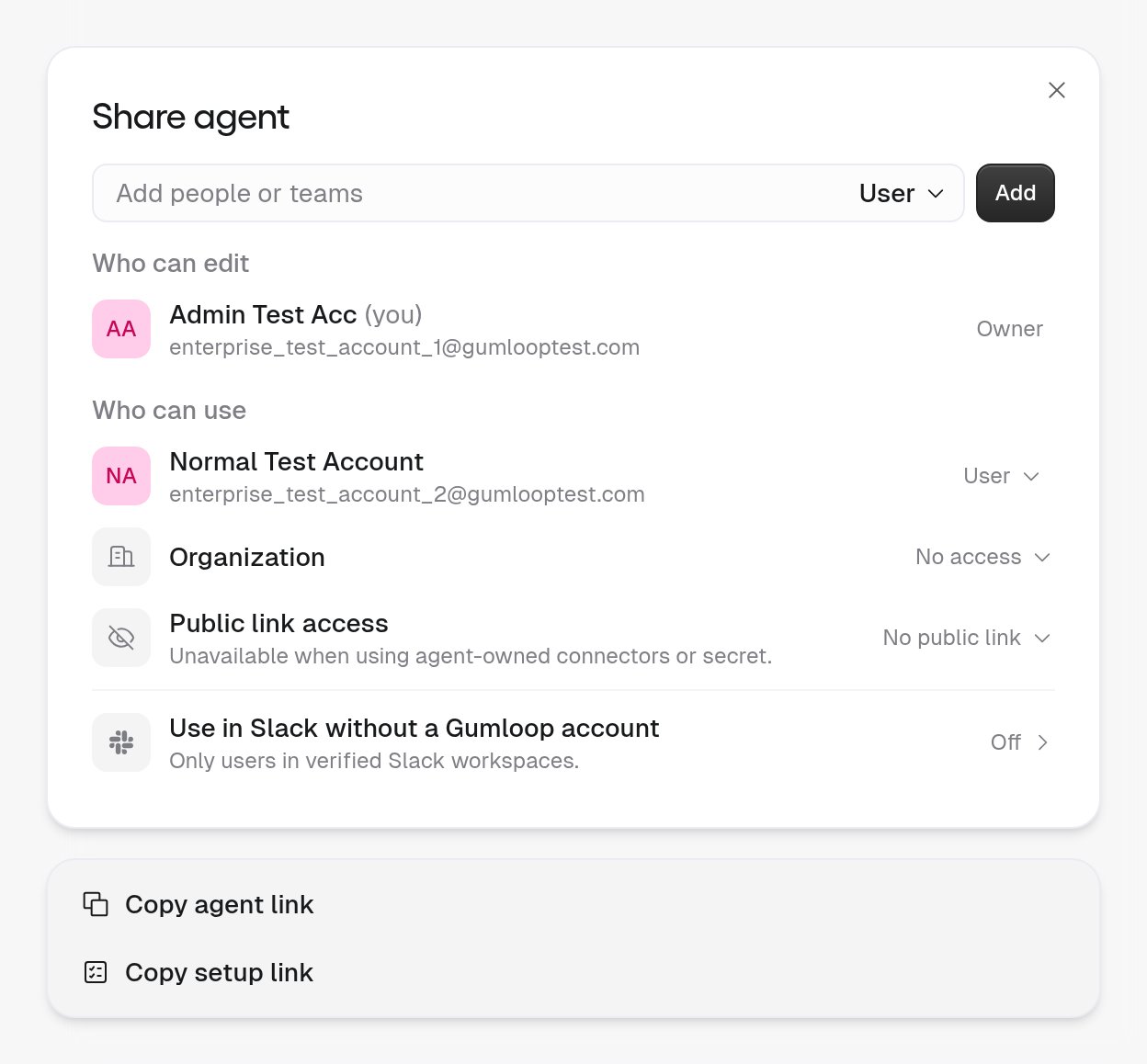
Click Share at the top of the agent to open the Share agent dialog. The same controls also appear in the agent’s Access tab.- An Add people or teams field. The role picker sits inside the field, to the left of the Add button.
- Who can edit: the agent’s Owners.
- Who can use: people and teams with User access.
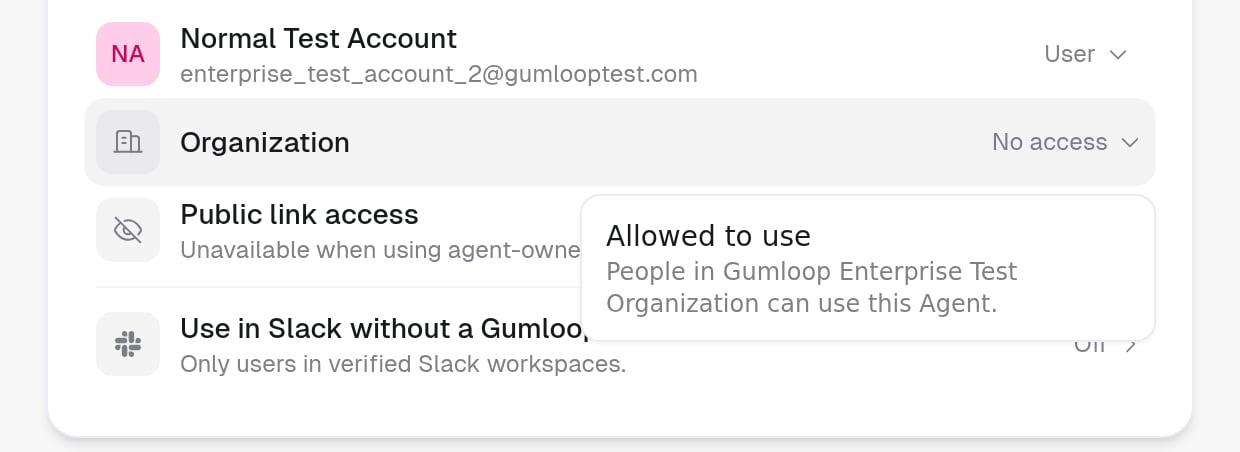
- Two separate audience rows, Organization and Public link access. Each row has its own setting, so opening the agent to your organization does not open a public link, and the reverse.
- Add a person or team
- Open it to your organization or a link
- Change someone's role
Share → type an email or team name in Add people or teams → pick the role from the picker inside the field → Add.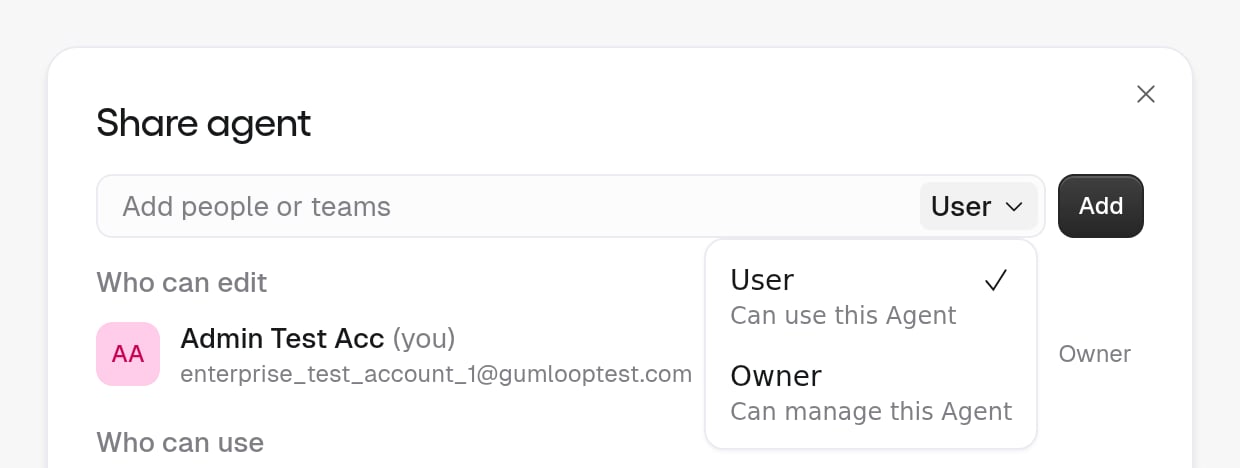
- User: Can use this Agent
- Owner: Can manage this Agent
User permissions
User Permissions control what Users can see in the agent configuration and whether they can create triggers or make a copy. Owners can see and edit the full configuration. Task access is separate.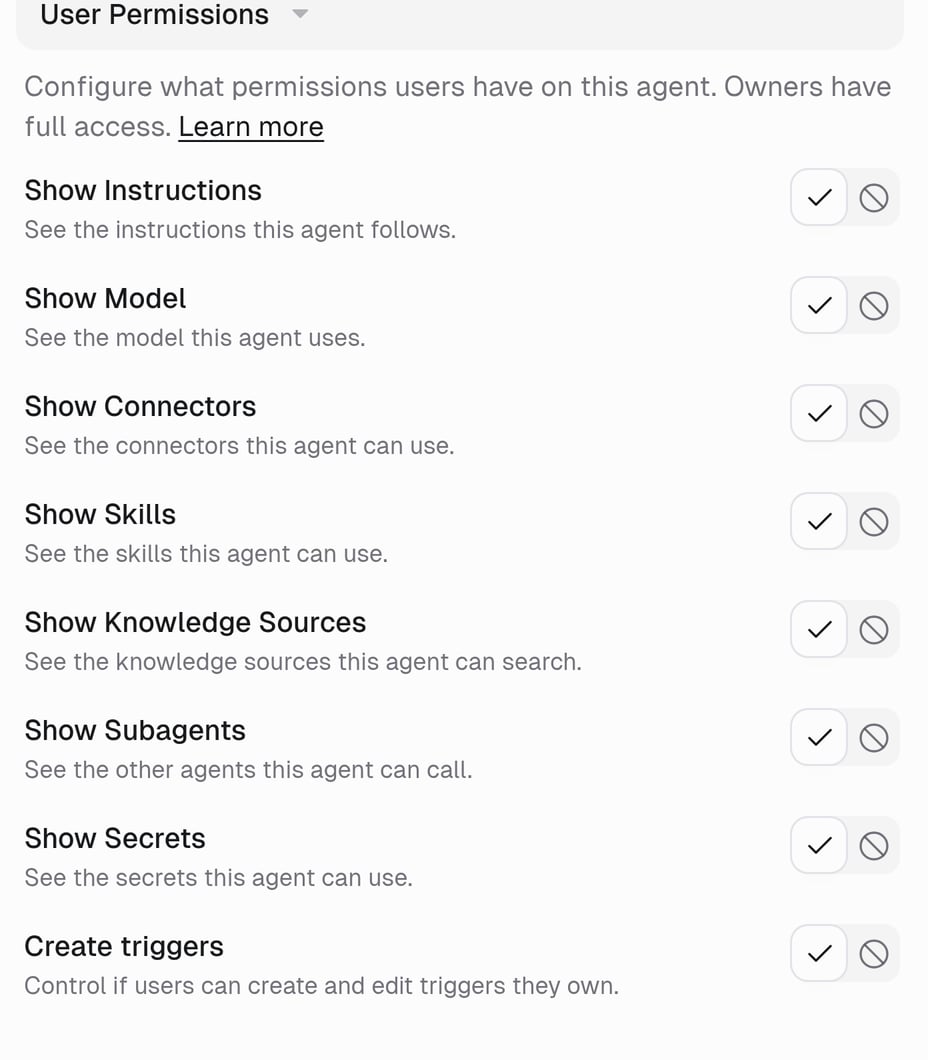
Three rules worth remembering:
- Visible is not editable. Showing the instructions lets a User read the prompt, never change it.
- Hiding something does not disable it. Hiding Connectors leaves tools such as Gmail available to the agent; Users just do not see them listed.
- Permissions are per agent, not per person. Everyone with User access gets the same view.
Defaults and org-wide defaults
Defaults and org-wide defaults
Out of the box every visibility setting is Show, and Create triggers and Make a copy are Allow. Organization admins can ship different defaults with Agent Default Settings.
What happens to existing triggers when you turn off trigger creation
What happens to existing triggers when you turn off trigger creation
If you switch Create triggers to Don’t allow while Users already have triggers, Gumloop asks what to do:
- Keep running: they keep firing. Users cannot create, edit, or activate triggers, but can still view, deactivate, and delete their own.
- Disable them: they are switched off.
What a copy contains
What a copy contains
When Make a copy is allowed, a User can duplicate the agent and becomes the Owner of their copy. The copy carries the whole configuration (instructions, model, connectors, skills, knowledge, and subagents), including parts hidden from Users. Treat copying as a separate decision from visibility. Turn it off if the agent’s setup should not leave your control.Copying applies to the custom agents you build. Gumball and Gumloop’s built-in agents cannot be copied, and an organization custom role that restricts agent modification blocks copying too.
Task Visibility
A task is one conversation with the agent. Incognito message content is not kept in normal task history. Chats that start by email follow the same task visibility as web chats.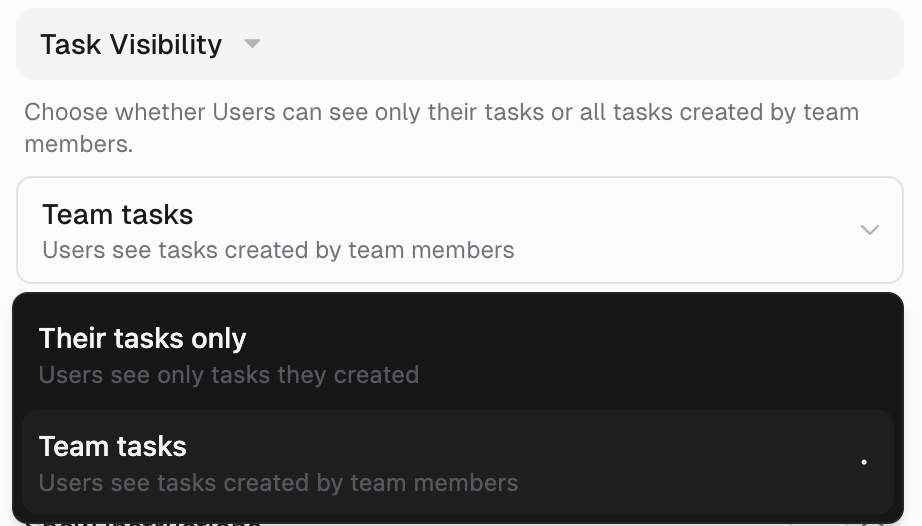
- This setting only exists on team agents, and new team agents default to Team tasks unless organization policy restricts conversation visibility.
- On a personal agent, Users see only their own tasks unless a task is shared with them, so the setting is hidden.
- When organization policy permits inherited access, Owners can see all saved tasks on the agent. Any task can also be shared separately.
What changes when the organization limits conversation visibility?
You can see your own tasks, conversations explicitly shared with you or that you are invited to, and conversations you can access through Slack or Teams collaboration. Agent ownership and organization administration do not grant access to everyone else’s saved tasks. Task Visibility is hidden while the policy is enforced, but personal agents hide it too. See Agent default settings for the full policy and what happens when it is turned off. Enterprise organizations can require every new task on an agent to run incognito with Always run incognito under Access > Incognito. See Custom roles.Conversation access and file permissions are separate. Task access normally includes task-linked artifacts, but password-protected files may still need an unlock. A file can also be shared independently without sharing its source task. Task access does not grant access to another person’s private persistent workspace files. See Agent artifacts (files) for file permissions.
File sharing
Artifact Sharing, in the agent’s Access tab, sets the default sharing for files the agent generates.
These defaults apply to new files only. A file’s organization, public link, or password-based access grants viewing access, not editing access. Add a person or team to the file as an Editor when they need to manage it.
Making an agent public does not make its conversations or personal files public. Signed-out visitors can view an active public agent’s top-level team files, but not its conversation-linked or personal files through that agent access. A file’s own public or password-protected sharing can allow access separately.
The team Files page and the team’s Gumloop Artifacts Brain source include only files from chats the team can open. Files from a private chat stay visible to the person who started the chat and to the agent’s Owners.
See Agent artifacts (files).
Requesting and claiming access
Request Owner access
Request Owner access
A User who needs to manage the agent opens the ⋮ menu in the agent header and chooses Request Owner access, then picks which Owner receives it. That Owner approves or denies it from their inbox. See Request Owner Access.
Claim Ownership of a stranded agent
Claim Ownership of a stranded agent
If an agent’s Owners are unavailable, an organization admin can use Claim Ownership to take over. Existing Owners keep their access. See Claim an ownerless agent.
Organization admin access
Organization admin access
Organization admins can manage agents in their organization without an explicit Owner grant. Claim Ownership makes them an Owner. Saved task access still follows the organization conversation policy.
FAQ
Where did Editor, Viewer, and Use Only go?
Where did Editor, Viewer, and Use Only go?
They no longer apply to agents. An editor becomes an Owner; a viewer or use-only person becomes a User whose visibility you tune with User Permissions. Skills still use Editor, Viewer, and Use Only. See Sharing a skill.
Can a User edit the instructions they can see?
Can a User edit the instructions they can see?
No. Show Instructions grants read-only access. Editing the agent requires Owner access.
Can I give one person more access than another?
Can I give one person more access than another?
Not today. User Permissions are per agent, not per person. If one person needs more, make them an Owner, or make a copy of the agent with different settings.
Why can I not remove the last Owner?
Why can I not remove the last Owner?
An agent always needs someone who can manage it. Add a second Owner first, then demote or remove the original.
Someone left the company and their agent is stuck
Someone left the company and their agent is stuck
An organization admin can open it and use Claim Ownership to take it over.
Related
Agents
Configure and use an agent.
Agent triggers
Who can create triggers, and what happens when you turn that off.
What can a User see on my agent?
Control what Users can see and do.
Sharing roles
Owner vs User, and roles on skills.