Reusable instructions, templates, and scripts that teach agents your processes.
Skills give your agents reusable instructions, templates, and scripts for specific tasks. You can update a skill as your process changes or after correcting an agent.
A skill is a reusable set of instructions (and optionally templates and scripts) that teaches an agent how to do a specific task.Think of a skill as a playbook your agent can pull out when it needs it:
Example: outreach emails
A step-by-step outreach process, your templates, and follow-up rules.
Example: support triage
An escalation checklist, severity rules, and response templates.
Example: weekly reporting
Which KPIs to include, the exact format, and optional scripts to compute metrics.
Skills can feel like memory, because the agent can update them after you give feedback. Technically, it is not remembering your conversation. It is updating a shared playbook that gets reused in future conversations.
See a 15-second example
You: “Reply to this customer email. Keep it short and friendly.” Agent:[replies, but uses the wrong sign-off] You: “We never sign off with ‘Best’. Use ‘Thanks’ instead.” Agent: “Got it. I updated the relevant skill so future replies use ‘Thanks’.”
If a skill uses a connector, add that connector to the agent and connect an account with the required permissions. Attaching a skill does not grant access to its services.
1
Conversation starts
Your agent loads up and sees a list of all attached skills, but only the names and descriptions (not the full instructions). This keeps things fast and lightweight.
2
You ask something
You send a message like “Draft an outreach email to the VP of Sales at Acme Corp.”
3
Agent finds the right skill
The agent scans the skill descriptions and finds email-outreach-playbook is relevant. It reads the full skill from the sandbox.
4
Agent follows the instructions
Now the agent has the complete playbook in context. It follows the step-by-step process: researches the prospect, personalizes the email using your template, and drafts it exactly the way you want.
5
Conversation ends
If the agent made any changes to skills during the conversation (more on that below), those changes are automatically saved.
Key insight: Skills are only loaded when needed. If you have 20 skills attached to an agent but the user asks a simple question, the agent doesn’t waste time or tokens loading irrelevant skills. This is fundamentally different from a system prompt, which is always loaded in full.
Gumloop provides built-in system skills that help agents manage skills and work with connected services. Common examples include:
skill-creator
Powers the Create With AI flow. When skill creation is enabled on an agent and you click Create With AI, the agent uses this skill to guide you through skill creation step by step: naming, scoping, writing instructions, and validating the result.
gumloop-sdk
Enables agents to call your connected integrations (Gmail, Salesforce, Slack, Google Sheets, etc.) directly from Python scripts in the sandbox. This is what makes it possible to build skills that combine custom logic with real tool calls: for example, a script that reads from Sheets, processes the data, and posts a summary to Slack.
Both system skills are read-only: they are maintained by Gumloop and updated automatically. You cannot edit or delete them. The skill-creator skill is only active when skill creation is enabled on the agent (via the AI Skill Editing toggle in the agent’s Skills section).
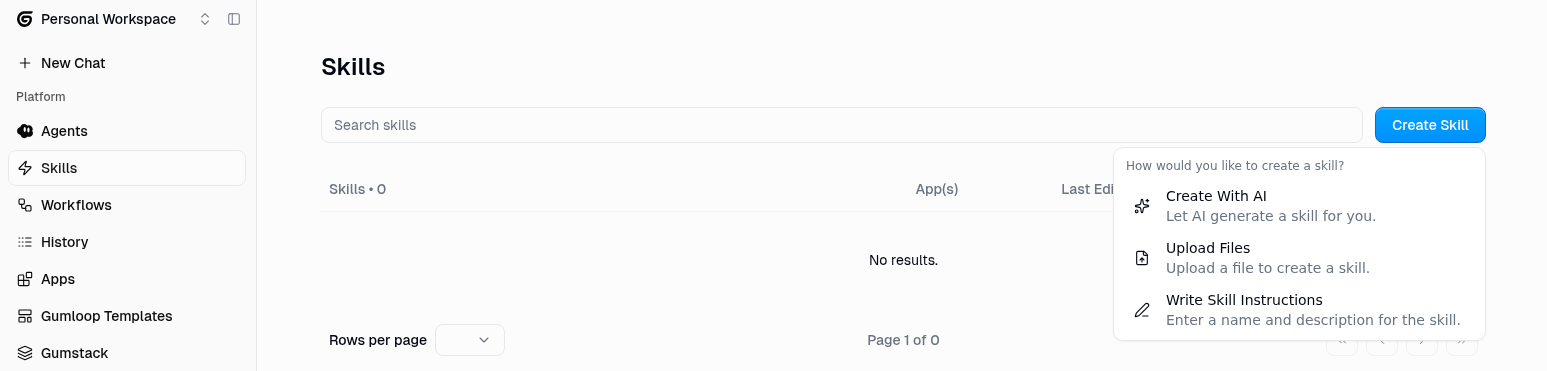
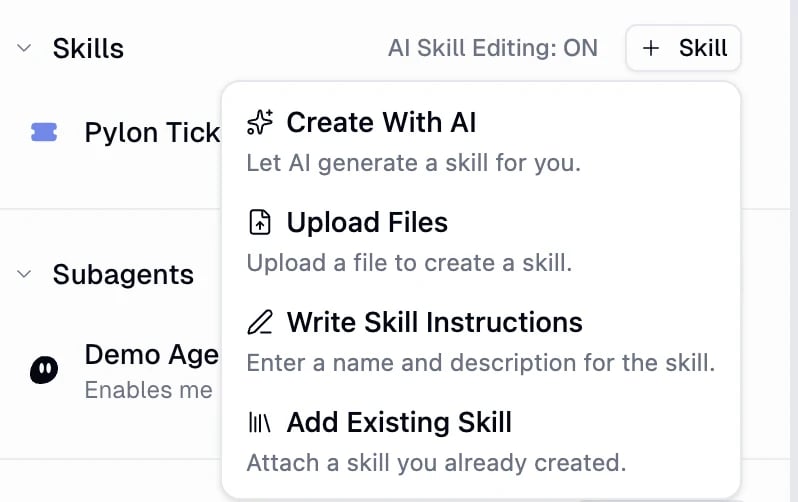
There are three ways to create a skill. Pick whichever feels most natural.
Naming Rules: Skill names are validated by the backend and must follow these constraints:
Lowercase letters, digits, and hyphens only
No spaces, underscores, or uppercase letters
Maximum 64 characters
Cannot start or end with a hyphen
No consecutive hyphens
When you create or rename a skill, the name must not be used by another active skill from the same author. If it is taken, choose a different name.
Valid: my-cool-skill. Invalid: My_Skill, my skill, mySkill.
Create with AI (recommended)
The easiest way to get started. Click Create Skill → Create With AI, and a chat opens where the AI walks you through skill creation step by step.You describe what you want the skill to do, and the AI:
Helps you nail down the scope and name
Writes the instructions based on your description
Adds any necessary scripts or reference files
Validates everything to make sure it’s properly formatted
Best for: Anyone who isn’t sure where to start, or wants a quick way to turn ideas into skills.
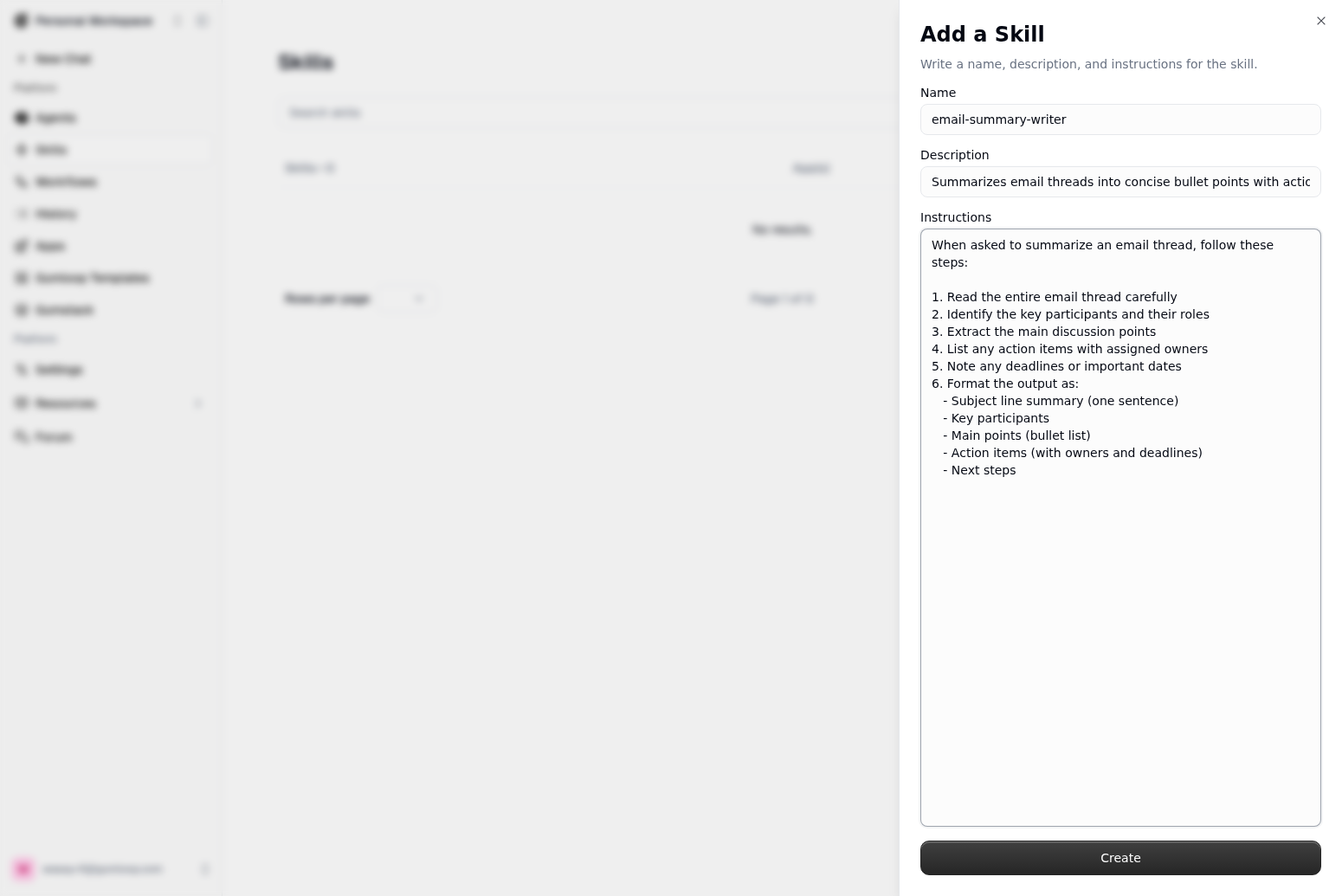
Write skill instructions
A simple form where you fill in three fields: Name, Description, and Instructions. Click Create and you’re done.
Best for: Simple skills that are just instructions (no scripts or extra files needed). Great for brand voice guidelines, email templates, response formatting rules, etc.
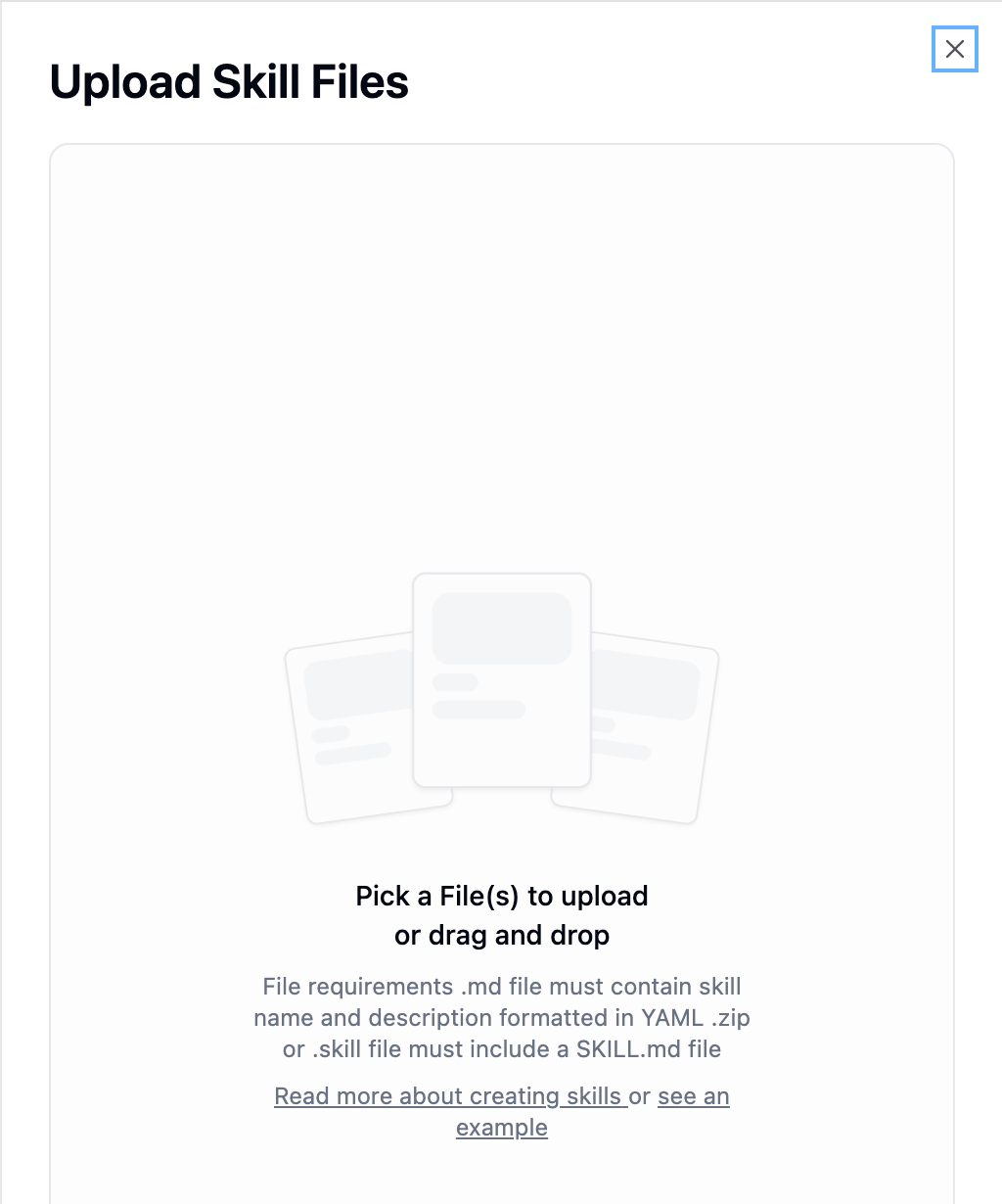
Upload files
Upload a .md, .zip, or .skill file containing a properly formatted SKILL.md. If you’re uploading a .zip, it can include scripts, references, and assets alongside the SKILL.md.
Best for: Technical users with existing documentation, SOPs, or code they want to package as a skill.
At its core, a skill is a folder containing a SKILL.md file with instructions your agent can read. Some skills also include helper scripts, reference docs, and templates.
The directory structure isn’t just organizational: it reflects how the agent uses each part:
Component
What it’s for
How the agent uses it
SKILL.md
Instructions, decision logic, context
Loaded directly into the agent’s context window. Keep it under 500 lines for token efficiency and focus.
references/
Detailed documentation, lookup tables, API specs
Read on demand when the agent needs specific details. Keeps SKILL.md lean.
scripts/
Deterministic logic: calculations, data transforms, API calls
Executed in the sandbox and the output is used in the agent’s response. Use tested scripts for repeatable calculations.
assets/
Static files used in output: templates, images
Referenced by instructions or scripts when producing output.
Rule of thumb: If the agent needs to reason through something (decisions, steps, context), it belongs in SKILL.md instructions. If the agent needs to calculate or process something and the calculation needs repeatable logic, it belongs in a scripts/ file.The 500-line soft limit on SKILL.md is enforced as a validation warning: skills exceeding it still work, but you should move detailed content to references/ to keep the agent’s context focused.
Every skill starts with a short header (called “frontmatter”) that tells the agent what the skill does and when to use it, followed by the actual instructions:
---name: email-outreach-playbookdescription: Draft personalized cold outreach emails for sales prospects. Use when the user asks to contact or email a prospect.---## OverviewThis skill guides the outreach process for cold prospects.## Step 1: Research the Prospect- Look up the prospect's company and role- Note recent news or achievements to personalize the email## Step 2: Draft the Email- Use the greeting: "Hey {first_name},"- Reference something specific about their company- Keep it under 150 words...
The description is the most important part. Your agent uses it to decide whether to load the skill for the current task. Be specific about what the skill does and when to use it. A vague description means the agent might never find your skill.Description constraints: Maximum 1,024 characters. No angle brackets allowed.
Optional frontmatter fields
Beyond name and description, you can add these optional fields to your frontmatter:
Field
What it does
Example
icon
Sets the skill’s icon in the UI. Prefer Central icon names. Legacy Lucide names remain compatible.
icon: IconChart4
color
Sets the skill’s accent color in the UI.
color: Blue
related_server_ids
Links the skill to specific integrations, enabling integration-scoped discovery. When set, agents working with that integration are more likely to find the skill.
related_server_ids: [gsheets, slack]
Other Central icon examples: IconTarget, IconEmail1, and IconCalendar1. You do not need to migrate existing supported Lucide names.Available colors: Grey, Blue, Green, Orange, Red, Yellow, Teal, Pink, Purple, Bronze, Black
---name: weekly-sales-summarydescription: Generate a weekly sales performance summary from Google Sheets data.icon: IconChart4color: Greenrelated_server_ids: [gsheets, slack]---
Server IDs must match the actual integration identifiers, not display names. For example, Google Sheets is gsheets, not google-sheets. Have the agent load gumloop-sdk and discover the available connector tools before writing the script.
Once you’ve created a skill, attach it to the agents that should use it.
1
Open agent configuration
Go to your agent’s configuration page.
2
Find the Skills section
Scroll down to the Skills section.
3
Add a skill
Click + Add and select a skill from the list (or create a new one right there).
That’s it. Your agent can now find and use that skill whenever it’s relevant.
Gumball, your personal agent, needs no attaching: it discovers every skill you can access on its own. See What Gumball can discover.Gumball vs. Custom Agent skill behavior: Gumball finds skills dynamically using semantic search, matching your request against skill descriptions. Custom agents only see skills explicitly attached to them (listed in the system prompt). A practical consequence: when an agent creates a new skill during a conversation, on a custom agent it gets auto-attached; on Gumball it is added to your library but not auto-attached to anything.
Skills shared with you directly, with your organization, or with one of your teams
If two skills have the same name, your own wins, then the more-used one. Personalization skills (Tone and Design) stay private to their author.
Discovery does not copy skills to you: you keep whatever role you were given. Gumball can edit a shared skill in place if you have edit access, and is blocked from editing it if you don’t.
Gumball loads shared skills on demand. Only skills already pulled in are present in its sandbox, so a skill can appear there mid-conversation after a search finds it: the agent uses skill discovery, not a directory listing, to know what’s available. Nothing to configure; it just means the full set does not have to be copied up front, however large your library gets.
The AI Skill Editing toggle in the Skills section of the Agent tab controls whether the agent can create and update skills.
Enabled: The agent can create new skills and update skills you have permission to edit.
Disabled: The agent can still read and use skills you’ve already attached, but cannot create or modify skills. Choose this for tighter control over your skill library.
This toggle is global: it applies to all skills on the agent, not per-skill. It does not override sharing permissions. If you have Viewer or Use Only access to a shared skill, neither you nor an agent acting for you can save edits to that skill.
Organizations can restrict skill creation. On enterprise plans, admins can turn off Skill creation for a custom role. For members of a restricted role, an agent that tries to save a new skill skips it and says skill creation has been restricted by their organization admin: even with the agent’s own toggle enabled. Reading, using, and updating skills that already exist are unaffected.
Fixing a template
Learning from experience
Creating a skill from scratch
You: “Draft an outreach email to the VP at Acme Corp.” Agent:[drafts email using the outreach-playbook skill] You: “Actually, we don’t use that greeting anymore. Use ‘Hey {first_name}’ instead.” Agent: “Got it. I’ve updated the outreach playbook skill with the new greeting.”
After the update is saved, future tasks that use the skill can follow the corrected greeting.
Conversation 1: You ask the agent to summarize your emails. It does a basic job. You: “Group them by sender.” Agent:[creates an email-summary skill with the grouping rule]
Conversation 2: You ask the agent to summarize your emails. It groups by sender automatically. You: “Also flag anything from my boss as urgent.” Agent:[updates the skill to add the urgent-flagging rule]
Conversation 3: You ask the agent to summarize your emails. It groups by sender AND flags your boss’s emails. No corrections needed.
You: “Every Monday I need you to pull last week’s support tickets from Zendesk, categorize them, and post a summary to #support-updates in Slack.” Agent: “I’ll create a skill for this process.” [Creates a weekly-support-summary skill with the full process, automatically attached to this agent]
The skill records the process. To run it every Monday, also set up a scheduled trigger.
Version history: You can view a full timeline of file-level changes (added, modified, removed) in the Edits tab on each skill’s detail page. Each version shows what changed and when, along with which agent made the edit. This helps you track how a skill evolves over time. It is still a good idea to manually copy your skill instructions before enabling free agent editing on critical skills.
Skills can feel like memory because your agent can update a skill after you correct it.Technically, skills are not conversation memory. Skills are saved playbooks your agent can reuse later, and the agent still needs to load the skill again in future conversations when it is relevant.
Why did my agent not use a skill I created?
Skills are loaded on demand. Your agent sees skill names and descriptions first, then decides what to load based on relevance.Common fixes:
Make the skill description more specific about what it does and when to use it.
Make sure the skill is attached to the right agent. (Gumball can access all skills in your space. Custom agents only see attached skills.)
Why did my skill update not save after I corrected the agent?
A few edge cases can prevent changes from being saved:
Invalid SKILL.md frontmatter: If SKILL.md is missing required fields like name or description, or the YAML is malformed, the skill update is skipped and the previous version stays intact.
Rename problems: Ask the agent to rename the existing skill rather than move its folder manually. A supported rename keeps the skill’s identity and version history. Update references to the old name in agent instructions and other skills.
Name already taken: Choose a name not used by another active skill from the same author. If a rename is refused, check the current name before trying again.
No edit permission: Viewer and Use Only access allow the agent to use a shared skill, not save changes to it. Ask an Owner or Editor to make the update.
Concurrent edits: If another change is still saving, wait, review the latest version in Edits, and retry your intended change.
Conversation ended abnormally: Skill edits are saved at the end of a completed agent turn. If the conversation crashes, is interrupted, or ends before the agent’s turn finishes, any skill changes made during that session may not have been saved. If you suspect this happened, check the skill and re-apply any corrections in a new conversation.
You can review what changed in the Edits tab on the skill’s detail page, which shows a file-level diff for each version.
Skill scripts can call connected services from Python with the built-in gumloop-sdk skill. Use this when a task needs batch reads, filtering, calculations, or several calls whose results feed into one another.The SDK uses the connector access already configured for the agent. It takes the server ID and tool name as separate arguments, rather than one server__tool string. Ask the agent to load gumloop-sdk and discover the exact tools and input schemas before writing the script.
gumcp-client is the older integration client. Use gumloop-sdk for new skill scripts.
Example: Count words across repository documents
A script can read several Markdown files through the GitHub connector, calculate their word counts, and return only the summary instead of every file’s full contents.
import base64import sysfrom gumloop import Gumloopclient = Gumloop()repo_url = sys.argv[1]paths = sys.argv[2:]for path in paths: result = client.mcp.execute( "github", "get_contents", {"repo_url": repo_url, "path": path}, ).results[0] if result.status != "success": raise RuntimeError(result.error) data = result.decoded_content if isinstance(data, list): data = data[0] text = base64.b64decode(data["content"]).decode("utf-8") print(path, len(text.split()), "words")
Save this script in the skill, then pass the repository URL and Markdown file paths when running it. The GitHub connector must be available to the agent, and the connected account must be able to read that repository.
Server IDs are not always the service’s display name. For example, Google Sheets uses gsheets and GitHub uses github. Have the agent discover the tool’s schema instead of guessing its name or parameters.
Your agent can already call integrations directly: “read this spreadsheet” or “send this Slack message” work fine as regular tool calls. You don’t need scripts for most integration tasks. Both approaches have strengths:
Direct tool calls
Scripts in the sandbox
Best for
Simple, one-off actions
Multi-step processing, large data, exact calculations
Example
”Send this email”, “Post to Slack"
"Read 500 rows from Sheets, compute totals, format a report”
Agent sees
The full tool response: can reason about it, ask follow-ups
Only the printed output: data stays in the sandbox
Repeatability
Agent decides approach each time
Reusable script logic saved in the skill
Token cost
Full response goes into context window
Data processed in sandbox, only summary enters context
Flexibility
Agent can adapt based on what it gets back
Logic is fixed in code: great for precision, less adaptive
Start with direct tool calls. They’re simpler, and the agent can reason about the results conversationally. Move logic into a script when you hit one of these cases:
The tool response is very large and you only need a subset (avoids flooding the agent’s context)
You need to chain multiple calls together (read → filter → compute → write) without round-tripping
The calculation must be exact every time (Python math vs. the agent estimating)
The same process should run identically across conversations: save it once, reuse everywhere
Most skills don’t need scripts or integration calls. The majority of useful skills are just well-written instructions and templates. Integration scripts are a power feature for when you need them, not a starting point.
See detailed examples for each skill type
Process Skill: Sales outreach sequence
Step 1: Research the prospect
Step 2: Personalize the email using a template
Step 3: Log the activity in Salesforce
Step 4: Set a follow-up reminder for 3 days later
Knowledge Skill: Product knowledge base
Product features and pricing tiers
Common customer questions and answers
Competitive positioning
Template Skill: Email templates by scenario
Cold outreach template
Follow-up template
Meeting request template
Thank you template
Automation Skill: Weekly analytics report
SKILL.md: Report structure and formatting rules
scripts/calculate_metrics.py: Pulls data and computes KPIs
If you have used Claude Skills before, the packaging concept is very similar: a folder with a Skill.md file and optional resources. Gumloop uses SKILL.md and adds agent-specific features like attaching skills to agents and letting agents improve skills over time. For reference, see How to create custom Skills.
The description is how your agent decides whether to load a skill. Be specific about what it does and when to use it.Good: “Generate weekly sales performance reports from BigQuery data, formatted as Markdown tables with week-over-week comparisons. Use when the user asks for sales reports or weekly metrics.”Bad: “Helps with reports.”A vague description means the agent might never find your skill.
Keep skills focused
One skill should do one thing well. Don’t create a mega-skill called “everything” with 3,000 lines of instructions.Instead of one “sales-operations” skill, create:
outreach-playbook (email sequences)
crm-logging (Salesforce field mapping)
deal-qualification (scoring criteria)
Focused skills are easier to maintain, share, and compose.
Include examples in your instructions
Show the agent what good output looks like. Include sample inputs and expected outputs in your SKILL.md.
## ExampleInput: "Draft an email to John at Acme Corp"Expected output:- Subject: Quick question about [specific thing]- Greeting: Hey John,- Body: 2-3 sentences, personalized- CTA: One clear ask
Agents learn better from examples than abstract descriptions.
Use scripts for things that must be exact
If the skill involves math, data formatting, or any logic that needs to be repeatable results, put it in a Python script in the scripts/ directory. Don’t rely on the agent to reason through calculations.The pattern works like this:
SKILL.md describes when and why to run the script (for example, “After collecting the sales data, run the commission calculator to compute payouts”)
The script handles the how: deterministic logic that produces repeatable results from the same inputs
The agent executes the script in its sandbox, reads the output, and uses it in the response
This separation means the agent handles context and judgment (which deals to include, how to present results) while the script handles precision (the actual math).Example: Sales commission calculatorSKILL.md instructions:
## Computing CommissionsWhen the user asks for commission calculations:1. Collect the deal data (rep name, deal value, deal stage)2. Run: python3 scripts/calculate_commission.py --input deals.json3. Present the results in a table, highlighting any reps above quota
scripts/calculate_commission.py handles the actual math:
# Tiered commission rates, quota thresholds, accelerators# All encoded in code, not left to the agent
Other good candidates for scripts: tax calculations, metric aggregations, data transformations, invoice validation, and any formula-driven logic.
Start simple, let the agent improve it
You don’t need to write the perfect skill on day one. Create a basic version with core instructions, then let the agent refine it through usage.Create a simple skill via “Write Skill Instructions” → use it a few times → give feedback → the agent updates the skill → repeat.
Don't duplicate the system prompt
If your system prompt says “Always be professional” and a skill says “Use casual language,” the agent gets confused.System prompt = who the agent is (always active).Skills = how to do specific tasks (loaded on demand).Keep them separate and non-contradictory.
Keep SKILL.md under 500 lines
Skills exceeding 500 lines trigger a validation warning and consume significant tokens when loaded. Move detailed content to the references/ directory instead: the agent can selectively read reference files as needed rather than loading everything at once.
Be mindful of skill scale
All attached skills are listed in the agent’s system prompt (roughly 50–100 tokens per skill). Attaching a very large number of skills to a single custom agent adds meaningful token overhead on every request. Keep attached skills focused and relevant; use Gumball if you need every skill you can access, since it discovers them on demand instead of listing them in the prompt.
Avoid these common mistakes
Don’t create catch-all mega-skills with thousands of lines: break them into focused, single-purpose skills.
Don’t duplicate system prompt content in a skill: if it applies to every interaction, it belongs in the system prompt.
Don’t create skills that just restate tool documentation: skills should add your business logic and process, not explain how Gmail works.
Don’t put time-sensitive information in skills without labeling it: “Q4 promotion ends Dec 31” is wrong by January.
Ask your agent to check a skill’s details, rename it, remove it from the agent, or change who can use it. The agent uses your permissions. Changes follow the agent’s write-approval settings; reading details does not need approval.
What you can ask
What happens
”Show me who can use the outreach skill.”
Checks its details and sharing settings
”Rename the outreach skill to sales-outreach.”
Keeps the same skill, version history, and attachments under the new name
”Remove the outreach skill from this agent.”
Detaches it without deleting it from your library or other agents
”Share the outreach skill with my colleague as a Viewer.”
Renaming and sharing require Owner or Editor access to the skill. Detaching requires permission to edit the agent. After a rename, update references to the old name in agent instructions and other skills; they do not change automatically.Chat-based management requires AI Skill Editing and sandbox tools to be enabled. Gumball discovers skills dynamically, so you cannot detach a skill from its library this way. Manage organization skills through Organization Skills. Repository-backed and personalization Tone and Design skills cannot be renamed in chat.
A skill’s Owner can move a personal or team skill to another team or to their personal workspace. Editors cannot move a skill. Personalization, system, and managed skills cannot be moved.
1
Open Move to Team
On the Skills page, open the three-dot menu (⋮) at the end of the skill’s row and select Move to Team. The dialog shows the skill’s current workspace under Currently in.
2
Pick a destination
Select Personal or a team, then click Move. If nothing about the skill’s access changes, the move happens right away.
3
Review the move
If the move changes who can use the skill or which agents keep it, a Review move step lists what changes before anything happens:
Agents outside the destination that lose this skill. Confirming detaches the skill from them. The button reads Detach N agents and move.
Agents you cannot edit that use the skill block the move. Ask their owners to detach it first.
Sharing resets. Team and link access are removed. Organization access is also removed unless you move the skill into a team in the same organization. People you shared it with directly keep access.
Connected apps that aren’t available in the destination are removed from the skill.
Name collisions. If the destination already has a skill with the same name, the moved skill is renamed, and the new name is shown.
Click Move to confirm, or Back to pick another destination.
When a skill moves into a team, that team gets Editor access to it.
You can view, search, and manage all your skills from the Skills page in the sidebar. Each skill shows its name, description, related connectors, last edit time, and creator.
At the top of the Skills page, a Popular Skills carousel highlights the most-used skills in your workspace. These are ranked automatically based on usage across your team: skills that are referenced, run, or viewed most frequently appear here. Click any card to open the skill’s detail page.
The Skills page includes a search bar and a Filters panel to help you find exactly what you need.Search by skill name or description.Click the Filters button to open the filter panel. Available filters:
Filter
What it does
Sort by
Order results by Newest, Oldest, Most Used, or Popular. Defaults to Newest.
Creator
Show only skills created by a specific team member.
Connector
Show only skills linked to a specific integration, such as Google Sheets or Slack. This uses the related_server_ids field in the skill’s frontmatter.
In use by
Show only skills attached to a specific agent.
Not in use
Toggle to show only skills that are not currently attached to any agent: useful for cleanup.
The In use by and Not in use filters are mutually exclusive. Enabling the “Not in use” toggle automatically clears any agent filter, and vice versa.
All filters are reflected in the URL as query parameters, so you can bookmark or share filtered views with your team. A badge on the Filters button shows the number of active filters, and you can clear them all at once with the Clear Filters button inside the panel.
Clicking on a skill opens its detail page, which has a left panel with metadata and a right panel showing file contents. The left panel is organized into four tabs:
Files
Edits
Activity
Used by
The default view. Shows the skill’s file tree on the left, with SKILL.md, plus any references/, scripts/, and assets/ folders. Click a file to preview its contents in the right panel. You can also download the skill from the header.
You can edit any text file in a skill directly from the browser. Click the edit icon in the top-right corner of the file preview to switch to edit mode.
The file viewer has three modes, toggled by the icons in the top-right:
Icon
Mode
What it does
File icon
Preview
Read-only view of the file (default)
Pencil icon
Edit
Edit the file contents directly
Diff icon
Local Changes
See a diff of all unsaved changes across files
You can edit multiple files before saving. When you are ready, click Commit to save all your changes as a single new version. This creates a new entry in the Edits tab so you can review what changed.
Use direct editing for quick fixes to instructions, updating templates, or tweaking scripts. For larger rewrites, you might prefer re-uploading a .zip file with all your changes.
A timeline of all file-level changes to the skill. Each entry shows what happened (file added, modified, or removed), which file was affected, when it happened, and who or which agent made the change. Click an entry to jump to that file in the preview.
A timeline of all usage events for the skill, including views, script runs, and edits. Each entry shows the action type, timestamp, and the user or agent involved. This gives you visibility into how actively a skill is being used and by whom.
Shows which agents and people are using this skill, along with usage counts. Agent entries link directly to the agent’s configuration page. This is useful for understanding the impact of a skill before editing or deleting it.
Gumloop automatically tracks usage metrics for every skill:
Usage count: how many times the skill has been used (script runs, referenced in conversations)
View count: how many times the skill has been opened or viewed
Last used: when the skill was last used by any agent or user
These metrics power the Popular Skills carousel and the Most Used / Popular sort options. They also appear in the skill detail page’s Activity and Used By tabs.
Admins can centrally manage a shared skill library for the whole
organization, including keeping skills in sync with a GitHub repository, with
Organization Skills.
You can share skills with specific people, your team, your organization, or anyone with the link. Each person you share with gets a role that controls what they can do with the skill.To share a skill, go to the Skills page, find the skill you want to share, click the three-dot menu (⋮), and select Share. You can also click the share icon in the skill detail view header.The Share skill dialog has an Add people or teams field with the role picker inside it, then Who can edit and Who can use lists, and Organization and Public link access rows that set broader access.
Skills support four roles. Each role builds on the one below it:
Role
What they can do
Owner
Full control. Can edit, delete, share with others, and set organization and public link access. Cannot be removed.
Editor
Can view the skill’s files and source code, edit the skill, delete it, and manage sharing (add/remove Editors, Viewers, and Use Only users).
Viewer
Can view the skill’s files, source code, and configuration. Can use the skill in agents. Cannot edit or delete.
Use Only
Can use the skill in agents, but cannot see the skill’s files, source code, or configuration. This is ideal for sharing a skill with people who should benefit from it without seeing your proprietary instructions.
Every role (including Use Only) can invoke the skill, meaning it can be attached to and used by agents. The difference is what you can see and change.
Type a name or email in the Add people or teams field. You can add a person or one of your teams.
Pick the role from the picker inside the field (Editor, Viewer, or Use Only).
Click Add.
Access starts right away. People and teams with Editor appear under Who can edit; Viewer and Use Only appear under Who can use. Change a role or remove someone from their row in the same dialog. A team skill also lists its team, under Who can edit or Who can use depending on the team’s role.
Below the lists, two separate rows give broader access without adding anyone by name:
Row
Options
Organization
No access, or a role for everyone in your organization: Editor, Viewer, or Use Only
Public link access
No public link, or anyone with the link (including people without a Gumloop account) as Viewer or Use Only
The two rows are independent. For example, you can give your organization Use Only and keep No public link. Use Copy skill link at the bottom of the dialog to share the link.
If someone tries to open a skill they don’t have access to, they’ll see an access gate with a Request Access button. They can choose which role they’d like (Viewer, Editor, or Use Only). The skill owner or an editor receives a notification and can approve or deny the request with one click.
Open the Share skill dialog, add your team in Add people or teams, and pick Use Only. Everyone on the team can now use this skill in their agents, but they can’t see or modify your instructions.
Let a colleague collaborate on a skill
Open the Share skill dialog, add their email in Add people or teams, and pick Editor. They can now view the source, make edits, and even share it with others.
Share a skill publicly as a template
Set Public link access to anyone with the link as Viewer. Anyone with the link can see the skill’s files and use it, but can’t modify your original.
Protect proprietary logic while letting others benefit
Add specific users with the Use Only role. They can attach the skill to their agents and benefit from its instructions, but the skill detail view does not expose its files, prompts, or scripts.
On the Skills page, click the three-dot menu (⋮) on any skill you own or can manage, and select Share. You can also find the share icon in the header when viewing a skill’s detail page.
Who can share a skill?
Only Owners and Editors can manage sharing. Viewers and Use Only users cannot add or remove others.
Can a Use Only user see my skill's source code or files?
No. Use Only users can only use the skill in agents. They cannot view the skill’s files, instructions, or configuration. They see a message that says “Skill details unavailable” if they try to open the skill detail page.
Can I share a skill with someone outside my organization?
Yes. You can share with any Gumloop user by email. They don’t need to be on your team or in your organization.
What happens if I remove someone's access?
They immediately lose access to the skill. If the skill was attached to one of their agents, the agent can no longer load that skill.
Can I change someone's role after sharing?
Yes. Open the Share dialog, click the role label next to their name, and select a new role. The change takes effect immediately.
Can I transfer ownership of a skill?
Ownership is assigned at creation time. To transfer ownership, contact Gumloop support.
Downloading skill files
You can download a skill’s files directly from the Skills page. Click the three-dot menu on any skill and select Download.
Renaming and deleting
From the three-dot menu on a skill, you can rename or delete it if you have Editor or Owner access. To stop one agent from using a skill without deleting it, detach it instead.