Human in the Loop lets you decide exactly when your agent needs to pause and ask for permission before taking an action. Instead of blindly trusting every tool call, you can require approval for sensitive operations like sending emails, creating repositories, or deleting records. Your agent works autonomously on low-risk tasks, while you stay in control of the high-stakes ones.

How It Works

1

Agent pauses

When the agent tries to use a tool that requires approval, it stops and shows you exactly what it wants to do: the tool, the arguments, and the intent.
2

You get notified

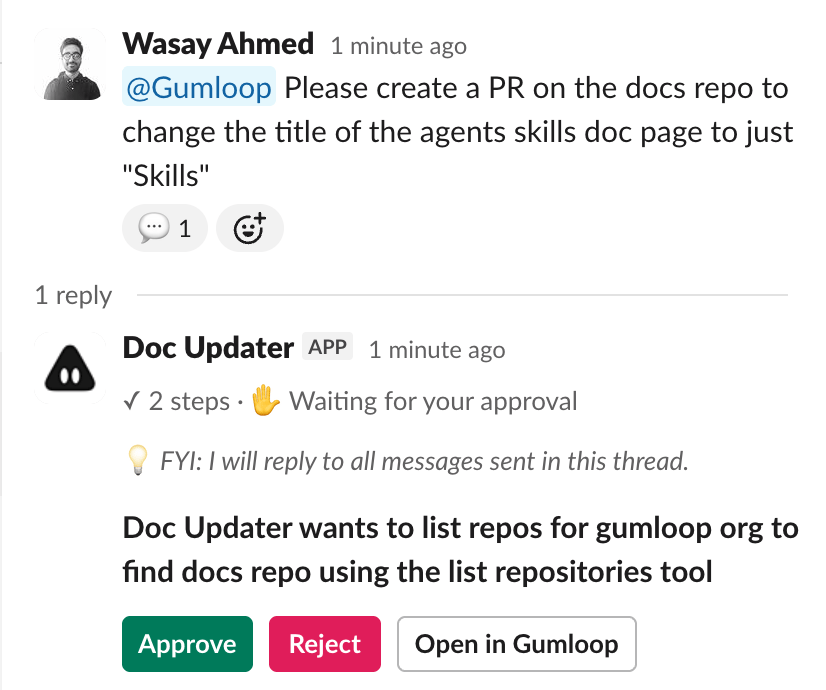
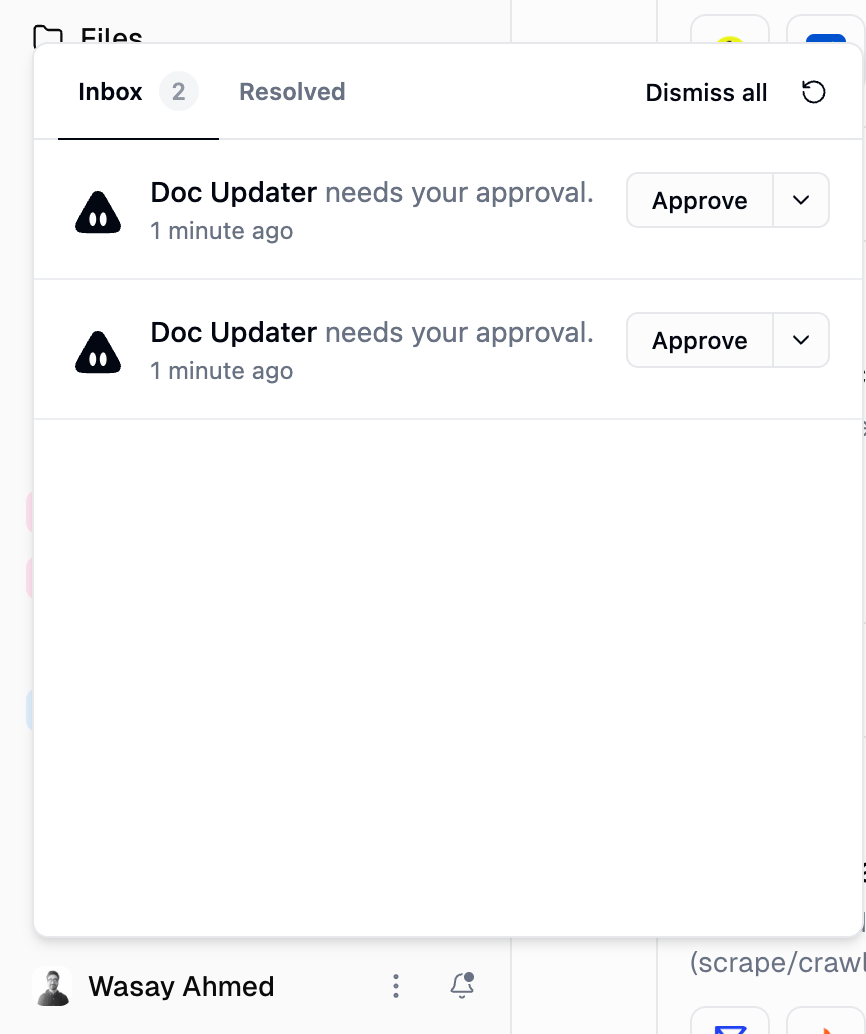
You receive an approval request via in-app notification, Slack DM, or directly in the chat thread.
3

You approve or reject

If approved, the agent continues from where it left off. If rejected, it acknowledges the rejection and adjusts its approach.
The agent never executes a gated tool call without your explicit go-ahead.

Setting Up Approval Controls

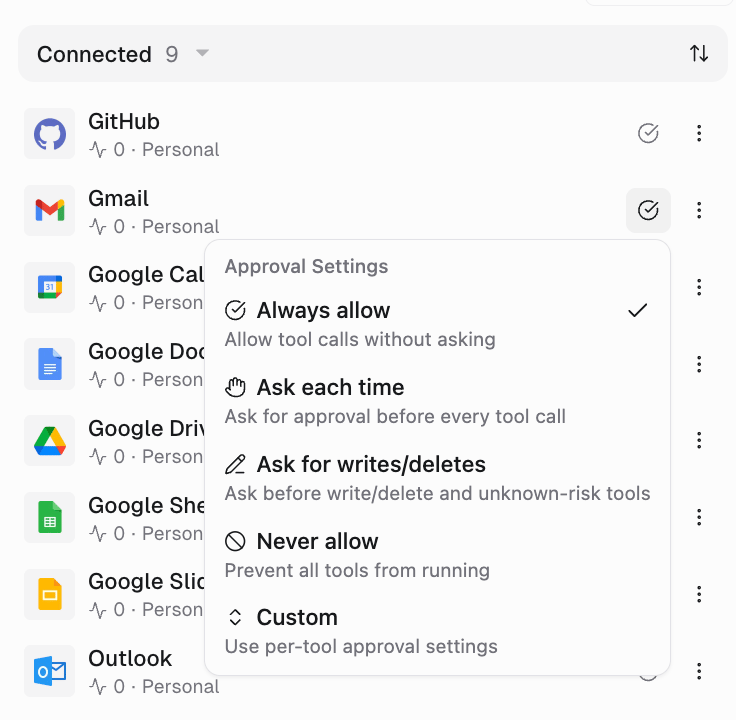
The most common approach. When you add an app (like GitHub, Gmail, or Slack) to your agent, you can configure its Approval Settings to control when the agent needs permission.Open your agent’s configuration, find the app in the Apps list, and click the approval icon next to it.
Approval Settings dropdown showing Always allow, Ask each time, Ask for writes/deletes, and Custom options
ModeWhat it does
Always allowThe agent can use all tools from this app without asking. This is the default.
Ask each timeEvery tool call requires your approval, whether it reads or writes data.
Ask for writes/deletesRead-only tools run freely. Write and delete operations require approval.
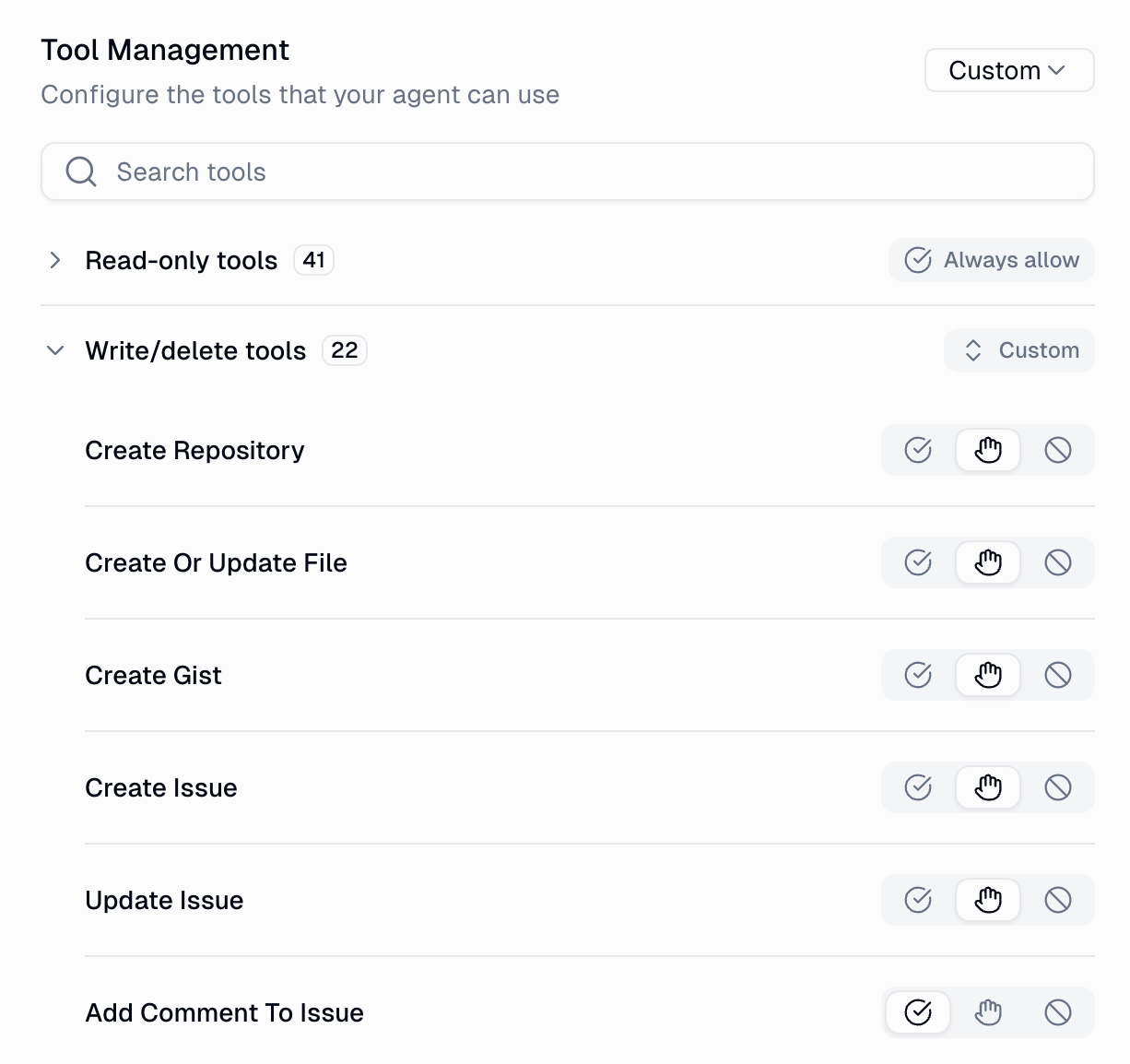
CustomSet approval requirements on a per-tool basis. You control each tool individually.
”Ask for writes/deletes” is a great default for most apps. It lets your agent gather information freely while keeping you in the loop for any changes.

Where You Get Notified

When an agent pauses for approval, you are notified in multiple places so you never miss it.
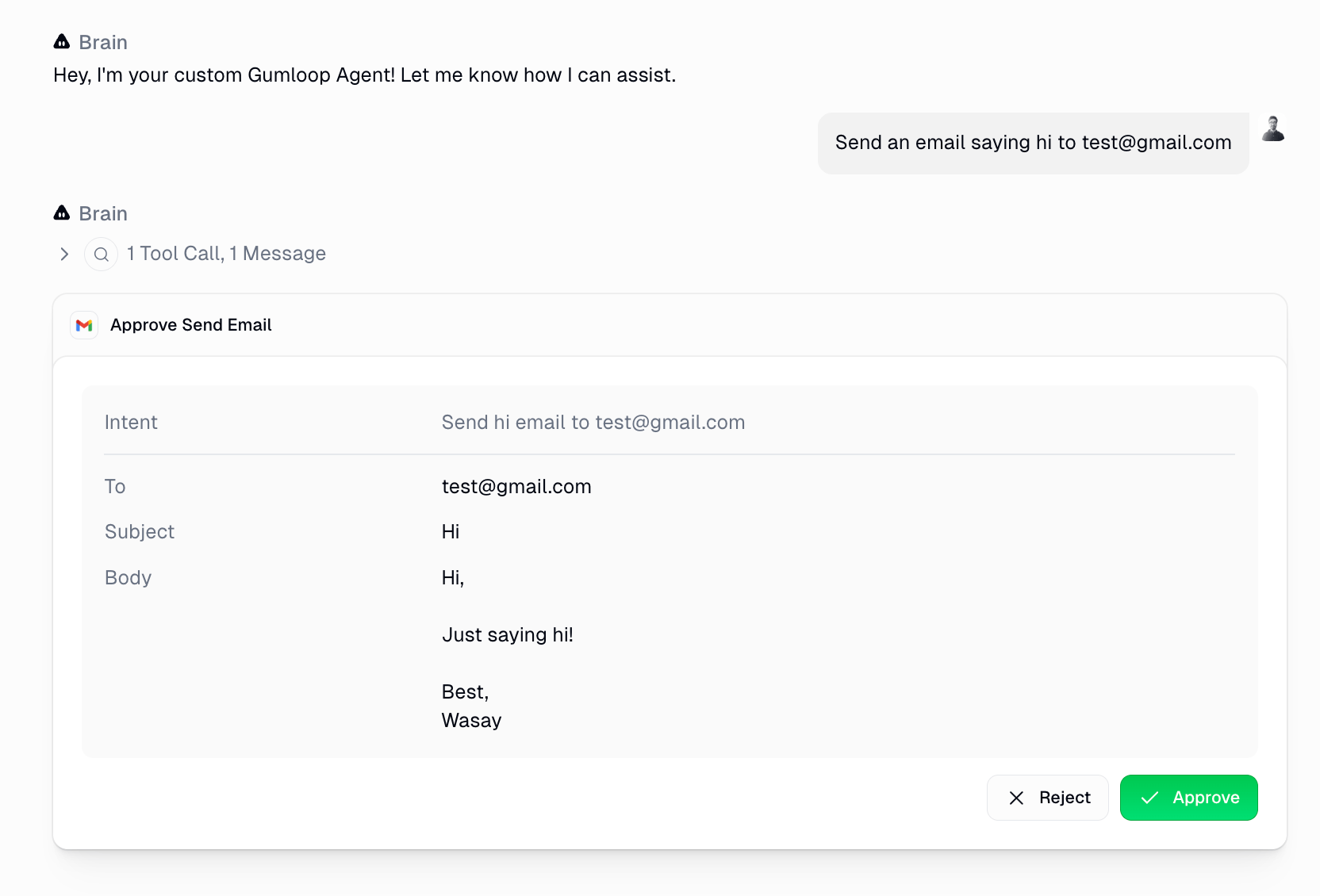
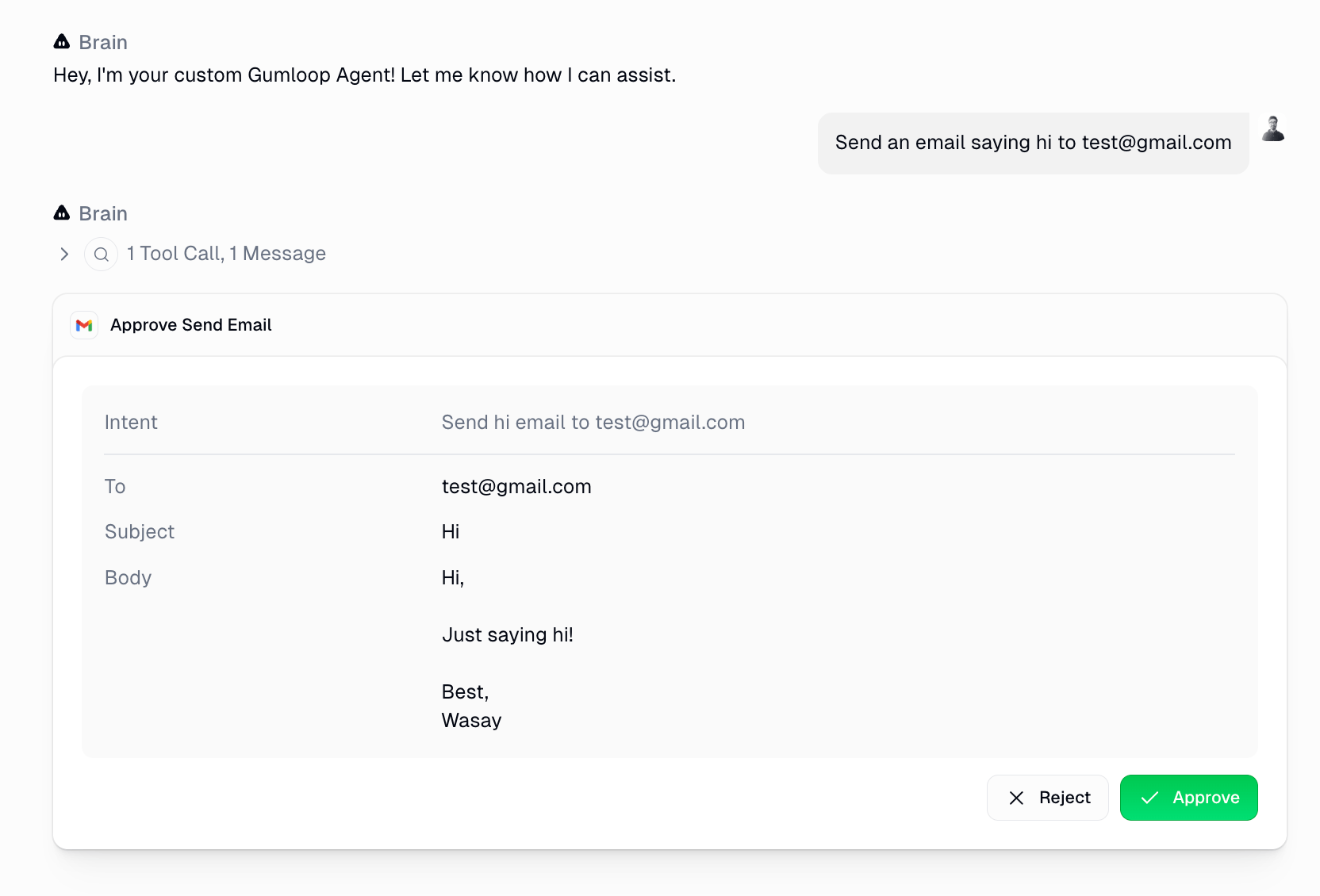
The approval card appears directly in the conversation with the tool name, intent, arguments, and Approve / Reject buttons. Use ⌘ + Enter to quickly approve.
Approval card in the web chat showing an email send request with To, Subject, and Body fields, plus Reject and Approve buttons
The card includes:
  • Tool name and icon at the top (e.g. “Approve Send Email” with the Gmail icon)
  • Intent describing what the agent is trying to do
  • Display fields showing the key arguments (e.g. To, Subject, Body)
  • Reject and Approve buttons
  • “Don’t ask again for this tool” checkbox to remember your decision for future calls
Example Walkthroughs

Approving a GitHub tool call

1

Configure the app

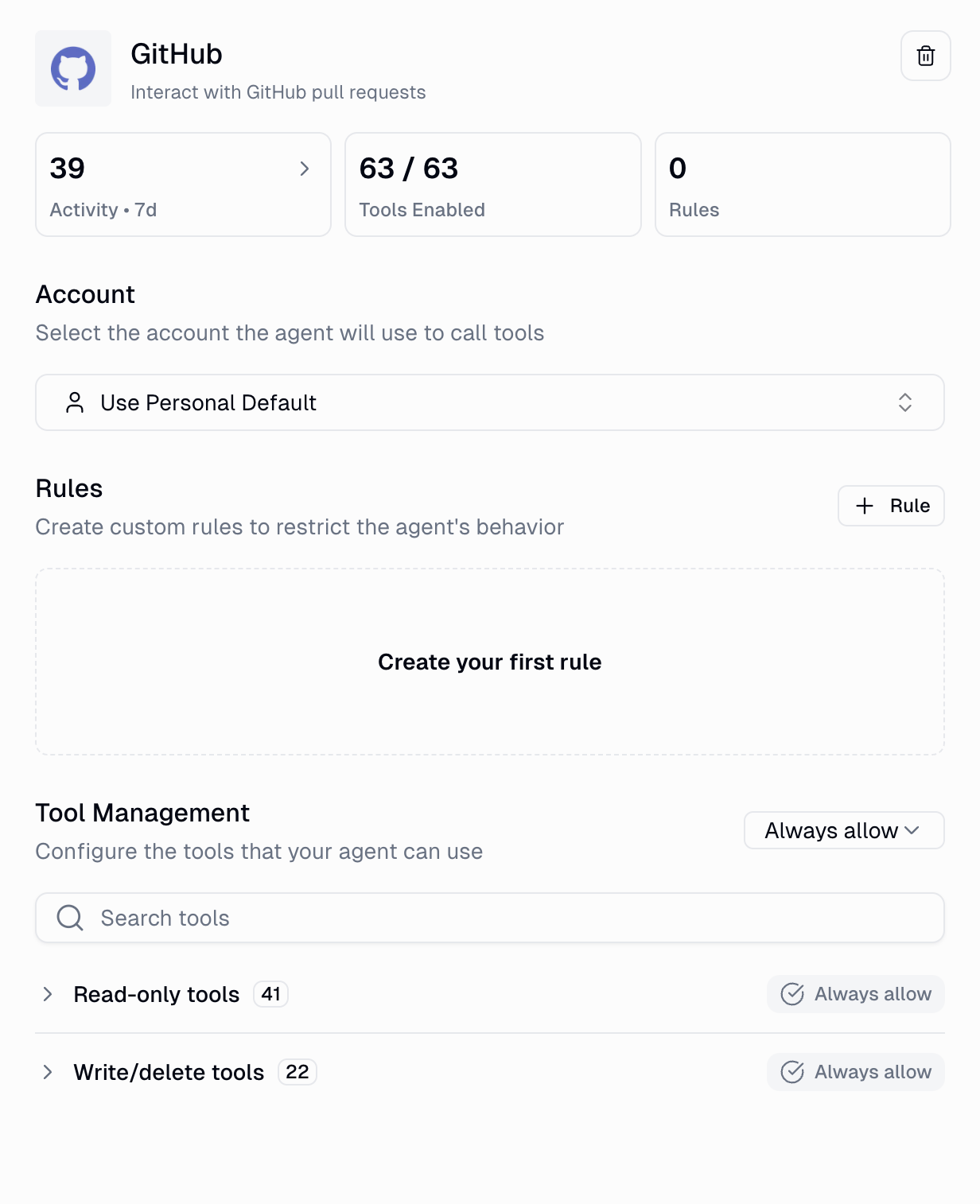
Open your agent’s config, find GitHub in the Apps list, and set the approval mode to “Ask each time” (or “Ask for writes/deletes” if you only want to gate mutations).
2

Ask your agent to do something

For example: “Please create a PR on the docs repo to change the title of the agents skills doc page to just ‘Skills’.”
3

The agent pauses for approval

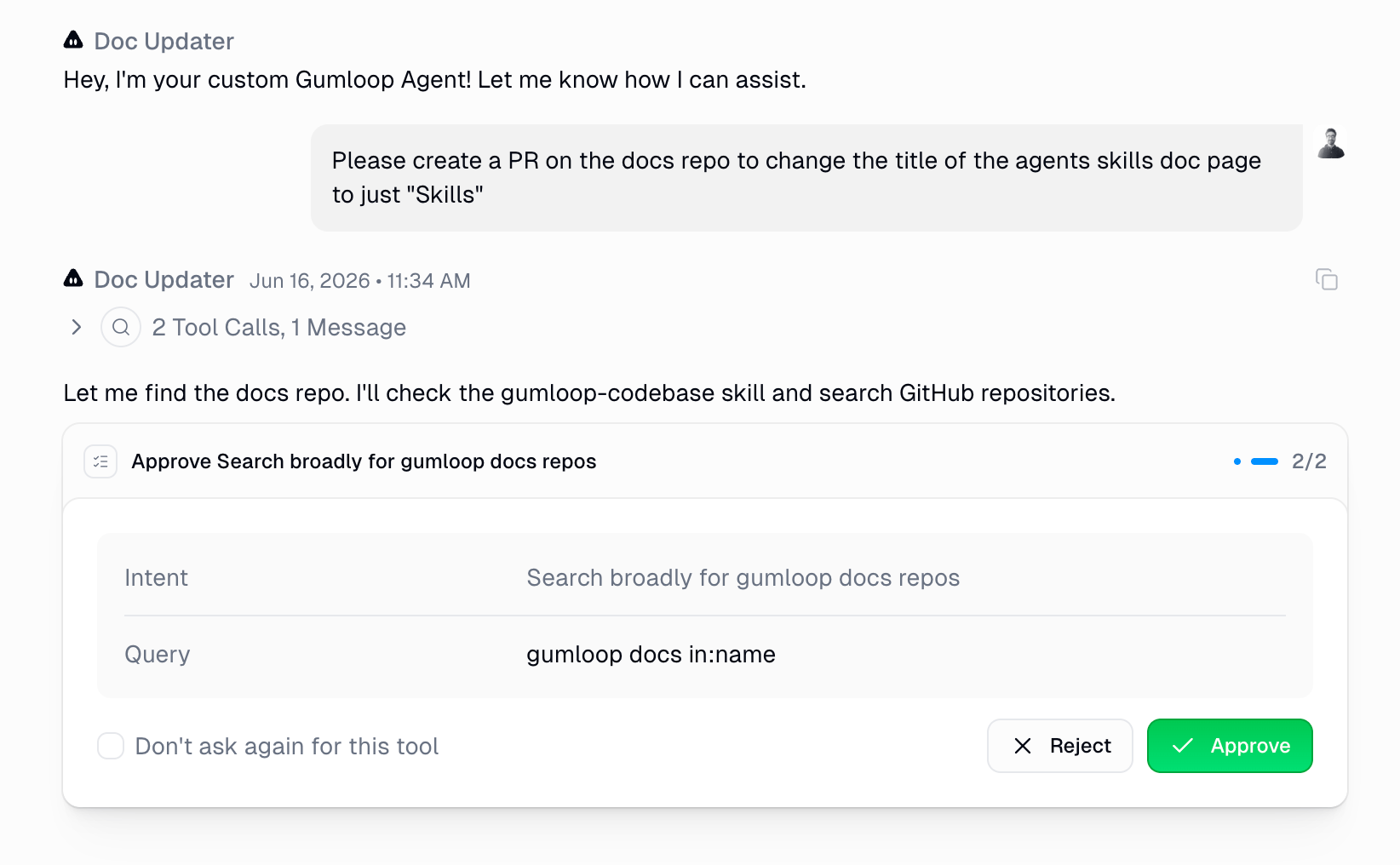
Before executing the GitHub API call, it shows you an approval card with the details:
Approval card for a GitHub tool call showing the intent, query, and Don't ask again checkbox with Reject and Approve buttons
4

Review and decide

Check the arguments. If everything looks right, click Approve. If something is off, click Reject and optionally provide a reason.
5

The agent continues

After approval, the agent picks up right where it left off and completes the task.
1

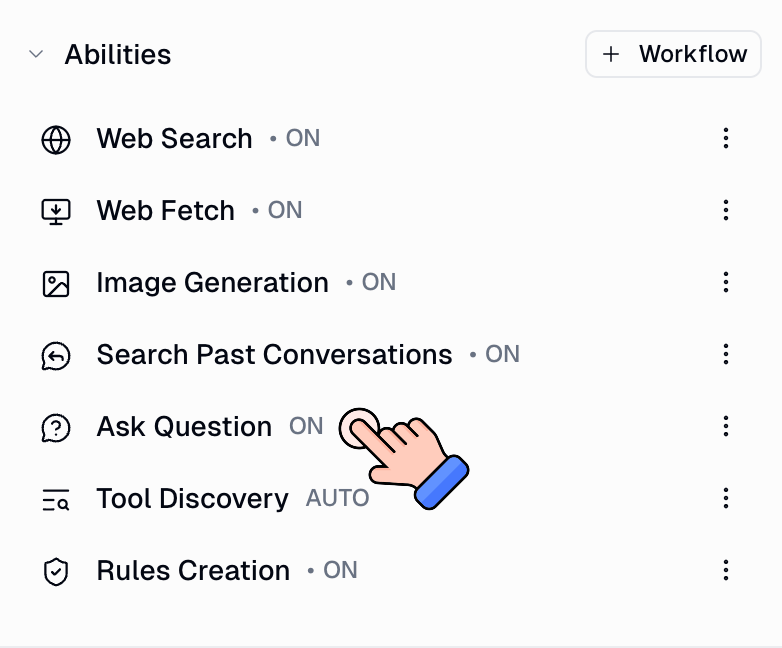
Enable the App Rules Creation ability

Toggle it on in your agent’s Abilities section.
2

Ask your agent to create a rule

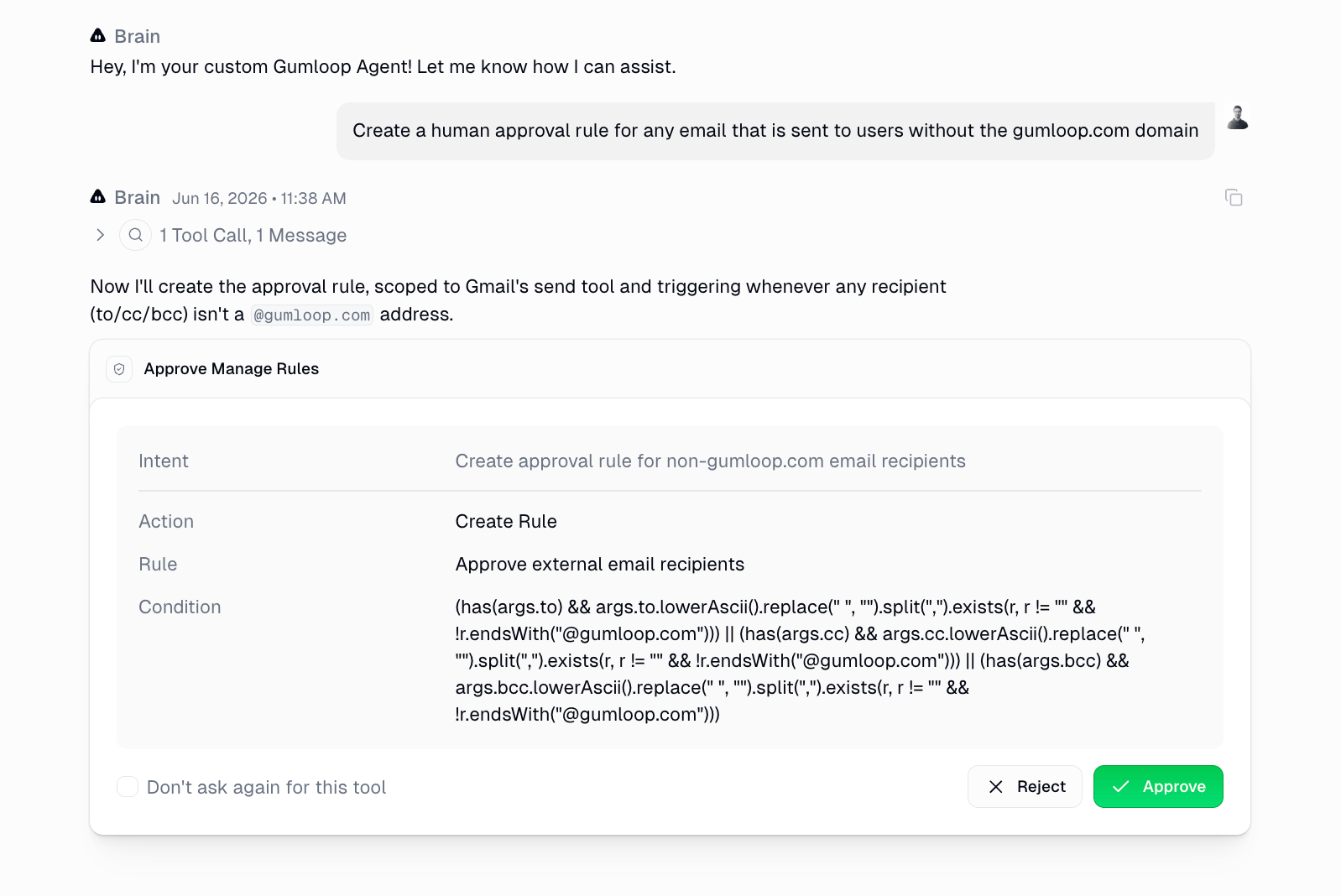
For example: “Create a human approval rule for any email that is sent to users without the gumloop.com domain.”
3

The agent builds the rule

It generates the appropriate CEL expression and shows you the rule details:
Agent creating a Gmail approval rule with a CEL condition that checks To/CC/BCC recipients for non-gumloop.com domains
4

Approve the rule

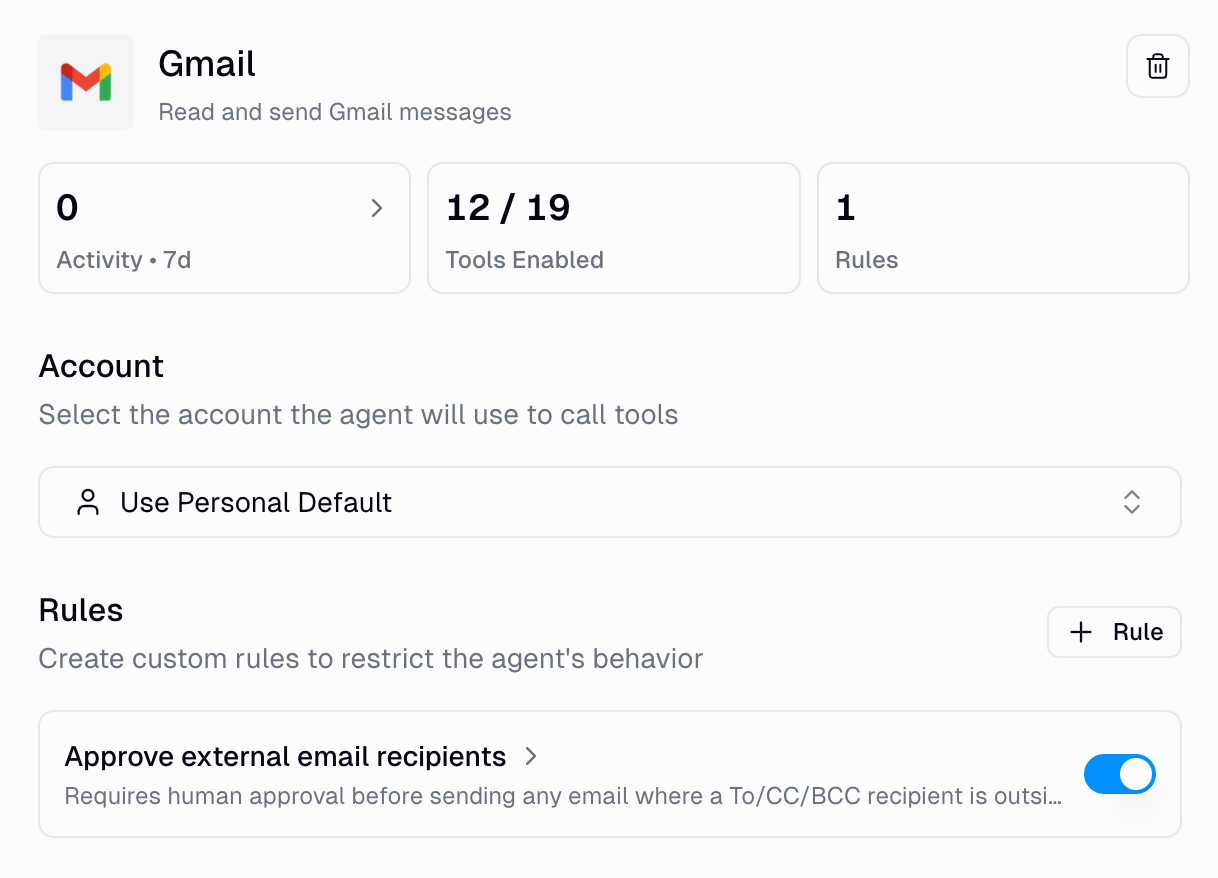
Once you approve, the rule is live. You can see it in the app’s config:
Gmail app configuration showing the newly created approval rule for external email recipients
5

The rule takes effect immediately

Whenever the agent sends email to a non-gumloop.com address, it pauses for approval. Internal emails go through without interruption.
Approval card showing the agent pausing to approve sending an email to an external recipient after the rule takes effect

What Happens When You Reject

When you reject a tool call:
  • The agent receives the rejection (and your optional reason).
  • It does not execute the tool.
  • It continues the conversation, often suggesting an alternative approach or asking for clarification.
Rejections are non-destructive. The agent simply adapts and tries a different path.

Approval Modes at a Glance

ModeScopeBest for
Always allowApp-levelTrusted, low-risk apps (e.g. read-only integrations)
Ask each timeApp-levelHigh-sensitivity apps where every action matters
Ask for writes/deletesApp-levelMost apps, letting reads flow freely and gating mutations
CustomPer-toolFine-grained control over individual tools within an app
App RulesConditional (CEL)Context-dependent approvals based on tool arguments
Ask HumanAbilityAgent-initiated questions for gathering user input

FAQ

No. When an agent pauses for approval, it saves its full state. It can wait indefinitely for your response. When you approve or reject, it resumes exactly where it left off.
Yes. If your agent is connected to Slack, approval buttons appear directly in the Slack thread and in a Slack DM. You can approve or reject right from Slack. You can also click “Open in Gumloop” to see the full context in the web app.
When you check this box before approving, the agent remembers your decision for that specific tool. Future calls to the same tool will be auto-approved without asking. This preference is saved to the agent’s configuration. You can always change it later in the app’s Tool Management settings.
Approval settings are configured at the agent level and apply to all users interacting with that agent. For organization-wide policies that apply across all agents, use App Rules in your organization settings.
Approval Settings are simple toggles: always allow, ask each time, ask for writes, or custom per-tool. They apply based on the tool’s risk category (read vs. write).App Rules are conditional. They use CEL expressions to inspect the actual arguments of a tool call and decide whether to require approval. For example, “only require approval when the email recipient is outside my domain” is something only App Rules can do.Both can work together. Approval Settings act as the baseline, and App Rules add conditional overrides on top.
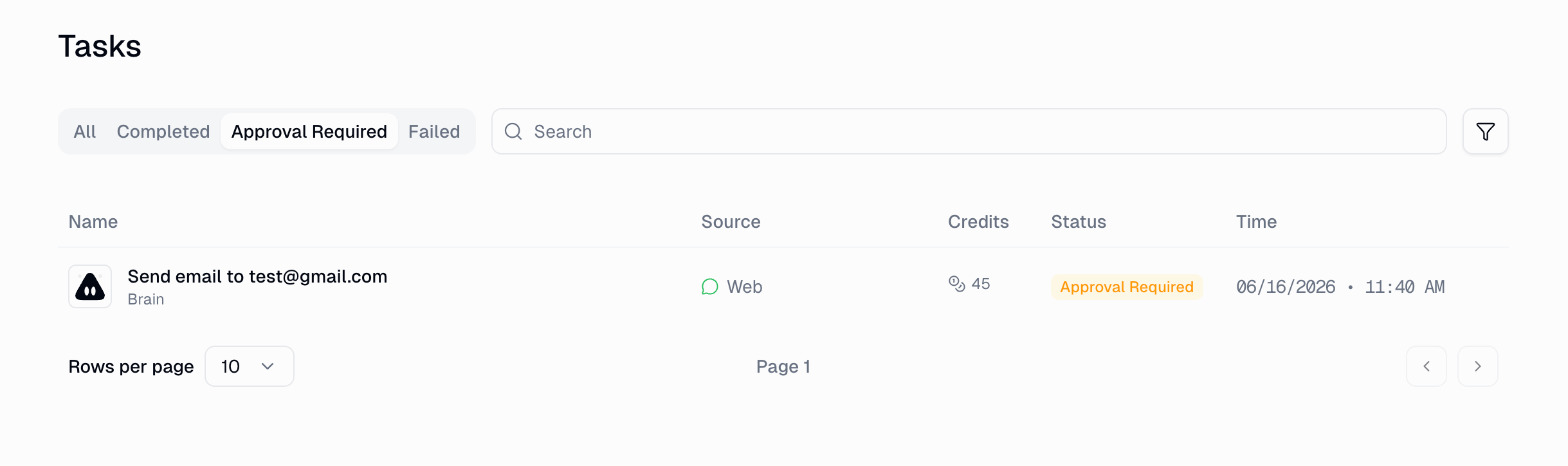
The Tasks page has an Approval Required filter that shows every pending approval across all your agents in one place. You can also use the notification bell in the top-right corner of the app for a quick glance.
The agent does not execute the rejected tool. It acknowledges the rejection, and if you provided a reason, it takes that into account. The agent then continues the conversation, often adjusting its approach or asking for clarification.
Yes, if you enable the App Rules Creation ability in your agent’s Abilities section. The agent can translate natural-language instructions into CEL conditions. The rule creation itself also requires your approval before it takes effect.
Yes. When an agent needs to run code in the sandbox (Python or shell), the approval card shows a preview of the code it wants to execute. You can review the exact script before approving. If the code makes MCP tool calls (e.g., sending an email via Gmail), those nested calls are listed in the approval card as well.