

How artifacts work
When an agent generates a file in its sandbox (using code execution, data processing, or any tool that produces a file), it exports the file using a built-in export tool. The export:Saves the file
Creates a version
Generates previews
Shows it in chat
Viewing artifacts
- In-chat preview
- Viewer page
Supported preview types
Gumloop can render inline previews for many file types:Actions
From the viewer page or the in-chat card, you can perform several actions on an artifact:Can I ask an agent to manage an artifact?
Yes. Give the agent an artifact from the conversation or its link, then ask it to check or change the file’s name, hosted link, or sharing.Does Don't ask again apply only to this file?
Does Don't ask again apply only to this file?
What if sharing fails after the agent renames the file?
What if sharing fails after the agent renames the file?
How do I change a file’s display name?
Owners and Editors can give an artifact a display name without renaming the underlying file. The name appears on artifact cards, in the viewer, and in search. Changing it does not change the downloaded filename, file contents, artifact link, or version history.Open the artifact's Settings

The display name and thumbnail controls are at the top of Settings.
Edit the display name
How do I change a file’s thumbnail?
Owners and Editors can upload a custom thumbnail for an artifact. One thumbnail applies to every version of that file until you replace it or return to the default preview. It changes the cover image, not the file’s contents, and does not create a new version.Choose an image
Crop and save
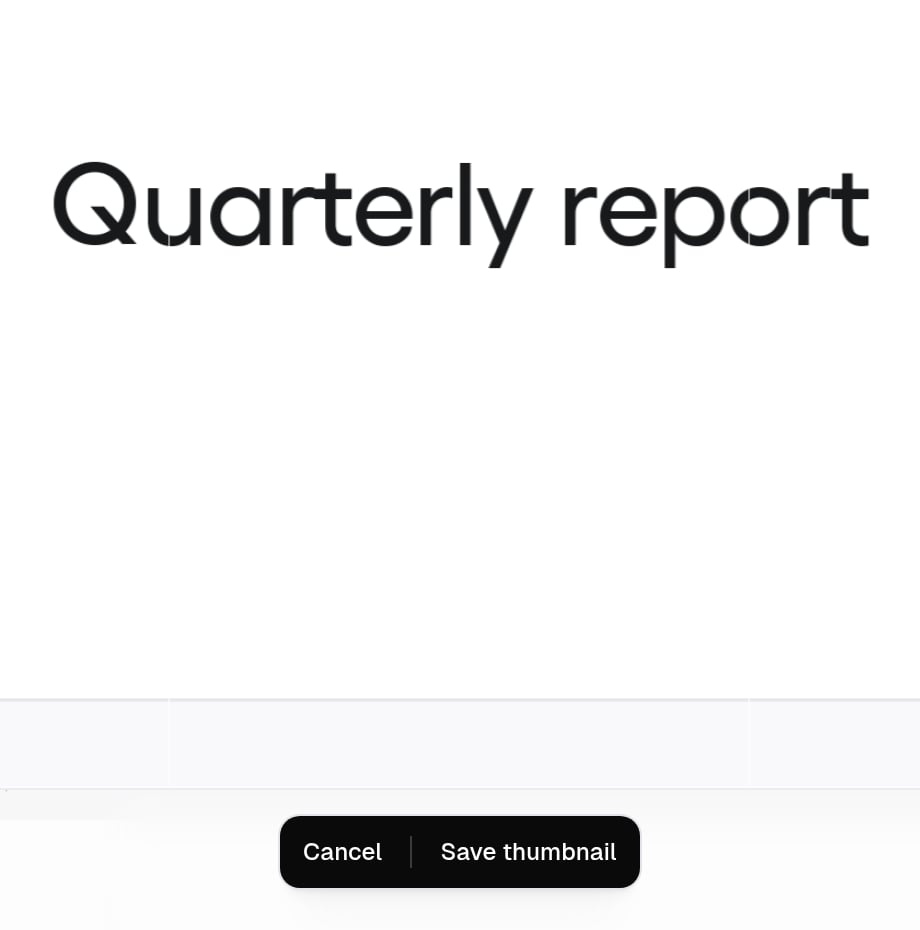
Crop an uploaded image before saving it as the file's thumbnail.
Return to the default preview when needed
Automatic versioning
When an agent exports a file with the same filename multiple times in the same conversation, Gumloop automatically creates new versions instead of overwriting. This gives you a full history of how a file evolved during the conversation.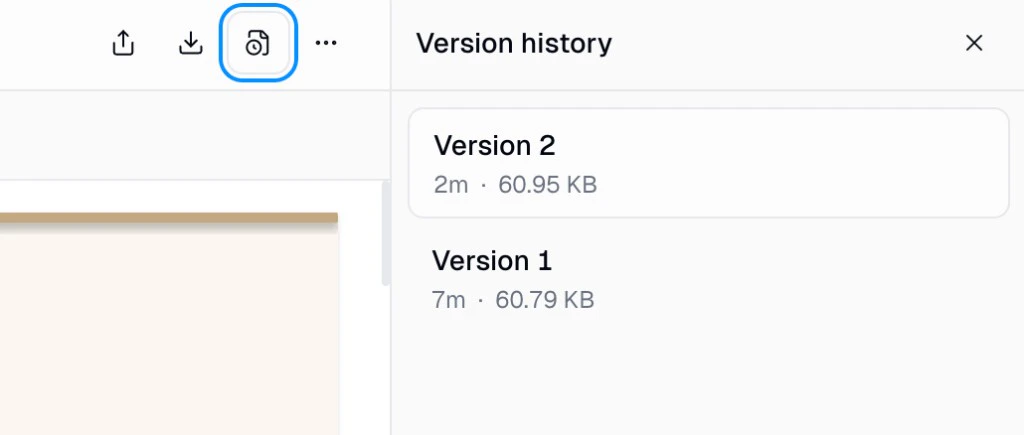
- Version number (v1, v2, v3, etc.)
- Timestamp of when it was created
- File size
Sharing & access control
You can control who can view, download, and manage each file.Share dialog
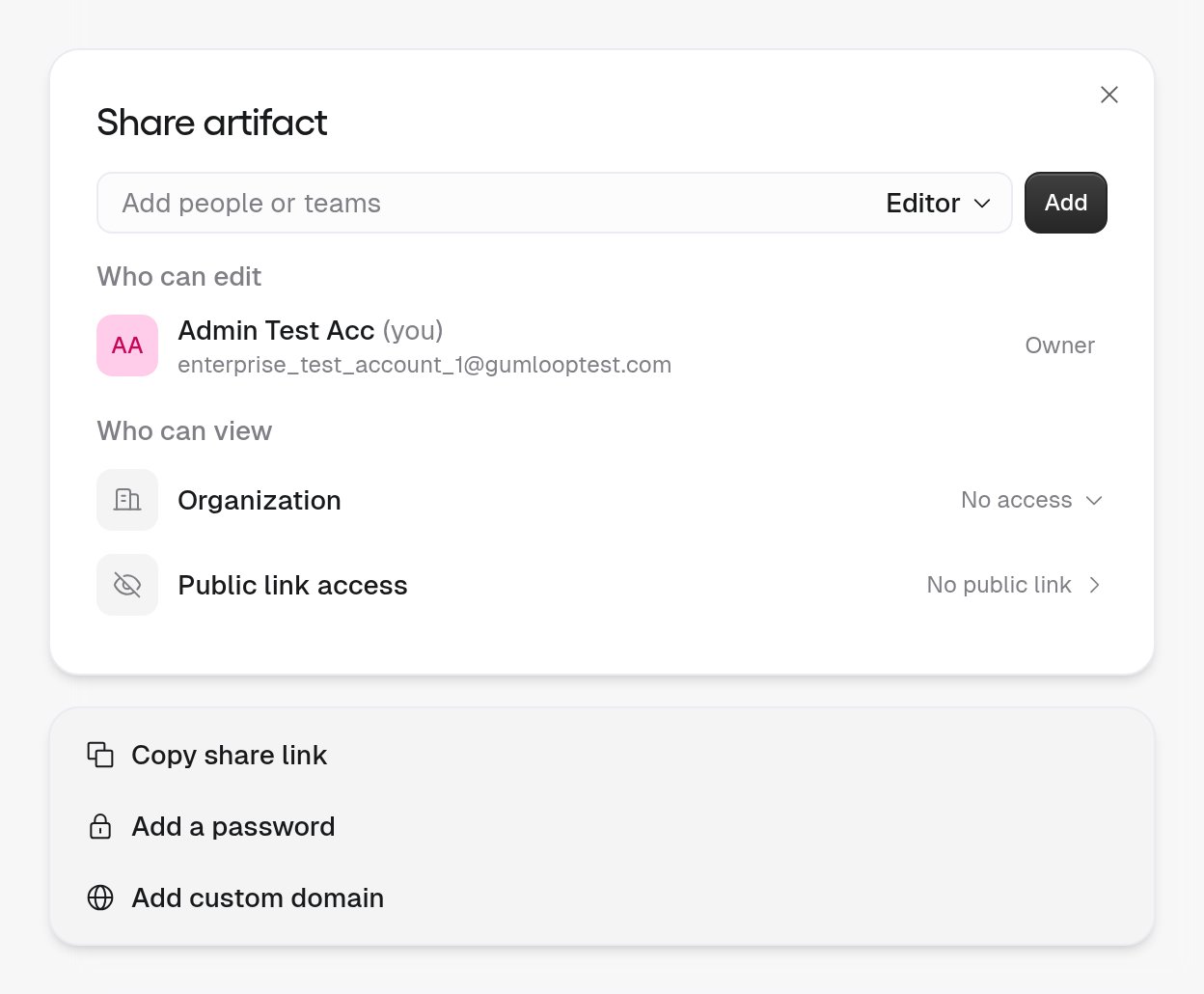
Select Share from the artifact viewer or its options menu to open the Share artifact dialog. From top to bottom it has:- An Add people or teams field with a role picker inside it (Editor or Viewer) and an Add button.
- Who can edit: the Owner and any Editors, who can manage the file.
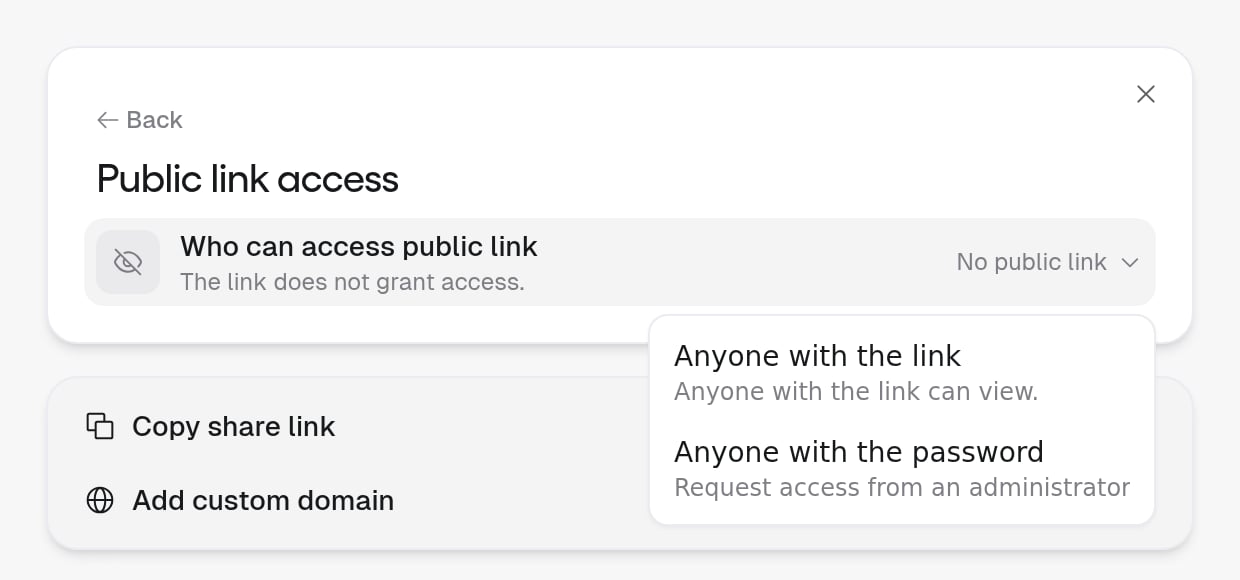
- Who can view: people and teams with Viewer access, then two separate rows. Organization is No access or Viewer. Public link access opens its own view, where Who can access public link is No public link, Anyone with the link, or Anyone with the password.
- Copy share link, Add a password, and Add custom domain at the bottom. Once a password or custom domain is set, these read Edit password and Edit custom domain.
Who can inspect or change sharing?
Viewers see a limited sharing list and can remove their own direct invitation, not someone else’s access or an Owner. Removing your invitation does not remove access you have another way, such as through your team. This also works for Viewers invited from another organization. A file invitation does not give them access to the source agent or conversation.Organization and public link access
Organization and public link access grant viewing access only, even if an older organization or public grant previously allowed editing. They do not remove a person’s separate Owner or Editor access. To let someone edit a file, add them or their team as an Editor.Password protected artifacts
A Password protected link lets people outside the file’s existing audience view it with a password. Team or organization access can stay enabled at the same time: authorized members do not need the password, while other link visitors do.Turn on the password link

Save a password
Share the link and password
How long does an unlock last?
How long does an unlock last?
What happens when I change or turn off the password?
What happens when I change or turn off the password?
Can I keep a password link when I change the internal audience?
Can I keep a password link when I change the internal audience?
Can someone guess the password?
Can someone guess the password?
Can I see the saved password later?
Can I see the saved password later?
Does password protection work on a custom domain?
Does password protection work on a custom domain?
Default file sharing
Each agent has an Artifact Sharing setting that controls how new artifacts are shared when created. You can configure this in Access → Artifact Sharing → Default behavior:Does a public agent make its files public?
A public agent does not give signed-out visitors access to personal workspace files or files linked to a conversation. Only top-level team workspace files, with no conversation link, can inherit anonymous access from the agent’s public setting. A file’s own Anyone with the link or Password protected link setting is a separate way to share that file with outside visitors.Requesting access
If someone shares a file link with you but you don’t have access:- Not signed in: Sign in or create a Gumloop account first.
- Signed in, no access: Use Request Access, when available, or ask the person who shared the link to invite you.
Who has viewed an artifact?
On Enterprise, editors and owners see an Analytics tab at the top of the artifact, next to Preview and Settings. It shows Views, Viewers, and Avg. time on page for the version and date range you pick (for example All versions and Last 30 days), with breakdowns by viewer, country or city, and device or browser. Visits by the person who created the artifact aren’t counted. Recent views lists each view, and you can filter it by viewer. Open a view to see the viewer and the tool calls the page ran, with status and latency. You can open a call’s inputs and outputs if you could see that call on the Connector activity page.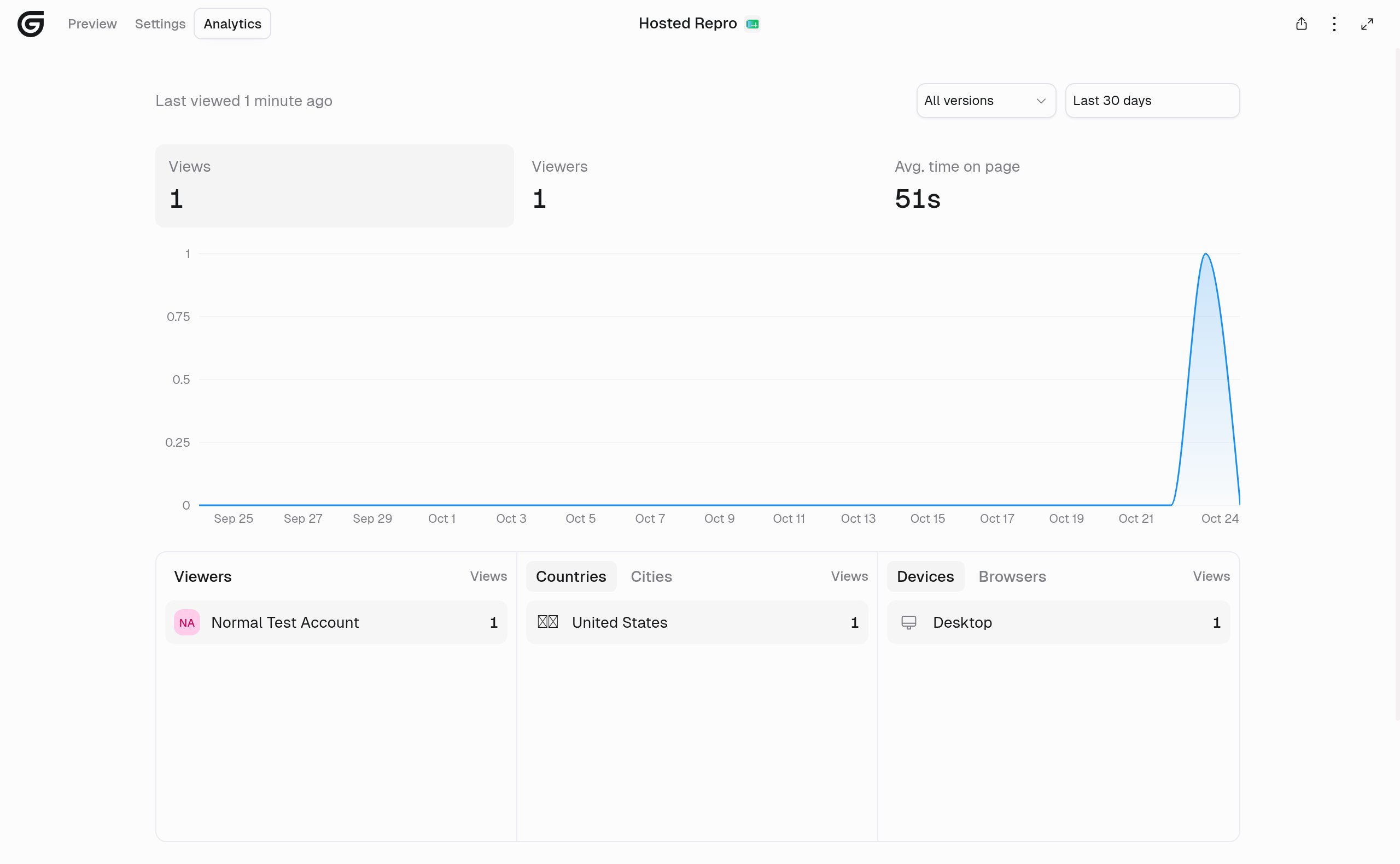
Hosting artifacts on a custom domain
Each artifact has a canonical/artifacts/{id} URL. You can also give it a subdomain on gumloopartifacts.com:
gumloopartifacts.com and organization-owned domains; see Your credentials, your data.Per-artifact domains
Enabling hosting
Hosting is configured per artifact. Open Settings, then select Turn on beside Custom domain. You can also select Add custom domain in the Share dialog. Once enabled, the custom URL appears in Settings and you can edit its alias. You need Owner or Editor access on the file to manage hosting. Hosting does not grant anyone additional viewing or editing access. When you enable hosting, Gumloop derives an alias from the artifact’s filename: the extension is dropped, anything that isn’t a letter or number becomes a hyphen, and the result is lowercased. If that alias is already taken, a suffix is added automatically so enabling never fails on a collision.Customizing the URL alias
You can rename the alias at any time while hosting is enabled. Aliases follow the same rules as hosted pages:- 3–64 characters
- Lowercase letters, numbers, and hyphens only
- Must start and end with a letter or number
- Must be unique across Gumloop
admin, api, app, auth, beta, docs, gumstack, help, localhost, mcp, sandbox, staging, support, ws, and www are reserved and cannot be used.Embedding the artifact on another site
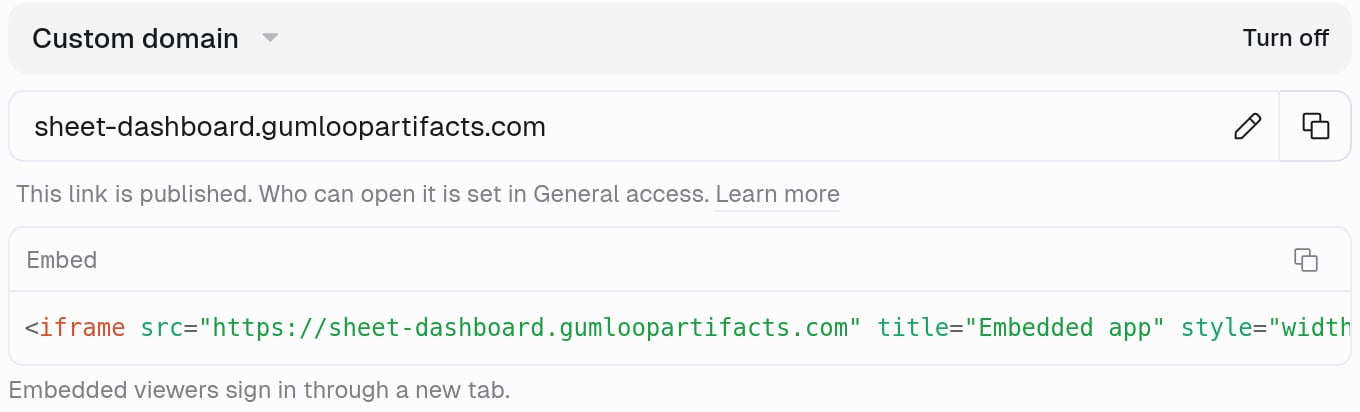
Once Custom domain is on, Settings shows an Embed box under the custom URL. Select its copy button and paste the snippet into any web page, such as an internal wiki, a help center, or a company site:height to fit your page. Embedding doesn’t change who can open the artifact. If Public link access is No public link, the box notes “Embedded viewers sign in through a new tab,” and viewers sign in to Gumloop before the artifact loads.
Authentication and sign-in
Visitors sign in through Gumloop and return to the artifact, with two exceptions:- An artifact whose Public link access is Anyone with the link opens without sign-in, unless it has live-data scripts.
- An artifact with live-data scripts always asks for sign-in, with any Gumloop account, because the scripts run as the viewer. If it’s password-protected, visitors need the password too.
Versions and access
- No version pin. The custom domain always serves what
/artifacts/{id}serves, so a new version of the artifact appears on both URLs at once. - No extra sharing. Hosting does not widen access. An artifact with No public link stays private on its custom domain. A public URL does not make the file public.
- Canonical links still work. The
/artifacts/{id}URL remains available. Settings offers the custom URL for copying once hosting is enabled; links to older versions remain version-specific.
Disabling hosting
Disabling hosting immediately stops the subdomain from resolving. The alias stays reserved for that artifact, so you can turn hosting back on later with the same URL. Deleting the artifact also stops the subdomain from resolving.Organization domains
Organization admins can claim one organization-level domain for artifact hosting from Organization Settings.Claim your domain
yourdomain.com. New artifacts are shared on this domain once its DNS records are verified. The Add domain button stays disabled until the domain is valid.Add DNS records
Wait for verification
http:// or https:// prefixes, paths, and a leading *. are cleaned up for you. Gumloop-owned and other reserved suffixes are rejected, as is a domain another organization has already claimed. Each organization can have one domain at a time, so remove the current domain before adding a different one.
Domain status
Hosting on the organization domain
Once the domain is Active:- Newly exported artifacts from the organization’s agents are automatically given an alias at
https://<alias>.<your-domain>, replacing the corresponding<alias>.gumloopartifacts.comURL. - The alias is derived and collision-suffixed using the same behavior documented for
gumloopartifacts.comaliases. - Auto-hosting is best effort, so a hosting failure never fails the artifact export.
- Auto-hosting is skipped when hosting was explicitly disabled for the artifact or when the artifact already has a hosted alias. An explicitly disabled artifact is not silently re-enabled.
Importing an artifact from a link
Paste an artifact link into chat and ask the agent to import it. It can use the originalhttps://gumloop.com/artifacts/... link, a gumloopartifacts.com link, or a link on your organization’s artifact domain.
When a specific version is named, it is used ahead of any version in the link. A link the agent can’t resolve or doesn’t have access to comes back as simply not found or not accessible, without revealing whether the artifact exists.
HTML artifacts
HTML files get special treatment. Agents can generate fully interactive HTML pages, dashboards, and web applications that render directly in the viewer.How do HTML artifacts follow light and dark mode?
HTML projects that use the agent’s default theme follow your Gumloop appearance in the viewer and your operating system’s appearance when opened standalone. Ask the agent to customize both light and dark colors. For direct edits, the palettes are intheme.css. Older files are not automatically restyled; ask the agent to update the file if needed.
Can an HTML artifact embed its own pages?
Yes. An HTML artifact can embed another page from the same artifact bundle in an iframe. Ask the agent to create a multi-page HTML project with an embedded page, such as a report inside a dashboard. Embedded pages can use the artifact’s live-data scripts and follow its light or dark appearance. This does not allow embedding arbitrary external sites or pages from other artifacts.Full screen mode
HTML artifacts support a full screen mode that hides the toolbar and gives the artifact the full browser window. This is useful for dashboards, interactive tools, and presentations. Click the full screen button in the viewer toolbar to enter full screen.Security
HTML artifacts run in a strict security sandbox. This is important because agents can generate arbitrary HTML and JavaScript. The preview runs on an isolated origin, separate from your Gumloop session. It can read its own artifact files, but can’t read the Gumloop app’s cookies or local storage. A page can connect only to its own origin and to outside servers the agent declared when it saved that version. Gumloop serves each published page at the root of its own domain. Pages can use in-page routing withhistory.pushState, and unknown paths fall back to index.html. They can also use the microphone, camera, and clipboard after a click, embedding in other sites, and live-data scripts. They can open WebSockets and EventSource streams, and send fetch or XHR requests, to the servers the agent declared. The browser blocks connections to any other server. alert, confirm, and prompt dialogs work in the preview.
Attached data-script calls use their declared tools, connection settings, and applicable tool policies.
How are Chat Widgets different from artifacts?
Chat Widgets are compact charts, comparisons, or mockups inside a live web reply, using saved content or live data. Artifacts are exported files you can download, share, and version.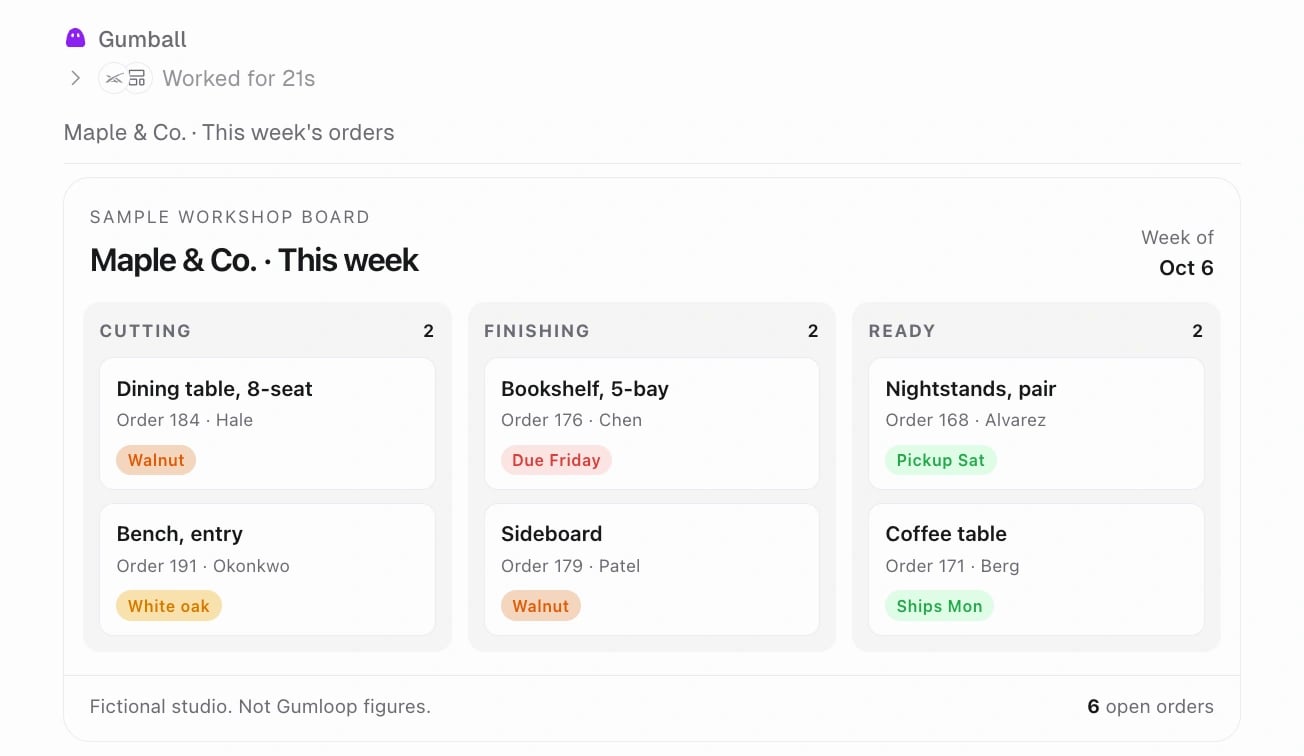
A Chat Widget appears inside the agent's reply. This order board uses fictional sample data.
Can a Chat Widget load live data?
Yes. With Chat Widgets and Computer enabled, ask your agent for an inline chart or dashboard that loads data from your connectors. Live widgets are not available in incognito chats. Live widgets follow the same integration consent, connector account settings, and tool permissions as live artifacts. Opening a live widget reruns its data scripts and uses the viewer’s credits. Refreshes also use credits; data updates only when the widget loads or refreshes, not continuously in the background.Interactive artifacts (live data)
How they work
When you ask an agent to build something that needs live data, it creates two things:- An HTML file with the layout, styling, and JavaScript for the UI
- One or more Python data scripts that fetch data from your integrations at view time
Integration consent
When you open an interactive artifact for the first time, you’ll see a consent overlay that lists every integration the file can access and the specific actions it can perform.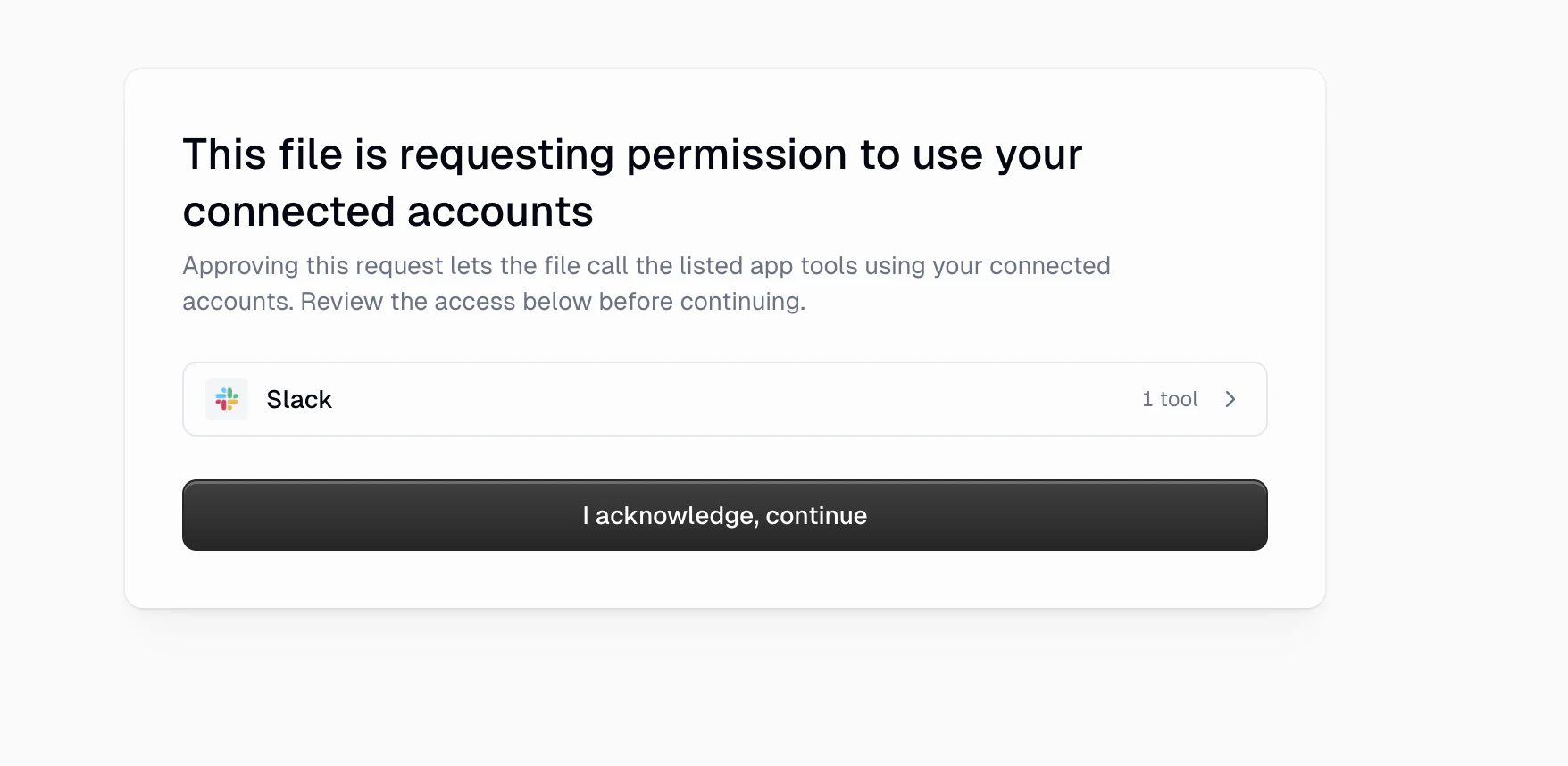
- You always know exactly which integrations a file uses
- No data is fetched until you explicitly approve
- If someone shares a file with you, you decide whether to grant it access to your accounts
Your credentials, your data
An interactive artifact’s connections depend on where you open it and how the source agent’s connectors are configured. Sharing a file or giving it a password does not give visitors access to the creator’s personal connections.What can you build?
Anything that combines a UI with live integration data. Here are some example prompts:How teams use interactive artifacts
A shared dashboard can show each viewer data from their own connections. For example, a “My Open Tasks” dashboard with viewer-owned connections shows each person their own tasks. Agent-owned connections instead use the account configured on the source agent, where that access is allowed.Download buttons
Ask the agent to add a download button to an interactive artifact, for example to export the dashboard’s data as Excel, a filtered CSV, or a PDF. The button creates the file when you click it, and your browser downloads it. The script builds the file when you click the button and returns it as a browser download, rather than saving it as a new artifact.Credits
Creating the artifact uses the agent conversation’s usual credits. After export, live data scripts and AI model calls use credits billed to the viewer rather than the creator. Organization members use their organization’s credit balance and any applicable user limits. If a credit limit blocks execution, the script returns an error. See Credits.Can a page call AI models?
Yes. A page’s data scripts can send the data they load to an AI model and show the answer on the page. The page can summarize, tag, score, or answer questions about live data every time someone opens it, without anyone starting a chat. Example: a support triage board. Ask an agent:“Build a dashboard of this week’s open Zendesk tickets. Tag each ticket’s sentiment as positive, neutral, or negative, and its product area. Put a three-sentence summary of the main themes at the top, and add a box where I can ask questions about these tickets.”When a teammate opens the page:
- A data script loads the open tickets with that teammate’s Zendesk connection.
- A model tags each ticket and writes the summary. Each tag and the summary appear next to the data.
- Typing a question into the box, such as “Which customers mentioned billing twice?”, sends the question and the loaded tickets to a model and shows the answer on the page.
Refreshing data
Opening an artifact again can rerun its data scripts. A refresh button or auto-refresh timer can also start another execution. Each script execution uses credits. Long-running queries can time out; ask the agent to reduce the data scope if needed.Error handling
If a data script fails, the HTML receives an error response. Common causes are a disconnected integration, an API error, or a script timeout. Well-built artifacts show a friendly error message. If the agent didn’t include error handling, the section may simply be blank. Common causes and fixes:Files page
Open Artifacts in the sidebar to find files across your agent conversations. Your personal library is available at Artifacts.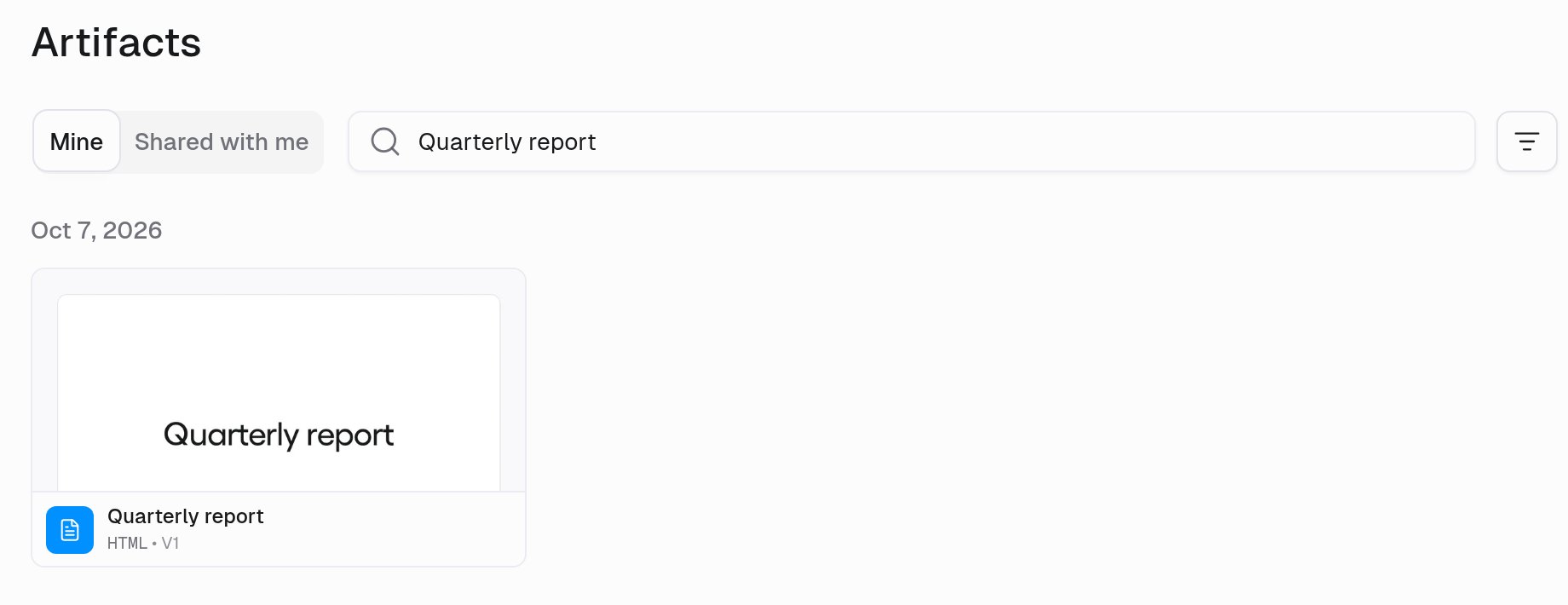
Workspace files (persistent across conversations)
By default, files created during an agent conversation are scoped to that conversation. However, agents can also work with workspace files that persist across conversations. Files saved to the/home/user/.workspace/ directory in the agent’s sandbox are treated as workspace-scoped artifacts. These files persist across conversations with the same agent.
How workspace scope works
Workspace files use two separate folders:- Shared agent workspace,
/home/user/.workspace/agent/: Access follows your role on the agent. Owners can edit shared files; Users can read them. Team membership is not an additional requirement for this shared disk. - Personal workspace,
/home/user/.workspace/personal/: Private to you and persistent across your conversations with the same agent. It remains writable when the shared workspace is read-only.
Common questions
Files and versions
Where are my files stored?
Where are my files stored?
Can I delete an artifact?
Can I delete an artifact?
Sharing and access
Interactive artifacts
What's the difference between a static artifact and an interactive artifact?
What's the difference between a static artifact and an interactive artifact?
Do interactive artifacts use my credentials or the creator's?
Do interactive artifacts use my credentials or the creator's?
gumloopartifacts.com, scripts can use your available connections and eligible agent-owned connections. Organization-owned artifact domains use agent-owned connections only. Public or password-shared artifacts cannot use agent-owned connections. See Your credentials, your data for the full comparison.Can an interactive artifact perform actions (send messages, create issues) or only read data?
Can an interactive artifact perform actions (send messages, create issues) or only read data?
My interactive artifact shows an error or blank section. What should I try?
My interactive artifact shows an error or blank section. What should I try?
Custom domains
What happens before DNS verifies my organization domain?
What happens before DNS verifies my organization domain?
gumloopartifacts.com URLs. Nothing is served on the new organization domain until its status is Active.Can my organization claim more than one artifact domain?
Can my organization claim more than one artifact domain?
Does a custom domain make private artifacts public?
Does a custom domain make private artifacts public?
Can an agent import an artifact from a link?
Can an agent import an artifact from a link?
What happens if the organization domain is removed?
What happens if the organization domain is removed?