

What agents do
You give an agent a goal and a set of tools, and it figures out how to get there: which tools to call, in what order, and when to ask you for input.- Adaptive: takes different approaches for different situations
- Tool-driven: uses your connected services and data as needed
- Conversational: works through a task in a back-and-forth conversation
- Context-aware: considers your instructions, skills, and past tasks
Configure an agent in three moves
You do not need to write a long system prompt up front. The fastest way to a useful agent is to let it do real work, then have it write its own instructions.1
Add connectors
Open the Connectors section and add the integrations the agent needs (Gmail, Salesforce, Slack, and so on). The connectors you add define what the agent can see and do, so start with the two or three it actually needs.
2
Give it a real task
Start a task and run something end to end. Watch where it guesses, asks the wrong thing, or misses a step.
3
Ask it to write its own instructions and skills
Once it completes a task the way you want, tell it: “Update your instructions so you always do it this way” or “Turn this into a skill.” The agent writes its own instructions and skills, so you can capture the approach without writing everything from scratch.
Getting around an agent
Open an agent and the left sidebar has everything about it: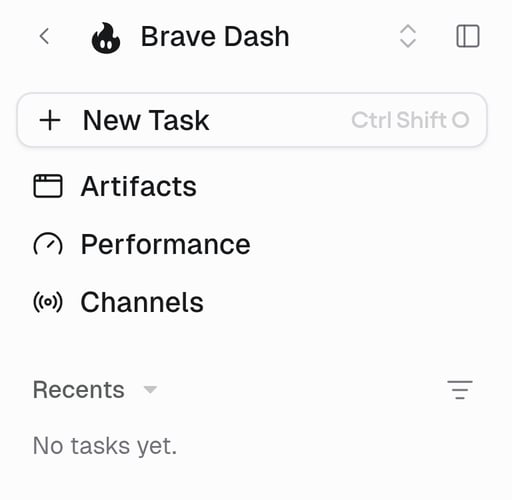
When the agent is waiting on you to approve a tool call, a pending action request appears above Recents.
The agent builder
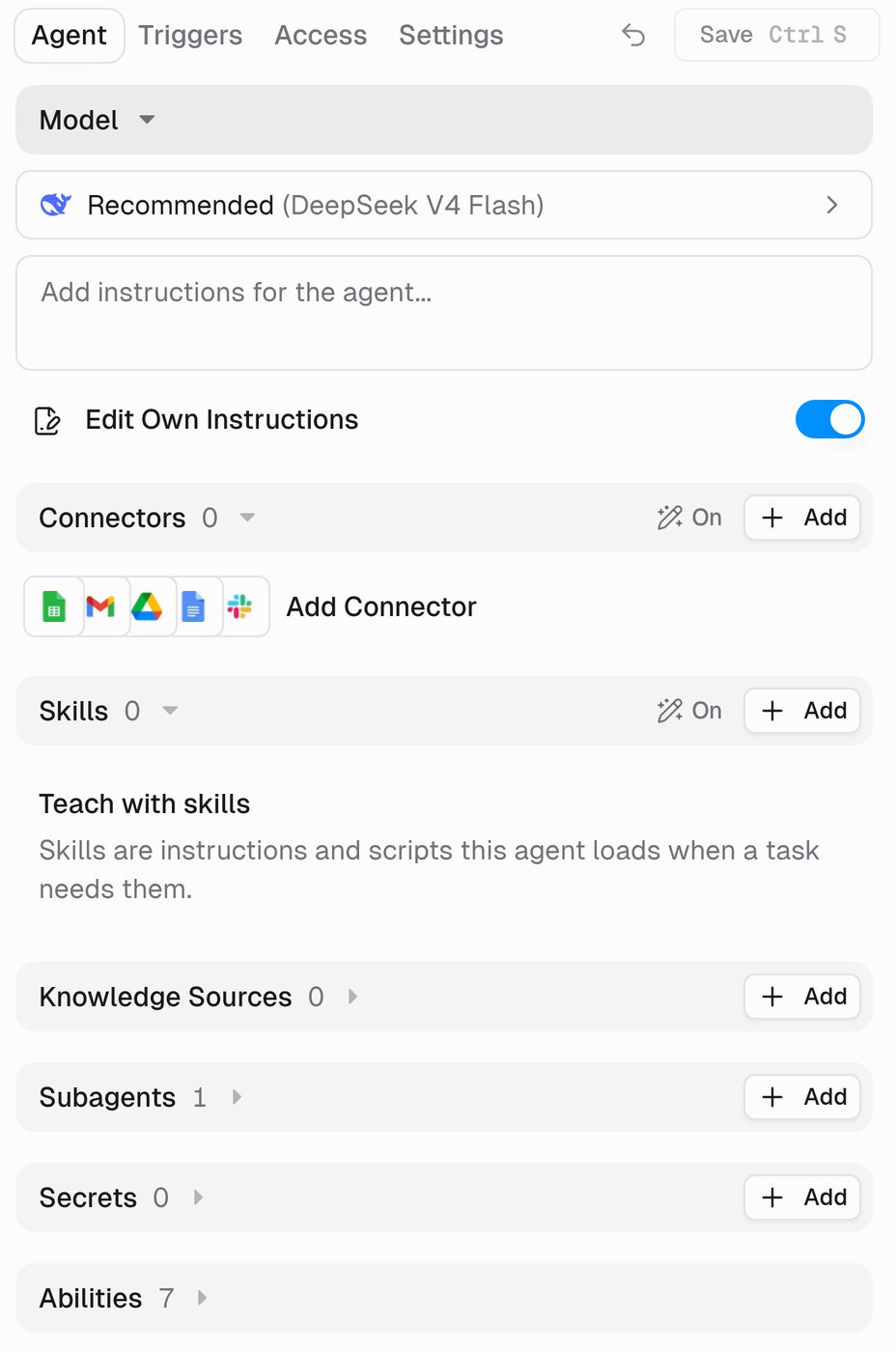
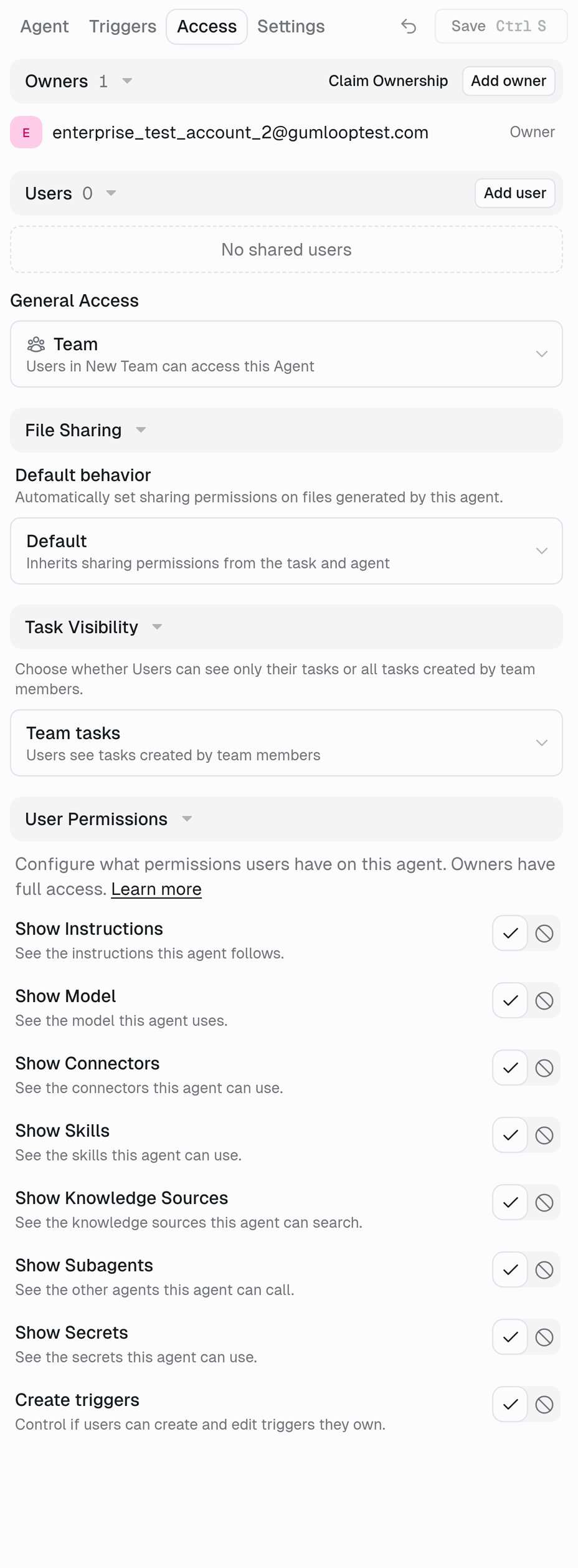
Everything you configure lives in four tabs at the top of the builder. Only Owners see them; what a User sees depends on the agent’s User Permissions.
Sections open in place. Click a section header (for example Connectors) and it expands into a full view with an
Agent > Connectors breadcrumb, so you can drill into a connector’s tools and come back without losing your place. Nothing saves until you press Save (Ctrl/Cmd + S); the arrow next to it undoes unsaved changes.
- Agent
- Triggers
- Access
- Settings
Guided setup
A brand-new agent asks what it should take care of and sets itself up from your answer, instead of dropping you into the full builder. If you would rather start in the builder every time, turn on Skip guided agent setup in your profile preferences. The rest of this page covers each part, starting with the ones you will reach for most.Connectors
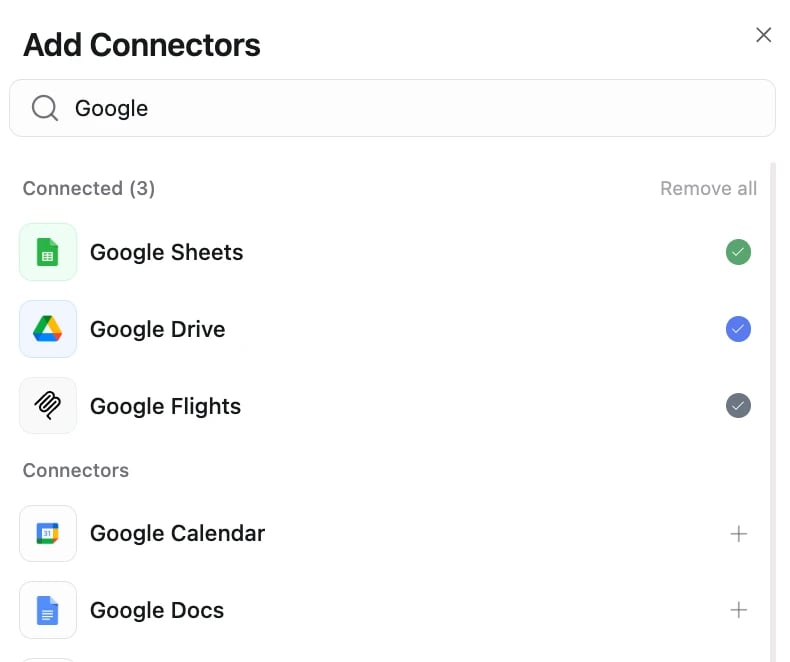
Connectors are the integrations your agent connects to, such as Gmail, Salesforce, Slack, Notion, and 150+ more. The connectors you add determine what the agent can access, so this is the most important part of configuration.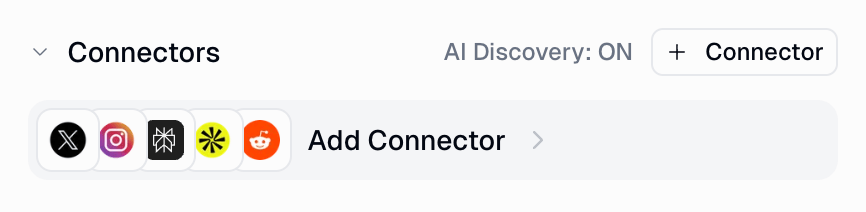
Account selection
Click a connector to open its detail view. The Account selector controls which connected account the agent uses when calling its tools.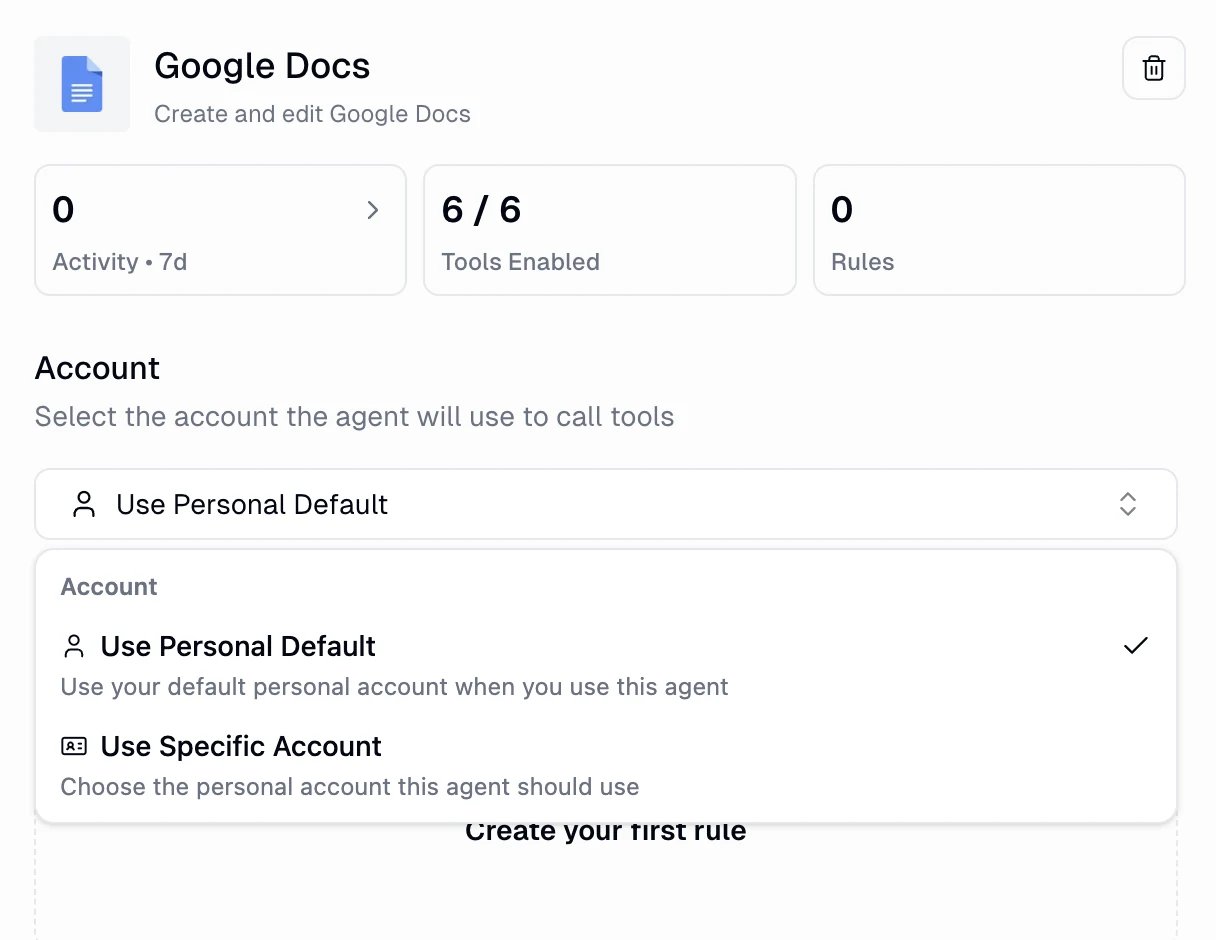
- Use Personal Default: each person who runs the agent uses their own default account. This is the default.
- Use Specific Account: pin one account for the agent, useful when you have multiple accounts for the same service.
- Use Team Default (team agents only): everyone on the team uses the same shared account.
Connectors
Connect personal or team accounts and choose which account the agent uses.
Tool Management and approvals
The same detail view has a Tool Management panel that controls which of a connector’s tools the agent can call, and which ones need your approval first. Tools are grouped into Read-only tools and Write/delete tools.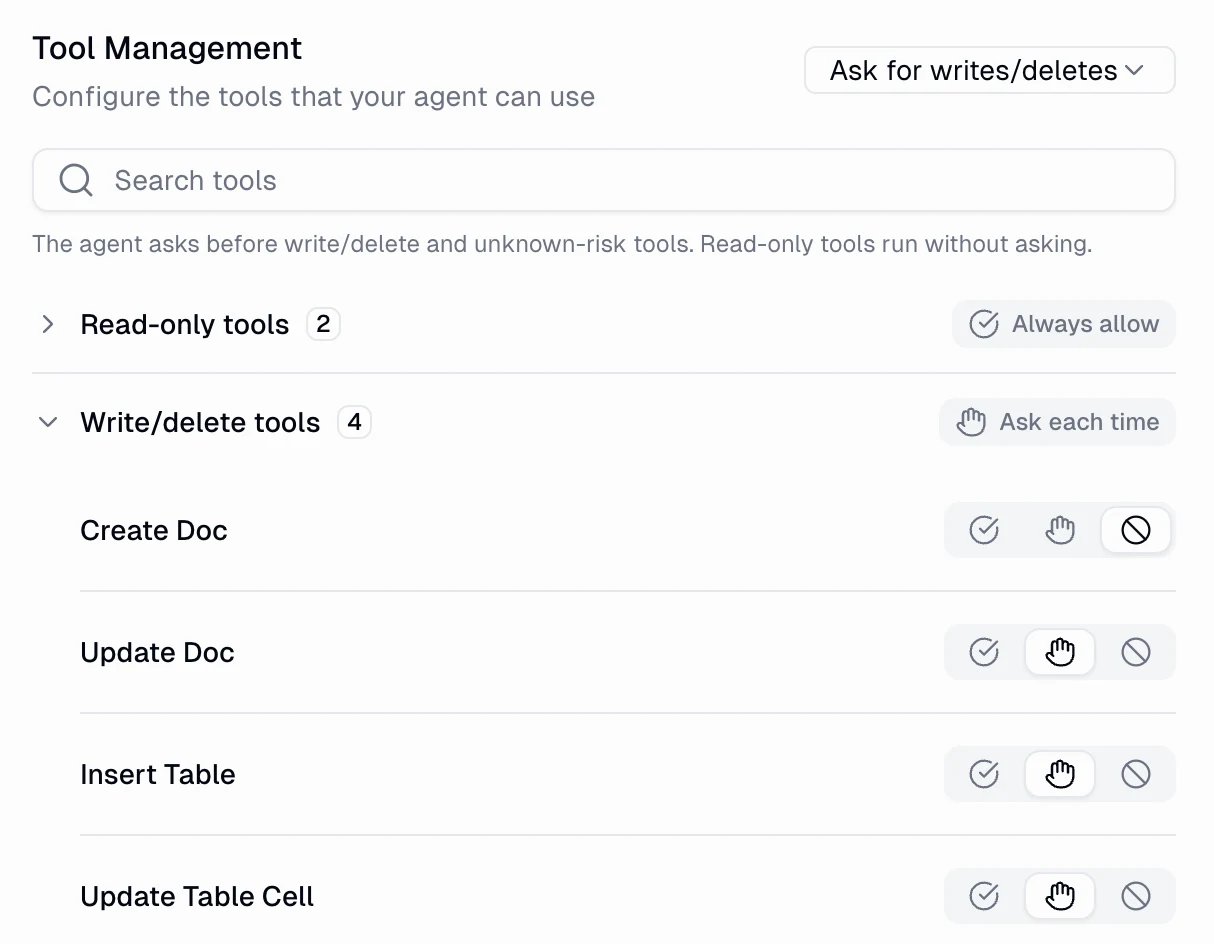
When a tool needs approval, the agent pauses mid-task and shows you an approval card. This is the human-in-the-loop guardrail for sensitive actions.
Human in the Loop
How approvals work, what the agent shows you, and how to tune when it pauses.
Skills
Skills teach your agent how to do specific work your way: multi-step processes, templates, and domain knowledge that load only when relevant. You rarely write one by hand. The easiest path is to prompt the agent in a task: get it to do the work well, then say “turn this into a skill.” When it gets something wrong later, give it feedback and it updates the skill. The AI Skill Editing toggle is what lets it create and edit skills on its own.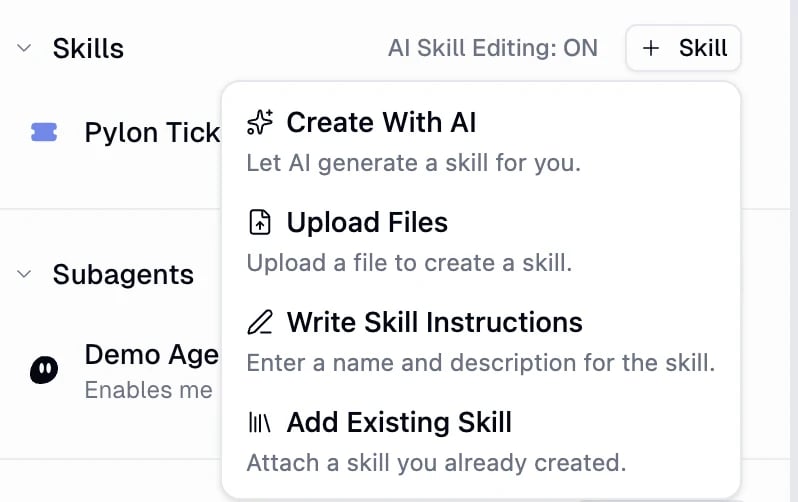
- Create With AI: describe the skill and the agent generates it.
- Upload Files: turn a document or
.zipinto a skill. - Write Skill Instructions: enter a name and description yourself.
- Add Existing Skill: attach a skill you already created.
Agent skills guide
Create skills, attach them to agents, and build a library that improves over time.
Knowledge sources
Give your agent a searchable memory of what your company knows. In the Knowledge Sources section, attach Brain sources (Google Drive, Notion, Slack, GitHub, Confluence, or uploaded files) so the agent answers from your real documents and messages, with citations, instead of guessing.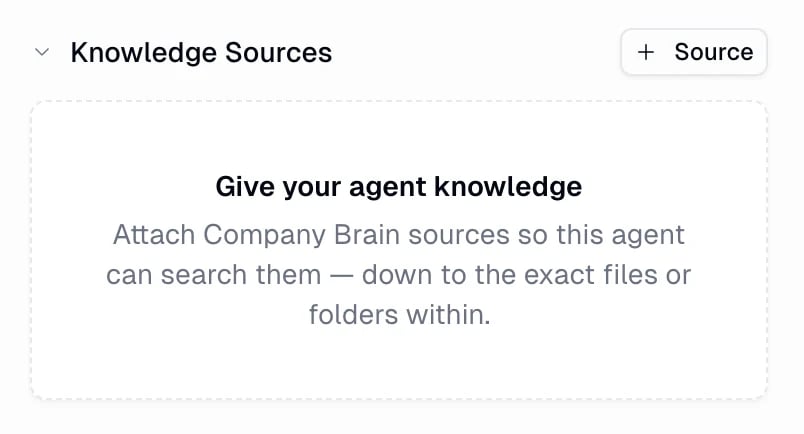
Brain guide
Connect knowledge sources, keep them synced, and give your agents company knowledge to search.
Triggers
Agents can run on their own, without anyone starting a task. The Triggers tab lists the triggers on the agent, and AI Managed in its header lets the agent create, edit, and manage its own triggers during a task.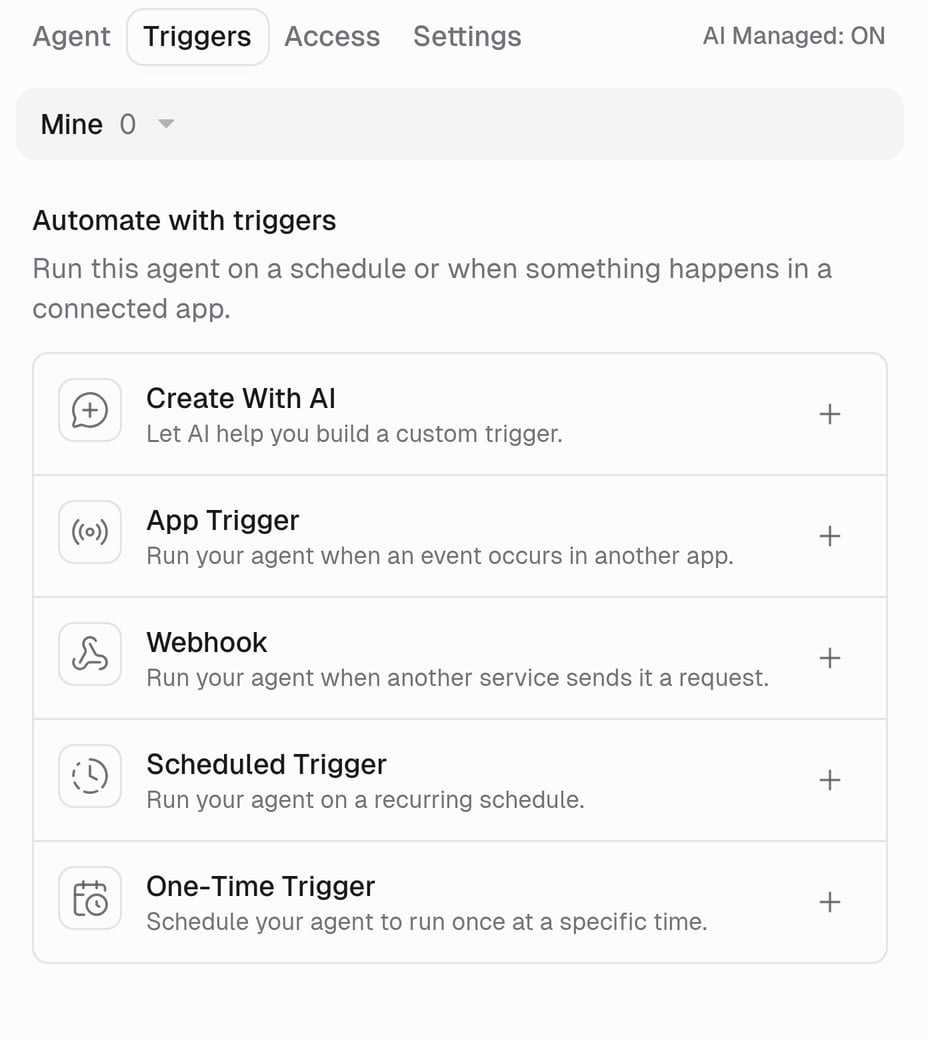
Owners manage every trigger on the agent. Users can create and edit their own triggers while Create triggers is allowed in User Permissions. The Mine / Team filter switches between the two views.
Agent triggers guide
Set up app and scheduled triggers, write prompt templates, and manage active triggers.
Subagents
Subagents let your agent delegate to other agents. Instead of doing everything in one task, it can spin up focused helpers that work in parallel, then collect the results and continue.- Self-cloning
- Invoking other agents
The agent clones itself, keeping the same tools and instructions. Useful for parallel work: spawn several clones, each handling a different subtask. The clone shows up as “(Me)” in the list and is enabled by default. Clones cannot clone themselves again (depth limit of 1), and you can scope a clone to a subset of apps.
Abilities
Abilities are the agent’s built-in capabilities. Most are on by default, and each can be toggled from the Agent tab’s Abilities section.
Chat Widgets add a compact visual to a live web reply. For a file you want to keep or share, ask the agent to export it. See Agent artifacts (files).
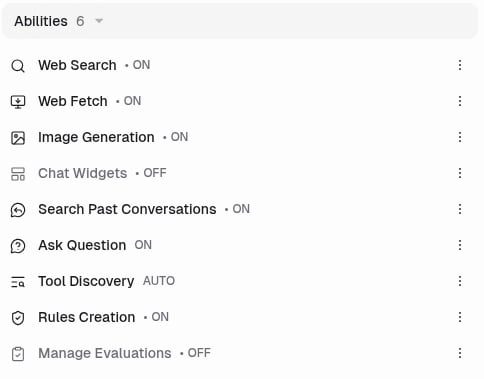
Find Chat Widgets in the Agent tab's Abilities section. This existing agent has the ability off.
Image generation
The Image Generation ability creates images from text prompts. New agents have it on by default and use GPT-Image 2.5 Flare as the default image model. On an agent, you choose the image model. The agent chooses the size, quality, background, format, aspect ratio, and resolution for each request based on the prompt. It is instructed to use the smallest option that satisfies the request.Image models
The Recommended image preset tries these models in order: GPT-Image 2.5 Flare, GPT-Image 2.5 Sunburst, Gemini 3.1 Flash, Gemini 3 Pro, GPT-Image 2, and Gemini 2.5 Flash Image. It skips any model your organization restricts.
Per-request options
The agent selects these options for each image request:
Agents can also pass reference images to edit them or keep a subject, product, or style consistent. OpenAI image models accept up to 16 reference images. Gemini 3.1 Flash and Gemini 3 Pro accept up to 14, and Gemini 2.5 Flash Image accepts up to 3. OpenAI accepts JPEG, PNG, and WebP; all Gemini image models also accept HEIC and HEIF.
What it costs: Image generation is charged from the usage reported by the image model. Cost depends on the model and the options selected, so higher quality or resolution costs more credits. See Credits for how BYOK affects image generation.
Older image model IDs are no longer in the picker. Requests that use a retired ID are remapped to a current model:
The agent’s computer
Every agent has a built-in computer for running Python and shell commands in a secure, isolated environment. It is always on, so the agent can analyze data, generate files, and run scripts automatically. You do not need to configure anything. It keeps installed packages and workspace files across tasks and ships with 80+ Python packages preinstalled.Computer & secrets
What the agent’s computer can do, persistence, execution limits, preinstalled packages, and Agent Secrets.
The agent’s browser
Agents can also get a real Chromium browser to open websites, sign in, fill forms, and download files on sites no connector covers. Turn it on from the Browser section of the agent’s configuration, watch it live from the chat, and replay every step afterwards.Agent browser
Turn on the browser, watch it live, answer handoffs, logins, browser profiles, and 1Password.
Measuring and improving an agent
Performance in the agent sidebar is where you see how the agent is doing and turn on the two features that improve it: Evaluations grade completed tasks against your criteria, and Reflections have the agent review past tasks and suggest improvements you can accept or dismiss.Agent performance
Insights, Evaluations, and Tasks for a single agent.
Evaluations
Define criteria and grade the agent’s answers so you catch regressions early.
Reflections
Let the agent review its own recent tasks and propose improvements.
Working in a task
Message input menu
The + menu in the message bar gives you quick actions while you work: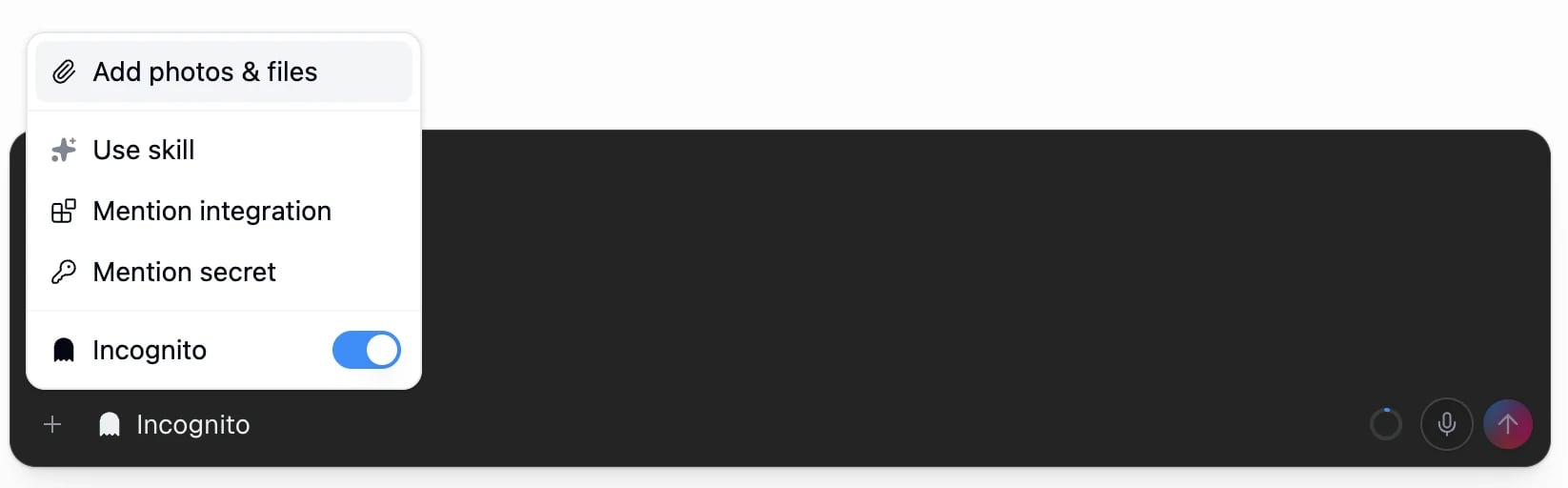
- Add photos & files: attach files and images to your message.
- Use skill: manually point the agent at a specific skill.
- Mention integration: reference a connected app directly in your message.
- Mention secret: reference a stored secret so the agent can use it without you pasting the value.
- Incognito: toggle a private task (covered below).
Voice input
You can send audio instead of typing. Gumloop transcribes it on the server and sends the text to the agent, so the task flows the same whether you type or talk.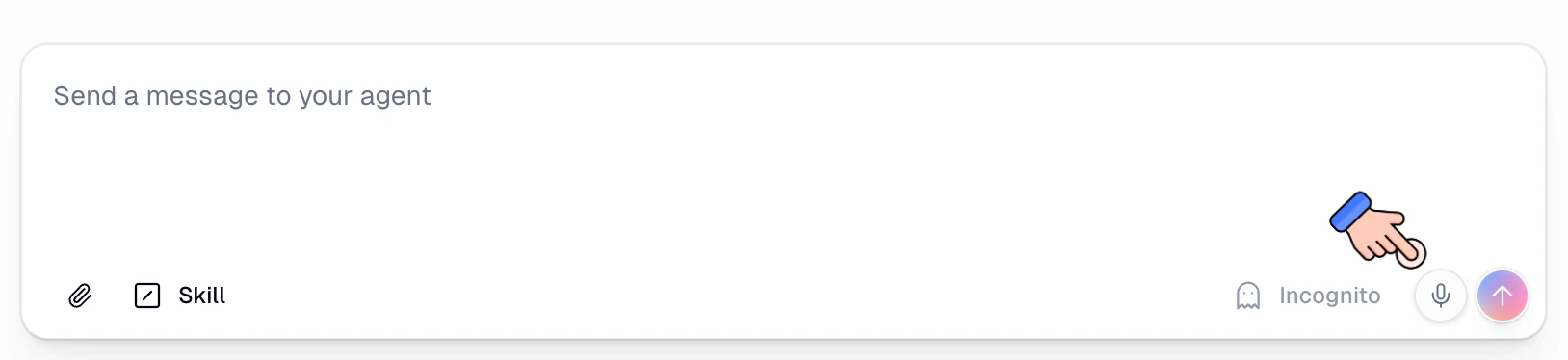
Message queue and steering
You do not have to wait for the agent to finish before sending your next message. While the agent is working, press Enter to add a follow-up to the message queue without interrupting its current step. You can edit, reorder, or remove a queued message before it is delivered.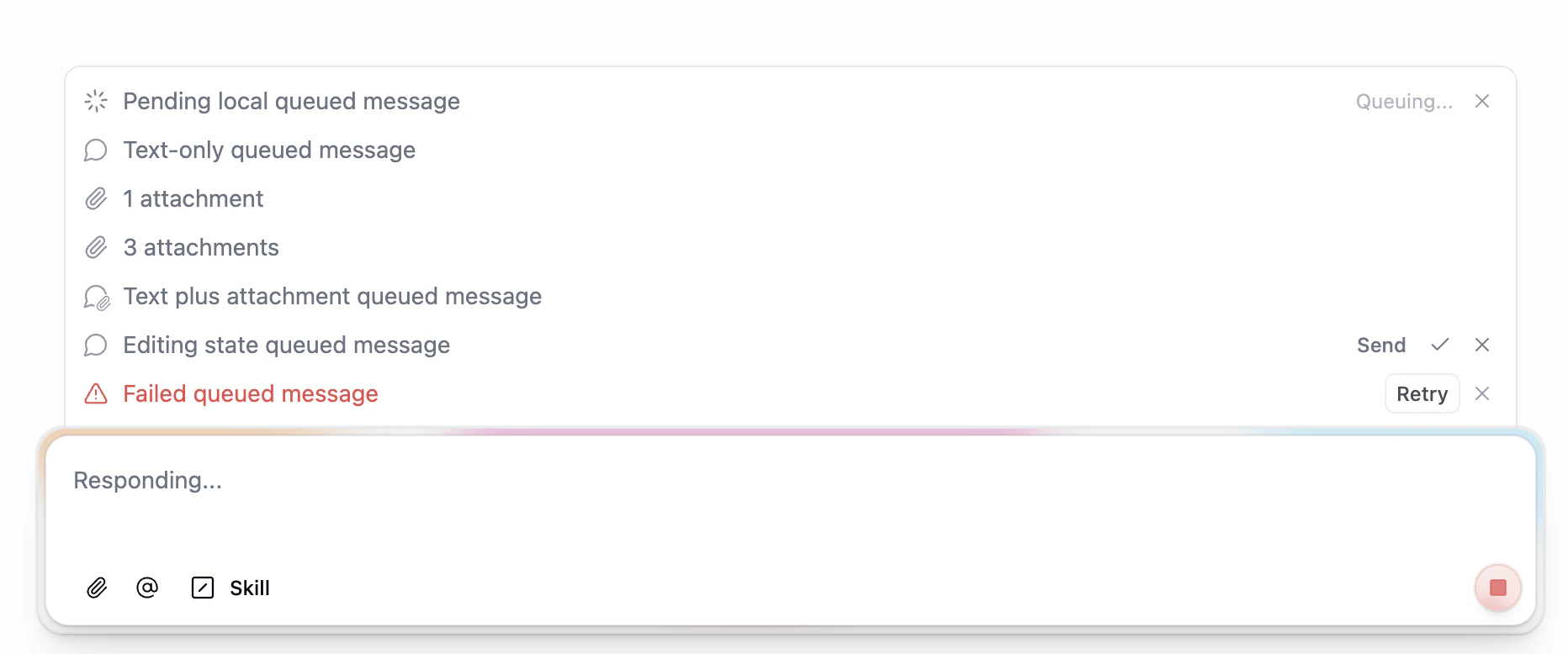
Context usage meter
The circular meter in the bottom-right of the message input shows how much of the agent’s usable context budget is in use, including any smaller context window you selected. Hover the meter for a breakdown across System, AI Instructions, Abilities, Tools, Skills, Subagents, and Conversation.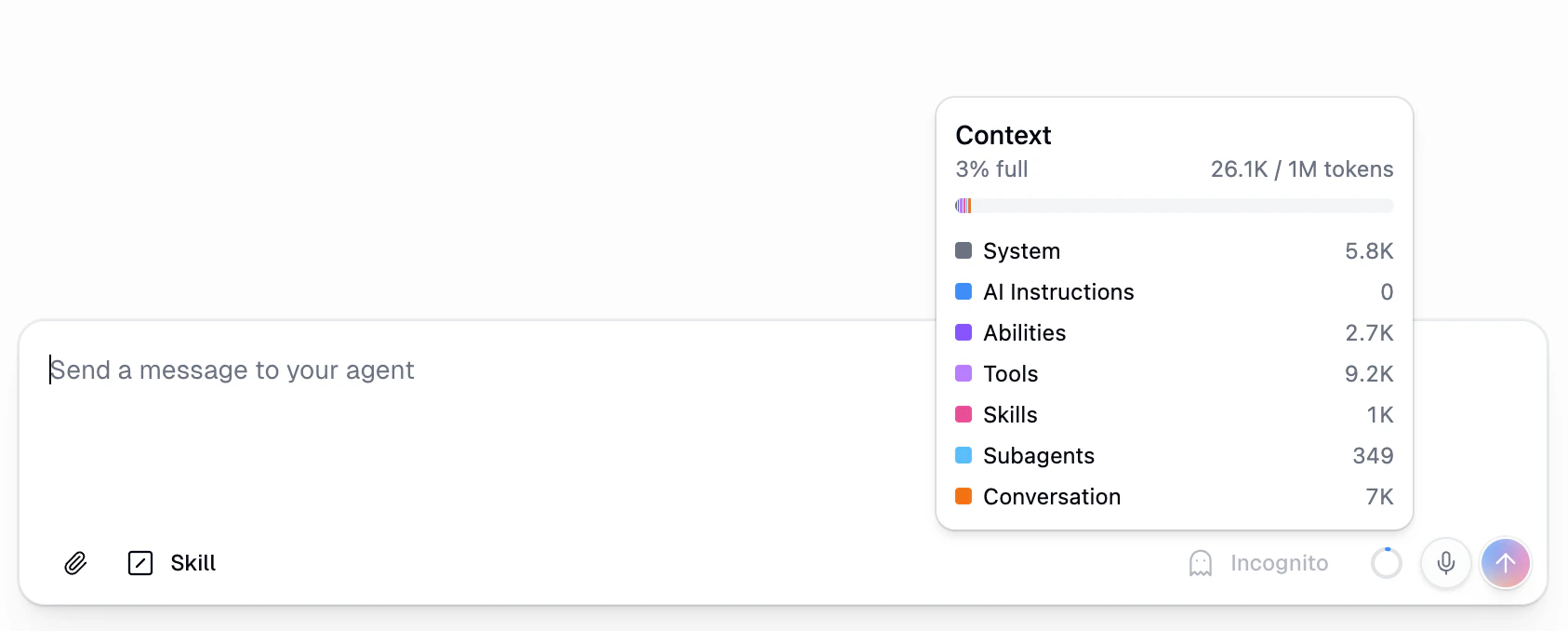
Incognito mode
Incognito stores task messages in a temporary cache rather than a durable transcript. The message cache has a 24-hour retention period that refreshes on each write. Durable task metadata and usage records can remain, so incognito does not mean nothing is saved. Incognito tasks count toward usage analytics, with no identifying details included. For a single task, toggle Incognito from the message input menu before sending. Existing tasks keep their original mode, and incognito tasks pass their mode to subagents. Enterprise organizations can require incognito for every new task on an agent. See Custom roles for Always run incognito and its permissions.Understanding credit costs
Agents consume credits for AI model usage, tool calls, the compute time they spend working, and an orchestration fee on top of those. Cost depends on the model, message length, task history, and the number of tools available. The task’s running credit total sits next to its name in the header. Select it to open the task’s details drawer, which shows the source, creation time, model, and participants, plus a row for each credit type the task was actually charged for: Chat & Reasoning, Tool Calls, Compute, Orchestration Fee, and Evaluation & Self-Improvement.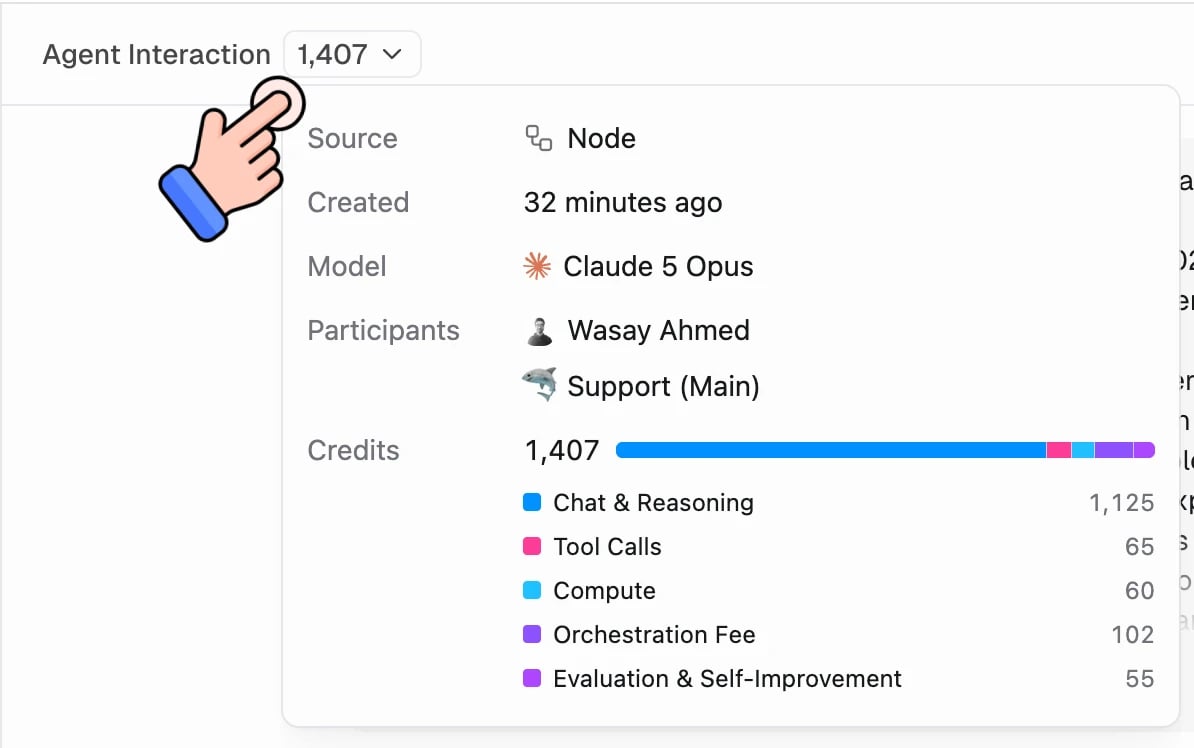
Credits
Full model pricing, integration costs, and how to track usage.
Settings
The Settings tab covers how the agent presents itself and how the model behaves.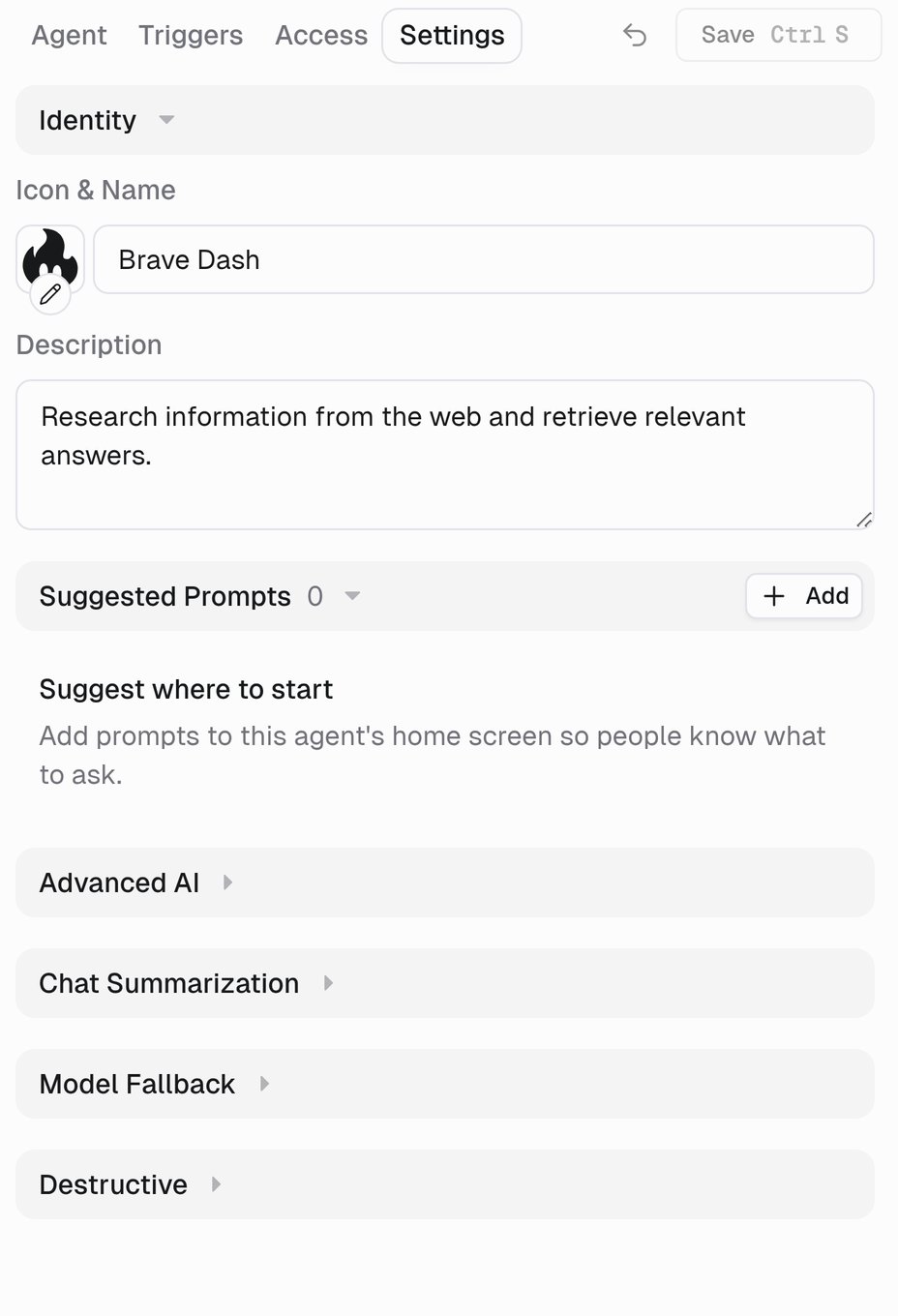
Two things that used to live here have moved: file sharing for generated files is now File Sharing on the Access tab, and Slack behavior is now under Channels → Slack. Secrets is a section on the Agent tab.
Channels
An agent is not limited to Gumloop. Channels in the agent sidebar is the single place you make it reachable somewhere else — every surface is set up from there, one per item in the list.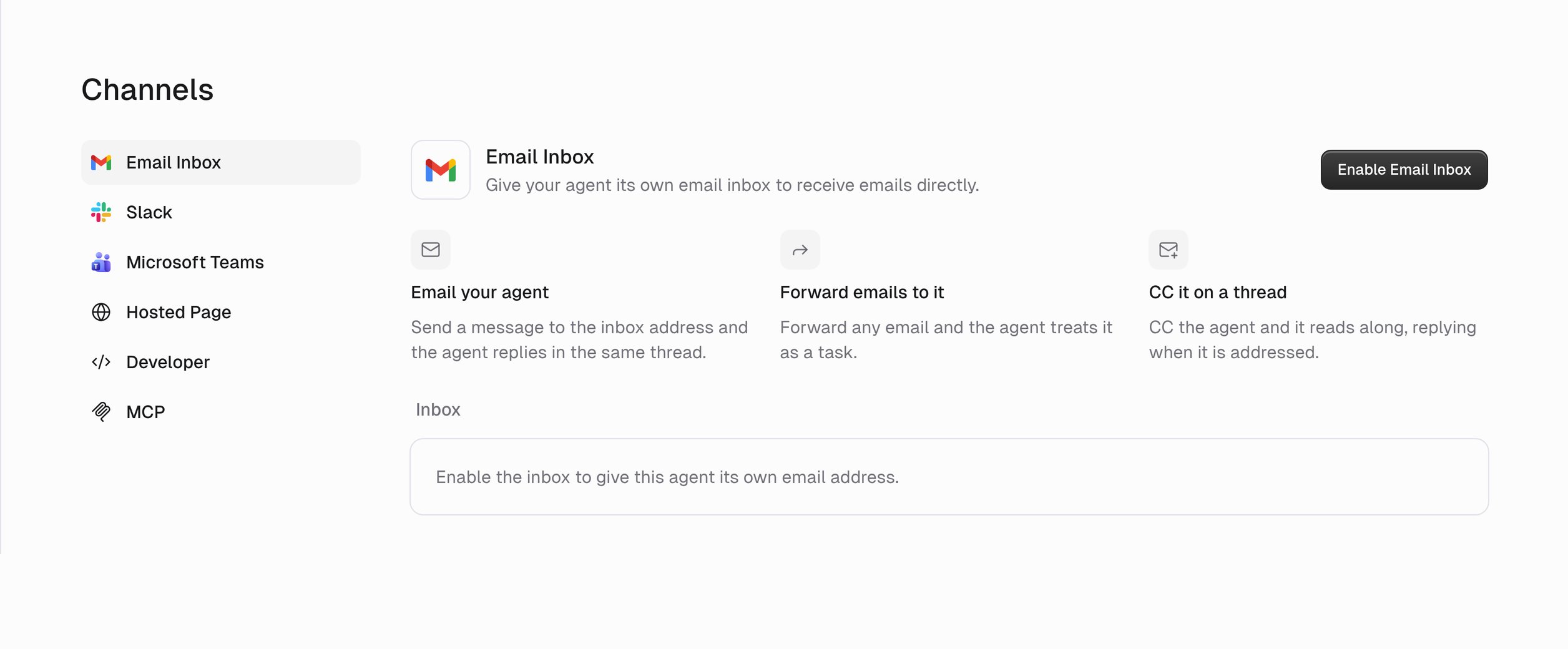
Slack
Deploy agents to Slack channels for team-wide access.
Microsoft Teams
Deploy agents to Microsoft Teams channels.
Give your agent an inbox it can read and reply from.
Hosted pages
Share a public or private hosted page for your agent.
Finding agents
The Agents page lists every agent you can access. Use the tabs to switch views: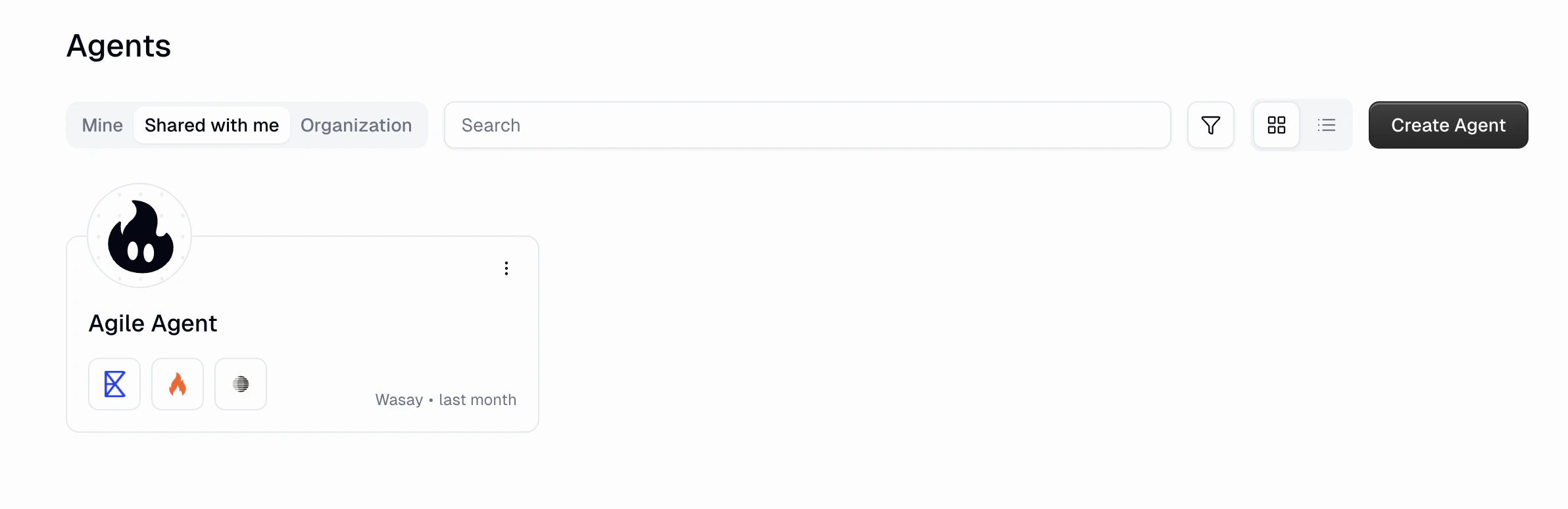
Usage stats
A line under the agent’s description summarises how it has been used over the last 31 days: how many tasks it worked on, and on a team agent, who used it most (Used by Ana, Ben and 4 others · 62 tasks in the last month, with avatars for the top users). A personal agent reads Worked on 62 tasks in the last month.Stats respect Task Visibility. If you can only see your own tasks on an agent, the numbers cover just your usage and no users are named. Subagent runs are excluded. Incognito tasks count toward usage, but their messages are never shown.
Managing tasks
Every task appears under Recents in the sidebar. Right-click a task or open its three-dot menu to manage it.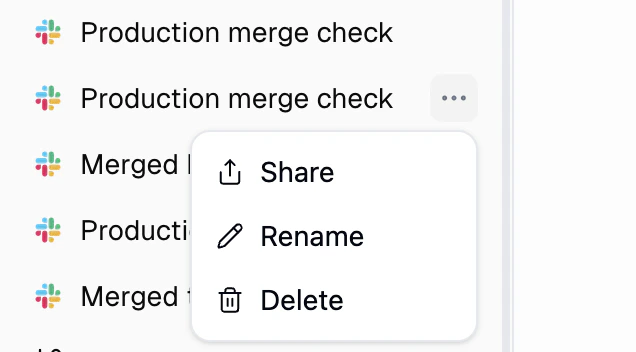
Guardrails
For agents that take real actions, layer on guardrails so they stay within bounds.Human in the Loop
Make the agent pause for approval before write, delete, and other sensitive tool calls.
App Rules
Set conditions that block or flag specific tool calls at the agent or organization level.
Self-improving instructions
Your agent can update its own instructions while it works. Correct it once (“always check Salesforce first,” “keep emails under 100 words”) and it edits its instructions so the same mistake does not happen again. Changes take effect on the next step and persist across future tasks. The toggle sits below the system prompt editor and is on by default; there is no version history, so revert by editing the prompt manually.AI advanced settings
Most agents never need this. Defaults are already set for a good balance of performance, cost, and reliability. Organization admins can set the defaults that new agents inherit. See Agent Default Settings. Open the Settings tab, then expand Advanced AI, Chat Summarization, or Model Fallback.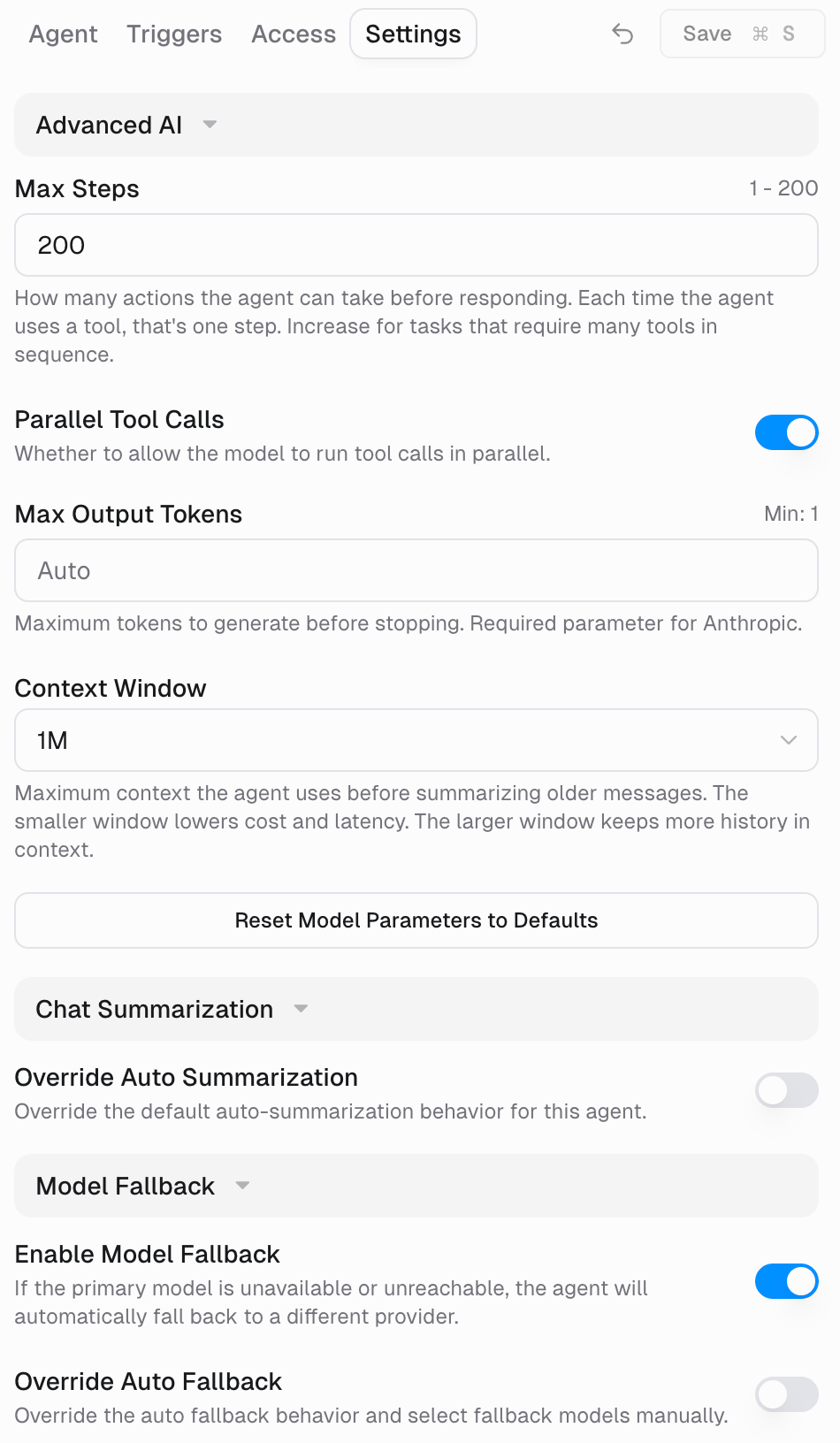
Advanced AI
Advanced AI
Per-provider model parameters. Switching models preserves your preferences for each provider.
Reset Model Parameters to Defaults restores these values for the current provider.
Context window
Context window
Some models ship two context windows. When your agent is on one of those models, Context Window appears under Advanced AI.
Every other model has a single window and never shows the setting. The choice is saved per provider. It is not sent to the model provider: it changes the context budget Gumloop enforces.Automatic summarization respects your configured context window, including a smaller window you selected, even when routing or fallback uses a larger model. A smaller active model can lower that budget.GPT-5.6 and Grok 4.6/4.7 charge higher long-context rates once a request’s input tokens cross the short window, and the higher rates apply to the whole request. Claude’s 1M-token models bill at one flat rate.
Chat summarization
Chat summarization
When a task approaches its usable context budget, older messages are compacted into a structured recap while recent messages are kept in full.Defaults: summarization starts at 80% of the context window, roughly the most recent 40,000 tokens are protected, and summaries are capped around 30,000 tokens.Turn on Override Auto Summarization to tune Summarization Trigger (%), Summary Model, Protected Context Tokens, and Max Summary Tokens. A lower trigger summarizes sooner and costs less per turn. A higher trigger keeps more raw history.
Model fallback
Model fallback
If the primary model is unavailable or unreachable, the agent retries and then switches to a fallback from a different provider. Enable Model Fallback is on by default. Turn on Override Auto Fallback to pick fallback models yourself.
AI models
Browse the full model catalog by tier, vision models, and bring-your-own-key (BYOK).
Best practices and troubleshooting
- Best practices
- Troubleshooting
Start simple, add complexity
Start simple, add complexity
Begin with two or three apps and short instructions. Test, watch how the agent behaves, then add tools and rules based on real usage. Avoid launching with 15 tools and a 2,000-word prompt.
Treat the agent as a work in progress
Treat the agent as a work in progress
When the agent makes a mistake, ask it: “What could I add to your instructions to prevent this?” Then have it update its own instructions or a skill. Review past tasks for patterns.
Set clear boundaries
Set clear boundaries
Be explicit about what the agent should never do without approval: delete records, send emails, make purchases, or modify production data. Back this up with Tool Management approvals.
Next steps
Agent triggers
Run agents automatically on a schedule or in response to events.
Agent skills
Build reusable knowledge packs that teach agents how to do specific work.
Brain
Give agents company knowledge to search from your connected sources.
Evaluations
Grade agent responses and catch regressions before they ship.
Reflections
Let agents review their own work and propose improvements.
Computer & secrets
Run code securely and manage agent secrets.
Agent access
Owners, Users, User Permissions, and Task Visibility.