

The Code Sandbox is natively enabled on all agents. See Code Sandbox for full details on what it can do.
Adding a Secret to Your Agent
Follow these three steps to give your agent secure access to an API key or credential.Open Settings and add a secret
Navigate to your agent and click the Settings tab. Scroll down to the Secrets section, expand it, and click + Secret.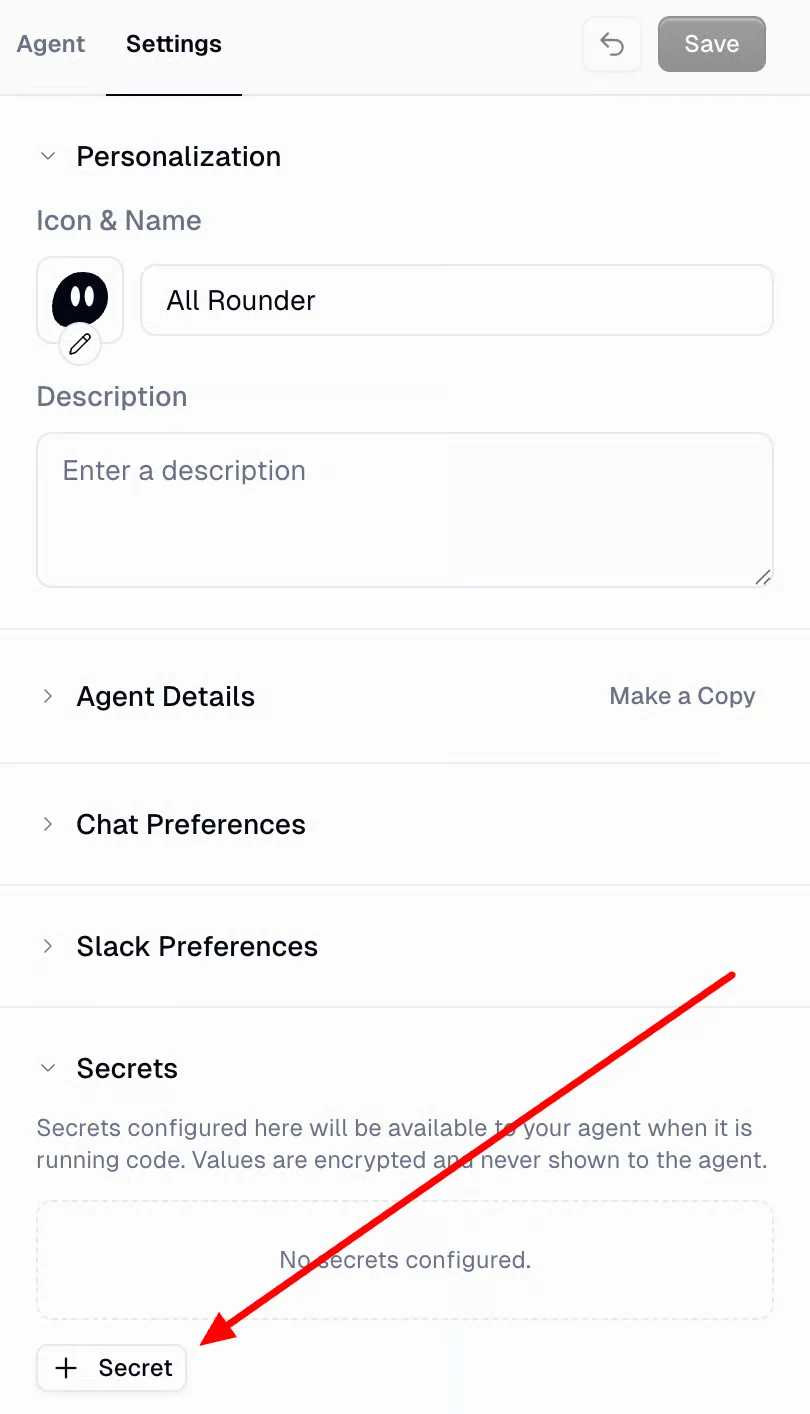
Confirm the secret is configured
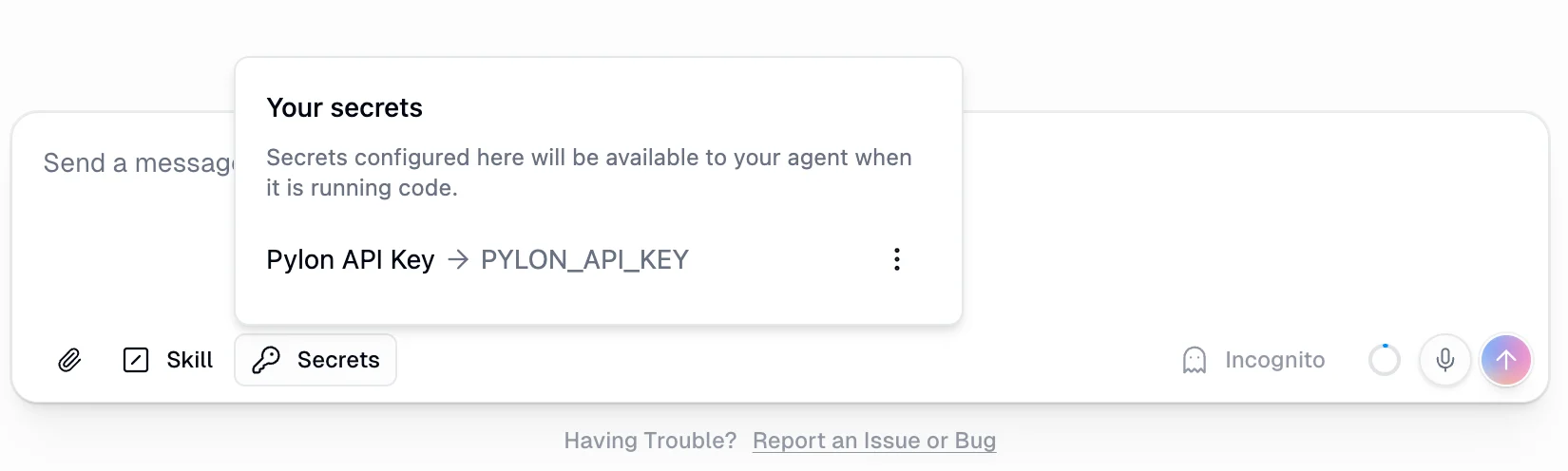
Once added, the secret appears by name in the Secrets section. Your agent now has access to it at runtime.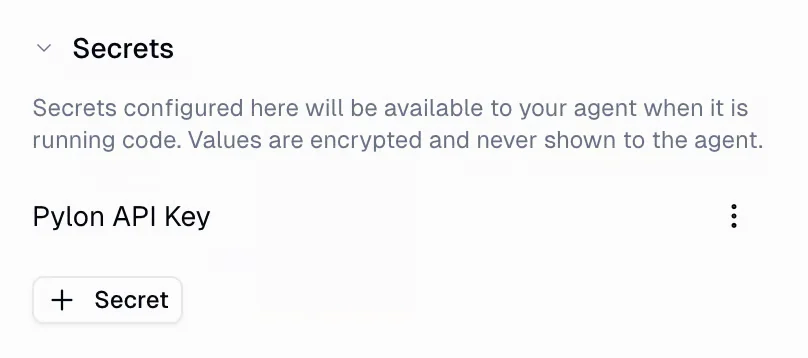
Two Types of Secrets
Personal Secrets
Private to you. No other user can access them. Managed from your personal secrets settings.
Team Secrets
Shared across all team members. Available when an agent is in a team space.
Team Secrets
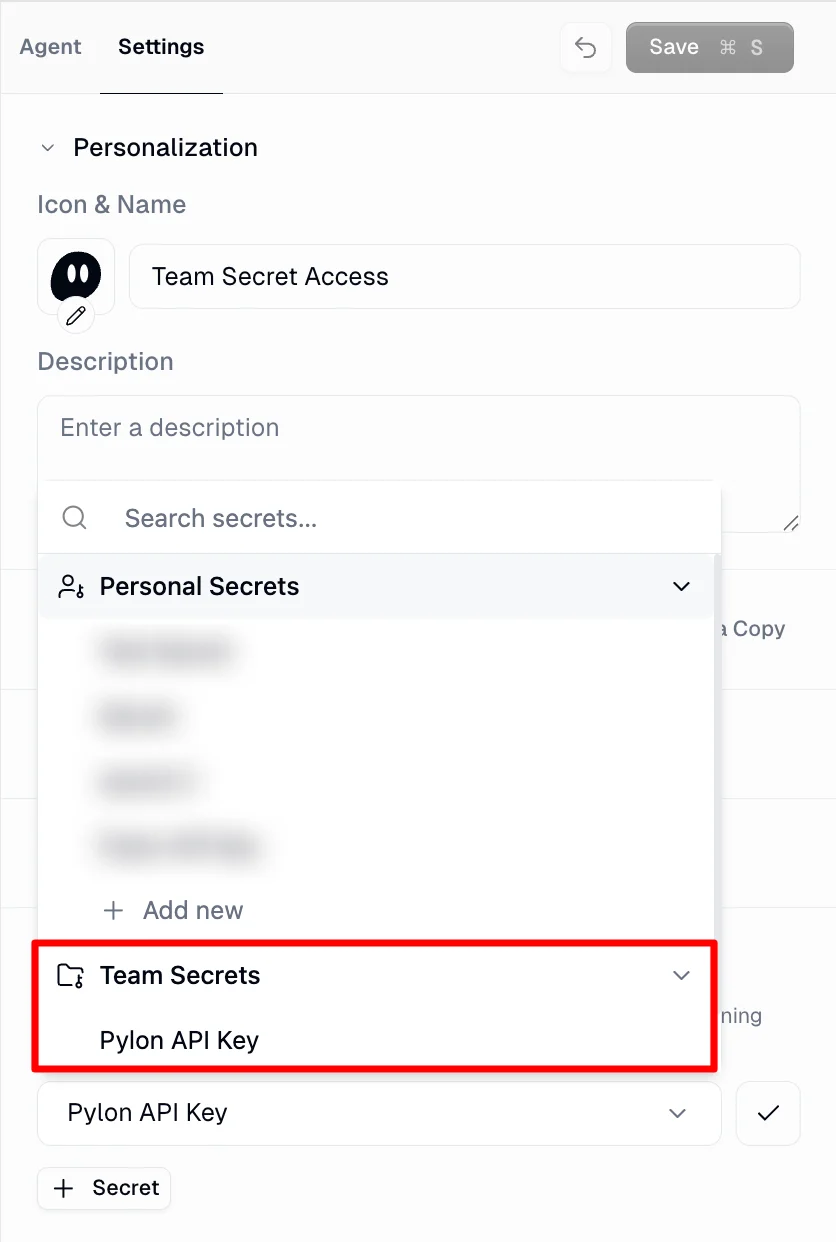
For agents in a team space, you can use shared secrets that all team members can access.Add a team secret
In agent Settings > Secrets, click + Secret. The dropdown shows both Personal Secrets and Team Secrets.
Runtime Resolution
Secrets resolve based on the running user, not the agent owner:- Personal secret configured — other users are prompted to provide their own value
- Team secret configured — all team members share the same value
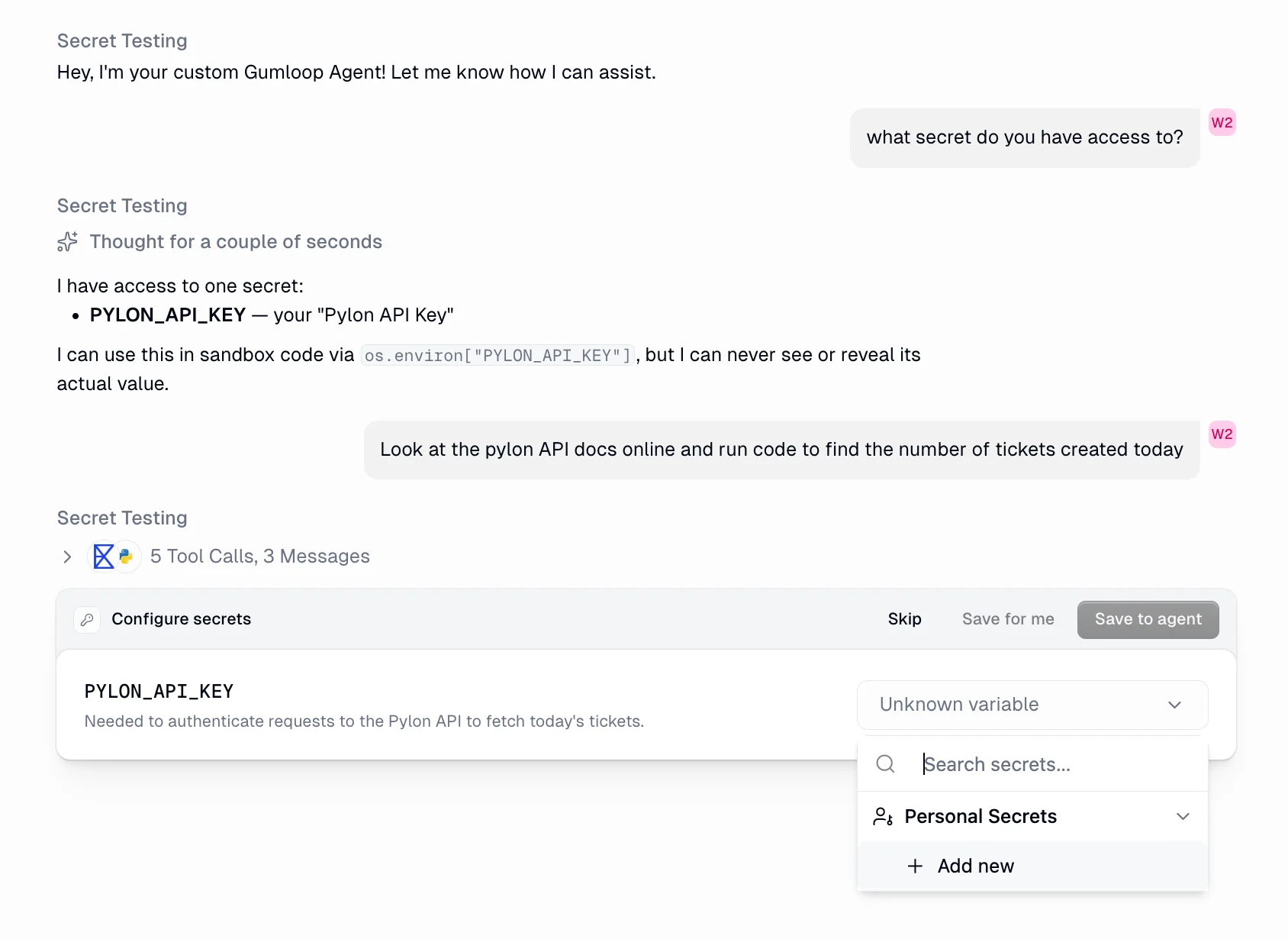
- Skip — proceed without the secret
- Save for me — map a personal secret for this user only
- Save to agent — update the agent’s default binding
Comparison
| Personal Secrets | Team Secrets | |
|---|---|---|
| Visibility | Only you | All team members |
| Where managed | Personal settings | Team settings |
| Use case | Private API keys, personal tokens | Shared service accounts, org-wide keys |
| Agent location | Personal or team space | Team space only |
| Resolution | Per-user (each provides their own) | Shared (one value for all) |
FAQ
Can the agent see my secret values?
Can the agent see my secret values?
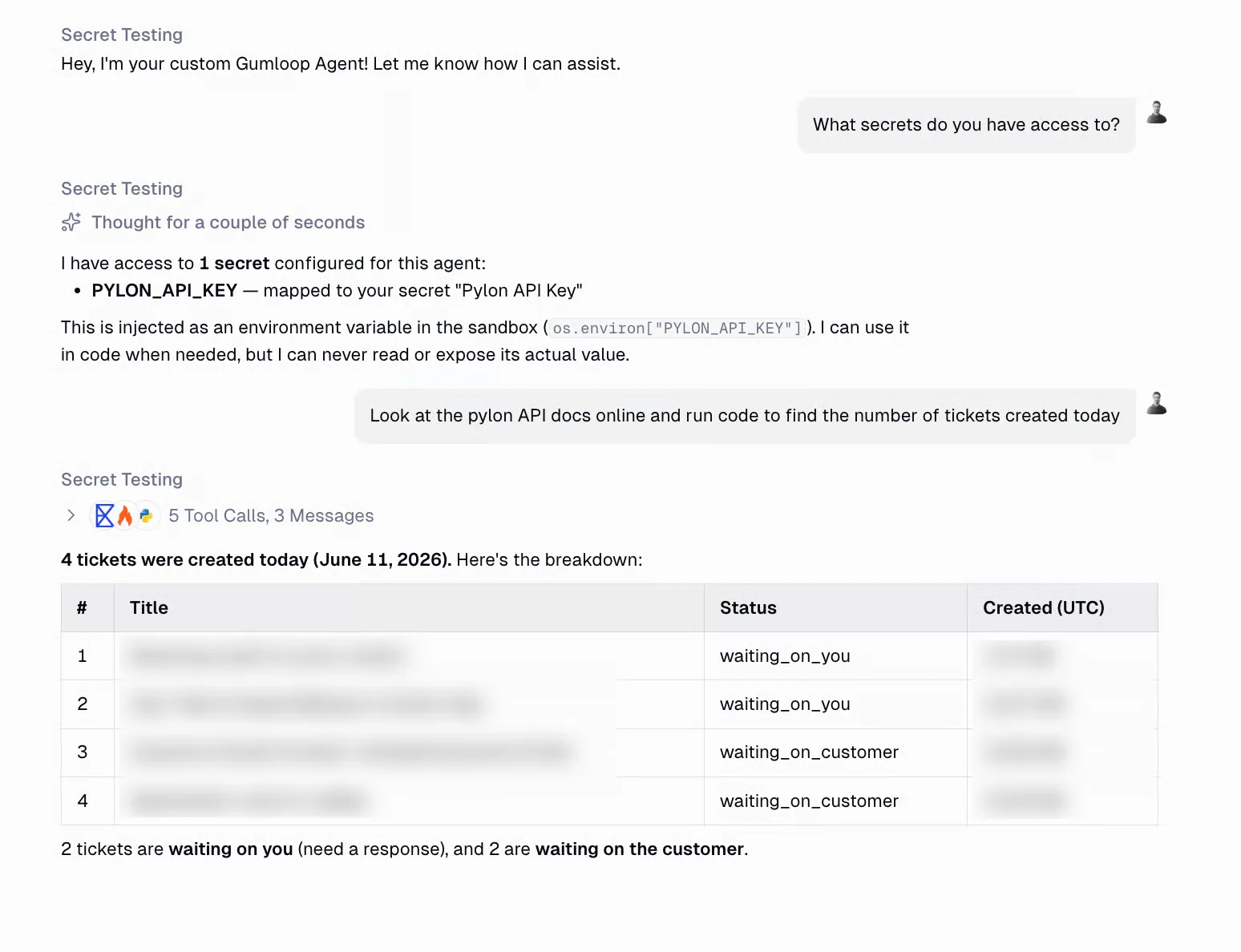
No. Secrets are injected as environment variables at runtime. The agent can reference them by name (
os.environ["MY_KEY"]) but never sees the actual value. Values are encrypted and never shown to the agent.Can I use both personal and team secrets on the same agent?
Can I use both personal and team secrets on the same agent?
Yes. An agent in a team space can use both. Personal bindings overlay the agent’s defaults at runtime.
Do secrets persist across conversations?
Do secrets persist across conversations?
Yes. Secrets are bound to the agent configuration. They are available every time the agent runs code.
How do I create a new personal secret?
How do I create a new personal secret?
Go to gumloop.com/settings/profile/secrets and add one. It will then appear in the secret picker when configuring agents.
See Also
Agents
Building and configuring agents, including the Code Sandbox.
Teams
Team spaces and shared resources.