

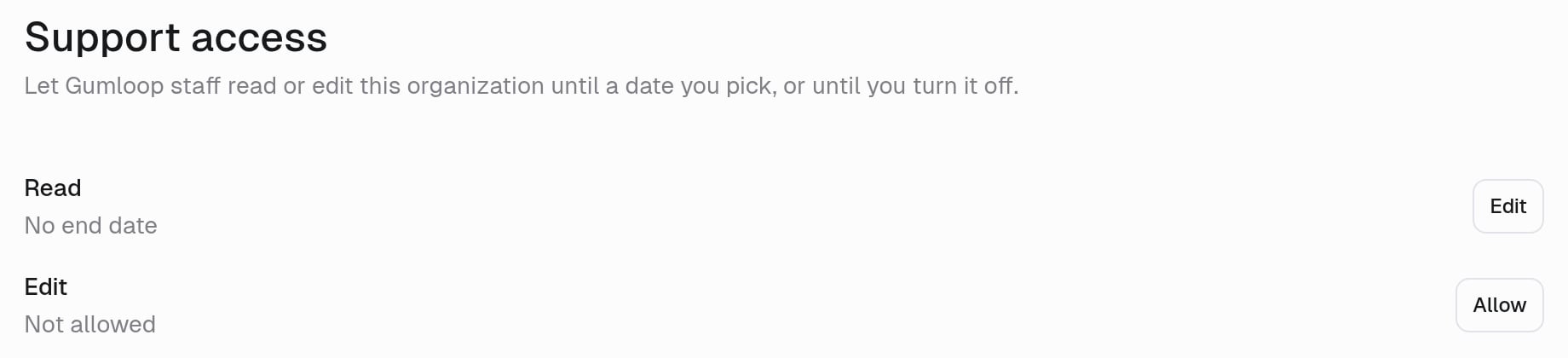
Access levels
Staff always use their own Gumloop account. They’re never signed in as one of your members.
For example, if an agent keeps picking the wrong tool, Read lets staff open it and check its instructions, model, and connectors to find the cause. Edit also lets them fix the instructions for you.
Neither level lets staff:
- Run or chat with your agents
- See secret values, or add or change connectors and credentials
- Delete anything, or change who can access an agent or file
- Create, turn on, turn off, or delete triggers
- Add or remove members, or change roles
- Change billing, SSO, or support access, or export data
Allow or change access
Each row on the page shows Not allowed, the date access ends (Until a date), or No end date.- Open Support access and click Allow on the Read or Edit row. If access is already on, the button says Edit.
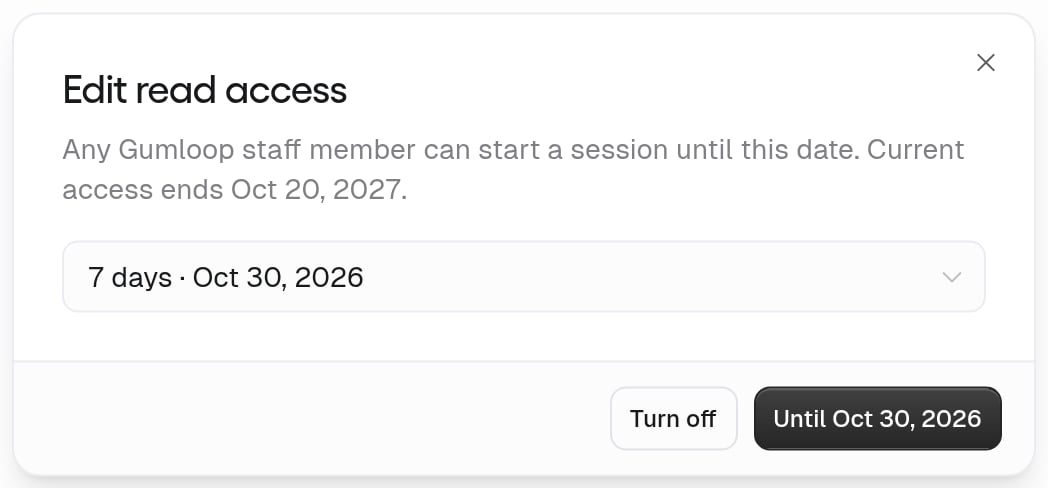
- Pick how long it lasts: 7 days, 30 days, 1 year, or No end date.
- Click the confirm button, which shows the end date, for example Until Oct 30, 2026. Any Gumloop staff member can start a session until that date, or until you turn it off.
Requests from Gumloop staff
When staff need access you haven’t allowed, they can send a request with a level, a length, and a reason. Admins get it by email and Slack, with Grant and Open in Gumloop buttons. The Support access page lists open requests as Pending, with the reason.Sessions
A staff member starts a session to use the access you allowed. A session stays open until they end it or your access ends. On a grant with no end date, a session ends after one year. If no grant allows the level they need, a Gumloop staff admin can start emergency access and must give a reason. Emergency access is a 2-hour Edit session, and staff can’t renew it. Your organization’s audit log records grants, requests, sessions, and emergency access, for examplesupport_access_granted, support_access_revoked, support_session_started, support_session_ended, and support_break_glass_started. See Audit logging.