

Dashboards on live data
Forms that take action
Pages that call AI models
Apps powered by your agents
How does a live artifact work?
A live artifact has two parts: the page people see, and small scripts behind it that do the work. When the page needs something, such as this week’s deals or a new agent run, it asks a script. The script runs in a secure sandbox as the viewer and sends the result back to the page. The page itself never sees anyone’s passwords or tokens.For developers: how pages call scripts
For developers: how pages call scripts
GUMLOOP_PAYLOAD environment variable, so one script can serve every filter, date range, or form submission. Scripts use the same Gumloop() client as the Python SDK, with a short-lived token that acts as the viewer.What can a live artifact use?
For developers: which client methods scripts can call
For developers: which client methods scripts can call
What can you build?
Anything that combines a page with live data or actions. Tell the agent which tools and data you want. The more specific you are, the better the result.Turn your agents into apps
A live artifact can run your agents and read your Gumloop workspace, not just your connectors. That means you can put a simple page in front of any agent: your team fills in a form, the agent does the work, and the result shows up on the page. Nobody has to open a chat or write a prompt.Example: an account brief desk for a sales team
A sales rep types a company name and clicks Generate brief. The page runs an Account Researcher agent as that rep and lays out the result: what the company sells, who it sells to, recent news, and talking points for a first call. Recent briefs lists earlier brief sessions on that agent that the rep can open.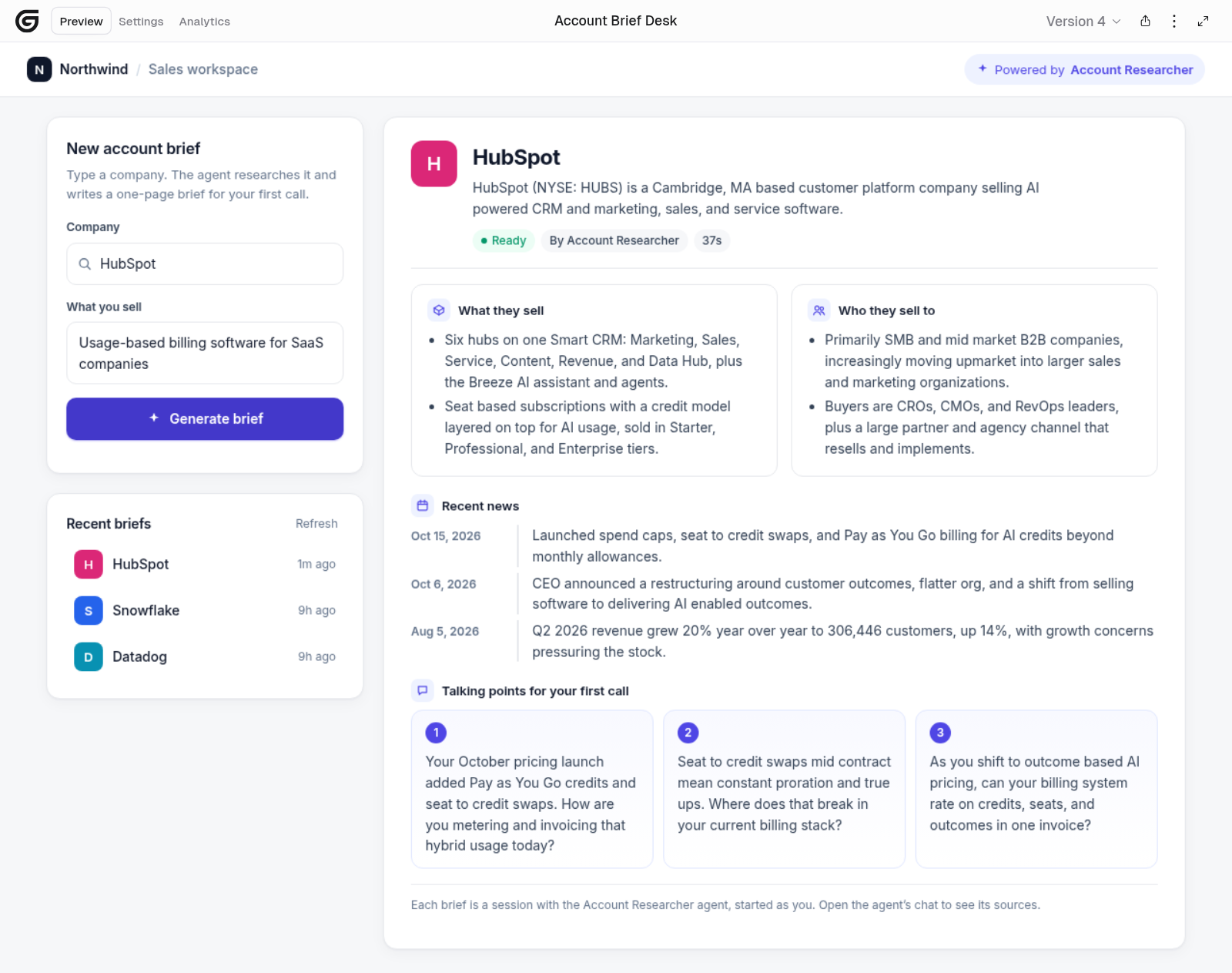
A live artifact that runs the Account Researcher agent. Each brief is a real agent session started by the person using the page.
“Build a live page called Account brief desk for my sales team. It has a Company field and a What you sell field. When someone clicks Generate brief, start a session with my Account Researcher agent as that person, wait for it to finish, and show the brief in sections. List their recent briefs on the side.”What happens when a rep clicks Generate brief:
- The page starts a session with the Account Researcher agent as the rep, and tells the agent which sections to write so the page can lay them out.
- While the agent researches, the page checks on the session every few seconds.
- When the agent finishes, the page shows the brief. The rep can open the same session in the agent’s chat to see its sources.
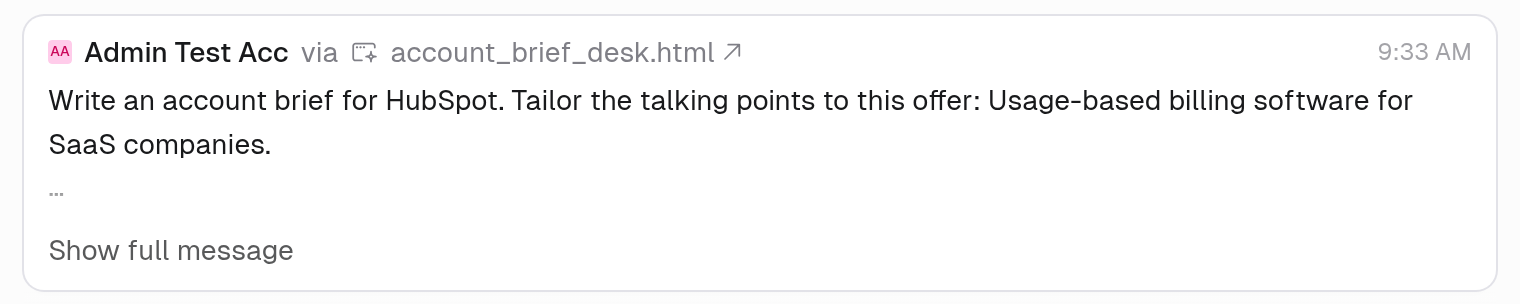
A session started from a live artifact names the page that started it.
See the scripts behind the brief desk
See the scripts behind the brief desk
start begins the session and returns right away, because agent work can take longer than one script request. status checks on the session until it finishes. recent lists earlier briefs.start with the form values, then calls status with the session ID until state is completed or failed.Example: qualify a whole lead list at once
A rep pastes a list of companies and clicks Qualify all. The page starts one Account Researcher session per company, all at the same time, and fills in a table as each one finishes: the company’s segment, a fit score from 1 to 5, and a one-line reason. The table sorts itself by fit, and the most recent run is still there the next time the rep opens the page.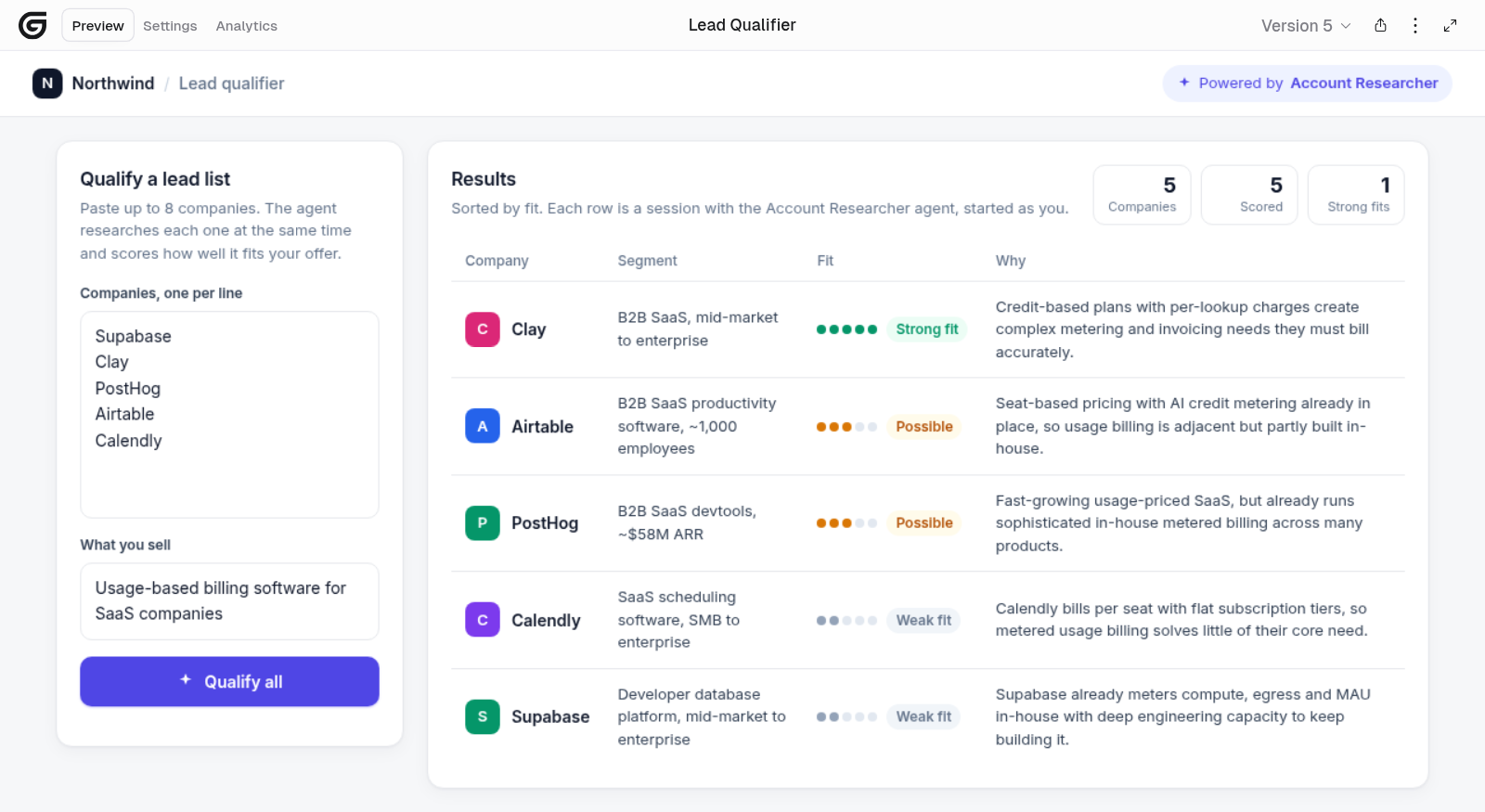
One click runs the agent on every company in parallel and turns the answers into a sorted, scored table.
“Build a live page called Lead qualifier. I paste up to 8 companies and what we sell, then click Qualify all. Run my Account Researcher agent on every company at the same time, have it return a segment, a fit score from 1 to 5, and a one-line reason, and show the results in a table sorted by fit. Show my latest run when I open the page.”What makes this a page and not a chat:
- Many runs at once. Each company is its own agent session, so five companies take about as long as one.
- The same structure every time. The page asks the agent for the same fields on every run, so results land in columns you can scan and sort.
- Built for the whole team. Anyone you share it with gets the same tool, running as them, with no prompt to write.
See the scripts behind the lead qualifier
See the scripts behind the lead qualifier
start_batch starts one session per company and returns their IDs right away. status_batch checks every session in one request and pulls the score out of each finished reply. With no IDs, it loads the viewer’s most recent run.start_batch with the list, then calls status_batch every few seconds with the sessions that haven’t finished. Checking all sessions in one request keeps the page under the limit of three script requests at once.More ideas
Whose access does a page use when it runs agents?
Everything a page does in Gumloop runs as the person viewing it, as if they did it themselves: their permissions, the agents and files shared with them, their connected accounts, and their credits. If a viewer can’t open an agent or file in Gumloop, the page can’t use it for them either. A page can run your custom agents and the viewer’s own Gumball. Sessions it starts belong to the viewer, and the viewer pays for them.Where can’t a page run agents or read Gumloop data?
For developers: how Gumloop decides which resources a page can use
For developers: how Gumloop decides which resources a page can use
client.sessions or client.brain. When a script runs, it gets access only to resources that both the page’s current version and that script use.Call each resource directly on the Gumloop() client, for example client.sessions.create(...). A resource reached indirectly, for example through getattr or exec, isn’t detected, so Gumloop refuses those calls.For developers: running agent work that takes longer than 90 seconds
For developers: running agent work that takes longer than 90 seconds
client.sessions.create(agent_id, input=...) and returns the session ID, and the page then calls a second script that calls client.sessions.retrieve(session_id) until the session’s state is completed or failed. An agent’s reply text can arrive in message.parts instead of message.content: read the parts whose type is text.Integration consent
The first time you open a live artifact, a consent overlay lists every connector the file can use and the actions it can take. No script runs until you approve.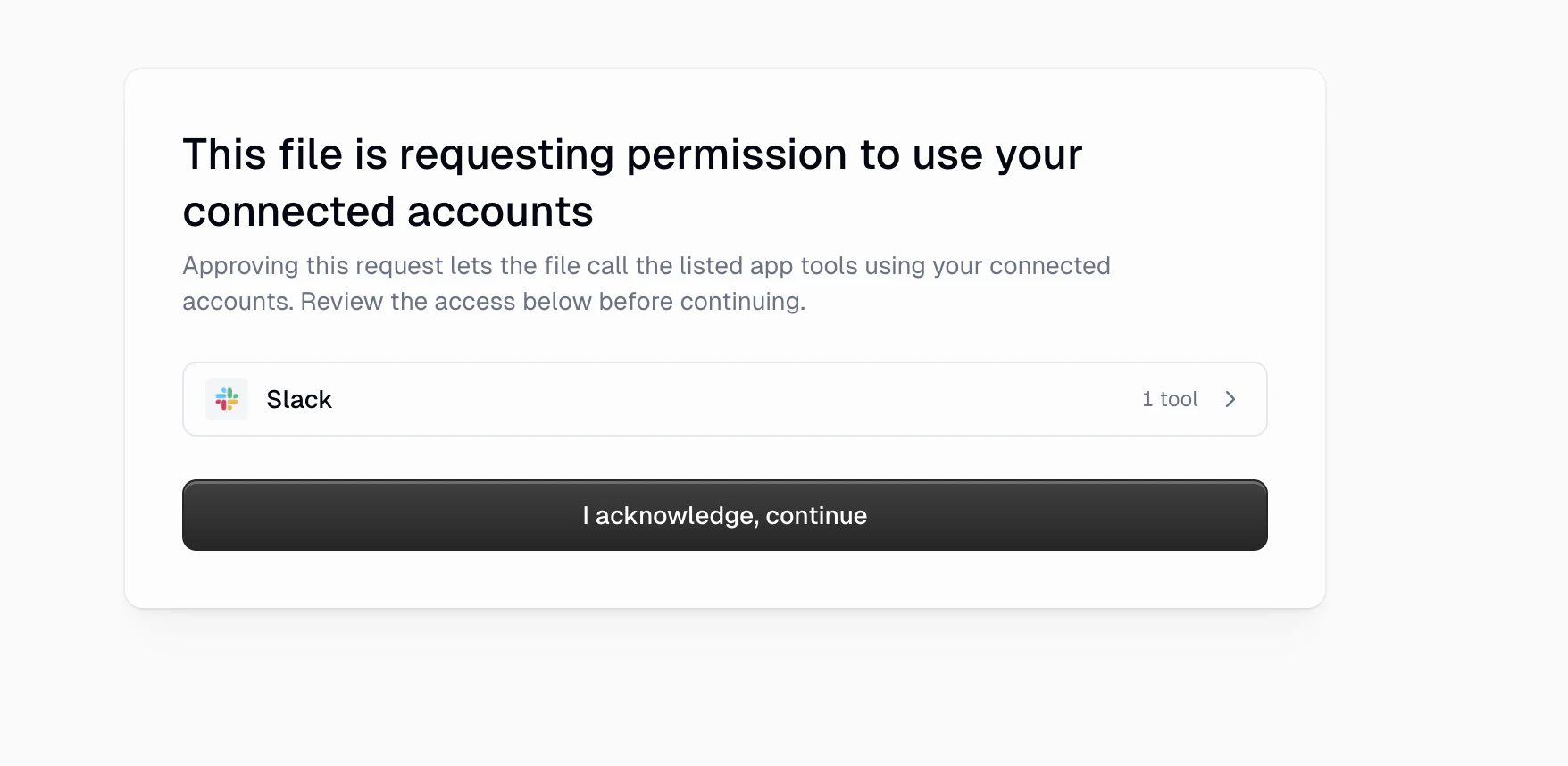
- You always see which connectors a file uses before it runs.
- No script fetches data until you approve.
- When someone shares a file with you, you decide whether it can use your accounts.
Your credentials, your data
A live artifact’s connector calls depend on where you open it and whether the source agent’s connectors are viewer-owned or agent-owned. Sharing a file or giving it a password doesn’t give visitors access to the creator’s personal connections.Can a page call AI models?
Yes. A page’s data scripts can send the data they load to an AI model and show the answer on the page. The page can summarize, tag, score, or answer questions about live data every time someone opens it, without anyone starting a chat. Example: a support triage board. Ask an agent:“Build a dashboard of this week’s open Zendesk tickets. Tag each ticket’s sentiment as positive, neutral, or negative, and its product area. Put a three-sentence summary of the main themes at the top, and add a box where I can ask questions about these tickets.”When a teammate opens the page:
- A data script loads the open tickets with that teammate’s Zendesk connection.
- A model tags each ticket and writes the summary. Each tag and the summary appear next to the data.
- Typing a question into the box, such as “Which customers mentioned billing twice?”, sends the question and the loaded tickets to a model and shows the answer on the page.
Download buttons
Ask the agent to add a download button, for example to export the dashboard’s data as Excel, a filtered CSV, or a PDF. The script builds the file when you click the button and returns it as a browser download, rather than saving it as a new artifact.What does a live artifact cost, and who pays?
Creating the page uses the agent conversation’s usual credits. After that, the viewer pays for everything the page runs: script runtime, AI model calls, and agent sessions the page starts. Organization members use their organization’s credit balance and any applicable user limits. If a credit limit blocks a run, the script returns an error. See Credits for rates.Limits and performance
- Load what the page needs with one script, not many small ones.
- Pass filters in the request body instead of adding a script per filter.
- Show the page layout before the data arrives, with a clear error and a Retry button if a script fails.
Refreshing data
Opening an artifact again can rerun its data scripts. A refresh button or auto-refresh timer starts another run, and each run uses credits. Data updates only when the page loads or refreshes, not continuously in the background. Long-running queries can time out. If one does, ask the agent to reduce the data scope.Why does my live artifact show an error or a blank section?
If a data script fails, the page receives an error response. Well-built pages show a friendly message. If the agent didn’t include error handling, the section may simply be blank.Live artifacts and Chat Widgets
A Chat Widget is a compact chart, comparison, or mock-up inside a live web reply. Live widgets follow the same integration consent, connector account settings, and tool permissions as live artifacts, and their runs bill the viewer. Use a live artifact when you want a page you can share, host, or embed.Common questions
What's the difference between a static artifact and a live artifact?
What's the difference between a static artifact and a live artifact?
Do live artifacts use my credentials or the creator's?
Do live artifacts use my credentials or the creator's?
gumloopartifacts.com, scripts can use your available connections and eligible agent-owned connections. Organization-owned artifact domains use agent-owned connections only. Public or password-shared artifacts can’t use agent-owned connections. Agent runs and Gumloop data always use your access. See Your credentials, your data.Can a live artifact take actions, or only read data?
Can a live artifact take actions, or only read data?
Can a page start a session with any agent?
Can a page start a session with any agent?
Why can't my older page run agents?
Why can't my older page run agents?
Why does my page run agents in Gumloop but not on a public link?
Why does my page run agents in Gumloop but not on a public link?