

Intended Audience: Snowflake administrators with ACCOUNTADMIN role or users with CREATE INTEGRATION privilege. You perform this setup once, and it enables OAuth authentication for your organization’s Snowflake connection.
What this guide covers
This guide helps you:- Create a Snowflake OAuth Integration - Register Gumloop as a custom OAuth client in Snowflake
- Retrieve OAuth Credentials - Get the Client ID and Client Secret needed for Gumloop
- Configure Gumloop (Administrator) - Add the Snowflake OAuth Config to your organization
- User Authentication - Connect individual user accounts with proper scopes
Overview
Snowflake OAuth integration enables secure authentication between Gumloop and your Snowflake account. Instead of sharing static credentials, OAuth allows users to authorize Gumloop to access Snowflake on their behalf with automatic token refresh and better security controls.Why use Snowflake OAuth with Gumloop?
Enhanced security
OAuth tokens are temporary and can be revoked, reducing the risk of credential exposure
Automatic token refresh
Refresh tokens keep your connection active without manual re-authentication
Centralized control
Manage access and permissions directly in Snowflake
Audit trail
Track OAuth authentication events in Snowflake’s audit logs
Prerequisites
Before you begin, ensure you have:- Snowflake Account Access - You need the ACCOUNTADMIN role or a role with CREATE INTEGRATION privilege
- Snowflake Account URL - Your Snowflake account URL (for example,
https://myorg-account123.snowflakecomputing.com)
Step 1: Create the Snowflake OAuth integration
You’ll run SQL commands in Snowflake to create a custom OAuth integration for Gumloop.1.1 Connect to Snowflake
- Log in to your Snowflake account
- Open a new SQL worksheet
- Ensure you’re using a role with sufficient privileges:
If you don’t have the ACCOUNTADMIN role, ask your Snowflake administrator to either grant you this role temporarily or execute these commands on your behalf.
1.2 Create the OAuth integration
Copy and execute the following SQL command to create the OAuth integration:Understanding the configuration parameters
Understanding the configuration parameters
TYPE = OAUTH- Specifies this is an OAuth integrationENABLED = TRUE- Activates the integration immediatelyOAUTH_CLIENT = CUSTOM- Indicates this is a custom OAuth client (not a pre-built partner integration)OAUTH_CLIENT_TYPE = 'CONFIDENTIAL'- Marks this as a confidential client that can securely store secretsOAUTH_REDIRECT_URI- The Gumloop callback URL that Snowflake sends users to after authenticationOAUTH_ISSUE_REFRESH_TOKENS = TRUE- Enables automatic token refresh for persistent connectionsOAUTH_REFRESH_TOKEN_VALIDITY = 7776000- Sets refresh token validity to 90 days (7,776,000 seconds)
For custom OAuth integrations (
OAUTH_CLIENT = CUSTOM), you don’t configure scopes on the security integration itself. Instead, the OAuth authorization request specifies them. Gumloop handles this automatically when users connect their accounts.To control which roles users can choose with this integration, use BLOCKED_ROLES_LIST to deny specific roles or PRE_AUTHORIZED_ROLES_LIST to skip the user consent step for specific roles. Refer to the Snowflake OAuth documentation for details.1.3 Verify the integration
Confirm that Snowflake created the integration:GUMLOOP in the results.
1.4 View integration details
To see all configuration details:Step 2: Retrieve OAuth credentials
Now you need to get the Client ID and Client Secret that Gumloop uses to authenticate.2.1 Get client credentials
Execute the following command:2.2 Save the credentials
Copy and save the following values from the JSON response:- OAUTH_CLIENT_ID - You’ll need this for Gumloop
- OAUTH_CLIENT_SECRET - You’ll need this for Gumloop
Step 3: Configure Gumloop (administrator setup)
Now that you have your Snowflake OAuth credentials, you’ll add them to Gumloop as an administrator.3.1 Add Snowflake OAuth config to Gumloop
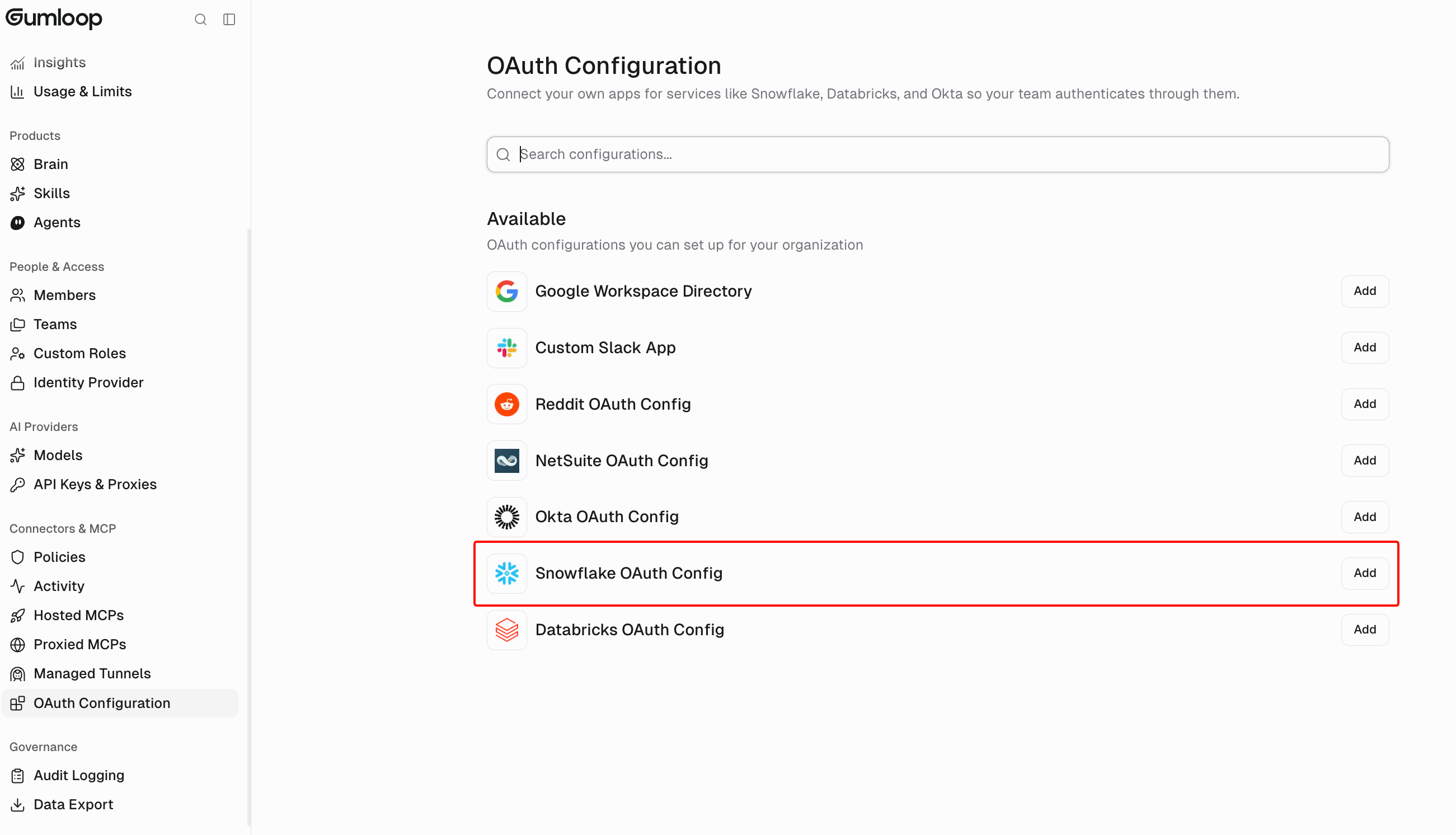
- Navigate to Settings → Organization → OAuth Configuration
- Find Snowflake OAuth Config in the Available list
- Click Add
- Enter the following information:
- Client ID: The
OAUTH_CLIENT_IDfrom Step 2.1 - Client Secret: The
OAUTH_CLIENT_SECRETfrom Step 2.1
- Client ID: The

- Save the configuration
Step 4: User authentication
Once the Gumloop administrator has completed Step 3, individual users can connect their Snowflake accounts.4.1 Connect your Snowflake account
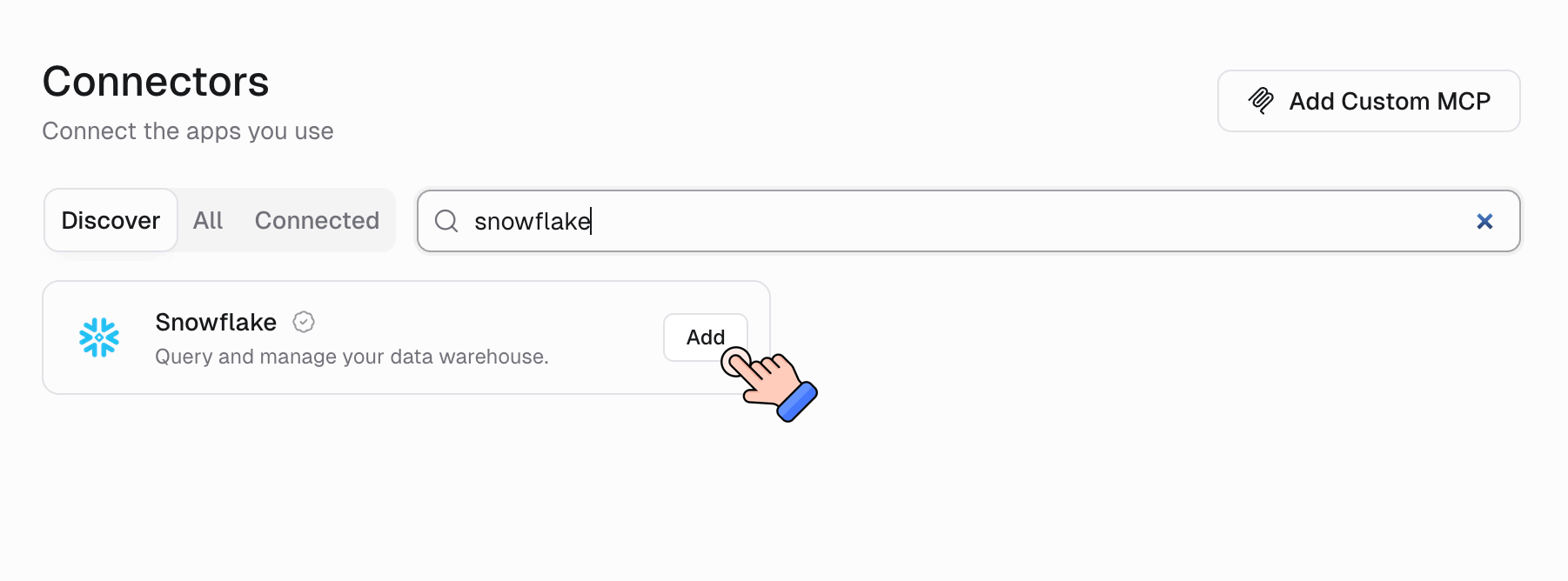
- Navigate to Connectors page
- Search for Snowflake and click Add
- Choose the first Snowflake option as the authentication method
- Select Snowflake OAuth Config, the configuration your administrator added, or Okta if that’s set up
- Enter the following information:
- Workspace ID: Your Snowflake account identifier (for example,
myorg-account123) - Scopes: Space-separated list of OAuth scopes (see warning below)
- Workspace ID: Your Snowflake account identifier (for example,
PrivateLink and Private Service Connect
If your Snowflake account uses PrivateLink and you have a Gumloop VPC deployment, include.privatelink in the Workspace ID. For example, if your Snowflake URL is https://myorg-account123.privatelink.snowflakecomputing.com, enter myorg-account123.privatelink.
Snowflake admins can find the private account URL by running SYSTEM$GET_PRIVATELINK_CONFIG() and checking the regionless-privatelink-account-url field. Use privatelink-account-url instead for the region-specific locator format.
4.2 Authorize the connection
After entering your information:- Click Connect or Authorize
- Snowflake’s authorization page opens
- Log in with your Snowflake credentials
- Review the requested permissions and role
- Click Authorize to grant Gumloop access
- Snowflake sends you back to Gumloop with a successful connection
4.3 Verify your connection
To confirm your OAuth connection is working correctly:- Go to Connectors page
- Search for Snowflake
- If the connection is successful, you should see your Snowflake username displayed instead of “Snowflake Account”

Blocking specific roles
For security reasons, Snowflake automatically blocks certain administrative roles from OAuth. These blocked roles include:- ACCOUNTADMIN
- ORGADMIN
- SECURITYADMIN
- GLOBALORGADMIN
Adding additional blocked roles
To block additional custom roles from OAuth:If users need to access Snowflake with OAuth using a blocked role, they have two options:
- Request removal from the blocked roles list (requires Snowflake Support approval)
- Switch to a different, non-blocked role that has the necessary permissions
Troubleshooting
”Invalid client” error
Problem: Getting an “invalid_client” error when connecting Solution:- Verify the Client ID and Client Secret are correct in the Snowflake OAuth Config
- Check the integration’s
ENABLEDproperty:DESC SECURITY INTEGRATION GUMLOOP; - Ensure the redirect URI matches exactly:
https://api.gumloop.com/auth/callback
Most operations are failing
Problem: Connected successfully but Snowflake operations return permission errors Solution: This usually means the scope configuration is incorrect. Ensure you specified a valid role scope when connecting your Snowflake account. Update your credential with a proper role scope, for example:session:role:PUBLIC
Gumloop automatically handles the refresh_token scope, so you only need to specify the role.
Role access issues
Problem: Users can’t access certain Snowflake resources or specific role Solution:- Verify you spelled the role name in your scope correctly and in uppercase
- Check whether the desired role appears in the blocked roles list:
DESC SECURITY INTEGRATION GUMLOOP; - Ensure the user has the role in Snowflake:
SHOW GRANTS TO USER your_username; - Administrative roles such as ACCOUNTADMIN and SECURITYADMIN are on the blocked list by default
Username not showing in Gumloop
Problem: Still seeing “Snowflake Account” instead of username in credentials page Solution:- The OAuth authorization may not have completed successfully
- Try removing the credential and re-connecting
- Verify your scopes include a valid role, for example
session:role:PUBLIC - Check Snowflake audit logs to confirm the OAuth authorization was successful
Tokens expiring too quickly
Problem: Users need to re-authenticate frequently Solution: Increase the refresh token validity in Snowflake:Security best practices
Regular credential rotation
Periodically rotate your OAuth client secrets to maintain security
Principle of least privilege
Grant users only the minimum Snowflake roles needed for their work
Monitor OAuth activity
Regularly review OAuth token usage in Snowflake audit logs
Network policies
Configure Snowflake network policies to restrict OAuth access by IP
For comprehensive security guidance and advanced configuration options, refer to the official Snowflake OAuth documentation.
Additional resources
- Snowflake OAuth Custom Clients Documentation
- Snowflake OAuth Error Codes
- Snowflake Network Policies
- Connectors
Need help?
If you encounter issues not covered in this guide:- Check the Snowflake OAuth documentation for detailed technical information
- Contact your Snowflake administrator for account-specific issues
- Reach out to us for integration assistance