

When to use Key-Pair: Key-pair authentication is the best fit for service (non-human) users and for accounts with MFA enforced, since Snowflake doesn’t prompt JWT-based connections for an interactive MFA challenge. If you prefer browser-based login with automatic token refresh, use Snowflake OAuth instead.
What this guide covers
Generate a key pair
Create an RSA private/public key pair in PEM (PKCS#8) format.
Register the public key
Assign the public key to your Snowflake user with
ALTER USER.Configure Gumloop
Add your Snowflake Key-Pair credential in the Connectors page.
Verify & troubleshoot
Confirm the connection and resolve common errors.
Which authentication method should you use?
Gumloop supports three ways to authenticate to Snowflake. You only need one.OAuth (Recommended)
Browser-based login with automatic token refresh and centralized control.
Set up OAuth →
Key-Pair
RSA JWT auth. Best for service users and MFA-enforced accounts. You are here.
PAT
Programmatic Access Token (username + token).
Set up PAT →
When multiple Snowflake credentials exist, Gumloop resolves them in this order: OAuth → Key-Pair → PAT. For a clean setup, configure just the one method you intend to use.
Prerequisites
Before you begin, ensure you have:- Snowflake account access: a user account you can run
ALTER USERon, or a Snowflake admin who can do it for you - Account identifier: the first part of your Snowflake URL, for example
myorg-account123fromhttps://myorg-account123.snowflakecomputing.com - OpenSSL, or any tool that can generate an RSA key in PKCS#8 format, available on your machine
- Public internet access to Snowflake: Gumloop connects to your account over the public internet (see the PrivateLink note below)
Step 1: Generate an RSA key pair
Run these commands locally to create the key pair. Gumloop requires the private key in PEM (PKCS#8) format.1.1 Generate the private key
rsa_key.p8, a PEM file that begins with -----BEGIN PRIVATE KEY----- (unencrypted) or -----BEGIN ENCRYPTED PRIVATE KEY----- (encrypted).
1.2 Generate the matching public key
rsa_key.pub, which begins with -----BEGIN PUBLIC KEY-----.
Step 2: Register the public key in Snowflake
Assign the public key to the Snowflake user Gumloop connects as.2.1 Assign the public key
In a Snowflake worksheet, runALTER USER with the contents of rsa_key.pub, excluding the -----BEGIN PUBLIC KEY----- / -----END PUBLIC KEY----- header lines:
Assigning a public key requires the
SECURITYADMIN role (or higher), or the OWNERSHIP/ALTER privilege on the user. If you don’t have this, ask your Snowflake administrator to run the command for you.2.2 Verify Snowflake registered the key
RSA_PUBLIC_KEY_FP property (the key fingerprint) has a value.
Step 3: Configure Gumloop
3.1 Add the Snowflake key-pair credential
- Go to the Connectors page (Snowflake Key-Pair). This link pre-filters the list to Snowflake Key-Pair
- Click Add credential on the Snowflake Key-Pair option
3.2 Fill in the credential fields
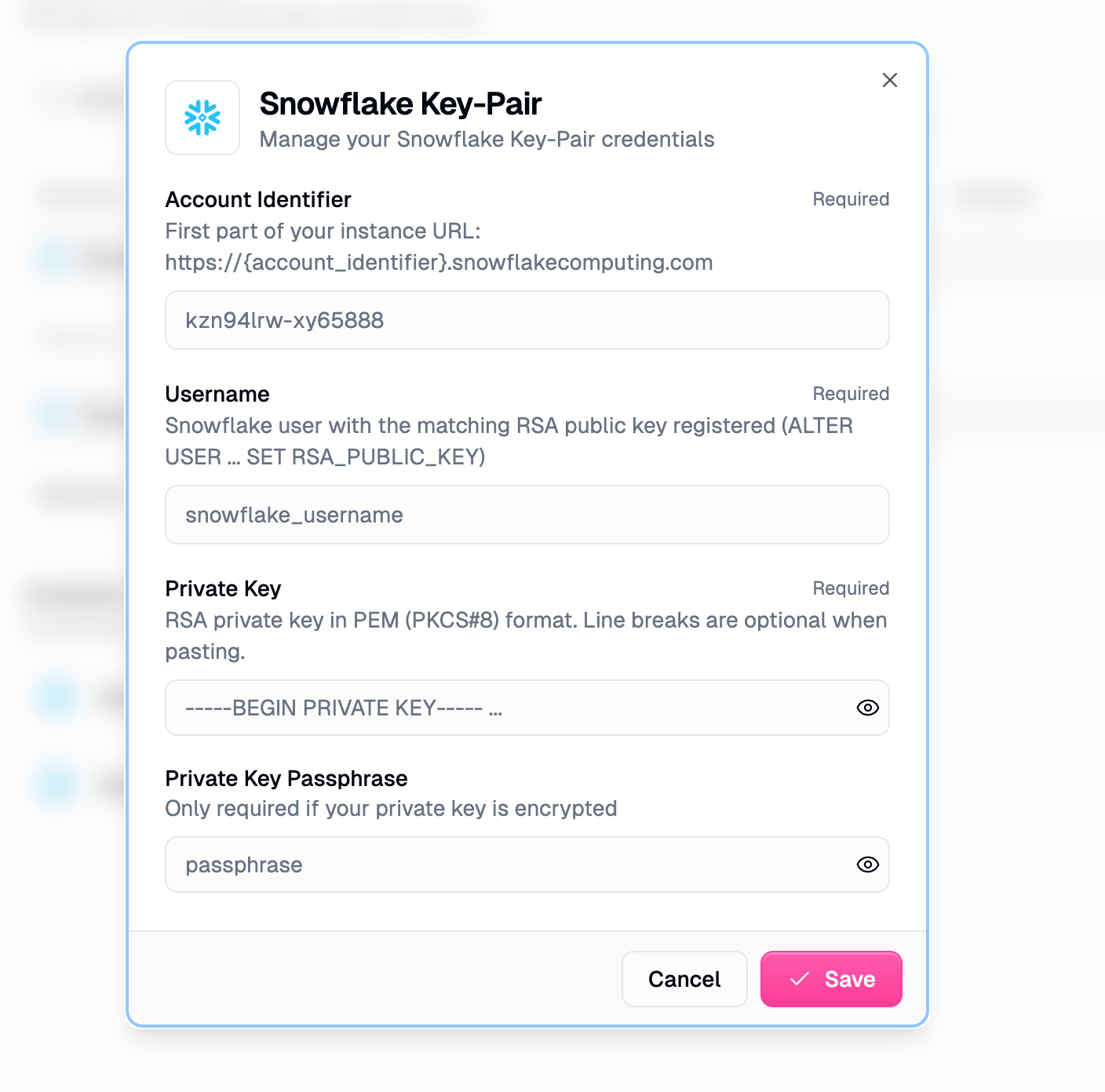
- Click Save.
You can configure only one Snowflake Key-Pair credential per account.
Step 4: Verify your connection
The quickest way to confirm the key-pair connection works is with an agent:- Create a new agent
- In the agent’s Connectors section, click Add, search for Snowflake, add it, and click Save
- Ask it to run a simple query, for example:
- Confirm the agent returns your Snowflake username
PrivateLink and network policies
Snowflake network policies restrict which IP addresses can connect. If your account has network policies enabled, your policy may block key-pair connections from Gumloop unless you add Gumloop’s static egress IPs to your allowed list.- Production: Whitelist Gumloop’s static egress IPs in your Snowflake network policy.
- PrivateLink: Not supported on the standard cloud-hosted deployment unless you whitelist the static egress IPs. Otherwise, you need a VPC deployment.
Troubleshooting
Could not parse the Snowflake private key
Could not parse the Snowflake private key
- Make sure you pasted the private key (
rsa_key.p8), not the public key (rsa_key.pub). - The key must be in PEM (PKCS#8) format. It should start with
-----BEGIN PRIVATE KEY-----or-----BEGIN ENCRYPTED PRIVATE KEY-----. - If the key is encrypted, confirm the Private Key Passphrase field matches the passphrase you set during generation.
JWT token is invalid / public key mismatch
JWT token is invalid / public key mismatch
- The public key registered on the Snowflake user must be the pair of the private key you added to Gumloop. Re-run Step 2 with the
rsa_key.pubthat matches yourrsa_key.p8. - Verify the fingerprint is set with
DESC USER my_service_user;and checkRSA_PUBLIC_KEY_FP. - Confirm the Username in Gumloop exactly matches the Snowflake user the key is registered on.
Connection refused or network policy error
Connection refused or network policy error
- Whitelist Gumloop’s static egress IPs in your Snowflake network policy.
- PrivateLink accounts require the static egress IPs to be whitelisted, or a VPC deployment.
Queries fail with a warehouse error
Queries fail with a warehouse error
- Ensure your user’s role has the
USAGEprivilege on the warehouse. - Specify the warehouse explicitly in the Snowflake Reader step, or set a default warehouse for the user.
FAQs
How is Key-Pair different from PAT and OAuth?
How is Key-Pair different from PAT and OAuth?
All three authenticate Gumloop to Snowflake, but differ in mechanism:
- OAuth: browser-based login with short-lived, auto-refreshed tokens. Best for interactive/human users.
- Key-Pair: RSA JWT authentication using a private key. Best for service users and MFA-enforced accounts, since it isn’t subject to an interactive MFA prompt.
- PAT: a Programmatic Access Token used like a password. Simple, but tied to token expiry and network-policy rules.
Does key-pair auth bypass MFA?
Does key-pair auth bypass MFA?
Key-pair (JWT) authentication does not trigger an interactive MFA challenge, which is exactly why it’s recommended for service users and accounts where MFA is enforced for interactive logins. Restrict the associated Snowflake user to least-privilege roles.
What key format does Gumloop require?
What key format does Gumloop require?
An RSA private key in PEM (PKCS#8) format, the output of
openssl pkcs8 -topk8. Both encrypted and unencrypted keys are supported. Line breaks are optional when pasting; Gumloop normalizes the formatting.Do I need the passphrase field?
Do I need the passphrase field?
Only if you generated an encrypted private key (without
-nocrypt). For unencrypted keys, leave the passphrase blank.Can I use more than one key-pair credential?
Can I use more than one key-pair credential?
No. You can configure only one Snowflake Key-Pair credential per account.
How do I rotate my key?
How do I rotate my key?
Generate a new key pair, register the new public key on your Snowflake user with
ALTER USER ... SET RSA_PUBLIC_KEY, then update the Private Key (and passphrase, if any) in your Gumloop credential. Snowflake also supports RSA_PUBLIC_KEY_2 for zero-downtime rotation.Security best practices
Least privilege
Connect as a Snowflake user with only the minimum roles and warehouse access your workflows need.
Encrypt the private key
Prefer an encrypted key with a passphrase over an unencrypted one.
Rotate keys regularly
Periodically rotate the key pair, using
RSA_PUBLIC_KEY_2 for zero-downtime rotation.Secure storage
Never share the private key in plain text. Gumloop encrypts stored credentials.
Additional resources
- Snowflake OAuth Configuration, recommended for interactive users
- Snowflake PAT Configuration, a token-based alternative
- Snowflake MCP integration
- Snowflake Key-Pair Authentication docs
- How to find your account identifier
- Connectors
Need help?
If you encounter issues not covered here:- Review the Snowflake key-pair authentication documentation
- Contact your Snowflake administrator for account-specific issues
- Reach out to Gumloop Support for integration assistance