

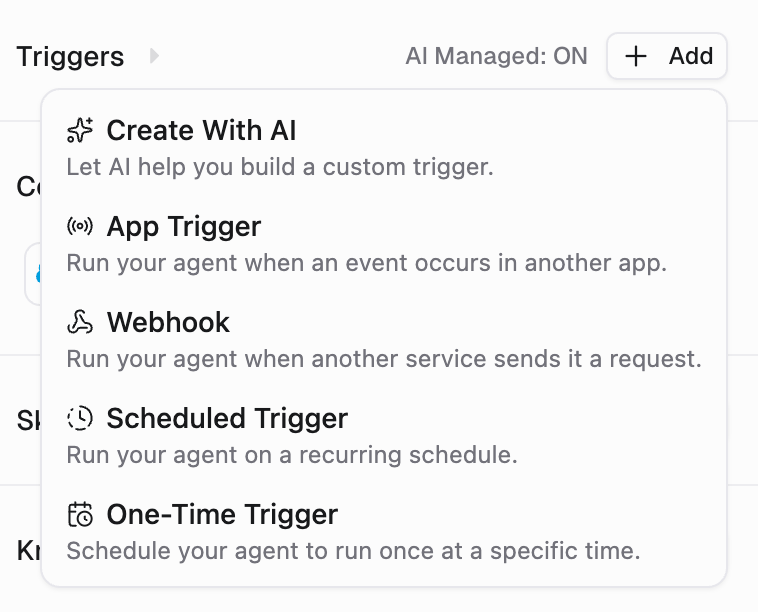
Scheduled triggers
Schedule your agent to run automatically on a recurring schedule or as a one-time trigger. When a trigger fires, the agent receives a prompt you configure and processes it exactly as if you had typed it in the chat.Setting up a scheduled trigger
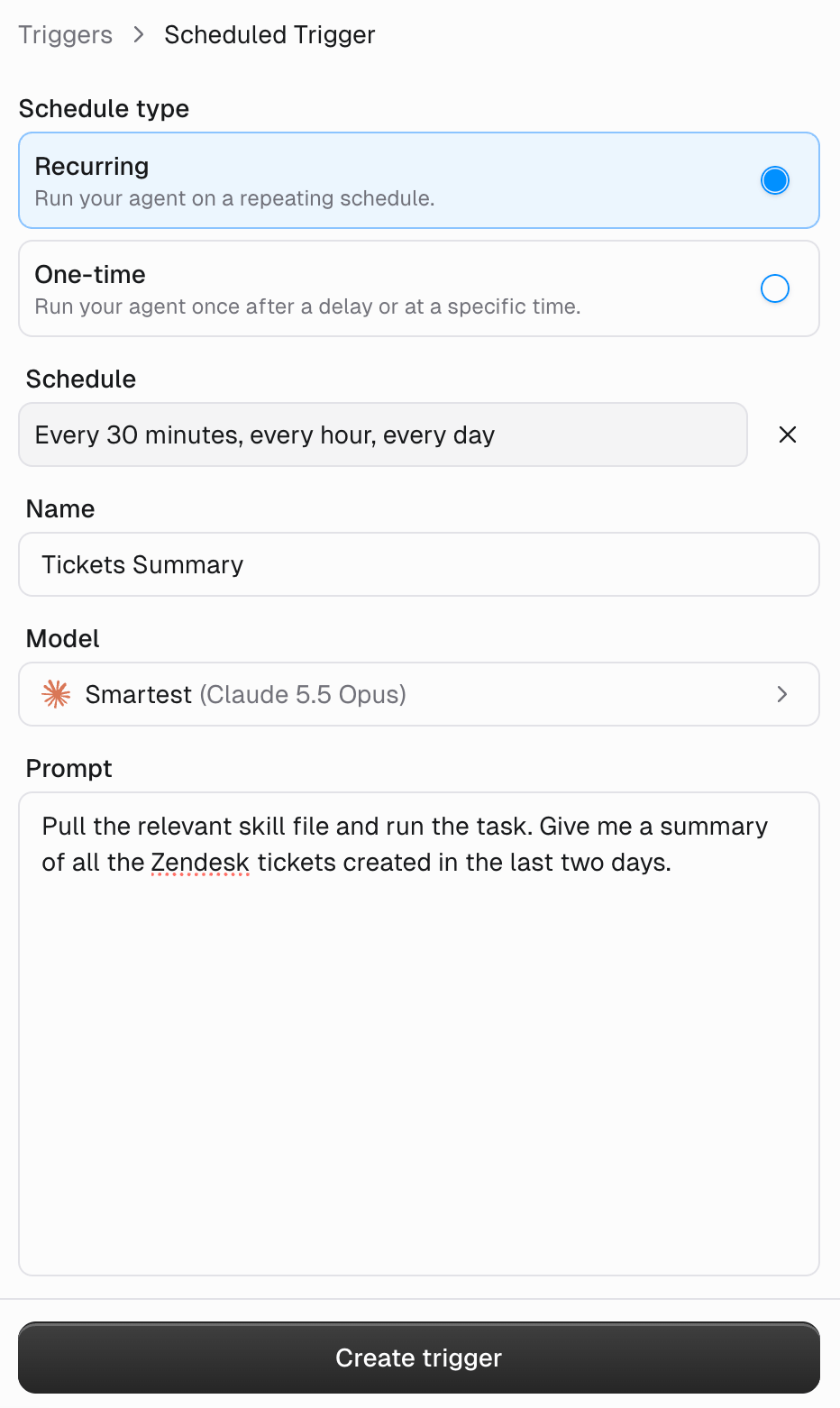
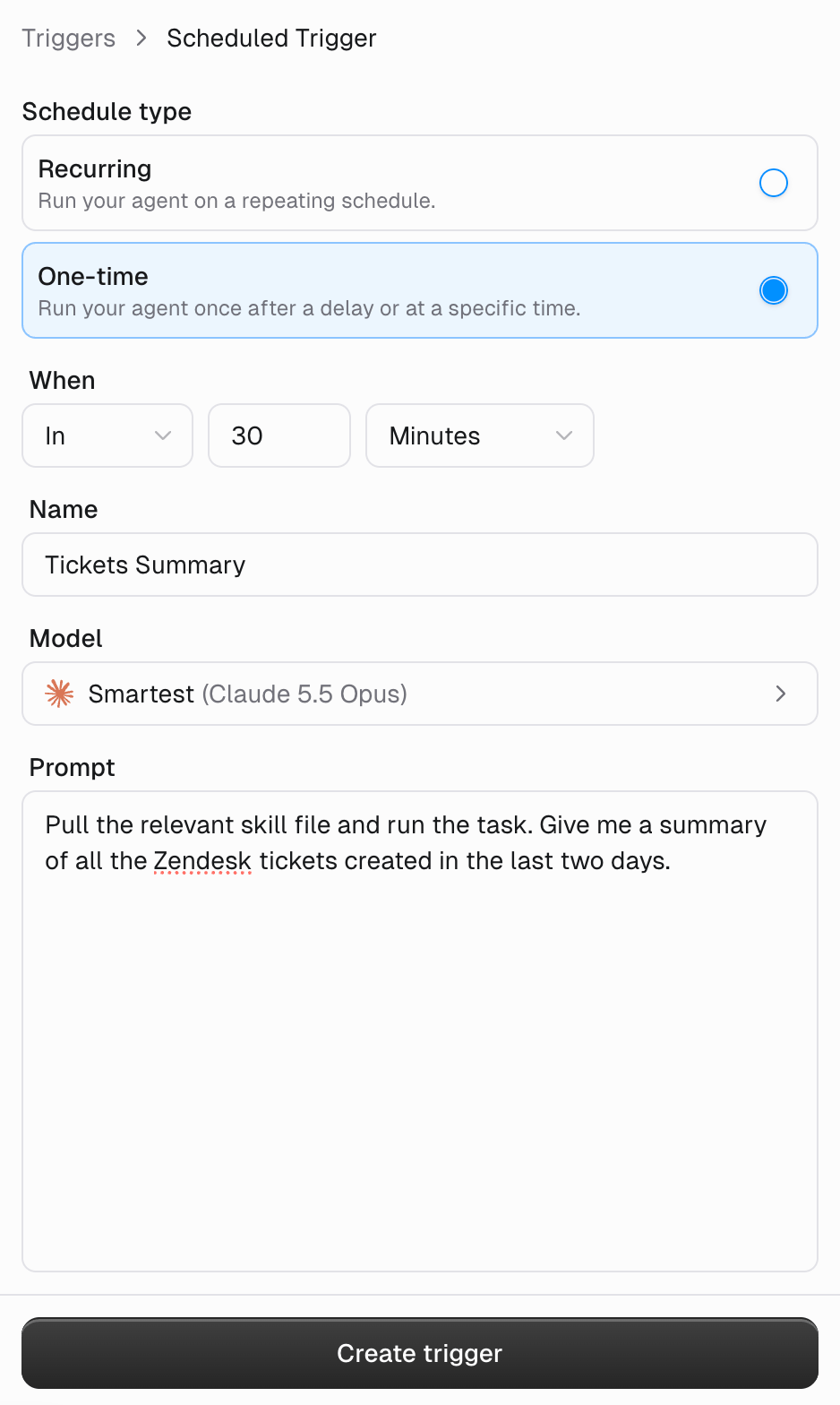
Go to your agent’s configuration page, find the Triggers section, and click Add trigger. Choose Scheduled Trigger as the type, then fill in three fields:- Name: A short label (e.g., “Daily Ticket Summary”)
- Schedule: When the trigger should run (recurring cron or one-time)
- Prompt: The message your agent receives when the trigger fires
- Recurring
- One-time
Writing good trigger prompts
The prompt is what your agent receives when the trigger fires. Be specific:Self-Scheduling
Your agent can create and manage its own triggers during a conversation. Just tell it what you need:Webhook triggers
A webhook trigger gives your agent its own URL. Any service that can send an HTTPPOST (such as Stripe, GitHub, a CI job, or an internal script) runs the agent by calling it. Unlike app triggers, nothing needs a pre-built integration and Gumloop doesn’t poll anything: the other system calls you.
Setting up a webhook trigger
Add the trigger
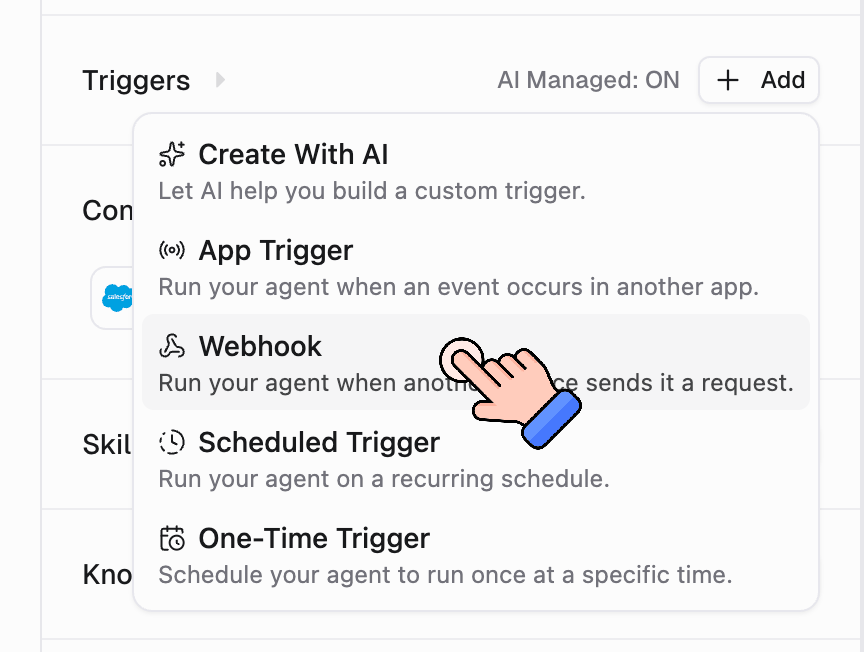
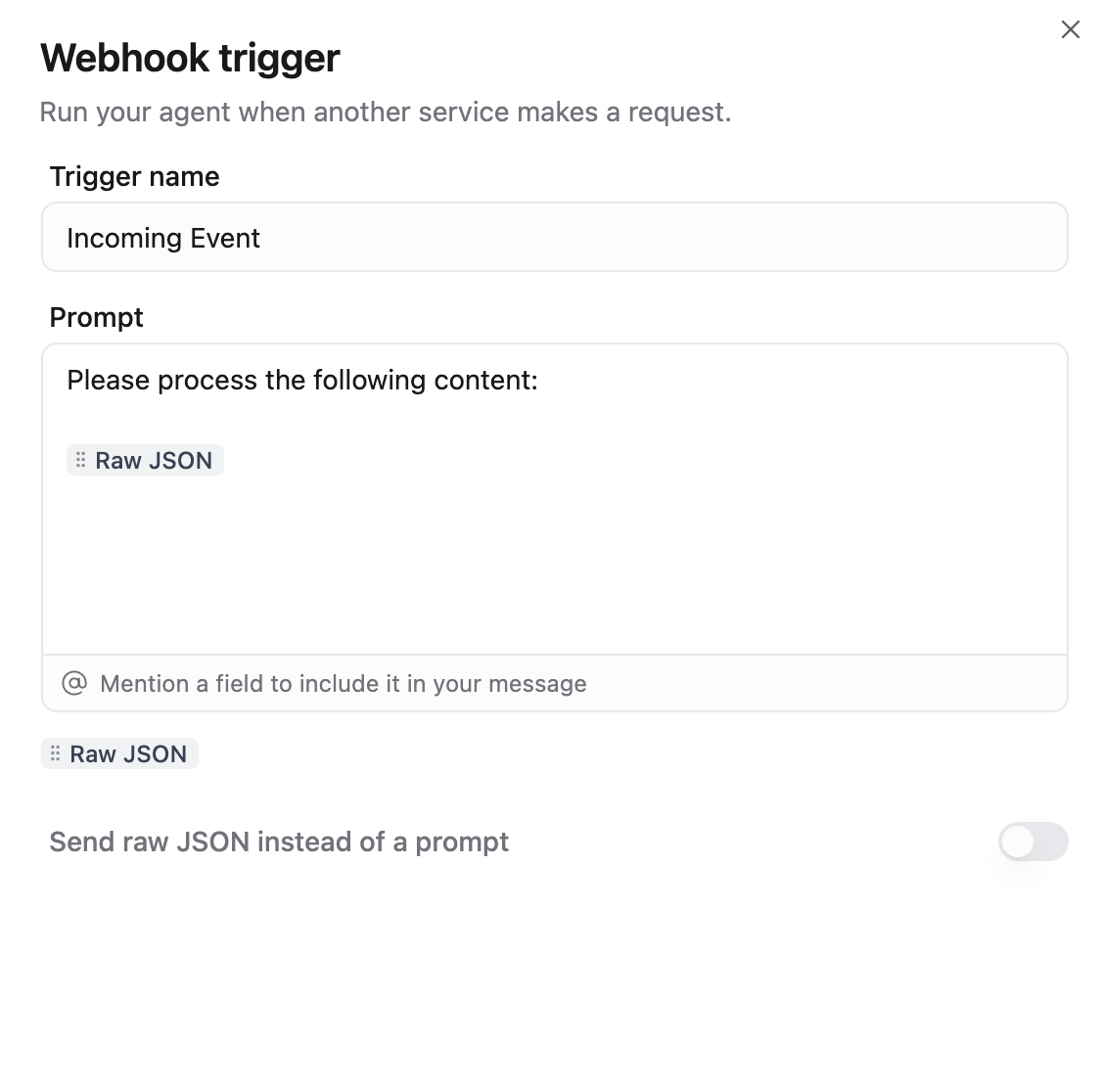
Describe what the agent should do
Copy the URL
curl example. Paste the URL into whatever app or script should start the agent.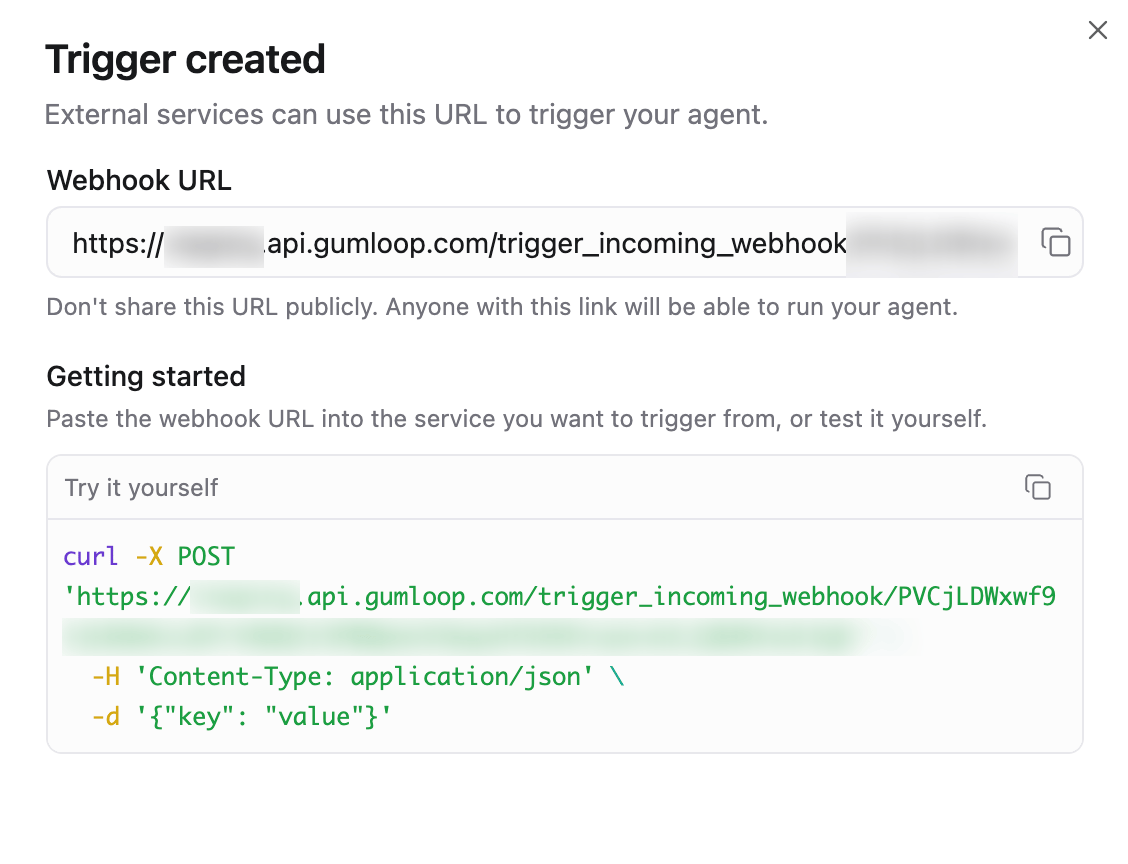
Calling the webhook
Send aPOST request to the URL. No API key or header is required: the URL itself is the credential.
200 with {"success": true} as soon as the request is accepted, then runs the agent in the background: it does not wait for the agent to finish, and the response never contains the agent’s answer. Have the agent report back through a tool (Slack, email, a database write) instead.
Payload handling:
- JSON is parsed as JSON, even if the sender omits the
Content-Type: application/jsonheader. - Form-encoded bodies are turned into key/value pairs.
- Anything else is passed through as raw text.
404 not_found, whether the trigger doesn’t exist, is deactivated, or the URL’s secret is wrong. That’s deliberate: a caller holding a bad URL learns nothing about your agents.429 rate_limited response with a Retry-After header giving the seconds to wait, and the agent does not run for them. If a sender can burst past 100 events a minute, batch or space out its calls, or retry after the Retry-After delay.
Letting your agent manage webhooks
You don’t have to build the trigger by hand. Ask the agent in chat, “give me a webhook I can call from our deploy script,” and it creates one, then tells you to copy the URL from the trigger’s detail panel (the agent never sees the URL itself).App triggers
App triggers fire your agent when something happens in an external service. Instead of checking manually, your agent reacts automatically to new emails, messages, database changes, and more. When a trigger fires, the event data (e.g., the email body, the Slack message) is injected into a prompt template you write. The agent processes it as if you had typed it in the chat.Supported integrations
Gmail
Slack
Slack reaction
Microsoft Teams
Google Drive
Google Sheets
Google Calendar
Notion
Airtable
Zendesk
Salesforce
Linear
Jira
Monday.com
Parallel Web Monitor
Setting up an app trigger
Go to your agent’s configuration page, find the Triggers section, and click Add trigger. Choose App Trigger as the type. Then follow three steps:Select a trigger
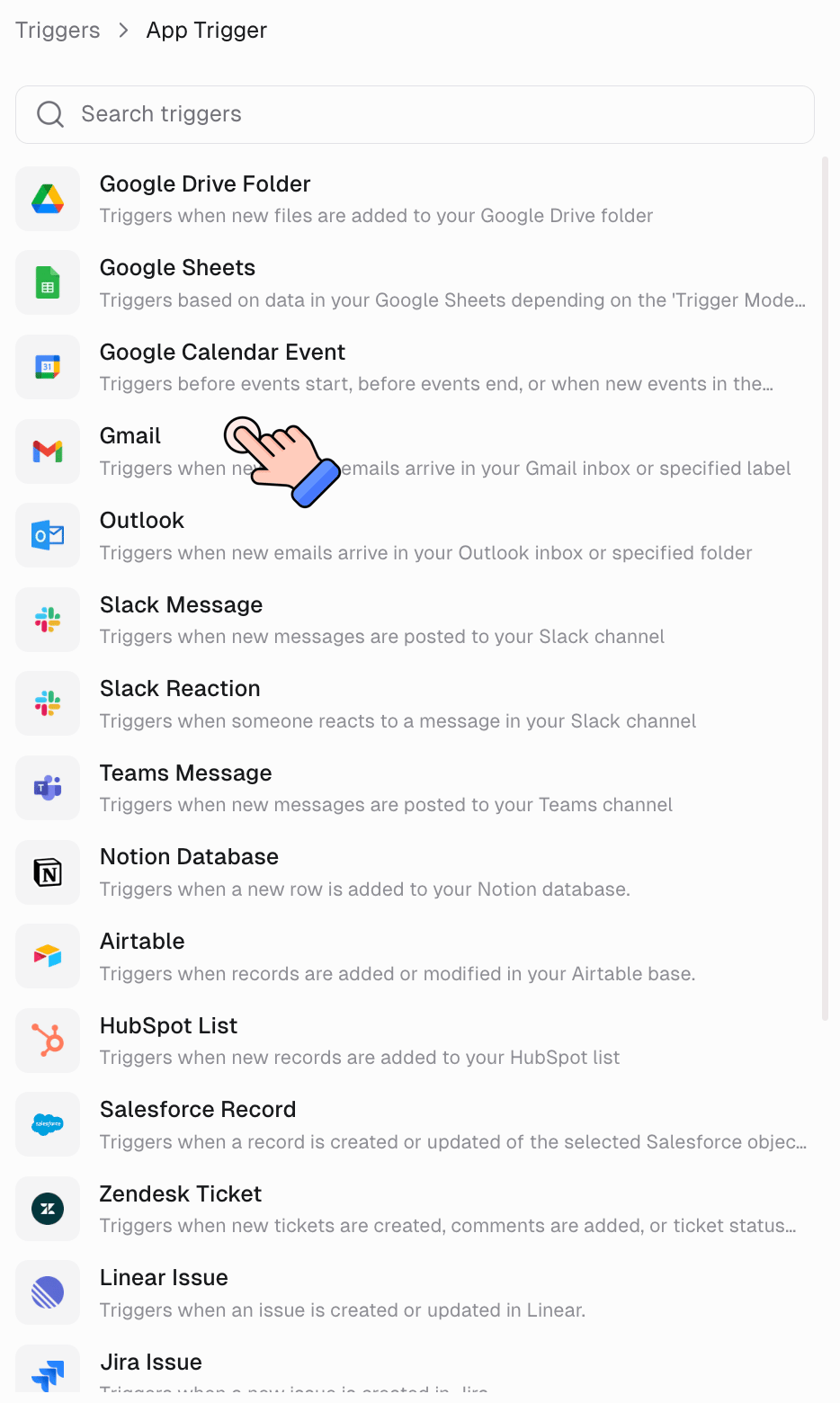
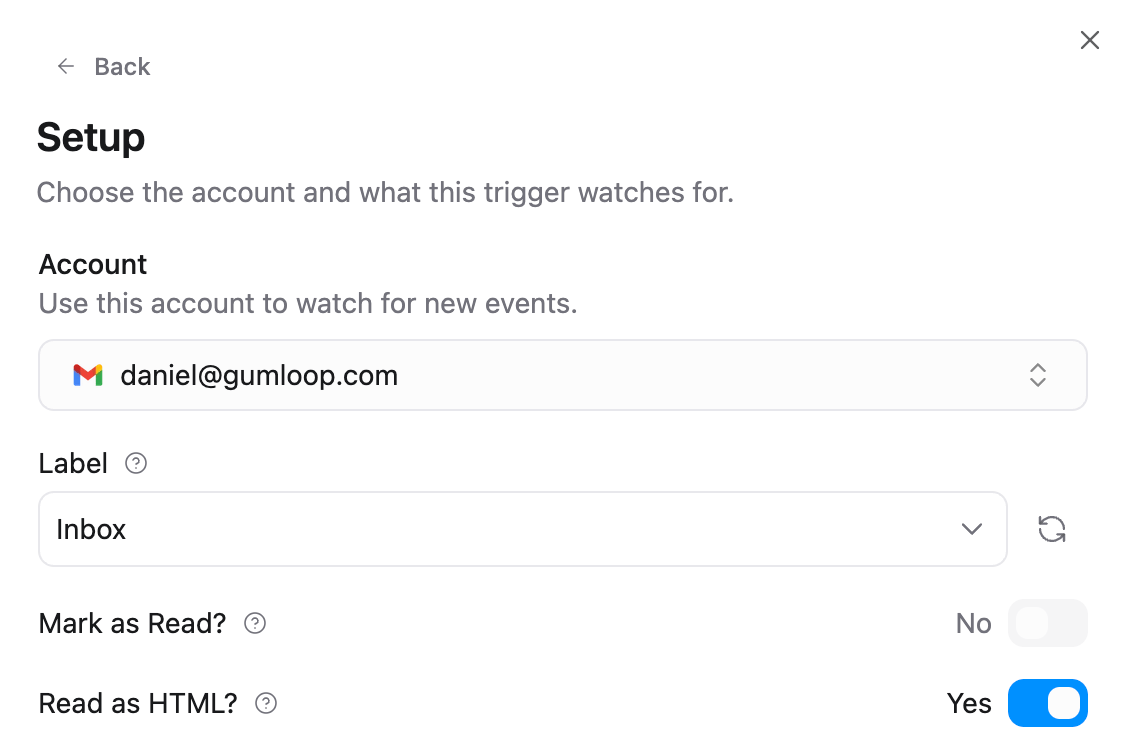
Configure the integration
Write a prompt template
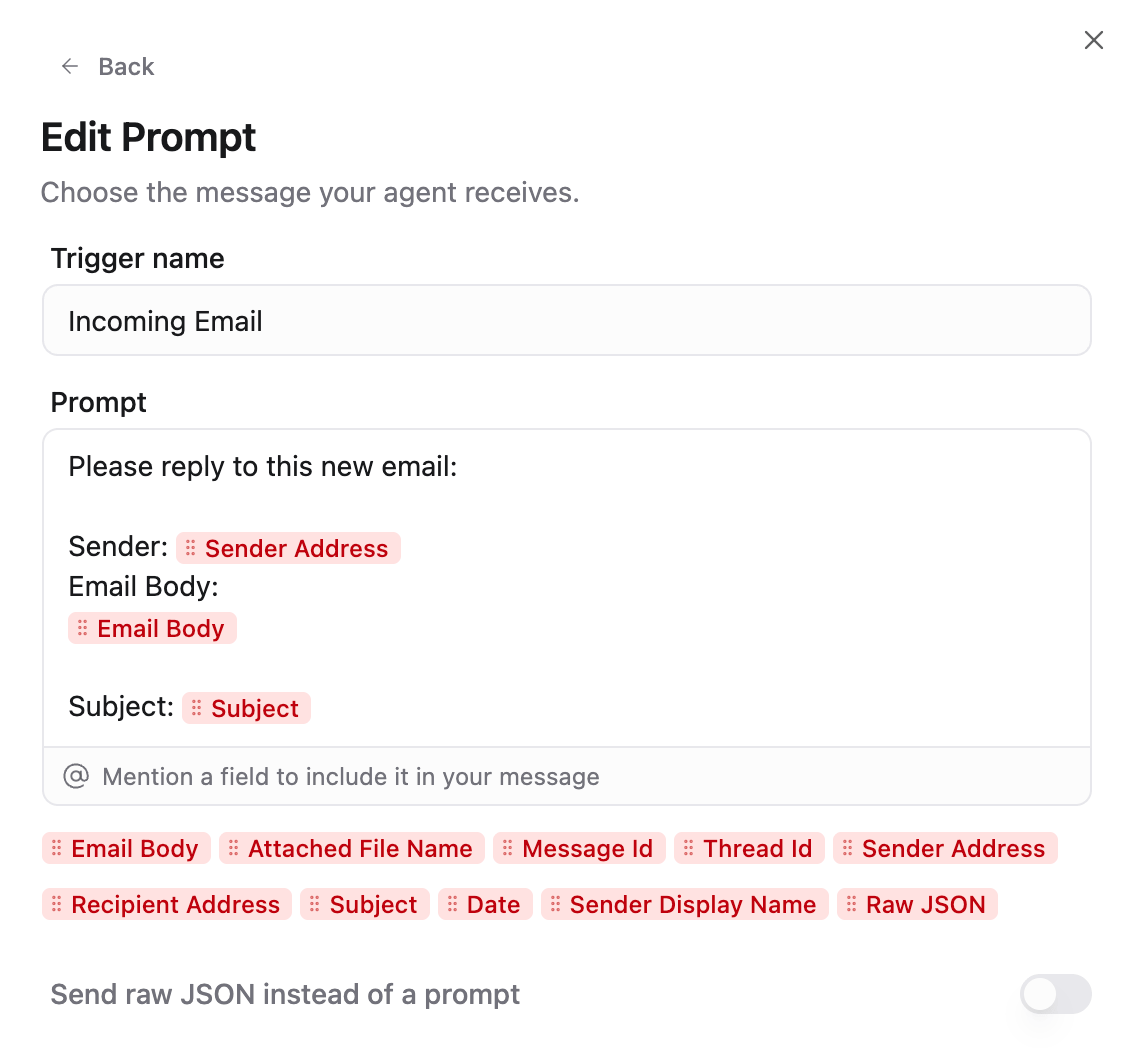
Email Body, Subject, Sender, and Attached File Name. For Slack, you get Message, Sender Name, Channel Name, etc.Prompt templates
When an app trigger fires, the event data is injected into your prompt template before the agent receives it. How it works:- You write a prompt template with placeholder variables (shown as badges in the UI)
- When the trigger fires, each variable is replaced with the actual event data
- The agent receives the fully resolved prompt and acts on it
Managing active triggers
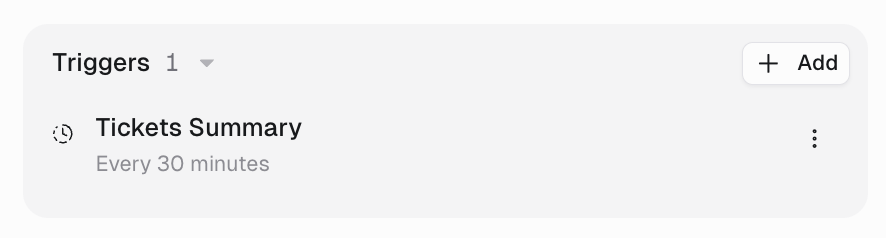
All your triggers (scheduled, app, and webhook) appear in the Triggers section of your agent’s configuration. Owners can edit, deactivate, or delete triggers they have permission to manage. Users can always view, deactivate, and delete their own triggers; creating, editing, or activating an independent trigger requires Create triggers to be Allow. Shared template copies have a separate exception: people who can use the agent can turn on their own available copy and change its offered personal settings. See Who can manage triggers?. Deactivating every trigger is the supported way to switch an agent off: the agent stops running on its own, but its configuration, connectors, and triggers stay intact and you can re-enable them at any time. Do not useis_active: false on the agents API or gumloop agents update --inactive for this: that retires the agent instead of pausing it.
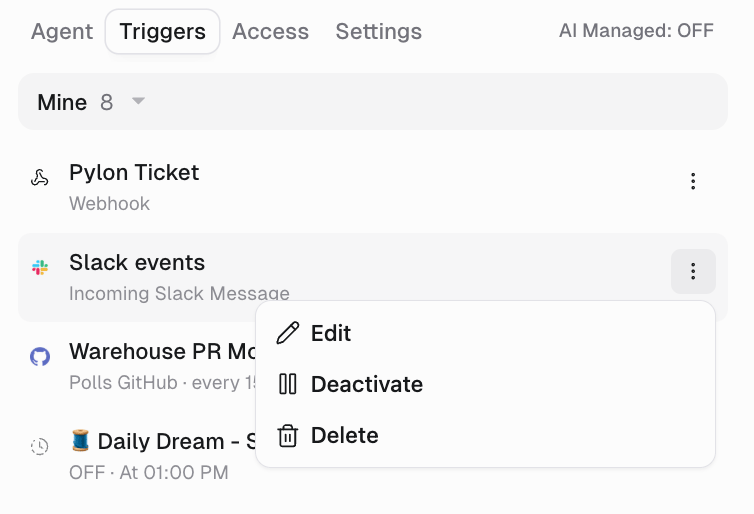
Viewing a trigger’s tasks and settings
Each trigger has one screen, Trigger Details, that shows its activity and its settings together. Open it by clicking the trigger in the Triggers tab at the top of the agent’s configuration panel, or in the Triggers card under the chat box on the agent’s home screen. Edit in the trigger’s three-dot menu and the Setup button on a trigger that needs an account open the same screen. Trigger Details has three parts:- Header: the trigger’s name, its creator, and how many tasks and credits it has used. Click the name to rename the trigger.
- Recent tasks: the trigger’s last three runs, each with its status, time, and credits. Click a run to open it. Click View all to open Task history, the full list of the trigger’s runs with All, Completed, Approval Required, and Failed filters.
- Trigger settings: the trigger’s configuration, edited in place. A scheduled trigger shows Schedule, Model, Status, and Prompt. App and webhook triggers show their own setup fields with the prompt. An eligible trigger you created also shows Sharing next to Status.
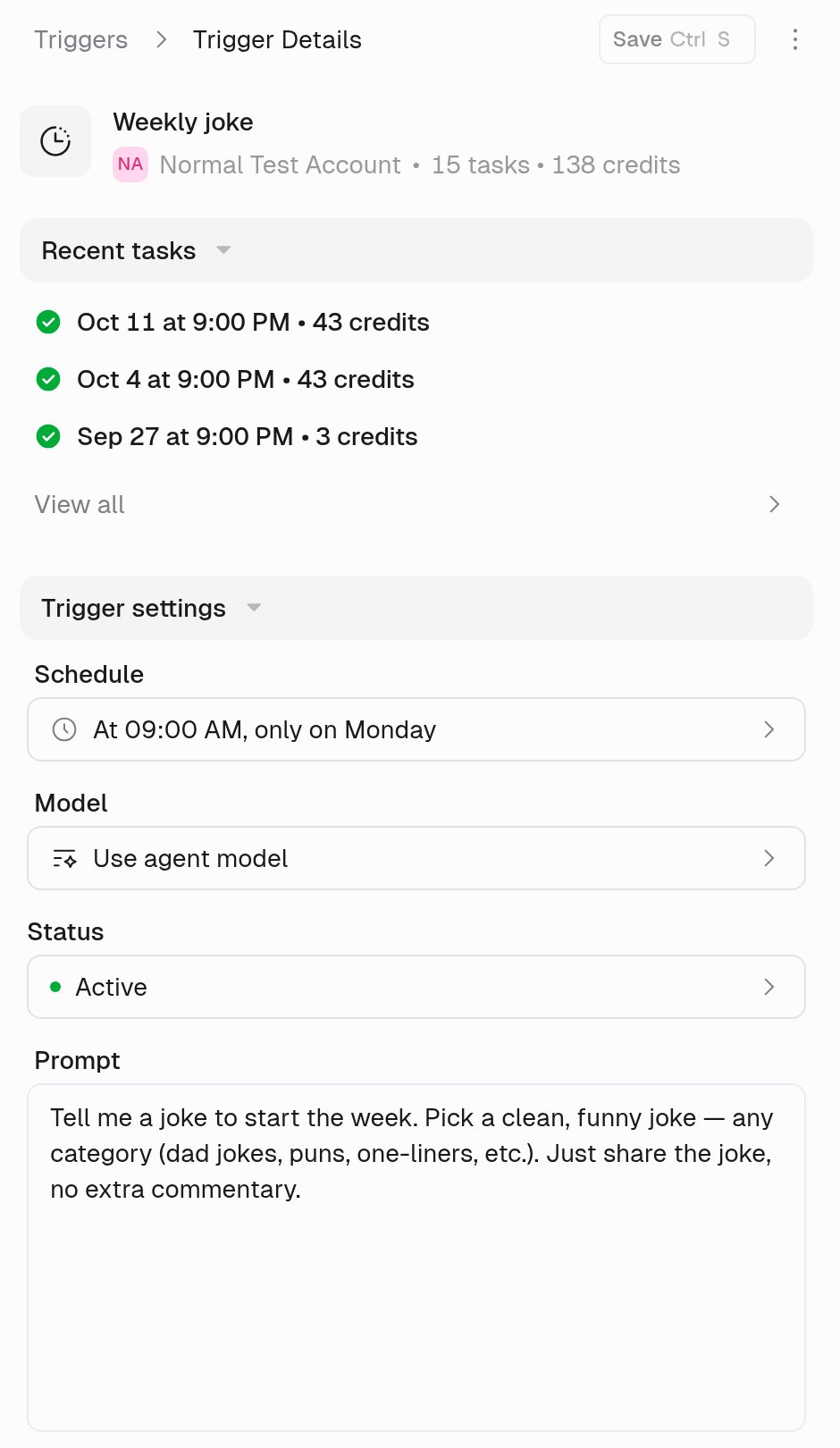
Trigger Details: recent tasks and trigger settings on one screen.
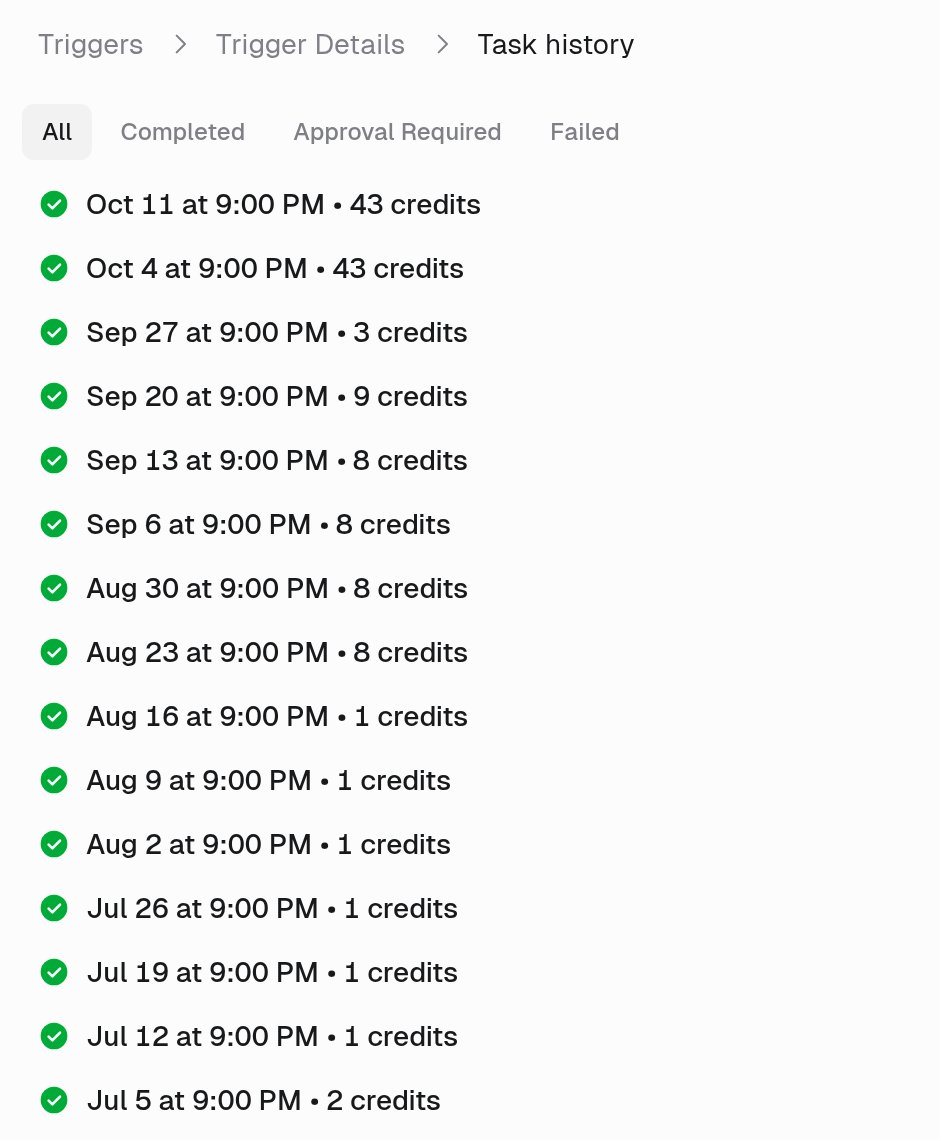
Task history lists every run of the trigger.
Integration details
Gmail
Gmail
Slack
Slack
Slack reaction
Slack reaction
white_check_mark, thumbsup). Leave the emoji filter empty to trigger on any reaction. “Ignore Reactions From Bots” is enabled by default. You can also include or exclude reactions on thread replies, and optionally read the full thread for additional context.Available variables: Message, Emoji, Reaction Count, Reacted By, Message Sender, Attachment Names, Thread ID, Thread Link, Channel Name, Channel ID, DateMicrosoft Teams
Microsoft Teams
Google Drive
Google Drive
Google Sheets
Google Sheets
Google Calendar
Google Calendar
Outlook
Outlook
Outlook Calendar Event
Outlook Calendar Event
Notion
Notion
Airtable
Airtable
Zendesk
Zendesk
Google Forms
Google Forms
Typeform
Typeform
HubSpot
HubSpot
incident.io
incident.io
Salesforce
Salesforce
- New Record: Fires when a new record is created
- Updated Record: Fires when an existing record is modified (newly created records are automatically excluded)
CreatedDate or LastModifiedDate) and record Id to avoid duplicates. It fetches up to 5 records per poll. In Updated Record mode, each modification to a record triggers the agent again.Linear
Linear
- New Issue: Fires when a new issue is created
- Updated Issue: Fires when an existing issue is modified (newly created issues are automatically excluded)
- Status: Filter by issue status (e.g., In Progress, Done, Backlog)
- Project: Filter by Linear project
- Priority: Filter by priority level (e.g., Urgent, High, Medium, Low)
- Labels: Filter by issue labels (matches issues with at least one of the selected labels)
- Assignee: Filter by the team member assigned to the issue
Jira
Jira
- Standard Filters: Filter by Status, Priority, Labels, Issue Type, Assignee, and Custom Fields
- JQL: Write a custom Jira Query Language expression for advanced filtering
- Saved Filter: Use an existing filter saved in your Jira instance
created timestamp and issue key to avoid duplicates. You must connect your Jira account on the Connectors page before setting up the trigger.Monday.com
Monday.com
Item, Task, or whatever your board calls its items). Values come from the item behind the event.Parallel Web Monitor
Parallel Web Monitor
- “OpenAI product announcements and API pricing changes”
- “Acme Corp product launches, pricing changes, and new partnerships”
- “YC Startups that have raised Series A funding”
- “SEC rulings on cryptocurrency ETF applications”
- “New job postings for VP of Engineering at FAANG companies”
How do shared trigger templates work?
Share an eligible trigger so other people can turn on their own copies. You choose what the agent does; each person chooses their own accounts or timezone when needed. Custom triggers that call a model during polling cannot be shared, because each person must explicitly approve recurring model charges. For example, share a weekly brief that runs every Friday at 5 PM. Each teammate can turn it on for themselves, using their own timezone.- Turn on your own copy

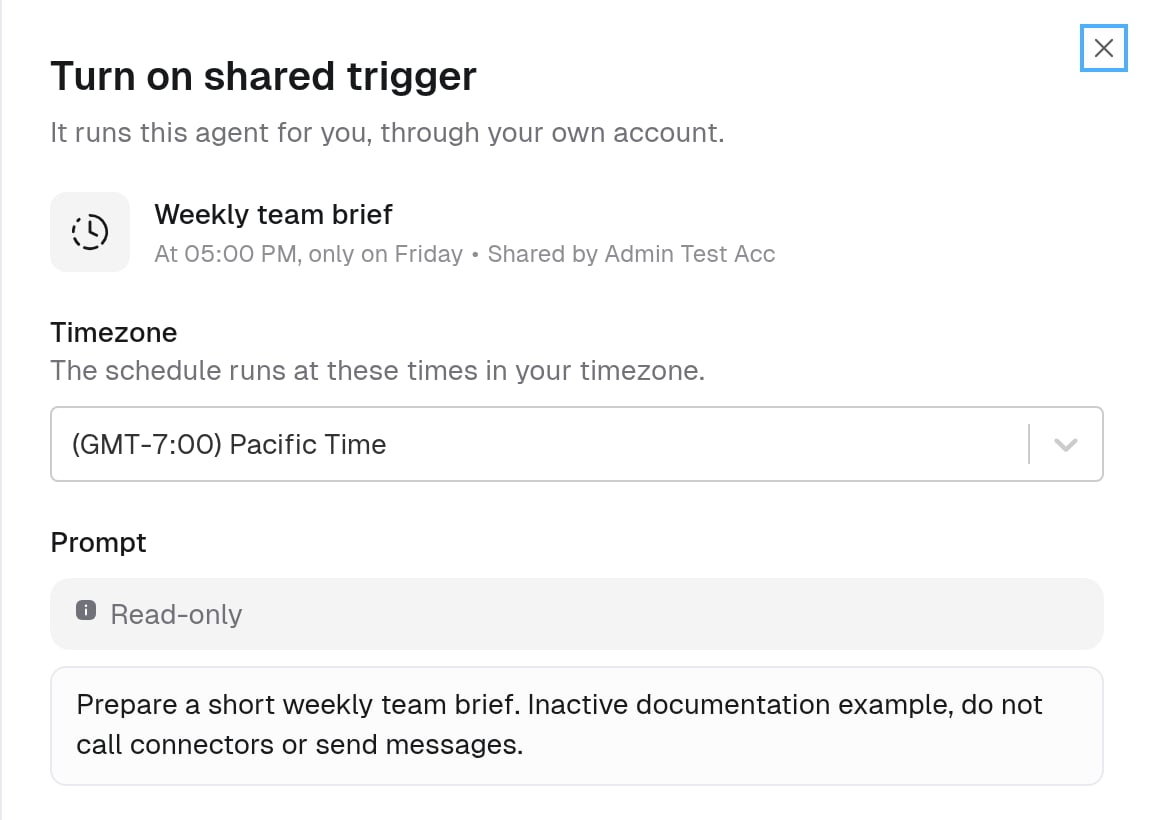
Is setup the same for scheduled and app triggers?
Sharing is the same: the creator selects People on this agent, and others choose Turn on. The settings each person fills in are different.What can each person change?
- Creator: owns the original and controls sharing. An authorized agent Owner can edit its shared prompt, model, and schedule or trigger logic. Changes update copies in the background.
- Each person: manages their own accounts, offered settings, timezone, and whether their copy runs. Pausing your copy does not pause anyone else’s.
Who can turn on a copy?
Who can turn on a copy?
Why don't I see Turn on, or why is it disabled?
Why don't I see Turn on, or why is it disabled?
- You created the original: use that trigger directly. You cannot subscribe to your own template.
- You already have a copy: manage that copy; its settings form uses Save instead of creating another subscription.
- Required settings are missing: wait for the form to load, then select the required account and app settings. If you have no personal connection to that service, connect it first. The creator’s personal account is not shared with you.
What happens if I stop sharing or delete the original?
What happens if I stop sharing or delete the original?
Why is the sharing option missing?
Why is the sharing option missing?
Choosing the model a trigger uses
Independent triggers and shared originals have a Model field; shared copies use the template’s model. By default the field is set to Use agent model, so the run uses whatever model the agent is configured with. Pick a different model when a specific trigger needs something faster or stronger than the agent’s day-to-day model, for example, keeping an agent on its normal model for chat while a weekly report trigger runs on the smartest one. Open the Model dropdown while creating or editing a trigger and choose one of:Good to know
File and attachment handling
When a trigger passes files or attachments to your agent, the agent automatically receives and can process them. This includes:- Email attachments from Gmail triggers (PDFs, spreadsheets, images, etc.)
- Supported Slack-hosted file attachments from Slack message triggers. External or remote files are not downloaded as attachments; ordinary URLs in message text are not affected.
- Google Drive files from Drive triggers (the actual file content, not just the metadata)
- Teams attachments from Microsoft Teams message triggers
Credentials
Triggers use the credentials of the person who created the trigger, not whoever is chatting with the agent. Make sure you’ve connected the required app on your Connectors page before setting up a trigger. For team agents, if team credentials are configured, those can be used instead of personal credentials.Auto-disable on failure
All triggers (scheduled, app, and webhook) automatically deactivate after 3 consecutive failed runs. Common causes include expired credentials, deleted resources (channels, folders, databases), or permission changes. When this happens, the trigger owner receives a notification through email, Slack DM, and in-app. The notification links straight to the most recent failed run so you can see what went wrong. You can dismiss it once you’ve handled it. To fix: resolve the underlying issue, then re-enable the trigger from the Triggers section. Re-enabling resets the failure count, so a trigger won’t be immediately disabled again by earlier failures: only failures that happen after you re-enable it count toward the next auto-disable. For a walkthrough of every reason a trigger turns off and how to fix each one, see Why Did My Trigger Turn Off?.Overlapping runs
If a previous trigger execution is still running when the next one fires, the new execution is skipped. This prevents duplicate work and ensures your agent finishes one task before starting the next.Credits
Triggered agent runs use credits for model and tool usage, like a chat. Custom AI triggers also use credits for polling. Decision-model calls in a check are billed on every poll, even when it does not fire. See Create triggers with AI.FAQ
Can I change a recurring trigger to one-time (or vice versa)?
Can I change a recurring trigger to one-time (or vice versa)?
What model does the agent use for triggered runs?
What model does the agent use for triggered runs?
Are triggered runs visible in history?
Are triggered runs visible in history?
Can my agent handle file attachments from triggers?
Can my agent handle file attachments from triggers?
Why is there a delay with some triggers?
Why is there a delay with some triggers?
Can one agent have multiple triggers?
Can one agent have multiple triggers?
Can my agent create its own app triggers?
Can my agent create its own app triggers?