

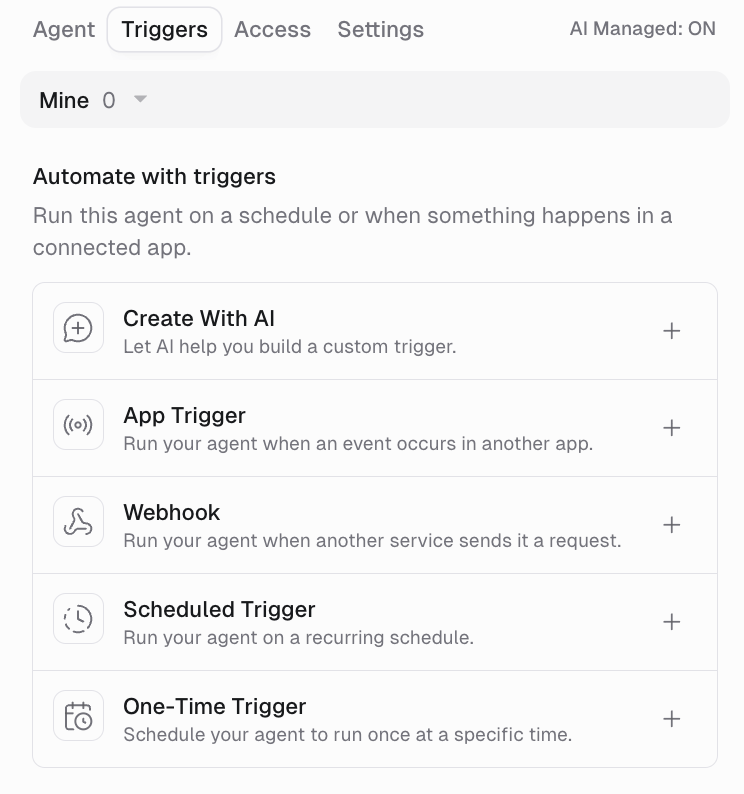
When to use AI triggers
AI-created triggers (also called custom MCP triggers) are the right choice when:How it works
When you select Create With AI from the + Trigger menu (or simply describe what you want in the agent chat), the agent follows a structured process:Connect required services
Discover available tools
Build the trigger code
Test in a sandbox
Define what counts as new
Activate the trigger
Creating a trigger
There are two ways to create an AI trigger:- From the chat
What you need
Before the agent can build your trigger, make sure:- The required connectors are added to the agent. In the Agent tab, expand Connectors and add the services the trigger needs. The agent will prompt you if anything is missing.
- You’ve authenticated with each service. Visit your Connectors page to connect an account for each service.
- The agent has trigger creation enabled. Gumball has this enabled by default. For custom agents, check that AI Managed is on in the Triggers section.
Examples
Here are real-world examples to illustrate the range of triggers you can build. Just describe any of these to your agent and it will build the trigger for you.Single-service triggers
Inventory threshold alert
Inventory threshold alert
Deal stage change detection
Deal stage change detection
Unanswered support messages
Unanswered support messages
Stale issue detection
Stale issue detection
Dollar amount mentions
Dollar amount mentions
Pipeline drop monitoring
Pipeline drop monitoring
Multi-service triggers
Email + CRM cross-reference
Email + CRM cross-reference
Cross-CRM lead dedup
Cross-CRM lead dedup
PR + ticket status mismatch
PR + ticket status mismatch
Email + deal matching
Email + deal matching
Three-way ticket enrichment
Three-way ticket enrichment
External MCP server triggers
AI triggers can use external MCP servers as well as Gumloop’s built-in integrations, provided the connected server has tools to read the data your condition needs.External Notion monitoring
External Notion monitoring
Stripe + Gmail cross-check
Stripe + Gmail cross-check
Poll frequency and scheduling
Every AI trigger runs on a polling schedule. The agent chooses a frequency based on your intent, but you can also specify it explicitly.How triggers detect changes
AI-created triggers can keep track of data already seen and compare it with later checks. For example, a trigger can remember message IDs to avoid alerting repeatedly on the same message, or compare a sales total with its previous value. Ask the agent to define what counts as a new event and whether the first check should only establish a baseline. If you need a historical record, have the agent save it to a service such as Google Sheets or Airtable when the trigger fires.Can a polling trigger ask a decision model?
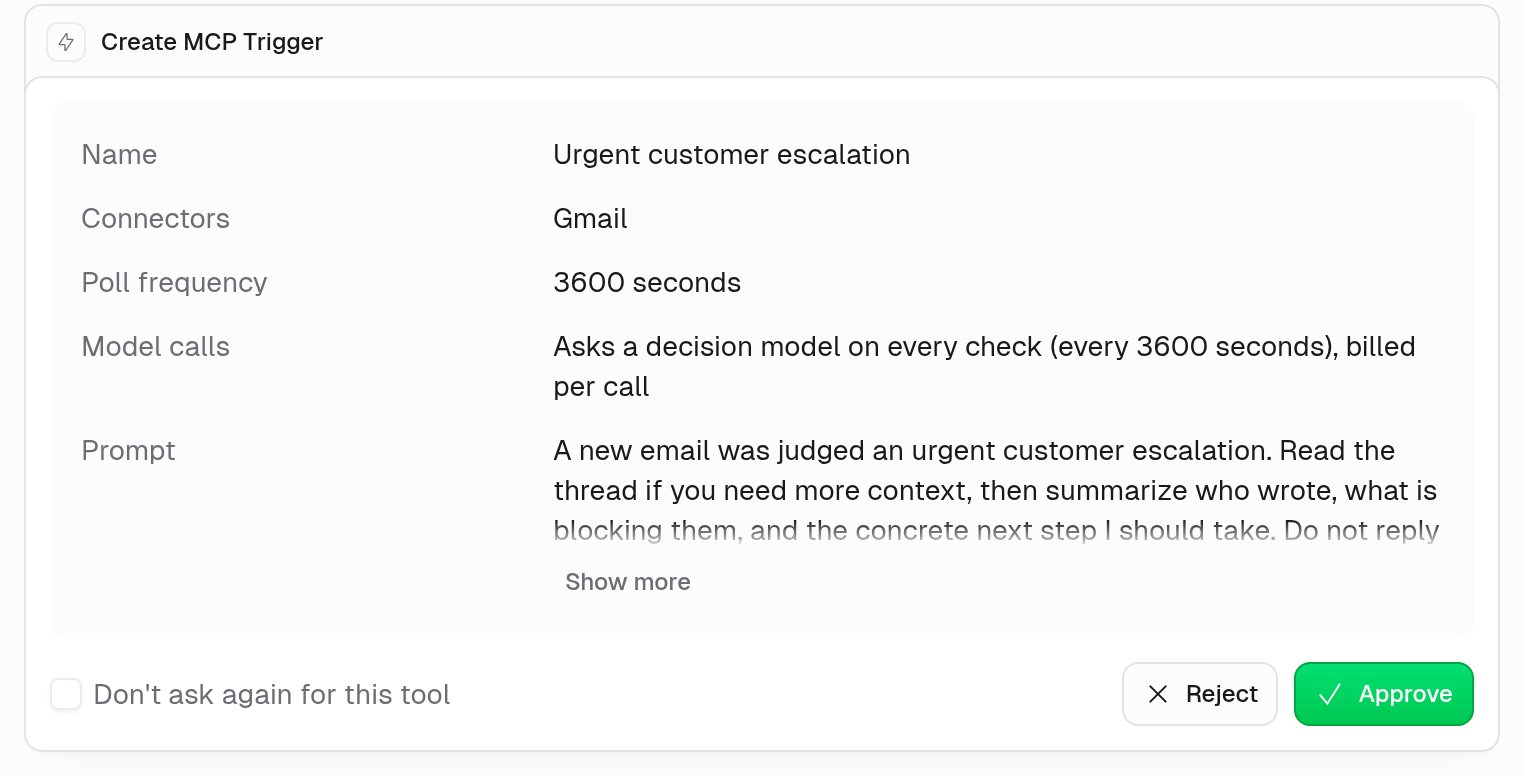
Yes. A custom trigger can ask a decision model during its polling check when the condition needs judgment that plain code cannot provide, or when you explicitly request a model. Use ordinary code for timestamps, thresholds, exact matches, and other deterministic conditions instead of paying for unnecessary model judgment. For example, ask the agent to monitor new support messages and fire only when a decision model identifies an urgent escalation.- Recurring billing: model calls are billed on every poll, including checks that do not fire the agent. These charges are additional to sandbox polling costs and the agent’s work after firing.
- Separate approval: the approval card for a model-calling trigger has a Model calls row, for example “Asks a decision model on every check (every 3600 seconds), billed per call.” Approving ordinary trigger creation, including a remembered Don’t ask again for this tool choice, does not approve recurring model calls.
- Permissions: your role must have AI models from agent code turned on, and the selected model must be allowed for your role. Organization admins manage this from Settings in the bottom-left sidebar: under People & Access, open Roles & Approvals, stay on the Custom Roles tab, select the role, and open the Features tab. If the feature is off, the agent’s test run fails with a message that model access on Computer is restricted for your role. Approval does not override these restrictions.
- Changes to the check: if the agent changes the trigger code, it must get model-call approval again before the changed check can use a model.
- Sharing: model-calling triggers cannot become shared templates, because each person’s recurring charges require their own approval.
Credit costs (polling only)
Custom AI triggers use credits each time they poll, whether or not they fire. Sandbox execution costs 0.018 credits per second, rounded to the nearest whole credit, with a minimum of 1 credit per poll. Any decision-model calls are additional. The agent shows an estimated sandbox polling cost before activation. Decision-model calls are additional, billed per call, and disclosed separately in the approval. When the trigger fires, the agent’s work has its own model and tool costs. See Credits.Limits and safety
Trigger limits
- Maximum 100 active triggers per user per agent. This includes all trigger types: AI-created, pre-built integration triggers, scheduled triggers, and webhooks. Inactive triggers do not count. If you hit the limit, deactivate or delete unused triggers first.
Circuit breaker
If a trigger is blocked by your concurrency limit 100 times in a row without a run starting, it is automatically deactivated. This stops a trigger that keeps firing while your agent is at its limit. Separately, any trigger is deactivated after 3 consecutive failed runs (see Auto-disable on failure). Review the task history for concurrency blocks or failed runs. Fix the cause, test the trigger, then reactivate it from the Triggers section.Deduplication
Trigger checks should track previously seen data so the same event does not repeatedly start the agent. Test this behavior with the events you expect to monitor.Credit limit protection
If your account runs out of credits, polling is paused automatically. The trigger resumes when credits are available again.Read-only enforcement
AI trigger code can only read data from your connected services. It cannot create, update, delete, or send anything. All actions happen through the agent’s prompt after the trigger fires.Can I share an AI-created trigger?
You can share an eligible recurring AI-created trigger with people who can use the agent. Triggers that call a model during polling cannot be shared as templates: each person must approve their own recurring model charges. For eligible templates, people turn on their own copies and choose only the personal settings offered. See Agent triggers for setup and permissions.Managing AI triggers
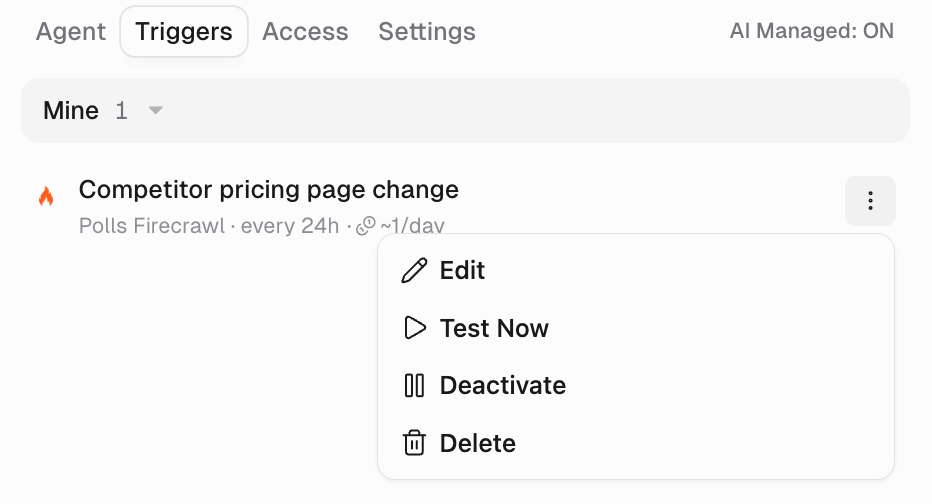
From the Triggers section
All active triggers (AI-created, pre-built, and scheduled) appear in the Triggers section of your agent’s configuration page. Click any trigger to see its details, or use the three-dot menu to:- Edit an independent trigger, or a shared original you are authorized to edit, to change its name, prompt, or poll frequency. Subscribers use Change settings for their own copy’s offered personal settings.
- Test Now to run the trigger’s check immediately
- Deactivate the trigger (pauses polling without deleting)
- Delete the trigger entirely
From the chat
You can also ask your agent to manage triggers you own conversationally. Configuration updates are different for a shared copy: use Change settings in the Triggers tab for its offered account or timezone settings. The agent cannot rewrite the template’s shared configuration through your copy.Testing a trigger
Use Test Now (from the UI or by asking the agent) to run the trigger’s check immediately without waiting for the next poll. This is useful for:- Verifying a newly created trigger works correctly
- Debugging triggers that aren’t firing as expected
- Checking what data the trigger would return right now
- Fired + data: New items were detected (shows the items)
- Empty: No new data since the last poll
- Error: Something went wrong (shows the error message)
Prompt templates
When an AI trigger fires, the trigger data is injected into a prompt template you configure. The agent receives this prompt and acts on it.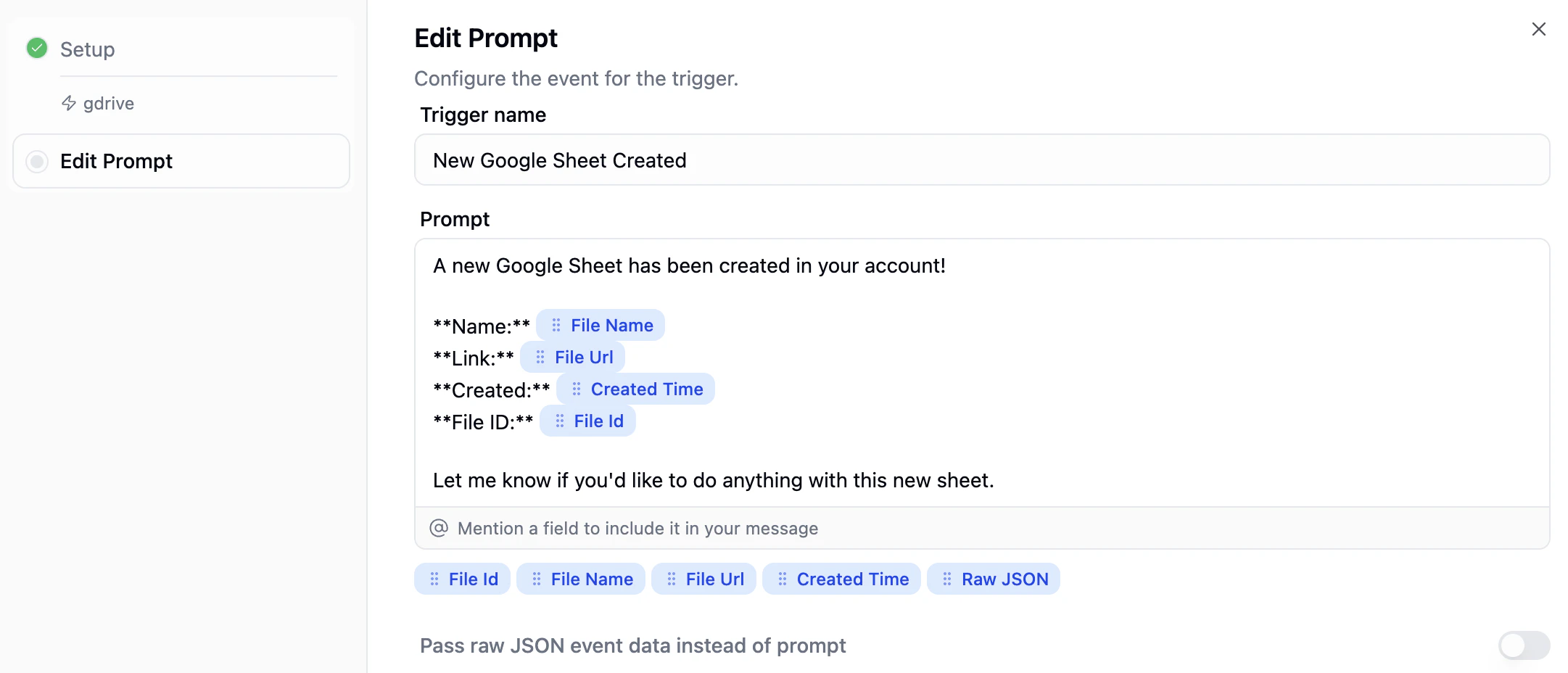
Inserting trigger fields
The prompt editor shows all available output fields as chips below the text area. Click a chip (or type@ and select a field) to insert it into your prompt. When the trigger fires, each field chip is replaced with the actual value from the trigger data.
For example, if your trigger outputs File Name, File Url, Created Time, and File Id, your prompt might look like:
A new Google Sheet has been created in your account! Name:File NameLink:File UrlCreated:Created TimeFile ID:File IdLet me know if you’d like to do anything with this new sheet.
Raw data mode
Toggle Pass raw JSON event data instead of prompt at the bottom of the editor to send the entire trigger payload as JSON instead of using the prompt template. This is useful when you want the agent to dynamically decide what’s important rather than mapping specific fields.Supported server types
AI triggers work with three types of MCP servers:Built-in integrations
External MCP servers
mcp.notion.com, Stripe’s MCP at mcp.stripe.com). Connect via the Custom MCP option in your agent’s Tools.Hosted MCP servers
AI triggers vs. pre-built triggers vs. scheduled triggers
Troubleshooting
Trigger was created but never fires
Trigger was created but never fires
- The check may be waiting for new data rather than matching existing records. Create a test event in the monitored service, then use Test Now to verify.
- The poll frequency is longer than expected (check if it was set to hourly/daily instead of every 5 minutes).
- The trigger condition is too specific and no data matches.
Trigger fires on every poll
Trigger fires on every poll
Trigger creation fails with credential errors
Trigger creation fails with credential errors
- Go to your Connectors page and verify the service is connected
- In the Agent tab, expand Connectors and verify the required service is added
- Refresh the affected connector from its account menu
Trigger was auto-deactivated
Trigger was auto-deactivated
- Circuit breaker: The trigger was blocked by your concurrency limit 100 times in a row. Make it fire less often, then re-enable.
- Failed runs: The trigger failed 3 runs in a row. Fix the cause, then re-enable. Running out of credits does not deactivate a trigger. Gumloop skips its checks until credits are available again.
Trigger shows 'Error' on Test Now
Trigger shows 'Error' on Test Now
- Auth errors: Authorization expired or permissions changed. Refresh the affected connector.
- API errors: Read the returned error, then correct the request or check the connector permissions.
- Code errors: Ask your agent to fix the check, then use Test Now before reactivating it.
Can I edit the trigger code directly?
Can I edit the trigger code directly?
FAQ
Do I need to know how to code?
Do I need to know how to code?
Can I use AI triggers on custom agents (not just Gumball)?
Can I use AI triggers on custom agents (not just Gumball)?
What happens when the trigger fires?
What happens when the trigger fires?
Can one trigger watch multiple services?
Can one trigger watch multiple services?
How accurate is the change detection?
How accurate is the change detection?
Can the trigger modify data in my apps?
Can the trigger modify data in my apps?
What's the maximum number of AI triggers I can have?
What's the maximum number of AI triggers I can have?
Can my agent create AI triggers during a conversation?
Can my agent create AI triggers during a conversation?
How do I stop a trigger?
How do I stop a trigger?