

Gumloop already has 50+ pre-built MCP servers for popular services like GitHub, Slack, Notion, HubSpot, and more. These work out of the box with agents. Browse available integrations before setting up a custom server.
Adding a custom MCP server
Setting up a custom MCP server takes just a few steps.1
Go to Connectors
Navigate to Settings > Connectors, click the arrow next to Add Connector, and choose Add MCP Connector.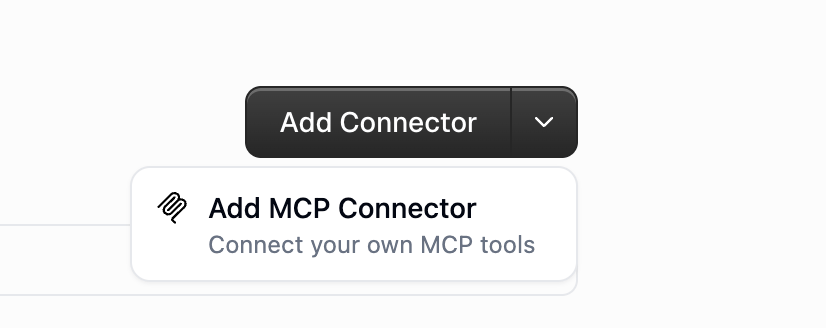
2
Enter the server URL
Pick a Connection type and enter your MCP server’s URL, then click Connect.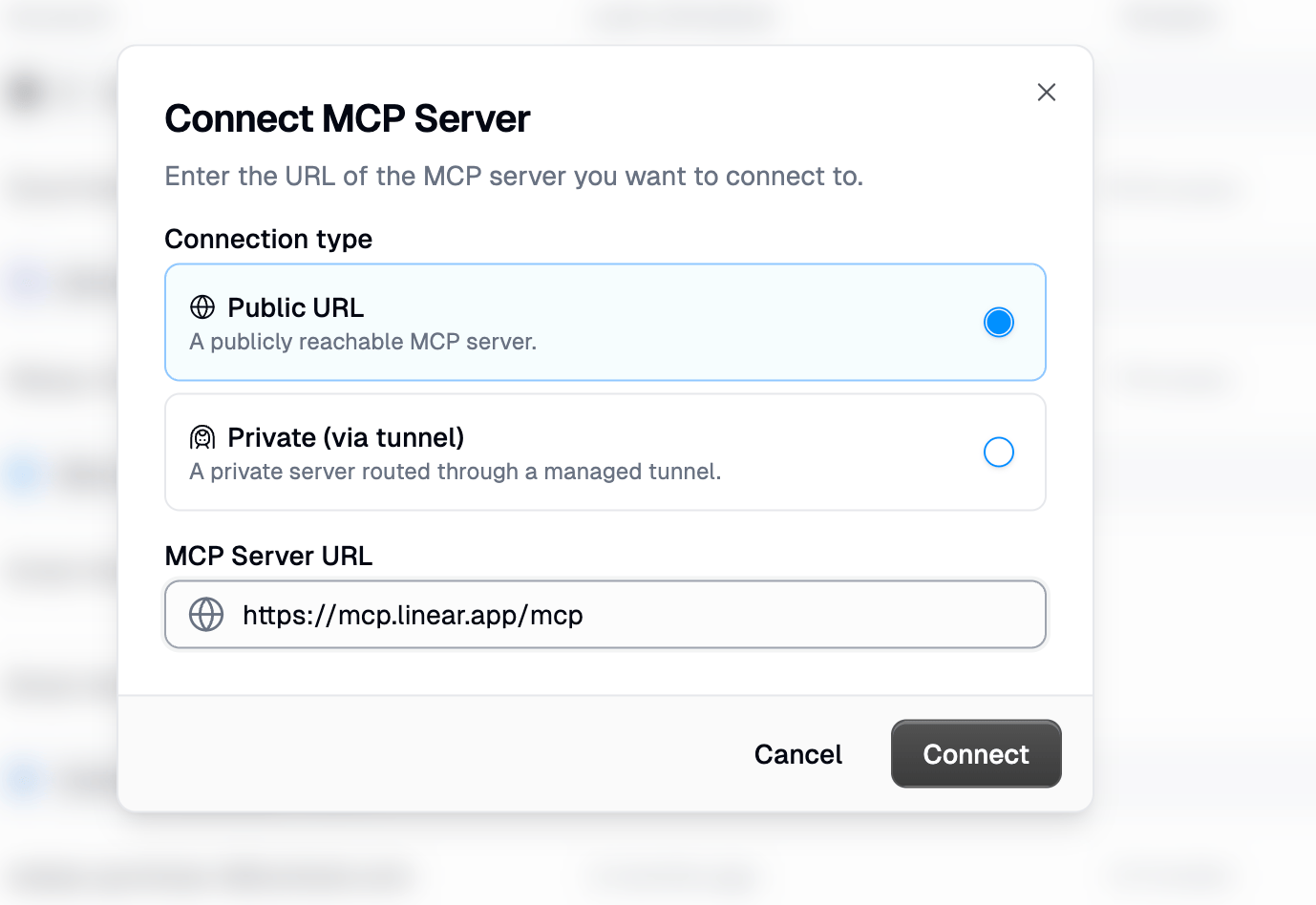
3
Configure authentication
Gumloop probes the server and shows the Detected Auth method. If the server supports OAuth, click Authenticate and sign in to connect your account. Otherwise, open the Authentication dropdown to supply a token, API key, or custom header instead.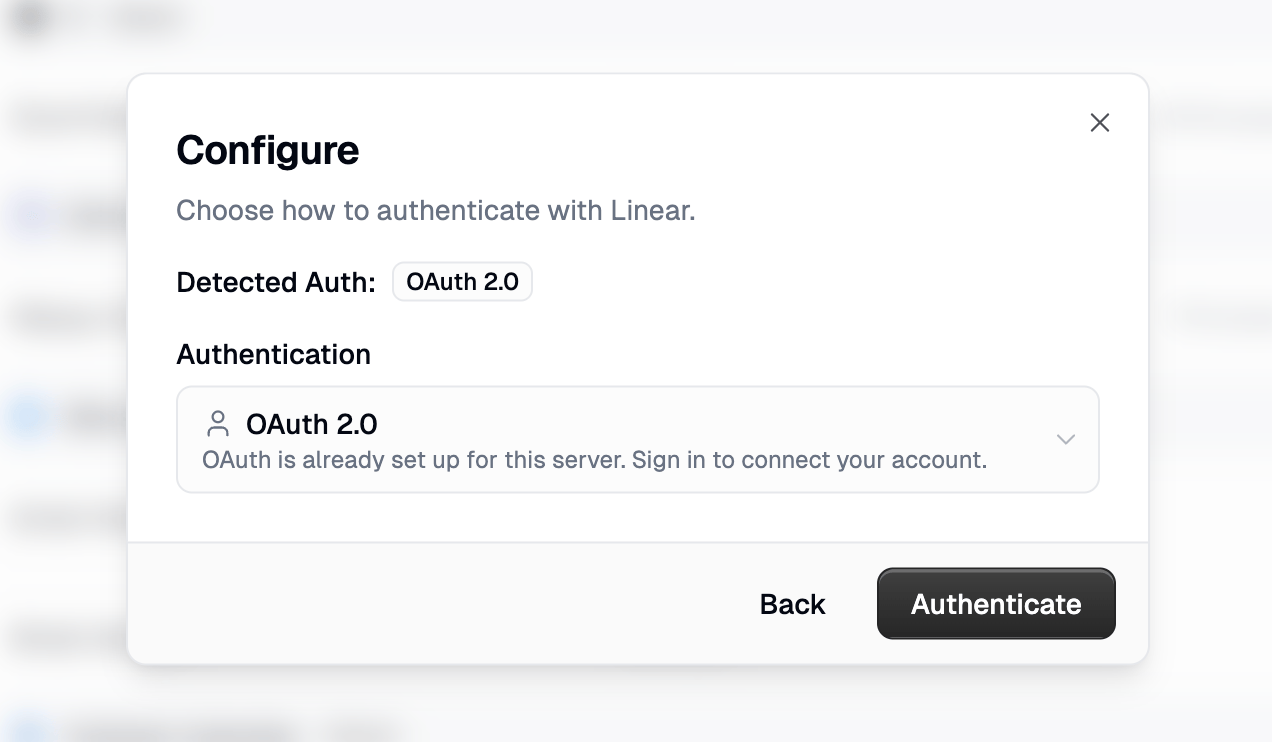
4
Add it to your agent
Go back to your agent, open the Connectors section, and click Add Connector. Search for the server you just added and select it to give the agent access to its tools.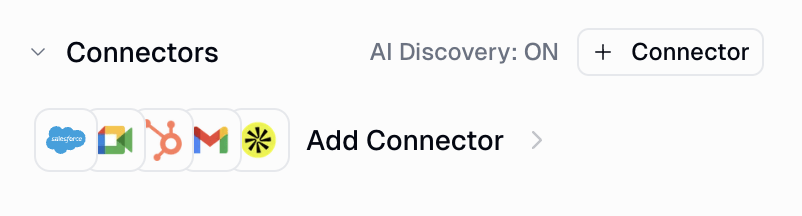
Requirements
Custom MCP servers must meet these requirements:Authentication options
Gumloop supports multiple authentication methods:- Bearer tokens: Standard OAuth/API key authentication. When you provide an Access Token / API Key, Gumloop sends it as an
Authorization: Bearer <token>header with every request to your MCP server. - Custom headers: For services requiring specific header formats. The Additional Header field accepts a single header in
Header-Name: valueformat (for example,X-API-Key: my-secret-key). This is useful for MCP servers that expect authentication in a non-standard header. - OAuth discovery: Automatic OAuth flow discovery (RFC 8414) for compatible servers
Using custom MCP servers with agents
Once configured, you can add your custom MCP servers to any agent. The agent can discover all available tools and use them naturally in conversation.1
Open Agent Configuration
Go to your agent’s settings and find the Connectors section.
2
Select MCP server
Click Add Connector and search for your configured MCP server.
3
Use your agent
Your agent now has access to all tools from the MCP server. It automatically discovers and uses them based on conversation context.
- Conversational context: The agent maintains conversation history and can use tools across multiple turns
- Automatic tool selection: The agent chooses the right tool based on your request
- Multi-server support: Connect multiple MCP servers and let the agent orchestrate between them
- Available everywhere: Use immediately in chat, Slack, or embedded pages
Model-specific differences
Custom MCP servers work across all models in Gumloop, but how they run depends on the provider:- Native MCP: The provider (OpenAI/Anthropic) connects directly to your MCP server and executes tools.
- Backend connector (Gumloop executes tool calls): Gumloop connects to your server and presents tools as regular function calls. When the model invokes one, Gumloop executes it and returns the result to the model.
Header handling by model
Security considerations
Data sharing
Data sharing
Information in your prompts may be sent to your MCP server. Be mindful of sensitive data and review your server’s data handling policies.
Direct tool access
Direct tool access
All tools exposed by your MCP server are immediately available to the AI. There are no approval prompts before tool execution. Use appropriate authorization scopes to limit access.
Multi-server implications
Multi-server implications
When using multiple MCP servers, consider that data retrieved from one server could be passed to another. Design your prompts accordingly.