

Authentication
1
Connect Your Account
Go to the Connectors page and connect your Microsoft Teams work/school account. You’ll be prompted to sign in with your organization’s Microsoft 365 credentials.
2
Grant Permissions
Approve the requested permissions when prompted. The node requires access to read channel messages and view team information.
3
Select Team and Channel
Choose the Team and Channel from the dropdown menus. Only teams you’re a member of and channels you have access to will appear.
Trigger Mode
The Teams Message Reader can be used as a flow trigger to automatically start your workflow whenever a new message is posted in a Teams channel.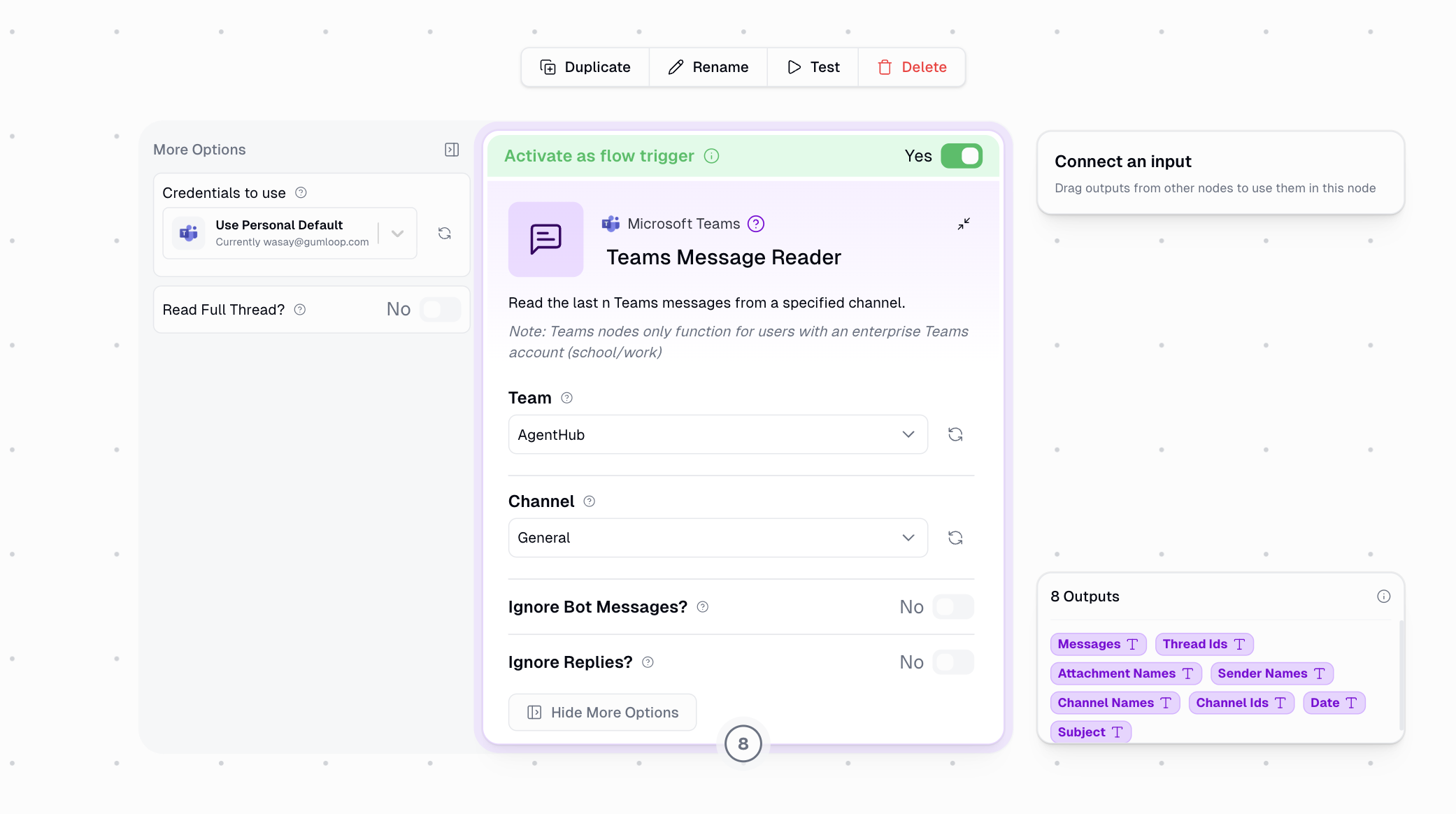
1
Configure the Node
Select your Team and Channel from the dropdowns.
2
Activate Trigger
Toggle Activate as flow trigger to Yes at the top of the node.
3
Configure Filtering
Optionally enable Ignore Bot Messages and Ignore Replies to control which messages trigger your flow.
4
Save Your Flow
Save the workflow to activate the trigger.
Node Configuration
Basic Settings
Filter Options
Date Range
Date Range
Filter messages using relative time periods. This is useful for recurring workflows that need to process recent messages.Available options include:
- Last 24 Hours
- Last 7 Days
- Last 30 Days
- Custom relative ranges
Exact Dates
Exact Dates
Specify precise Start Date (UTC) and End Date (UTC) for message retrieval. Use this when you need messages from a specific time window.
Message Count
Message Count
Retrieve a specific number of recent messages. Valid range is 1-10,000 messages. Default is 10.When set to 1, outputs are returned as single text values instead of lists.
Additional Options
Ignore Bot Messages
Ignore Bot Messages
When enabled, messages from bots and applications are filtered out. This is useful when you only want to process messages from human users.Recommended when building response automations to prevent processing your own bot’s messages.
Ignore Replies
Ignore Replies
When enabled, only root messages are fetched and thread replies are skipped. Use this when you only care about new conversation starters, not ongoing discussions.
Read Full Thread
Read Full Thread
When enabled, fetches all replies for each root message. The Messages output will include the full conversation thread, making it useful for:
- Analyzing complete discussions
- Archiving conversations
- Processing support threads
Outputs
Output Format
The output format changes based on your configuration:Multiple Messages (Count > 1)
Returns lists for all outputs:Single Message (Count = 1 or Trigger Mode)
Returns single text values when Message Count is set to 1 or when the node is used as a trigger:Example Workflows
Channel Activity Monitor
- Filter By: Date Range (Last 24 Hours)
- Purpose: Daily summary of channel activity sent via email
Support Thread Archiver
- Read Full Thread: Yes
- Filter By: Date Range (Last 7 Days)
- Purpose: Archive support conversations to a spreadsheet
Message Routing
- Message Count: 1
- Ignore Bot Messages: Yes
- Purpose: Route messages to different workflows based on content
Real-Time Response Bot (Trigger)
- Activate as flow trigger: Yes
- Ignore Bot Messages: Yes
- Purpose: Automatically respond to incoming messages using AI
Important Considerations
- Channel Access: You must be a member of the channel to read messages. Private channels require an invite.
- Rate Limits: Microsoft Graph API has rate limits. For high-volume channels, consider using date filters to limit the number of messages processed.
- Attachments: File attachments up to 10MB are automatically downloaded. Larger files are skipped.
- Timezone: All date filtering uses UTC timezone. Account for timezone differences when setting date ranges.
- Message Types: System messages (member added/removed, channel renamed) are automatically filtered out.
Why Enterprise Only?
Microsoft Teams is designed as an enterprise collaboration platform integrated with Microsoft 365. The Microsoft Graph API endpoints for reading channel messages require specific permissions that are only available for work and school accounts: Required Permission:ChannelMessage.Read.All
This permission is classified as an “application permission” in Microsoft’s permission model and requires:
- A Microsoft 365 business or education subscription
- An Azure AD tenant (automatically created with Microsoft 365)
- Admin consent for the application to access channel messages
- Access to Teams workspaces (Teams is not available for personal accounts)
- An Azure AD tenant to grant application permissions
- The underlying infrastructure that supports channel message APIs
Advanced Teams Features
Need more advanced Teams capabilities like managing channels, updating messages, or working with tabs? Use the Microsoft Teams MCP node to create custom Teams integrations with natural language prompts.