

Before you start
- Creating a team needs the organization Admin or Manager role. See Create a team.
- Adding a team connector needs the Team Admin role on that team. In organizations, your custom role also needs Team credential addition, which is on by default.
- Using a team connector only works for people on the team, in agents that live in that team.
Connect the account to the team
1
Create a team, or open an existing one
To use a team you’re already on, select it under Teams in the left sidebar and skip to the next step.To create one, select the + next to Teams in the left sidebar.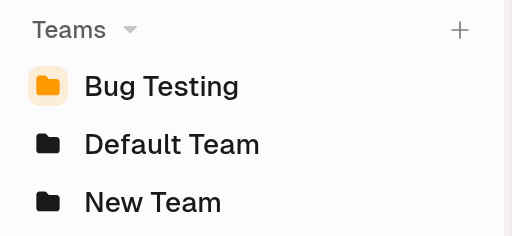 In the New Team dialog, pick an icon, enter a Team name, and select Create.
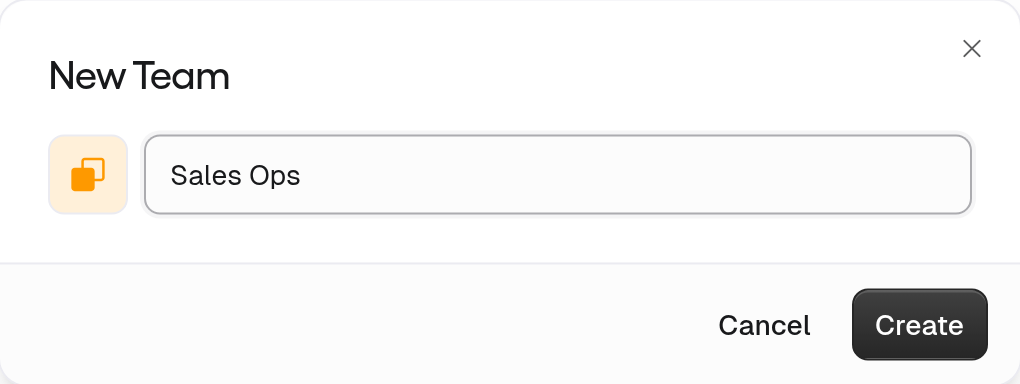 Then add people with Invite at the top right of the team page.
2
Open the team's connectors
In the team’s menu, select Customize. The Connectors tab opens with the note “Anyone on this team can use these connectors.”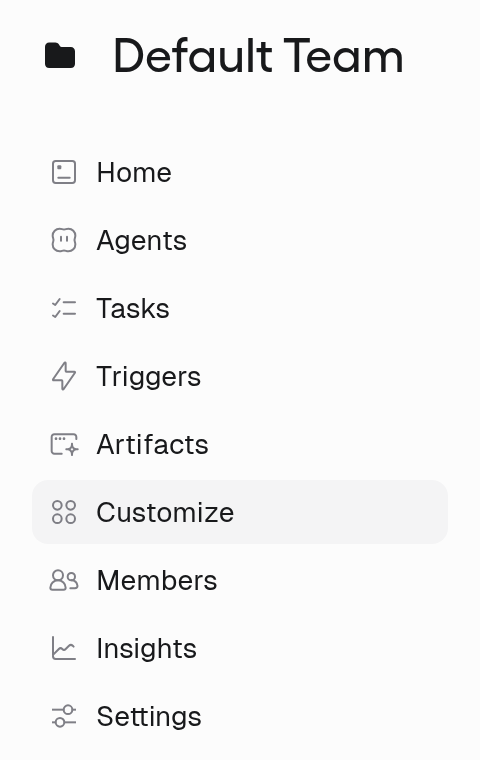
3
Connect the shared account
Search for the app, or find it under Discover or All, and select its + button. Sign in with the shared account, not your personal one.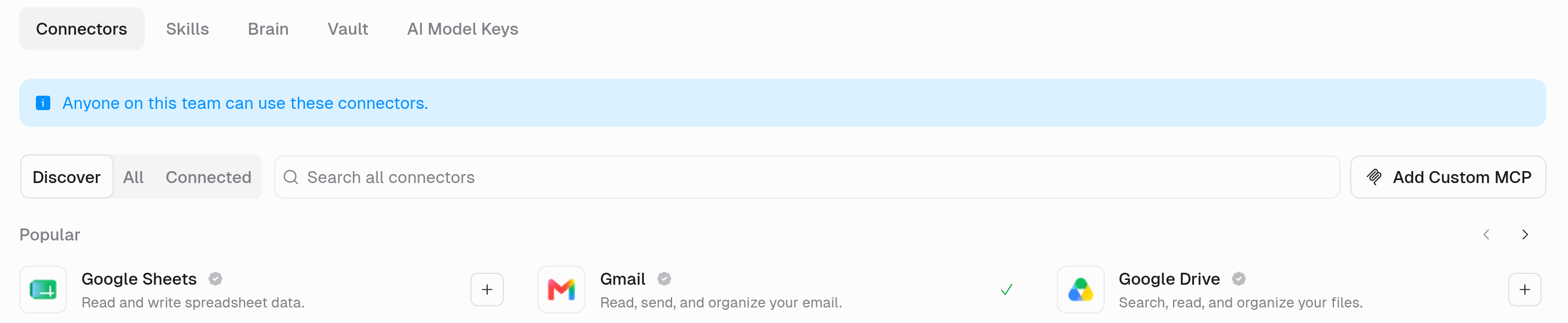 To add a second account for the same app, select Add account on the app’s tile. If you see Request instead of +, you can’t add that app yourself. Select Request to ask for access.
4
Choose the team's default account (only with several accounts)
Use Team Default uses the team’s default account for each app. With one account, that account is the default.With several accounts for the same app, open the Connected tab. The default account shows a Default badge. To change it, open the ⋮ menu at the right of another account’s row, select Make default, and confirm in Change Default Account?. Agents set to Use Team Default switch to the new account.
Point an agent at the team account
1
Put the agent in the team
New agent: on the team page, select Create Agent at the top right.Existing personal agent: on the Agents page, open the agent card’s ⋮ menu and select Move to Team.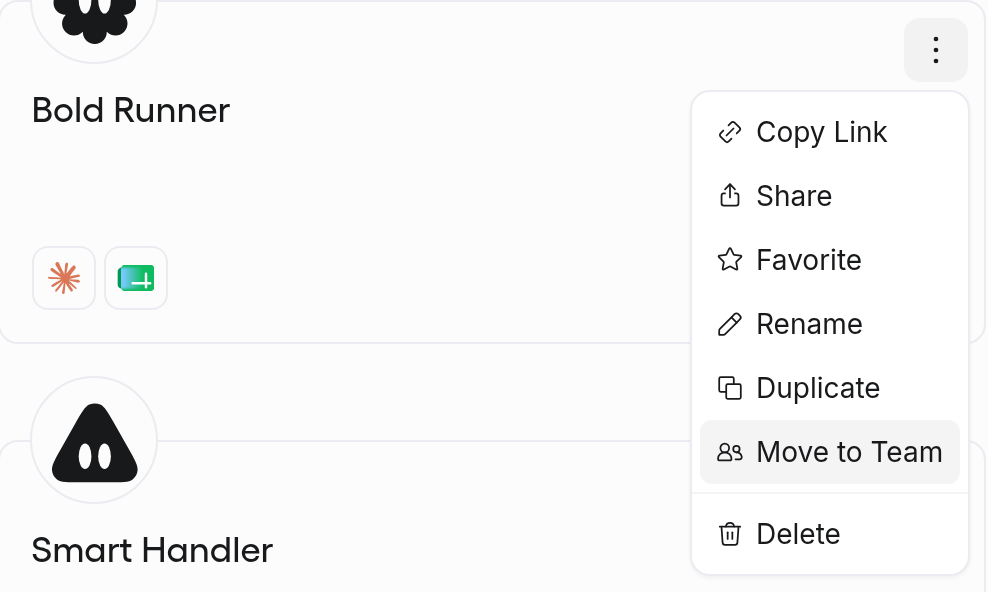 In Move to Team, pick the team and select Move.
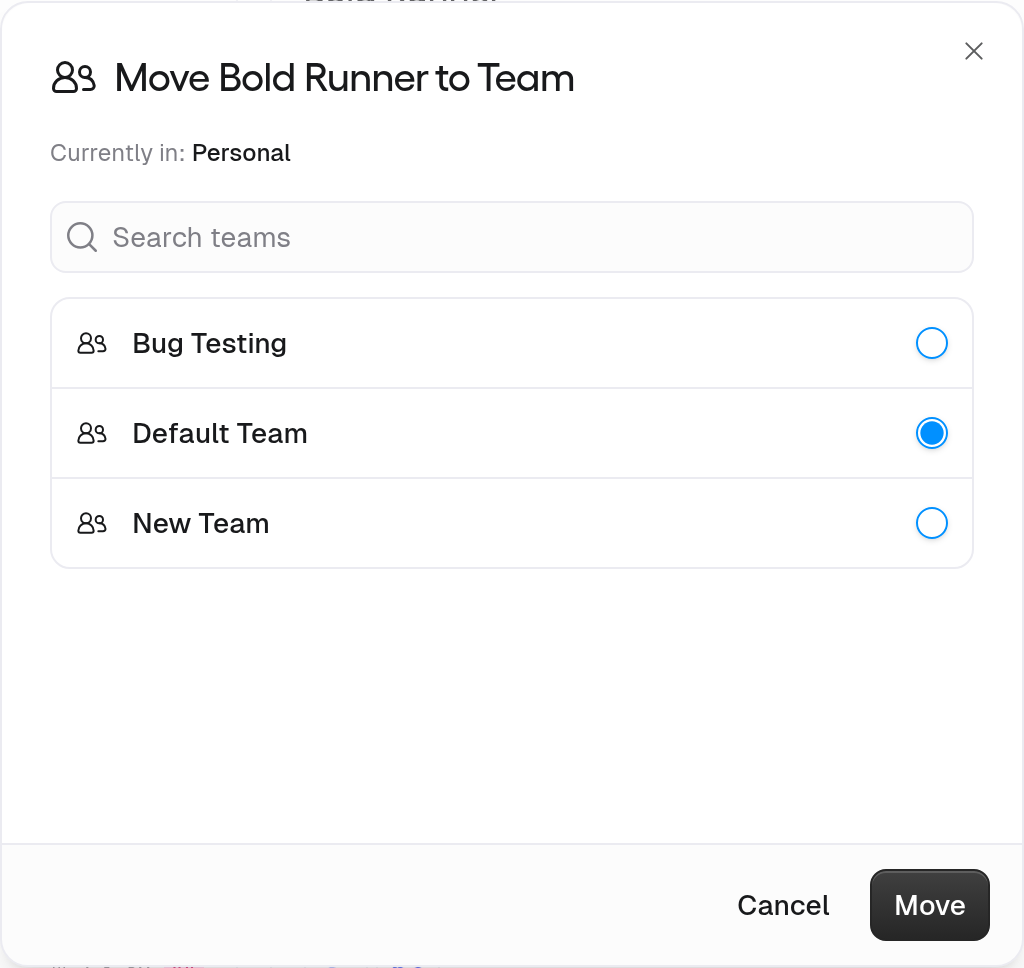 Moving an agent removes any agent-owned pins it had, so those connectors go back to user-owned.
2
Add the connector to the agent
Open the agent and go to the Agent tab. In the Connectors section, select + Add. In Add Connectors, search for the app, select its +, and select Save.
3
Choose Use Team Default
On the connector’s row in the Connectors section, open the ⋮ menu. Under Account, select Use Team Default (“Use the default team account for everyone who uses this agent”). The row then shows Team under the app name.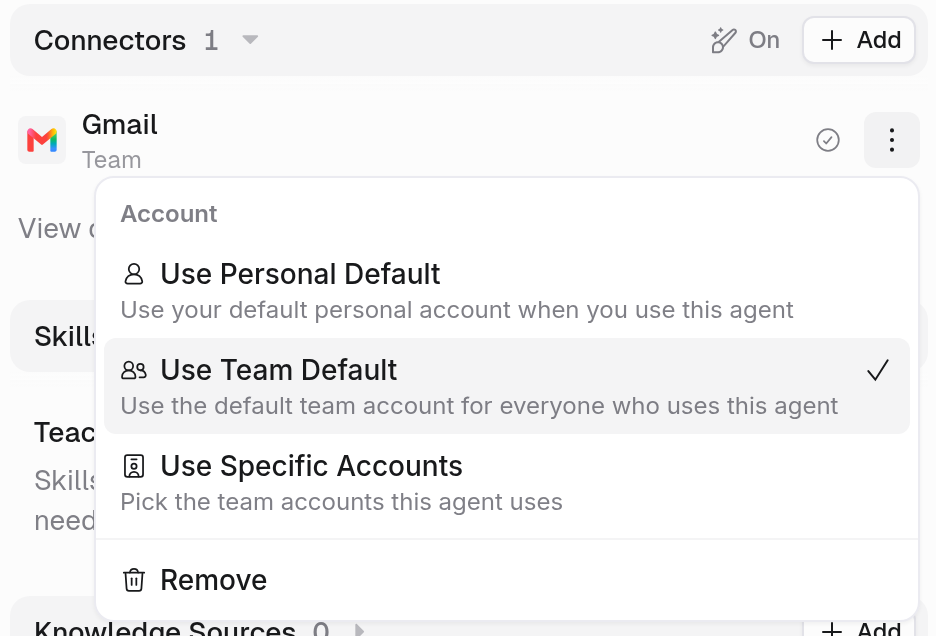 To pin particular team accounts instead, select Use Specific Accounts. See Use more than one account on an agent.
4
Save and confirm
Select Save. A team agent’s account affects everyone on the team, so Gumloop asks you to confirm. You can cancel, make a personal copy of the agent instead, or go ahead with the team account.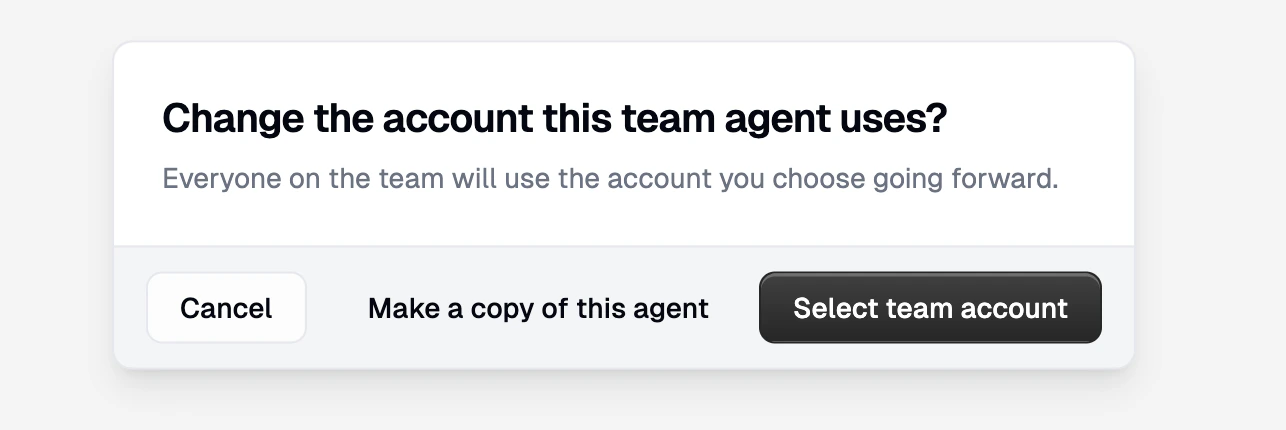
FAQ
I don't see Use Team Default
I don't see Use Team Default
The agent is in your personal space. Move it to the team with Move to Team, then open the connector’s ⋮ menu again.
The team account is connected, but my agent still uses my own account
The team account is connected, but my agent still uses my own account
Open the ⋮ menu on the agent’s connector row. If Use Personal Default is checked, the agent uses each runner’s own account. Select Use Team Default and Save.
Can people outside the team use the team account?
Can people outside the team use the team account?
Not through Use Team Default. It only uses the team account for people on the team. To let others act through the account, make the connector agent-owned and share the agent. See Personal vs team vs agent-owned credentials.
Can I move my personal connection to the team?
Can I move my personal connection to the team?
No. Connect the account again from the team’s Customize > Connectors tab.
Several teams need the same app
Several teams need the same app
A team connector only works in its own team. Connect the account on each team’s Connectors tab.
The team connection stopped working
The team connection stopped working
On the team’s Customize > Connectors tab, open the Connected tab, open the account’s ⋮ menu, and select Refresh, or Reauth if it shows Reauth needed. Refreshing your personal account won’t fix a team connection. See Revoke and reconnect a connector.
Related
Personal vs team vs agent-owned credentials
Which account an agent acts as
Connectors
Full reference for accounts and selection