

- A Gong Technical Administrator connects Gong to your Gumloop team.
- Everyone on the team sets Gong to Use Team Default on their agents.
- People outside the team use a shared Gong agent.
Before you start
- Connecting Gong needs someone with the Technical Administrator role in Gong. If that isn’t you, ask them to connect Gong to the team, then point your agent at the team’s Gong yourself.
- That person also needs to manage the Gumloop team’s connectors, usually a team admin.
Connect Gong to the team
1
Open the team's connectors
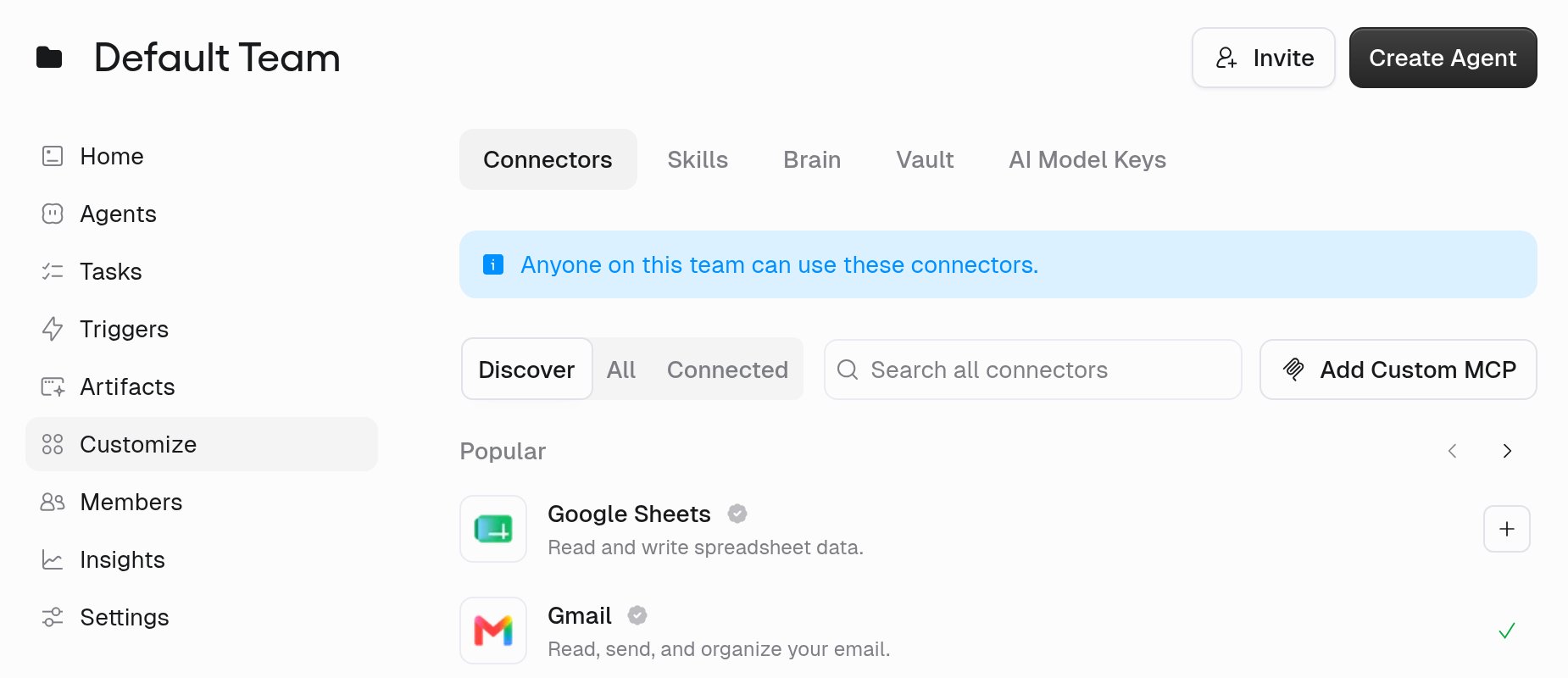
Under Teams in the left sidebar, select the team. In the team’s menu, select Customize. The Connectors tab opens with the note “Anyone on this team can use these connectors.”
2
Add Gong
Search for Gong (“Access call recordings and sales insights”) and select its + button.
3
Enter your Gong workspace name
In Add new account for Gong, type your workspace name from your Gong URL. For example, if you open Gong at
us-12345.app.gong.io, enter us-12345.4
Approve in Gong
Sign in to Gong with the Technical Administrator account and approve the access.
Point your agent at the team’s Gong
Each agent that uses Gong has to live in the team and use the team account.1
Put the agent in the team
For a new agent, open the team from Teams in the left sidebar and select Create Agent. For an existing personal agent, open its ⋮ menu on the Agents page, select Move to Team, and pick the team.
2
Add Gong to the agent
Open the agent and go to the Agent tab. In the Connectors section, select + Add, search for Gong, and select Save.
3
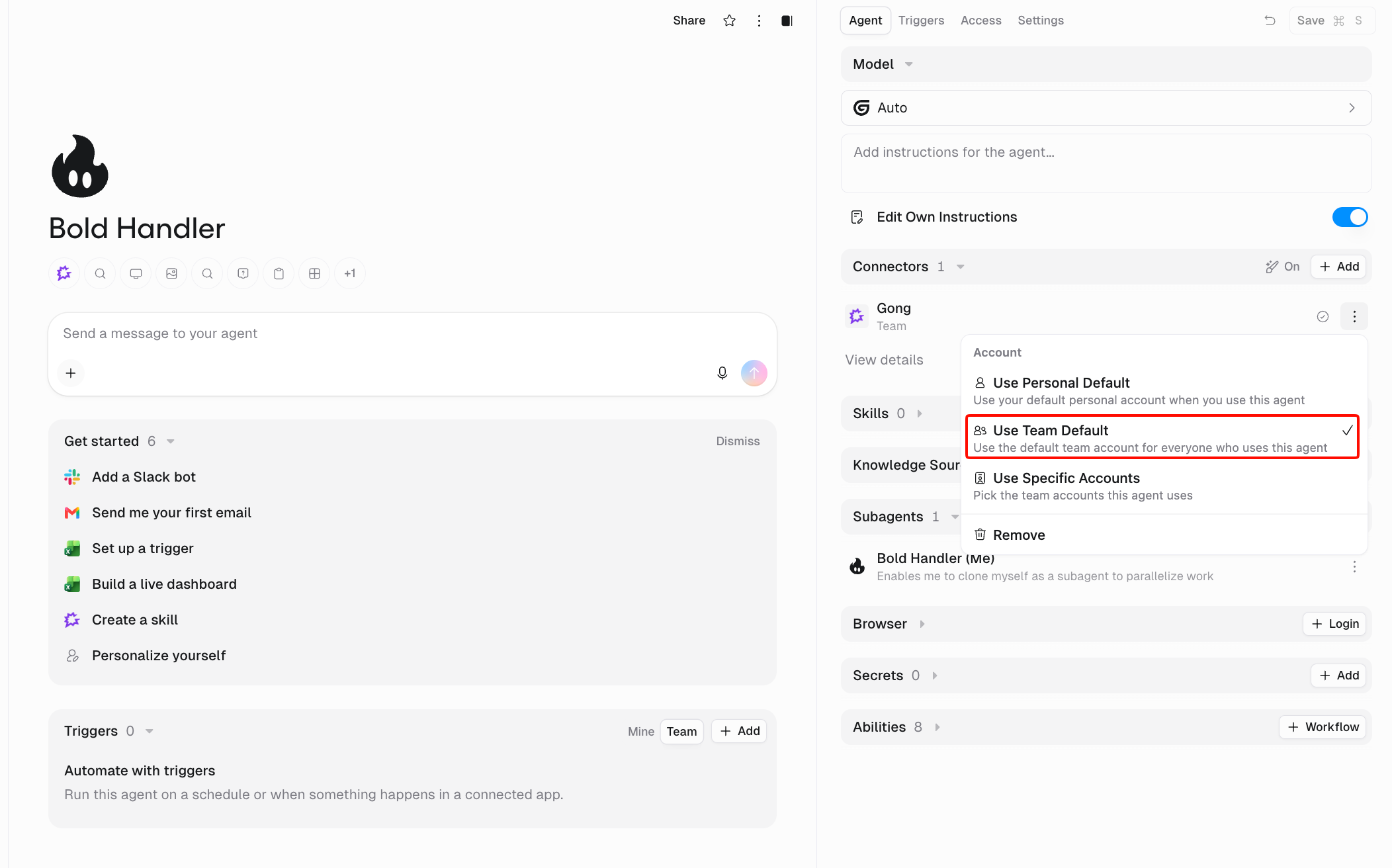
Choose Use Team Default
On the Gong row in the Connectors section, open the ⋮ menu and choose Use Team Default under Account. Gong then shows Team under its name.
4
Save
Select Save. Changing a team agent’s account affects everyone on the team, so Gumloop asks you to confirm.
Give Gong to people outside the team
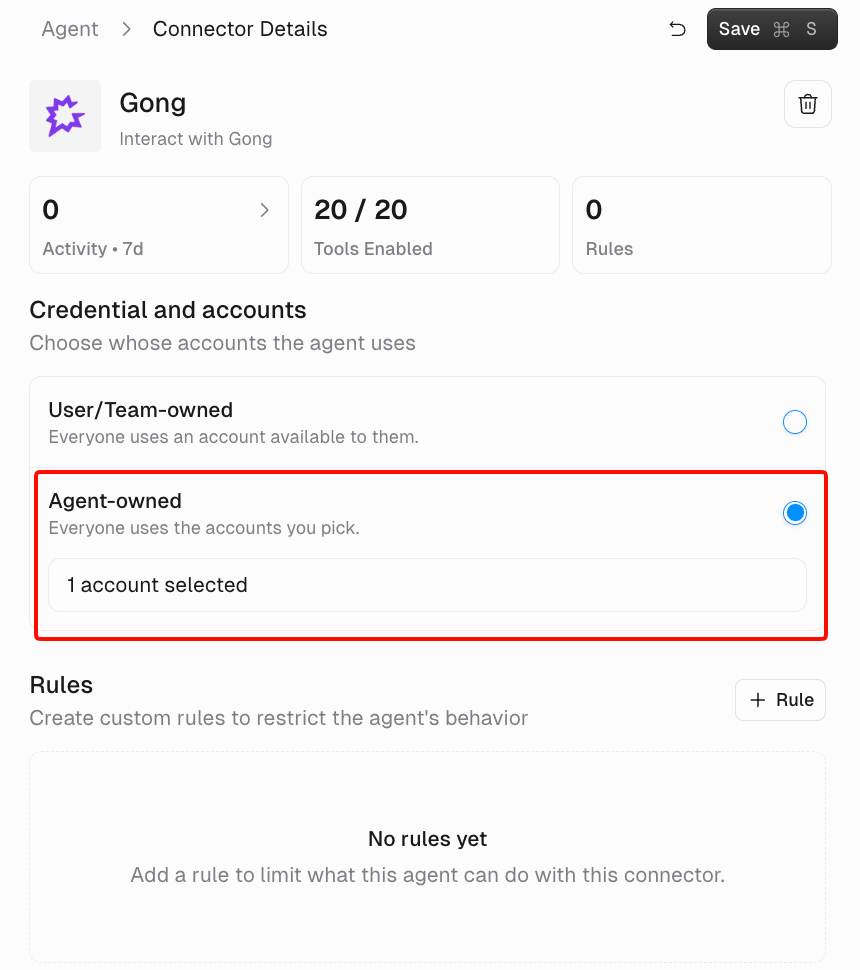
Use Team Default only works for people on that team. To share Gong more widely, build a Gong agent on the team and make its Gong connector Agent-owned:- In the agent’s Gong detail view, under Credential and accounts, select Agent-owned and pick the team’s Gong account.
- Select Save. The connector shows Agent owned under its name.
- Share the agent. People can use it directly or call it from their own agents as a subagent.
FAQ
Gong is connected on the team, but my agent still fails
Gong is connected on the team, but my agent still fails
Open the ⋮ menu on the agent’s Gong row and check the account. If it shows Use Personal Default, it’s trying your own Gong account. Choose Use Team Default and select Save.
I don't see Use Team Default
I don't see Use Team Default
The agent is in your personal space. Move it to the team with Move to Team, then open the Gong row’s ⋮ menu again.
Gong is turned on for our role. Why isn't it connected?
Gong is turned on for our role. Why isn't it connected?
The Connectors setting on a custom role only controls whether people with that role can use Gong. Someone still has to connect a Gong account on the team’s Customize > Connectors tab.
Can I move my personal Gong connection to the team?
Can I move my personal Gong connection to the team?
No. Connect Gong again from the team’s Connectors tab with the Technical Administrator account.
Can everyone on the team see all our Gong calls?
Can everyone on the team see all our Gong calls?
Yes. The connection reaches your company’s Gong data, so anyone using it can read calls, transcripts, users, and scorecards across the company. Only connect Gong on teams whose members should see that data.
The team's Gong connection stopped working
The team's Gong connection stopped working
On the team’s Customize > Connectors tab, open the Gong account’s ⋮ menu and choose Refresh, or Reauth if it shows Reauth needed. Reconnecting your own personal account won’t fix a team connection.
Related
Add team connectors
Connect a shared account for a team
Use team connectors
Point an agent at the shared account