

Custom MCP
- Go to Connectors.
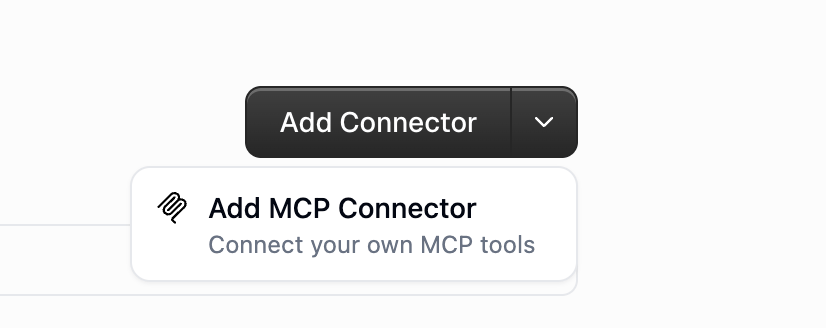
- Open the arrow next to Add Connector and choose Add MCP Connector.
- Pick Public URL (HTTPS) or Private (via tunnel) on Enterprise.
- Enter the server URL and click Connect.
- Confirm the detected auth. If it is OAuth, click Authenticate. Otherwise add a token, API key, or custom header.
- Open the agent → Connectors → Add Connector, then search for the server you just added.
localhost and STDIO are not supported. On Enterprise, Managed Tunnels can reach a server inside your network.
Proxied MCP
An admin registers one external URL at Organization → Proxied MCPs. Gumloop proxies traffic so the org gets activity logs and tool access control without deploying code. Auth is None, API Key, or OAuth 2.0. None / API Key shares one org secret. OAuth makes each person sign in. Full setup: Proxied MCPs.Hosted MCP
An admin connects GitHub at Organization → Hosted MCPs. Gumloop builds, deploys, and routes the server. Access is gated by custom roles. Full setup: Hosted MCPs.Whose credentials run on a shared agent
Gumloop does not silently share one person’s personal login.FAQ
Which type should I pick?
Which type should I pick?
One URL you already host → Custom. Org wants one governed external server → Proxied. Org wants to run its own server code without extra hosting → Hosted.
Why can't I use localhost?
Why can't I use localhost?
Gumloop must reach the server over the public internet (or an Enterprise managed tunnel). Deploy it, or expose it with Cloudflare Tunnel / ngrok.
I added the server in Settings but the agent cannot see it
I added the server in Settings but the agent cannot see it
Adding it in Connectors is not enough. Open the agent and add that custom MCP under Connectors.
Related
Custom MCP Servers
URL, headers, and OAuth
Hosted MCPs
Deploy from GitHub