

What do I see, and what do I do?
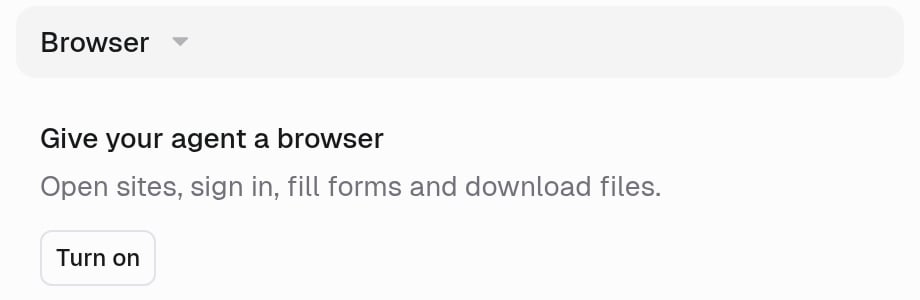
Check the Browser section on the agent’s Agent tab.How do I turn on the browser for an agent?
- Open the agent and go to the Agent tab.
- In the Browser section, click Turn on.
- Click Save. The browser works from your next message.
What do I do when it says “Turned off for your role”?
Your organization hasn’t given your role the Agent browser feature, so agents you run work without the browser.- In the Browser section, click Request access.
- Pick an administrator, add a short note, and send the request.
How does an admin turn on Agent browser for a role?
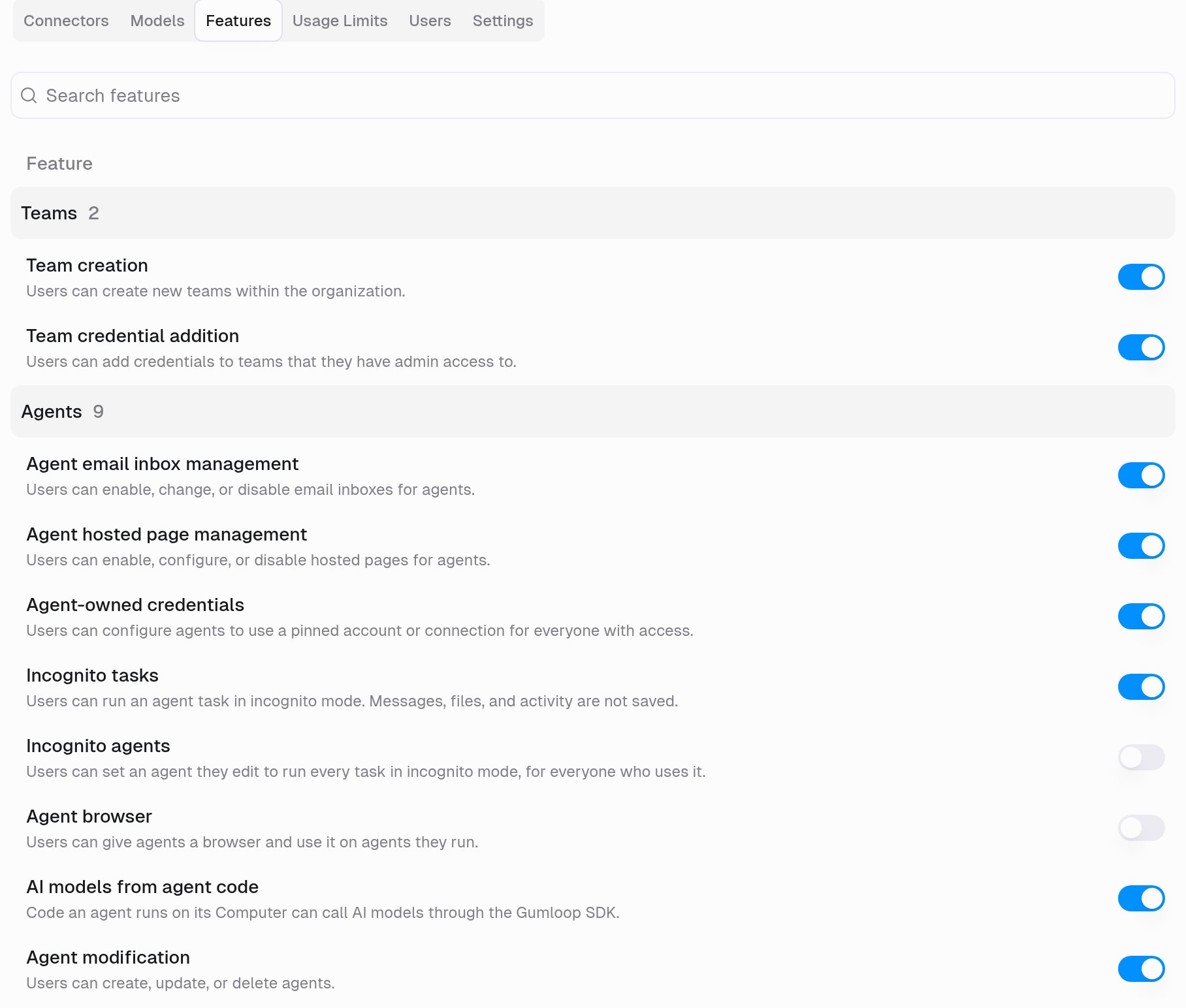
On Enterprise organizations, Agent browser is off by default in Custom roles.- Open Settings at the bottom of the left sidebar, then choose Custom Roles under People & Access.
- Click the person’s role. To turn it on for everyone, open your default role.
- Open the Features tab and turn on the Agent browser switch under Agents. The change saves right away.
Why does the browser work for me but not my teammate?
Gumloop checks browser access for the person who runs the agent, not the person who set it up. A teammate whose role lacks Agent browser gets the agent without the browser, even though it’s turned on. An admin needs to add Agent browser to their role.The browser is on, but the agent doesn’t use it. Why?
The agent may pick a faster tool, such as a connector, when one covers the app. To force the browser, ask for it by name, for example: “Use your browser to open example.com and download the latest invoice.” See Which should my agent use: connector, API, or browser?.Related
Agent browser
What the browser can do, handoffs, limits, and billing
Custom roles
Grant or restrict Agent browser per role