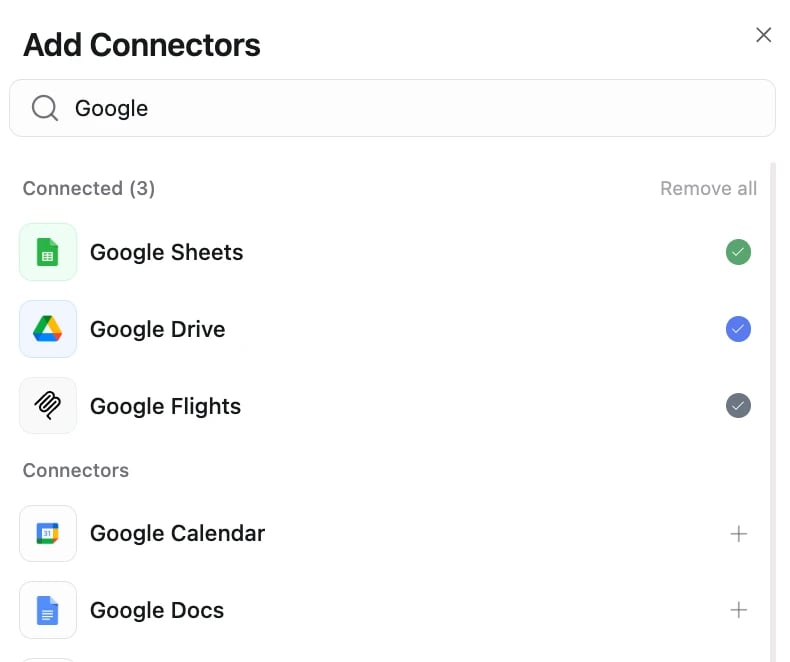
To give an agent access to Gmail, Slack, Notion, or any other app, add the connector on the agent and sign in. Connecting the app in Settings alone does not attach it to the agent.

Add a built-in connector

Gumloop includes 150+ built-in connectors.
  1. Open the agent.
  2. In the right-hand panel, find Connectors.
  3. Click + Connector.
Agent Connectors section with the + Connector button
  1. Search for the app (for example, Gmail) and select it.
Add Connectors dialog with a search box
  1. If you have not signed in yet, complete the OAuth or API-key flow.
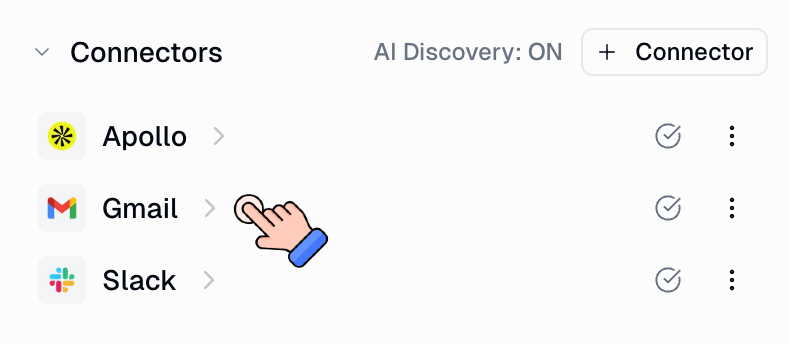
Click to connect the selected integration
  1. Confirm the connector appears on the agent with the account you expect.
Need a specific inbox, not your default? After the connector is on the agent, open the connector’s three-dot menu and pin Use Specific Account.

What else an agent can use

Limit which actions a connector can take
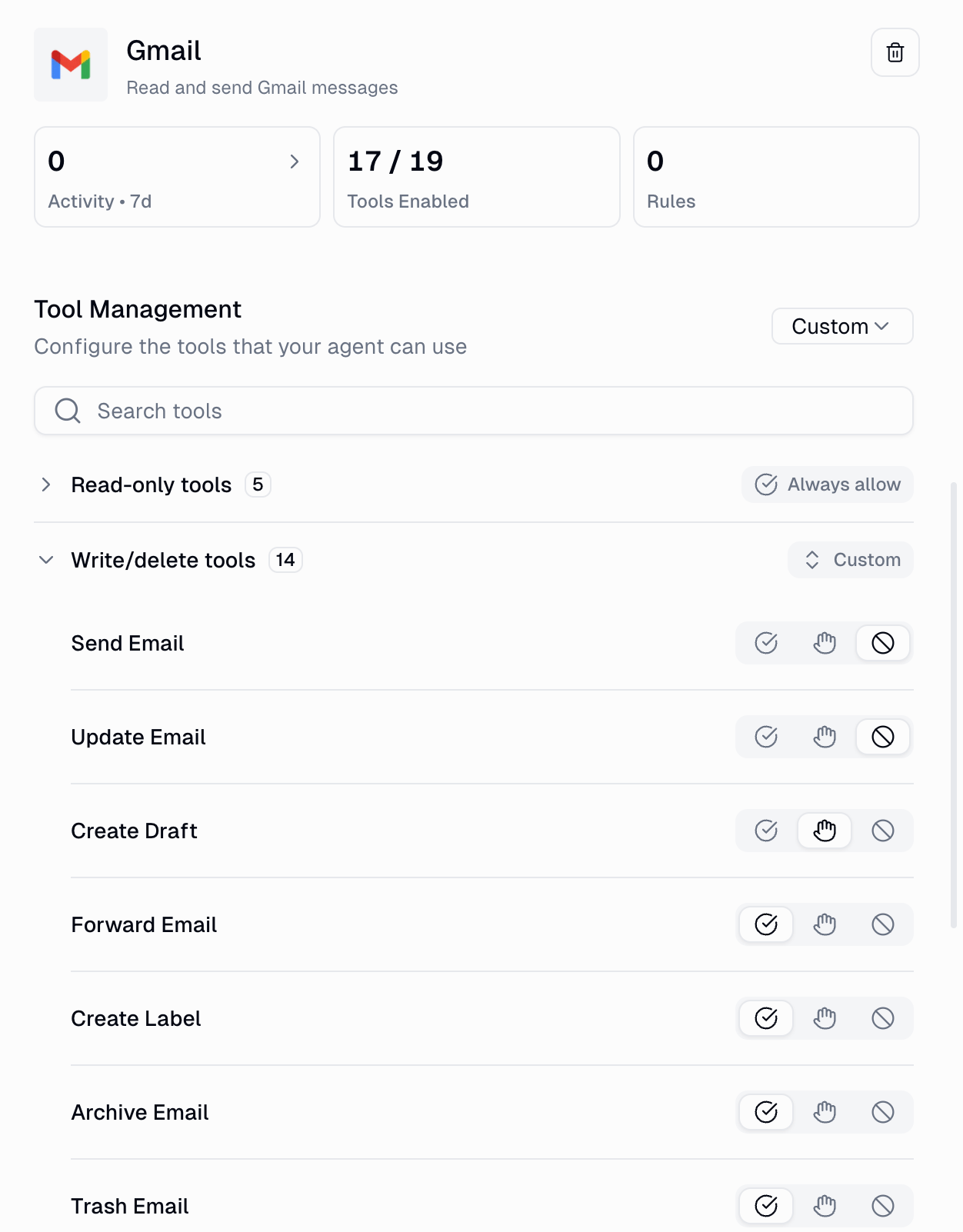
Connected Gmail account listed on the agent
Open the connector on the agent and turn off tools you do not want, or add an app rule if you need a block or approval.

Connectors

Personal vs team connectors

Agents

How connectors, skills, and triggers fit together