> ## Documentation Index
> Fetch the complete documentation index at: https://docs.gumloop.com/llms.txt
> Use this file to discover all available pages before exploring further.
# Generate Report
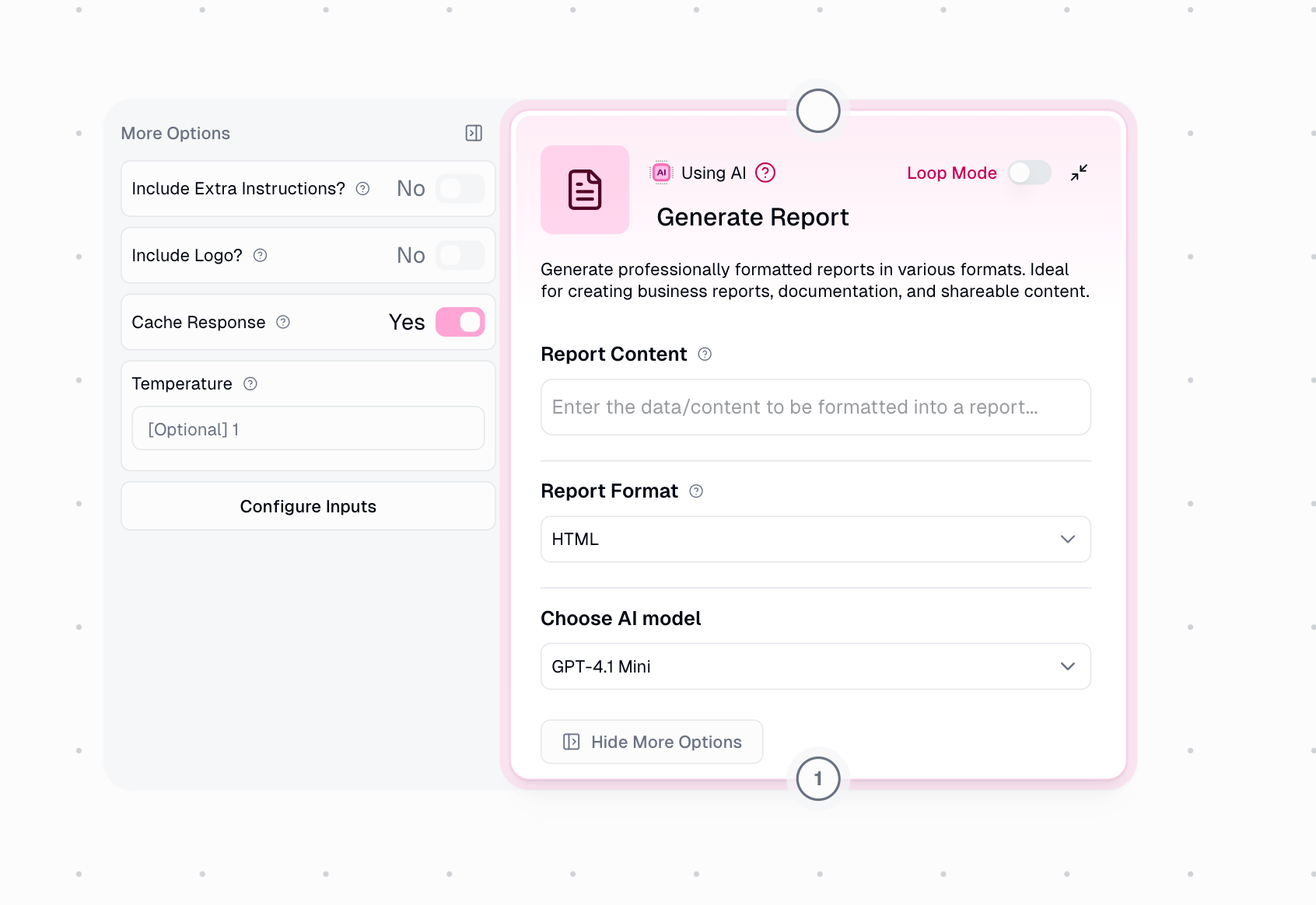
The Generate Report node transforms raw content and data into professionally formatted reports using AI. Perfect for creating polished business reports, documentation, and shareable content with minimal effort.
## Why Use Generate Report?
When you need to send well-formatted content to your team or clients, the Generate Report node saves you time by automatically creating professional-looking output in the right format for your destination. Whether you're sending HTML emails, writing to Google Docs, or posting to Slack, this node ensures your content looks great without manual formatting.
Generate email-ready HTML with responsive design for Gmail and other email clients
Create formatted documents for Google Docs, GitHub, or technical documentation
Build native Slack Block Kit messages with rich formatting and visual hierarchy
## Node Inputs
### Required Fields
The raw content or data you want to transform into a formatted report. This can include:
* Analysis results from AI nodes
* Data from spreadsheets or databases
* Bullet points or unstructured notes
* Any information you want professionally formatted
**Example Input:**
```
Q4 revenue was $2.3M, up 15% from Q3.
Customer retention improved to 94%.
New client acquisition: 12 companies.
```
### Optional Fields
Choose the output format based on where you'll use the report:
* **HTML**: Best for emails via Gmail Sender or Send Email Notification
* **Markdown**: Best for Google Docs, GitHub, or technical documentation
* **Slack Block Kit**: Best for Slack messages via Slack Block Kit Sender
**Default:** HTML
Customize the report's appearance and structure with specific instructions:
**Styling Examples:**
* "Use a color palette of #fb3c98 and #0190ff"
* "Include a table for all numeric data"
* "Use bullet points for lists"
**Content Examples:**
* "Focus on key metrics only"
* "Keep the tone formal and professional"
* "Include an executive summary at the top"
Extra Instructions must be enabled in "More Options" to appear
For HTML reports only. Add your company logo at the top of the email by providing a publicly accessible URL.
**Requirements:**
* Must be a public URL (not behind authentication)
* Optimal size: 200-400px wide
* Best formats: PNG or SVG for transparency
* Square or horizontal logos work best
Logo URL must be enabled in "More Options" and only appears when format is HTML
### More Options
Toggle this on to show the Extra Instructions field where you can customize report generation with specific formatting or content preferences.
**Default:** Off
Toggle this on to show the Logo URL field for adding a company logo to HTML reports. Only available when Report Format is set to HTML.
**Default:** Off
### AI Model Fallback
Under **Show More Options**, configure automatic fallback when your selected AI model is unavailable. **Fallback is enabled by default.**
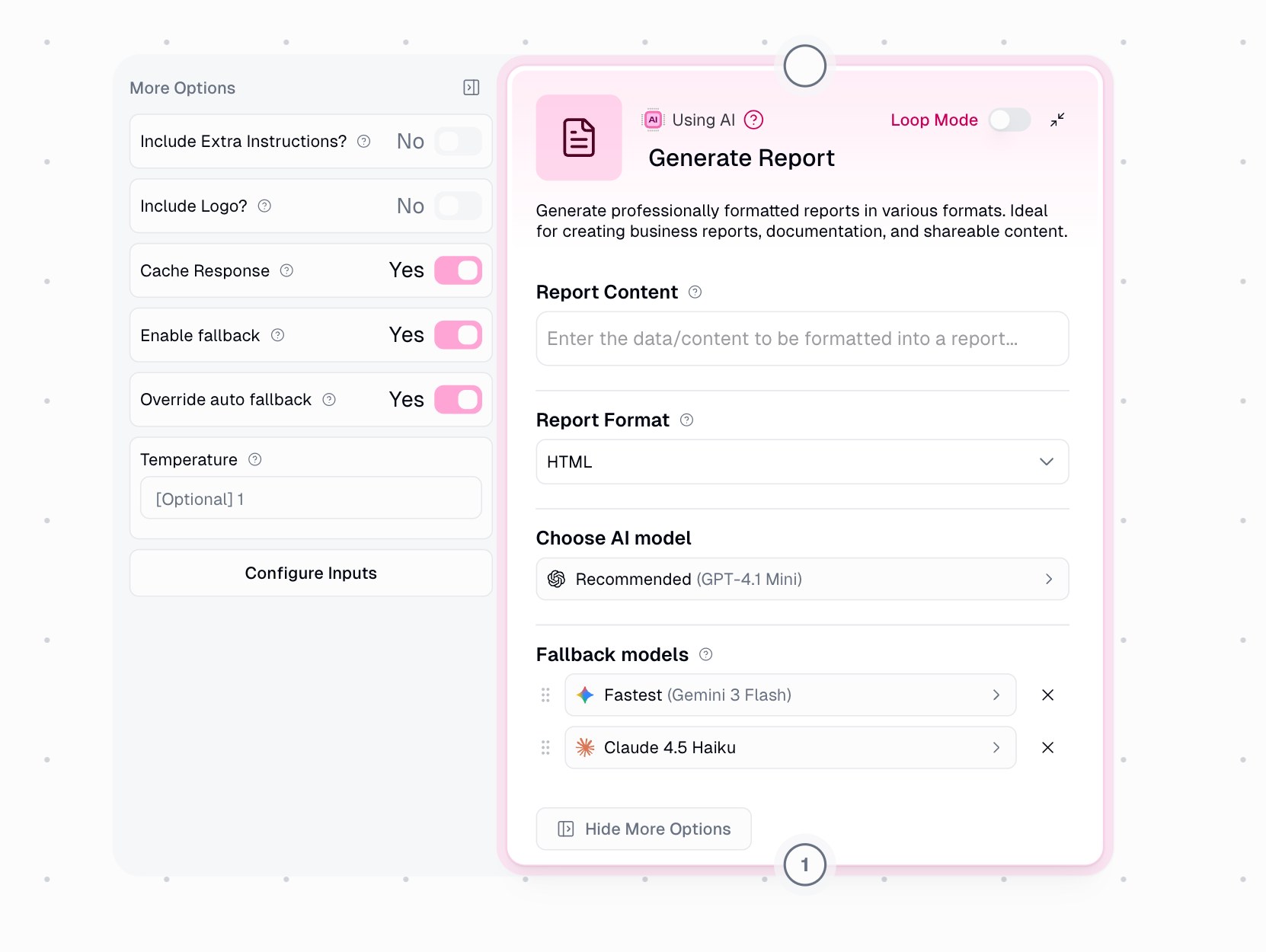 When an error occurs (rate limits, provider outages, timeouts), the system retries based on severity, then falls back to the next model. Fallback models are always from different providers for true redundancy.
| Error Type | Retries Before Fallback |
| ------------- | ----------------------- |
| Rate Limit | 2 |
| Provider 5xx | 1 |
| Network Error | 0 (immediate) |
| Timeout | 1 |
**Default (Auto):** System auto-selects fallbacks based on your primary model:
* Expert → Claude 4.8 Opus → GPT-5.5 → Gemini 3.1 Pro
* Fastest → Gemini 3.5 Flash → Claude 4.5 Haiku → GPT-5.4 Mini
* Recommended → GPT-5.4 Mini → Claude 4.5 Haiku → Gemini 3.5 Flash
**Override:** Enable to manually select up to 2 fallback models with drag-and-drop priority.
Disabling fallback means your node will fail if the primary model is unavailable.
## Node Output
The complete, professionally formatted report ready to use:
* **HTML**: Complete HTML that can be sent directly via email
* **Markdown**: Rendered markdown with tables, headers, and formatting
* **Slack Block Kit**: Valid JSON that can be posted directly to Slack's API
All output is cleaned and ready to use without additional processing.
## How It Works
The node examines your raw content to understand its structure and key information
Based on your selected format, AI applies sophisticated formatting rules to create a polished report with proper hierarchy, styling, and layout
The formatted report is generated in your chosen format, ready to send to its destination
## Format Details
### HTML Report Features
Perfect for sending professional emails through Gmail Sender or Send Email Notification nodes.
**Characteristics:**
* Gmail-compatible table-based layout
* Responsive design (mobile-friendly)
* Inline CSS styling
* Optional company logo placement
* Professional color schemes
**Best For:**
* Weekly status reports to management
* Customer-facing communications
* Executive summaries
* External stakeholder updates
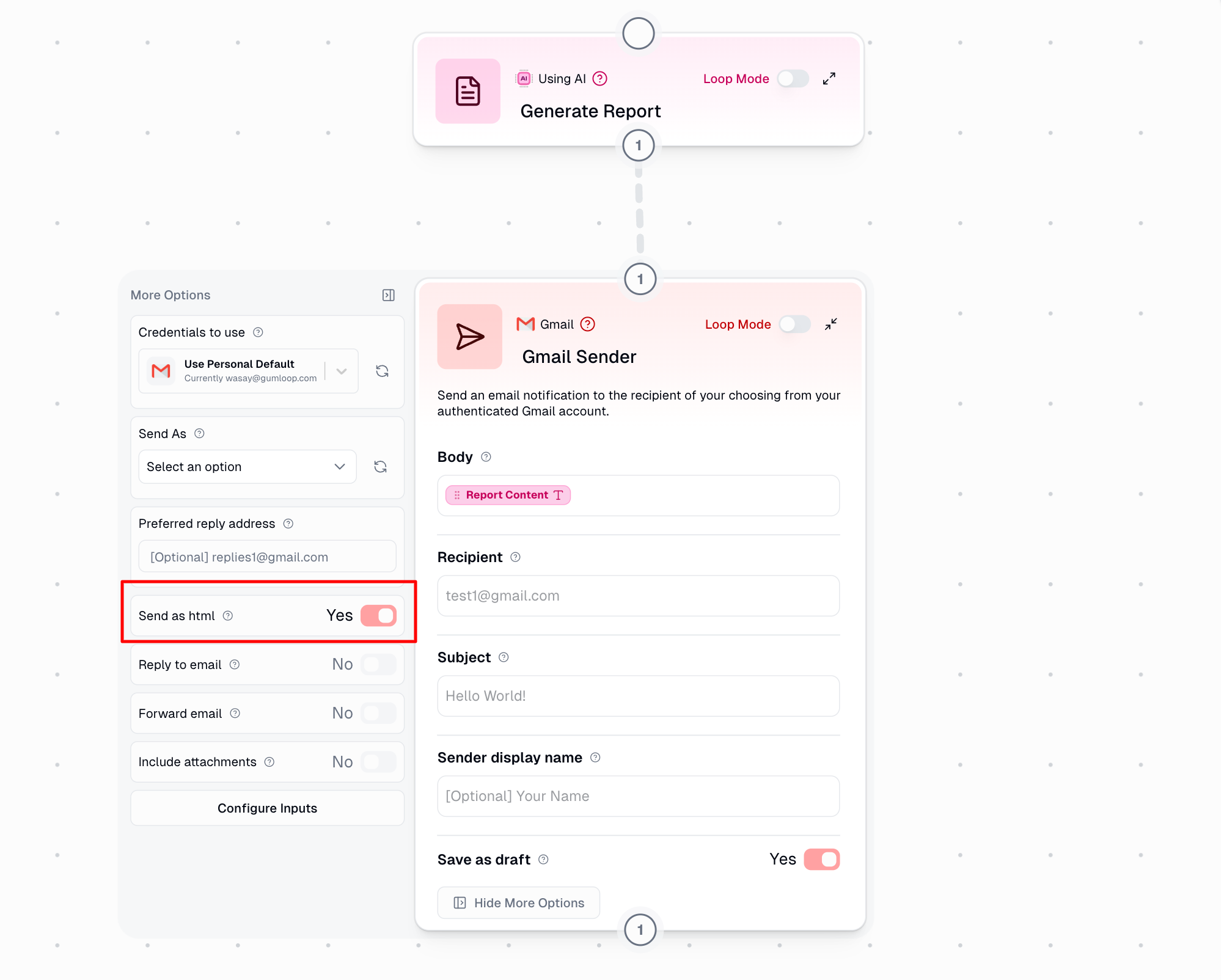
When using with email nodes, remember to enable "Send as HTML" in the email node settings
### Markdown Report Features
Ideal for technical documentation and platforms that support markdown rendering.
**Characteristics:**
* Clean, readable structure
* Tables for data visualization
* Status indicators with emojis
* Professional typography hierarchy
* Executive summaries with key takeaways
**Best For:**
* Technical documentation
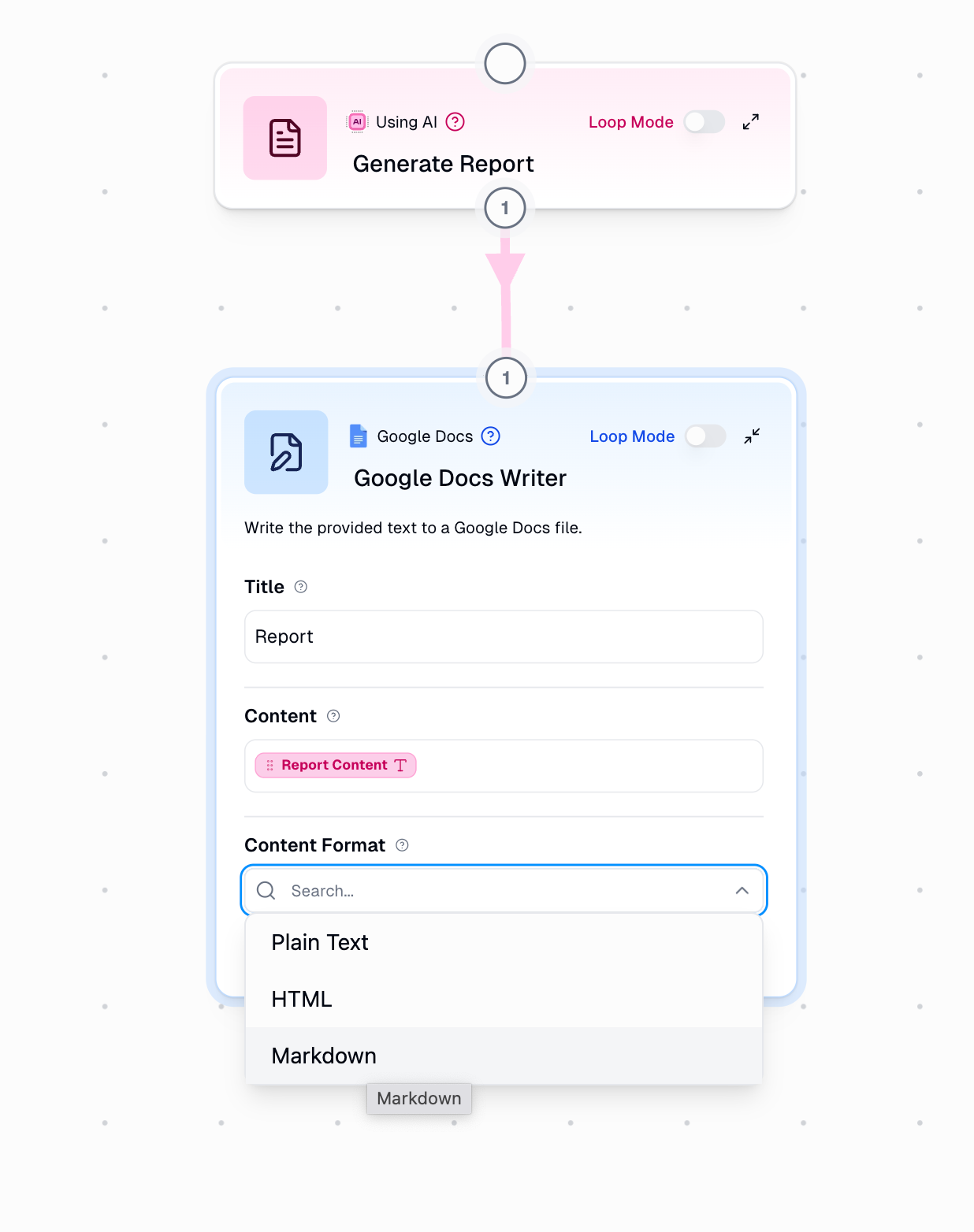
* Google Docs (enable markdown in Google Doc Writer)
* GitHub repositories
* Internal team documentation
* Project updates
### Slack Block Kit Features
Creates native Slack messages with rich formatting through Slack Block Kit Sender.
**Characteristics:**
* Native Slack formatting
* Header, section, and divider blocks
* Context and field blocks for metadata
* Text-only (no interactive buttons)
* Scannable layout
**Best For:**
* Team announcements
* Status updates
* Daily/weekly digests
* Project milestone notifications
Output is valid JSON ready to use with Slack Block Kit Sender node
## Common Use Cases
**Workflow Pattern:**
```
Google Sheets → Generate Report (HTML) → Gmail Sender
```
Pull data from spreadsheets, format as professional HTML report, and email to stakeholders
**Workflow Pattern:**
```
Data Source → Ask AI → Generate Report (HTML) → Gmail Sender
```
Analyze customer data with AI, format findings into report, and send to account managers
**Workflow Pattern:**
```
Multiple Sources → Generate Report (Slack) → Slack Sender
```
Combine information from various sources and post formatted update to Slack channel
**Workflow Pattern:**
```
Content Source → Generate Report (Markdown) → Google Doc Writer
```
Transform content into formatted documentation and save to Google Docs with markdown enabled
## Loop Mode Support
Generate Report fully supports Loop Mode for batch processing. This is perfect when you need to create multiple reports from a list of items.
**Scenario:** Generate individual reports for each sales rep's monthly performance
**Setup:**
1. Load sales data for all reps (returns a list)
2. Enable Loop Mode on Generate Report
3. Connect sales data to Report Content
4. Result: One formatted report per sales rep
**Input (List):**
```
[
"Rep: Alice, Sales: $50K, Deals: 12",
"Rep: Bob, Sales: $45K, Deals: 10",
"Rep: Carol, Sales: $62K, Deals: 15"
]
```
**Output:** Three separate formatted reports, one for each rep
## AI Model & Credit Costs
The Generate Report node uses AI completion to create formatted output. The credit cost depends on your selected AI model:
| Model Tier | Examples | Credits per Run |
| ---------- | ------------------------------ | --------------- |
| Standard | Claude 4.5 Haiku, GPT-5.4 Mini | 2 credits |
| Advanced | Claude 4.6 Sonnet, Grok 3 | 20 credits |
| Expert | Claude 4.8 Opus, GPT-5.5 | 30 credits |
**Total Cost:** Base workflow execution (1 credit) + AI model cost
You can configure your preferred AI model at the workflow or organization level. For most reports, Standard or Advanced tier provides excellent results.
## Integration Patterns
### Sending HTML Emails
Connect your content to Generate Report with Format set to **HTML**
Use either **Gmail Sender** or **Send Email Notification** node
In the email node settings, toggle on **"Send as HTML"**
Link the Report Content output to the email body input
### Writing to Google Docs
Set Report Format to **Markdown** in Generate Report node
Link Report Content to the content input
In Google Doc Writer node, enable **markdown rendering**
### Posting to Slack
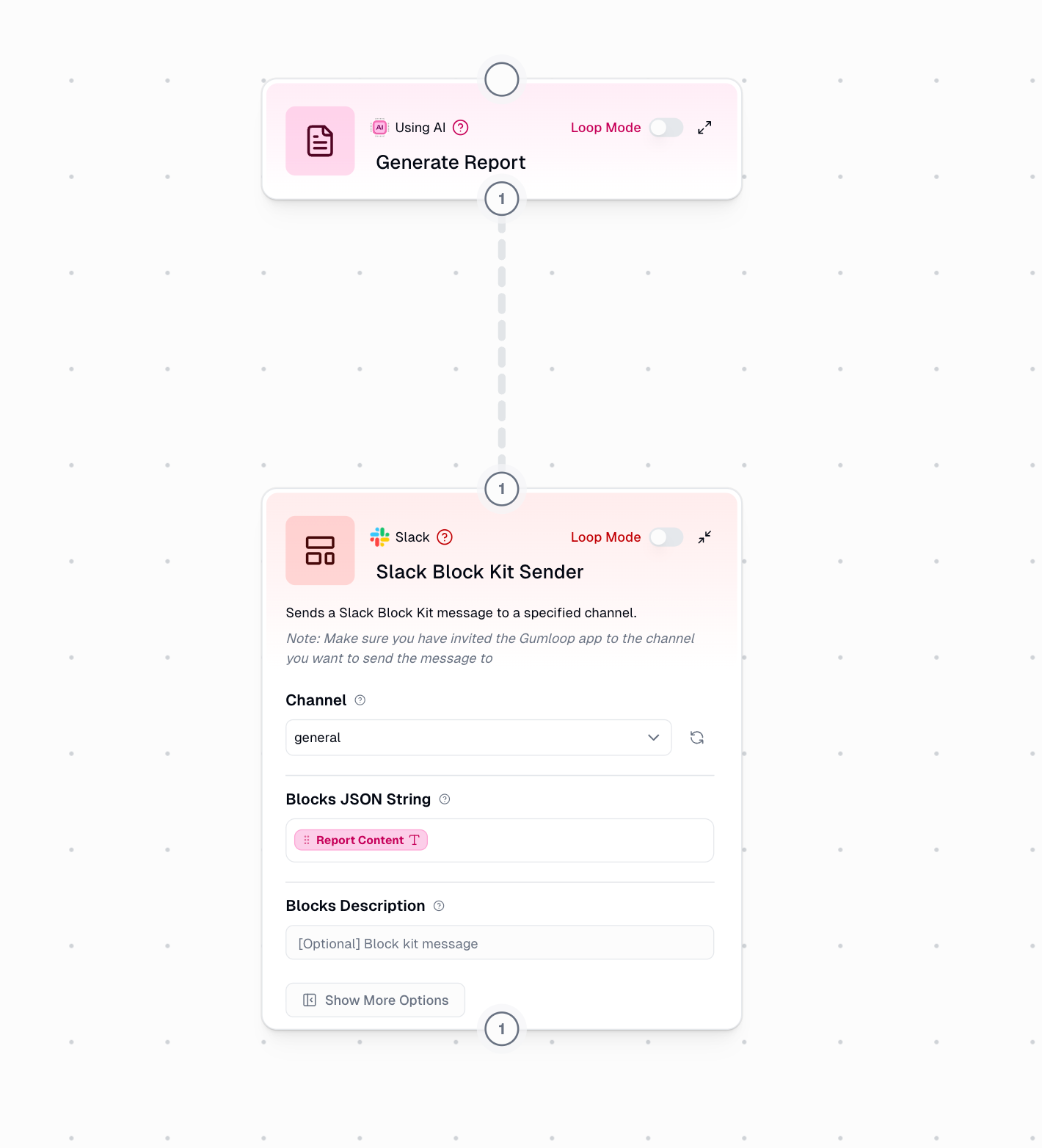
Set Report Format to **Slack Block Kit** in Generate Report node
Use **Slack Block Kit Sender** (not regular Slack Sender)
Connect Report Content to the blocks input
## Best Practices
* Provide structured input when possible (bullet points, sections)
* Include context about what the report is for
* Specify key metrics or data points to highlight
* Be specific: "Use blue (#0066cc) for headers" vs "use blue"
* Include format preferences: "Use tables for data"
* Specify tone if needed: "Professional and formal"
* **HTML**: Best for emails, formal reports, external sharing
* **Markdown**: Best for documentation, GitHub, technical reports
* **Slack Block Kit**: Best for team notifications, status updates
* Use square or horizontal logos (vertical may stretch)
* Optimal size: 200-400px wide
* Use PNG or SVG for transparency
* Ensure URL is publicly accessible
## Troubleshooting
**Cause:** Email node not set to send as HTML
**Solution:** Enable "Send as HTML" toggle in your Gmail Sender or Send Email Notification node settings
**Cause:** Logo URL is not publicly accessible or invalid
**Solution:**
1. Verify the URL works in a browser when not logged in
2. Check that the URL points directly to an image file
3. Ensure it's not behind any authentication
**Cause:** Markdown rendering not enabled in Google Doc Writer
**Solution:** Open the Google Doc Writer node settings and enable markdown rendering
**Cause:** Using regular Slack Sender instead of Slack Block Kit Sender
**Solution:** Use the **Slack Block Kit Sender** node specifically for Slack Block Kit formatted output
**Cause:** Extra Instructions may be too vague or conflicting
**Solution:**
1. Be more specific in your instructions
2. Try using a more advanced AI model
3. Test with different phrasings
## Tips for Great Reports
**Start Simple, Then Customize**
Begin with default settings to see what the node produces. Then add Extra Instructions to refine specific aspects you want to change.
**Test Your Output First**
Before using in production workflows:
* For HTML emails: Send a test to yourself
* For Slack: Test in a private channel
* For Google Docs: Create a test document first
**Consider Your Audience**
Choose your format based on who will read it:
* **HTML**: External stakeholders, executives
* **Markdown**: Technical teams, developers
* **Slack Block Kit**: Internal teams, quick updates
## Related Nodes
Generate content or analysis that feeds into Generate Report
Send HTML reports via email
Post formatted reports to Slack channels
Write markdown reports to Google Docs
When an error occurs (rate limits, provider outages, timeouts), the system retries based on severity, then falls back to the next model. Fallback models are always from different providers for true redundancy.
| Error Type | Retries Before Fallback |
| ------------- | ----------------------- |
| Rate Limit | 2 |
| Provider 5xx | 1 |
| Network Error | 0 (immediate) |
| Timeout | 1 |
**Default (Auto):** System auto-selects fallbacks based on your primary model:
* Expert → Claude 4.8 Opus → GPT-5.5 → Gemini 3.1 Pro
* Fastest → Gemini 3.5 Flash → Claude 4.5 Haiku → GPT-5.4 Mini
* Recommended → GPT-5.4 Mini → Claude 4.5 Haiku → Gemini 3.5 Flash
**Override:** Enable to manually select up to 2 fallback models with drag-and-drop priority.
Disabling fallback means your node will fail if the primary model is unavailable.
## Node Output
The complete, professionally formatted report ready to use:
* **HTML**: Complete HTML that can be sent directly via email
* **Markdown**: Rendered markdown with tables, headers, and formatting
* **Slack Block Kit**: Valid JSON that can be posted directly to Slack's API
All output is cleaned and ready to use without additional processing.
## How It Works
The node examines your raw content to understand its structure and key information
Based on your selected format, AI applies sophisticated formatting rules to create a polished report with proper hierarchy, styling, and layout
The formatted report is generated in your chosen format, ready to send to its destination
## Format Details
### HTML Report Features
Perfect for sending professional emails through Gmail Sender or Send Email Notification nodes.
**Characteristics:**
* Gmail-compatible table-based layout
* Responsive design (mobile-friendly)
* Inline CSS styling
* Optional company logo placement
* Professional color schemes
**Best For:**
* Weekly status reports to management
* Customer-facing communications
* Executive summaries
* External stakeholder updates
When using with email nodes, remember to enable "Send as HTML" in the email node settings
### Markdown Report Features
Ideal for technical documentation and platforms that support markdown rendering.
**Characteristics:**
* Clean, readable structure
* Tables for data visualization
* Status indicators with emojis
* Professional typography hierarchy
* Executive summaries with key takeaways
**Best For:**
* Technical documentation
* Google Docs (enable markdown in Google Doc Writer)
* GitHub repositories
* Internal team documentation
* Project updates
### Slack Block Kit Features
Creates native Slack messages with rich formatting through Slack Block Kit Sender.
**Characteristics:**
* Native Slack formatting
* Header, section, and divider blocks
* Context and field blocks for metadata
* Text-only (no interactive buttons)
* Scannable layout
**Best For:**
* Team announcements
* Status updates
* Daily/weekly digests
* Project milestone notifications
Output is valid JSON ready to use with Slack Block Kit Sender node
## Common Use Cases
**Workflow Pattern:**
```
Google Sheets → Generate Report (HTML) → Gmail Sender
```
Pull data from spreadsheets, format as professional HTML report, and email to stakeholders
**Workflow Pattern:**
```
Data Source → Ask AI → Generate Report (HTML) → Gmail Sender
```
Analyze customer data with AI, format findings into report, and send to account managers
**Workflow Pattern:**
```
Multiple Sources → Generate Report (Slack) → Slack Sender
```
Combine information from various sources and post formatted update to Slack channel
**Workflow Pattern:**
```
Content Source → Generate Report (Markdown) → Google Doc Writer
```
Transform content into formatted documentation and save to Google Docs with markdown enabled
## Loop Mode Support
Generate Report fully supports Loop Mode for batch processing. This is perfect when you need to create multiple reports from a list of items.
**Scenario:** Generate individual reports for each sales rep's monthly performance
**Setup:**
1. Load sales data for all reps (returns a list)
2. Enable Loop Mode on Generate Report
3. Connect sales data to Report Content
4. Result: One formatted report per sales rep
**Input (List):**
```
[
"Rep: Alice, Sales: $50K, Deals: 12",
"Rep: Bob, Sales: $45K, Deals: 10",
"Rep: Carol, Sales: $62K, Deals: 15"
]
```
**Output:** Three separate formatted reports, one for each rep
## AI Model & Credit Costs
The Generate Report node uses AI completion to create formatted output. The credit cost depends on your selected AI model:
| Model Tier | Examples | Credits per Run |
| ---------- | ------------------------------ | --------------- |
| Standard | Claude 4.5 Haiku, GPT-5.4 Mini | 2 credits |
| Advanced | Claude 4.6 Sonnet, Grok 3 | 20 credits |
| Expert | Claude 4.8 Opus, GPT-5.5 | 30 credits |
**Total Cost:** Base workflow execution (1 credit) + AI model cost
You can configure your preferred AI model at the workflow or organization level. For most reports, Standard or Advanced tier provides excellent results.
## Integration Patterns
### Sending HTML Emails
Connect your content to Generate Report with Format set to **HTML**
Use either **Gmail Sender** or **Send Email Notification** node
In the email node settings, toggle on **"Send as HTML"**
Link the Report Content output to the email body input
### Writing to Google Docs
Set Report Format to **Markdown** in Generate Report node
Link Report Content to the content input
In Google Doc Writer node, enable **markdown rendering**
### Posting to Slack
Set Report Format to **Slack Block Kit** in Generate Report node
Use **Slack Block Kit Sender** (not regular Slack Sender)
Connect Report Content to the blocks input
## Best Practices
* Provide structured input when possible (bullet points, sections)
* Include context about what the report is for
* Specify key metrics or data points to highlight
* Be specific: "Use blue (#0066cc) for headers" vs "use blue"
* Include format preferences: "Use tables for data"
* Specify tone if needed: "Professional and formal"
* **HTML**: Best for emails, formal reports, external sharing
* **Markdown**: Best for documentation, GitHub, technical reports
* **Slack Block Kit**: Best for team notifications, status updates
* Use square or horizontal logos (vertical may stretch)
* Optimal size: 200-400px wide
* Use PNG or SVG for transparency
* Ensure URL is publicly accessible
## Troubleshooting
**Cause:** Email node not set to send as HTML
**Solution:** Enable "Send as HTML" toggle in your Gmail Sender or Send Email Notification node settings
**Cause:** Logo URL is not publicly accessible or invalid
**Solution:**
1. Verify the URL works in a browser when not logged in
2. Check that the URL points directly to an image file
3. Ensure it's not behind any authentication
**Cause:** Markdown rendering not enabled in Google Doc Writer
**Solution:** Open the Google Doc Writer node settings and enable markdown rendering
**Cause:** Using regular Slack Sender instead of Slack Block Kit Sender
**Solution:** Use the **Slack Block Kit Sender** node specifically for Slack Block Kit formatted output
**Cause:** Extra Instructions may be too vague or conflicting
**Solution:**
1. Be more specific in your instructions
2. Try using a more advanced AI model
3. Test with different phrasings
## Tips for Great Reports
**Start Simple, Then Customize**
Begin with default settings to see what the node produces. Then add Extra Instructions to refine specific aspects you want to change.
**Test Your Output First**
Before using in production workflows:
* For HTML emails: Send a test to yourself
* For Slack: Test in a private channel
* For Google Docs: Create a test document first
**Consider Your Audience**
Choose your format based on who will read it:
* **HTML**: External stakeholders, executives
* **Markdown**: Technical teams, developers
* **Slack Block Kit**: Internal teams, quick updates
## Related Nodes
Generate content or analysis that feeds into Generate Report
Send HTML reports via email
Post formatted reports to Slack channels
Write markdown reports to Google Docs