> ## Documentation Index
> Fetch the complete documentation index at: https://docs.gumloop.com/llms.txt
> Use this file to discover all available pages before exploring further.
# PDF Reader
The PDF Reader node extracts text content from PDF files with flexible reading modes to handle everything from simple text-based documents to complex scanned files.
## Overview
Extract text directly from PDFs at no additional cost
AI-powered structured extraction optimized for LLM processing
Read scanned documents and image-based PDFs with AI vision
## Reading Modes
Choose the right reading mode based on your PDF type and use case:
**Best for:** Text-based PDFs with selectable text
* Uses direct text extraction
* Fastest processing speed
* **Cost:** 0 additional credits
* **Limitations:** Cannot read scanned images or handwritten content
**Best for:** Complex PDFs being processed by AI nodes
* Structured content extraction
* Optimized for Large Language Models
* Page-level chunking
* **Cost:** +5 credits per execution
* Handles large documents (up to 5 minute timeout)
**Best for:** Scanned documents, image-based PDFs, handwritten content
* Uses AI vision models for text recognition
* Processes handwriting and multiple languages
* **Cost:** 2-20 credits depending on AI model:
* GPT-5.4 Mini Vision: 2 credits
* Claude 4.5 Haiku: 2 credits
* GPT-5.4 Vision: 20 credits
* Claude 4.6 Sonnet: 20 credits
* Gemini 3.5 Flash/3.1 Pro: Variable
## Configuration
### Required Inputs
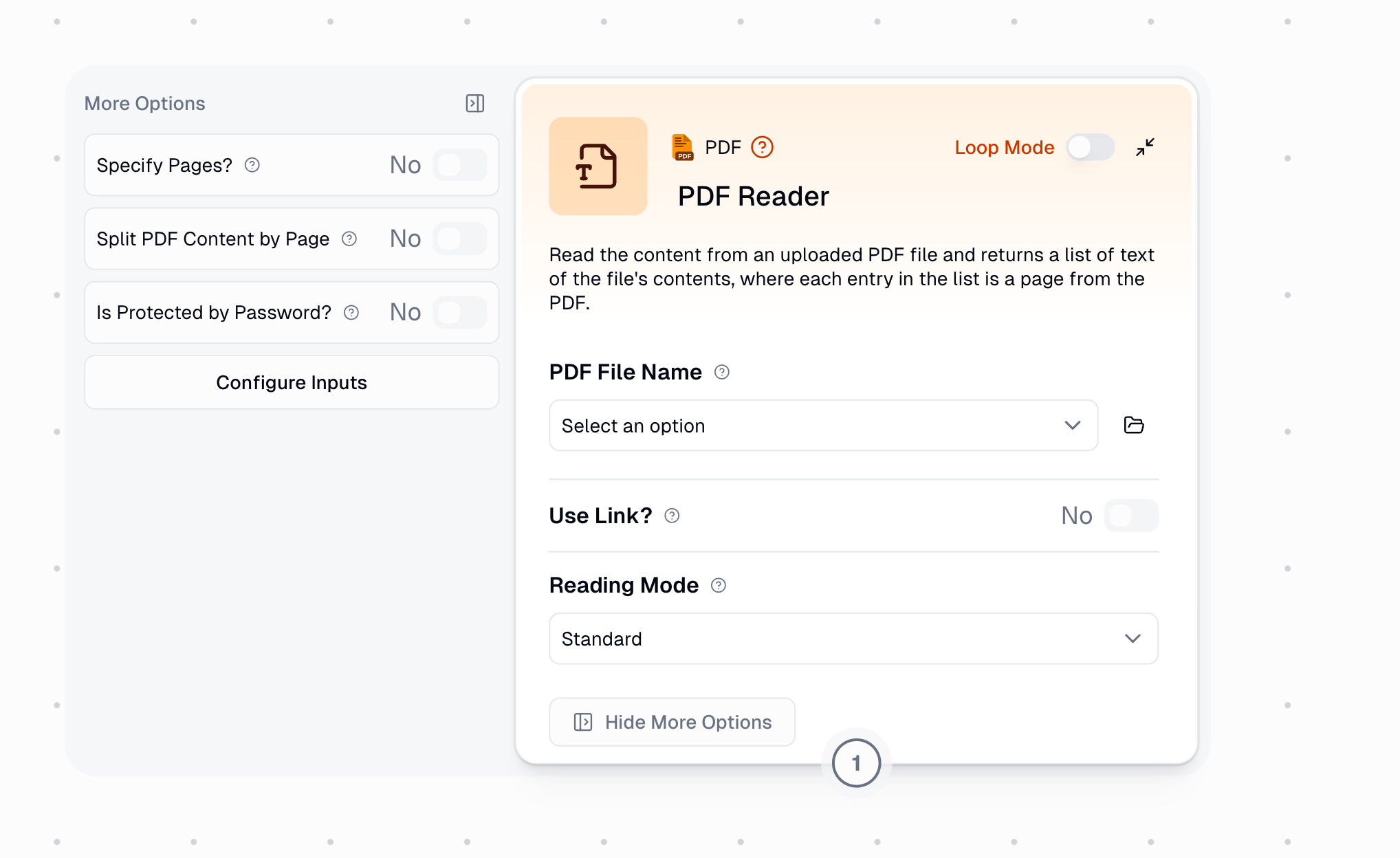
The PDF file to extract text from. This is a **file picker** that allows you to:
* Upload a new file directly
* Select an existing file from storage
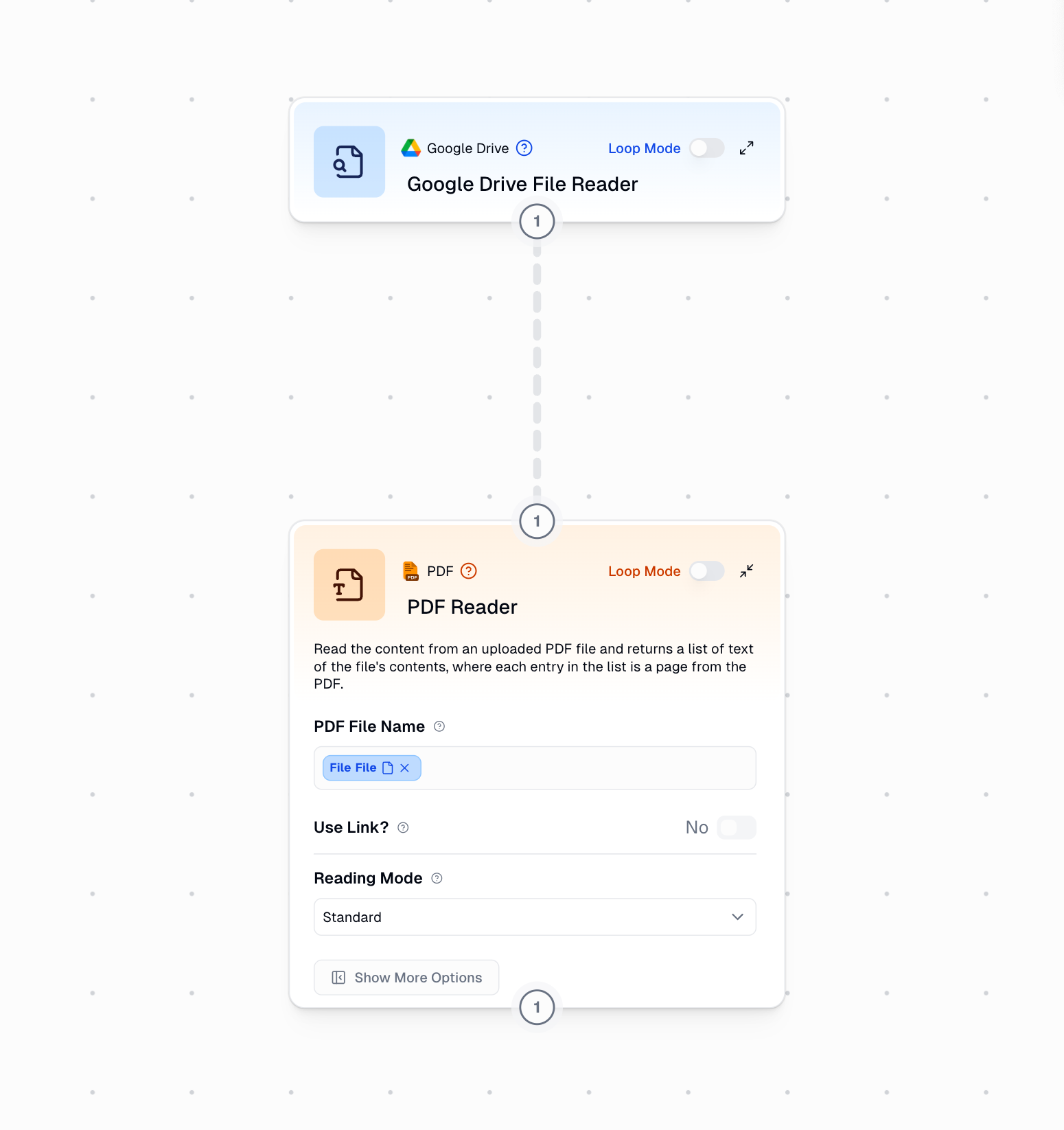
* **Dynamically pass in a file** from other nodes (like Google Drive)
Only shown when "Use Link?" is disabled. Accepts `.pdf` files only.
### Dynamic File Input
To pass PDF files dynamically from other nodes (such as files retrieved from Google Drive):
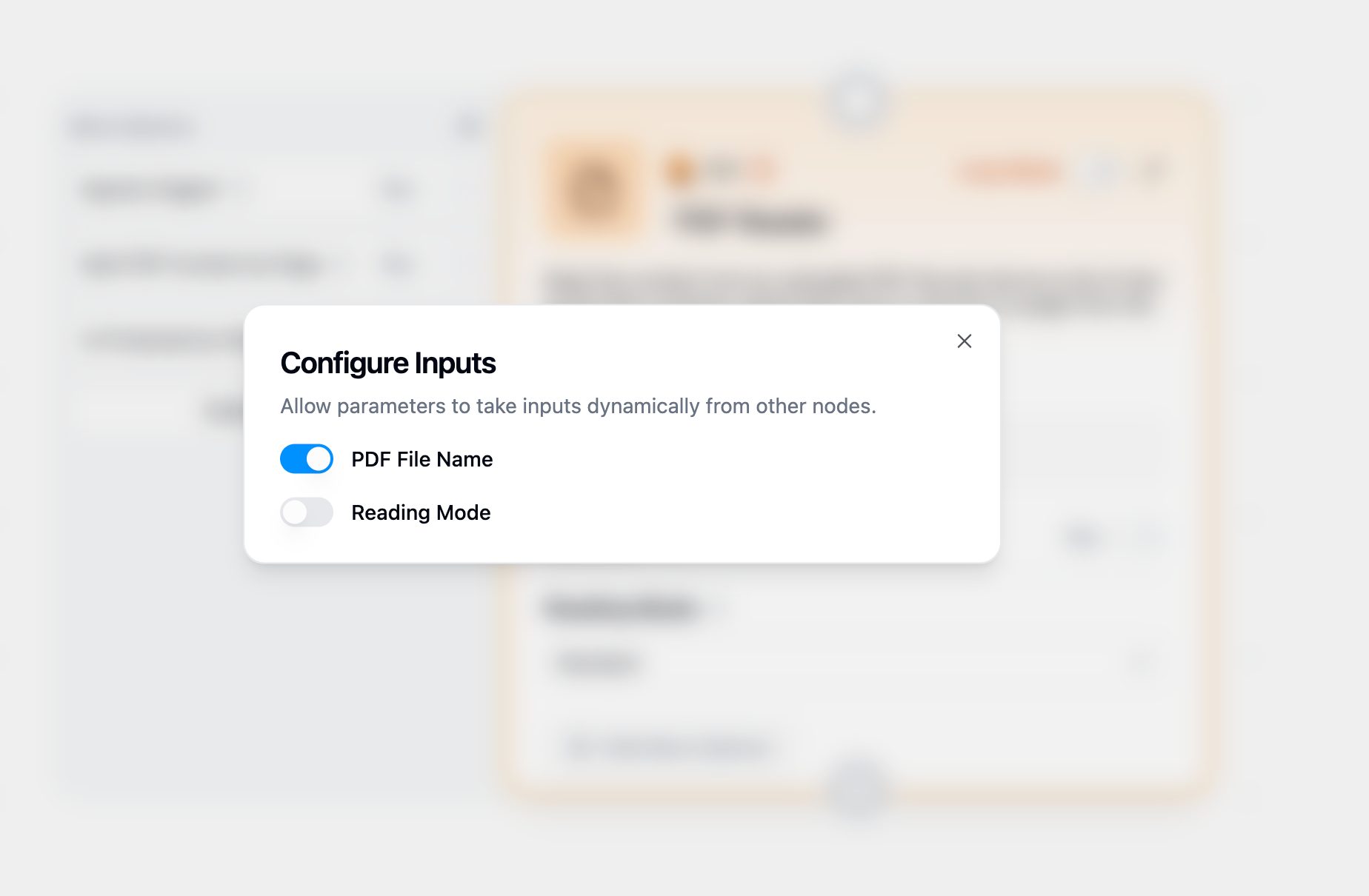
Hover over the PDF Reader node and click **"Configure inputs"**
In the configuration panel, enable **"PDF File Name"** as a dynamic input
Connect the file output from another node (like Google Drive File Reader) to the PDF File Name input
### Optional Settings
Enable to read PDF from a URL instead of an uploaded file.
When enabled, you'll provide a **File URL** instead of uploading.
Direct link to a publicly accessible PDF file.
Example: `https://example.com/document.pdf`
URL must be publicly accessible without authentication.
Choose how the PDF should be processed:
* **Standard**: Direct text extraction (0 credits)
* **Advanced**: AI-powered structured reading (+5 credits)
* **OCR**: Optical character recognition (cost varies by model)
Enable to read only specific pages instead of the entire document.
Comma-separated page numbers and ranges.
**Format examples:**
* `1-5` (reads pages 1 through 5)
* `1, 3, 5` (reads pages 1, 3, and 5)
* `1-5, 8, 11-13` (reads pages 1-5, 8, and 11-13)
Page numbers are 1-indexed (first page is page 1).
Controls how extracted text is returned:
* **Enabled**: Returns a list where each item is one page
* **Disabled**: Returns all content as a single combined text string
Enable this when you need to process pages individually in Loop Mode.
Enable if your PDF requires a password to open.
The password needed to decrypt and read the PDF file.
Works with both Standard and Advanced reading modes.
## Output
The extracted text content from the PDF.
**Output type depends on configuration:**
* If "Split PDF Content by Page" is **enabled**: Returns `string[]` (list of pages)
* If "Split PDF Content by Page" is **disabled**: Returns `string` (combined text)
Each page's content is preserved in order. When combined, pages are separated by newline characters.
## Common Use Cases
Extract all text from a standard PDF document at no additional cost.
**Configuration:**
* Reading Mode: Standard
* Split PDF Content by Page: Disabled
**Result:** Complete document text as a single string
Process complex PDFs with tables and formatting for AI analysis.
**Configuration:**
* Reading Mode: Advanced (+5 credits)
* Connect output to Ask AI or Extract Data nodes
**Result:** Structured content optimized for AI processing
Convert scanned PDFs or image-based documents to text.
**Configuration:**
* Reading Mode: OCR
* Choose appropriate AI model (Mini models for cost savings)
**Result:** Extracted text from non-selectable content
Extract and analyze specific pages from large documents.
**Configuration:**
* Specify Pages: Enabled
* Page Numbers: "1-3, 10"
* Split PDF Content by Page: Enabled
**Result:** List containing only selected pages
## Credit Costs
| Reading Mode | Additional Cost | Best For |
| ------------ | --------------- | -------------------------------------- |
| **Standard** | 0 credits | Text-based PDFs with selectable text |
| **Advanced** | +5 credits | Complex documents for AI processing |
| **OCR** | 2-20 credits | Scanned documents, depends on AI model |
**Cost optimization tips:**
* Use Standard mode whenever possible to save credits
* Choose Mini models (GPT-5.4 Mini, Claude 4.5 Haiku) for OCR when quality permits
* Test with single documents before batch processing
* Use page selection to process only needed sections
## Troubleshooting
**Problem:** PDF Reader returns blank text or missing content
**Solutions:**
* Check if PDF contains selectable text (try highlighting text in a PDF viewer)
* For scanned documents, switch to **OCR mode**
* For image-based PDFs, use **OCR mode** instead of Standard
* Verify the PDF isn't corrupted by opening it in another application
**Problem:** Error message when trying to read a password-protected PDF
**Solutions:**
* Enable **"Is Protected by Password?"** option
* Enter the correct password in the **Password** field
* Verify password works by testing in a PDF viewer first
* Some PDFs have restrictions on copying/extraction - OCR mode may help
**Problem:** Cannot read PDF from provided URL
**Solutions:**
* Ensure URL points directly to a PDF file (ends in `.pdf`)
* Verify URL is publicly accessible (no login required)
* Check URL doesn't expire or require authentication
* Try downloading the PDF manually to test URL validity
**Problem:** PDF processing exceeds timeout limits
**Solutions:**
* Use **page selection** to process only needed pages
* Split large documents into smaller files
* Consider using Standard mode instead of Advanced for faster processing
* For very large documents, process in batches using Loop Mode
## Related Nodes
Pull structured information from extracted PDF text
Query document content with natural language questions
Read non-PDF document formats
Fill PDF forms with AI-generated content
## Batch Processing
The PDF Reader node supports **Loop Mode** for processing multiple PDFs in a single workflow.
When using Loop Mode:
* Each PDF in the input list is processed independently
* Consider credit costs when processing large batches
* Use "Split PDF Content by Page" to handle per-page analysis across multiple documents
**Example batch workflow:**
1. Provide a list of PDF files as input
2. Enable Loop Mode on PDF Reader
3. Each PDF is read and processed sequentially
4. Combine node aggregates all results