> ## Documentation Index
> Fetch the complete documentation index at: https://docs.gumloop.com/llms.txt
> Use this file to discover all available pages before exploring further.
# Custom MCP Servers
> Connect your own MCP servers to Gumloop for extended AI capabilities.
Gumloop supports connecting to any [Model Context Protocol (MCP)](https://www.gumloop.com/blog/what-is-mcp-model-context-protocol-a-simple-guide) server. This lets you extend your agents and workflows with specialized tools, internal services, or any MCP-compatible API.
Gumloop already has **50+ pre-built MCP servers** for popular services like GitHub, Slack, Notion, HubSpot, and more. These work out of the box with agents and workflows. [Browse available integrations](/nodes/mcp) before setting up a custom server.
## Adding a Custom MCP Server
Setting up a custom MCP server takes just a few steps.
Navigate to **Settings > [Credentials](https://www.gumloop.com/settings/profile/credentials?provider=mcp%20server)** and search for "MCP Server" in the available integrations.
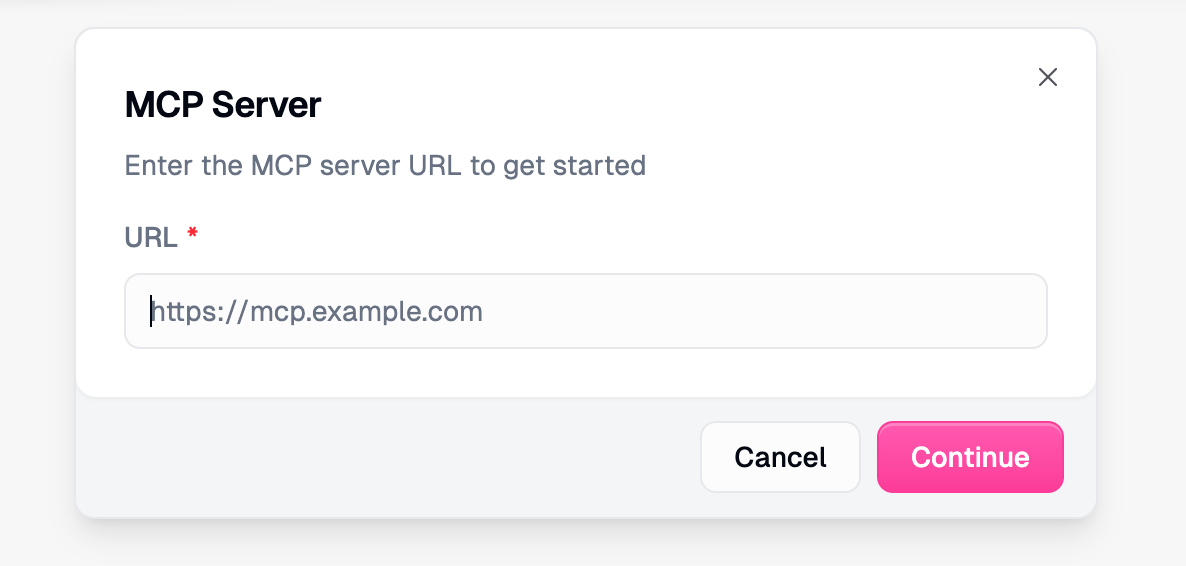
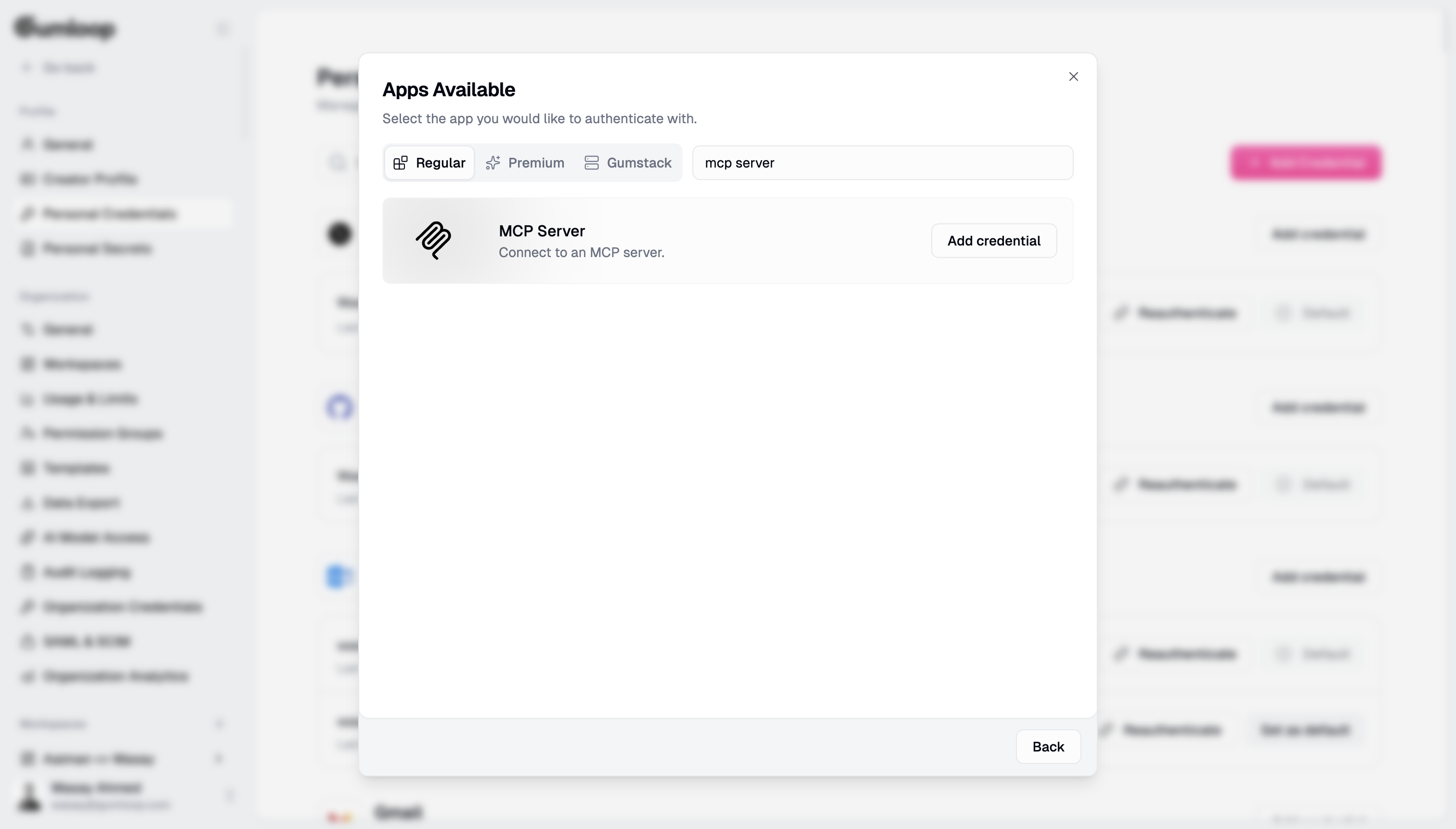 Click **Add credential** and enter your MCP server's URL. The URL must use HTTPS.
 Fill in the server details:
| Field | Description | Required |
| -------------------------- | -------------------------------------------------------- | --------------------- |
| **Label** | A unique name for this server (e.g., `slack-mcp-server`) | Yes |
| **Access Token / API Key** | OAuth token or API key for authentication | If required by server |
| **Additional Header** | Custom header in `Header-Name: value` format | Optional |
Fill in the server details:
| Field | Description | Required |
| -------------------------- | -------------------------------------------------------- | --------------------- |
| **Label** | A unique name for this server (e.g., `slack-mcp-server`) | Yes |
| **Access Token / API Key** | OAuth token or API key for authentication | If required by server |
| **Additional Header** | Custom header in `Header-Name: value` format | Optional |
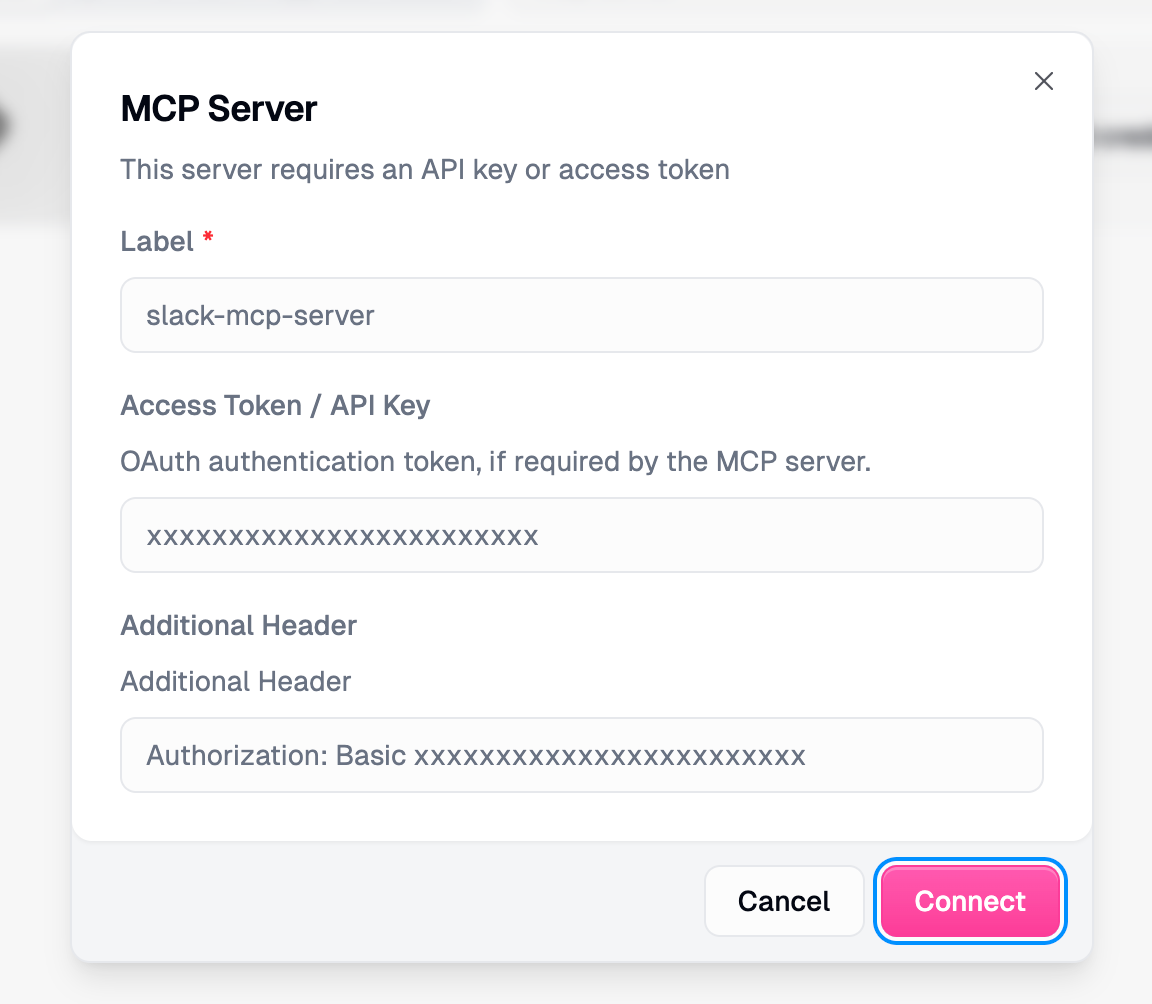 Click **Connect** to save your credential. The server is now available to use in your agents and workflows.
**Team vs Personal credentials**: Credentials can be stored at the personal level (only you can use them) or team level (shared with your team). Choose the appropriate scope when setting up. [Learn more about credentials here](/core-concepts/credentials#personal-vs-team-apps)
## Requirements
Custom MCP servers must meet these requirements:
| Requirement | Details |
| ----------------- | ------------------------------------------------- |
| **Protocol** | HTTPS only (HTTP not supported) |
| **Accessibility** | Must be publicly accessible on the internet |
| **Transport** | Streamable HTTP or Server-Sent Events (SSE) |
| **Local servers** | Not supported (no STDIO or localhost connections) |
**Local MCP servers won't work.** Your server must be deployed to a publicly accessible URL. Services like [Cloudflare Tunnels](https://developers.cloudflare.com/cloudflare-one/connections/connect-networks/) or [ngrok](https://ngrok.com/) can expose local servers if needed.
### Authentication Options
Gumloop supports multiple authentication methods:
* **Bearer tokens**: Standard OAuth/API key authentication. When you provide an **Access Token / API Key**, Gumloop sends it as an `Authorization: Bearer ` header with every request to your MCP server.
* **Custom headers**: For services requiring specific header formats. The **Additional Header** field accepts a single header in `Header-Name: value` format (e.g., `X-API-Key: my-secret-key`). This is useful for MCP servers that expect authentication in a non-standard header.
* **OAuth discovery**: Automatic OAuth flow discovery (RFC 8414) for compatible servers
## Where You Can Use Custom MCP Servers
Once configured, your custom MCP servers can be used in two places: **Agents** and the **Ask AI node**.
### Using MCP Servers with Agents
Agents offer the most flexible way to use custom MCP servers. The AI can discover all available tools and use them naturally in conversation.
Go to your agent's settings and click **Add tools**.
Choose **MCP Server** as the tool type and search for your configured server under the **Custom** tab.
Click **Connect** to save your credential. The server is now available to use in your agents and workflows.
**Team vs Personal credentials**: Credentials can be stored at the personal level (only you can use them) or team level (shared with your team). Choose the appropriate scope when setting up. [Learn more about credentials here](/core-concepts/credentials#personal-vs-team-apps)
## Requirements
Custom MCP servers must meet these requirements:
| Requirement | Details |
| ----------------- | ------------------------------------------------- |
| **Protocol** | HTTPS only (HTTP not supported) |
| **Accessibility** | Must be publicly accessible on the internet |
| **Transport** | Streamable HTTP or Server-Sent Events (SSE) |
| **Local servers** | Not supported (no STDIO or localhost connections) |
**Local MCP servers won't work.** Your server must be deployed to a publicly accessible URL. Services like [Cloudflare Tunnels](https://developers.cloudflare.com/cloudflare-one/connections/connect-networks/) or [ngrok](https://ngrok.com/) can expose local servers if needed.
### Authentication Options
Gumloop supports multiple authentication methods:
* **Bearer tokens**: Standard OAuth/API key authentication. When you provide an **Access Token / API Key**, Gumloop sends it as an `Authorization: Bearer ` header with every request to your MCP server.
* **Custom headers**: For services requiring specific header formats. The **Additional Header** field accepts a single header in `Header-Name: value` format (e.g., `X-API-Key: my-secret-key`). This is useful for MCP servers that expect authentication in a non-standard header.
* **OAuth discovery**: Automatic OAuth flow discovery (RFC 8414) for compatible servers
## Where You Can Use Custom MCP Servers
Once configured, your custom MCP servers can be used in two places: **Agents** and the **Ask AI node**.
### Using MCP Servers with Agents
Agents offer the most flexible way to use custom MCP servers. The AI can discover all available tools and use them naturally in conversation.
Go to your agent's settings and click **Add tools**.
Choose **MCP Server** as the tool type and search for your configured server under the **Custom** tab.
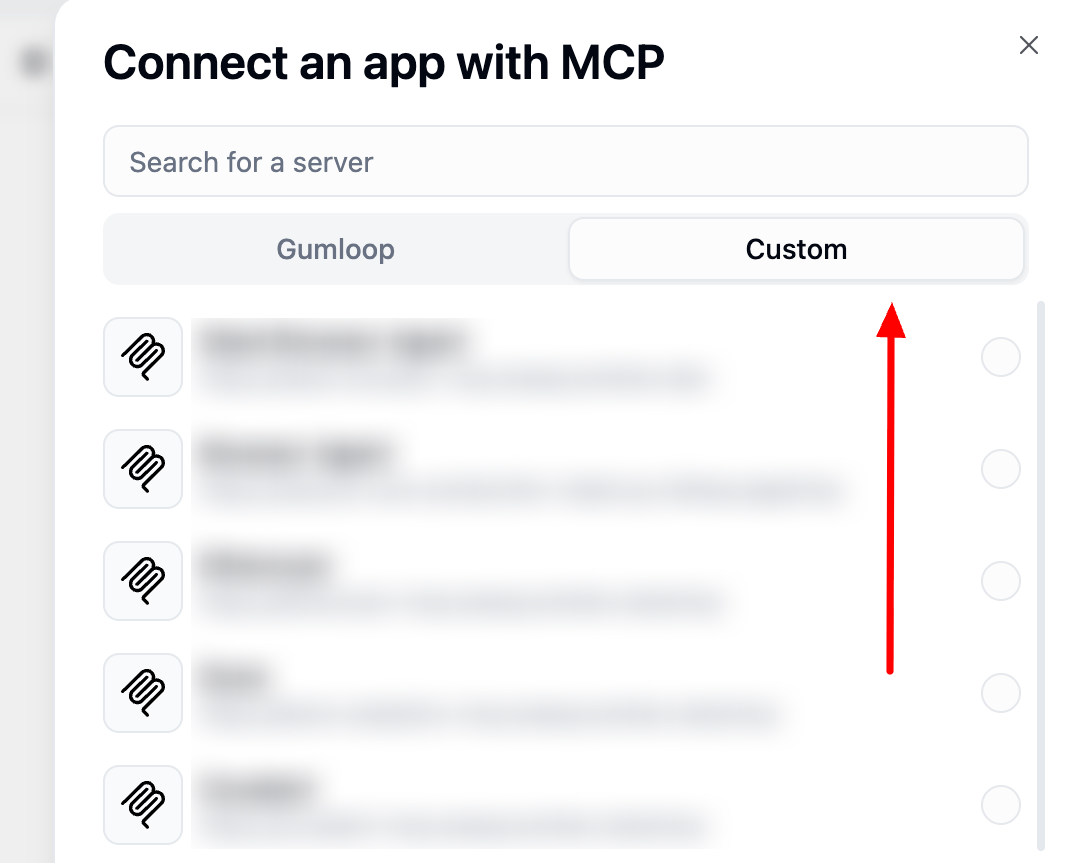 Your agent now has access to all tools from the MCP server. It will automatically discover and use them based on conversation context.
**Why agents are more flexible:**
* **Conversational context**: The agent maintains conversation history and can use tools across multiple turns
* **Automatic tool selection**: The agent chooses the right tool based on your request
* **Multi-server support**: Connect multiple MCP servers and let the agent orchestrate between them
* **No workflow required**: Use immediately in chat, Slack, or embedded interfaces
### Using MCP Servers with Ask AI Node
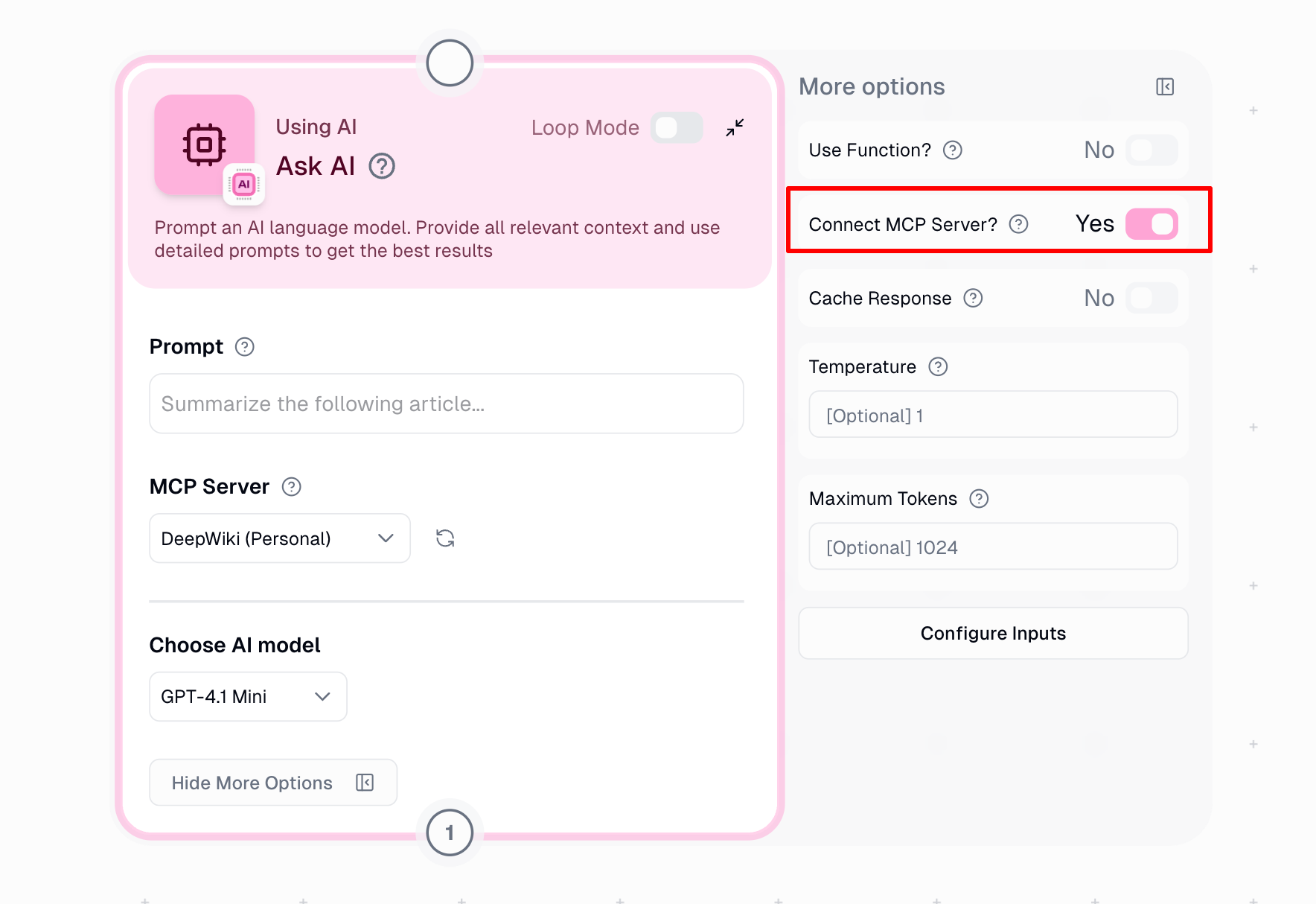
For deterministic workflows, you can connect MCP servers to the Ask AI node.
Drag an Ask AI node onto your canvas.
Click **Show more options**, then toggle **Connect MCP Server?** to ON.
Choose your configured MCP server(s) from the dropdown. You can select multiple servers.
Your agent now has access to all tools from the MCP server. It will automatically discover and use them based on conversation context.
**Why agents are more flexible:**
* **Conversational context**: The agent maintains conversation history and can use tools across multiple turns
* **Automatic tool selection**: The agent chooses the right tool based on your request
* **Multi-server support**: Connect multiple MCP servers and let the agent orchestrate between them
* **No workflow required**: Use immediately in chat, Slack, or embedded interfaces
### Using MCP Servers with Ask AI Node
For deterministic workflows, you can connect MCP servers to the Ask AI node.
Drag an Ask AI node onto your canvas.
Click **Show more options**, then toggle **Connect MCP Server?** to ON.
Choose your configured MCP server(s) from the dropdown. You can select multiple servers.
 **When to use Ask AI node with MCP:**
* Building repeatable, production workflows
* Need specific tool calls as part of a larger automation
* Want to combine MCP tools with other Gumloop nodes
### Comparison: Agents vs Ask AI Node
| Capability | Agents | Ask AI Node |
| -------------------- | ---------------------------------- | ------------------------------- |
| **Flexibility** | High: conversational, multi-turn | Medium: single prompt execution |
| **Tool discovery** | Automatic | Automatic |
| **Multi-server** | Yes | Yes |
| **Best for** | Interactive use, complex reasoning | Workflows, batch processing |
| **Approval prompts** | Not available | Not available |
## Model-Specific Differences
Custom MCP servers work across all models in Gumloop, but how they run depends on the provider:
| Model | Provider | How MCP Tools Run |
| ----------------- | --------- | ----------------------------------------------- |
| GPT-5 | OpenAI | Native MCP |
| GPT-4.1 | OpenAI | Native MCP |
| Claude 4 Sonnet | Anthropic | Native MCP |
| Claude 3.7 Sonnet | Anthropic | Native MCP |
| Gemini | Google | Backend connector (Gumloop executes tool calls) |
| Groq models | Groq | Backend connector (Gumloop executes tool calls) |
* **Native MCP**: The provider (OpenAI/Anthropic) connects directly to your MCP server and executes tools.
* **Backend connector (Gumloop executes tool calls)**: Gumloop connects to your server and presents tools as regular function calls; when invoked, Gumloop executes them and returns results to the model.
### Header Handling by Model
| Execution Method | Bearer Token | Additional Header |
| ----------------------------------- | --------------------------------------- | ----------------- |
| **OpenAI (Native MCP)** | Sent as `Authorization: Bearer ` | Sent as-is |
| **Anthropic (Native MCP)** | Sent as authorization token | Not forwarded |
| **Gemini/Groq (backend connector)** | Sent as `Authorization: Bearer ` | Sent as-is |
Anthropic models do not forward custom headers. If your MCP server relies on a custom header (e.g., `X-API-Key`), use the **Access Token / API Key** field with a Bearer token instead, or choose OpenAI, Gemini, or Groq.
## Security Considerations
Information in your prompts may be sent to your MCP server. Be mindful of sensitive data and review your server's data handling policies.
All tools exposed by your MCP server are immediately available to the AI. There are no approval prompts before tool execution. Use appropriate authorization scopes to limit access.
When using multiple MCP servers, consider that data retrieved from one server could be passed to another. Design your prompts accordingly.
## Troubleshooting
| Issue | Solution |
| --------------------- | -------------------------------------------------------- |
| Cannot connect | Verify URL is HTTPS and publicly accessible |
| Authentication failed | Check token validity and expiration |
| Tools not appearing | Ensure the server implements MCP tool discovery |
| AI ignoring tools | Be more explicit in your prompt about which tools to use |
| Timeout errors | Server may be slow or unreachable. Check server status. |
**Test with discovery first.** Ask your agent or Ask AI node to "list available tools" to verify the connection is working before building complex workflows.
## Further Reading
* [What is MCP? A Simple Guide](https://www.gumloop.com/blog/what-is-mcp-model-context-protocol-a-simple-guide)
* [Introducing MCP Workflows in Gumloop](https://www.gumloop.com/blog/introducing-mcp-workflows)
* [MCP Nodes Best Practices](https://www.gumloop.com/university/video/mcp-nodes-best-practices)
**When to use Ask AI node with MCP:**
* Building repeatable, production workflows
* Need specific tool calls as part of a larger automation
* Want to combine MCP tools with other Gumloop nodes
### Comparison: Agents vs Ask AI Node
| Capability | Agents | Ask AI Node |
| -------------------- | ---------------------------------- | ------------------------------- |
| **Flexibility** | High: conversational, multi-turn | Medium: single prompt execution |
| **Tool discovery** | Automatic | Automatic |
| **Multi-server** | Yes | Yes |
| **Best for** | Interactive use, complex reasoning | Workflows, batch processing |
| **Approval prompts** | Not available | Not available |
## Model-Specific Differences
Custom MCP servers work across all models in Gumloop, but how they run depends on the provider:
| Model | Provider | How MCP Tools Run |
| ----------------- | --------- | ----------------------------------------------- |
| GPT-5 | OpenAI | Native MCP |
| GPT-4.1 | OpenAI | Native MCP |
| Claude 4 Sonnet | Anthropic | Native MCP |
| Claude 3.7 Sonnet | Anthropic | Native MCP |
| Gemini | Google | Backend connector (Gumloop executes tool calls) |
| Groq models | Groq | Backend connector (Gumloop executes tool calls) |
* **Native MCP**: The provider (OpenAI/Anthropic) connects directly to your MCP server and executes tools.
* **Backend connector (Gumloop executes tool calls)**: Gumloop connects to your server and presents tools as regular function calls; when invoked, Gumloop executes them and returns results to the model.
### Header Handling by Model
| Execution Method | Bearer Token | Additional Header |
| ----------------------------------- | --------------------------------------- | ----------------- |
| **OpenAI (Native MCP)** | Sent as `Authorization: Bearer ` | Sent as-is |
| **Anthropic (Native MCP)** | Sent as authorization token | Not forwarded |
| **Gemini/Groq (backend connector)** | Sent as `Authorization: Bearer ` | Sent as-is |
Anthropic models do not forward custom headers. If your MCP server relies on a custom header (e.g., `X-API-Key`), use the **Access Token / API Key** field with a Bearer token instead, or choose OpenAI, Gemini, or Groq.
## Security Considerations
Information in your prompts may be sent to your MCP server. Be mindful of sensitive data and review your server's data handling policies.
All tools exposed by your MCP server are immediately available to the AI. There are no approval prompts before tool execution. Use appropriate authorization scopes to limit access.
When using multiple MCP servers, consider that data retrieved from one server could be passed to another. Design your prompts accordingly.
## Troubleshooting
| Issue | Solution |
| --------------------- | -------------------------------------------------------- |
| Cannot connect | Verify URL is HTTPS and publicly accessible |
| Authentication failed | Check token validity and expiration |
| Tools not appearing | Ensure the server implements MCP tool discovery |
| AI ignoring tools | Be more explicit in your prompt about which tools to use |
| Timeout errors | Server may be slow or unreachable. Check server status. |
**Test with discovery first.** Ask your agent or Ask AI node to "list available tools" to verify the connection is working before building complex workflows.
## Further Reading
* [What is MCP? A Simple Guide](https://www.gumloop.com/blog/what-is-mcp-model-context-protocol-a-simple-guide)
* [Introducing MCP Workflows in Gumloop](https://www.gumloop.com/blog/introducing-mcp-workflows)
* [MCP Nodes Best Practices](https://www.gumloop.com/university/video/mcp-nodes-best-practices)