> ## Documentation Index
> Fetch the complete documentation index at: https://docs.gumloop.com/llms.txt
> Use this file to discover all available pages before exploring further.
# Zendesk Ticket Reader
> Read and monitor support tickets from Zendesk with automated triggers
The Zendesk Ticket Reader connects to your Zendesk account to retrieve and monitor support tickets. Use it to fetch ticket data manually or set up automated workflows that trigger when new tickets are created, comments are added, or ticket statuses change.
## How It Works
This node operates in two modes:
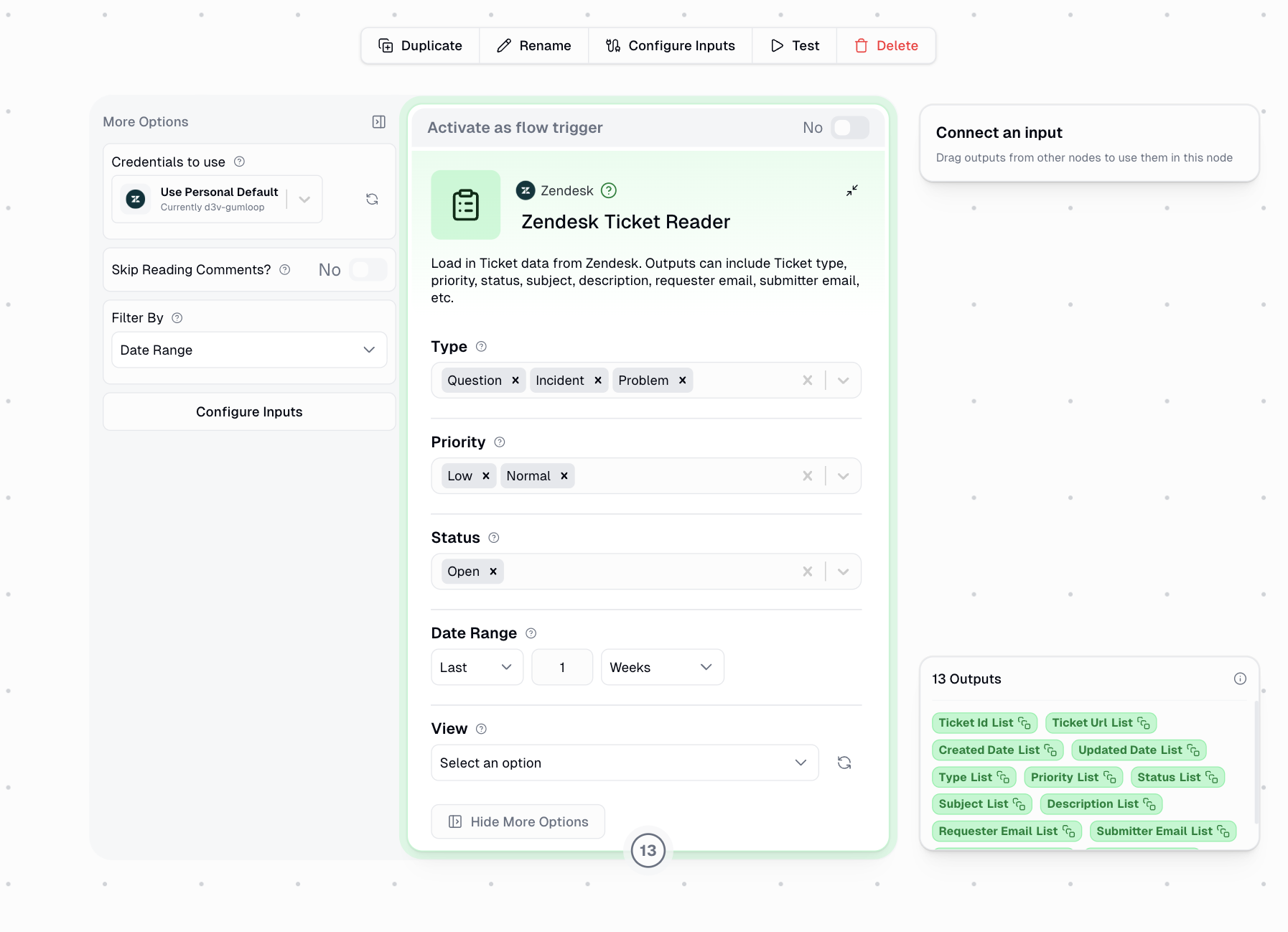
Fetch tickets on-demand with custom filters for type, priority, status, date range, and views. Returns all matching tickets as lists for reporting and analysis.
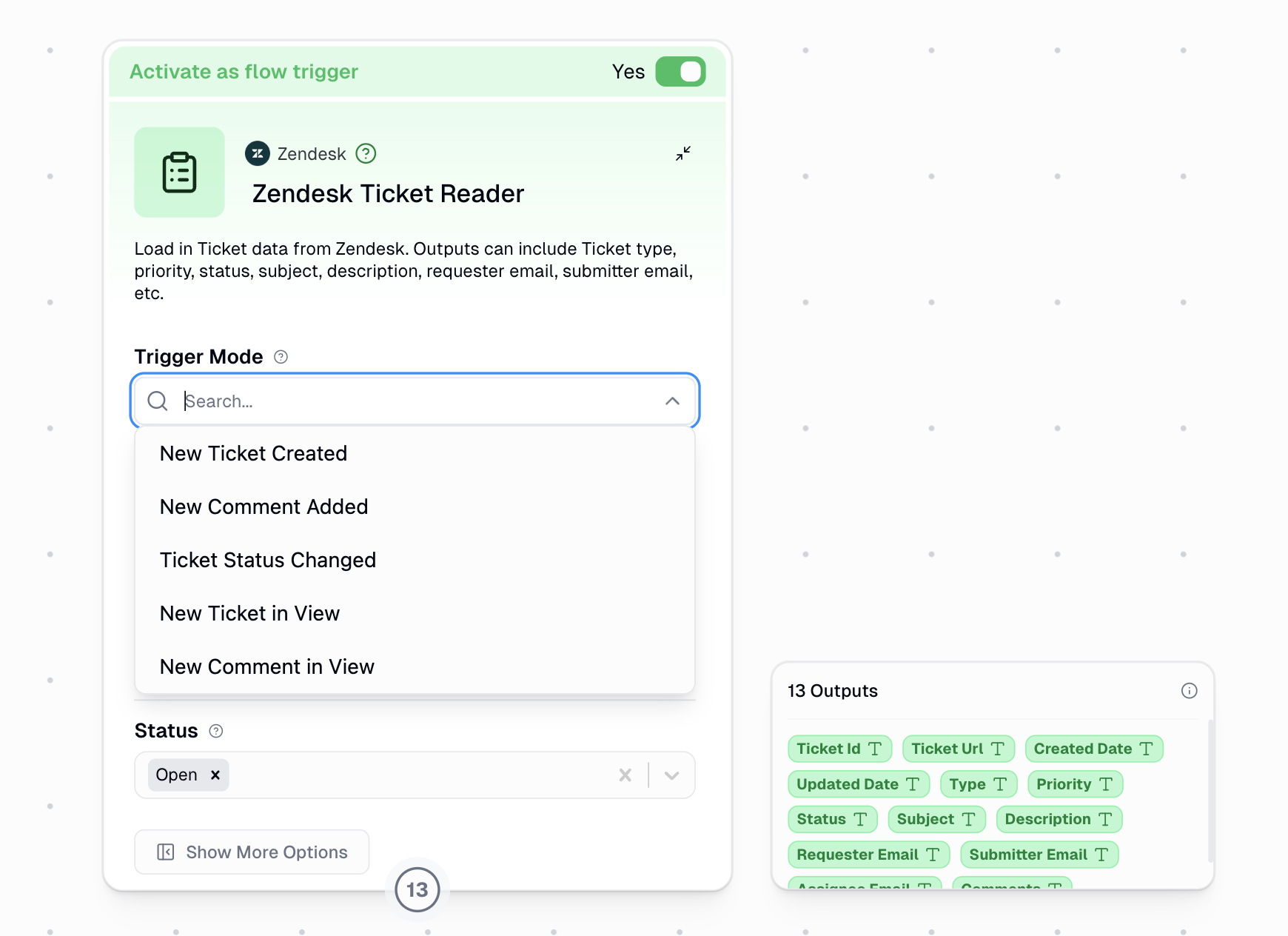
Automatically monitors Zendesk for ticket events. Triggers your workflow when new tickets are created, comments are added, or statuses change.
## Setup
Navigate to the [Connectors page](https://www.gumloop.com/personal/connectors) and search for "Zendesk" to connect your account.
Drag the Zendesk Ticket Reader node onto your canvas from the Node Library.
Set Type, Priority, Status, Date Range, or View filters to narrow down which tickets you want to retrieve.
## Configuration
### Filters
All filters support multiple selections:
Filter tickets by their type:
* **Question** - General inquiries
* **Incident** - Issues affecting service
* **Problem** - Root cause issues
* **Task** - Work items to complete
* **Empty** - Tickets without a type assigned
Filter by ticket priority level:
* **Low** - Non-urgent issues
* **Normal** - Standard priority
* **High** - Important issues requiring attention
* **Urgent** - Critical issues needing immediate action
* **Empty** - Tickets without priority assigned
Filter by ticket status:
* **Open** - Active tickets awaiting response
* **Pending** - Waiting for customer response
* **Solved** - Resolved tickets
### Date Filtering
Control which tickets are retrieved based on when they were created:
Use relative date ranges for quick filtering:
* Select "Last X Days/Weeks/Months" format
* Default: Last 1 Week
* Perfect for regular reporting workflows
Specify precise date boundaries:
* **Start Date (UTC)** - Beginning of your date range
* **End Date (UTC)** - End of your date range
* Useful for historical analysis or specific time periods
Retrieve a specific number of tickets:
* Set **Number of Tickets to Read** (default: 100)
* Ignores date filtering
* Useful when you need the most recent N tickets
### View Filtering
Filter tickets by Zendesk Views to retrieve tickets matching your pre-configured view criteria. Select a view from the dropdown to only return tickets that appear in that view.
Views are pre-configured in your Zendesk account and can include complex filter combinations. Using views is a powerful way to retrieve exactly the tickets you need.
### Additional Settings
Access these options under "More Options":
| Setting | Description |
| -------------------------- | ------------------------------------------------------------------------------------------------------- |
| **Skip Reading Comments?** | When enabled, skips fetching ticket comments to improve performance. The Comments output will be empty. |
| **Credentials to use** | Select which Zendesk credential to use if you have multiple accounts configured. |
## Outputs
The node provides comprehensive ticket data. Output format depends on the mode:
| Output Field | Description |
| --------------- | ----------------------------------------------- |
| Ticket ID | Unique identifier for the ticket |
| Ticket URL | Direct link to the ticket in Zendesk |
| Created Date | When the ticket was created (ISO format) |
| Updated Date | When the ticket was last updated (ISO format) |
| Type | Ticket type (Question, Incident, Problem, Task) |
| Priority | Priority level (Low, Normal, High, Urgent) |
| Status | Current status (Open, Pending, Solved) |
| Subject | Ticket subject line |
| Description | Initial ticket description |
| Requester Email | Email of the person who requested support |
| Submitter Email | Email of the person who submitted the ticket |
| Assignee Email | Email of the assigned agent |
| Comments | All ticket comments formatted as markdown |
**Manual mode** returns arrays (lists) for each field. **Trigger mode** returns single values for each detected ticket event.
## Using as a Trigger
When enabled as a trigger, the node automatically monitors Zendesk for ticket events:
### Trigger Modes
Triggers when a new ticket is created in Zendesk. Applies Type, Priority, and Status filters to determine if the workflow should run.
Triggers when a new comment is added to any ticket. Applies Type, Priority, and Status filters based on the ticket's current state.
Triggers when a ticket's status changes (e.g., from Open to Pending). Applies Type, Priority, and Status filters.
Triggers when a ticket enters a specific Zendesk View. Requires selecting a View. Only triggers on transition - tickets already in the view won't trigger.
Triggers when a comment is added to a ticket that's currently in a specific View. Requires selecting a View.
### Trigger Configuration
Toggle "Activate as workflow trigger" to Yes
Choose when the trigger should fire from the Trigger Mode dropdown
Set Type, Priority, and Status filters (for standard triggers) or select a View (for view-based triggers)
Save the workflow to activate the trigger
View-based triggers (New Ticket in View, New Comment in View) only require a View selection. Type, Priority, and Status filters are not available for these trigger modes as the View itself defines the filtering criteria.
### Common Trigger Use Cases
Trigger on new tickets with High or Urgent priority to notify your team immediately via Slack or email
Trigger on new comments to track customer responses and update CRM systems
Trigger on status changes to escalate tickets that have been pending too long
Trigger on tickets entering specific views to monitor SLA compliance
## Example Workflows
Fetch all open tickets daily and generate a summary report:
```text theme={"dark"}
Time Trigger (Daily) -> Zendesk Ticket Reader -> Ask AI -> Gmail Sender
```
**Configuration:**
* Status: Open
* Date Range: Last 24 Hours
Immediately notify your team when urgent tickets are created:
```text theme={"dark"}
Zendesk Ticket Reader [Trigger] -> Slack Message Sender
```
**Configuration:**
* Trigger Mode: New Ticket Created
* Priority: Urgent, High
Analyze solved tickets to extract customer feedback patterns:
```text theme={"dark"}
Zendesk Ticket Reader -> Ask AI -> Google Sheets Writer
```
**Configuration:**
* Status: Solved
* Date Range: Last Week
* Skip Reading Comments: No
Route tickets from VIP customers to a dedicated support queue:
```text theme={"dark"}
Zendesk Ticket Reader [Trigger] -> Router -> Slack Message Sender
```
**Configuration:**
* Trigger Mode: New Ticket in View
* View: VIP Customers
## Tips
Combine multiple filters to narrow results. For example, Status = "Open" + Priority = "Urgent" gives you high-priority active tickets that need immediate attention.
Use the "Skip Reading Comments?" option when you only need ticket metadata. This significantly improves performance for large ticket volumes.
For view-based triggers, the trigger only fires when a ticket transitions into the view. Tickets already in the view when the trigger is created won't trigger the workflow.
The Comments output is formatted as markdown with author emails and timestamps, making it easy to include in reports or AI analysis.
## Important Considerations
1. **Authentication**: Requires Zendesk authentication - set up in the [Connectors page](https://www.gumloop.com/personal/connectors)
2. **Output Format**: Returns lists in manual mode, single values in trigger mode
3. **Comments Performance**: Reading comments requires additional API calls per ticket - disable if not needed
4. **View Permissions**: You can only access views you have permission to see in Zendesk
5. **Trigger Availability**: Triggers are available on the [Pro tier](https://www.gumloop.com/pricing) and above