> ## Documentation Index
> Fetch the complete documentation index at: https://docs.gumloop.com/llms.txt
> Use this file to discover all available pages before exploring further.
# Teams Message Reader
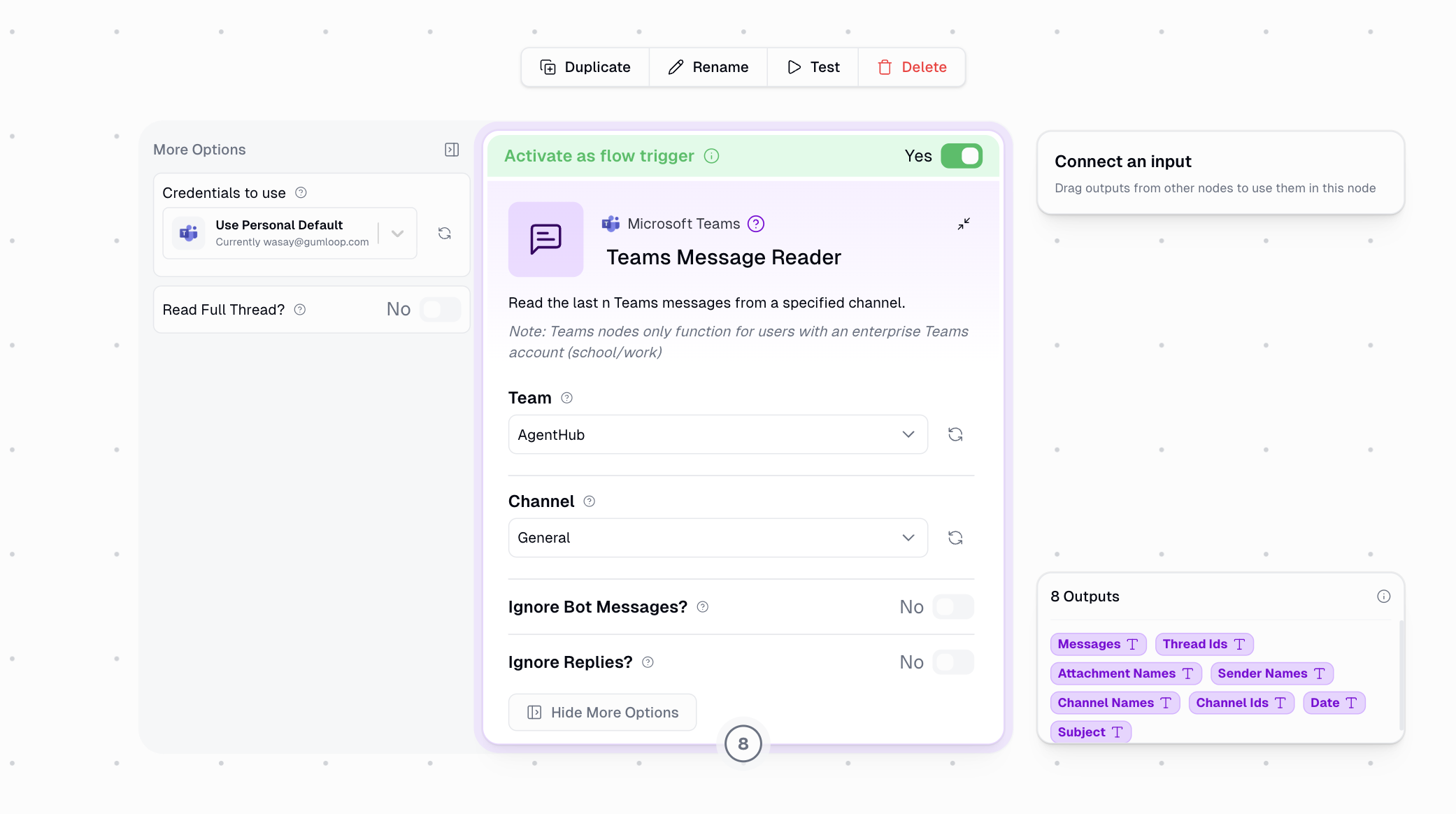
The **Teams Message Reader** node retrieves messages from Microsoft Teams channels, including message content, thread IDs, attachments, sender information, and timestamps.
**Enterprise Accounts Only**: Teams nodes only work with Microsoft 365 work or school accounts. Personal Microsoft accounts cannot access Teams channel data because the Microsoft Graph API permissions required (ChannelMessage.Read.All) are only available for enterprise tenants. See [Why Enterprise Only?](#why-enterprise-only) for more details.
## Authentication
Go to the [Connectors page](https://www.gumloop.com/personal/connectors) and connect your Microsoft Teams work/school account. You'll be prompted to sign in with your organization's Microsoft 365 credentials.
Approve the requested permissions when prompted. The node requires access to read channel messages and view team information.
Choose the Team and Channel from the dropdown menus. Only teams you're a member of and channels you have access to will appear.
## Trigger Mode
The Teams Message Reader can be used as a **flow trigger** to automatically start your workflow whenever a new message is posted in a Teams channel.
To enable trigger mode:
Select your **Team** and **Channel** from the dropdowns.
Toggle **Activate as flow trigger** to Yes at the top of the node.
Optionally enable **Ignore Bot Messages** and **Ignore Replies** to control which messages trigger your flow.
Save the workflow to activate the trigger.
When used as a trigger, the node outputs a **single message** (not a list) each time a new message arrives in the channel. The Filter By, Date Range, and Message Count settings are not used in trigger mode.
Enable **Ignore Bot Messages** when building response automations to prevent infinite loops where your flow responds to its own messages.
***
## Node Configuration
### Basic Settings
| Parameter | Description |
| ------------- | ------------------------------------------------------------------------ |
| **Team** | The Teams team to read from. Select from teams you're a member of. |
| **Channel** | The channel within the selected team. Appears after selecting a team. |
| **Filter By** | Choose how to filter messages: Date Range, Exact Dates, or Message Count |
### Filter Options
Filter messages using relative time periods. This is useful for recurring workflows that need to process recent messages.
Available options include:
* Last 24 Hours
* Last 7 Days
* Last 30 Days
* Custom relative ranges
Specify precise Start Date (UTC) and End Date (UTC) for message retrieval. Use this when you need messages from a specific time window.
Connect these inputs to a Current DateTime node to create dynamic date ranges for scheduled workflows.
Retrieve a specific number of recent messages. Valid range is 1-10,000 messages. Default is 10.
When set to 1, outputs are returned as single text values instead of lists.
### Additional Options
When enabled, messages from bots and applications are filtered out. This is useful when you only want to process messages from human users.
Recommended when building response automations to prevent processing your own bot's messages.
When enabled, only root messages are fetched and thread replies are skipped. Use this when you only care about new conversation starters, not ongoing discussions.
When enabled, fetches all replies for each root message. The Messages output will include the full conversation thread, making it useful for:
* Analyzing complete discussions
* Archiving conversations
* Processing support threads
## Outputs
| Output | Description |
| -------------------- | ------------------------------------------------------------------------------------------------------------------------ |
| **Messages** | Text content of the messages. When "Read Full Thread" is enabled, includes all replies. |
| **Thread IDs** | Unique identifiers for each message. Use with Teams Message Sender to reply to specific threads. |
| **Attachment Names** | Comma-separated list of attached file names. Files up to 10MB are downloaded and can be passed to file processing nodes. |
| **Sender Names** | Display names of message authors. |
| **Channel Names** | Name of the channel where messages were posted. |
| **Channel IDs** | Unique channel identifiers for API integrations. |
| **Date** | Message timestamps in UTC. |
| **Subject** | Message subjects when present (typically for channel announcements). |
## Output Format
The output format changes based on your configuration:
### Multiple Messages (Count > 1)
Returns lists for all outputs:
```text theme={"dark"}
Messages: ["Hello team", "Meeting at 3pm", "Sounds good"]
Thread IDs: ["1234567890", "1234567891", "1234567892"]
Sender Names: ["Alice", "Bob", "Alice"]
```
### Single Message (Count = 1 or Trigger Mode)
Returns single text values when Message Count is set to 1 or when the node is used as a trigger:
```text theme={"dark"}
Message: "Hello team"
Thread ID: "1234567890"
Sender Name: "Alice"
```
## Example Workflows
### Channel Activity Monitor
```text theme={"dark"}
Teams Message Reader -> Ask AI (Summarize) -> Gmail Sender
```
* **Filter By**: Date Range (Last 24 Hours)
* **Purpose**: Daily summary of channel activity sent via email
### Support Thread Archiver
```text theme={"dark"}
Teams Message Reader -> Google Sheets Writer
```
* **Read Full Thread**: Yes
* **Filter By**: Date Range (Last 7 Days)
* **Purpose**: Archive support conversations to a spreadsheet
### Message Routing
```text theme={"dark"}
Teams Message Reader -> Categorizer -> Router -> [Multiple Destinations]
```
* **Message Count**: 1
* **Ignore Bot Messages**: Yes
* **Purpose**: Route messages to different workflows based on content
### Real-Time Response Bot (Trigger)
```text theme={"dark"}
Teams Message Reader (Trigger) -> Ask AI -> Teams Message Sender
```
* **Activate as flow trigger**: Yes
* **Ignore Bot Messages**: Yes
* **Purpose**: Automatically respond to incoming messages using AI
## Important Considerations
1. **Channel Access**: You must be a member of the channel to read messages. Private channels require an invite.
2. **Rate Limits**: Microsoft Graph API has rate limits. For high-volume channels, consider using date filters to limit the number of messages processed.
3. **Attachments**: File attachments up to 10MB are automatically downloaded. Larger files are skipped.
4. **Timezone**: All date filtering uses UTC timezone. Account for timezone differences when setting date ranges.
5. **Message Types**: System messages (member added/removed, channel renamed) are automatically filtered out.
## Why Enterprise Only?
Microsoft Teams is designed as an enterprise collaboration platform integrated with Microsoft 365. The Microsoft Graph API endpoints for reading channel messages require specific permissions that are only available for work and school accounts:
**Required Permission**: `ChannelMessage.Read.All`
This permission is classified as an "application permission" in Microsoft's permission model and requires:
* A Microsoft 365 business or education subscription
* An Azure AD tenant (automatically created with Microsoft 365)
* Admin consent for the application to access channel messages
Personal Microsoft accounts (outlook.com, hotmail.com, live.com) do not have:
* Access to Teams workspaces (Teams is not available for personal accounts)
* An Azure AD tenant to grant application permissions
* The underlying infrastructure that supports channel message APIs
If you're seeing authentication errors, verify that you're signing in with your organization's work or school account (typically your corporate email), not a personal Microsoft account.
## Advanced Teams Features
Need more advanced Teams capabilities like managing channels, updating messages, or working with tabs? Use the [Microsoft Teams MCP node](/nodes/mcp/microsoft_teams) to create custom Teams integrations with natural language prompts.
Want your team to chat with an agent directly inside a Teams channel? See [Using Agents in Microsoft Teams](/core-concepts/agents_teams).