> ## Documentation Index
> Fetch the complete documentation index at: https://docs.gumloop.com/llms.txt
> Use this file to discover all available pages before exploring further.
# Snowflake PAT Configuration
This guide walks you through setting up Snowflake PAT (Programmatic Access Token) authentication for Gumloop. PAT provides an alternative authentication method to OAuth, using username and password-based authentication.
**When to Use PAT vs OAuth:** For most users, we recommend using [Snowflake OAuth](/nodes/integrations/snowflake-oauth-config) as the preferred authentication method. PAT is an alternative for users who cannot set up OAuth integrations or need a simpler authentication approach.
## What This Guide Covers
This documentation will help you:
1. **Understand when PAT is appropriate** - Learn when to use PAT vs OAuth
2. **Generate a Snowflake PAT** - Create a programmatic access token in Snowflake
3. **Configure Gumloop** - Add your PAT credentials to connect Gumloop to Snowflake
4. **Handle Network Policies** - Understand and configure network policy requirements
***
## OAuth vs PAT: Which Should You Use?
* Enhanced security with temporary tokens
* Automatic token refresh
* Centralized access control
* Better audit trail
* [Set up OAuth →](/nodes/integrations/snowflake-oauth-config)
* OAuth integration setup is not feasible
* You need a simpler authentication method
* Your organization restricts OAuth integrations
* You need quick access for testing
**Important:** Snowflake OAuth and Snowflake PAT are **either/or** authentication methods. While you can technically have both configured, most users should choose one method.
***
## Prerequisites
Before you begin, ensure you have:
* **Snowflake Account Access** - A Snowflake user account with permissions to generate PATs
* **Account Identifier** - Your Snowflake account identifier (e.g., `myorg-account123`)
* **Network Policy Considerations** - Understanding of your organization's network policies (see [Network Policy Requirements](#network-policy-requirements) below)
* **Public Internet Access** - Your Snowflake account must be reachable over the public internet (see note below)
**PrivateLink accounts are not supported with Gumloop's standard (cloud-hosted) deployment** unless you whitelist Gumloop's [static egress IPs](/enterprise-features/static_egress_ips) in your Snowflake network policy. PAT authentication requires Gumloop to reach your Snowflake account over the public internet. If your Snowflake account is behind AWS PrivateLink, Azure Private Link, or Google Cloud Private Service Connect and you are unable to whitelist Gumloop's IPs, PAT connections will fail because Gumloop's servers cannot reach the private endpoint.
**The solution is a VPC deployment**, where Gumloop runs inside your network perimeter. Contact [support@gumloop.com](mailto:support@gumloop.com) to explore VPC deployment options for your organization.
***
## Step 1: Generate a Snowflake PAT
### 1.1 Access the PAT Settings
1. Log in to your [Snowflake account](https://app.snowflake.com)
2. Click on your profile icon in the bottom-left corner
3. Select **My Profile**
4. Navigate to the **Authentication** section
5. Find **Programmatic access tokens**
### 1.2 Generate a New Token
1. Click **Generate new token**
2. Enter a descriptive name for the token (e.g., "Gumloop")
3. Set an appropriate expiration date
4. Click **Generate**
**Save Your Token Immediately!** The token value is only shown once. Copy and store it securely before closing the dialog.
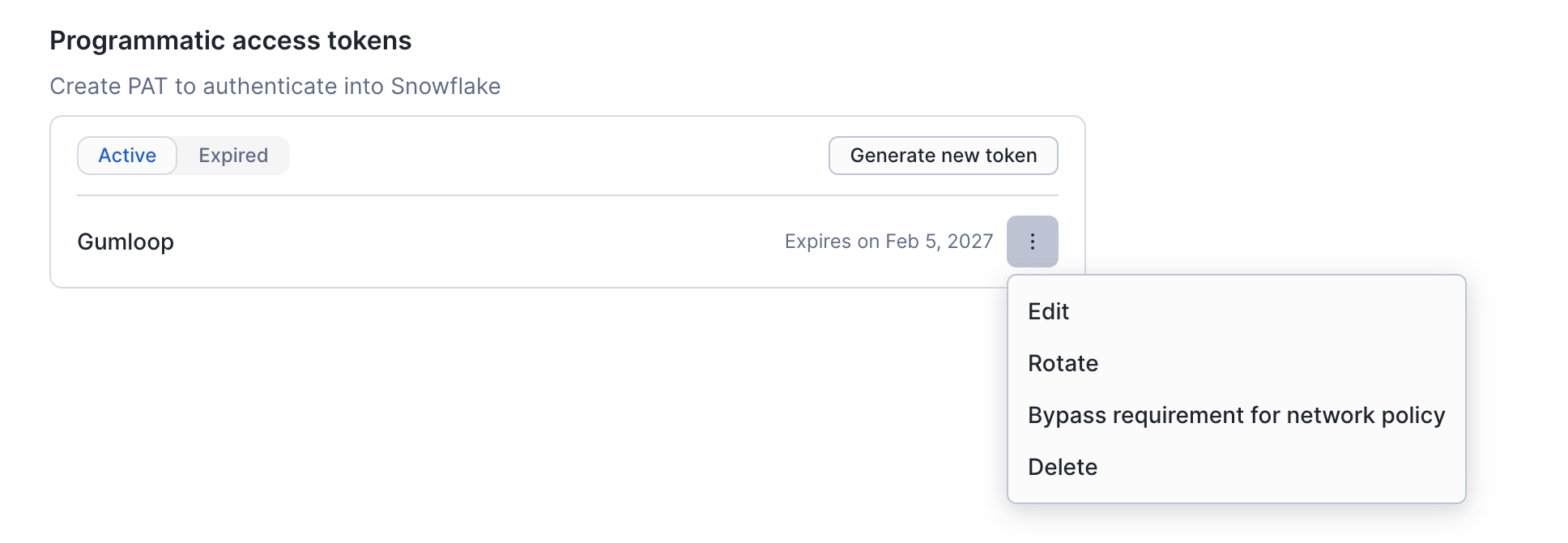
### 1.3 Token Management Options
After creating your token, you can manage it through the menu (three dots):
* **Edit** - Modify token settings
* **Rotate** - Generate a new token value while keeping the same configuration
* **Bypass requirement for network policy** - Temporarily bypass network restrictions (see below)
* **Delete** - Remove the token
***
## Step 2: Configure Gumloop
### 2.1 Add Snowflake PAT Credentials
1. Navigate to [Connectors page](https://www.gumloop.com/personal/connectors)
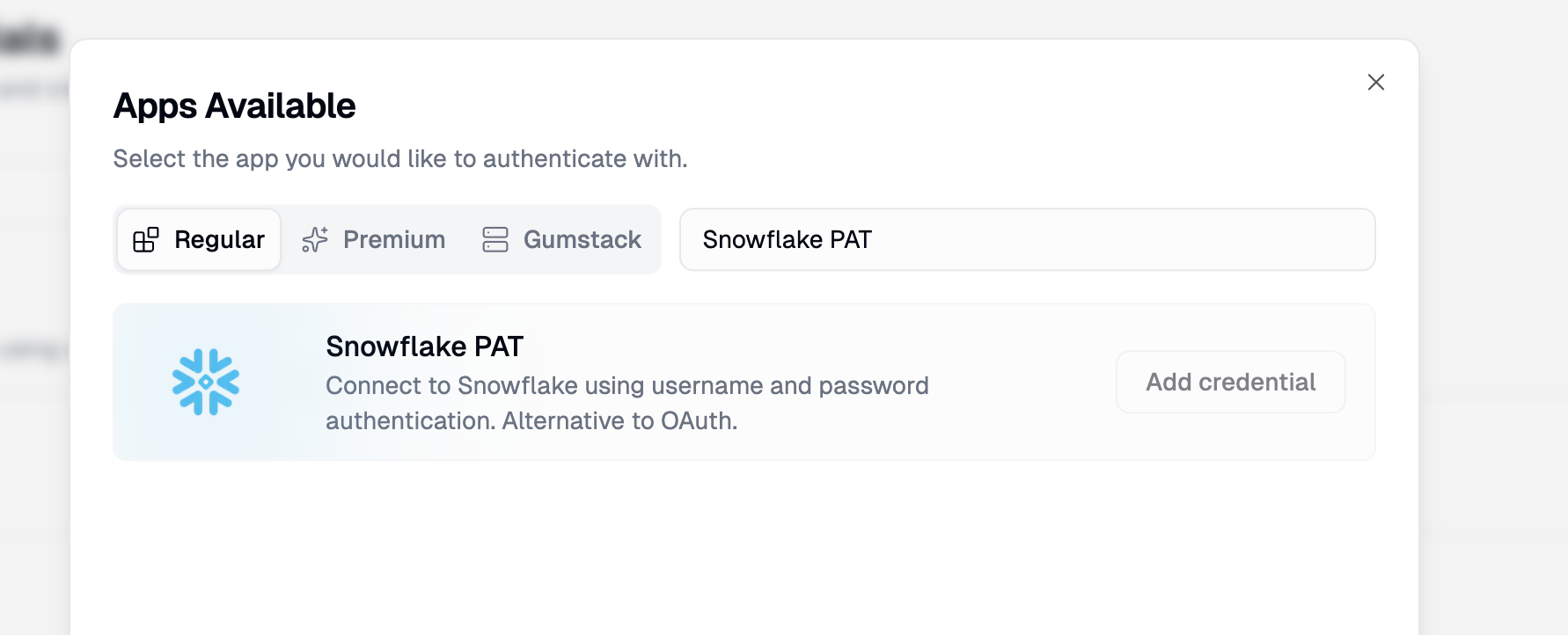
2. Click **Add Credential**
3. Search for **"Snowflake PAT"** in the Snowflake PAT tab
4. Click **Add credential** on the Snowflake PAT option
5. Enter the following information:
* **Username**: Your Snowflake username
* **Password**: The PAT token you generated in Step 1
* **Account Identifier**: Your Snowflake account identifier (e.g., `myorg-account123`)
6. Click **Save** to store your credentials
### 2.2 Verify Your Connection
To confirm your PAT connection is working:
1. Create a new agent or workflow with a Snowflake Reader node or the Snowflake MCP integration
2. Configure a simple query like `SELECT CURRENT_USER()`
3. Run the agent or workflow to verify the connection succeeds
***
## Network Policy Requirements
Snowflake network policies can restrict which IP addresses are allowed to connect. When using PAT authentication, you may encounter network policy restrictions that block connections from Gumloop's servers.
### Understanding Network Policies
Network policies in Snowflake control access based on IP addresses. If your organization has network policies configured, PAT connections from Gumloop may be blocked unless:
1. Gumloop's [static egress IPs](/enterprise-features/static_egress_ips) are whitelisted in your network policy, **OR**
2. You temporarily bypass the network policy requirement for your PAT
### Option 1: Whitelist Gumloop's IP Range (Recommended for Production)
For production use, add Gumloop's [static egress IPs](/enterprise-features/static_egress_ips) to your Snowflake network policy's allowed list. This provides permanent access without requiring repeated bypasses.
### Option 2: Temporary Network Policy Bypass (For Testing)
For testing purposes, you can temporarily bypass the network policy requirement:
1. Go to your Snowflake profile → **Authentication** → **Programmatic access tokens**
2. Click the menu (three dots) next to your token
3. Select **Bypass requirement for network policy**
4. Set the bypass duration (maximum 24 hours)
**Temporary Bypass Limitations:**
* Maximum bypass duration is **24 hours**
* After the bypass expires, you'll need to either renew it or whitelist Gumloop's [static egress IPs](/enterprise-features/static_egress_ips)
* This option is intended for testing, not production use
### When Network Policy Bypass is Needed
You may need to bypass or whitelist if:
* Your Snowflake account has network policies restricting access to specific IP ranges
* You receive connection errors mentioning "network policy" or "IP not allowed"
* PAT authentication fails even with correct credentials
***
## Troubleshooting
### Connection Refused or Network Policy Error
**Problem:** Getting a network policy error when connecting
**Solution:**
* Use the temporary bypass option for testing (see [Option 2](#option-2-temporary-network-policy-bypass-for-testing) above)
* For production, whitelist Gumloop's [static egress IPs](/enterprise-features/static_egress_ips) in your Snowflake network policy
### Invalid Credentials Error
**Problem:** Authentication fails with invalid credentials
**Solution:**
* Verify your username is correct
* Ensure you're using the PAT token (not your regular password) in the Password field
* Check that the Account Identifier matches your Snowflake account URL
* Confirm the PAT hasn't expired
### Token Expired
**Problem:** Previously working connection now fails
**Solution:**
* Check if your PAT has expired in Snowflake
* Generate a new token and update your Gumloop credentials
* Consider setting a longer expiration when creating new tokens
### Warehouse Access Issues
**Problem:** Connected but queries fail with warehouse errors
**Solution:**
* Ensure your user has USAGE privilege on the warehouse
* Specify the warehouse explicitly in the Snowflake Reader node
* Check if a default warehouse is configured for your user
***
## Security Best Practices
Set appropriate expiration dates for your PATs. Shorter durations are more secure but require more frequent rotation.
Use a Snowflake user with only the minimum permissions needed for your workflows.
Periodically rotate your PAT tokens to maintain security, even before they expire.
Never share PAT tokens in plain text. Gumloop encrypts your credentials securely.
***
## Additional Resources
* [Snowflake OAuth Configuration](/nodes/integrations/snowflake-oauth-config) - Recommended authentication method
* [Snowflake Programmatic Access Tokens Documentation](https://docs.snowflake.com/en/user-guide/programmatic-access-tokens)
* [Snowflake Network Policies](https://docs.snowflake.com/en/user-guide/network-policies)
* [Gumloop Credentials Guide](/core-concepts/credentials)
***
## Need Help?
If you encounter issues not covered in this guide:
1. Check the [Snowflake PAT documentation](https://docs.snowflake.com/en/user-guide/programmatic-access-tokens) for detailed technical information
2. Contact your Snowflake administrator for account-specific issues
3. Reach out to [Gumloop Support](support@gumloop.com) for integration assistance