> ## Documentation Index
> Fetch the complete documentation index at: https://docs.gumloop.com/llms.txt
> Use this file to discover all available pages before exploring further.
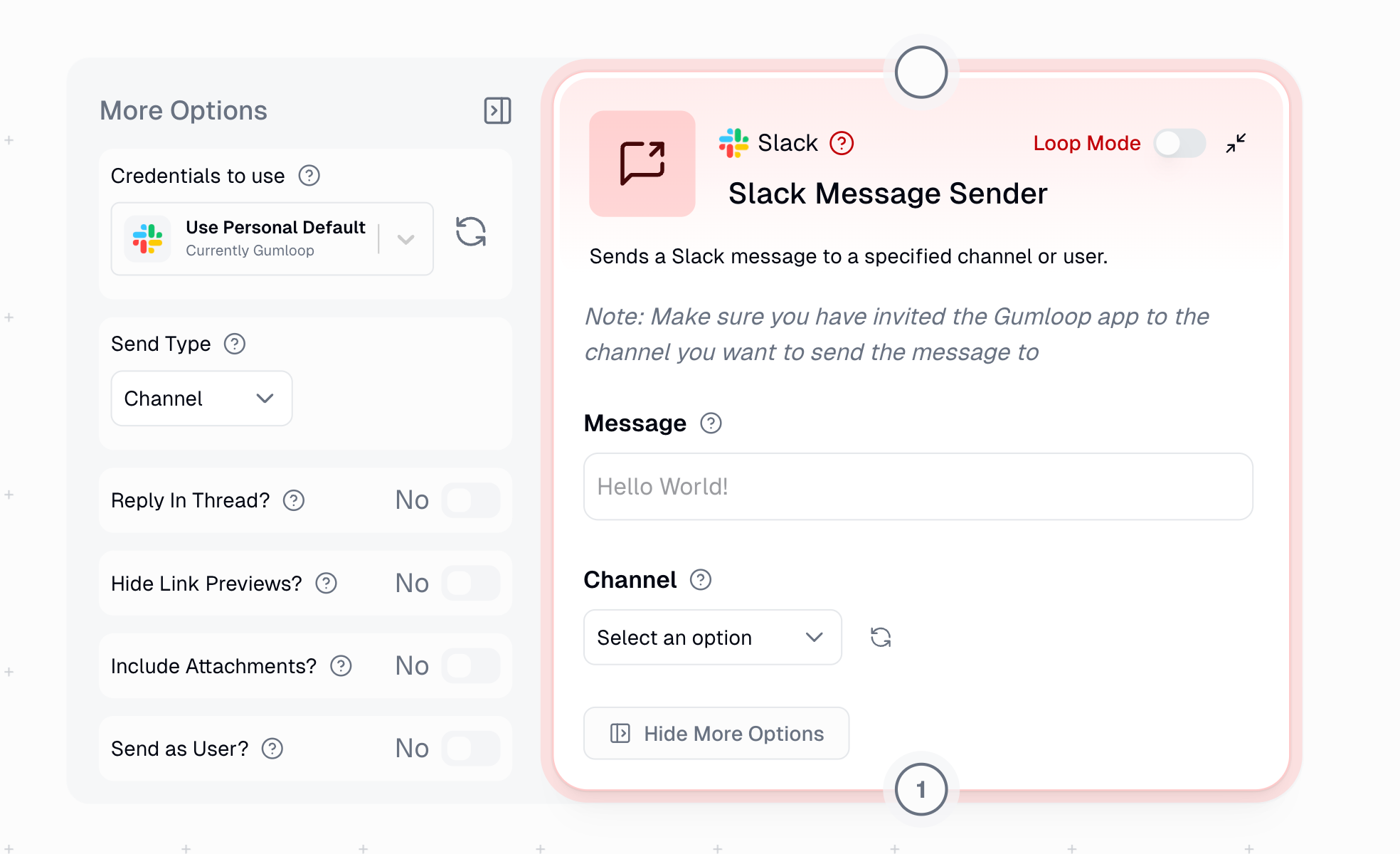
# Slack Message Sender
The **Slack Message Sender** node sends simple text messages and formatted content to Slack channels or direct messages to users. For complex layouts and interactive elements, consider using [Slack Block Kit Sender](/nodes/integrations/slack_block_kit_sender).
## Channel Access Requirements
To send messages to a channel, you must be a member of that channel AND the Gumloop bot must be invited to the channel (unless using "Send as user" mode).
Go to the [Connectors page](https://www.gumloop.com/personal/connectors) and connect your Slack workspace.
Make sure you're a member of the channel where you want to send messages. Private channels require an invite from an existing member.
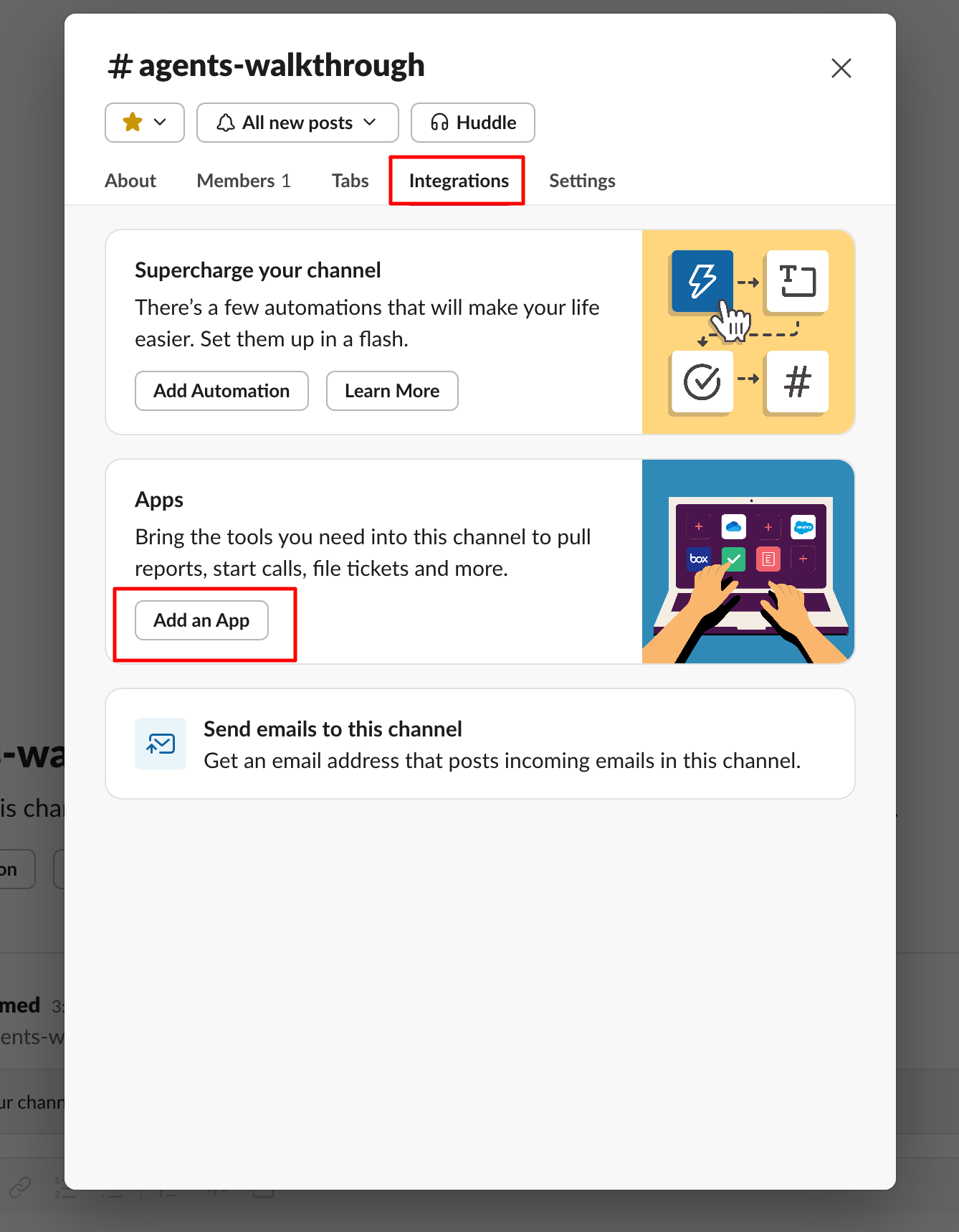
Type `/invite @Gumloop` in the channel, or click the channel name and select Add integrations/Add app to search for "Gumloop".
The channel will now appear in the dropdown menu in the node configuration.
If you enable **"Send as user"** in the node options, the Gumloop bot does not need to be in the channel. The message will be sent using your personal Slack token instead. You still need to be a member of the channel.
### Direct Messages to Users
You can send direct messages to any user in your Slack organization by toggling to "User" under "Show more options".
Direct messages sent this way come from the Gumloop bot, not your personal account. They won't appear in your personal DM history with the user, and you can only message users within your Slack organization.
## When to Use
The Slack Message Sender is ideal for:
| Use Case | Example |
| ------------------- | --------------------------------- |
| **Quick Updates** | Text updates to channels |
| **Direct Messages** | Personal messages to team members |
| **File Sharing** | Attach files to messages |
| **Thread Replies** | Reply to existing conversations |
| **Notifications** | Automated alerts and reminders |
## Node Inputs
| Input | Description |
| -------------------------- | -------------------------------------------------------------------------------------------------------------------------------------------------------------------------------------- |
| **Send Type** | Choose "Channel" (default) or "User" under "More options" |
| **Channel/User** | The destination channel or user for your message |
| **Message** | The text content of your message (supports basic formatting) |
| **Thread ID** (Optional) | For replying to existing messages. Fetch from [Slack Message Reader](/nodes/integrations/slack_message_reader) |
| **Attachments** (Optional) | Files to attach. Use `Join List Items` node for multiple files. [Example Workflow](https://www.gumloop.com/pipeline?workbook_id=gm3gC9ou3zXRygVR215WGr\&run_id=iS2Gs9uP6RLw8rUn447gxj) |
### Send as User
When enabled under "Show More Options", this uses your personal Slack token to send messages:
* The message appears as sent by you, not the Gumloop bot
* **The Gumloop bot does not need to be in the channel**
* You still need to be a member of the channel
* For direct messages, the DM will be sent from your account (not the Gumloop bot)
* Useful for personal messaging or when you want messages to appear from your account
## Node Output
| Output | Description |
| -------------------- | ------------------------------------- |
| **Posted Thread ID** | Unique identifier of the sent message |
| **Message Status** | Success/failure of message delivery |
## Message Formatting
The node supports basic Slack formatting:
### Text Formatting
```text theme={"dark"}
*bold text* → bold text
_italic text_ → italic text
~strikethrough~ → strikethrough
`inline code` → monospace text
```
### Block Formatting
```text theme={"dark"}
> Block quote → Indented quote
>>> Multi-line quote → Multi-line indented quote
```
### Code Blocks
````
```
Code block
Multiple lines
```
````
### Lists
```text theme={"dark"}
• Use regular hyphens for bullets
1. Numbers for ordered lists
```
## Example Messages
### 1. Simple Status Update
```text theme={"dark"}
🎯 Sprint Goals Update:
*Completed Tasks:*
• User authentication fixed
• API performance improved
• Documentation updated
_Next up:_ Dashboard optimization
```
**Preview**:
> 🎯 Sprint Goals Update:
>
> **Completed Tasks:**
>
> • User authentication fixed
>
> • API performance improved
>
> • Documentation updated
>
> *Next up:* Dashboard optimization
### 2. System Alert
```text theme={"dark"}
⚠️ *System Alert*
`Database CPU Usage: 85%`
> Action required: Scale up database instances
```
**Preview**:
> ⚠️ **System Alert**
> `Database CPU Usage: 85%`
>
> > Action required: Scale up database instances
### 3. Code Sharing
````text theme={"dark"}
*New API Endpoint Added:*
```javascript
GET /api/v1/users/:id
Authorization: Bearer {token}
_Please update your clients accordingly._
````
**Preview**:
> **New API Endpoint Added:**
>
> ```javascript theme={"dark"}
> GET /api/v1/users/:id
> Authorization: Bearer {token}
> ```
>
> *Please update your clients accordingly.*
## Common Use Cases
1. **Automated Notifications**
* Build status alerts
* Monitoring alerts
* Scheduled reminders
* System health updates
2. **Team Communication**
* Daily standups
* Meeting reminders
* Quick updates
* Task assignments
3. **Development Workflows**
* Deployment notifications
* Error alerts
* PR notifications
* Build status updates
4. **Support Operations**
* Ticket updates
* Service status
* Customer inquiries
* Response tracking
5. **User Notifications**
* Personal task reminders
* Approval requests
* 1:1 communication
* Personalized updates
## Important Considerations
1. **Authentication**: Set up Slack authentication in the [Connectors page](https://www.gumloop.com/personal/connectors)
2. **Channel Membership**: You must be a member of the channel for it to appear in the dropdown
3. **Gumloop Bot Required**: The Gumloop bot must be invited to the channel using `/invite @Gumloop` (unless using "Send as user")
4. **Send as User**: When enabled, the bot is not required - messages are sent using your personal token
5. **DM Behavior**: Messages to users come from the Gumloop bot, not your account (unless using "Send as user")
6. **Loop Mode**: Use Loop Mode for sending multiple messages to different channels or users
## Advanced Slack Features
Need more advanced Slack capabilities like managing channels, uploading files, or adding reactions? Use the [Slack MCP node](/nodes/mcp/slack) to create custom Slack integrations with natural language prompts.