> ## Documentation Index
> Fetch the complete documentation index at: https://docs.gumloop.com/llms.txt
> Use this file to discover all available pages before exploring further.
# Slack Message Reader
The **Slack Message Reader** node retrieves messages, threads, sender details, and attachments from Slack channels. It supports triggers for automation and can be customized to filter and fetch specific data for your workflows.
## Channel Access Requirements
To read messages from any Slack channel (public or private), you must be a member of that channel. Channels you're not a member of won't appear in the dropdown.
Go to the [Connectors page](https://www.gumloop.com/personal/connectors) and connect your Slack workspace.
Make sure you're a member of the channel you want to read from. Private channels require an invite from an existing member.
The channel will now appear in the dropdown menu in the node configuration.
## Node Configuration
### Message Information Options
Select which data elements you want to retrieve from Slack messages:
| Output | Description |
| -------------------- | ----------------------------------------------------------------------------------------------------------------------------------------------- |
| **Messages** | The actual text content of messages, including formatted text, emojis, and timestamps. If "Read Full Thread" is enabled, this includes replies. |
| **Thread IDs** | Unique identifiers for each message thread. Useful for replying to specific threads using the Slack Message Sender node. |
| **Thread Links** | Direct URLs to specific message threads in Slack for quick access to original discussions. |
| **Attachment Names** | Files shared in messages including documents, images, and videos. |
| **Sender Names** | Names of users who sent the messages. Useful for filtering or routing based on sender. |
| **Channel Name** | The name of the channel where messages were posted. |
| **Channel ID** | The unique identifier for the Slack channel, useful for API integrations. |
| **Date** | The datetime in UTC when the message was sent. |
### Basic Settings
1. **Channel**: Select target Slack channel
2. **Message Count**: Number of messages to fetch (default: 10)
* Set to 1 for single message processing
* The output in this case is in the `Text` format
* Higher numbers return lists of messages
* The output in this case is in the `List` format
### Optional Settings
Filter messages by a specific time period:
* **Use Dates?**: Enable to filter messages by time period
* **Date Range**: Choose from preset ranges (Last 24 Hours, Last Week, Last Month, Last 3 Months, Last 6 Months)
* **Use Exact Dates?**: Toggle to specify custom date ranges with precise Start and End dates
When "Use Exact Dates?" is enabled, connect the Start Date and End Date inputs to a `Datetime` node for dynamic date ranges.
* **Read Full Thread**: When enabled, retrieves the main message plus all replies in the thread, including participant information. Perfect for tracking complete conversations or support threads.
* **Ignore Bot Messages**: When enabled, skips messages from all Slack apps and integrations, processing only messages from human users. Useful when multiple automations are active in the channel.
### Configure Inputs
Make these parameters dynamic by enabling them in "Configure Inputs":
* **Channel**: Switch channels based on conditions or other node outputs
* **Message Count**: Adjust the volume of messages processed based on workflow needs
* **Start Date**: Dynamically adjust your date window (requires "Use Dates?" enabled)
* **End Date**: Pair with Start Date for dynamic date ranges
## Trigger Mode
The Slack Message Reader can function as a trigger to start your workflow when new messages arrive.
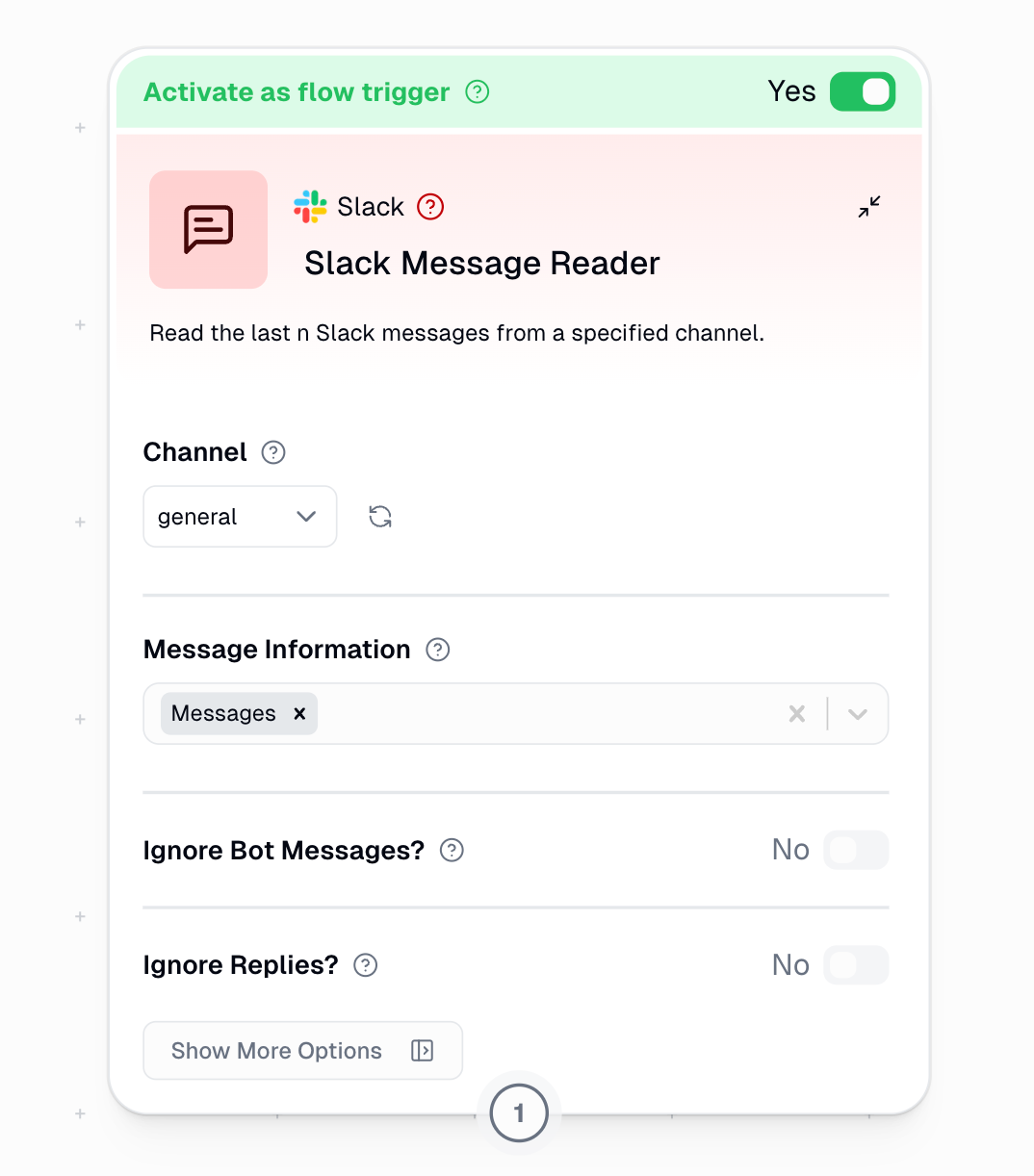
### Trigger Settings
* **No (Default)**: All messages trigger your workflow, including those from bots and integrations
* **Yes (Recommended)**: Only human-generated messages trigger your workflow
* Prevents trigger loops where your workflow output triggers itself
* Reduces noise from system notifications
* Essential when your workflow posts back to the same channel
* **No (Default)**: All messages trigger your workflow, including replies in threads
* Best for monitoring ongoing conversations
* Useful for support bots tracking entire discussions
* **Yes**: Only new standalone messages trigger your workflow
* Replies within conversation threads are ignored
* Focuses automation on new topics only
When building response bots, always enable "Ignore Bot Messages" to prevent infinite loops where your bot responds to its own messages.
### Recommended Trigger Settings
For most automations:
* **Ignore Bot Messages: Yes** - Prevents trigger loops and focuses on human communications
* **Ignore Replies: No** - Captures all relevant communications including thread discussions
```mermaid theme={"dark"}
%%{init: {'theme':'neutral', 'themeVariables': { 'primaryColor': '#f5f5f5', 'primaryBorderColor': '#ddd'}}}%%
flowchart TB
A["New Slack Message"] --> B{"Ignore Bot
Messages?"}
B -->|"Yes"| C["Only human
messages trigger"]
B -->|"No"| D["All messages
trigger"]
C --> E{"Ignore
Replies?"}
D --> E
E -->|"Yes"| F["Only main channel
messages trigger"]
E -->|"No"| G["All messages
including replies
trigger"]
```
> **Note**: When building response bots, always enable "Ignore Bot Messages" to prevent infinite loops where your bot responds to its own messages.
## Example Workflows
### Customer Support Monitor
```text theme={"dark"}
Slack Message Reader -> Ask AI -> Notion Page Writer
```
* **Channel**: #support
* **Read Full Thread**: Yes
* **Ignore Bot Messages**: No
* **Purpose**: Analyze and document support conversations
### Team Updates Trigger
```text theme={"dark"}
Slack Message Reader [Trigger] -> Categorizer -> Gmail Sender
```
* **Channel**: #team-updates
* **Message Count**: 1
* **Ignore Bot Messages**: Yes
* **Purpose**: Send important updates to stakeholders
### Resource Archival
```text theme={"dark"}
Slack Message Reader -> Attachments Output -> Google Drive File Writer
```
* **Channel**: #resources
* **Read Full Thread**: Yes
* **Date Range**: Last 7 days
* **Purpose**: Archive shared resources and documentation
### Weekly Channel Report
```text theme={"dark"}
Current DateTime -> Slack Message Reader -> Ask AI -> Gmail Sender
```
* **Use Dates?**: Yes
* **Use Exact Dates?**: Yes
* **Start Date**: Connected to Current DateTime with -7 days modifier
* **End Date**: Connected to Current DateTime
* **Purpose**: Generate weekly summary reports of channel activity
## Output Format
The output format changes based on Message Count:
### Multiple Messages (Count > 1)
Returns lists:
* Messages: \["Hello", "How are you"]
* Thread IDs: \["123", "456"]
* Thread Links: \["[https://company.slack.com/archives/C123/p456](https://company.slack.com/archives/C123/p456)", "[https://company.slack.com/archives/C123/p789](https://company.slack.com/archives/C123/p789)"]
* Sender Names: \["Alice", "Bob"]
* Channel Name: \["general", "general"]
* Channel ID: \["C123456", "C123456"]
### Single Message (Count = 1)
Returns single values \[text]:
* Message: "Hello"
* Thread ID: "123"
* Thread Link: "[https://company.slack.com/archives/C123/p456](https://company.slack.com/archives/C123/p456)"
* Sender Name: "Alice"
* Channel Name: "general"
* Channel ID: "C123456"
## Important Considerations
1. **Authentication**: Set up Slack authentication in the [Connectors page](https://www.gumloop.com/personal/connectors)
2. **Channel Membership**: You must be a member of the channel for it to appear in the dropdown
3. **Thread Messages**: Thread messages will trigger workflows when using as trigger
4. **Bot Filtering**: Bot message filtering applies to thread replies as well
5. **Timezone**: Date filtering uses UTC timezone, which may not match your local time
## Advanced Slack Features
Need more advanced Slack capabilities like managing channels, uploading files, or adding reactions? Use the [Slack MCP node](/nodes/mcp/slack) to create custom Slack integrations with natural language prompts.