> ## Documentation Index
> Fetch the complete documentation index at: https://docs.gumloop.com/llms.txt
> Use this file to discover all available pages before exploring further.
# Slack Canvas Writer
The **Slack Canvas Writer** node creates and shares formatted documents in Slack channels and threads using Slack's Canvas feature.
## Channel Access Requirements
To post canvases to a channel, you must be a member of that channel AND the Gumloop bot must be invited to the channel.
Go to the [Connectors page](https://www.gumloop.com/personal/connectors) and connect your Slack workspace.
Make sure you're a member of the channel where you want to post canvases. Private channels require an invite from an existing member.
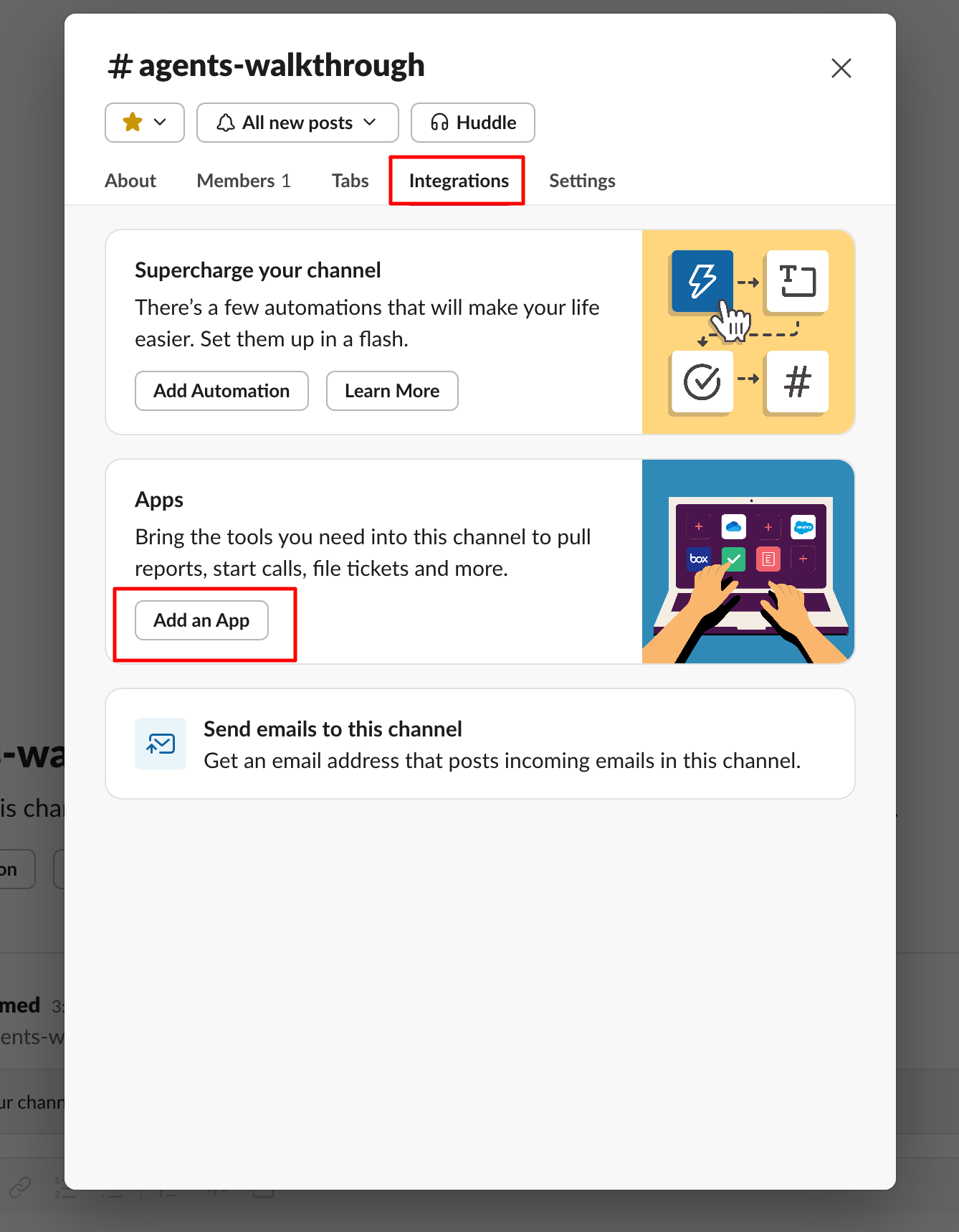
Type `/invite @Gumloop` in the channel, or click the channel name and select Add integrations/Add app to search for "Gumloop".
The channel will now appear in the dropdown menu in the node configuration.
## Node Inputs
| Input | Description |
| ------------------------ | ---------------------------------------------------------------------------------------------------------------- |
| **Channel** | The Slack channel where the canvas will be posted |
| **Canvas Title** | The title of your canvas document |
| **Canvas Content** | The main content of your canvas in markdown format |
| **Thread ID** (Optional) | The thread ID if posting as a reply. Fetch from [Slack Message Reader](/nodes/integrations/slack_message_reader) |
| **Canvas Access Level** | Access level for channel members: **Read Only** or **Read and Write** |
## Node Output
| Output | Description |
| --------------- | -------------------------------------------- |
| **Canvas Link** | A URL linking to the created canvas in Slack |
## Key Features
* Markdown formatting support for rich content
* Thread reply capabilities for contextual discussions
* Loop Mode support for creating multiple canvases
* Configurable access levels for collaboration
## When to Use
The Slack Canvas Writer is ideal for sharing well-formatted content:
| Use Case | Example |
| ------------------- | ------------------------------------------------- |
| **Documentation** | Process documents, guides, SOPs |
| **Reports** | Weekly status reports, performance summaries |
| **Meeting Notes** | Well-organized meeting summaries and action items |
| **Project Updates** | Detailed project status updates with milestones |
## Example Implementation
### Weekly Status Report
```markdown theme={"dark"}
# 🎯 Week 47 Team Update
## Key Achievements
- Launched v2.1 of the API
- Reduced load times by 40%
- Onboarded 3 new enterprise clients
## Project Status
API v2.1
✅ Done - Released on Tuesday
Mobile App
🚧 80% - Testing in progress
Analytics
⏳ 45% - Dependencies blocking
## Next Week's Goals
1. Complete mobile app testing
2. Start analytics dashboard
3. Plan v2.2 features
## Reminders
* Team meeting moved to 2 PM on Tuesday
* Submit expense reports by Friday
* Holiday schedule planning starts next week
## Questions or Issues?
Reach out in the thread below! 👇
```
**Preview in Slack Canvas**:
> # 🎯 Week 47 Team Update
>
> ## Key Achievements
>
> * Launched v2.1 of the API
> * Reduced load times by 40%
> * Onboarded 3 new enterprise clients
>
> ## Project Status
>
> API v2.1
> ✅ Done - Released on Tuesday
>
> Mobile App
> 🚧 80% - Testing in progress
>
> Analytics
> ⏳ 45% - Dependencies blocking
>
> ## Next Week's Goals
>
> 1. Complete mobile app testing
> 2. Start analytics dashboard
> 3. Plan v2.2 features
>
> ## Reminders
>
> * Team meeting moved to 2 PM on Tuesday
> * Submit expense reports by Friday
> * Holiday schedule planning starts next week
>
> ## Questions or Issues?
>
> Reach out in the thread below! 👇
## Important Considerations
1. **Authentication**: Set up Slack authentication in the [Connectors page](https://www.gumloop.com/personal/connectors)
2. **Channel Membership**: You must be a member of the channel for it to appear in the dropdown
3. **Gumloop Bot Required**: The Gumloop bot must be invited to the channel using `/invite @Gumloop`
4. **Thread Replies**: When replying to threads, ensure the channel matches the original message
5. **Loop Mode**: Use Loop Mode for creating multiple canvases
## Advanced Slack Features
Need more advanced Slack capabilities like managing channels, uploading files, or adding reactions? Use the [Slack MCP node](/nodes/mcp/slack) to create custom Slack integrations with natural language prompts.
## Learn More
* [Slack Canvas Documentation](https://slack.com/features/canvas)