> ## Documentation Index
> Fetch the complete documentation index at: https://docs.gumloop.com/llms.txt
> Use this file to discover all available pages before exploring further.
# Salesforce Record Reader
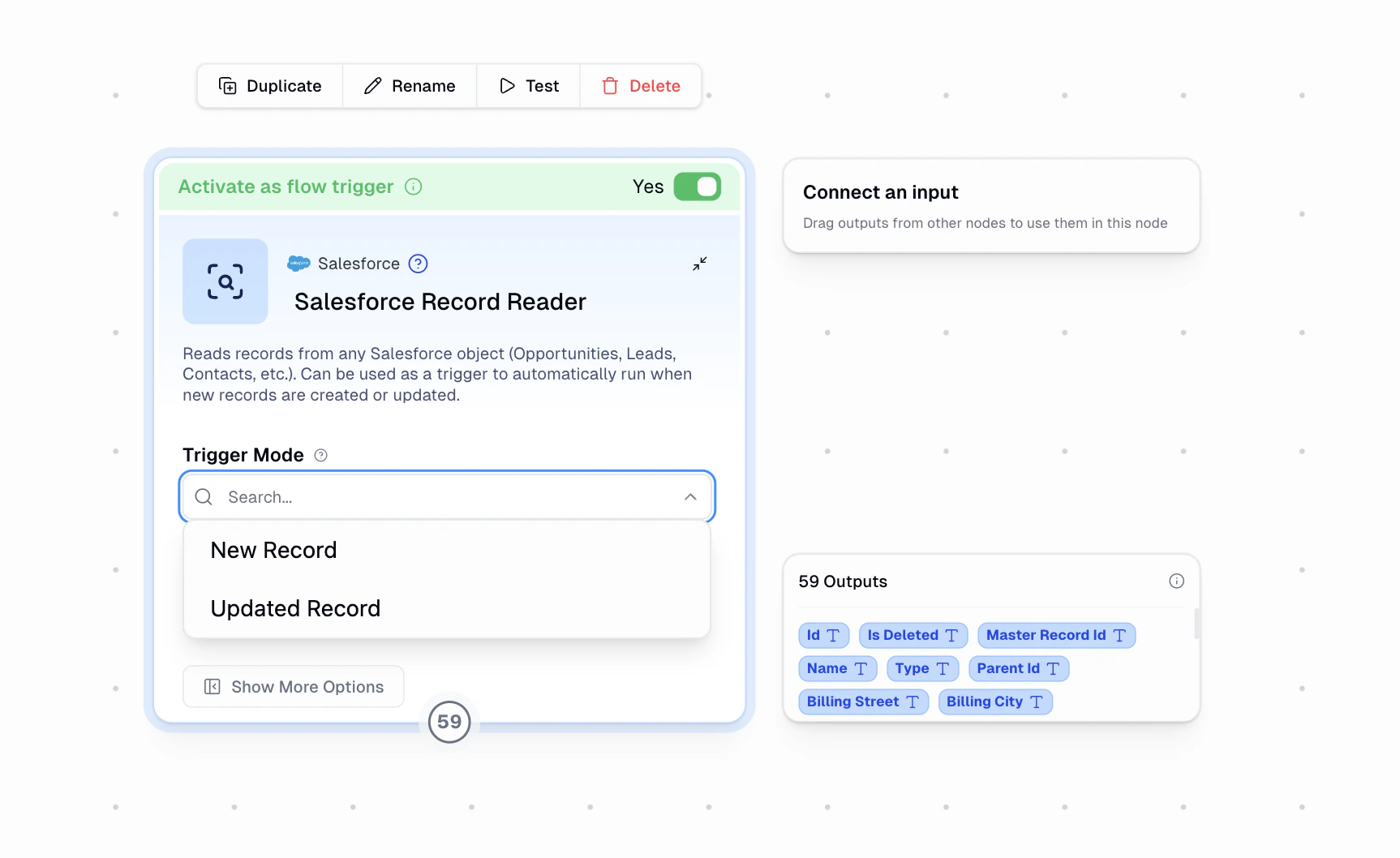
The Salesforce Record Reader node reads records from any Salesforce object. It can be used as a **manual node** in your workflow or activated as a **trigger** to automatically start your workflow when records are created or updated.
## Node Inputs
### Required Fields
* **Salesforce Object**: Choose which Salesforce object to read from (e.g., Contact, Lead, Opportunity, Account, Case, or any custom object)
### Trigger Configuration
* **Trigger Mode**: Choose when the trigger should fire:
* **New Record** — Triggers when a new record is created in the selected object
* **Updated Record** — Triggers when an existing record is modified in the selected object
* **Activate as workflow trigger**: Toggle this to automatically run your workflow based on the selected trigger mode
## Node Output
All fields from the selected Salesforce object are returned as individual outputs. The exact fields depend on the object type you selected. For example, selecting "Contact" will output fields like First Name, Last Name, Email, Phone, Account ID, etc.
Compound fields (like `MailingAddress`) are excluded. Individual component fields (like `MailingStreet`, `MailingCity`) are included instead.
## How It Works
### Manual Mode
When used as a regular node (trigger toggle off), the Salesforce Record Reader fetches the most recent records from the selected object. Connect it to downstream nodes to process the data.
### Trigger Mode
When activated as a workflow trigger, the node polls your Salesforce org every **60 seconds** for new or updated records, depending on the selected trigger mode:
1. On each poll, it queries for records created after the last known cursor position using `CreatedDate`
2. It uses a compound cursor of `CreatedDate` and `Id` to track its position and avoid duplicates
3. Up to **5 new records** are fetched per poll
4. Each new record triggers a workflow run with all of the record's fields available as outputs
1. On each poll, it queries for records modified after the last known cursor position using `LastModifiedDate`
2. It uses a compound cursor of `LastModifiedDate` and `Id` to track its position and avoid duplicates
3. Up to **5 updated records** are fetched per poll
4. Each updated record triggers a workflow run with all of the record's fields available as outputs
5. Records that were just created (within a few seconds) are automatically filtered out to avoid overlap with the New Record trigger mode
6. Each time the same record is modified again, it will trigger the workflow again (deduplication includes the modification timestamp)
## Setup
Configure your Salesforce credentials on the [Salesforce Connectors page](https://www.gumloop.com/personal/connectors?provider=salesforce). Gumloop is a **Salesforce Connected App** — a Salesforce administrator must authorize the connection first. See [Salesforce Setup](/core-concepts/credentials#salesforce-setup-admin-only) for details.
Drag the **Salesforce Record Reader** node into your workflow from the Node Library (under Integrations > Salesforce).
Choose the Salesforce object you want to read from. The dropdown lists all standard and custom objects available in your Salesforce org.
Select **New Record** to trigger on newly created records, or **Updated Record** to trigger when existing records are modified.
Toggle **Activate as workflow trigger** to have the node automatically poll for records and start your workflow when they appear.
Save your workflow. If using trigger mode, the trigger will begin polling within a few minutes.
## Example Workflows
### New Lead Enrichment
```text theme={"dark"}
Salesforce Record Reader (Trigger: Lead, New Record) → Enrich Contact Information → Slack Message Sender
```
Automatically enrich new leads with external data as soon as they're created in Salesforce and notify your team.
### Opportunity Stage Change Alerts
```text theme={"dark"}
Salesforce Record Reader (Trigger: Opportunity, Updated Record) → Ask AI → Slack Message Sender
```
Post a summary to Slack whenever an opportunity is updated (e.g., stage changes, amount adjustments).
### Case Routing
```text theme={"dark"}
Salesforce Record Reader (Trigger: Case, New Record) → Categorizer → Slack Message Sender
```
Categorize incoming support cases and route them to the right team channel.
### Case Update Tracking
```text theme={"dark"}
Salesforce Record Reader (Trigger: Case, Updated Record) → Ask AI → Email Sender
```
Notify stakeholders via email whenever a support case is updated or reassigned.
## Important Notes
* Triggers are available on the [Pro tier](https://www.gumloop.com/pricing) and above
* Triggers automatically deactivate after 3 consecutive failed runs
* The trigger uses the credentials of the person who created it
* Always save your workflow after enabling or disabling the trigger
* Polling begins within a few minutes of activation and checks every 60 seconds thereafter
* In **Updated Record** mode, newly created records are automatically excluded to prevent overlap with New Record triggers
* In **Updated Record** mode, every modification to the same record triggers the workflow again — use downstream logic if you need to filter specific field changes