> ## Documentation Index
> Fetch the complete documentation index at: https://docs.gumloop.com/llms.txt
> Use this file to discover all available pages before exploring further.
# Linear Issue Reader
The Linear Issue Reader node retrieves issues from your Linear workspace. It can be used as a **manual node** in your workflow or activated as a **trigger** to automatically start your workflow when issues are created or updated.
## Node Inputs
### Required Fields
* **Team**: Select the Linear team to read issues from (required for trigger mode)
* **Filters**: Optionally narrow down which issues to retrieve:
* **Status**: Filter by issue status (e.g., "In Progress", "Done", "Backlog")
* **Project**: Filter by Linear project
* **Priority**: Filter by priority level (e.g., "Urgent", "High", "Medium", "Low")
* **Labels**: Filter by custom labels (e.g., "Bug", "Feature") — matches issues with at least one of the selected labels
* **Assignee**: Filter by team member assignments
* **Issue Information**: Choose which data fields to retrieve:
* **Description**: The detailed explanation of the issue
* **Identifier**: The unique issue ID (e.g., "ENG-123")
* **Title**: The issue title/summary
* **URL**: Link to the issue in Linear
* **Assignee**: Team member assigned to the issue
* **Status**: Current status of the issue
* **Project**: The project the issue belongs to
* **Labels**: Labels applied to the issue (comma-separated)
### Optional Field
* **Number of Issues**: Limit the total number of issues to retrieve
* Default: 10
* Set a number to limit or increase results
### Trigger Configuration
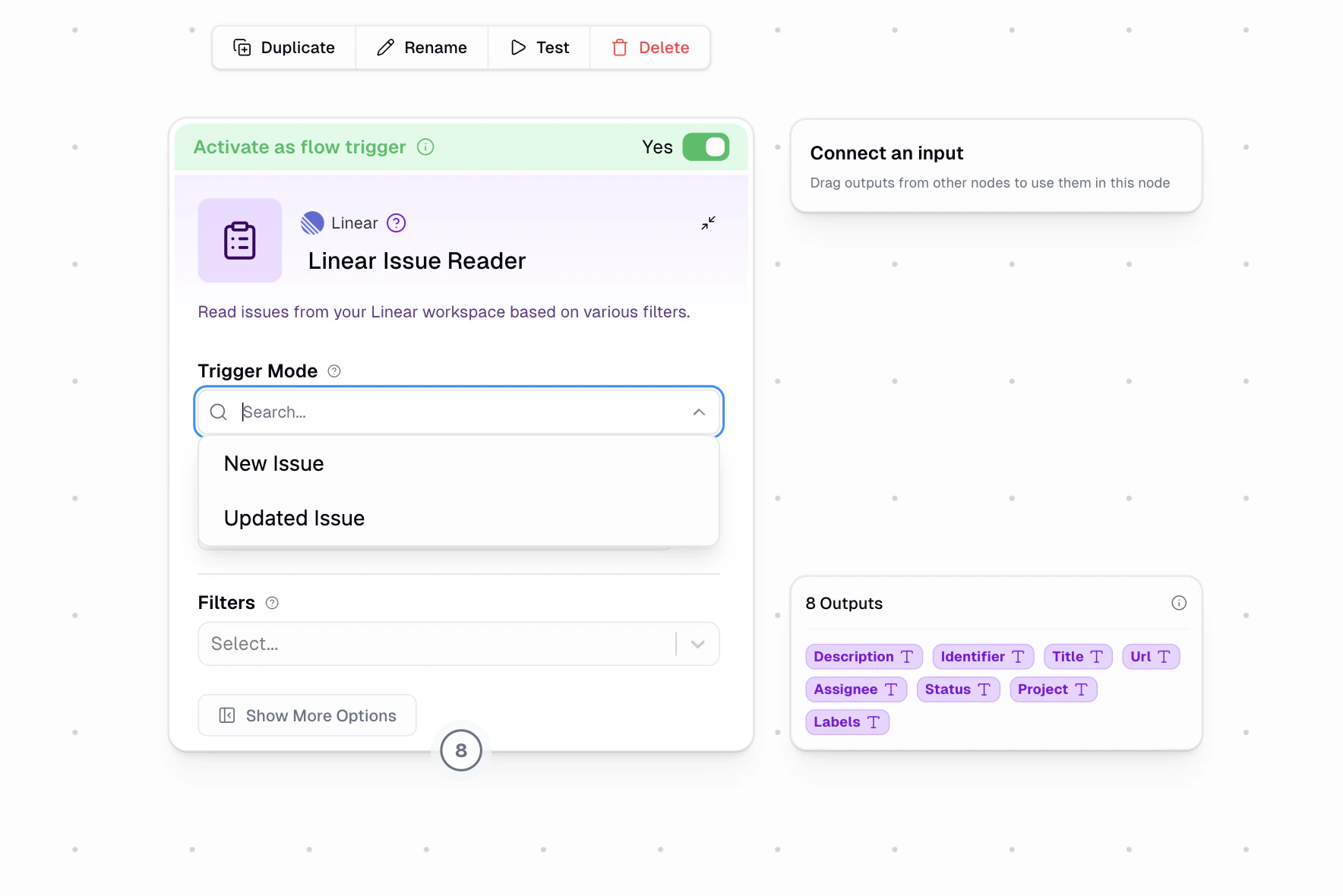
* **Trigger Mode**: Choose when the trigger should fire:
* **New Issue** — Triggers when a new issue is created in the selected team
* **Updated Issue** — Triggers when an existing issue is modified in the selected team
* **Activate as workflow trigger**: Toggle this to automatically run your workflow based on the selected trigger mode
### Configure Inputs
All parameters can be set as dynamic inputs to the node. This option is accessible under "Show more options" or when you hover over the node.
This makes the node adaptable for Loop Mode operations and conditional workflows.
## Node Output
The node produces data for each selected information field:
* If **Number of Issues** is set to 1: Output is in **Text** format
* If **Number of Issues** is greater than 1: Output is in **List** format (string\[])
When used as a trigger, the node outputs: Description, Identifier, Title, URL, Assignee, Status, Project, and Labels.
## How It Works
### Manual Mode
When used as a regular node (trigger toggle off), the Linear Issue Reader fetches issues from the selected team matching your filters. Connect it to downstream nodes to process the data.
### Trigger Mode
When activated as a workflow trigger, the node polls your Linear workspace every **60 seconds** for new or updated issues, depending on the selected trigger mode:
1. On each poll, it queries for issues created after the last known cursor position using `createdAt`
2. Up to **5 new issues** are fetched per poll
3. Each new issue triggers a workflow run with all output fields available
4. Deduplication is based on the issue ID, so each issue only triggers the workflow once
1. On each poll, it queries for issues modified after the last known cursor position using `updatedAt`
2. Up to **5 updated issues** are fetched per poll
3. Each updated issue triggers a workflow run with all output fields available
4. Issues that were just created are automatically filtered out to avoid overlap with the New Issue trigger mode
5. Each time the same issue is modified again, it will trigger the workflow again (deduplication includes the update timestamp)
## Setup
Connect your Linear account on the [Connectors page](https://www.gumloop.com/personal/connectors).
Drag the **Linear Issue Reader** node into your workflow from the Node Library (under Integrations > Linear).
Choose the Linear team you want to read issues from. This is required for trigger mode.
Add filters to narrow which issues are retrieved: Status, Project, Priority, Labels, and/or Assignee.
Select **New Issue** to trigger on newly created issues, or **Updated Issue** to trigger when existing issues are modified.
Toggle **Activate as workflow trigger** to have the node automatically poll for issues and start your workflow when they appear.
Save your workflow. If using trigger mode, the trigger will begin polling within a few minutes.
## Example Workflows
### 1. Weekly Project Status Report
```text theme={"dark"}
Linear Issue Reader → Ask AI → Google Docs Writer
Setup:
- Filters: Team="Product", Status="In Progress", Labels="Q2 Goals"
- Issue Information: Title, Status, Assignee, Project
- Number of Issues: 50
Purpose: Generate weekly status report of active product initiatives
```
### 2. Engineering Team Workload Analysis
```text theme={"dark"}
Linear Issue Reader → Extract Data → Google Sheets Writer
Setup:
- Filters: Team="Engineering", Status≠"Done"
- Issue Information: Assignee, Priority, Status, Project
Purpose: Analyze current workload distribution across engineering team
```
### 3. Bug Tracking Alert System (Trigger)
```text theme={"dark"}
Linear Issue Reader (Trigger: New Issue) → If-Else → Slack Message Sender
Setup:
- Team: "Engineering"
- Trigger Mode: New Issue
- Filters: Labels="Bug", Priority="High"
Purpose: Alert team in Slack when high-priority bugs are filed
```
### 4. Issue Update Tracker (Trigger)
```text theme={"dark"}
Linear Issue Reader (Trigger: Updated Issue) → Ask AI → Slack Message Sender
Setup:
- Team: "Product"
- Trigger Mode: Updated Issue
- Filters: Project="Q2 Launch"
Purpose: Notify stakeholders when issues in the Q2 Launch project are updated
```
### 5. Sprint Planning Assistant
```text theme={"dark"}
Linear Issue Reader → Categorizer → Ask AI → Airtable Writer
Setup:
- Filters: Status="Backlog", Team="Design"
- Issue Information: All fields
Purpose: Categorize and prioritize backlog issues for upcoming sprint
```
## Loop Mode Pattern
The Linear Issue Reader works effectively in Loop Mode when you need to process issues individually:
```text theme={"dark"}
Input: List of Assignee names from Google Sheet
Process: Retrieve issues for each Assignee (Loop Mode)
Output: Assignee-specific issue reports
```
## Important Notes
* Triggers are available on the [Pro tier](https://www.gumloop.com/pricing) and above
* Triggers automatically deactivate after 3 consecutive failed runs
* The trigger uses the credentials of the person who created it
* Always save your workflow after enabling or disabling the trigger
* Polling begins within a few minutes of activation and checks every 60 seconds thereafter
* A **Team** must be selected for the trigger to work — it is a required parameter
* In **Updated Issue** mode, newly created issues are automatically excluded to prevent overlap with New Issue triggers
* In **Updated Issue** mode, every modification to the same issue triggers the workflow again — use downstream logic if you need to filter specific field changes
* Requires authentication with Linear — connect your account on the [Connectors page](https://www.gumloop.com/personal/connectors)
* Output format depends on Number of Issues setting (1 = Text, >1 = List) in manual mode
* For best performance, use specific filters when dealing with large Linear workspaces