> ## Documentation Index
> Fetch the complete documentation index at: https://docs.gumloop.com/llms.txt
> Use this file to discover all available pages before exploring further.
# Gmail Sender
This document outlines the functionality and characteristics of the Gmail Sender node, which enables automated email sending through Gmail.
## Node Inputs
The Gmail Sender node requires the following inputs:
* **Recipient**: Email address(es) of recipients
* Multiple recipients: Separate by commas
* CC/BCC: Use 'cc:' or 'bcc:' prefix
* Example: `user@example.com, cc:manager@example.com, bcc:records@example.com`
* **Subject**: The subject line of the email
* **Body**: The main content of your email
* **Sender Display Name** (Optional): Custom name shown in recipient's inbox
### Optional Settings
* **Send as HTML**: Toggle for HTML formatting (default: False)
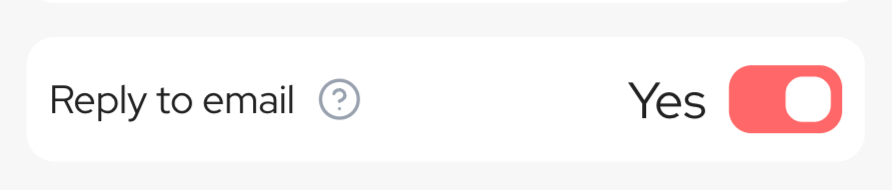
* **Reply to Email**: Enable this option to reply directly to an email thread
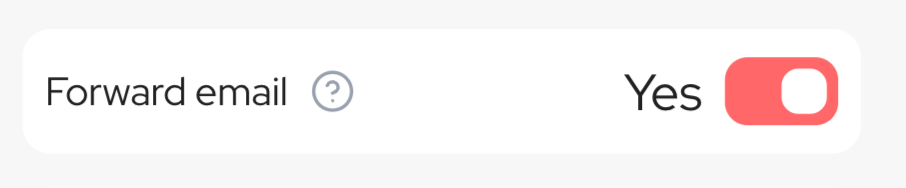
* **Forward Email**: Enable this option to forward an existing email
* **Include Attachments**: Toggle to include attachments when forwarding emails
* **Save as Draft**: Option to save email as draft instead of sending
* **Thread ID** (Optional): Required for replying to or forwarding email threads
* **Attachment Files** (Optional): Files to attach to the email
## Node Output
The Gmail Sender node produces the following output:
* **Email Status**: Confirmation of whether the email was sent successfully
## Node Functionality
The Gmail Sender node automates email sending through Gmail using the Gmail API.
### Email Thread Replies and Forwards
To reply to or forward an email in the same thread:
1. **Reply to Email**:
* Enable the "Reply to Email" option
* Connect the Thread ID AND Subject from the Gmail Reader node
* The email will appear as a direct reply in the original conversation
2. **Forward Email**:
* Enable the "Forward Email" option
* Connect the Thread ID from a Gmail Reader node
### Example Workflow
```mermaid theme={"dark"}
flowchart LR
A["Gmail Reader"] --> B["Ask AI\n(Generate Response)"]
A -- "Thread ID" --> C["Gmail Sender\n(Reply to Email)"]
A -- "Subject" --> C
B -- "Response Body" --> C
```
Here's how it works:
1. Gmail Reader node fetches the email (gets Thread ID and Subject)
2. Ask AI generates your response
3. Gmail Sender sends the reply:
* Enable "Reply to Email" option
* Connect Thread ID from Gmail Reader
* Connect Subject from Gmail Reader (required for the reply to appear in the same thread)
* Input AI-generated response as Body
## Attaching Multiple Files
The Gmail Sender node supports attaching multiple files to an email by separating the files with a comma `,`. There are several ways to do this:
#### Method 1: Using Comma Separation
Connect the filenames as a comma-separated string to the "Attachment Files" input:
```text theme={"dark"}
file1.pdf,file2.xlsx,file3.jpg
```
```mermaid theme={"dark"}
flowchart LR
A["Drive Folder Reader"] --> B["Join List Items\n(Comma separator)"]
B --> C["Gmail Sender\n(Attachment Files)"]
```
#### Method 2: Combining Files from Multiple Sources
To attach files from different sources (e.g., Google Drive and Slack):
```mermaid theme={"dark"}
flowchart LR
A["Drive File Reader\n(file1.pdf)"] --> C
B["Slack Attachment\n(file2.xlsx)"] --> C
C["Combine Text\n(Comma separator)"] --> D["Gmail Sender\n(Attachment Files)"]
```
**Example workflow steps:**
1. Get files from Google Drive using Drive File Reader
2. Get attachments from Slack using Slack Message Reader
3. Use Combine Text node with inputs separated by commas
4. Connect the combined output to the Gmail Sender's "Attachment Files" input
> **Pro Tip**: When setting up the Combine Text node, use the template: `{input1}, {input2}` to properly separate the filenames with commas.
## Key Features
* Support for HTML formatting
* Multiple file attachment capabilities
* Multiple recipient handling
* Draft email creation
* Reply and forward functionality
* Loop Mode support for sending multiple emails
* Secure authentication with Gumloop
## Configure Inputs
The node allows you to configure certain parameters as dynamic inputs by clicking the "Configure Inputs" button. This makes your workflow more flexible by enabling these settings to change based on previous node outputs.
Available dynamic inputs include:
* **Recipient**: Email address(es) of recipients
* **Subject**: Email subject line
* **Body**: Email content
* **Sender Name**: Custom name shown to recipients
* **Thread ID**: For replying to specific email threads
* **Attachment Files**: Files to be attached to the email
## When To Use
The Gmail Sender node is particularly valuable in scenarios requiring automated email communication. Common use cases include:
### Automated Customer Support
```mermaid theme={"dark"}
flowchart LR
A["Gmail Reader"] --> B["Extract Data\n(Ticket Number, Issue)"]
B --> C["Ask AI\n(Generate Response)"]
C --> D["Gmail Sender\n(Reply to Email)"]
```
This workflow automatically handles customer support inquiries by:
1. Reading incoming customer emails
2. Extracting key information like ticket numbers and issue details
3. Generating appropriate responses with AI
4. Sending replies directly in the same email thread
### Document Distribution with Multiple Attachments
```mermaid theme={"dark"}
flowchart LR
A["Google Sheets Reader\n(Report Data)"] --> B["Ask AI\n(Generate Report)"]
C["Drive Folder Reader\n(Supporting Files)"] --> D["Join List Items\n(Comma separator)"]
B --> E["Gmail Sender"]
D --> E
```
This workflow automatically creates and sends reports with multiple attachments by:
1. Fetching data from Google Sheets
2. Generating a report narrative with AI
3. Reading all files from a specific Google Drive folder
4. Joining the filenames with commas using Join List Items
5. Sending the email with all files attached
### Weekly Report Distribution
```mermaid theme={"dark"}
flowchart LR
A["Scheduled Trigger"] --> B["Google Sheets Reader\n(Weekly Metrics)"]
B --> C["Ask AI\n(Create Report)"]
C --> D["Gmail Sender\n(Multiple Recipients)"]
```
This workflow automatically sends weekly reports by:
1. Triggering on a set schedule
2. Fetching the latest data from Google Sheets
3. Summarizing key metrics and insights
4. Sending formatted reports to stakeholders
### Email Response Classification
```mermaid theme={"dark"}
flowchart LR
A["Gmail Reader"] --> B["Categorizer\n(Classify Email Type)"]
B --> C{"If-Else Node"}
C -->|"Sales Inquiry"| D["Ask AI\n(Sales Response)"]
C -->|"Support Request"| E["Ask AI\n(Support Response)"]
C -->|"Feature Request"| F["Ask AI\n(Feature Response)"]
D & E & F --> G["Gmail Sender"]
```
This workflow handles different types of emails appropriately by:
1. Reading incoming emails
2. Categorizing them by type (sales, support, feature request)
3. Generating category-specific responses
4. Sending appropriate replies to each inquiry
### Email Forwarding with Attachment Processing
```mermaid theme={"dark"}
flowchart LR
A["Gmail Reader"] --> B["Filter\n(Contains Invoices)"]
B --> C["Gmail Sender\n(Forward Email)"]
B --> D["Extract Data\n(Invoice Details)"]
D --> E["Airtable Writer\n(Update Finance Records)"]
```
This workflow processes incoming invoices by:
1. Identifying emails containing invoices
2. Forwarding them to the finance department
3. Extracting key financial data
4. Recording it in Airtable for tracking
**Some specific examples**:
* Welcome emails for new users
* Transaction confirmations
* Weekly report distribution
* Support ticket responses
* Automated reply chains for customer inquiries
* Forwarding important emails with attachments to relevant team members
## Important Considerations:
1. Requires Authentication with Gmail - Set up in the [Connectors page](https://www.gumloop.com/personal/connectors)
2. HTML formatting requires 'Send as HTML' parameter to be true
3. For bulk emailing, utilize Loop Mode
4. When attaching multiple files, ensure they are separated by commas
5. When replying or forwarding, Thread ID is required
In summary, the Gmail Sender node streamlines email communication by providing a reliable way to send automated emails through Gmail, supporting various formats, multiple attachments, and interaction with existing email threads.