> ## Documentation Index
> Fetch the complete documentation index at: https://docs.gumloop.com/llms.txt
> Use this file to discover all available pages before exploring further.
# Google Drive Folder Reader
The Google Drive Folder Reader node enables automated content extraction from multiple files in a Google Drive folder. This node is particularly powerful for batch processing documents, images, and data files stored in Google Drive.
## Table of Contents
* [Quick Start](#quick-start)
* [Node Configuration](#node-configuration)
* [Output Types & Link Options](#output-types--link-options)
* [Processing Different File Types](#processing-different-file-types)
* [Example Workflows](#example-workflows)
* [Trigger Functionality](#trigger-functionality)
* [Best Practices](#best-practices)
## Quick Start
Choose your approach based on your situation:
| Your Situation | Configuration | Next Node | Example Workflow | Why This Works |
| --------------------------------------- | -------------------------------- | ------------------------ | ----------------------------------------------------------------------------------- | --------------------------------------- |
| **Small folder, want file content** | Keep default settings | File Reader (Loop Mode) | [View Example](https://www.gumloop.com/pipeline?workbook_id=uZT4TBdNgoYaKNwDJFKZ2b) | Simple setup, gets content directly |
| **Large folder, need speed** | Enable "Return Drive Links Only" | Google Drive File Reader | [View Example](https://www.gumloop.com/pipeline?workbook_id=qCBGaLAQtFJRNEnQJnHRHv) | Fast folder scan, then download files |
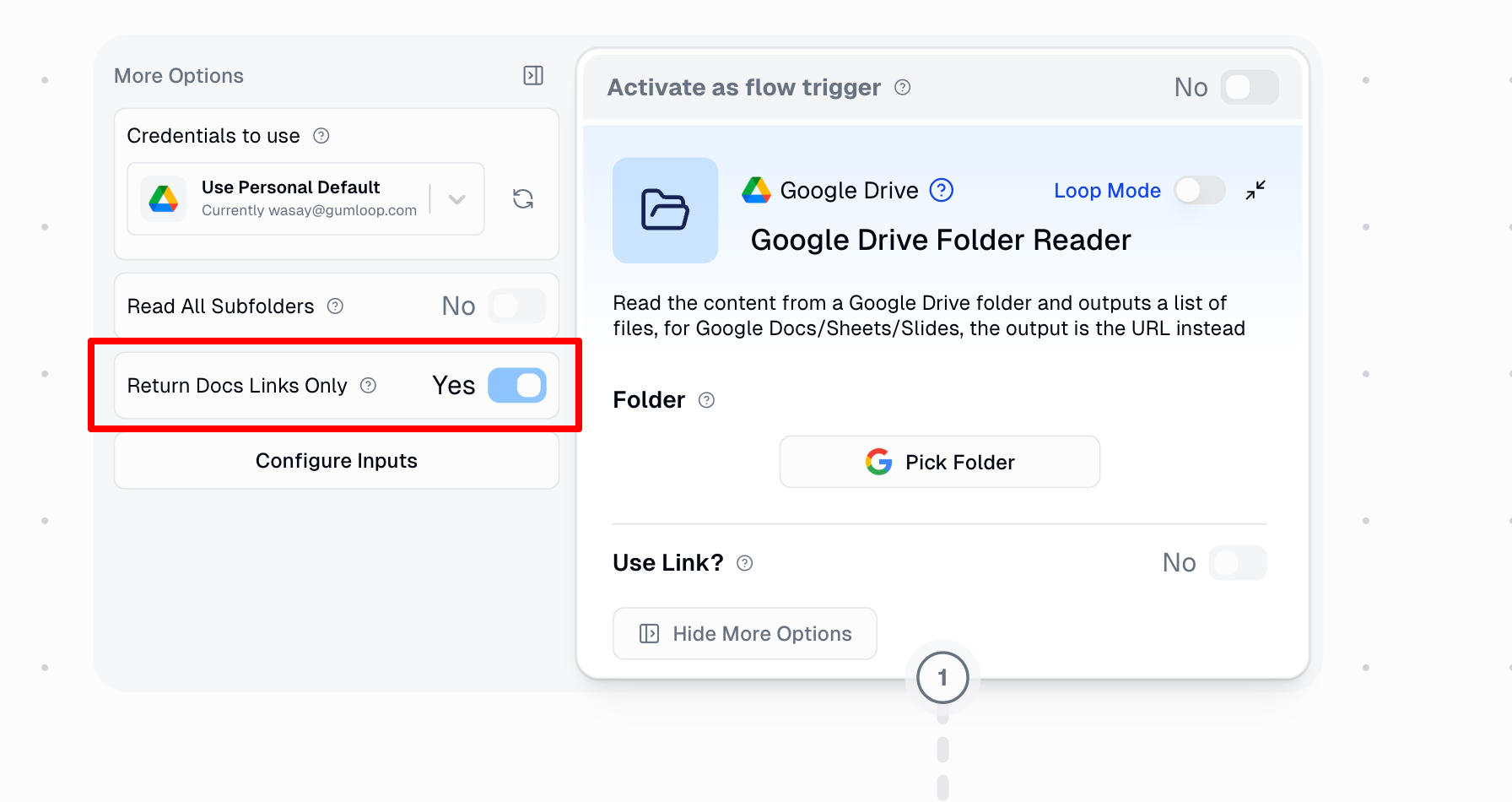
| **Mixed file types (Docs, PDFs, etc.)** | Enable "Return Doc Links Only" | Router node | [View Example](https://www.gumloop.com/pipeline?workbook_id=cQAUbZZeqrNnzYGcgnvSZd) | Routes each file type to best processor |
## Node Configuration
### Folder Selection
Choose one method to specify your folder:
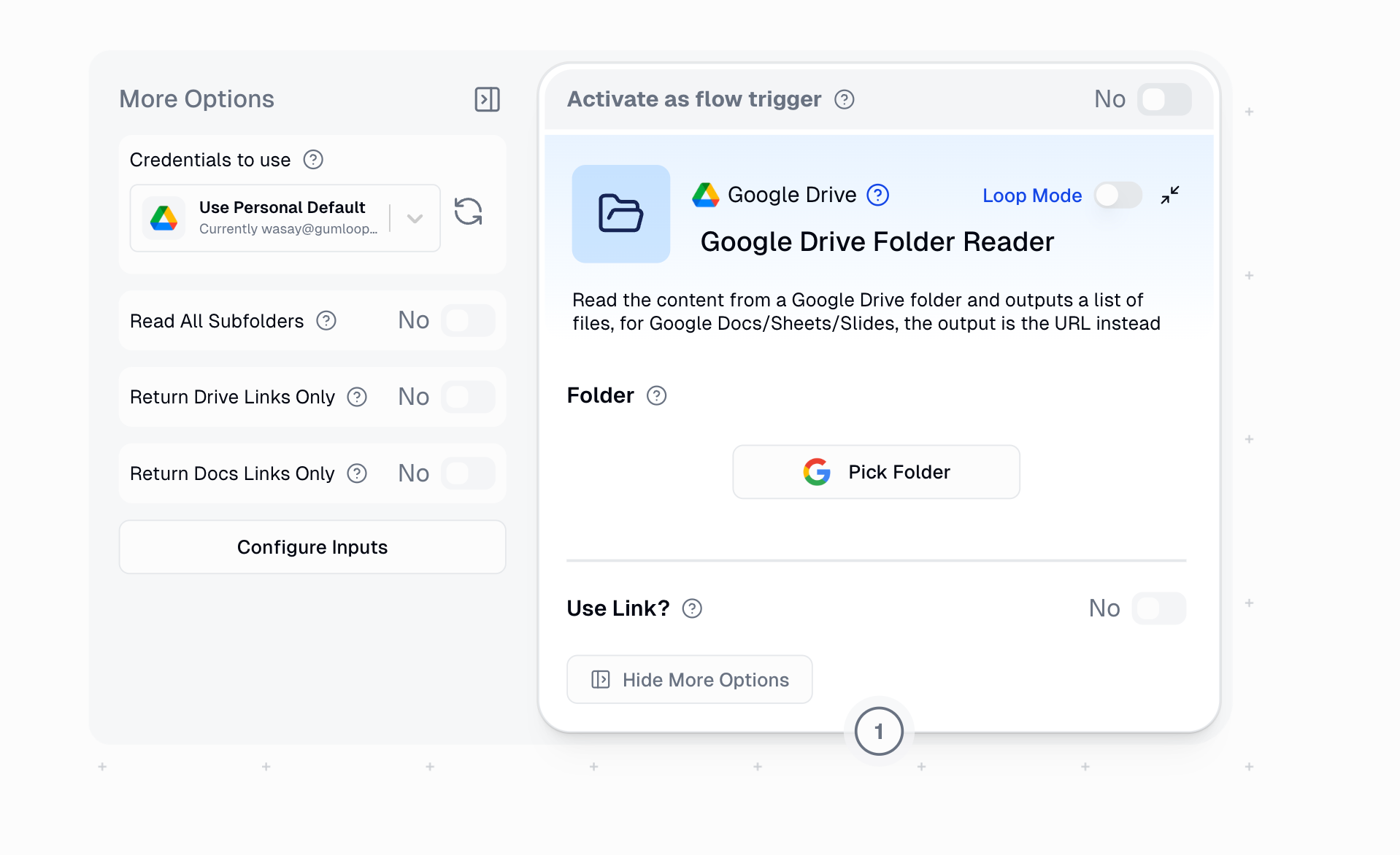
* **Select Folder**: Browse and select from your Google Drive
* **Use Link**: Paste a direct Google Drive folder URL
### Core Options
#### Read All Subfolders
* **When enabled**: Reads files from all nested subfolders recursively
* **When disabled**: Reads only files from the selected folder
* **Performance**: Can significantly increase processing time for deeply nested structures
* **Note**: Not available when using the node as a trigger
#### Link Return Options
These options make the node run **significantly faster** by returning links instead of downloading the files:
**Return Drive Links Only**
* **Output**: `drive.google.com` links for ALL files (G Suite and non-G Suite)
* **Best for**: Large folders where you want consistent link format
* **Performance**: Fastest option available
**Return Doc Links Only**
* **Output**:
* G Suite files (Docs, Sheets, Slides): `docs.google.com` links
* Non-G Suite files: `drive.google.com` links
* **Best for**: Mixed file types requiring different processing paths
* **Performance**: Fast, with automatic file type routing
## Output Types & Link Options
### Default Output (No Link Options Enabled)
```text theme={"dark"}
Output: File objects that can be directly connected to:
✓ File Reader, PDF Reader
✓ Slack Message Sender, Gmail Sender (as attachments)
✓ AI Analyze Image, Analyze Video nodes
```
> Note: Total folder size limit of 400 MB applies when downloading files directly.
### With Link Options Enabled
```text theme={"dark"}
Output: Text links that require additional processing:
✓ Google Drive File Reader → File objects
✓ Google Docs/Sheets/Slides Reader → Content
✓ Router → Conditional processing
```
## Processing Different File Types
### Method 1: Fast Link-Based Processing (Recommended for Large Folders)
**Example Workflow**: [Mixed File Type Processing](https://www.gumloop.com/pipeline?workbook_id=cQAUbZZeqrNnzYGcgnvSZd)
```mermaid theme={"dark"}
flowchart TD
A["Google Drive Folder Reader
(Return Doc Links Only)"] --> B["Router"]
B -->|"Link contains 'document'"| C["Google Docs Reader"]
B -->|"Link contains 'presentation'"| D["Google Slides Reader"]
B -->|"Link contains 'spreadsheets'"| E["Google Sheets Reader"]
B -->|"Link contains 'file/d/'"| F["Google Drive File Reader
(Loop Mode)"]
F --> G["File Reader"]
C --> H["Combined Output"]
D --> H
E --> H
G --> H
```
**Why this works**:
* **Speed**: Scanning folder returns links instantly
* **Efficiency**: Each file type uses its optimal reader
* **Scalability**: Handles hundreds of files efficiently
### Method 2: Direct File Processing (Simpler Setup)
**Example Workflow**: [Direct File Processing](https://www.gumloop.com/pipeline?workbook_id=uZT4TBdNgoYaKNwDJFKZ2b)
```mermaid theme={"dark"}
flowchart TD
A["Google Drive Folder Reader
(Default settings)"] --> B["File Reader
(Loop Mode)"]
B --> C["Content Output"]
```
**When to use**:
* Small to medium folders (under 400 MB total size)
* Mixed file types that you want to process uniformly
* Quick prototyping and testing
**Important Setup Note**:
When connecting Google Drive Folder Reader to File Reader:
1. **Do NOT** enable "Use Link" on the File Reader node
2. **Do** enable "file" as an input in the File Reader's "Configure Inputs" section
3. The connection should pass file objects, not links
**Note**: File Reader now supports Google Docs, Sheets, and Slides when connected directly with the `Drive Folder Reader` node, but specialized nodes (Google Docs Reader, Google Sheets Reader, etc.) provide better performance and more features.
## Example Workflows
### 1. Enterprise Document Analysis
```text theme={"dark"}
Google Drive Folder Reader (Return Doc Links Only)
→ Router (file type detection)
→ Specialized Readers (Docs/Sheets/PDF)
→ Extract Data
→ Airtable Writer
Purpose: Process quarterly reports across multiple departments
```
### 2. Student Assignment Processing
```text theme={"dark"}
Google Drive Folder Reader (Read All Subfolders enabled)
→ File Reader (Loop Mode)
→ Ask AI (plagiarism check)
→ Google Sheets Writer
Purpose: Batch process assignments from multiple class folders
```
### 3. Fast File Distribution
```text theme={"dark"}
Google Drive Folder Reader (Return Drive Links Only)
→ Google Drive File Reader (Loop Mode)
→ Slack Message Sender
Purpose: Share new files with team members efficiently
```
### 4. Invoice Processing Pipeline
```text theme={"dark"}
Google Drive Folder Reader
→ PDF Reader (Loop Mode)
→ Extract Data (invoice details)
→ Categorizer (by vendor)
→ Notion Database Writer
Purpose: Automate accounts payable document processing
```
## Trigger Functionality
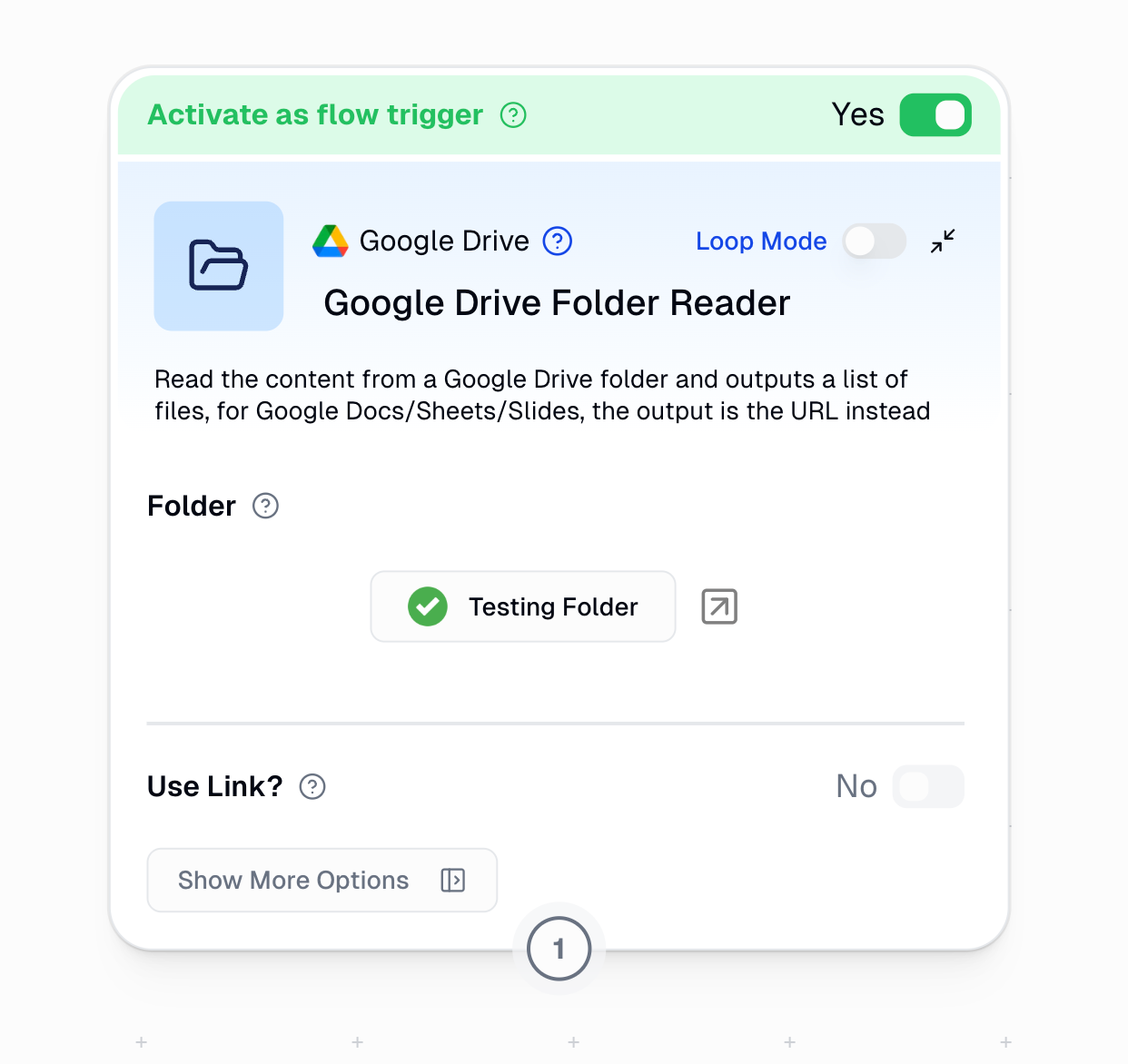
The node can automatically start your workflow when new files are added to the folder.
> Only monitors the selected top-level folder.
**Learn more**: [Workflow Triggers Documentation](https://docs.gumloop.com/core-concepts/workflow_triggers)
## Best Practices
### Performance Optimization
1. **Large folders**: Always enable link return options
2. **Mixed file types**: Use "Return Doc Links Only" with Router
3. **Uniform processing**: Use File Reader for simple content extraction
4. **Specialized needs**: Use dedicated nodes (Google Docs Reader, PDF Reader, etc.)
### File Type Strategy
| File Types in Folder | Recommended Approach | Configuration |
| --------------------- | ----------------------- | ---------------------------------------------------------------------- |
| **All PDFs** | Direct processing | Default → PDF Reader |
| **All G Suite files** | Specialized readers | Return Doc Links → Native readers (ie. Doc Reader, Slides Reader, etc) |
| **Mixed types** | Router-based processing | Return Doc Links → Router |
| **Large volume** | Link-based processing | Return Drive Links → Loop processing → Drive File Reader → File Reader |
## Important Considerations
**Authentication**
* Requires Google Drive authentication via [Connectors page](https://www.gumloop.com/personal/connectors)
* Must have access to the target folder
**Performance**
* Link options significantly improve speed for large folders
* Subfolder reading can increase processing time exponentially
**Limitations**
* Very large folders (100+ files) may timeout without link options. Make sure to enable `Return Drive Links` or `Return Doc Links` under `Show More Options` in such cases.
* Total folder size limit: 400 MB. Folders exceeding this total size limit will fail during processing.
In summary, the Google Drive Folder Reader is a versatile node that adapts to different use cases through its configuration options. For best results, choose your configuration based on folder size, file types, and processing requirements.