> ## Documentation Index
> Fetch the complete documentation index at: https://docs.gumloop.com/llms.txt
> Use this file to discover all available pages before exploring further.
# Router
The Router node enables smart conditional routing in your workflows by directing data through different paths based on AI decisions or logical conditions.
## What Does the Router Node Do?
The Router node acts as a **decision point** in your workflow, splitting your workflow into multiple paths and automatically choosing which path to follow. Think of it like an if-else statement, but significantly more powerful.
Create multiple conditional paths instead of just if/else logic
Use intelligent routing based on content understanding
Apply precise rule-based routing with boolean operators
Process batches with item-by-item evaluation
**Real-World Example**: Processing incoming support tickets
* Route urgent tickets → Escalation team
* Route billing questions → Finance department
* Route general inquiries → Standard support queue
The Router evaluates each ticket and automatically sends it down the appropriate path.
***
## AI Routing vs Standard Routing
Choose the right routing mode based on whether your decisions require interpretation or can be defined with exact rules.
**Use when you need content understanding**
Best for analyzing sentiment, understanding context, categorizing nuanced content, and making subjective classifications.
**Cost**: 2-30 credits based on the AI model
**Use when you have clear criteria**
Best for exact keyword matching, numerical comparisons, binary decisions, and deterministic routing.
**Cost**: 0 credits (logic-based)
### Quick Comparison
| Aspect | AI Routing | Standard Routing |
| ------------------ | ----------------------------- | --------------------- |
| **Decision Logic** | Content interpretation | Keyword/rule matching |
| **Consistency** | Intelligent but may vary | 100% deterministic |
| **Setup** | Natural language descriptions | Logical conditions |
| **Best Use Case** | Nuanced categorization | Clear yes/no criteria |
### When to Use AI Routing
Use AI routing when your routing decisions require **content understanding and interpretation**.
**Ideal scenarios:**
* Analyzing sentiment or tone
* Understanding context and intent
* Categorizing nuanced content
* Making subjective classifications
**Example Configuration:**
```text theme={"dark"}
Route 1: "Customer Complaint"
AI Condition: "when the email expresses dissatisfaction,
frustration, or requests a refund"
Route 2: "Product Inquiry"
AI Condition: "when the email asks questions about features,
pricing, or product information"
Route 3: "Technical Support"
AI Condition: "when the email reports bugs, technical issues,
or requests help with setup"
```
AI routing is **enabled by default**. You can select different AI models based on complexity, with credit costs ranging from 2-30 credits per routing decision.
### When to Use Standard Routing
Use standard routing when you have **clear, measurable criteria** that can be defined with exact rules.
**Ideal scenarios:**
* Exact keyword matching
* Numerical comparisons
* Binary yes/no decisions
* Deterministic routing (must be 100% consistent)
**Example Configuration:**
```
Route 1: "Shopify Leads"
Conditions:
- website_content [Text] Contains "shopify"
- OR website_content [Text] Contains "myshopify.com"
Route 2: "Other Websites"
Conditions:
- website_content [Text] Does not Contain "shopify"
```
Standard routing uses **0 credits** since it's logic-based with no external API calls.
***
## Real-World Examples
### Support Request Triage
**[View Full Workflow →](https://gumloop.com/pipeline?workbook_id=2YiTXF7pcXBMgiaiSetQWT)**
This workflow intelligently categorizes support requests using AI-powered routing.
Gmail Reader pulls support emails from a specific label
Router analyzes content to understand intent and urgency
Each route triggers different actions for appropriate teams
**Why AI Routing?**\
Support requests require interpretation - the AI understands context, tone, and intent to determine urgency and category. Keywords alone can't capture this nuance.
**Router Setup:**
* **Route 1**: "General Questions" → Slack notification to general support
* **Route 2**: "Billing Questions" → Email to finance team
* **Route 3**: "Feature Request" → Create Linear ticket
### Lead Website Analyzer
**[View Full Workflow →](https://gumloop.com/pipeline?workbook_id=pkHL6gMqMhKKr3XifseevD)**
This workflow qualifies leads by detecting specific website technologies using logical conditions.
Sheet Reader pulls prospect websites from Google Sheet
Website Scraper extracts content from each website
Router uses text conditions to detect platforms
Qualified leads go to Slack, others receive Gmail rejection
**Why Standard Routing?**\
This is deterministic - if scraped content contains specific Shopify keywords, it's definitely a Shopify store. No interpretation needed, just exact keyword matching for 100% consistency.
**Router Setup:**
* **Route 1**: "Shopify Leads" (Qualified) - Contains "shopify" OR "myshopify.com"
* **Route 2**: "Other Websites" (Rejected) - Does not contain "shopify"
***
## Loop Mode Processing
### How It Works
When you pass a list to the Router, each item is evaluated separately and can be routed to different paths based on its individual characteristics.
**Example**: [View Loop Mode Workflow →](https://gumloop.com/pipeline?workbook_id=mj89U7XwiPqwJKEfHBPrsg)
```
Input List: ["urgent ticket", "billing question", "general inquiry"]
Processing:
┌─────────────────────────┐
│ Item 1: "urgent ticket" │ → Routes to Support Team
├─────────────────────────┤
│ Item 2: "billing question" │ → Routes to Finance Team
├─────────────────────────┤
│ Item 3: "general inquiry" │ → Routes to General Team
└─────────────────────────┘
Result: Items distributed across different routes
```
This allows batch processing where each item in your list can take a different path based on its content.
***
## Configuration
### Required Inputs
The specific data field that determines which route to take. The Router analyzes this field to make routing decisions.
**Example for support tickets:**
* `ticket_description` - Route based on issue content
* `priority_level` - Route based on urgency
* `customer_tier` - Route based on customer status
The different paths your data can follow. Each route represents a distinct outcome or processing path.
**Example for support system:**
* Route 1: "Urgent" - High-priority issues
* Route 2: "Billing Question" - Payment-related
* Route 3: "Technical Support" - Product issues
* Route 4: "General Inquiry" - Everything else
### Optional Settings
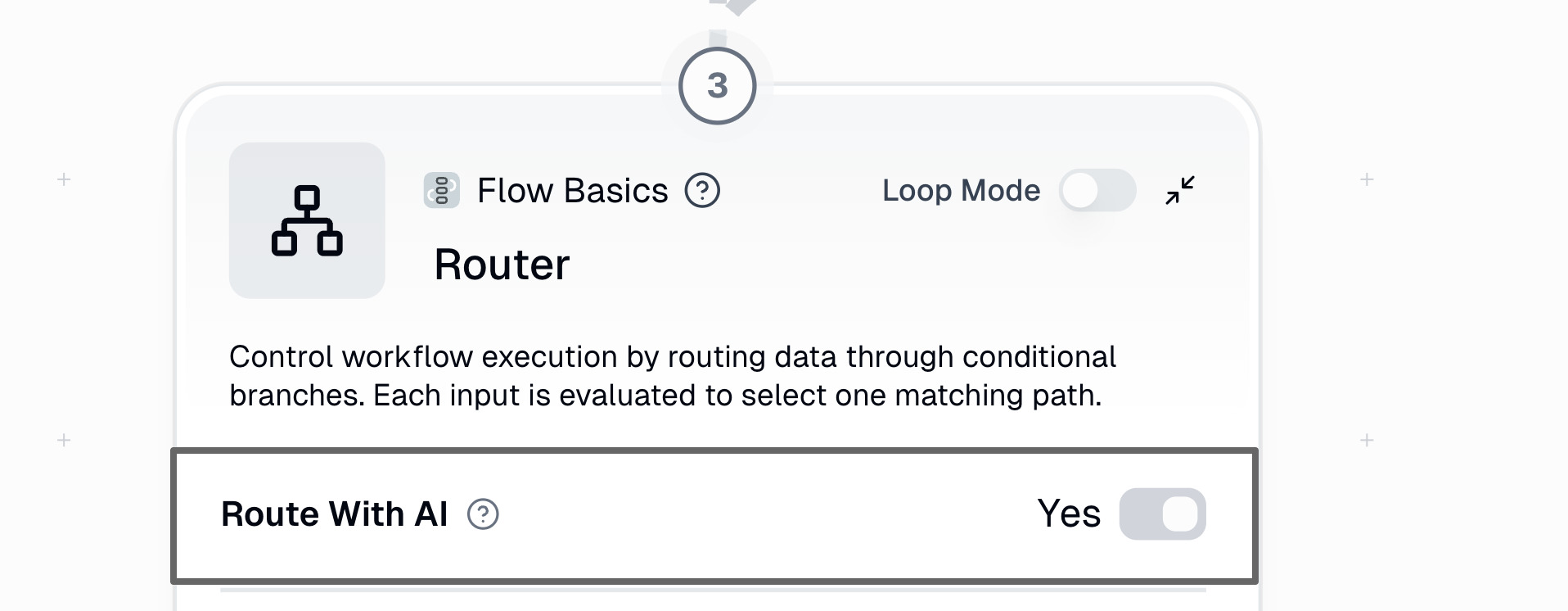
Toggle between AI-powered routing and standard logical routing.
**Default**: Enabled (AI Mode)
**When to disable**: When you need deterministic, rule-based routing with zero credit cost
Choose which AI model powers your routing decisions (only available in AI mode).
**Model tiers:**
* **Standard models**: 2 credits - Good for straightforward categorization
* **Advanced models**: 20 credits - Better for complex decisions
* **Expert models**: 30 credits - Best for nuanced interpretation
***
## Understanding Outputs
The Router creates separate output branches for each route. Each branch contains all the original inputs.
**Example Setup:**
```
Inputs to Router:
├── ticket_description (used for routing decision)
├── ticket_title
├── ticket_link
└── customer_email
Routes Created (ie. available outputs):
├── Urgent Branch → [All 4 inputs]
├── Billing Question Branch → [All 4 inputs]
└── Technical Support Branch → [All 4 inputs]
```
### Visual Workflow
```mermaid theme={"dark"}
graph LR
A[Router Input:
All Data Fields] --> B[Urgent Route]
A --> C[Billing Route]
A --> D[Technical Route]
B --> E[Slack Alert
receives all data]
C --> F[Gmail to Finance
receives all data]
D --> G[Jira Ticket
receives all data]
style A fill:#e1f5ff
style B fill:#fff4e6
style C fill:#fff4e6
style D fill:#fff4e6
```
This design ensures downstream nodes have full context - you don't lose related information when routing.
***
## Detailed Configuration Guide
### Configuring AI Routing
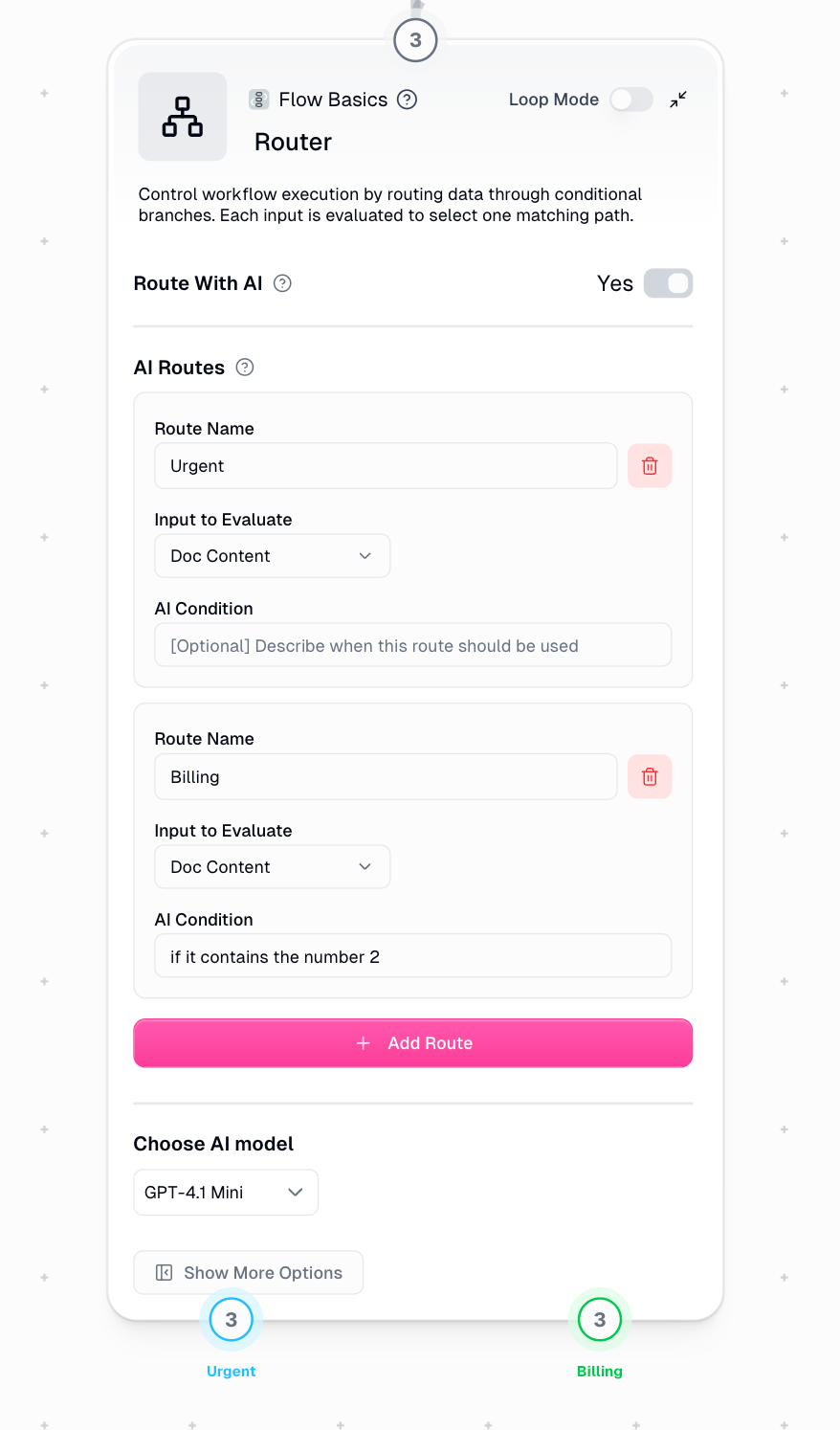
"Route With AI" should be toggled ON (this is the default)
Choose which data field the AI should analyze for routing
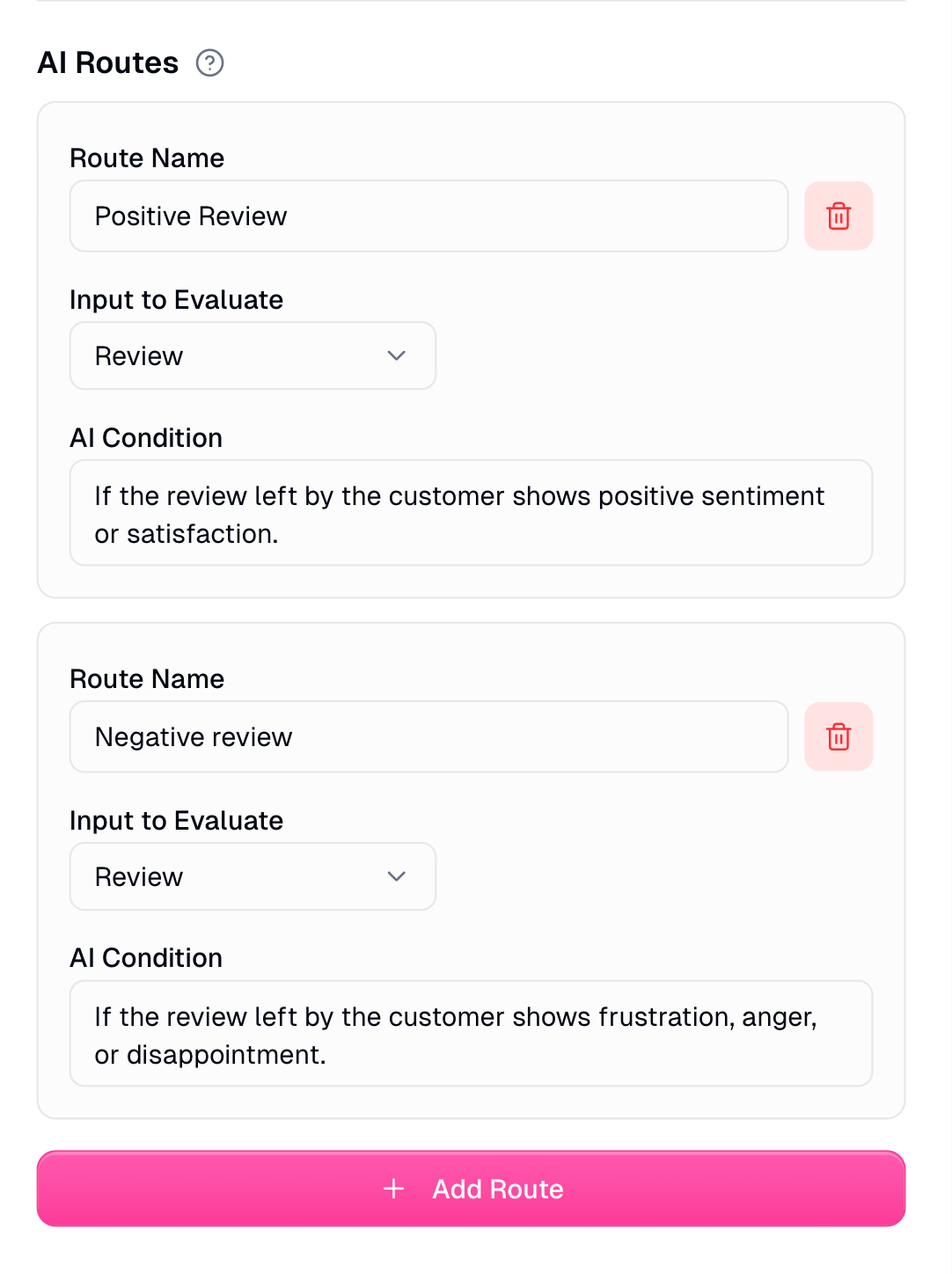
Add up to 8 routes with clear, descriptive names
Describe in natural language when each route should be used (optional but recommended)
Select model based on decision complexity
### Best Practices
✅ "Positive Review", "Negative Review"\
❌ "Route A", "Route B"
Even without conditions, AI infers logic from clear names
✅ "expresses anger, frustration, or demands action"\
❌ "negative sentiment"
Give AI enough context for accurate decisions
Match model power to complexity:
* Simple categorization → Standard
* Nuanced interpretation → Expert
### Configuring Standard Routing
Toggle "Route With AI" to OFF
Add routes with descriptive names
Use condition operators to define routing rules
Combine conditions with AND/OR operators
Place most specific conditions first (top to bottom evaluation)
### Available Condition Types
| Condition | Description |
| -------------- | ---------------------- |
| `Is empty` | Field contains no data |
| `Is not empty` | Field contains data |
| Condition | Description |
| -------------------------------- | ---------------------------------------------- |
| `Equals` | Exact match (case-sensitive) |
| `Does not equal` | Not an exact match |
| `Contains` | Includes substring |
| `Does not contain` | Does not include substring |
| `Starts with` | Begins with string |
| `Ends with` | Ends with string |
| `Is in` | Entire value appears in condition text |
| `Is not in` | Entire value does NOT appear in condition text |
| `Is greater than [n] characters` | Length exceeds number |
| `Is less than [n] characters` | Length under number |
| `Matches regex` | Matches regex pattern |
| `Does not match regex` | Does not match regex |
| Condition | Description |
| ----------------------------- | ------------------ |
| `Equals` | Exact number match |
| `Is not equal to` | Not exact match |
| `Is greater than` | Larger than value |
| `Is less than` | Smaller than value |
| `Is greater than or equal to` | Greater or equal |
| `Is less than or equal to` | Less or equal |
***
## Best Practices
Begin with 2-3 routes, add complexity gradually as you test and validate
Validate routing with diverse sample data including edge cases
Clear route names improve debugging and maintenance significantly
Include a catch-all route at the bottom to handle unmatched items
Place specific conditions first, general conditions last
Check logs regularly to verify routing behavior
### AI-Specific Guidelines
**Model Selection**
* Match model complexity to routing difficulty
* Start with standard models, upgrade only if needed
* More powerful models = higher accuracy but more credits
**Condition Writing**
* Provide context: explain what characteristics define each route
* Use examples: "emails expressing anger, frustration, or urgency"
* Be specific: avoid vague terms like "bad" or "negative"
* Test consistency: run same input multiple times to check variance
**Optimization**
* Descriptive route names help even without explicit conditions
* Include edge case examples in your AI conditions
* Review misrouted items to refine conditions
### Logic-Based Guidelines
**Condition Order**
* Most specific conditions first
* Broad catch-all conditions last
* Sequential evaluation means order is critical
**Data Validation**
* Verify input data types match expected formats
* Clean data before routing (trim whitespace, normalize case)
* Use type conversion nodes if needed
**Boolean Logic**
* Combine related conditions with AND/OR effectively
* Test each condition independently before combining
* Document complex logic for future maintenance
***
## Troubleshooting
**Problem**: An item didn't match any route conditions.
**Solutions:**
* Add a fallback route with opposite conditions to catch unmatched items
* Review your conditions - may be too restrictive
* Check input data for unexpected formats or values
**Prevention:**
* Always include a catch-all route at the bottom
* Test with diverse sample data including edge cases
**Problem**: Inputs being evaluated are different types (e.g., mixing text and lists).
**Solutions:**
* Ensure all inputs are the same type
* Use data conversion nodes before the Router
* Check upstream nodes for unexpected output types
**Prevention:**
* Validate data types in testing
* Use consistent data structures throughout workflow
[More details on type mismatch →](https://docs.gumloop.com/common_errors/type_mismatch)
**Problem**: List inputs have different lengths.
**Solutions:**
* Use Duplicate node to match list sizes
* Filter lists to same length before routing
* Verify upstream list generation
**Prevention:**
* Check list lengths in testing
* Ensure list-generating nodes produce consistent outputs
[More details on list size mismatch →](https://docs.gumloop.com/common_errors/list_size_mismatch)
### Debugging Checklist
Monitor which routes are being selected and verify expected behavior
[View Run Logs Documentation →](https://docs.gumloop.com/core-concepts/run_log)
Start with clear-cut examples before testing edge cases
Ensure data is clean, properly formatted, and matches expected types
Clear route names make debugging significantly easier
***
## Need Help?
Need help? Reach out to us and we'll assist you.