> ## Documentation Index
> Fetch the complete documentation index at: https://docs.gumloop.com/llms.txt
> Use this file to discover all available pages before exploring further.
# Output
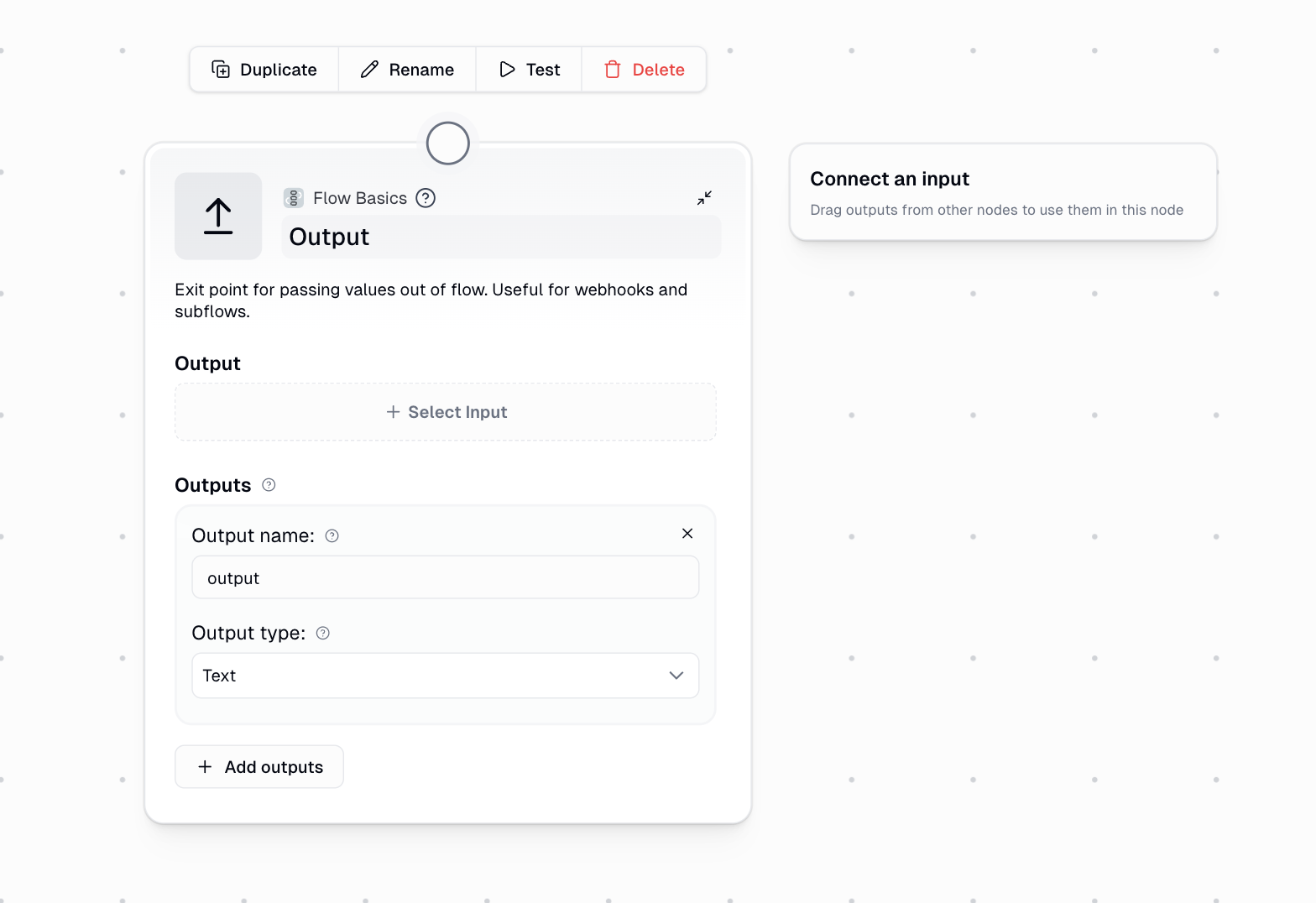
The Output node defines the exit points for your workflow, allowing you to pass data out to parent workflows, webhook responses, subflows, and external systems. It's essential for creating reusable workflows and enabling agents to access your workflow results.
 ## Quick Start
Drag the Output node from the node library into your canvas at the end of your workflow
Drag the output badge from a previous node into the Output field
Give your output a descriptive name (e.g., "summary", "processed\_data", "email\_list")
Choose the appropriate data type: Text, List, or Any
## Node Configuration
### Required Fields
The value or data you want to pass out of the workflow. Connect this to the output of any previous node in your workflow by dragging its output badge into this field.
A descriptive name to identify this output. This name is used when:
* Accessing the output in parent workflows
* Retrieving data via webhook responses
* Using the workflow as a subflow in other workflows
* Allowing agents to view the results when the workflow is used as a tool
**Default:** "output"
### Optional Fields
Sets the expected data format for your output:
| Type | Use Case | Example |
| -------- | ------------------------------------- | ------------------------------------------------- |
| **Text** | Single values like strings or numbers | A summary, email address, or processed text |
| **List** | Arrays of values | List of URLs, email addresses, or extracted items |
| **Any** | Mixed or unknown data types | API responses, complex objects, or testing |
### Multiple Outputs
You can configure multiple outputs within a single Output node by clicking the **+ Add outputs** button. This is useful when your workflow produces several distinct results that need to be accessed separately.
## When to Use the Output Node
**Required for reusable workflows**
When creating a subflow, the Output node defines what data becomes available to the parent workflow. Without it, the parent workflow cannot access any results.
**Return data to external systems**
When your workflow is triggered via webhook, the Output node's data is returned in the API response, making it accessible to the calling system.
**Enable agents to view results**
When using a workflow as a tool in an agent, the Output node is required for the agent to see and use the results of the workflow execution.
**Programmatic access**
When running workflows via the Gumloop API, outputs are returned in the `get_pl_run` response, allowing programmatic access to results.
## Using Workflows as Agent Tools
If you're using a workflow as a tool in an agent, you **must** include an Output node for the agent to view the results of the workflow execution.
When an agent invokes a workflow as a tool, it needs to receive the results to continue its reasoning and decision-making. Without an Output node, the agent cannot see what the workflow produced, making the tool effectively useless.
## Quick Start
Drag the Output node from the node library into your canvas at the end of your workflow
Drag the output badge from a previous node into the Output field
Give your output a descriptive name (e.g., "summary", "processed\_data", "email\_list")
Choose the appropriate data type: Text, List, or Any
## Node Configuration
### Required Fields
The value or data you want to pass out of the workflow. Connect this to the output of any previous node in your workflow by dragging its output badge into this field.
A descriptive name to identify this output. This name is used when:
* Accessing the output in parent workflows
* Retrieving data via webhook responses
* Using the workflow as a subflow in other workflows
* Allowing agents to view the results when the workflow is used as a tool
**Default:** "output"
### Optional Fields
Sets the expected data format for your output:
| Type | Use Case | Example |
| -------- | ------------------------------------- | ------------------------------------------------- |
| **Text** | Single values like strings or numbers | A summary, email address, or processed text |
| **List** | Arrays of values | List of URLs, email addresses, or extracted items |
| **Any** | Mixed or unknown data types | API responses, complex objects, or testing |
### Multiple Outputs
You can configure multiple outputs within a single Output node by clicking the **+ Add outputs** button. This is useful when your workflow produces several distinct results that need to be accessed separately.
## When to Use the Output Node
**Required for reusable workflows**
When creating a subflow, the Output node defines what data becomes available to the parent workflow. Without it, the parent workflow cannot access any results.
**Return data to external systems**
When your workflow is triggered via webhook, the Output node's data is returned in the API response, making it accessible to the calling system.
**Enable agents to view results**
When using a workflow as a tool in an agent, the Output node is required for the agent to see and use the results of the workflow execution.
**Programmatic access**
When running workflows via the Gumloop API, outputs are returned in the `get_pl_run` response, allowing programmatic access to results.
## Using Workflows as Agent Tools
If you're using a workflow as a tool in an agent, you **must** include an Output node for the agent to view the results of the workflow execution.
When an agent invokes a workflow as a tool, it needs to receive the results to continue its reasoning and decision-making. Without an Output node, the agent cannot see what the workflow produced, making the tool effectively useless.
 ### Example: Creating an Agent-Compatible Workflow
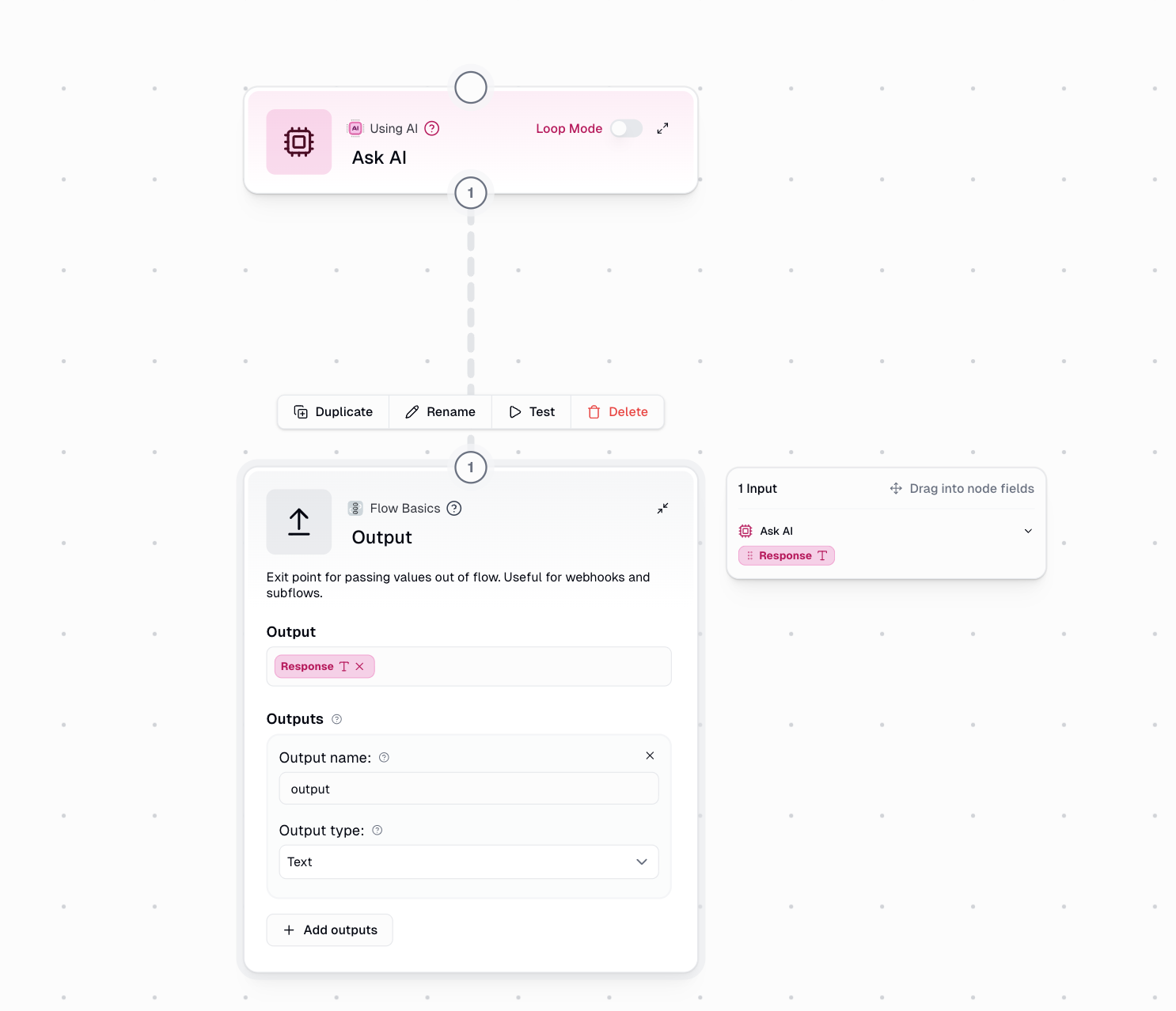
Consider a workflow that uses Ask AI to analyze text. To make this workflow usable as an agent tool:
Add your processing nodes (e.g., Ask AI, data extraction, API calls)
Connect the final result to an Output node
Use a clear name like "analysis\_result" or "summary" so the agent understands what it's receiving
The agent can now invoke this workflow and receive the output to use in its reasoning
The output name you choose will be visible to the agent, so use descriptive names that help the agent understand what data it's receiving.
## Working with Subflows
The Output node is essential for creating modular, reusable workflows through subflows.
### Passing Data to Parent Workflows
When you use a workflow as a subflow, all outputs defined in the Output node become available in the parent workflow:
```text theme={"dark"}
Subflow outputs: "customer_name", "customer_email", "order_total"
Parent workflow: Can access all three outputs when using the subflow node
```
### Chaining Subflows
Create complex data processing pipelines by passing outputs from one subflow to another:
```text theme={"dark"}
Subflow A (Data Extraction) -> Output: "extracted_data"
|
v
Subflow B (Data Processing) -> Input: receives "extracted_data"
|
v
Output: "processed_result"
```
Name your outputs clearly and consistently across subflows to make your workflows easier to understand and maintain.
## Output Types Explained
**Use for single values**
Choose Text when outputting:
* A single piece of text or string
* A number or calculated value
* A summary or processed result
* Any single, non-list value
```text theme={"dark"}
Example: "The analysis shows a 15% increase in engagement."
```
**Use for arrays of values**
Choose List when outputting:
* Multiple items from a loop
* Extracted lists of data
* Arrays of URLs, emails, or identifiers
* Results from batch processing
```text theme={"dark"}
Example: ["email1@example.com", "email2@example.com", "email3@example.com"]
```
**Use for flexible or unknown types**
Choose Any when:
* The output type may vary
* You're working with complex objects
* You're still testing and iterating
* The data comes from an unpredictable source
```text theme={"dark"}
Example: {"status": "success", "data": [...], "metadata": {...}}
```
## Common Use Cases
Extract and output email addresses from a document:
```text theme={"dark"}
Document Input -> Extract Data -> Output (name: "email_list", type: List)
```
The parent workflow or webhook can then use this list for further processing.
Summarize content and return the result:
```text theme={"dark"}
Content Input -> Ask AI (summarize) -> Output (name: "summary", type: Text)
```
Perfect for creating reusable summarization subflows.
Transform data and output multiple results:
```text theme={"dark"}
Raw Data -> Process -> Output (names: "cleaned_data", "error_count", "processing_time")
```
Use multiple outputs to provide comprehensive results.
Create a research workflow that an agent can use:
```text theme={"dark"}
Search Query Input -> Web Search -> Summarize Results -> Output (name: "research_findings")
```
The agent receives the research findings and can use them in its response.
## Important Considerations
* Use descriptive, lowercase names with underscores (e.g., `customer_email`, `processed_data`)
* Avoid generic names like "output" or "result" when possible
* Keep names consistent across related workflows
* Consider how the name will appear to agents or in API responses
* Match the output type to your actual data to avoid unexpected behavior
* Use List type when working with Loop Mode results
* Use Any type sparingly, as it provides less clarity to downstream consumers
* Add multiple outputs when your workflow produces distinct results
* Each output can have its own name and type
* All outputs are available simultaneously to parent workflows and API responses
***
The Output node is your workflow's gateway for sharing results with the outside world. Whether you're building reusable subflows, creating webhook-triggered automations, or enabling agents to use your workflows as tools, properly configured outputs ensure your data flows seamlessly to wherever it needs to go.
### Example: Creating an Agent-Compatible Workflow
Consider a workflow that uses Ask AI to analyze text. To make this workflow usable as an agent tool:
Add your processing nodes (e.g., Ask AI, data extraction, API calls)
Connect the final result to an Output node
Use a clear name like "analysis\_result" or "summary" so the agent understands what it's receiving
The agent can now invoke this workflow and receive the output to use in its reasoning
The output name you choose will be visible to the agent, so use descriptive names that help the agent understand what data it's receiving.
## Working with Subflows
The Output node is essential for creating modular, reusable workflows through subflows.
### Passing Data to Parent Workflows
When you use a workflow as a subflow, all outputs defined in the Output node become available in the parent workflow:
```text theme={"dark"}
Subflow outputs: "customer_name", "customer_email", "order_total"
Parent workflow: Can access all three outputs when using the subflow node
```
### Chaining Subflows
Create complex data processing pipelines by passing outputs from one subflow to another:
```text theme={"dark"}
Subflow A (Data Extraction) -> Output: "extracted_data"
|
v
Subflow B (Data Processing) -> Input: receives "extracted_data"
|
v
Output: "processed_result"
```
Name your outputs clearly and consistently across subflows to make your workflows easier to understand and maintain.
## Output Types Explained
**Use for single values**
Choose Text when outputting:
* A single piece of text or string
* A number or calculated value
* A summary or processed result
* Any single, non-list value
```text theme={"dark"}
Example: "The analysis shows a 15% increase in engagement."
```
**Use for arrays of values**
Choose List when outputting:
* Multiple items from a loop
* Extracted lists of data
* Arrays of URLs, emails, or identifiers
* Results from batch processing
```text theme={"dark"}
Example: ["email1@example.com", "email2@example.com", "email3@example.com"]
```
**Use for flexible or unknown types**
Choose Any when:
* The output type may vary
* You're working with complex objects
* You're still testing and iterating
* The data comes from an unpredictable source
```text theme={"dark"}
Example: {"status": "success", "data": [...], "metadata": {...}}
```
## Common Use Cases
Extract and output email addresses from a document:
```text theme={"dark"}
Document Input -> Extract Data -> Output (name: "email_list", type: List)
```
The parent workflow or webhook can then use this list for further processing.
Summarize content and return the result:
```text theme={"dark"}
Content Input -> Ask AI (summarize) -> Output (name: "summary", type: Text)
```
Perfect for creating reusable summarization subflows.
Transform data and output multiple results:
```text theme={"dark"}
Raw Data -> Process -> Output (names: "cleaned_data", "error_count", "processing_time")
```
Use multiple outputs to provide comprehensive results.
Create a research workflow that an agent can use:
```text theme={"dark"}
Search Query Input -> Web Search -> Summarize Results -> Output (name: "research_findings")
```
The agent receives the research findings and can use them in its response.
## Important Considerations
* Use descriptive, lowercase names with underscores (e.g., `customer_email`, `processed_data`)
* Avoid generic names like "output" or "result" when possible
* Keep names consistent across related workflows
* Consider how the name will appear to agents or in API responses
* Match the output type to your actual data to avoid unexpected behavior
* Use List type when working with Loop Mode results
* Use Any type sparingly, as it provides less clarity to downstream consumers
* Add multiple outputs when your workflow produces distinct results
* Each output can have its own name and type
* All outputs are available simultaneously to parent workflows and API responses
***
The Output node is your workflow's gateway for sharing results with the outside world. Whether you're building reusable subflows, creating webhook-triggered automations, or enabling agents to use your workflows as tools, properly configured outputs ensure your data flows seamlessly to wherever it needs to go.