> ## Documentation Index
> Fetch the complete documentation index at: https://docs.gumloop.com/llms.txt
> Use this file to discover all available pages before exploring further.
# Join Paths
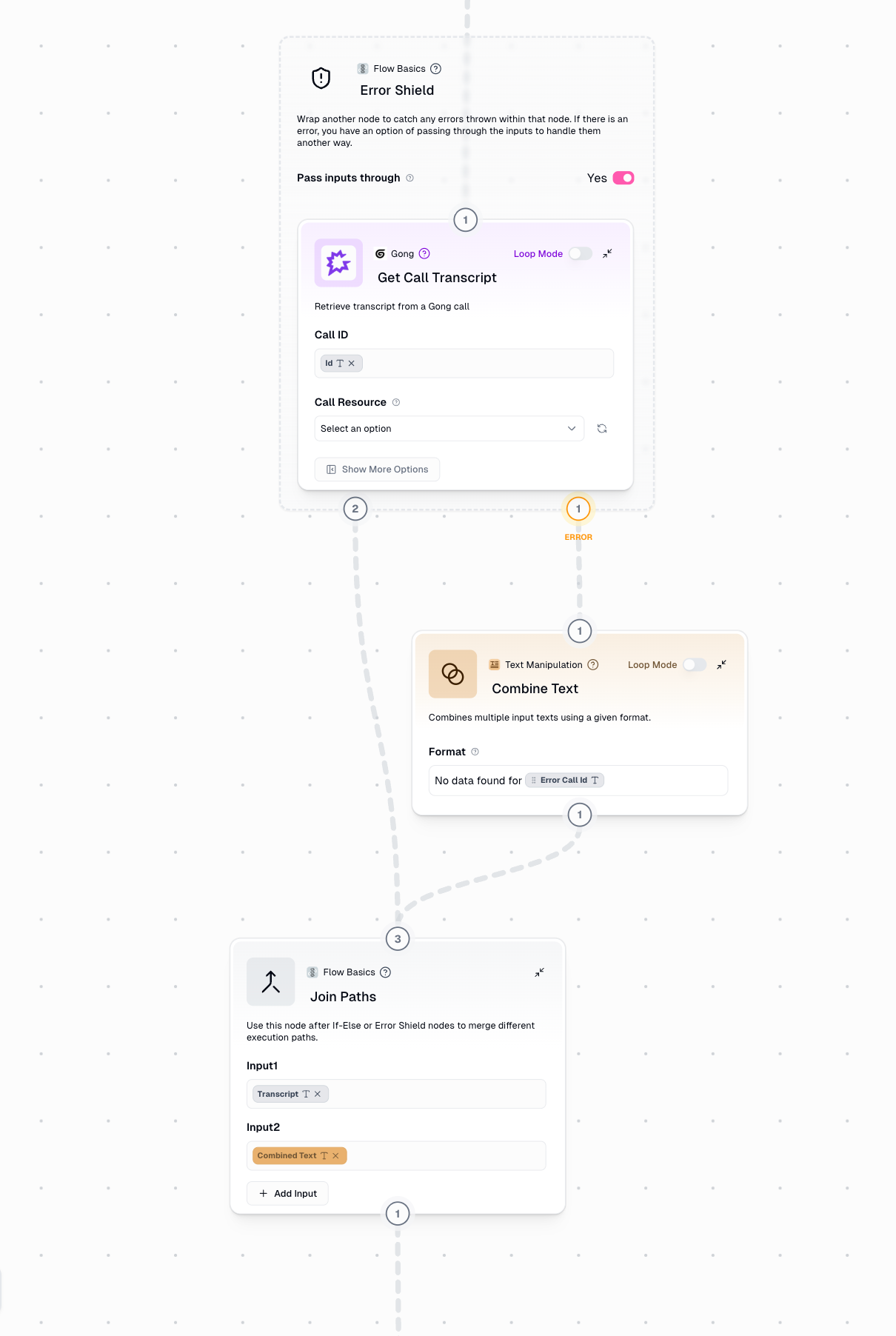
The Join Paths node reconnects multiple conditional paths in your workflow back into a single path. When you use If-Else, Router or Error Shield nodes that create branching logic, `Join Paths` eliminates the need for duplicate nodes by merging the paths back together.
## Overview
Think of Join Paths as a merge point in your workflow. After your workflow splits into different branches based on conditions, Join Paths brings the active branch back to continue processing through the same set of nodes.
No need to repeat the same nodes in each conditional branch
Maintain single processing paths after conditions
Update one set of nodes instead of multiple copies
Reduce redundant operations and simplify logic
## How It Works
Join Paths takes multiple input connections but only one path is active during runtime. The active path (determined by your conditional logic) workflows through Join Paths and continues to the next node.
**Key Concept**: Only the executed branch passes data through Join Paths. Non-executed paths are pruned (stopped) at the conditional node, so Join Paths never has to merge conflicting data.
## Configuration
Connect the first potential execution path. This can be any data type (text, list, object, etc.)
Connect the second potential execution path. Must match the data type of Input 1 to ensure consistency
Add more input connections for complex branching scenarios with 3+ conditional paths. Click the "+" button to add additional inputs.
**Example**: Processing Google Docs, PDFs, or websites requires 3 inputs on Join Paths
## Output
**Data from Executed Branch**: Join Paths outputs whatever data comes from the active path
**Type Preservation**: The original data type is maintained (if Input 1 sends text, output is text)
**No Merging**: Join Paths does NOT combine data from multiple paths - only the active path workflows through
**Non-Executed Branches**: Paths that weren't triggered by the conditional logic are pruned (stopped) and don't reach Join Paths
**No Dead Data**: You never have to worry about conflicting data from multiple paths because only one path is active at runtime
## When to Use Join Paths
Reconnect true/false branches after conditional logic
Merge success and error paths to continue workflow
## Why Join Paths Matters
Without Join Paths, you're forced to duplicate nodes after every conditional split:
```mermaid theme={"dark"}
flowchart LR
A[Input] --> B{If-Else}
B -->|True| C[Process A]
B -->|False| D[Process B]
C --> E[Save to DB]
D --> F[Save to DB]
E --> G[Send Email]
F --> H[Send Email]
style E fill:#ff6b6b
style F fill:#ff6b6b
style G fill:#ff6b6b
style H fill:#ff6b6b
```
Using Join Paths eliminates duplication by merging paths back together:
```mermaid theme={"dark"}
flowchart LR
A[Input] --> B{If-Else}
B -->|True| C[Process A]
B -->|False| D[Process B]
C --> E[Join Paths]
D --> E
E --> F[Save to DB]
F --> G[Send Email]
style E fill:#51cf66
style F fill:#51cf66
style G fill:#51cf66
```
## Example Workflows
### Example: If-Else with Join Paths
**Scenario**: Processing content from either Google Docs or websites
**Try it yourself**: [View and clone this example workflow](https://www.gumloop.com/pipeline?workbook_id=e6pr4uX6Ki67rfqCH9cfRj)
```mermaid theme={"dark"}
flowchart LR
A[Input URL] --> B{Is Google Doc?}
B -->|Yes| C[Extract Google Doc]
B -->|No| D[Scrape Website]
C --> E[Join Paths]
D --> E
E --> F[Summarize Content]
```
User provides a URL that could be either a Google Doc or a regular website
If-Else node determines if the URL is a Google Doc link
* **True path**: Use Google Docs integration to extract content
* **False path**: Use Website Scraper to get content
Join Paths combines both extraction methods into a single continuation point
Single Summarize node handles content from either source
**Without Join Paths**, you'd need two separate Summarize nodes - one after the Google Doc extraction and one after the website scraping. With Join Paths, you only maintain one Summarize node.
### Example: Error Shield with Join Paths
**Scenario**: Web scraping with error handling and result logging
**Try it yourself**: [View and clone this example workflow](https://www.gumloop.com/pipeline?workbook_id=dHSU1njW5f9x77NmUEQVsQ)
```mermaid theme={"dark"}
flowchart LR
A[URL Input] --> B[Error Shield]
B -->|Success| C[Scraped Content]
B -->|Error| D[Fallback Message:
'Site Unavailable']
C --> E[Join Paths]
D --> E
E --> F[Write to Sheet]
```
Wrap Website Scraper in Error Shield to catch failures
Successfully scraped content workflows directly to Join Paths
Failed scrapes trigger error path, which creates a fallback message like "Site Unavailable"
Join Paths ensures both successful scrapes and error messages continue to the next step
Single "Write to Sheet" node logs both successful and failed attempts
This pattern is essential for Error Shield usage when the node is NOT in Loop Mode. Without Join Paths, the error path becomes a dead end and the workflow stops.
### Example: Multi-Source Content Processor
**Scenario**: Handling different document types (Google Docs, PDFs, websites)
**Try it yourself**: [View and clone this example workflow](https://www.gumloop.com/pipeline?workbook_id=8y6UQLiZaPvHzFLrmYVeYm)
```mermaid theme={"dark"}
flowchart TD
A[Input URL] --> B{Is Google Doc?}
B -->|Yes| C[Extract Doc Content]
B -->|No| D{Is PDF?}
D -->|Yes| E[Extract PDF Content]
D -->|No| F[Scrape Website]
C --> G[Join Paths]
E --> G
F --> G
G --> H[Summarize Content]
```
Check if input is a Google Doc URL
If not a Google Doc, check if it's a PDF
* **Google Doc**: Use Docs integration
* **PDF**: Use PDF extraction
* **Website**: Use web scraper
Join Paths with 3 inputs consolidates all document types
Single Summarize node processes content regardless of original format
**Note**: When using multiple conditional checks, add additional inputs to Join Paths by clicking the "+" button. This example requires 3 input connections.
## Loop Mode Limitations
**Join Paths does NOT support Loop Mode.** Here's why and what to do instead.
### Why No Loop Mode?
Join Paths is designed for single-path execution where only one branch is active at a time. Loop Mode processes multiple items concurrently, which would create ambiguity:
* Which path's data should continue when multiple branches are active simultaneously?
* How should Join Paths handle item 1 taking the success path while item 2 takes the error path?
* What happens to synchronization between different loop iterations?
This limitation ensures predictable and reliable workflow execution.
### Solution: [Use Subflows](http://localhost:3001/core-concepts/subflows)
If you need to process multiple items with conditional logic:
Build your conditional logic and Join Paths inside a subflow that handles a single item
Verify the subflow works correctly with one item
In your main workflow, enable Loop Mode on the subflow node itself (not on nodes inside the subflow)
Connect a list of items to the subflow, which will process each item through the conditional logic independently
**Example Pattern**:
```mermaid theme={"dark"}
flowchart LR
A[List of URLs] --> B[Subflow in Loop Mode]
B --> C[List of Results]
subgraph Subflow[Inside Subflow - Single Item]
D[Input] --> E{Condition}
E -->|Path 1| F[Process A]
E -->|Path 2| G[Process B]
F --> H[Join Paths]
G --> H
H --> I[Output]
end
```
This approach maintains the benefits of Join Paths while efficiently processing multiple items. Each loop iteration runs the full conditional logic independently.
## Best Practices
Whenever you create a branching condition (If-Else, Error Shield, Router), consider if the paths need to reunite for common processing. If yes, use Join Paths.
Ensure all potential paths output the same data type to Join Paths:
* If one path outputs text, all paths should output text
* If one path outputs a list, all paths should output lists
**Why?** The next node after Join Paths expects a consistent data type.
When Error Shield wraps a node that's NOT in Loop Mode, always use Join Paths to:
* Prevent error paths from becoming dead ends
* Allow workflow to continue after error handling
* Enable unified logging of both success and failure cases
Add clear labels to your conditional branches so you can easily identify which path data came from during debugging.
Before connecting Join Paths:
1. Test each conditional branch separately
2. Verify each path produces the expected output type
3. Then connect Join Paths and test the full workflow
Don't try to use Join Paths directly in Loop Mode. Instead:
* Create a subflow with conditional logic + Join Paths
* Use Loop Mode on the subflow itself
* Process lists efficiently while maintaining clean conditional logic
## Additional Resources
Learn how to use Error Shield with Join Paths
Use Join Paths with Loop Mode via subflows
Advanced multi-path routing for 3+ conditions