> ## Documentation Index
> Fetch the complete documentation index at: https://docs.gumloop.com/llms.txt
> Use this file to discover all available pages before exploring further.
# Current Automation Info
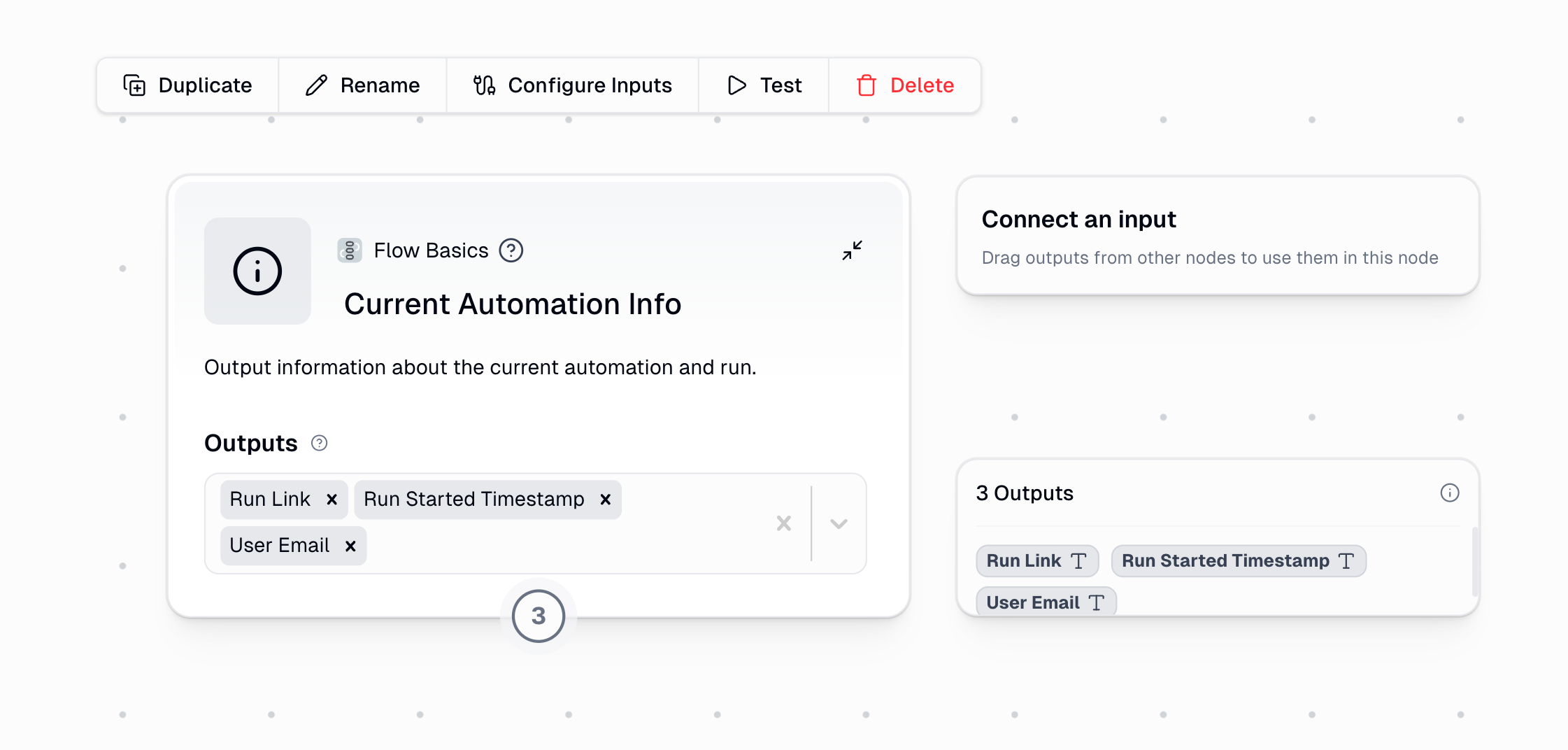
The Current Automation Info node provides metadata about the currently running automation, helping you track and reference workflow execution details.
## Overview
The Current Automation Info node outputs key information about the current automation and its execution context. It requires no inputs and automatically generates metadata about the current workflow run.
## What This Node Does
Automatically generates metadata without any setup or inputs required
Captures when workflows run, who triggered them, and how they're connected
Provides direct links to view specific runs and troubleshoot issues
Records execution history for compliance and tracking purposes
## Node Outputs
The node provides several metadata outputs for tracking, logging, and referencing your automations:
| Output | Description | Example |
| ------------------------- | ---------------------------------------------- | --------------------------------------------- |
| **Run Link** | Direct URL to view this specific workflow run | `https://www.gumloop.com/pipeline?run_id=...` |
| **Run Started Timestamp** | When this workflow execution began (UTC) | `2023-08-15T14:32:17Z` |
| **User Email** | Email of the person who triggered the workflow | `user@company.com` |
| Output | Description | Example |
| --------------- | ------------------------------------------------ | ------------------------ |
| **Workflow ID** | Unique identifier for this specific workflow/tab | `fCcACCY6kf5Foj6g6cEZdG` |
| **Run ID** | Unique identifier for this execution | `9JroUj99fMAWEoCtgXQtQj` |
| **Workbook ID** | Unique identifier for the entire workbook | `cAr7Ybw5JxmGjQJAb5vsqD` |
| Output | Description | Example |
| ----------------- | ------------------------------------------------------- | --------------------------- |
| **Parent Run ID** | ID of the parent run (if triggered by another workflow) | `bALShPdR6PmV8816HHrJLW` |
| **Root Run ID** | ID of the first run that started this chain | `pzYEDhXYvkLxsRdPeDvKEF` |
| **Workflow Name** | Name of the current subflow/tab | `Customer Data Processor` |
| **Workbook Name** | Name of the workbook containing this workflow | `Sales Pipeline Automation` |
The Parent Run ID will only be populated if the current workflow is running as a subflow of another automation. If the workflow runs independently, this value will be empty.
## Understanding the ID Hierarchy
Let's clarify how the different IDs relate to each other with a practical example:
Imagine you have a workflow called "Sales Pipeline" (the workbook) with three tabs (subflows):
1. **Lead Generator** (main workflow)
2. **Email Processor** (subflow)
3. **Data Enricher** (another subflow)
When you run the main "Lead Generator" workflow, and it calls the other subflows, here's how the IDs work:
| Output | Main Workflow | Email Processor | Data Enricher |
| ----------------- | --------------- | --------------- | -------------------- |
| **Workbook ID** | `abc123` (same) | `abc123` (same) | `abc123` (same) |
| **Workflow ID** | `xyz789` | `def456` | `ghi789` |
| **Run ID** | `run123` | `run456` | `run789` |
| **Parent Run ID** | *empty* | `run123` | `run123` or `run456` |
| **Root Run ID** | `run123` | `run123` | `run123` |
* **Workbook ID**: Stays the same for all tabs/workflows in the workbook
* **Workflow ID**: Unique to each tab/workflow (Lead Generator, Email Processor, etc.)
* **Run ID**: Unique for each execution instance
* **Parent Run ID**: Shows which execution triggered this workflow
* **Root Run ID**: Always points to the original/first workflow that started the chain
## Common Use Cases
Add this node to workflows running on schedules or webhooks to capture run information when errors occur:
```text theme={"dark"}
[Trigger Node] → Current Automation Info → [Main Workflow Logic]
↓
[Error Shield] → Slack Notification with Run Link
```
If something fails, you'll receive a notification with the exact Run Link to investigate what happened.
Keep a permanent record of every time critical workflows run:
```text theme={"dark"}
Current Automation Info → Google Sheets Writer (Execution Log)
|
↓
[Rest of your workflow]
```
This creates an audit trail with timestamps of each execution, who ran it, and links to review the runs. You can answer questions like "Where did this data come from?" or "When was this processed?" weeks or months later.
Build a complete error notification system:
```text theme={"dark"}
• Current Automation Info
↓
• [Complex automation logic in a subflow]
↓
• Error Shield (wraps the subflow)
↓
• If error occurs:
↓
• Combine Text:
"⚠️ Automation Error in {Workflow Name} (Run ID: {Run ID})
Time: {Run Started Timestamp}
Triggered by: {User Email}
Review the run: {Run Link}"
↓
• Slack Message Sender (to your #automation-alerts channel)
```
This gives your team immediate notification with a direct link to review what happened.
## Best Practices
Place the node at the **start** of the workflow to ensure run information is captured even if later steps fail. This is essential for scheduled or webhook-triggered automations where no user is actively watching the run.
Place the node **outside** of subflows or complex logic that might fail. This ensures you can still capture the run details even when other parts of the automation encounter errors.
Add the node both at the **beginning and end** of critical workflows to capture start and completion times. This provides a complete picture of execution duration and success/failure status.
If a subflow might be reused in multiple contexts, add this node to understand its execution context and trace back to the original triggering workflow.
## Important Considerations
The Run Link is particularly valuable for debugging and support as it provides a direct way to view the specific execution details in the Gumloop interface.
Place this node strategically in your workflows where it will still execute even if other parts of the workflow fail. This ensures you always have execution information available for troubleshooting.
For critical workflows, consider adding this node at either the beginning or end to capture complete execution information. For maximum visibility, add it at both points.
In triggered workflows (scheduled or webhook-based), this node is essential for tracking executions since no user is actively watching the run in real-time.