> ## Documentation Index
> Fetch the complete documentation index at: https://docs.gumloop.com/llms.txt
> Use this file to discover all available pages before exploring further.
# Custom Node Builder
Custom Nodes let you create your own reusable Gumloop nodes using AI. Describe what you want in plain language, and Gumloop generates the code for you. Once created, you can save, share, and reuse your custom node across any workflow.
Custom Nodes cost **3 credits** per execution and run in an isolated virtual environment with a **5-minute runtime limit**.
## What Are Custom Nodes?
Custom Nodes allow you to build your own Gumloop nodes, define custom functionality, share with your team, deploy with one click, and integrate with any API or service.
### Creating a Custom Node
You can find the custom node builder through the node library:
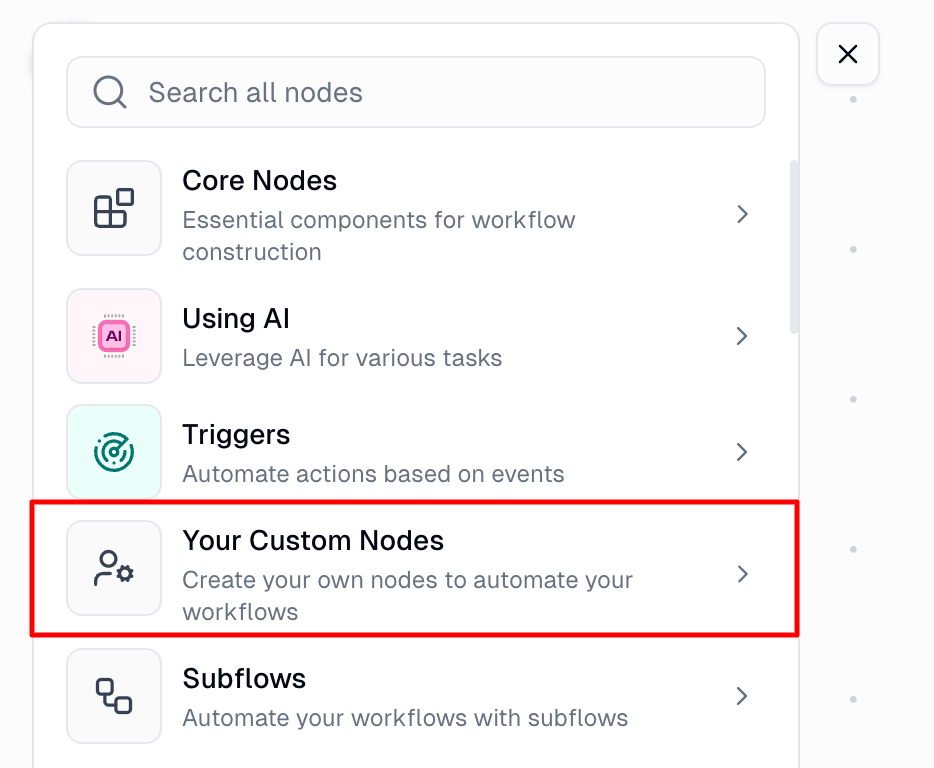
**Step 1: Open the Node Library**
Click the node library button or press `Cmd/Ctrl + B`, then select **Your Custom Nodes**.
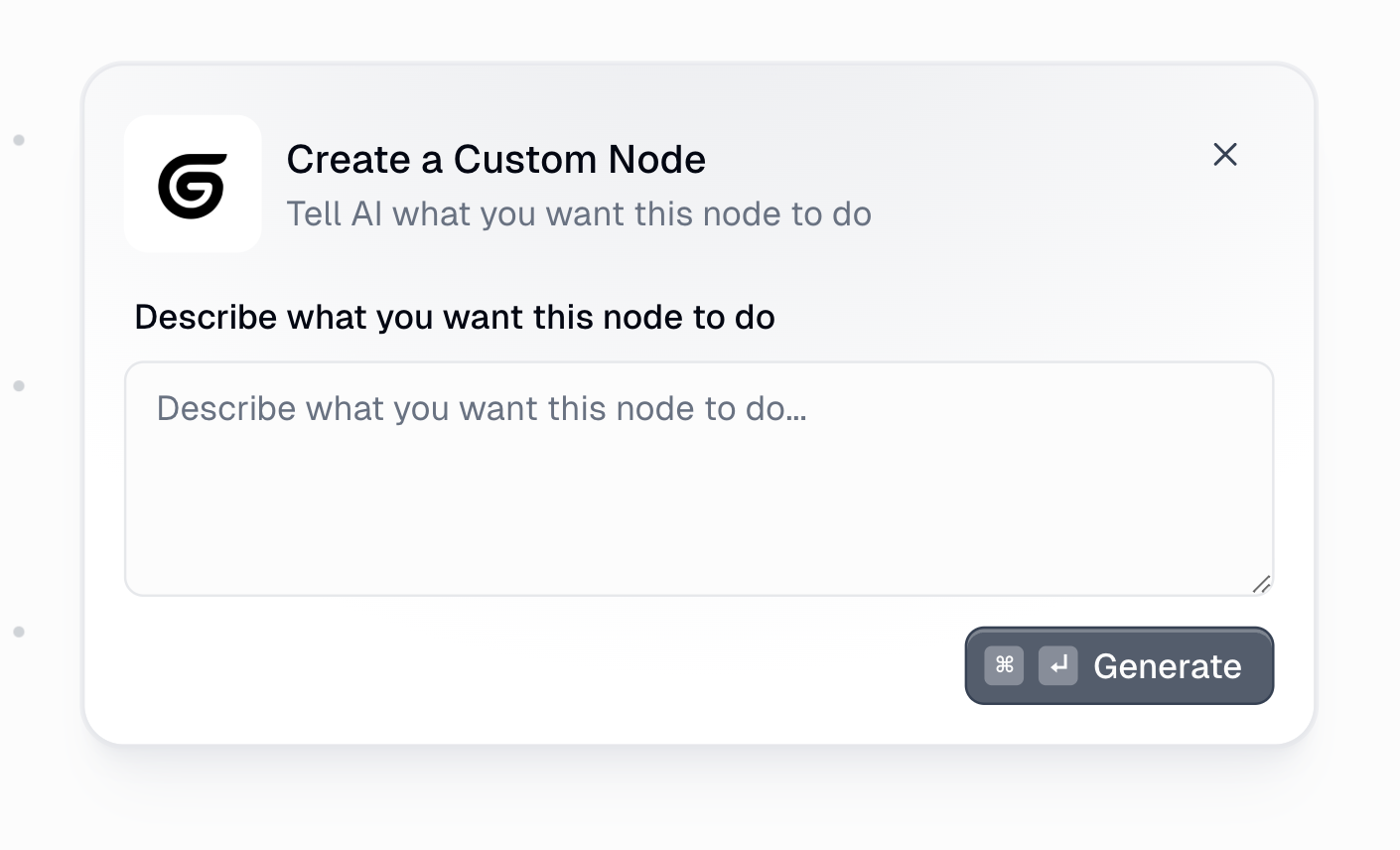
**Step 2: Describe Your Node**
Enter a clear description of what you want the node to do. Be specific about inputs, outputs, and the transformation logic.
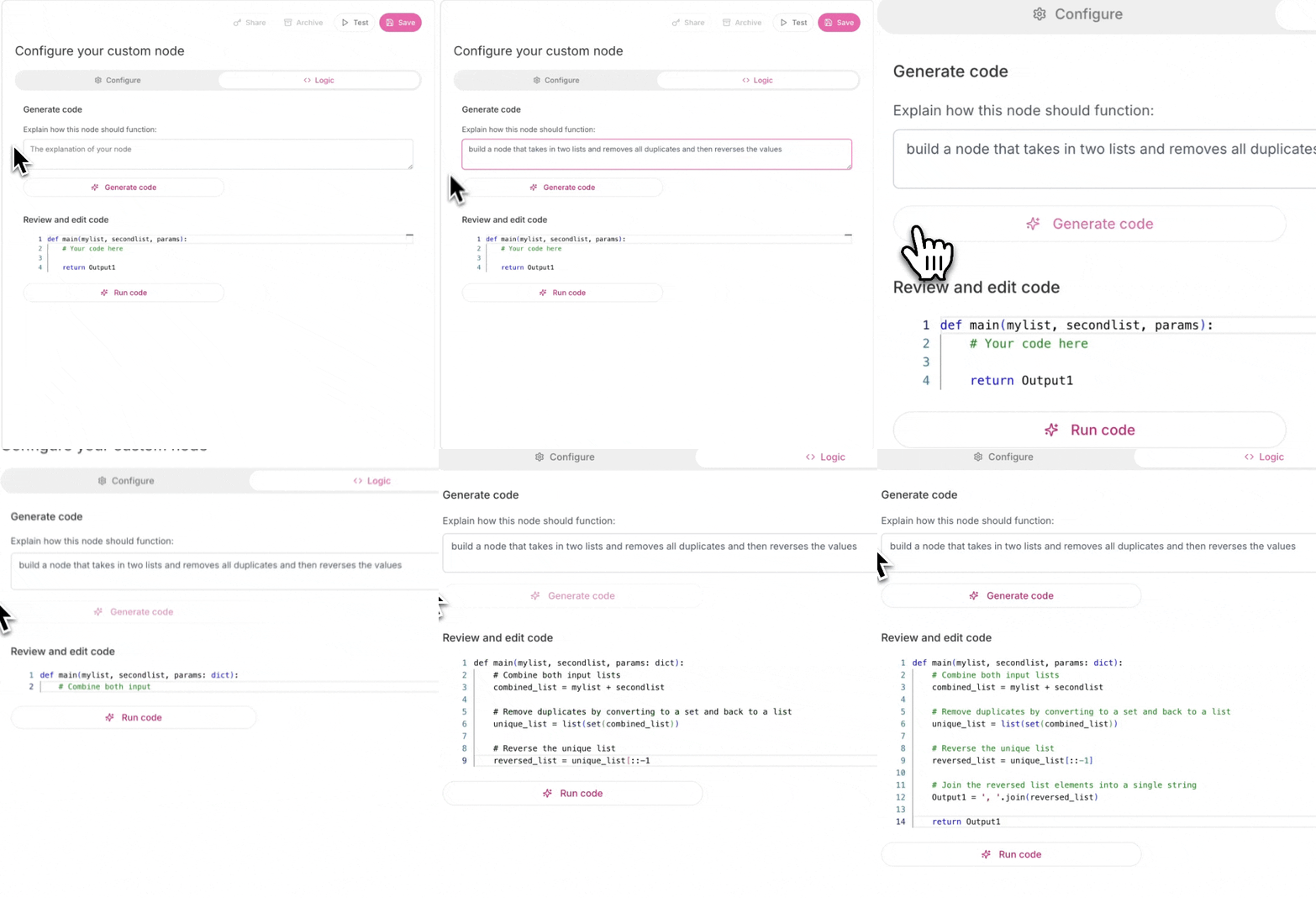
**Step 3: Generate and Test**
Click **Generate** and Gumloop's AI will create the node for you. Test it with sample data before saving.
## Node Structure
Custom nodes have three main components that you can configure:
| Component | Description |
| -------------- | ---------------------------------------------------------------------------------------------- |
| **Inputs** | Dynamic data inputs with multiple fields, custom names, and various data types including files |
| **Parameters** | Configuration options like text fields, dropdowns, true/false toggles, and multiselect |
| **Outputs** | Define output format with multiple outputs, custom naming, and list or single values |
## When to Use Custom Nodes
Use Custom Nodes when you need to:
| Use Case | Description |
| -------------------------- | --------------------------------------------------------------------------------------- |
| **Create Integrations** | Access internal APIs, company tools, or custom services not available as built-in nodes |
| **Streamline Operations** | Combine multiple steps and standardize processes into a single reusable node |
| **Build Missing Features** | New functionalities, specific use cases, or unique requirements for your workflows |
## Common Use Cases
**API Integration**
```text theme={"dark"}
Purpose: Call internal endpoints
Features: Authentication, data cleaning
Share: Team can reuse
```
**Data Processing**
```text theme={"dark"}
Purpose: Custom data transformations
Features: Specific formatting rules
Use-case: Processing complex or large files
```
**Tool Connection**
```text theme={"dark"}
Purpose: Connect external services
Features: Custom API calls
Use-case: Accessing integrations not already available on Gumloop
```
## Sharing and Collaboration
Custom nodes can be shared with teammates and collaborators. By default, only the creator (Owner) can edit a custom node, but you can grant access to others with different roles.
### Sharing Your Custom Node
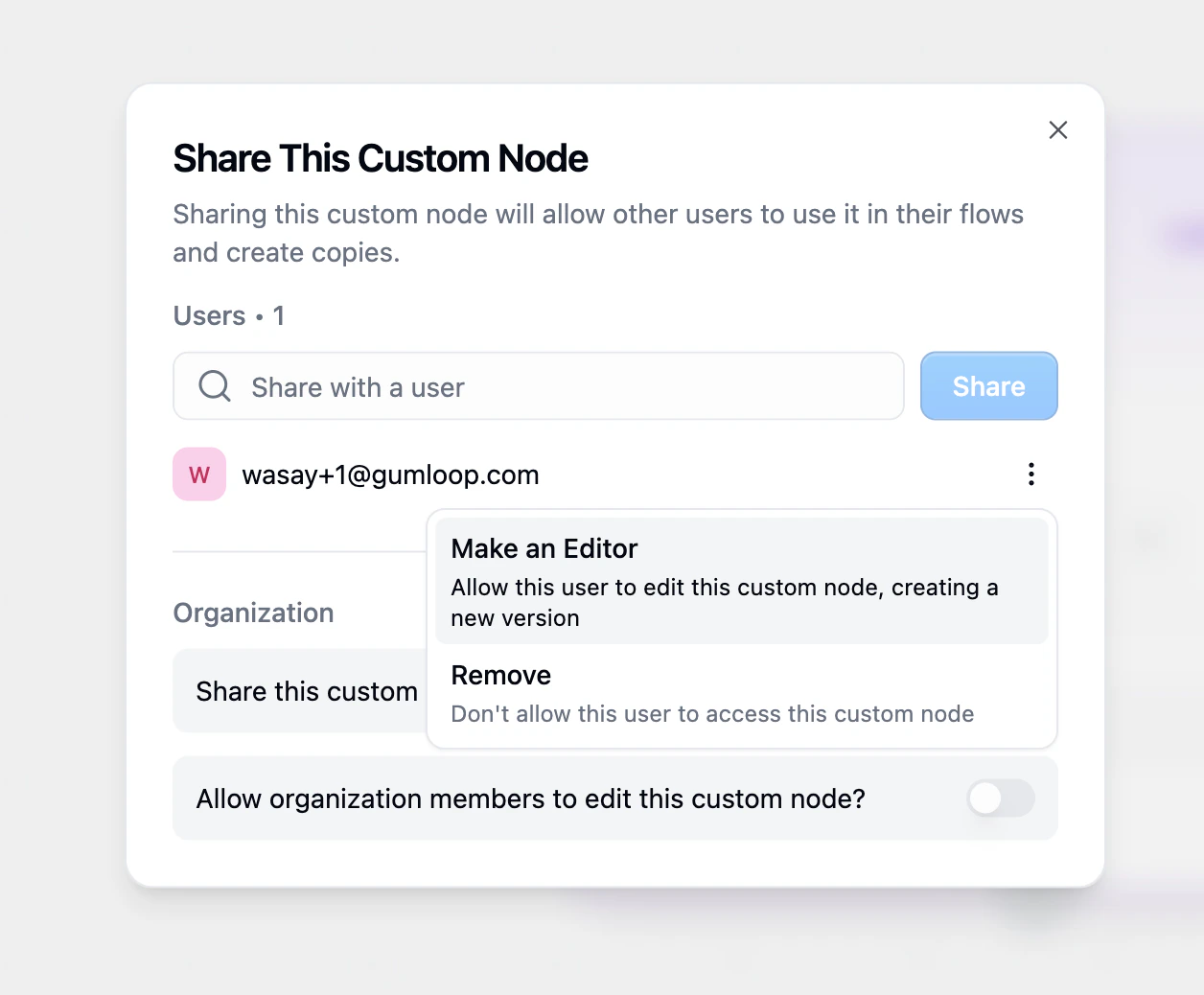
**Step 1: Open the Share Dialog**
Hover over the custom node and click the **Share** button.
**Step 2: Add Users by Email**
Enter the user's email and choose their role from the Share dropdown:
* **Editor**: Can view, edit, and manage the custom node
* **Viewer**: Can view and use the custom node in their workflows, but cannot edit it
You can also set **General Access** to share the node with your entire team, organization, or anyone with the link.
### Important Considerations
| Consideration | Details |
| ------------------------- | ------------------------------------------------------------------------------------ |
| **AI-Generated Code** | The AI writes the code for you based on your description, no coding required |
| **Secure Credentials** | Use the secrets management system to handle API keys and tokens securely |
| **Role-Based Access** | Share as Editor (full access) or Viewer (use only). The creator is always the Owner. |
| **Sharing Access** | Share with any Gumloop user by email, or set General Access for broader reach |
| **Iterative Development** | The AI maintains context of your code, so you can refine it with follow-up prompts |
## Using Secrets in Custom Nodes
Custom nodes often need to access sensitive data like API keys, tokens, or credentials. Gumloop provides a secure secrets management system that lets you store encrypted secrets and use them in your custom nodes without exposing them in your code or logs.
### Setting Up Secrets
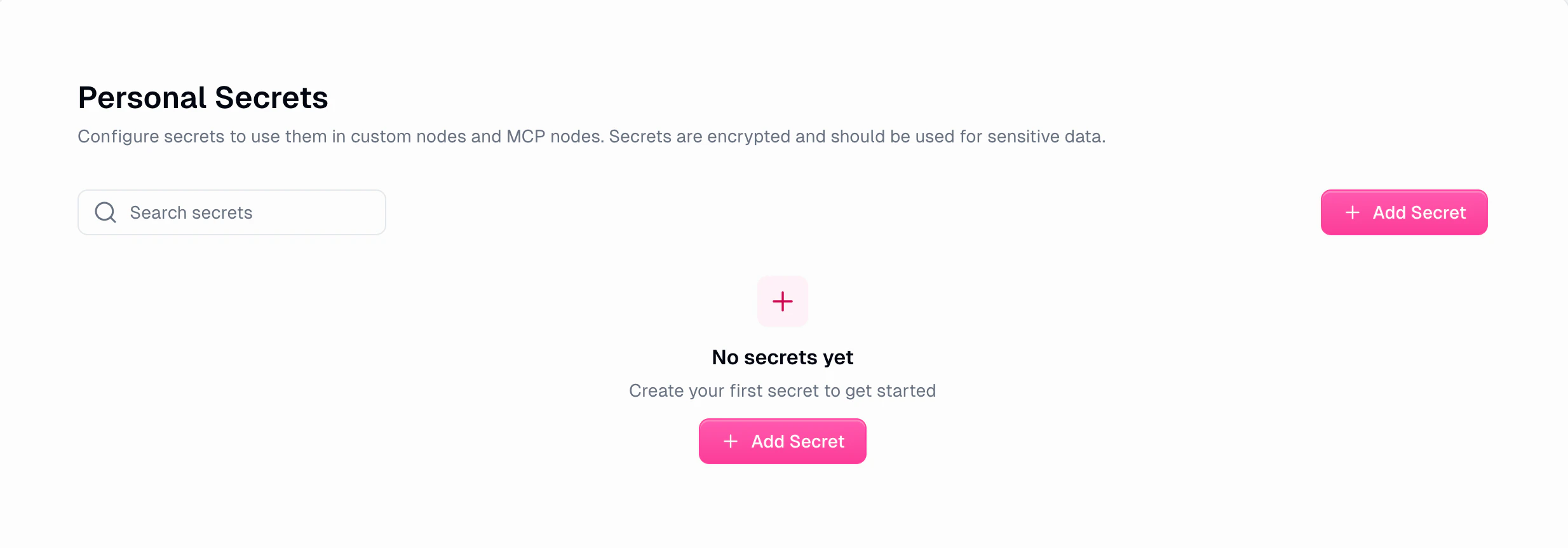
Before using secrets in a custom node, you need to create them in your Personal Secrets settings:
**Step 1: Navigate to Personal Secrets**
Go to **Settings > Profile > Secrets** or visit [gumloop.com/settings/profile/secrets](https://gumloop.com/settings/profile/secrets).
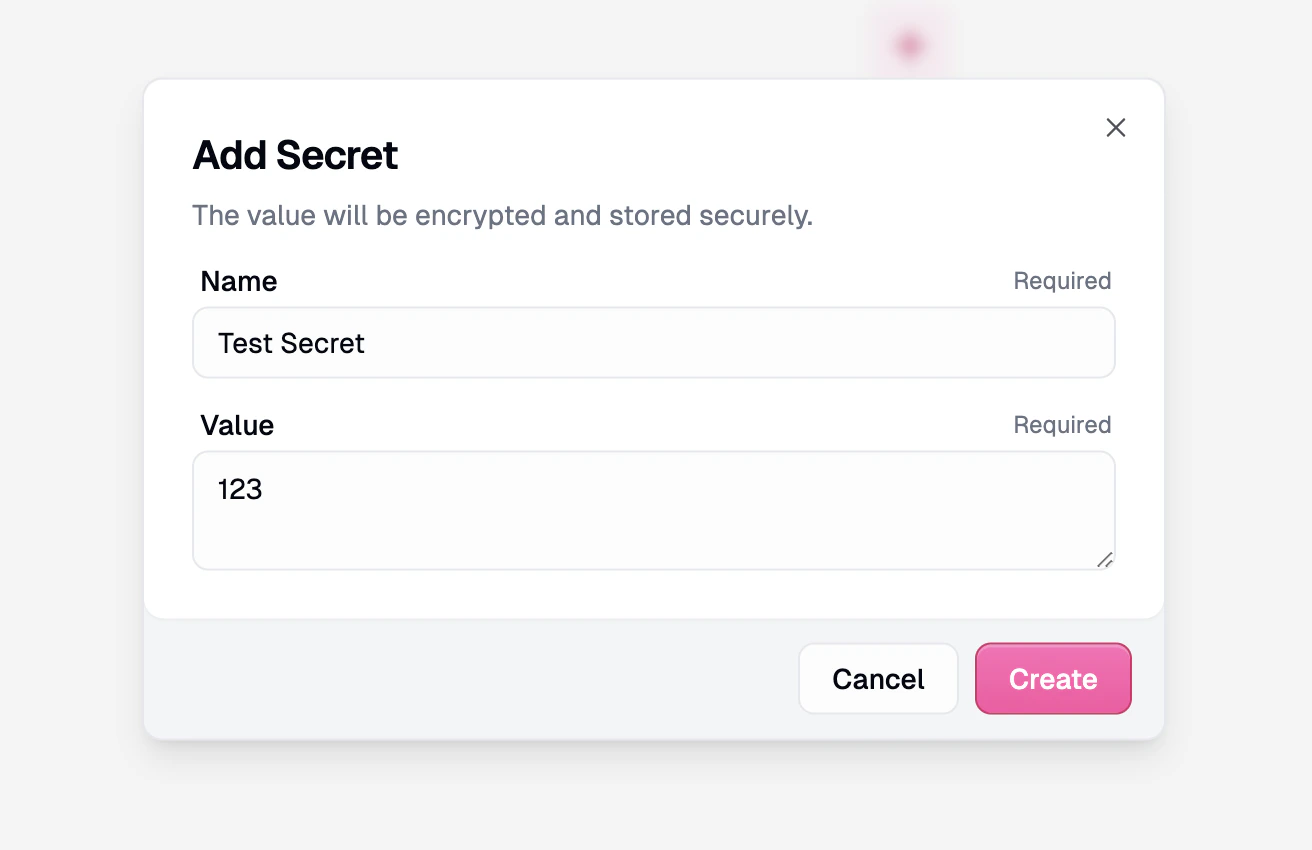
**Step 2: Add a New Secret**
Click **+ Add Secret** to open the creation dialog. Enter a descriptive name for your secret (this is how you'll reference it later) and the secret value. The value will be encrypted and stored securely.
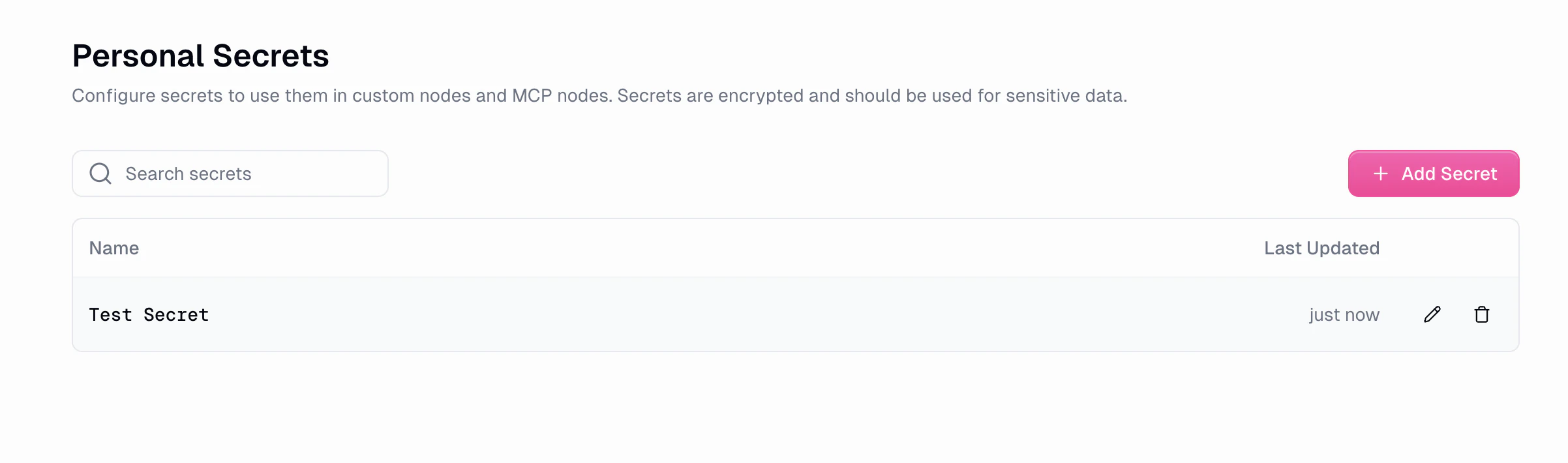
**Step 3: Manage Your Secrets**
Your secrets appear in a list showing the name and last updated time. You can edit or delete secrets as needed. Note that secret values are never displayed after creation for security.
### How Secrets Work in Custom Nodes
When you describe a custom node that needs API credentials or sensitive data, Gumloop's AI automatically generates code that accesses these values through environment variables using `os.getenv()` or `os.environ.get()`. This keeps your secrets out of the code itself.
#### Example Prompts
Here are some example prompts that demonstrate how to request secrets in your custom nodes:
**Example 1: API Integration with Authentication**
```text theme={"dark"}
Create a node that makes a REST API call to any endpoint.
Accept parameters for: API endpoint URL, request method (GET/POST/PUT/DELETE), and request body.
Use an API key from an environment variable for authentication in the Authorization header.
Return the API response and status code.
```
**Example 2: Database Connection**
```text theme={"dark"}
Create a node that connects to a PostgreSQL database and runs a query.
Use environment variables for the database connection string and credentials.
Accept a SQL query as input and return the results as a list.
```
**Example 3: Third-Party Service Integration**
```text theme={"dark"}
Create a node that sends SMS messages using Twilio.
Use environment variables for the Twilio Account SID and Auth Token.
Accept phone number and message text as inputs.
Return the message SID on success.
```
#### Generated Code Example
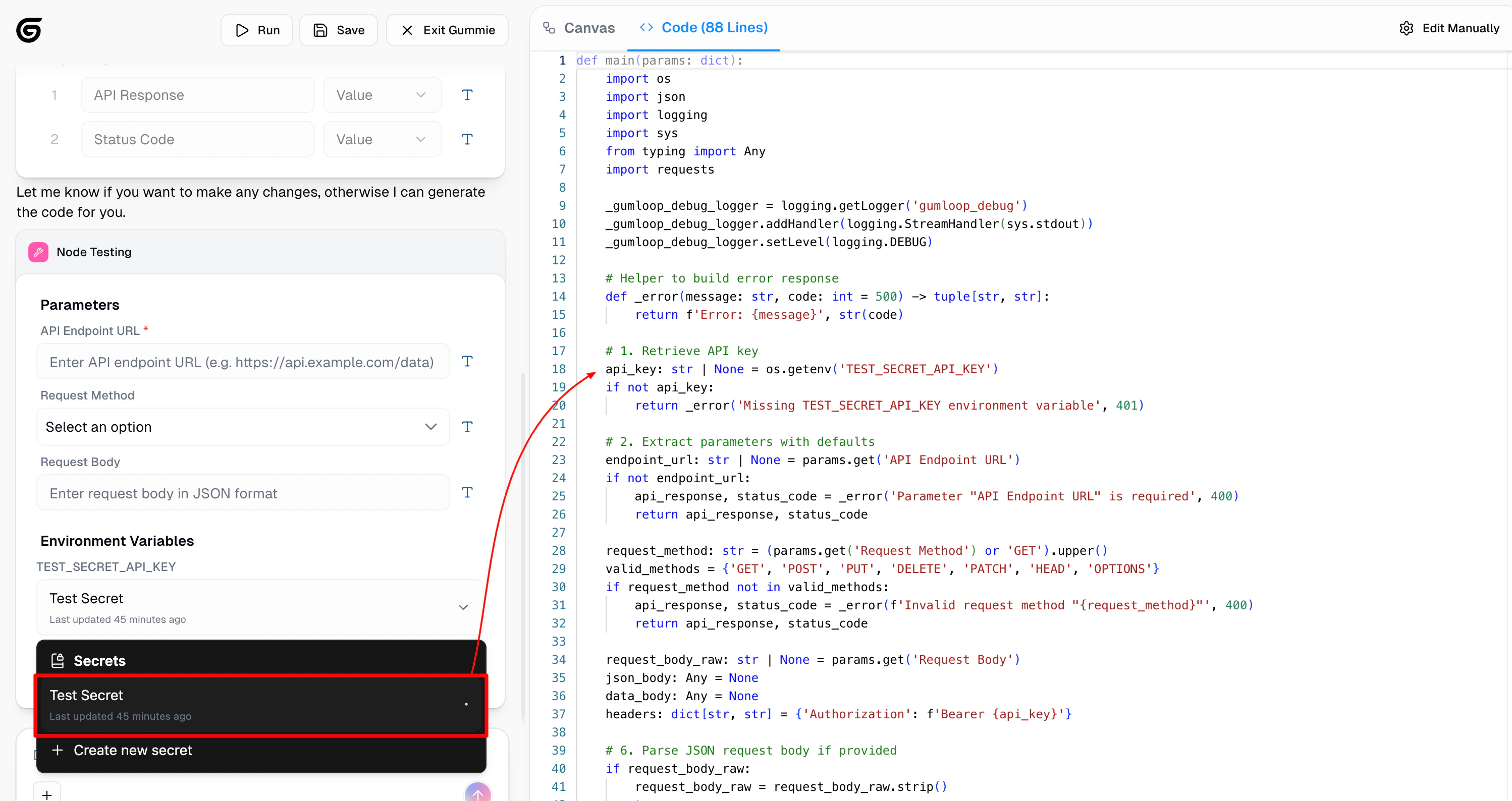
When you use a prompt like Example 1 above, the AI generates code that retrieves secrets from environment variables. Here's what the generated code looks like:
The code uses `os.getenv()` to retrieve the secret value at runtime:
```python theme={"dark"}
import os
import requests
# Retrieve API key from environment variable
api_key: str | None = os.getenv('TEST_SECRET_API_KEY')
if not api_key:
return _error('Missing TEST_SECRET_API_KEY environment variable', 401)
# Use the API key in the Authorization header
headers: dict[str, str] = {'Authorization': f'Bearer {api_key}'}
# Make the API request
response = requests.get(endpoint_url, headers=headers)
```
### Mapping Secrets to Environment Variables
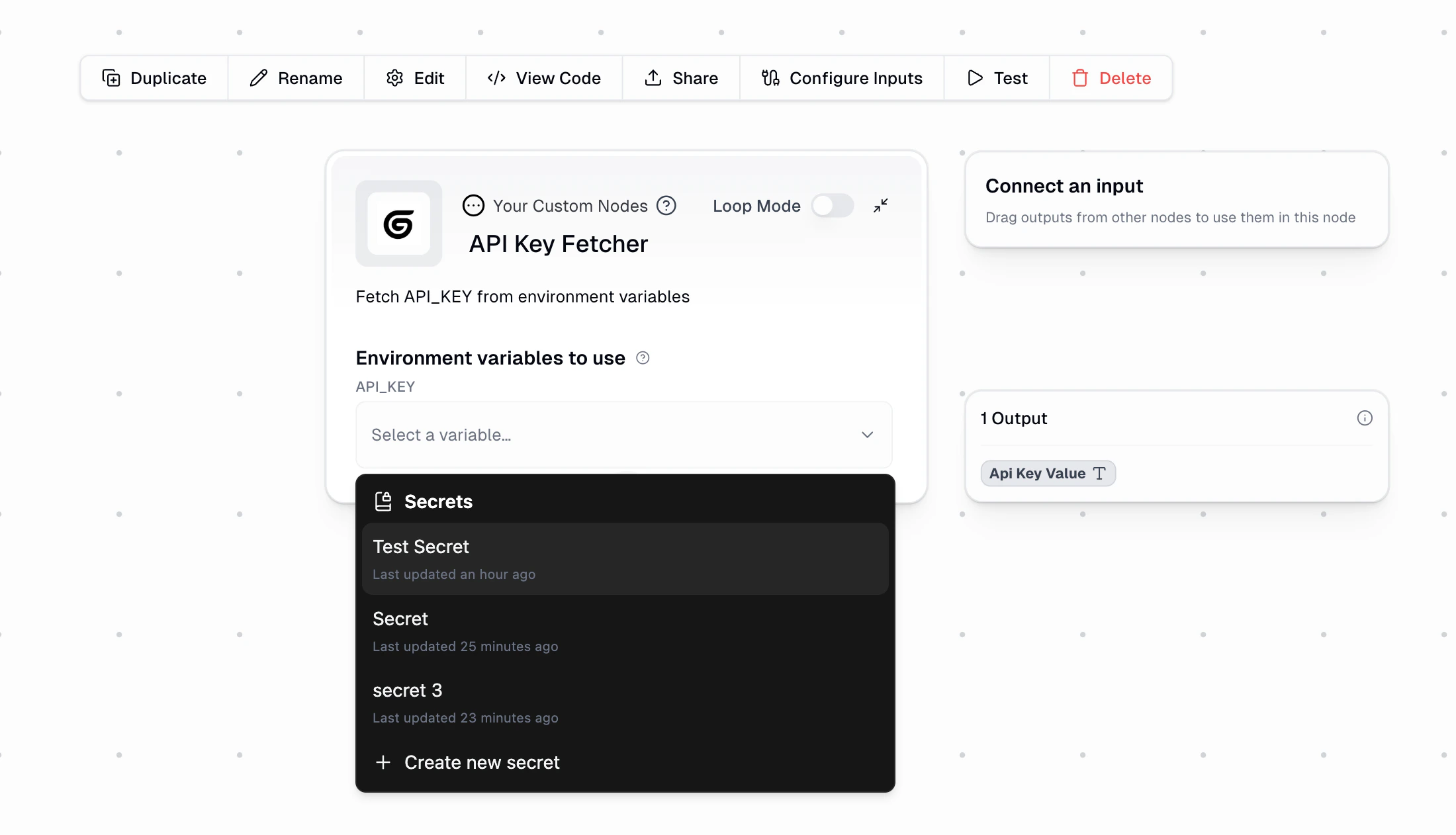
After creating a custom node that requires environment variables, you'll see an **Environment Variables** section in the node's configuration panel. This is where you map your stored secrets to the variables the code expects.
**How to map secrets:**
1. **Locate the Environment Variables Section**: When you add a custom node to your workflow that requires environment variables, you'll see a picker for each required variable in the node's settings panel on the left side.
2. **Select Your Secret**: Click the dropdown to see all secrets you've created in your Personal Secrets settings. Select the appropriate secret for each environment variable.
3. **Add New Secrets Inline**: If you haven't created the required secret yet, click **+ Create new secret** at the bottom of the dropdown to add a new secret without leaving the workflow builder.
**Naming convention:** Use descriptive, uppercase names with underscores for your secrets (e.g., `OPENAI_API_KEY`, `STRIPE_SECRET_KEY`, `MY_SERVICE_TOKEN`). This makes it clear what each secret is for and matches common environment variable conventions.
### Security Features
Gumloop implements several security measures to protect your secrets:
| Feature | Description |
| ----------------------- | ------------------------------------------------------------------------------- |
| **Encryption at rest** | All secret values are encrypted before being stored in the database |
| **Automatic redaction** | Secret values are automatically redacted from logs, outputs, and error messages |
| **No code exposure** | Secrets are injected at runtime and never appear in your custom node's code |
| **Personal scope** | Secrets are tied to your account and not shared with other users |
#### Automatic Secret Redaction
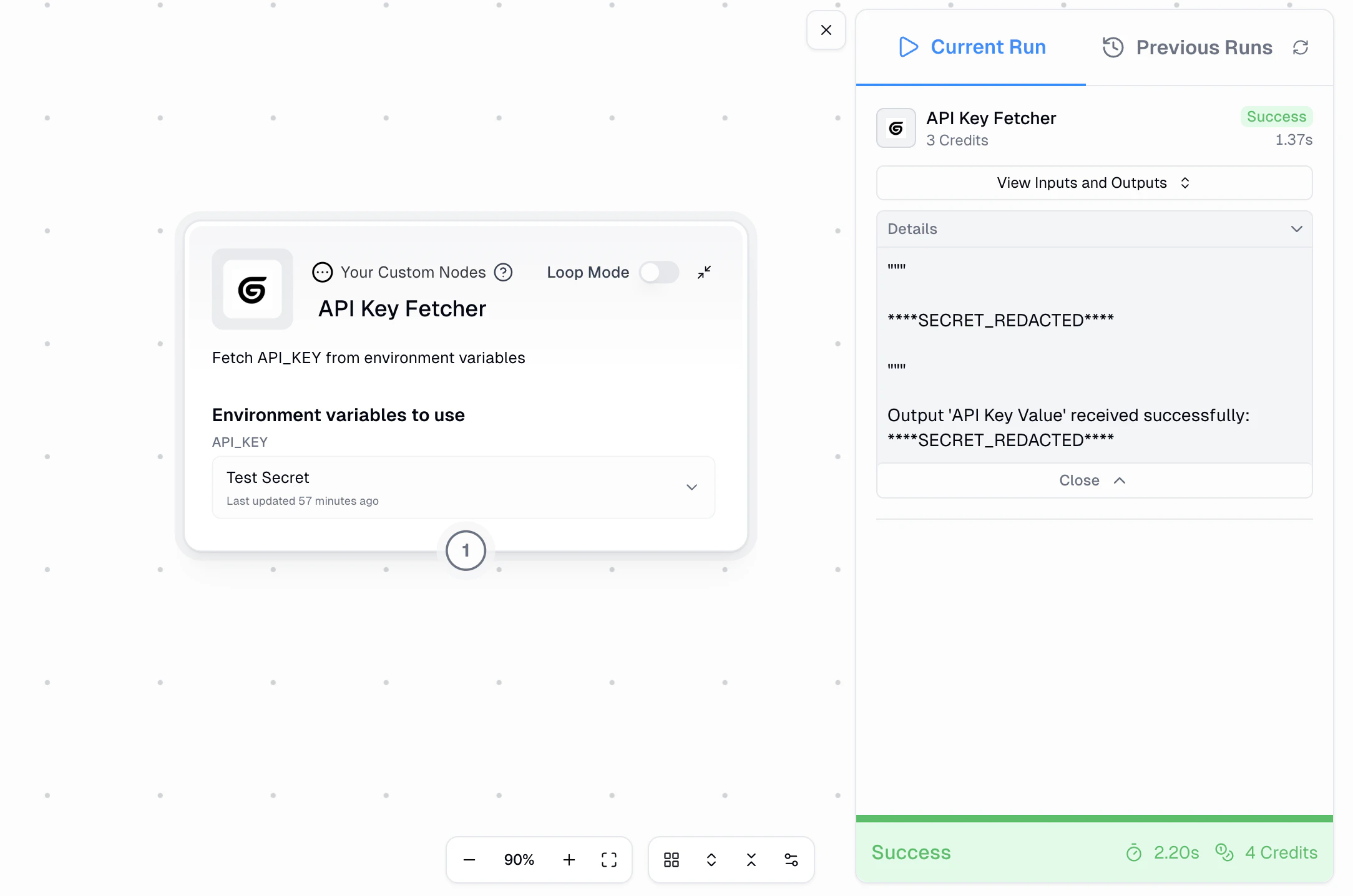
If your custom node accidentally prints or returns a secret value, Gumloop automatically replaces it with `****SECRET_REDACTED****` in all logs and outputs. This prevents accidental exposure of sensitive data.
In the example above, you can see that even though the custom node outputs the secret value, it appears as `****SECRET_REDACTED****` in the run output. This redaction happens automatically for all secrets you've configured.
While automatic redaction protects against accidental exposure, it may make debugging harder. Avoid logging or printing sensitive values in your custom node code—instead, log descriptive messages about what your code is doing without including the actual secret values.
### Best Practices for Secrets
When working with secrets in custom nodes, follow these guidelines:
| ✅ Do | ❌ Don't |
| ---------------------------------------------------------------------------------------------------- | ------------------------------------------------------------------------------------------------ |
| Use descriptive names that indicate the secret's purpose (e.g., `STRIPE_LIVE_KEY`, `OPENAI_API_KEY`) | Hardcode API keys or credentials directly in your prompts or code |
| Create separate secrets for different services—don't reuse API keys across multiple integrations | Log or print secret values in your custom node code (they'll be redacted, but it's bad practice) |
| Update secrets promptly when you rotate credentials in the external service | Share workflows that require secrets without documenting which secrets are needed |
| Test your custom node with valid credentials before deploying to production workflows | Use generic names like `SECRET_1` or `API_KEY`—be specific about what each secret is for |
| Document which secrets are required when sharing workflows with teammates | |
### Secrets vs. Node Credentials
Custom node secrets are different from the credential connections you see on integration nodes (like Gmail or Slack):
| Aspect | Personal Secrets | Node Credentials |
| -------------- | ----------------------------------- | ----------------------------- |
| **Purpose** | API keys and tokens for custom code | OAuth connections to services |
| **Setup** | Manual entry in Settings | OAuth flow through Gumloop |
| **Scope** | Custom nodes and MCP nodes | Specific integration nodes |
| **Management** | Settings > Profile > Secrets | Per-node credential selector |
Use Personal Secrets when you're writing custom code that needs to authenticate with an API. Use Node Credentials when you're using Gumloop's built-in integration nodes.
## Additional Resources
Deep dive into custom node capabilities and use cases
Step-by-step walkthrough of building your first custom node
In-depth workshop covering advanced custom node techniques