> ## Documentation Index
> Fetch the complete documentation index at: https://docs.gumloop.com/llms.txt
> Use this file to discover all available pages before exploring further.
# How Do I Unsubscribe from Gumball Emails?
To stop Gumball's emails, turn off **Email** delivery on the two features that send them: the **Daily Chew** and **Meeting Prep**. [Gumball](/core-concepts/gumball) is your personal Gumloop agent, so it stays on your account, but it only emails you when one of these features has email delivery switched on.
| Feature | What it emails you | How to stop it |
| ---------------- | ----------------------------------------------------------- | ----------------------------------------------------------------------------------------------------- |
| **Daily Chew** | Your morning report of what you missed. | Turn off **Email** under **Delivery**, or pause the Daily Chew. |
| **Meeting Prep** | A brief before a meeting. | Turn off **Email** under **Delivery**, or turn off **Prep meetings automatically**. |
| **Smart Inbox** | Nothing. It only labels and drafts inside your own mailbox. | Nothing to unsubscribe from. Turn it off from **Smart Inbox** on the Gumball home screen if you want. |
## Why is Gumball emailing me?
The Daily Chew or Meeting Prep has **Email** turned on under its **Delivery** setting. Every report is always saved inside Gumball, and **Email** and **Slack DM** are extra copies you opt into. Turn the email copy off and the feature keeps working, you just stop getting it in your inbox.
## Stop Daily Chew emails
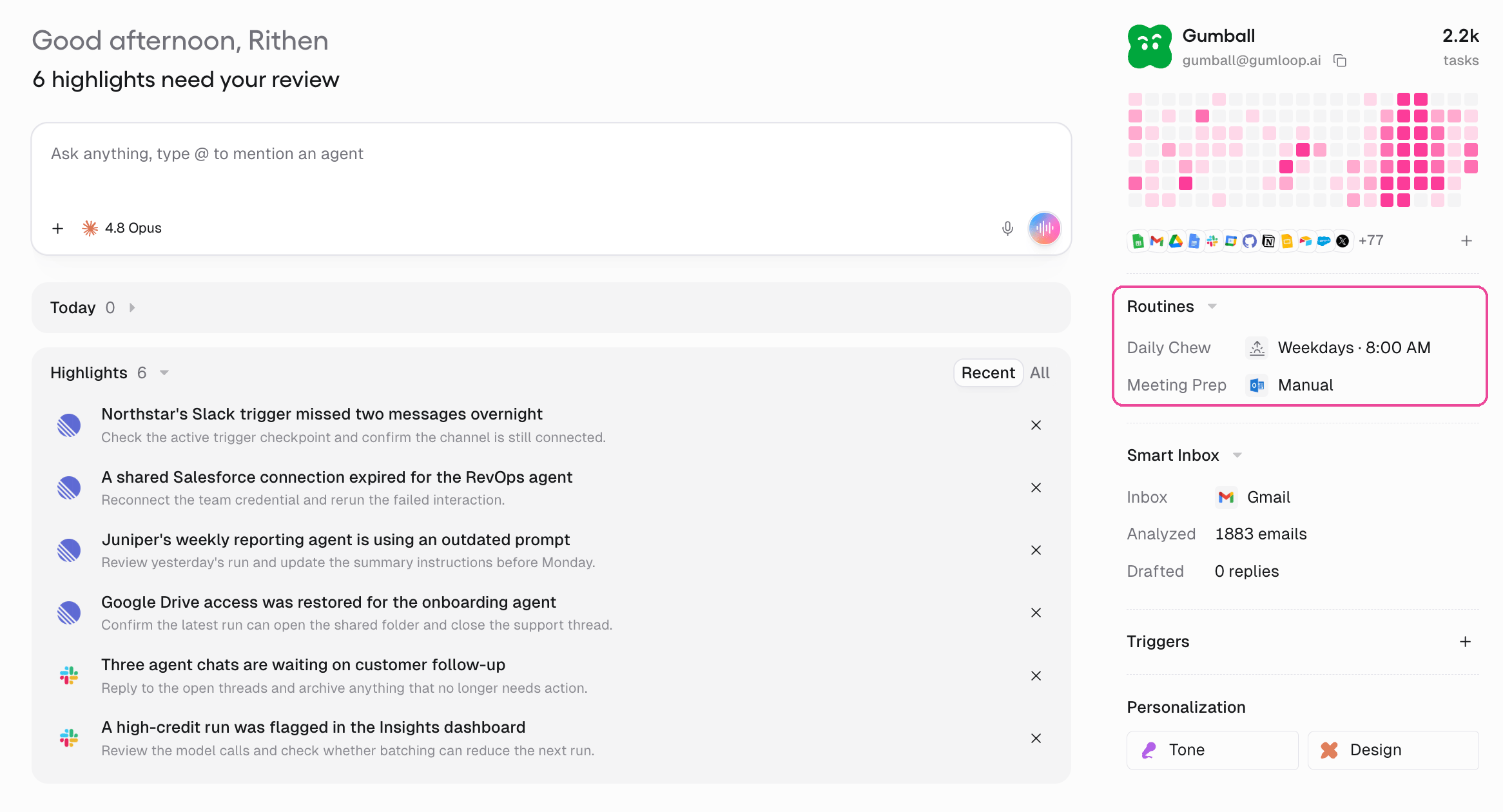
On the Gumball home screen, find **Routines** in the right-hand panel and click **Daily Chew** to open its settings.
 Under **Delivery**, switch off **Email** and click **Save changes**. The report still appears in Gumball, and in a **Slack DM** if you left that on.
To stop the report from running at all, pause the Daily Chew. Pausing stops future runs, resuming puts it back on schedule, and your past reports stay in your history either way.
## Stop Meeting Prep emails
On the Gumball home screen, find **Routines** in the right-hand panel and click **Meeting Prep** to open its settings.
Under **Delivery**, switch off **Email** and click **Save changes**. Briefs still appear in Gumball.
To stop Gumball preparing briefs on its own, turn off **Prep meetings automatically**. Your meetings still show on the Gumball home screen, and **Prepare now** still works whenever you want a brief.
Turning off **Email** keeps the feature running inside Gumball and just removes the inbox copy. Pause the Daily Chew or turn off automatic Meeting Prep when you do not want Gumball doing the work at all.
## FAQ
Turn off **Email** under **Delivery** and leave the feature on. The Daily Chew and Meeting Prep always stay inside Gumball, so you can read them there, or keep the **Slack DM** copy if you prefer Slack.
Slack is a separate delivery option. Open the same **Delivery** setting on the Daily Chew or Meeting Prep and switch off **Slack DM** as well. Turning off **Email** does not remove the Slack copy.
No. [Smart Inbox](/core-concepts/gumball#smart-inbox) works inside your own Gmail or Outlook: it applies labels and can write drafts, but it does not send you a separate message. If you do not want Gumball touching your mailbox, open **Smart Inbox** in the right-hand panel of the Gumball home screen and turn it off.
No. Gumball is your built-in personal agent, one per account, and its address `gumball@gumloop.ai` is reserved, so it cannot be deleted or renamed. You can silence it instead: turn off **Email** delivery, pause the Daily Chew, turn off automatic Meeting Prep, and turn off Smart Inbox. With those off, Gumball only acts when you ask it to in chat.
Turning off Gumball's emails does not cancel your account. To leave Gumloop, delete your account from **Settings → Profile → [General](https://www.gumloop.com/settings/profile/general)** under **Danger Zone**. If you only want to end a paid plan, see [How Do I Cancel My Plan or Free Trial?](/help/account-billing/cancel-plan-or-trial).
## Related
How your personal agent, Daily Chew, Smart Inbox, and Meeting Prep work.
Your personal preferences and agent notifications.
Under **Delivery**, switch off **Email** and click **Save changes**. The report still appears in Gumball, and in a **Slack DM** if you left that on.
To stop the report from running at all, pause the Daily Chew. Pausing stops future runs, resuming puts it back on schedule, and your past reports stay in your history either way.
## Stop Meeting Prep emails
On the Gumball home screen, find **Routines** in the right-hand panel and click **Meeting Prep** to open its settings.
Under **Delivery**, switch off **Email** and click **Save changes**. Briefs still appear in Gumball.
To stop Gumball preparing briefs on its own, turn off **Prep meetings automatically**. Your meetings still show on the Gumball home screen, and **Prepare now** still works whenever you want a brief.
Turning off **Email** keeps the feature running inside Gumball and just removes the inbox copy. Pause the Daily Chew or turn off automatic Meeting Prep when you do not want Gumball doing the work at all.
## FAQ
Turn off **Email** under **Delivery** and leave the feature on. The Daily Chew and Meeting Prep always stay inside Gumball, so you can read them there, or keep the **Slack DM** copy if you prefer Slack.
Slack is a separate delivery option. Open the same **Delivery** setting on the Daily Chew or Meeting Prep and switch off **Slack DM** as well. Turning off **Email** does not remove the Slack copy.
No. [Smart Inbox](/core-concepts/gumball#smart-inbox) works inside your own Gmail or Outlook: it applies labels and can write drafts, but it does not send you a separate message. If you do not want Gumball touching your mailbox, open **Smart Inbox** in the right-hand panel of the Gumball home screen and turn it off.
No. Gumball is your built-in personal agent, one per account, and its address `gumball@gumloop.ai` is reserved, so it cannot be deleted or renamed. You can silence it instead: turn off **Email** delivery, pause the Daily Chew, turn off automatic Meeting Prep, and turn off Smart Inbox. With those off, Gumball only acts when you ask it to in chat.
Turning off Gumball's emails does not cancel your account. To leave Gumloop, delete your account from **Settings → Profile → [General](https://www.gumloop.com/settings/profile/general)** under **Danger Zone**. If you only want to end a paid plan, see [How Do I Cancel My Plan or Free Trial?](/help/account-billing/cancel-plan-or-trial).
## Related
How your personal agent, Daily Chew, Smart Inbox, and Meeting Prep work.
Your personal preferences and agent notifications.