> ## Documentation Index
> Fetch the complete documentation index at: https://docs.gumloop.com/llms.txt
> Use this file to discover all available pages before exploring further.
# Give an Agent a Connector
To give an agent access to Gmail, Slack, Notion, or any other app, add the connector on the agent **and** sign in. Connecting the app in Settings alone does not attach it to the agent.
## Add a built-in connector
Gumloop includes 150+ built-in connectors.
1. Open the [agent](https://www.gumloop.com/agents).
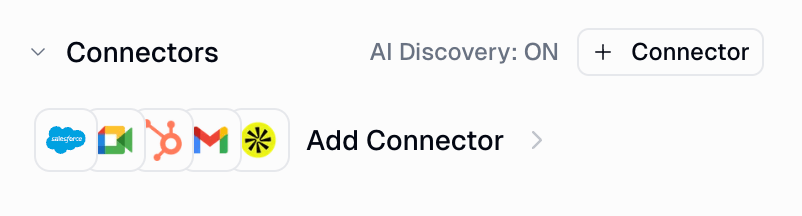
2. In the right-hand panel, find **Connectors**.
3. Click **+ Connector**.
 4. Search for the app (for example, Gmail) and select it.
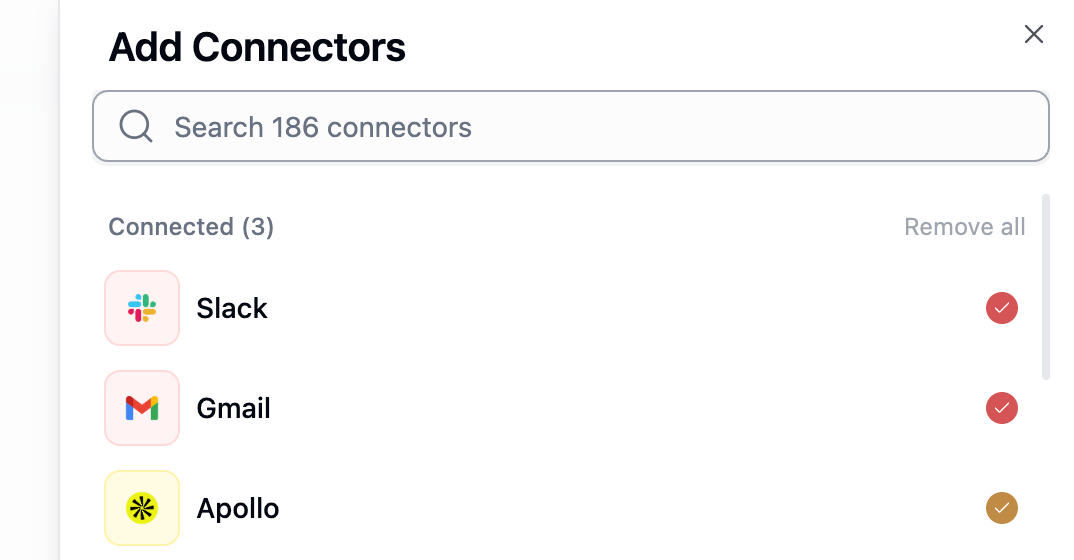 5. If you have not signed in yet, complete the OAuth or API-key flow.
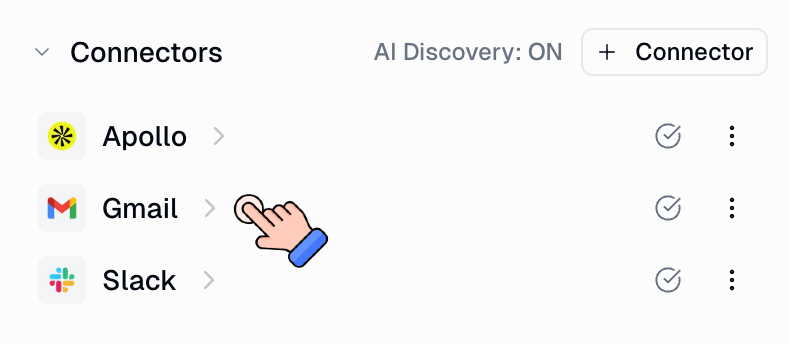 6. Confirm the connector appears on the agent with the account you expect.
Need a specific inbox, not your default? After the connector is on the agent, open the connector's three-dot menu and pin **Use Specific Account**.
## What else an agent can use
| Type | When to use it |
| ------------------------------ | --------------------------------------------------------------------------------------------------------------------------------------------- |
| Built-in connector | Gmail, Slack, Sheets, Notion, Salesforce, and other first-party apps |
| Custom, proxied, or hosted MCP | An MCP server that is not in the built-in catalog. See [Custom, proxied, and hosted MCP](/help/skills-triggers-mcp/custom-proxied-hosted-mcp) |
| Workflow as a tool | A fixed multi-step flow the agent should call |
| Skill | A playbook or script the agent should follow |
## Limit which actions a connector can take
6. Confirm the connector appears on the agent with the account you expect.
Need a specific inbox, not your default? After the connector is on the agent, open the connector's three-dot menu and pin **Use Specific Account**.
## What else an agent can use
| Type | When to use it |
| ------------------------------ | --------------------------------------------------------------------------------------------------------------------------------------------- |
| Built-in connector | Gmail, Slack, Sheets, Notion, Salesforce, and other first-party apps |
| Custom, proxied, or hosted MCP | An MCP server that is not in the built-in catalog. See [Custom, proxied, and hosted MCP](/help/skills-triggers-mcp/custom-proxied-hosted-mcp) |
| Workflow as a tool | A fixed multi-step flow the agent should call |
| Skill | A playbook or script the agent should follow |
## Limit which actions a connector can take
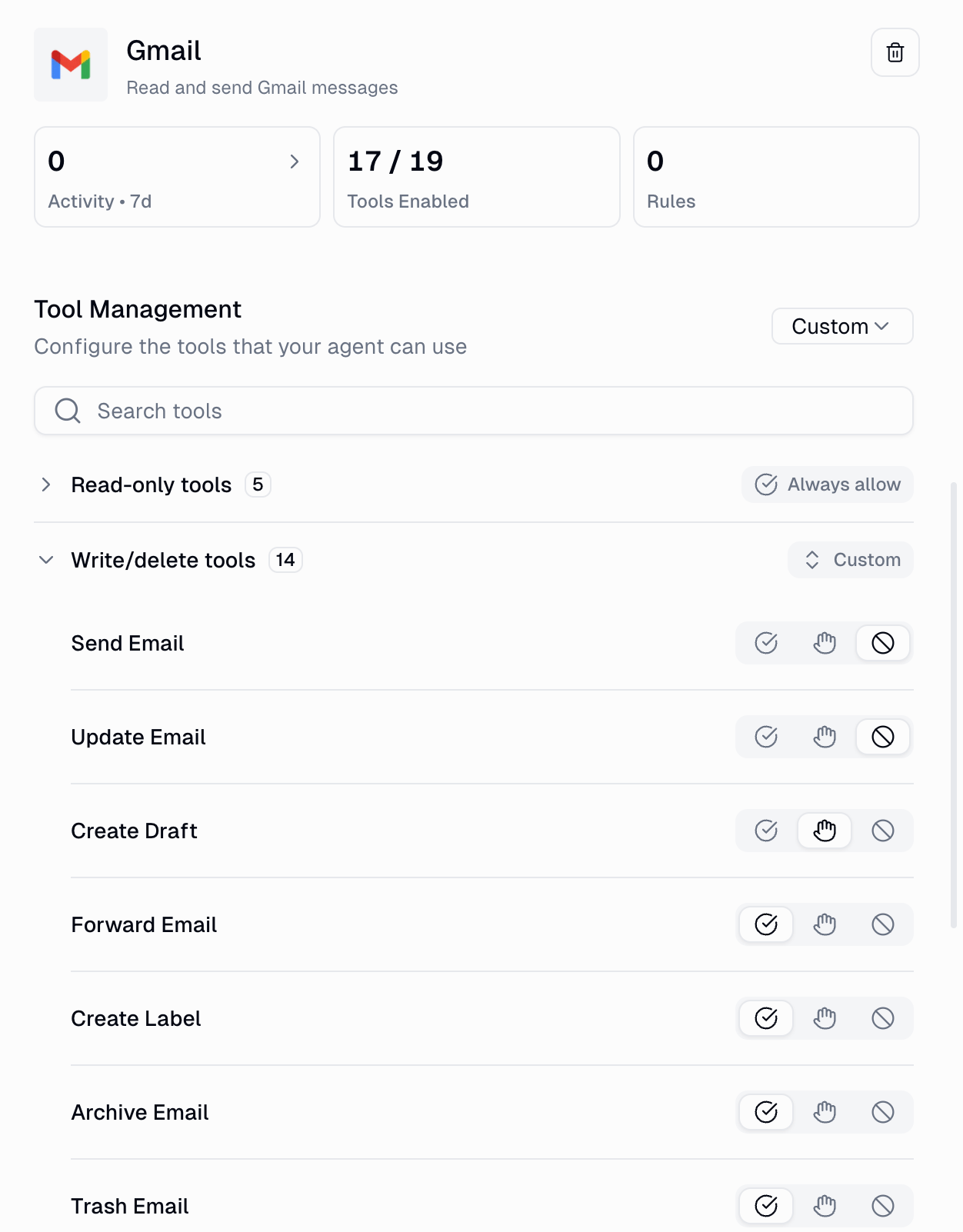 Open the connector on the agent and turn off tools you do not want, or add an [app rule](/help/skills-triggers-mcp/skills-vs-app-rules) if you need a block or approval.
## Related
Personal vs team connectors
How connectors, skills, and triggers fit together
Open the connector on the agent and turn off tools you do not want, or add an [app rule](/help/skills-triggers-mcp/skills-vs-app-rules) if you need a block or approval.
## Related
Personal vs team connectors
How connectors, skills, and triggers fit together