> ## Documentation Index
> Fetch the complete documentation index at: https://docs.gumloop.com/llms.txt
> Use this file to discover all available pages before exploring further.
# Enable Agent-Owned Credentials
Grant the **Agent-owned credentials** feature on a [custom role](/enterprise-features/user_groups). After that, people in the role can pin one account or connection so everyone with access to the agent uses it.
You need the **Admin** or **Security** organization role to edit custom roles. On organizations, this feature is [restricted by default](/core-concepts/credentials#enterprise-availability).
## Grant the feature
1. Go to [Organization > Custom Roles](https://www.gumloop.com/settings/organization/groups).
2. Open the role that should be able to pin agent-owned credentials.
3. Open the **Features** tab.
4. Click **+ Add Features**.
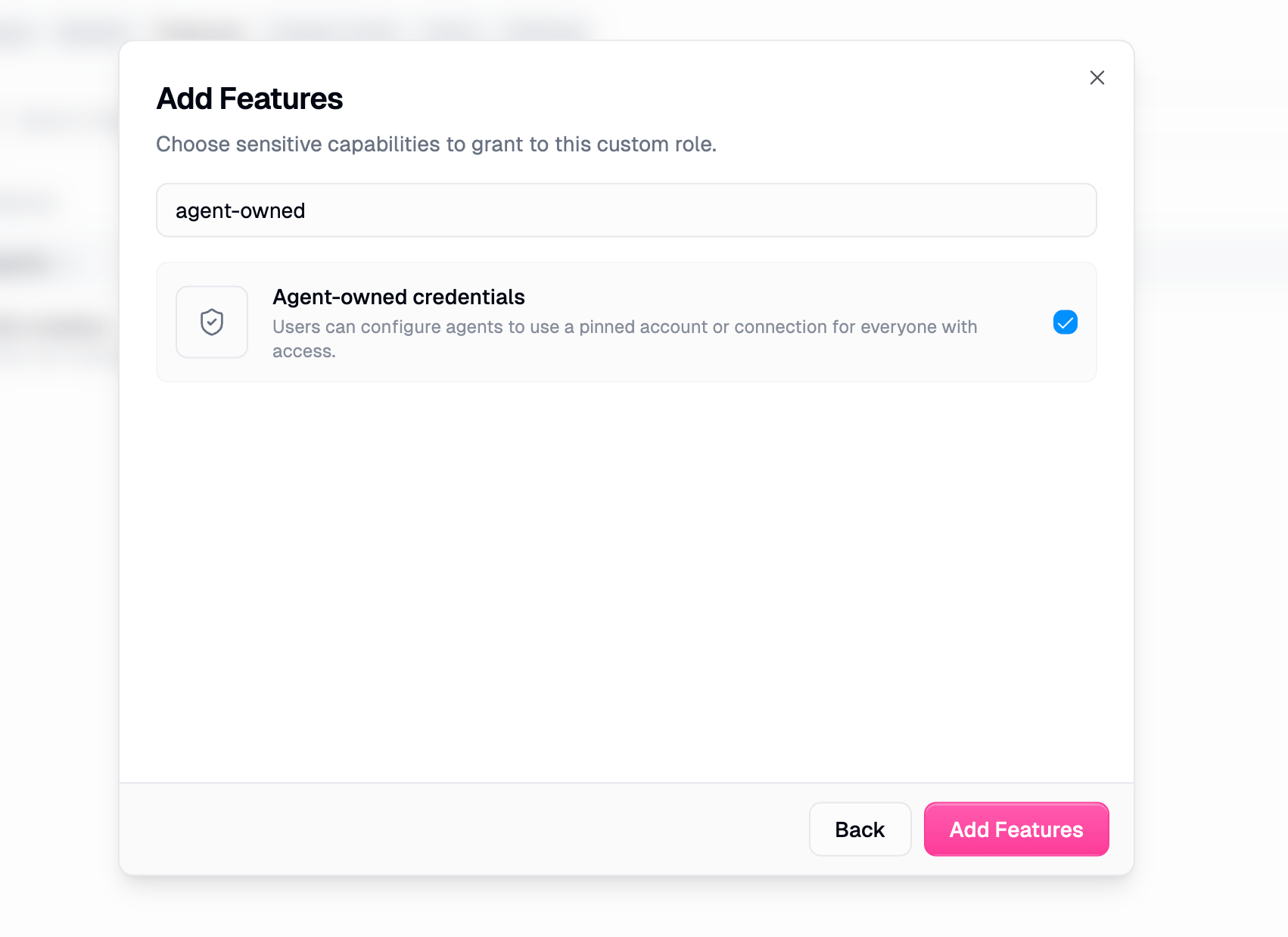
 5. Search for **Agent-owned credentials**.
6. Select it. The description is: *Users can configure agents to use a pinned account or connection for everyone with access.*
7. Click **Add Features**.
5. Search for **Agent-owned credentials**.
6. Select it. The description is: *Users can configure agents to use a pinned account or connection for everyone with access.*
7. Click **Add Features**.
 Anyone already on that role can use the feature right away. Assign other people on the role's **Users** tab.
A user gets the feature if **any** of their custom roles grants it.
## Pin an account on an agent
Granting the feature does not pin an account by itself. Each person who should configure it still has to set **Credential ownership** on the agent.
1. Open the agent and go to **Apps**.
2. Open the connector and select a specific account you have access to.
3. Under **Credential ownership**, choose **Agent-owned**.
Full steps: [Turn on agent-owned for a connector](/core-concepts/credentials#turn-on-agent-owned-for-a-connector).
## FAQ
Your custom role does not allow assigning agent-owned credentials. Ask an Admin or Security admin to grant **Agent-owned credentials** on a role you belong to. If you hold several roles, only one of them needs to grant it.
No. A [team connector](/help/connectors/add-team-connectors) is a shared login on a team. **Agent-owned credentials** pin one account to a specific agent so everyone with access to *that agent* uses it, including people outside the team.
No. Agent-owned credentials and **Anyone** public sharing cannot be used together. Change general access to the organization, a team, or restricted people first.
On the role's **Features** tab, open the row menu for **Agent-owned credentials** and select **Remove feature access**.
## Related
Features tab and how access composes
How pinning and ownership work
Anyone already on that role can use the feature right away. Assign other people on the role's **Users** tab.
A user gets the feature if **any** of their custom roles grants it.
## Pin an account on an agent
Granting the feature does not pin an account by itself. Each person who should configure it still has to set **Credential ownership** on the agent.
1. Open the agent and go to **Apps**.
2. Open the connector and select a specific account you have access to.
3. Under **Credential ownership**, choose **Agent-owned**.
Full steps: [Turn on agent-owned for a connector](/core-concepts/credentials#turn-on-agent-owned-for-a-connector).
## FAQ
Your custom role does not allow assigning agent-owned credentials. Ask an Admin or Security admin to grant **Agent-owned credentials** on a role you belong to. If you hold several roles, only one of them needs to grant it.
No. A [team connector](/help/connectors/add-team-connectors) is a shared login on a team. **Agent-owned credentials** pin one account to a specific agent so everyone with access to *that agent* uses it, including people outside the team.
No. Agent-owned credentials and **Anyone** public sharing cannot be used together. Change general access to the organization, a team, or restricted people first.
On the role's **Features** tab, open the row menu for **Agent-owned credentials** and select **Remove feature access**.
## Related
Features tab and how access composes
How pinning and ownership work