> ## Documentation Index
> Fetch the complete documentation index at: https://docs.gumloop.com/llms.txt
> Use this file to discover all available pages before exploring further.
# Add Someone to Your Org or Team
You need **Admin** or **Manager**. Regular Members cannot invite others.
## Add someone to the organization
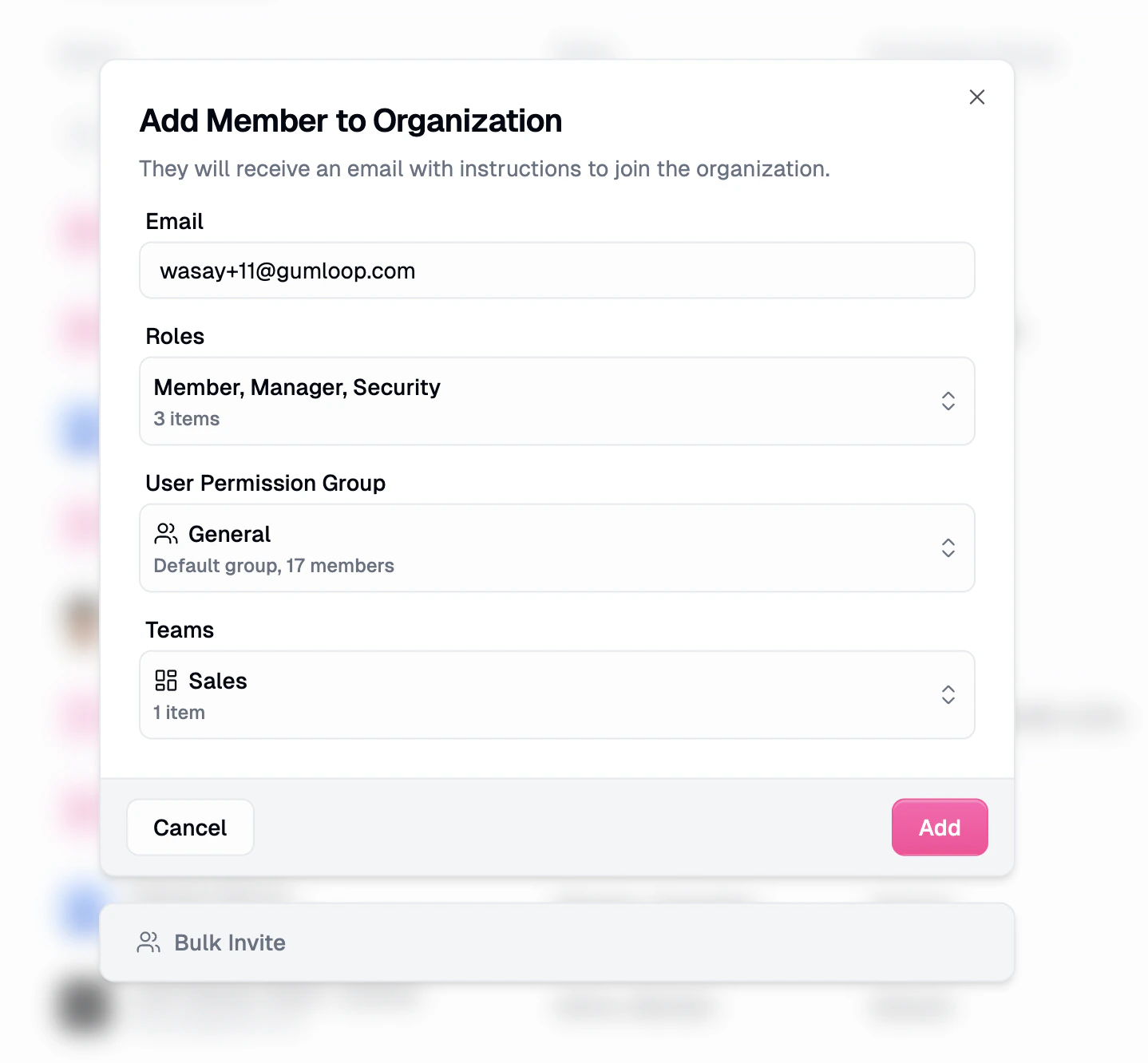
1. Go to [Organization Members](https://www.gumloop.com/settings/organization/members).
2. Click **Add Member**.
3. Enter their email.
4. Optionally pick extra [organization roles](/core-concepts/organization_user_roles) and [teams](/core-concepts/teams). Every invitee already gets **Member**.
5. Send the invite. They show as **Pending** until they accept.
 From the members list you can **Resend Invite** or **Revoke Invite** on a pending row.
If your org uses domain restrictions or SSO, people on a blocked domain cannot join. See [SSO, SAML & SCIM](/enterprise-features/sso_saml_scim).
## Add someone to a team
You can pick teams in the org invite modal above, or invite from the team itself.
**From the sidebar**
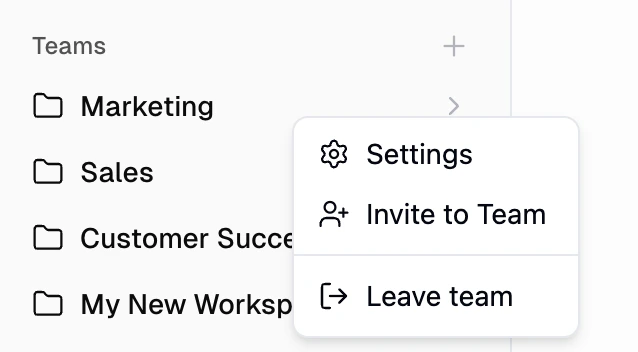
1. On the [Home page](https://www.gumloop.com/hub), right-click the team.
2. Select **Invite to Team**.
3. Enter their email.
From the members list you can **Resend Invite** or **Revoke Invite** on a pending row.
If your org uses domain restrictions or SSO, people on a blocked domain cannot join. See [SSO, SAML & SCIM](/enterprise-features/sso_saml_scim).
## Add someone to a team
You can pick teams in the org invite modal above, or invite from the team itself.
**From the sidebar**
1. On the [Home page](https://www.gumloop.com/hub), right-click the team.
2. Select **Invite to Team**.
3. Enter their email.
 **From team settings**
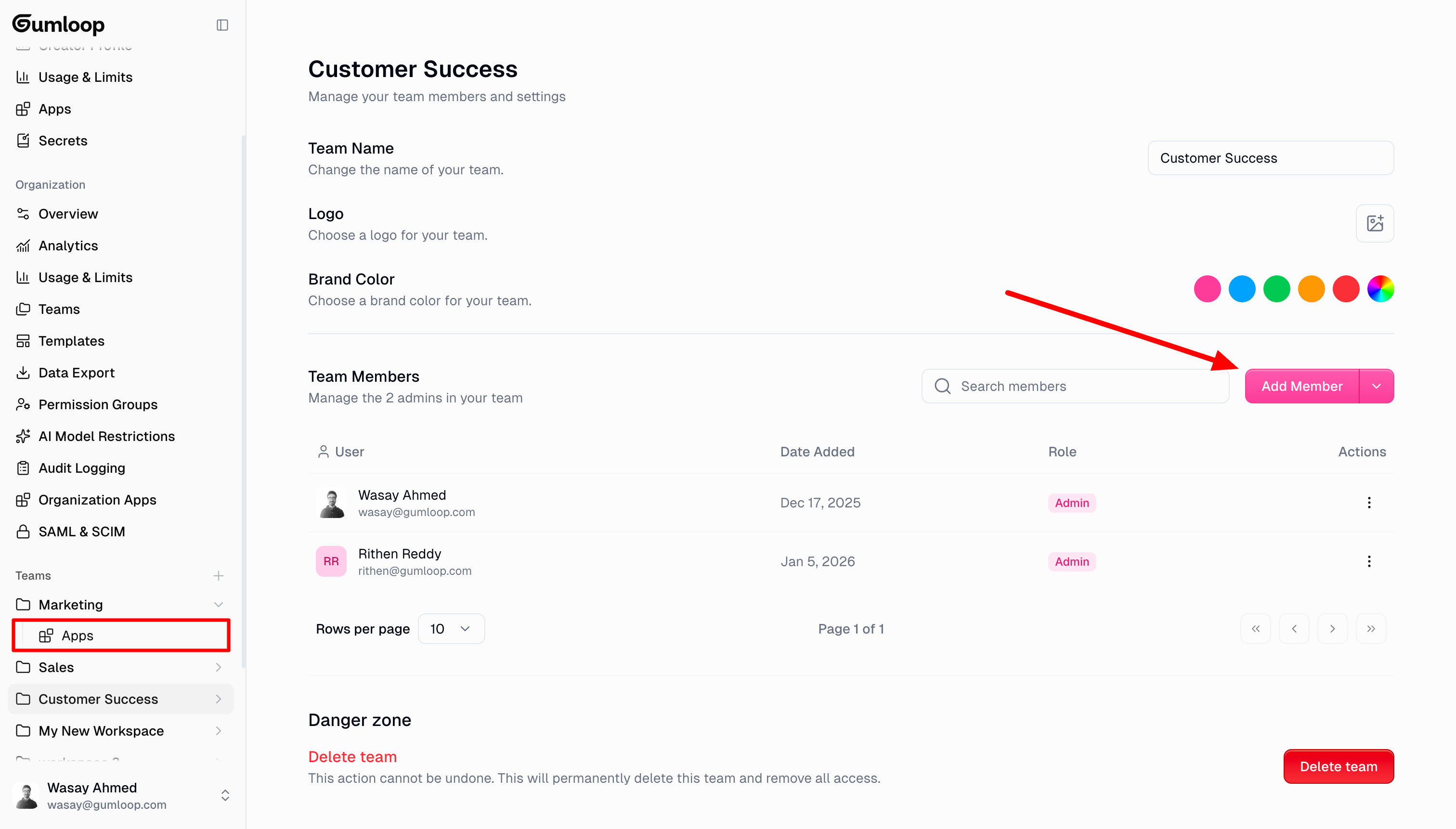
1. Right-click the team and open **Settings**.
2. Click **Add Member** and enter their email.
**From team settings**
1. Right-click the team and open **Settings**.
2. Click **Add Member** and enter their email.
 **From organization settings**
Open the team under [Organization > Teams](https://www.gumloop.com/settings/organization/teams) and add them in **Team Members**.
## Good to know
* Inviting someone to a team does not make them Editor on every agent. Share each agent with the role you want. See [Sharing roles](/help/sharing/sharing-roles).
* Org roles are additive. Change them later from [Organization Members](https://www.gumloop.com/settings/organization/members). That is separate from an agent's Editor / Viewer / Use Only role.
## Related
Admin, Manager, Member
Create the team first
**From organization settings**
Open the team under [Organization > Teams](https://www.gumloop.com/settings/organization/teams) and add them in **Team Members**.
## Good to know
* Inviting someone to a team does not make them Editor on every agent. Share each agent with the role you want. See [Sharing roles](/help/sharing/sharing-roles).
* Org roles are additive. Change them later from [Organization Members](https://www.gumloop.com/settings/organization/members). That is separate from an agent's Editor / Viewer / Use Only role.
## Related
Admin, Manager, Member
Create the team first