> ## Documentation Index
> Fetch the complete documentation index at: https://docs.gumloop.com/llms.txt
> Use this file to discover all available pages before exploring further.
# Gumloop MCP Connection Troubleshooting
If the Gumloop MCP server connects successfully but tool calls fail, the issue is usually related to your setup, permissions, or server configuration.
This guide covers the most common causes and fixes across Claude, Claude Code, Cursor, ChatGPT, and other MCP clients. It focuses on the Gumloop MCP server at `https://mcp.gumloop.com/gumloop/mcp`, which provides access to your agents, sessions, and skills. For initial setup, see [MCP server](/mcp-server/overview).
## Which error do you have?
| What you see | Most likely cause | Fix |
| - | - | - |
| `401` with "no Gumloop API credentials found" or "Connect Gumloop before using this server" | No Gumloop API Key on your account | [Generate a Gumloop API Key](#generate-a-gumloop-api-key) |
| `403` on account tools like `list_agents` or `list_teams`, while `search_documentation` works | No API key, or the wrong team picked when you signed in | [Generate a key](#generate-a-gumloop-api-key), then [pick the right team](#pick-the-right-team-when-you-sign-in) |
| `403` on **every** tool, including `search_documentation` and `ask_gummie` | Your custom role blocks the Gumloop server | [Ask an admin to unblock it](#if-every-call-returns-403-ask-an-admin-to-unblock-the-server) |
| Connected, but the client says Gumloop is not connected after you picked a team | That team has no Gumloop API Key | [Pick the right team](#pick-the-right-team-when-you-sign-in) |
| Auth error, `404`, or no tools when you add the server | Wrong server URL | [Use the right server URL](#use-the-right-server-url) |
| "Could not attach to MCP server" or "server reconnection failed" | Stale sign-in cached by the client | [Reset the connection](#reset-a-stuck-connection) |
## Generate a Gumloop API Key
The Gumloop server needs a **Gumloop API Key** connector on your account. Signing in from your client links the connection to that key, so without one every account tool fails, even though the sign-in itself succeeded.
Go to [Connectors](https://www.gumloop.com/settings/profile/connectors?view=connected).
Click **Add Connector** and search for **Gumloop API Key**.
Click **Generate API Key**. You do not need to copy it into your client. The client's sign-in finds it for you.
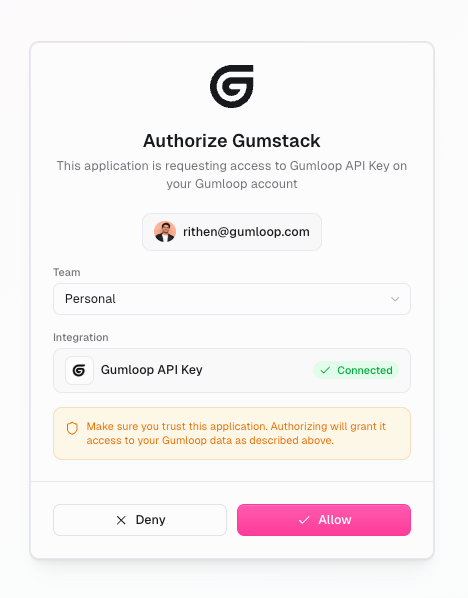
Remove the Gumloop server from your client, add it again, and complete the sign-in. Pick **Personal** on the authorize screen.
To generate or rotate the key later, see [Find your Gumloop API key](/help/connectors/find-your-api-key).
## Pick the right team when you sign in
The **Team** dropdown on the authorize screen chooses which Gumloop API Key the connection uses, not which agents you can see. Pick the space where your Gumloop API Key lives. For most people that is **Personal**.
* **Personal** works with your personal key. It still reaches agents in every team you belong to. Name the team in your prompt, for example: "List the agents in my Marketing team."
* **A team** works only if someone generated a Gumloop API Key on that team's Connectors page. A team key sees that team's agents only, not your personal agents or other teams. Use a team when the connection should act as the team rather than as you, such as a shared service connection.
 For a team that uses Claude, have each person connect with their own personal Gumloop API Key. One connection covers their personal and team agents, and every action stays attributed to the person who ran it.
Some tools do not accept a team Gumloop API Key. `create_session`, for example, does not work with a team key. If you signed in with a team key and a tool returns `403`, sign in again with **Personal** and your personal key.
## If every call returns 403, ask an admin to unblock the server
A `403` on every tool, including the documentation tools, means your custom role has the Gumloop server turned off. This is a permission setting, so removing and re-adding the server in your client does not change it.
An organization admin fixes it:
Go to [Organization → Roles](https://www.gumloop.com/settings/organization/groups) and open the custom role the user belongs to. Custom roles add up, so check every role the user is in.
On the role's **Connectors** tab, find the **Gumloop** server and allow it for the role.
The user can retry right after the admin saves. They do not need to sign in again. For how roles work, see [Custom roles](/enterprise-features/user_groups).
## Use the right server URL
The Gumloop server URL is `https://mcp.gumloop.com/gumloop/mcp`. The [Gumloop connectors directory](https://www.gumloop.com/connectors) has a ready-made URL or command for Claude, Claude Code, Cursor, Codex, and ChatGPT.
These URLs do not work as MCP servers: `https://mcp.gumloop.com/mcp` (no service name) and `https://www.gumloop.com/mcp/...` (that is a web page). If you added either one, Gumloop or your client loads a web page instead of MCP tools, so it shows zero tools or an auth error. Remove it and add the server again with the URL above.
## Reset a stuck connection
If the client says "Could not attach to MCP server" or "Authentication successful, but server reconnection failed," it is usually holding an old sign-in. Clear it and connect again.
```bash theme={"dark"}
claude mcp remove gumloop
rm -rf ~/.mcp-auth
claude mcp add --transport http gumloop https://mcp.gumloop.com/gumloop/mcp
```
Use the server name you gave it if it was not `gumloop`. Restart Claude Code, run `/mcp`, select the server, and sign in.
Go to **Settings > Connectors**, remove the Gumloop connector, and add it again with the server URL. Fully quit and reopen Claude Desktop before you sign in.
If your client config runs `npx mcp-remote`, delete the cached sign-in with `rm -rf ~/.mcp-auth`, then restart the client.
If the reset does not help, check whether a company firewall or VPN blocks `mcp.gumloop.com`.
## FAQ
No. It works on all accounts with an active subscription, trial included. You just need a Gumloop API Key, which you generate from the Connectors page.
Reconnecting only redoes the sign-in. It does not change what the connection is allowed to do. A `403` that survives a reconnect is almost always a custom role that blocks the Gumloop server, or a sign-in that used a team with no Gumloop API Key. Ask an admin to check [the role's connector access](#if-every-call-returns-403-ask-an-admin-to-unblock-the-server), and sign in with **Personal**.
Gumloop MCP shows personal agents unless you name a team. Ask your client to list your teams first, then ask for the agents in a specific team. You can reach any team you are a member of.
Yes, with a team Gumloop API Key on the team's Connectors page, then pick that team when you sign in. The tradeoff: the connection sees only that team's agents, and actions are not attributed to individual people.
Check the server URL. It must be `https://mcp.gumloop.com/gumloop/mcp`. The web page address `https://www.gumloop.com/mcp/gumloop` returns a page, not MCP tools. Remove the connector from the agent, delete the server, and add it again with the right URL.
## Related
Set up Gumloop MCP in your client
Generate or rotate the key
For a team that uses Claude, have each person connect with their own personal Gumloop API Key. One connection covers their personal and team agents, and every action stays attributed to the person who ran it.
Some tools do not accept a team Gumloop API Key. `create_session`, for example, does not work with a team key. If you signed in with a team key and a tool returns `403`, sign in again with **Personal** and your personal key.
## If every call returns 403, ask an admin to unblock the server
A `403` on every tool, including the documentation tools, means your custom role has the Gumloop server turned off. This is a permission setting, so removing and re-adding the server in your client does not change it.
An organization admin fixes it:
Go to [Organization → Roles](https://www.gumloop.com/settings/organization/groups) and open the custom role the user belongs to. Custom roles add up, so check every role the user is in.
On the role's **Connectors** tab, find the **Gumloop** server and allow it for the role.
The user can retry right after the admin saves. They do not need to sign in again. For how roles work, see [Custom roles](/enterprise-features/user_groups).
## Use the right server URL
The Gumloop server URL is `https://mcp.gumloop.com/gumloop/mcp`. The [Gumloop connectors directory](https://www.gumloop.com/connectors) has a ready-made URL or command for Claude, Claude Code, Cursor, Codex, and ChatGPT.
These URLs do not work as MCP servers: `https://mcp.gumloop.com/mcp` (no service name) and `https://www.gumloop.com/mcp/...` (that is a web page). If you added either one, Gumloop or your client loads a web page instead of MCP tools, so it shows zero tools or an auth error. Remove it and add the server again with the URL above.
## Reset a stuck connection
If the client says "Could not attach to MCP server" or "Authentication successful, but server reconnection failed," it is usually holding an old sign-in. Clear it and connect again.
```bash theme={"dark"}
claude mcp remove gumloop
rm -rf ~/.mcp-auth
claude mcp add --transport http gumloop https://mcp.gumloop.com/gumloop/mcp
```
Use the server name you gave it if it was not `gumloop`. Restart Claude Code, run `/mcp`, select the server, and sign in.
Go to **Settings > Connectors**, remove the Gumloop connector, and add it again with the server URL. Fully quit and reopen Claude Desktop before you sign in.
If your client config runs `npx mcp-remote`, delete the cached sign-in with `rm -rf ~/.mcp-auth`, then restart the client.
If the reset does not help, check whether a company firewall or VPN blocks `mcp.gumloop.com`.
## FAQ
No. It works on all accounts with an active subscription, trial included. You just need a Gumloop API Key, which you generate from the Connectors page.
Reconnecting only redoes the sign-in. It does not change what the connection is allowed to do. A `403` that survives a reconnect is almost always a custom role that blocks the Gumloop server, or a sign-in that used a team with no Gumloop API Key. Ask an admin to check [the role's connector access](#if-every-call-returns-403-ask-an-admin-to-unblock-the-server), and sign in with **Personal**.
Gumloop MCP shows personal agents unless you name a team. Ask your client to list your teams first, then ask for the agents in a specific team. You can reach any team you are a member of.
Yes, with a team Gumloop API Key on the team's Connectors page, then pick that team when you sign in. The tradeoff: the connection sees only that team's agents, and actions are not attributed to individual people.
Check the server URL. It must be `https://mcp.gumloop.com/gumloop/mcp`. The web page address `https://www.gumloop.com/mcp/gumloop` returns a page, not MCP tools. Remove the connector from the agent, delete the server, and add it again with the right URL.
## Related
Set up Gumloop MCP in your client
Generate or rotate the key