> ## Documentation Index
> Fetch the complete documentation index at: https://docs.gumloop.com/llms.txt
> Use this file to discover all available pages before exploring further.
# Use Team Connectors
Team connectors only appear on agents that live in that team.
## Existing personal agent
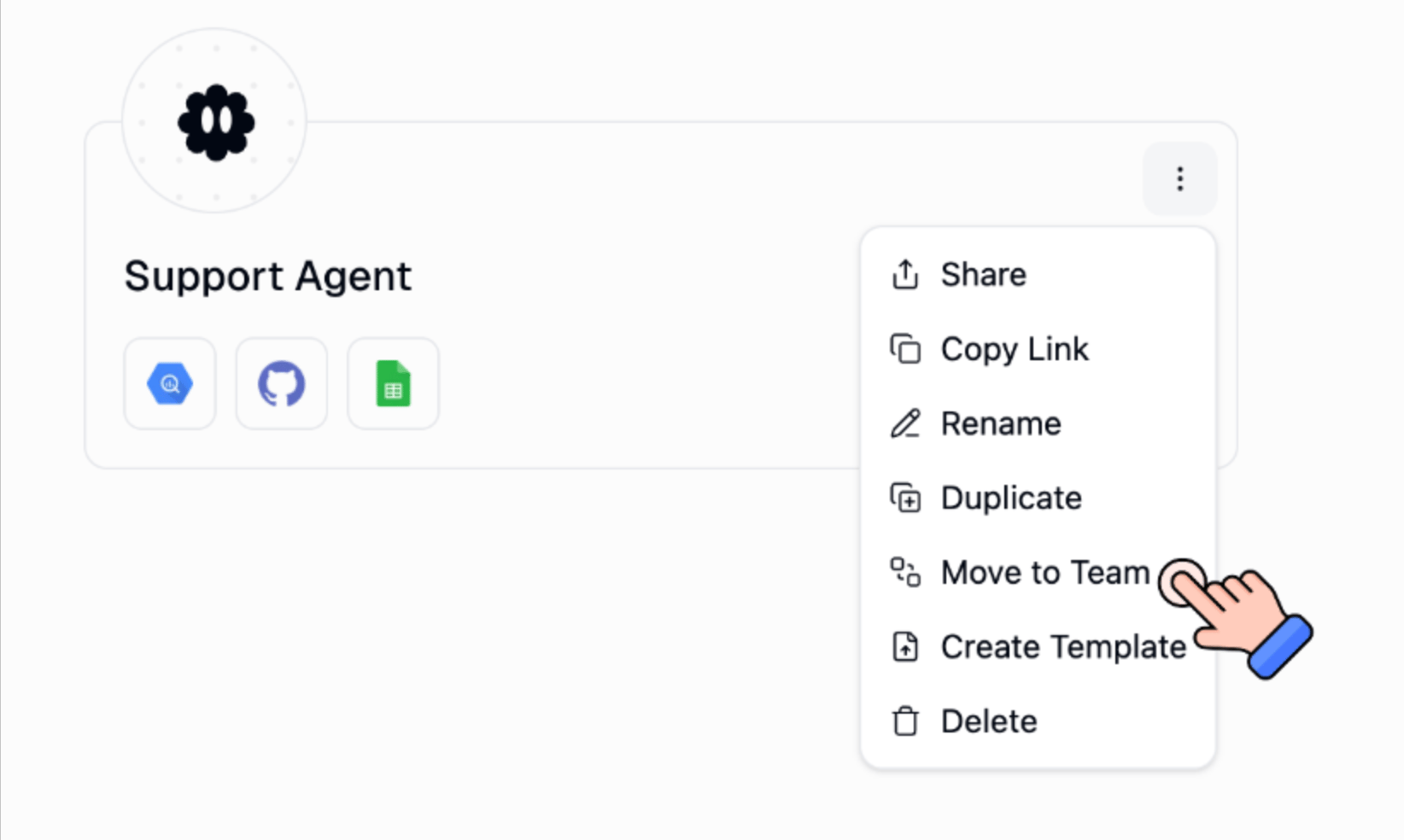
1. On the [Home page](https://www.gumloop.com/hub), open the agent's **⋮** menu and choose **Move to Team**. Or open the agent and use **Move to Team** there.
2. Pick the destination team.
 3. Open the connector's three-dot menu.
4. Choose **Use Team Default** or **Use Specific Account**. See [Choose which account to use](/core-concepts/credentials#in-agents).
## New agent
Create the agent **inside the team**, add the connector, and pick the team account from the start.
## Good to know
* **Use Personal Default** still uses each runner's own account. That is usually what you want for Gmail.
* **Use Team Default / Specific Account** is for a shared inbox or CRM.
* Changing a team agent's connector affects everyone. Confirm before you save.
## Related
Pin a personal or team account
Connect the shared account first
3. Open the connector's three-dot menu.
4. Choose **Use Team Default** or **Use Specific Account**. See [Choose which account to use](/core-concepts/credentials#in-agents).
## New agent
Create the agent **inside the team**, add the connector, and pick the team account from the start.
## Good to know
* **Use Personal Default** still uses each runner's own account. That is usually what you want for Gmail.
* **Use Team Default / Specific Account** is for a shared inbox or CRM.
* Changing a team agent's connector affects everyone. Confirm before you save.
## Related
Pin a personal or team account
Connect the shared account first