> ## Documentation Index
> Fetch the complete documentation index at: https://docs.gumloop.com/llms.txt
> Use this file to discover all available pages before exploring further.
# What if a website blocks my agent's browser?
Your agent's browser gets past most CAPTCHAs and bot checks on its own, but not every one. When it can't, it pauses and hands the browser to you to solve the check. If a site blocks automated browsers completely, set a proxy country or reach the data another way, such as a connector, Web Fetch, or the site's API.
## What am I seeing, and what do I do?
| What you see | What it means | What to do |
| - | - | - |
| A handoff card in the chat asking you to solve a CAPTCHA | The agent couldn't pass the check | [Solve it in the live browser](#how-do-i-answer-a-captcha-handoff), then click **Continue** |
| "Access denied," a 403 error, or a "verify you are human" check that never clears | The site's bot protection flagged the browser | If **Proxy** is **Off**, [set it to **Auto** or a country](#how-do-i-set-a-proxy-country). If a proxy is already set, [use another route](#what-if-the-site-still-blocks-the-agent) |
| `ERR_TUNNEL_CONNECTION_FAILED` while a proxy is set | The site refuses the proxy | The agent can switch that task to a direct connection on its own. If it doesn't, ask it to, or set **Proxy** to **Off** |
| Prices or content differ from what you see in your own browser | The site shows different content by country | Set **Proxy** to your country |
## How do I answer a CAPTCHA handoff?
1. On the handoff card, click **Open browser** if the **Browser** panel isn't already open on the right.
2. Solve the check directly in the **Live** view, the same way you would in your own browser.
3. Click **Continue** on the handoff card. The agent picks up from there.
If you can't solve it, click **Skip**. The agent continues without your help and tells you what it couldn't finish.
Only the person whose message the agent is working on can answer the handoff. In Slack, click **Open in Gumloop**, solve the check, then click **I did it in the browser**. Time the agent spends waiting for you isn't billed.
## How do I set a proxy country?
With a proxy, the browser connects through a residential connection, so sites see an ordinary visitor. With **Proxy** set to **Off**, it connects directly from the agent's computer, which many bot-protection services treat as automated.
| Proxy option | Where the browser connects from |
| - | - |
| **Off** | Directly from the agent's computer, without a residential proxy |
| **Auto** | The country of the person running the task, from their saved timezone. Falls back to the United States |
| A country | The country you pick |
When you turn the browser on, **Proxy** starts on **Auto**. Older agents keep the proxy they had. To change it:
1. Open the agent and find the **Browser** section on the **Agent** tab.
2. Click the **Proxy** row and choose **Auto** or a country.
3. Click **Save**. The setting applies from your next message.
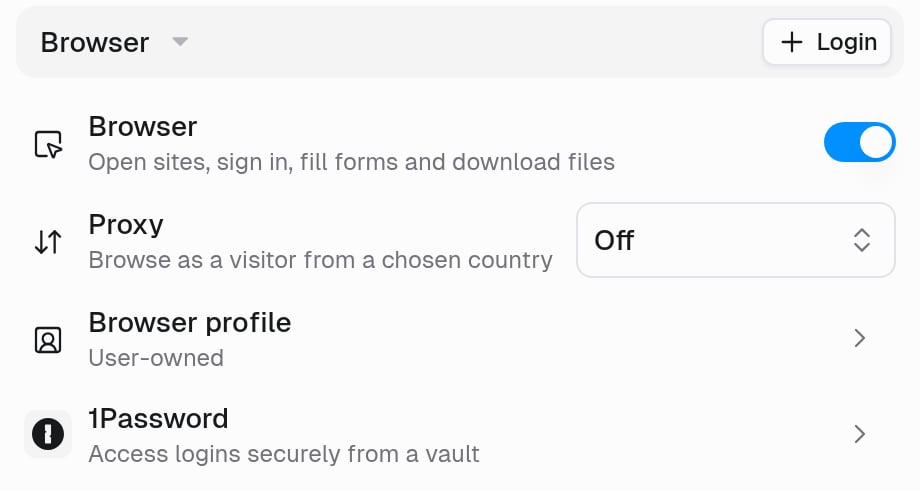 Changing the proxy restarts the browser. Open tabs close, but sign-ins are kept. The proxy has no extra charge.
If a site refuses the proxy, the agent can switch that task to a direct connection and back. This doesn't change the agent's saved setting, and it only works when a proxy is set.
## What if the site still blocks the agent?
Some sites block every automated browser, whatever the proxy, and retrying won't help. Reach the data another way:
1. **Use a connector.** If Gumloop has one for the service, it isn't affected by bot checks. See [Give an agent a connector](/help/using-agents/give-agent-access-to-a-connector).
2. **Use Web Fetch for public pages.** Ask the agent to fetch the page with Web Fetch instead of the browser. It can't click or sign in, and strict sites may block it too.
3. **Use the site's API.** Store the API key or access token as a [secret](/core-concepts/agent_sandbox_and_secrets#secrets) on the agent, then ask the agent to call the API from its code sandbox. Once it works, ask the agent to save it as a skill.
If your company owns the site, ask its IT team for an API key or token their bot protection accepts, then use step 3.
Use the browser only on sites you're allowed to access, and follow each site's terms of service.
## Related
Handoffs, proxy, live view, and limits
Store tokens and API keys as secrets
Changing the proxy restarts the browser. Open tabs close, but sign-ins are kept. The proxy has no extra charge.
If a site refuses the proxy, the agent can switch that task to a direct connection and back. This doesn't change the agent's saved setting, and it only works when a proxy is set.
## What if the site still blocks the agent?
Some sites block every automated browser, whatever the proxy, and retrying won't help. Reach the data another way:
1. **Use a connector.** If Gumloop has one for the service, it isn't affected by bot checks. See [Give an agent a connector](/help/using-agents/give-agent-access-to-a-connector).
2. **Use Web Fetch for public pages.** Ask the agent to fetch the page with Web Fetch instead of the browser. It can't click or sign in, and strict sites may block it too.
3. **Use the site's API.** Store the API key or access token as a [secret](/core-concepts/agent_sandbox_and_secrets#secrets) on the agent, then ask the agent to call the API from its code sandbox. Once it works, ask the agent to save it as a skill.
If your company owns the site, ask its IT team for an API key or token their bot protection accepts, then use step 3.
Use the browser only on sites you're allowed to access, and follow each site's terms of service.
## Related
Handoffs, proxy, live view, and limits
Store tokens and API keys as secrets