> ## Documentation Index
> Fetch the complete documentation index at: https://docs.gumloop.com/llms.txt
> Use this file to discover all available pages before exploring further.
# Custom Roles
Custom Roles let admins control exactly which apps, tools, scopes, and nodes each group of users can access. They also gate sensitive features and set per-user usage caps.
Managing Custom Roles requires the **Admin** or **Security** organization role.
## Key Concepts
* **Additive membership** — a user can hold multiple custom roles. Their effective access is the union across all roles.
* **Default role** — every new member is auto-assigned to the default role. It cannot be deleted.
* **Restrictions compose least-restrictively** — a user is only blocked from something if **every** role they hold blocks it.
Custom Roles **restrict** what a user can do. [Organization Roles](/core-concepts/organization_user_roles) **grant** authority (Admin, Manager, etc.). Both must allow an action for it to succeed.
***
## Managing Roles
Navigate to [gumloop.com/settings/organization/groups](https://www.gumloop.com/settings/organization/groups).
Each role has the following tabs:
| Tab | Purpose |
| ---------------- | --------------------------------------------- |
| **Apps** | Per-app control over tools, scopes, and nodes |
| **Features** | Toggles for sensitive capabilities |
| **Usage Limits** | Per-user concurrency and credit caps |
| **Users** | Assign members to this role |
| **Settings** | Rename, set as default, or delete |
***
## Apps Tab
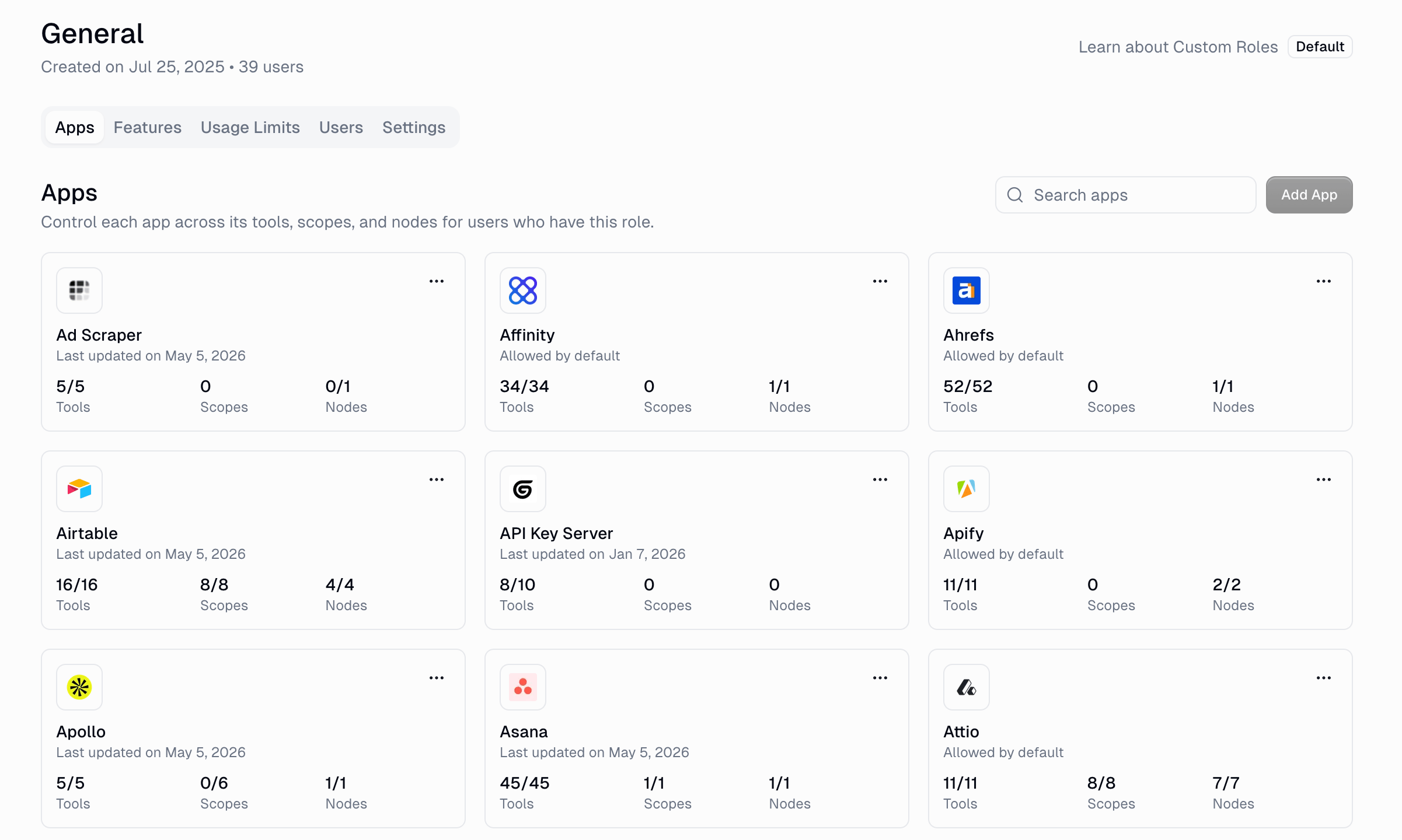
The **Apps** tab is where you control which apps your users can access and what they can do with each app. It consolidates **tools**, **scopes**, and **nodes** into a single per-app view.
### Overview
The main view shows all available apps as cards. Each card shows the count of granted tools, scopes, and nodes at a glance.
 ***
### Example: Configuring GitHub Access
Let's walk through configuring GitHub access for a custom role.
**Step 1: Open the app**
Click the GitHub card (or click **Add App** and select GitHub). This opens the App Picker with three sub-tabs: **Tools**, **Scopes**, and **Nodes**.
***
**Step 2: Configure Tools**
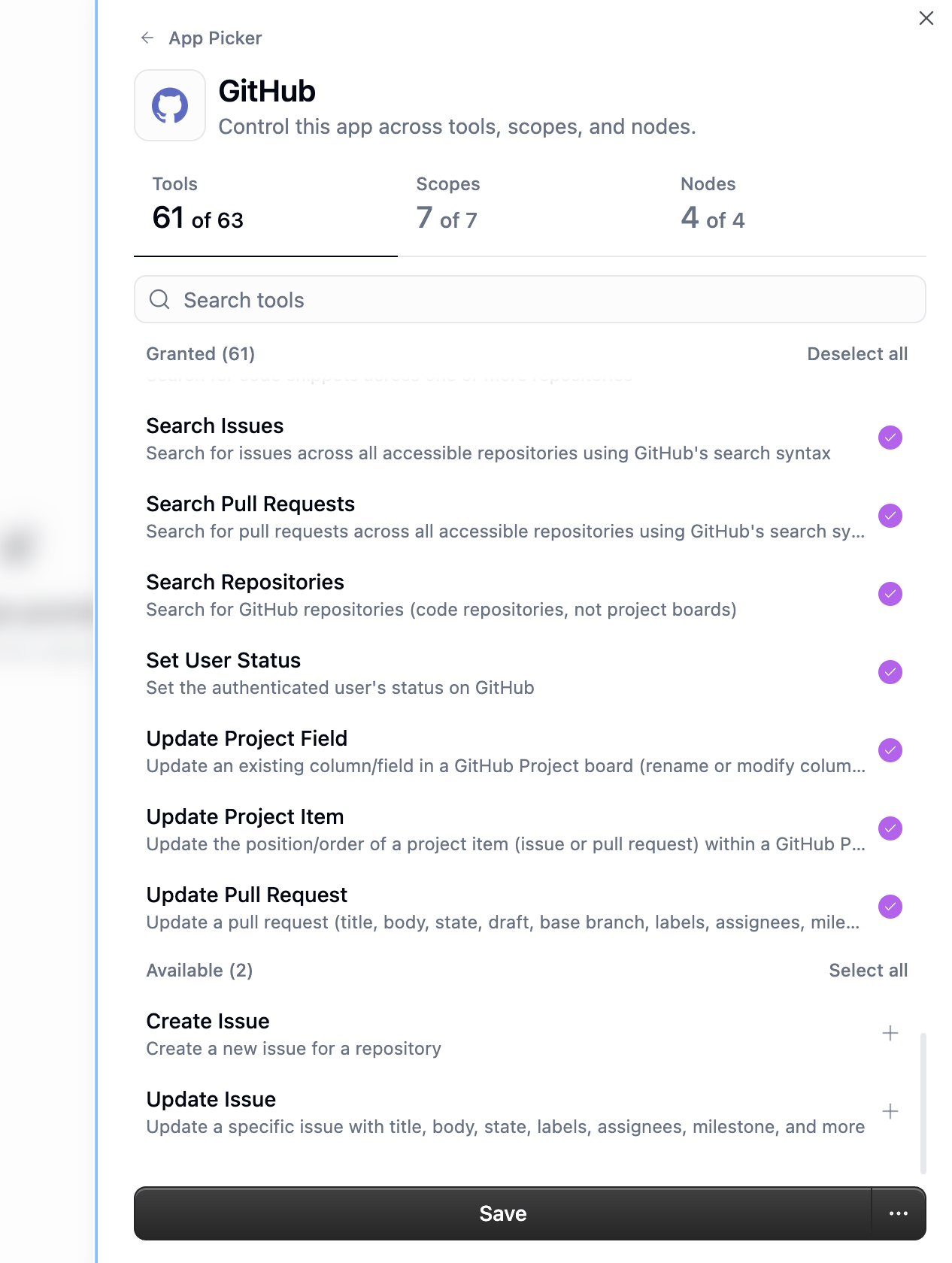
The Tools tab shows every agent tool available for this app. Toggle individual tools on or off.
In this example, the role grants 61 of 63 GitHub tools (like Search Issues, Search Pull Requests, Search Repositories, etc.):
***
### Example: Configuring GitHub Access
Let's walk through configuring GitHub access for a custom role.
**Step 1: Open the app**
Click the GitHub card (or click **Add App** and select GitHub). This opens the App Picker with three sub-tabs: **Tools**, **Scopes**, and **Nodes**.
***
**Step 2: Configure Tools**
The Tools tab shows every agent tool available for this app. Toggle individual tools on or off.
In this example, the role grants 61 of 63 GitHub tools (like Search Issues, Search Pull Requests, Search Repositories, etc.):
 * Use **Select all** / **Deselect all** for bulk changes
* Search for specific tools using the search bar
* Tools that are not selected will be blocked for users in this role
***
**Step 3: Configure Scopes**
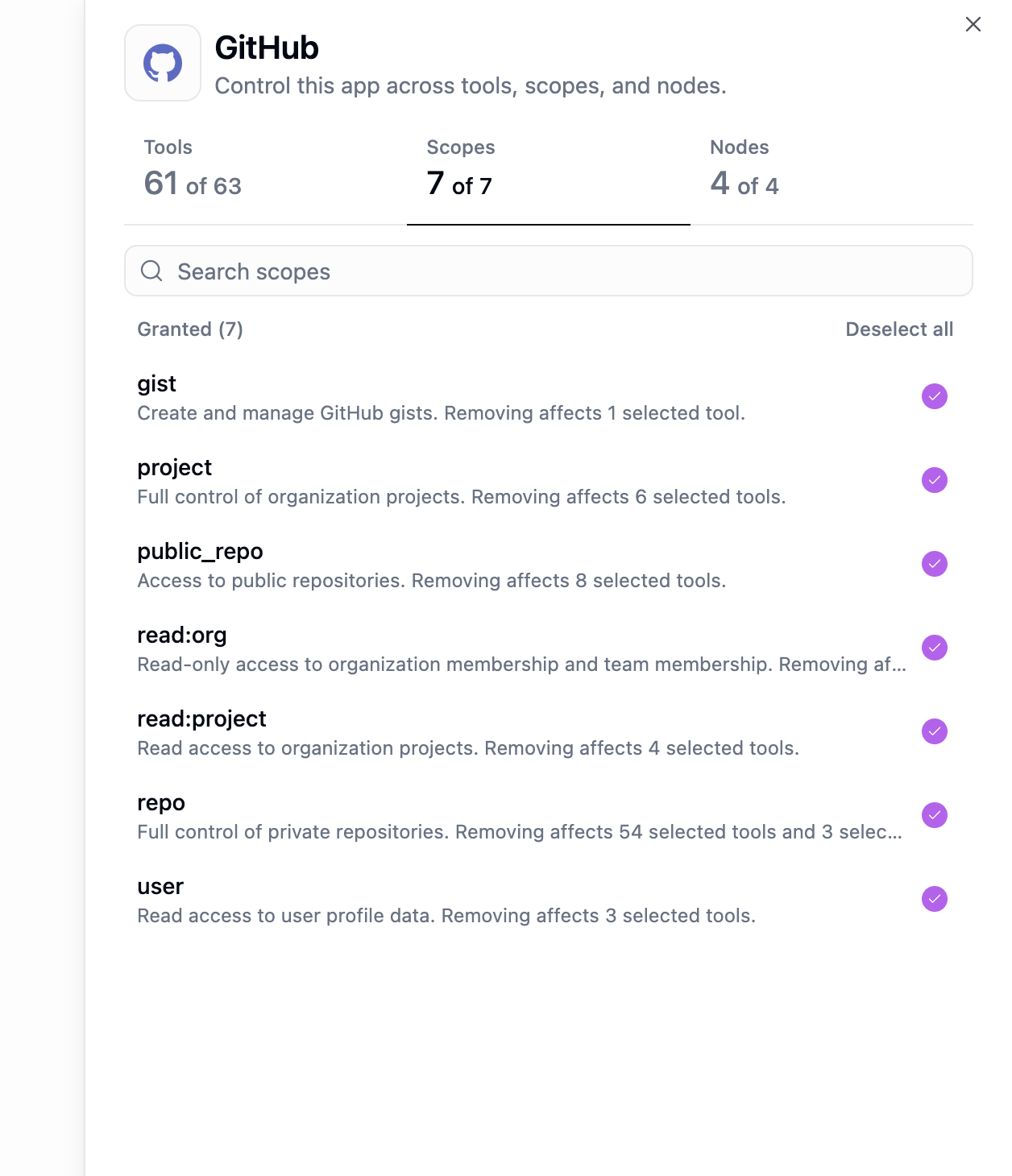
The Scopes tab controls which OAuth scopes users in this role can grant when connecting the app.
In this example, all 7 GitHub scopes are granted (`gist`, `project`, `public_repo`, `read:org`, `read:project`, `repo`, `user`):
* Use **Select all** / **Deselect all** for bulk changes
* Search for specific tools using the search bar
* Tools that are not selected will be blocked for users in this role
***
**Step 3: Configure Scopes**
The Scopes tab controls which OAuth scopes users in this role can grant when connecting the app.
In this example, all 7 GitHub scopes are granted (`gist`, `project`, `public_repo`, `read:org`, `read:project`, `repo`, `user`):
 * Only selected scopes can be authorized by users in this role
* Removing a scope may affect tools or nodes that depend on it
***
**Step 4: Configure Nodes**
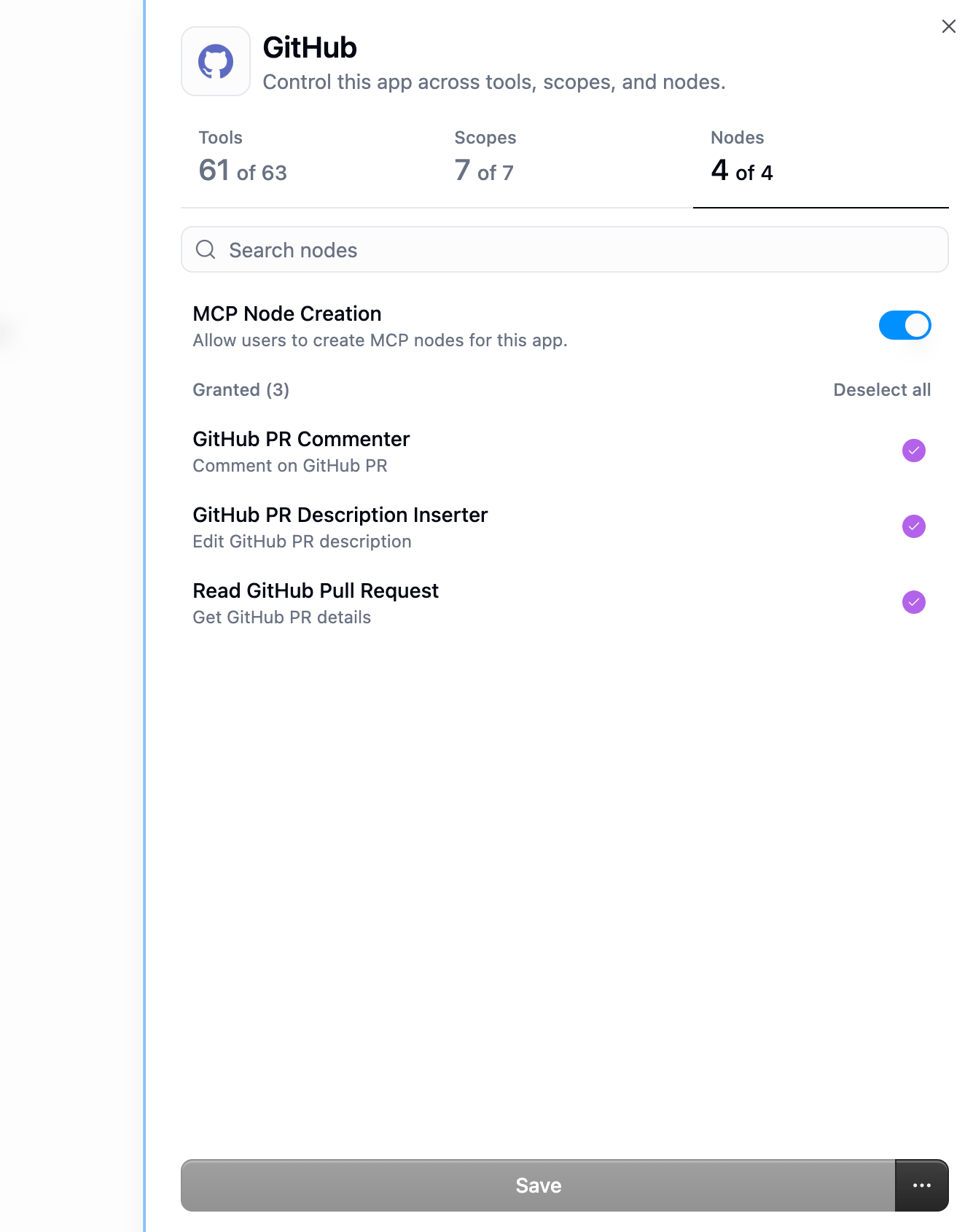
The Nodes tab controls which workflow nodes are available for this app. It also has a toggle for **MCP Node Creation** that controls whether users can build new custom nodes for this app.
In this example, 3 GitHub nodes are granted and MCP Node Creation is enabled:
* Only selected scopes can be authorized by users in this role
* Removing a scope may affect tools or nodes that depend on it
***
**Step 4: Configure Nodes**
The Nodes tab controls which workflow nodes are available for this app. It also has a toggle for **MCP Node Creation** that controls whether users can build new custom nodes for this app.
In this example, 3 GitHub nodes are granted and MCP Node Creation is enabled:
 * **MCP Node Creation** toggle — controls whether users can create new custom MCP nodes for this app
* Individual node toggles — controls which existing nodes are available in the workflow builder
***
**Step 5: Save**
Click **Save** to apply your changes. The app card on the overview will update to reflect the new counts.
***
### Removing App Access
To completely remove a role's access to an app, click the **three-dot menu** (⋯) on the app card and select **Remove access**.
* **MCP Node Creation** toggle — controls whether users can create new custom MCP nodes for this app
* Individual node toggles — controls which existing nodes are available in the workflow builder
***
**Step 5: Save**
Click **Save** to apply your changes. The app card on the overview will update to reflect the new counts.
***
### Removing App Access
To completely remove a role's access to an app, click the **three-dot menu** (⋯) on the app card and select **Remove access**.
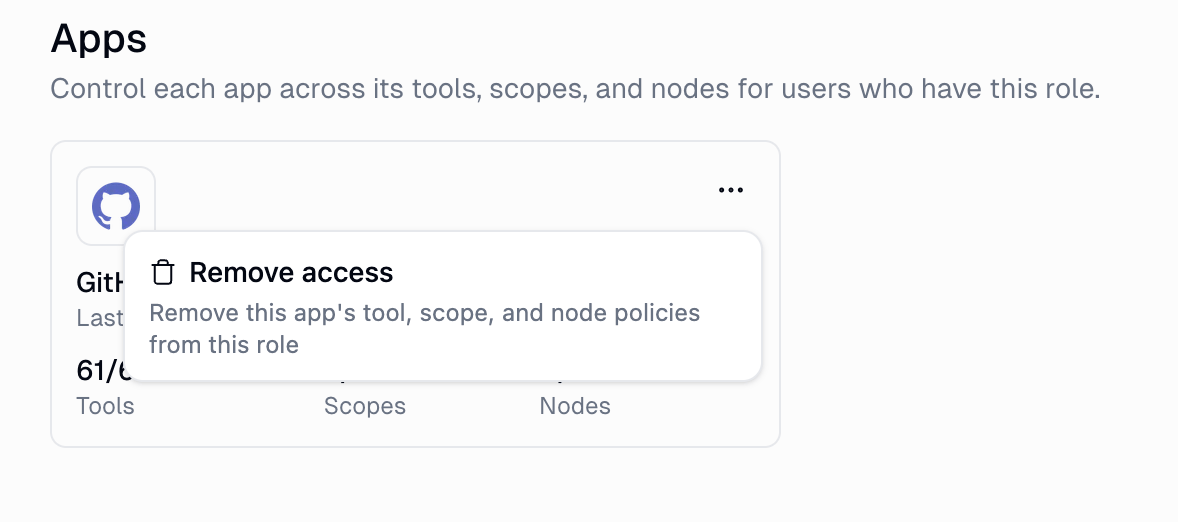 This removes all tool, scope, and node grants for that app from this role.
***
### How App Restrictions Compose
When a user is in **multiple roles**, app access composes with the least-restrictive rule:
| Scenario | Result |
| ---------------------------------------------------------- | -------------------------------------------- |
| Role A grants 3 GitHub tools, Role B has no GitHub card | User gets **all** GitHub tools (B is silent) |
| Role A grants `repo` scope only, Role B has no GitHub card | User gets **all** scopes (B is silent) |
| Role A and Role B both only grant `repo` scope | User gets only `repo` scope |
| Role A removes app access entirely, Role B has no card | User is **unrestricted** (B is silent) |
A role with no card for an app is "silent" on that app, meaning it does not restrict it. Only when **every** role a user holds explicitly restricts an app does the restriction apply.
***
## Features Tab
Controls sensitive capabilities that are gated by default for non-admin members. A user gets a feature if **any** of their roles grants it.
This removes all tool, scope, and node grants for that app from this role.
***
### How App Restrictions Compose
When a user is in **multiple roles**, app access composes with the least-restrictive rule:
| Scenario | Result |
| ---------------------------------------------------------- | -------------------------------------------- |
| Role A grants 3 GitHub tools, Role B has no GitHub card | User gets **all** GitHub tools (B is silent) |
| Role A grants `repo` scope only, Role B has no GitHub card | User gets **all** scopes (B is silent) |
| Role A and Role B both only grant `repo` scope | User gets only `repo` scope |
| Role A removes app access entirely, Role B has no card | User is **unrestricted** (B is silent) |
A role with no card for an app is "silent" on that app, meaning it does not restrict it. Only when **every** role a user holds explicitly restricts an app does the restriction apply.
***
## Features Tab
Controls sensitive capabilities that are gated by default for non-admin members. A user gets a feature if **any** of their roles grants it.
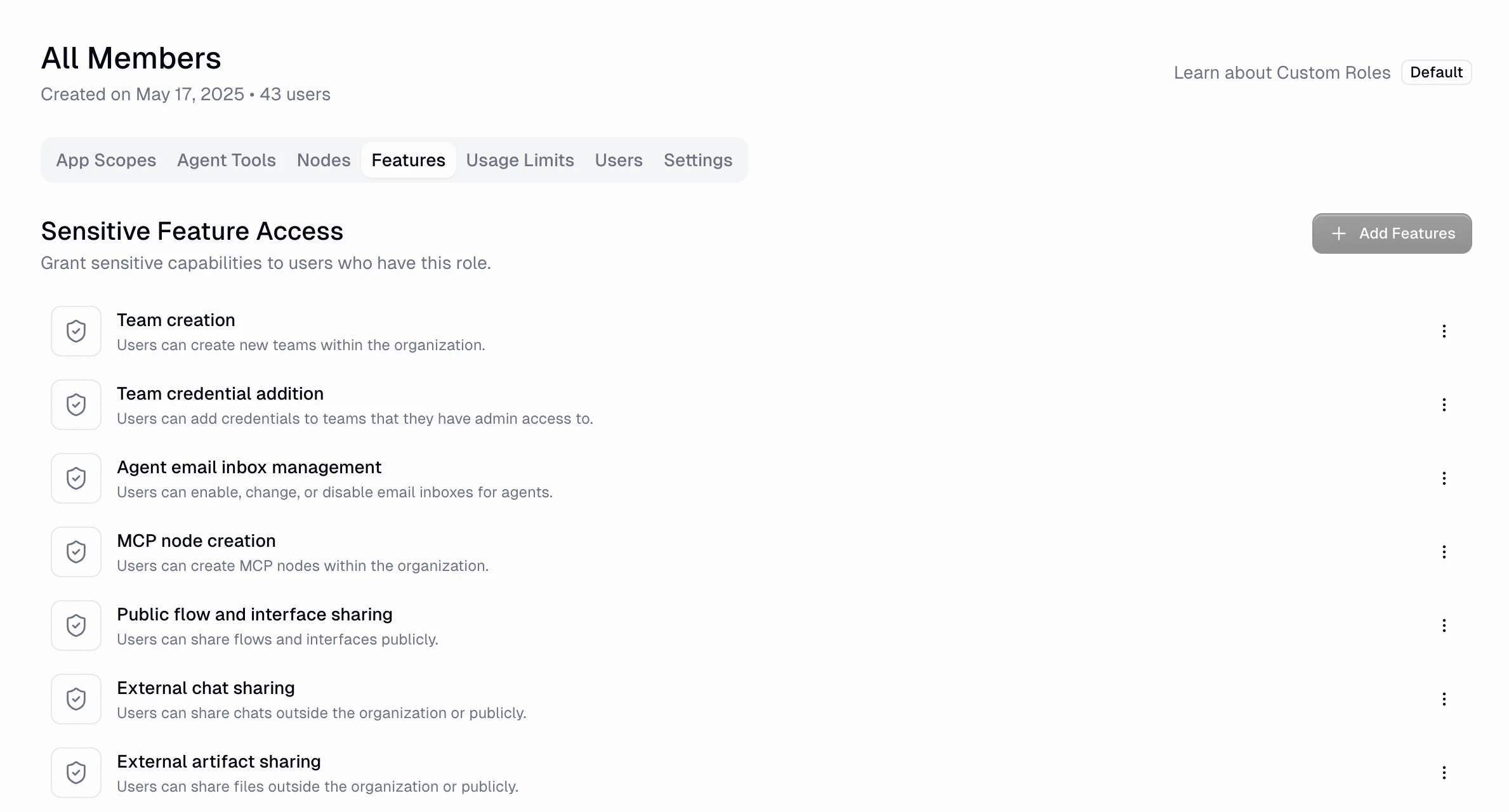 | Feature | What it allows |
| ------------------------------------- | ----------------------------------------------------- |
| **Team creation** | Create new teams within the organization |
| **Team credential addition** | Add credentials to teams the user has admin access to |
| **Agent email inbox management** | Enable, change, or disable email inboxes for agents |
| **Agent incognito mode** | Run agent chats without saving messages to history |
| **MCP node creation** | Create MCP nodes within the organization |
| **Public flow and interface sharing** | Share flows and interfaces publicly |
| **External chat sharing** | Share chats outside the organization or publicly |
| **External artifact sharing** | Share files outside the organization or publicly |
| **Flow modification** | Create, update, or delete flows and workbooks |
| **Workflow incognito mode** | Run workflows without saving run data to history |
| **Agent modification** | Create, update, or delete agents |
Features marked with a shield icon are denied by default for enterprise users unless explicitly granted. Others are allowed by default.
***
## Usage Limits Tab
Per-user caps that override organization-wide defaults.
| Feature | What it allows |
| ------------------------------------- | ----------------------------------------------------- |
| **Team creation** | Create new teams within the organization |
| **Team credential addition** | Add credentials to teams the user has admin access to |
| **Agent email inbox management** | Enable, change, or disable email inboxes for agents |
| **Agent incognito mode** | Run agent chats without saving messages to history |
| **MCP node creation** | Create MCP nodes within the organization |
| **Public flow and interface sharing** | Share flows and interfaces publicly |
| **External chat sharing** | Share chats outside the organization or publicly |
| **External artifact sharing** | Share files outside the organization or publicly |
| **Flow modification** | Create, update, or delete flows and workbooks |
| **Workflow incognito mode** | Run workflows without saving run data to history |
| **Agent modification** | Create, update, or delete agents |
Features marked with a shield icon are denied by default for enterprise users unless explicitly granted. Others are allowed by default.
***
## Usage Limits Tab
Per-user caps that override organization-wide defaults.
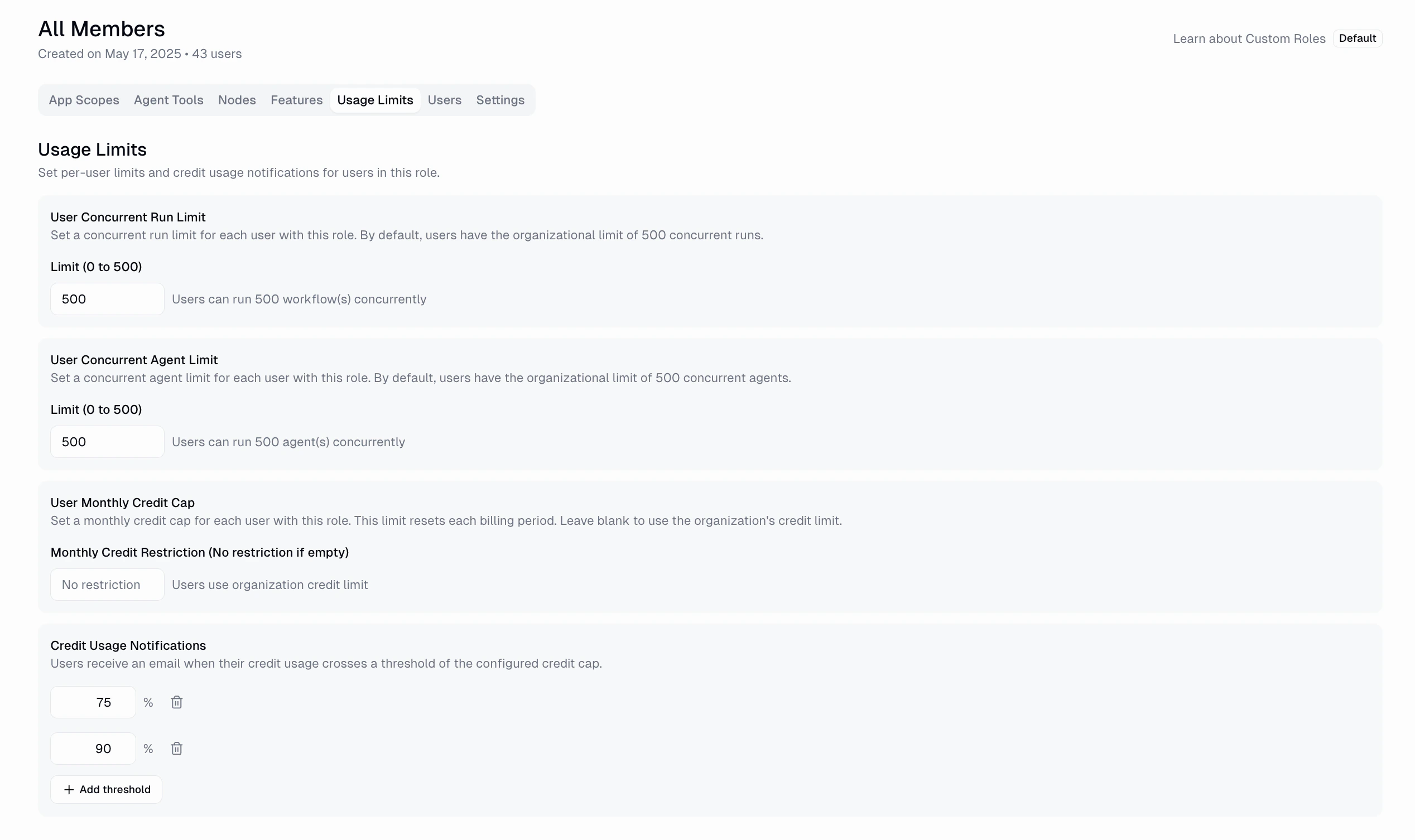 | Cap | Effect |
| ------------------------------ | -------------------------------------------- |
| **Concurrent Run Limit** | Max simultaneous workflow runs per user |
| **Concurrent Agent Limit** | Max simultaneous agent interactions per user |
| **Monthly Credit Cap** | Max credits per billing month |
| **Credit Usage Notifications** | Email alerts at thresholds (50%, 80%, 100%) |
Caps compose by taking the **maximum** across a user's roles.
***
## Users Tab
Assign members to this role. Adding a user here does **not** remove them from any other role.
***
## Settings Tab
| Cap | Effect |
| ------------------------------ | -------------------------------------------- |
| **Concurrent Run Limit** | Max simultaneous workflow runs per user |
| **Concurrent Agent Limit** | Max simultaneous agent interactions per user |
| **Monthly Credit Cap** | Max credits per billing month |
| **Credit Usage Notifications** | Email alerts at thresholds (50%, 80%, 100%) |
Caps compose by taking the **maximum** across a user's roles.
***
## Users Tab
Assign members to this role. Adding a user here does **not** remove them from any other role.
***
## Settings Tab
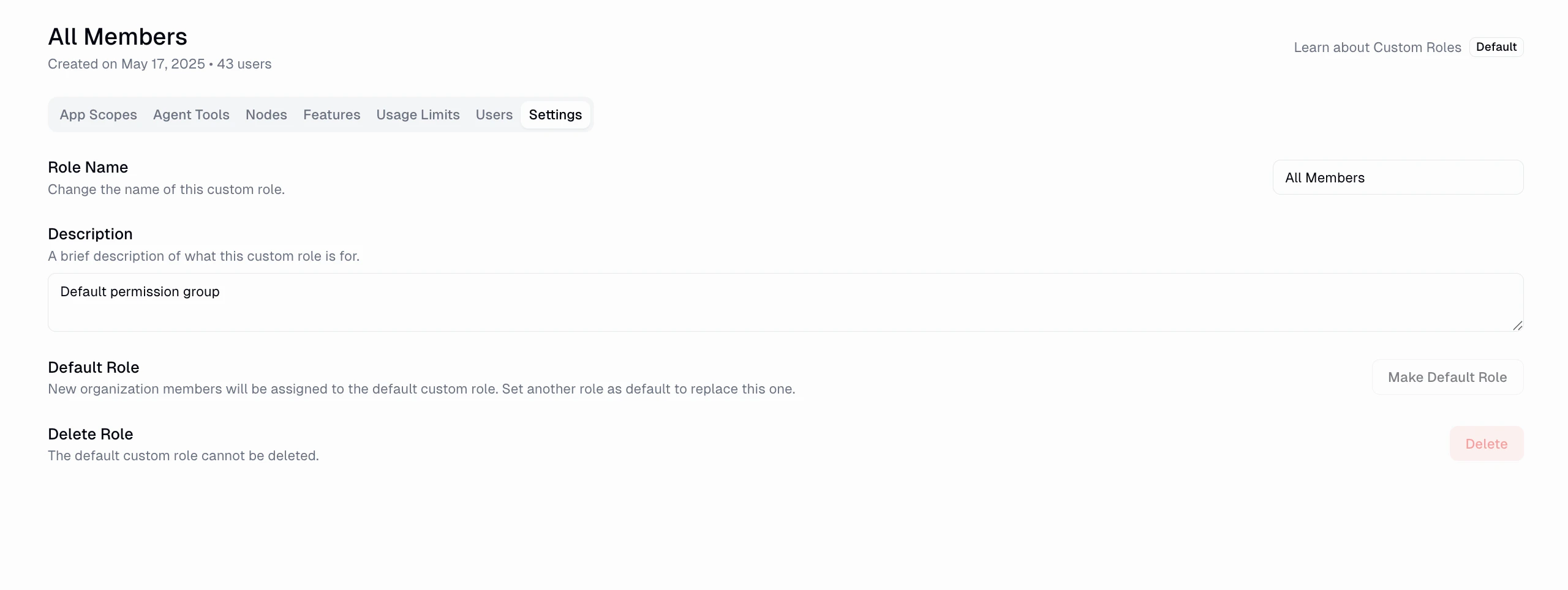 * **Default Role** toggle — promotes this role to be the org's default
* **Delete Role** — irreversible; members fall back to the default role
***
## SCIM and IdP Group Sync
If your organization uses SCIM provisioning, IdP groups can be mapped to custom roles automatically.
* IdP groups map to custom roles via **priority-based matching**
* Each user is assigned to a single target role via SCIM
* Manual assignments through the UI are unaffected
* SCIM sync maps each user to **one** role (not multiple)
* Multi-membership is still supported via manual assignment
* Priority determines which role wins if a user matches multiple groups
For full SCIM setup instructions, see [SSO, SAML, and SCIM](/enterprise-features/sso_saml_scim#scim-and-custom-roles).
***
## FAQ
* **Apps**: access is the union. Blocked only if every role blocks it.
* **Features**: granted if any role grants it.
* **Usage caps**: the highest value wins.
If a role has no card for an app, it has no opinion on that app. The user is unrestricted for that app by this role. Restrictions only apply when all roles agree.
Yes. Keep the default role restrictive, then create add-on roles that widen access for specific groups. Or do the opposite: keep default permissive and use stricter roles to narrow access.
***
## See Also
The authority side of Gumloop's permission model.
Block or tag specific tool calls and restrict OAuth domains.
* **Default Role** toggle — promotes this role to be the org's default
* **Delete Role** — irreversible; members fall back to the default role
***
## SCIM and IdP Group Sync
If your organization uses SCIM provisioning, IdP groups can be mapped to custom roles automatically.
* IdP groups map to custom roles via **priority-based matching**
* Each user is assigned to a single target role via SCIM
* Manual assignments through the UI are unaffected
* SCIM sync maps each user to **one** role (not multiple)
* Multi-membership is still supported via manual assignment
* Priority determines which role wins if a user matches multiple groups
For full SCIM setup instructions, see [SSO, SAML, and SCIM](/enterprise-features/sso_saml_scim#scim-and-custom-roles).
***
## FAQ
* **Apps**: access is the union. Blocked only if every role blocks it.
* **Features**: granted if any role grants it.
* **Usage caps**: the highest value wins.
If a role has no card for an app, it has no opinion on that app. The user is unrestricted for that app by this role. Restrictions only apply when all roles agree.
Yes. Keep the default role restrictive, then create add-on roles that widen access for specific groups. Or do the opposite: keep default permissive and use stricter roles to narrow access.
***
## See Also
The authority side of Gumloop's permission model.
Block or tag specific tool calls and restrict OAuth domains.